


If you’ve ever tried to add custom map icons to a directory site, a Leaflet map, or a Mapbox dashboard, you know how it goes.
The defaults look generic.
Existing free tools tend to cover 1 icon library (usually Font Awesome) and only output PNGs.
As soon as you need a map icon that uses a Lucide symbol, matches your brand colors exactly, or comes out as clean SVG you can recolor with CSS, you’re back in Illustrator or pasting SVG paths into a CodePen.
We’ve been building GeoDirectory for over 12 years, and custom map icons come up in support tickets every week.
So we built the tool we wish existed: Map Icon Studio.
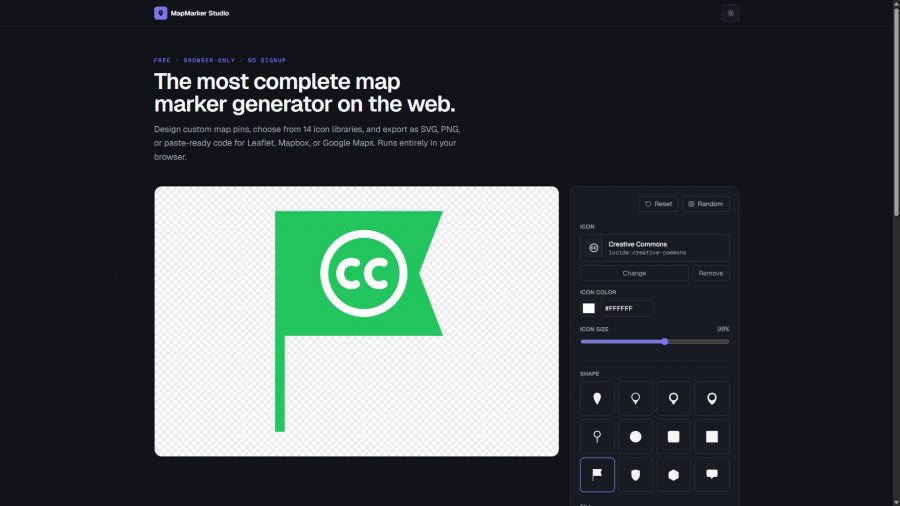
It’s free, runs in your browser, needs no signup, has 40,000+ icons, downloads map icons as SVG or PNG, and gives you paste-ready code for every major mapping platform.
This guide covers what custom map icons are, why the defaults fall short, how to design good ones, and how to get them onto your map.
What is a custom map icon?
A map icon is the graphic that marks a location on a map.
Depending on the platform, it’s called a map marker, a map pin, or a map icon, and all 3 mean the same thing.
Every mapping platform ships with a default.
Google Maps has its red teardrop. Leaflet and Mapbox both default to a blue pin.
They work, but they’re forgettable.
When you have more than 1 type of location on a map (restaurants vs. hotels, open vs. closed, free vs. paid), you need icons that look different, and the defaults don’t give you that.
A custom map icon is any icon you’ve designed or customized yourself.
It can have a different shape or color, a symbol inside it, a label, or a shadow, whatever helps users scan the map faster.
Custom map icons fall into 3 categories.
Image-based icons are PNG or SVG files placed on the map at specific coordinates.
They’re simple and work on every platform.
The downside is that PNGs get blurry on retina displays, and every color change means exporting the file again.
Vector symbols are shapes drawn by the mapping library itself and styled with code.
They stay sharp at any zoom level and are easy to recolor on the fly.
Libraries like Mapbox GL support them natively, and Leaflet supports them through plugins.
HTML markers use a full HTML element as the map icon.
They’re useful for clusters, info badges, and animated pins.
They’re more flexible, but they’re more expensive to render when a map has a lot of them.
For 90% of directory and dashboard use cases, SVG map icons are the right choice.
They’re sharp, lightweight, easy to recolor, and they work on every platform.
Why the default map icons fall short
People usually end up needing custom map icons for 3 reasons.
Multiple categories on 1 map. If your map shows restaurants, hotels, and gas stations, you need 3 icons that are easy to tell apart.
That can be the same shape with different symbols, or the same symbol in different colors.
The defaults give you 1 icon.
Brand consistency. A SaaS dashboard with neutral grays and a single accent color shouldn’t have a red Google pin sticking out.
The map icon is part of the UI.
Information density. Unless you’re using a Marker Cluster extension, a map with 200 locations needs simpler, smaller icons than a map with 8.
The default is sized for “moderate density” and looks wrong at both extremes.
What makes a good map icon
Years of building maps for WordPress sites taught us a few rules.
None of them is surprising, but most existing tools ignore them.
Recognizable at small sizes. Most map icons display at 24 to 32 pixels.
If you can’t read the symbol at that size, the icon doesn’t work.
Squint at it to test.
High contrast against the map. Light icons on light map tiles disappear.
Pick a fill color and a contrasting border so the icon stays visible on satellite, street, and dark themes.
1 clear silhouette. The teardrop pin works well because it has a clear tip that points at the location.
Circles, squares, and hexagons work well too, but an icon without a clear anchor point can make users misread which spot on the map it refers to.
Symbol inside the shape. Map icons with the symbol outside the shape (label-style) clutter the map.
3 colors maximum. Use 1 for the shape, 1 for the symbol, and 1 accent.
Any more and the icon looks busy at small sizes.
The 8 shapes that cover 95% of use cases
We tested dozens of shapes on real GeoDirectory maps.
These 8 handle nearly everything.
- Pin (classic teardrop): the well-known Google Maps pin, and the best default.
- Circle: minimal and modern, great for dense maps.
- Rounded square: has a Material Design feel and suits app-style UIs.
- Square: sharp and technical, suits architectural or data dashboards.
- Flag: reads as a destination or finish line, good for events and start and end points.
- Shield: suggests safety, security, or something official, good for emergency services or verified listings.
- Hexagon: popular in tech and data visualization, good for modern dashboards.
- Speech bubble: fits reviews and chat, good for testimonials or comment pins.
Map Icon Studio includes all 8 as starting points.
Choosing the right symbol
The symbol inside the map icon tells users what the location is.
If you pick the wrong one, the icon fails, however well it’s designed.
Here are a few guidelines.
Use a single icon library across your map. Mixing Font Awesome, Lucide, and custom SVGs looks messy.
Pick 1 library and stick to it.
Match symbol style to shape style. Use outlined symbols in outlined shapes and filled symbols in filled shapes.
Consistent style matters more than which library you pick.
Avoid symbols with thin lines. A 1px stroke disappears at map icon size.
Pick icons with a stroke weight of 1.5px or higher, or use a library that offers multiple weights (Phosphor is good for this).
Map Icon Studio includes 14 of the best icon libraries: Lucide, Phosphor, Tabler, Font Awesome, Heroicons, Material Symbols, Iconoir, Remix, Boxicons, Bootstrap Icons, Mage, Octicons, Radix, and Simple Icons (for brand logos such as Airbnb, Starbucks, and TripAdvisor).
That’s over 40,000 icons, all under open-source licenses.
How to add custom map icons to Leaflet, Mapbox, Google Maps and GeoDirectory
The exact code depends on your platform.
Here’s how it works on the most common ones, including the part that usually trips people up.
Leaflet
const customIcon = L.icon({
  iconUrl: 'https://your-cdn.com/marker.svg',
  iconSize: [32, 40],
  iconAnchor: [16, 40],   // tip of the marker
  popupAnchor: [0, -40]
});

L.marker([40.7128, -74.0060], { icon: customIcon }).addTo(map);
The part people get wrong is
iconAnchorFor a teardrop pin, that’s the bottom center (the tip).
If you get it wrong, your icon points to the wrong location.
The Leaflet map icon generator gives you this snippet with
iconAnchorMapbox GL JS
const el = document.createElement('div');
el.style.backgroundImage = 'url(https://your-cdn.com/marker.svg)';
el.style.width = '32px';
el.style.height = '40px';
el.style.backgroundSize = 'contain';

new mapboxgl.Marker({ element: el, anchor: 'bottom' })
  .setLngLat([-74.0060, 40.7128])
  .addTo(map);
Mapbox uses
[lng, lat][lat, lng]The Mapbox map icon generator gives you ready-to-use
mapboxgl.MarkerGoogle Maps
new google.maps.Marker({
  position: { lat: 40.7128, lng: -74.0060 },
  map: map,
  icon: {
    url: 'https://your-cdn.com/marker.svg',
    scaledSize: new google.maps.Size(32, 40),
    anchor: new google.maps.Point(16, 40)
  }
});
Browsers cache icon URLs, so if you’re testing changes to the same SVG URL, add a
?v=2The Google Maps custom icon generator calculates
scaledSizeanchorGeoDirectory
In GeoDirectory, custom map icons go in Categories → Edit Category → Default Category Icon.
Upload the SVG or PNG, and GeoDirectory uses it automatically for every listing in that category.
Image URL: https://your-cdn.com/restaurant-marker.svg
Recommended size: 36×46 px
Download the SVG from Map Icon Studio for WordPress, upload it there, and you’re done.
The same file works in most other WordPress map and store-locator plugins.
How Map Icon Studio works
The usual process is why we built Map Icon Studio.
You design an icon in Figma, export an SVG, write the Leaflet config from memory (and get the iconAnchor wrong the first time), test, fix, and deploy.
Then you repeat it for every category on your map.
The tool cuts that down to 4 steps.
- Pick a shape (8 options).
- Pick a symbol (40,000+ across 14 libraries).
- Pick colors.
- Copy paste-ready code for Leaflet, Mapbox, and Google Maps, or download the SVG or PNG for most WordPress mapping and directory plugins.
Everything runs in your browser, nothing gets uploaded to a server, there’s no signup, and it’s free.
Which file format to use
Use SVG whenever you can.
PNG is acceptable as a fallback when your platform doesn’t support SVG, but that’s rare in 2026.
SVG stays sharp at every zoom level, has smaller file sizes for a typical map icon, and supports recoloring with CSS variables.
PNG loses quality on retina screens unless you ship 2× and 3× versions.
The only exception is performance on very large maps.
Maps with 1,000+ icons on screen at once can render slightly faster with PNG.
Below that, SVG is the right choice.
Wrapping up
Custom map icons are one of those tasks that look like they should take 10 minutes and end up taking 2 hours.
Most of that time goes into working around the tools.
Every existing solution is either too restrictive, too expensive, or too generic.
We built Map Icon Studio because we’d hit this wall ourselves dozens of times across GeoDirectory installations.
It’s free and will stay free, and it works with every mapping platform we could think of.
If you find a use case it doesn’t cover, let us know.