This article explains how you can create new CSS rules to change the style of your site.
Most browsers have a built-in code inspector, for example FireFox has Firebug, Internet Explorer and Chrome have Developer Tools.
For the example below, we will use Chrome’s Developer Tools to change the footer background color on the GeoDirectory Demo.
- Open the Chrome browser to the web page where we want to change the style of an element.
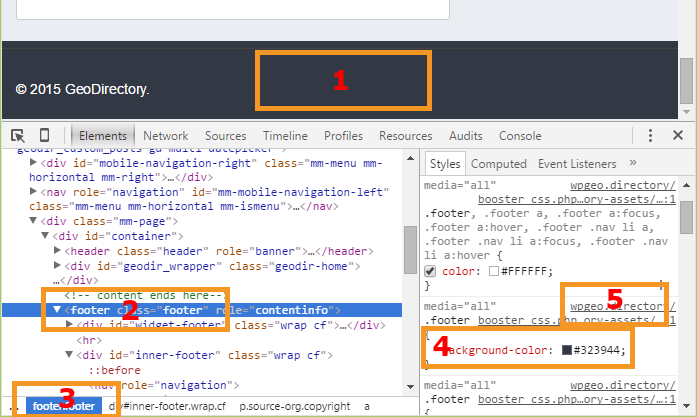
- Right click on the footer area element we want to change [Step 1 in the image below – we are right clicking on the footer].
- From the pop-up menu, choose Inspect element. If the code inspector is not open yet, it will open.
- If the element is not highlighted yet, we click on it to make sure it is [Step 2 and 3 – highlight the footer style].
- We can continue to select ‘Inspect’ until the element we want is highlighted in the code[Step 4 – in this case it shows that the footer class has a background color specified].
- The code inspector will also show you in which file you can find the code [Step 5].
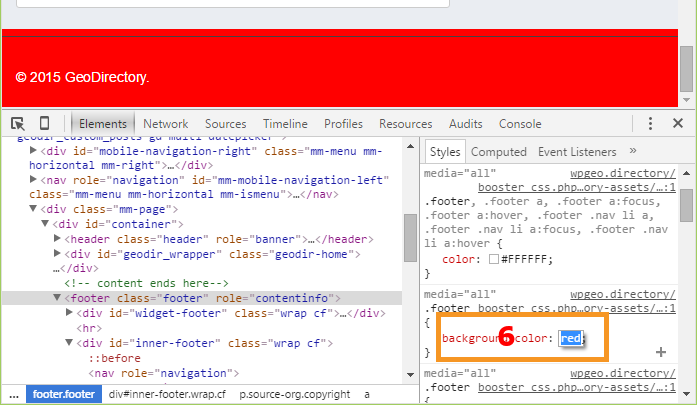
Turn off GD Booster before checking your CSS. - The CSS code is displayed, and we click on the rule to change the background color; double click starts the editing. In this case we will change the background color to red [Step 6 in the second image].
- If the CSS code is correct, the web page will adjust to show your change [The footer is now red].
- Use the mouse to highlight the CSS code and copy it to your clipboard; proceed to add it to your site. You can add custom CSS to GeoDirectory at GeoDirectory > Design > Scripts > CSS Custom Code, or use anotherplugin or even add that code to the stylesheet of your child theme at WP Admin > Appearance > Editor and locate style.css in your child theme.
- Add the code
.footer {background-color:red;}, and save. That will update your site.


Hints
- You can add “!important” if your style rule doesn’t seem to have an effect. ‘!important’ will raise the priority of the rule if it conflicts with other rules. Example:
[css]
.footer {background-color:red !important;}
[/css] - The code inspector will provide you with valid auto-complete suggestions as you type. Choose one, or two, and try them out until you become comfortable with the editor.
- See it in action on Youtbe by WPBeginner.
- Set a reminder on your calendar to backup your custom styles by copy/paste into a file every month. If you need to uninstall GD temporarily, don’t forget to make a copy of the Scripts you store in this location.
How to add CSS, PHP, and Javascript Snippets to your site
- CSS – Add CSS to the GeoDirectory Design Admin Panel called Scripts. Navigate to YourSite > GeoDirectory > Design > Scripts > Custom Style CSS Code
- PHP – Add PHP Snippets to your site with the Code Snippets plugin, a Very lightweight plugin that makes it easy to manage your custom code, and keeps it all in one place even if your plugins or themes get updated. There is a special case for ‘constants’, values that apply sitewide. These are PHP Snippets that start with ‘define’ like define(‘SD_DEFAULT_FEATURED_IMAGE’, “http://yourdomain.com/images/featured.jpg”). Constants should be added to your site’s wp-config.php file.
- Javascript – You may never need this, but if you do need to add a Javascript snippet, add it to YourSite > GeoDirectory > Design > Scripts > Header Script Code or Footer Script Code, depending on the instructions you receive with the snippet.
Useful resources
| Using child themes | http://codex.wordpress.org/Child_Themes |
| CSS tutorial | http://www.w3schools.com/css/ |
| Using FireFox Page Inspector | https://developer.mozilla.org/en-US/docs/Tools/Page_Inspector |
| Using Chrome Dev Tools | https://developer.chrome.com/devtools/docs/elements-styles |
| Using Internet Explorer F12 developer tools | http://msdn.microsoft.com/library/ie/bg182326 |
| SiteOrigin CSS Plugin | https://wordpress.org/plugins/so-css/ |