Better Search Replace plugin

  1. Better Search Replace will assist with changing URLs or slugs etc in your database.
  2. It is also very helpful when changing your site from HTTP to HTTPS.

Changing slugs that have -1 appended

  1. Sometimes when you add a new location or category etc, the slug [part URL] might get a “-1” appended. For example mysite.com/location/east-sussex-1/
  2. This happens because WP does not allow duplicate slugs, and there already is something else using the slug east-sussex.
  3. This can be a tag, or a post name etc.
  4. It can also still be in the database from an old plugin you deleted.
  5. The solution is to search the database for the slug east-sussex and change it to east-sussex-2
  6. Then search for east-sussex-1 and replace all results (except the one you just changed) with east-sussex.

First replace the “correct” slug in the database

  1. Go to your database using phpMyAdmin.
  2. Search for the “correct” slug and replace it if required.
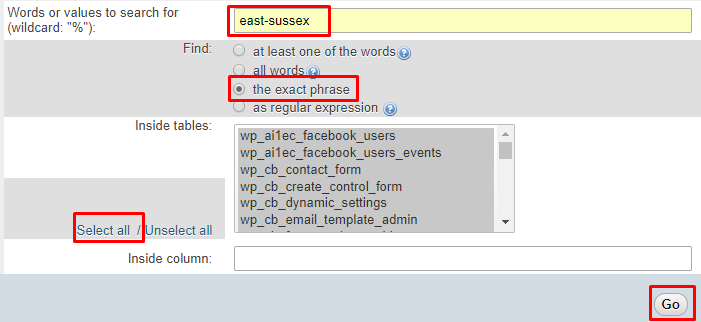
  3. Go to the Search:
  4. Search for east-sussex:
  5. Review the results:
  6. Adjust if you like by double clicking the field and changing the slug:

Using Better Search Replace

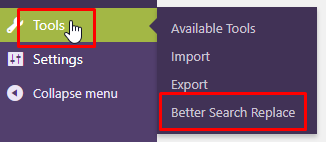
  1. After installing the Better Search Replace plugin, go to Tools > Better Search Replace:
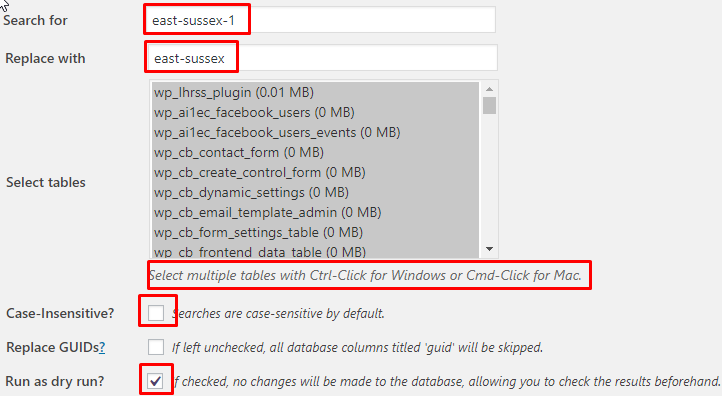
  2. Let’s now search for the slug that we want to replace:
  3. You can now review where the slugs will be replaced:
  4. If all is OK, run the process, but un-tick the “Run as dry run” box.
  5. Once that is done, re-save WP Settings > Permalinks.

Autoptimize Settings

GD Booster can not be used with this plugin, we recommend using WP Super Cache to compliment Autoptimize
Autoptimize is a popular html optimization plugin for WordPress and is now compatible with GeoDirectory. For Autoptimize and GeoDirectoy to work together properly there are a few settings you must enable.

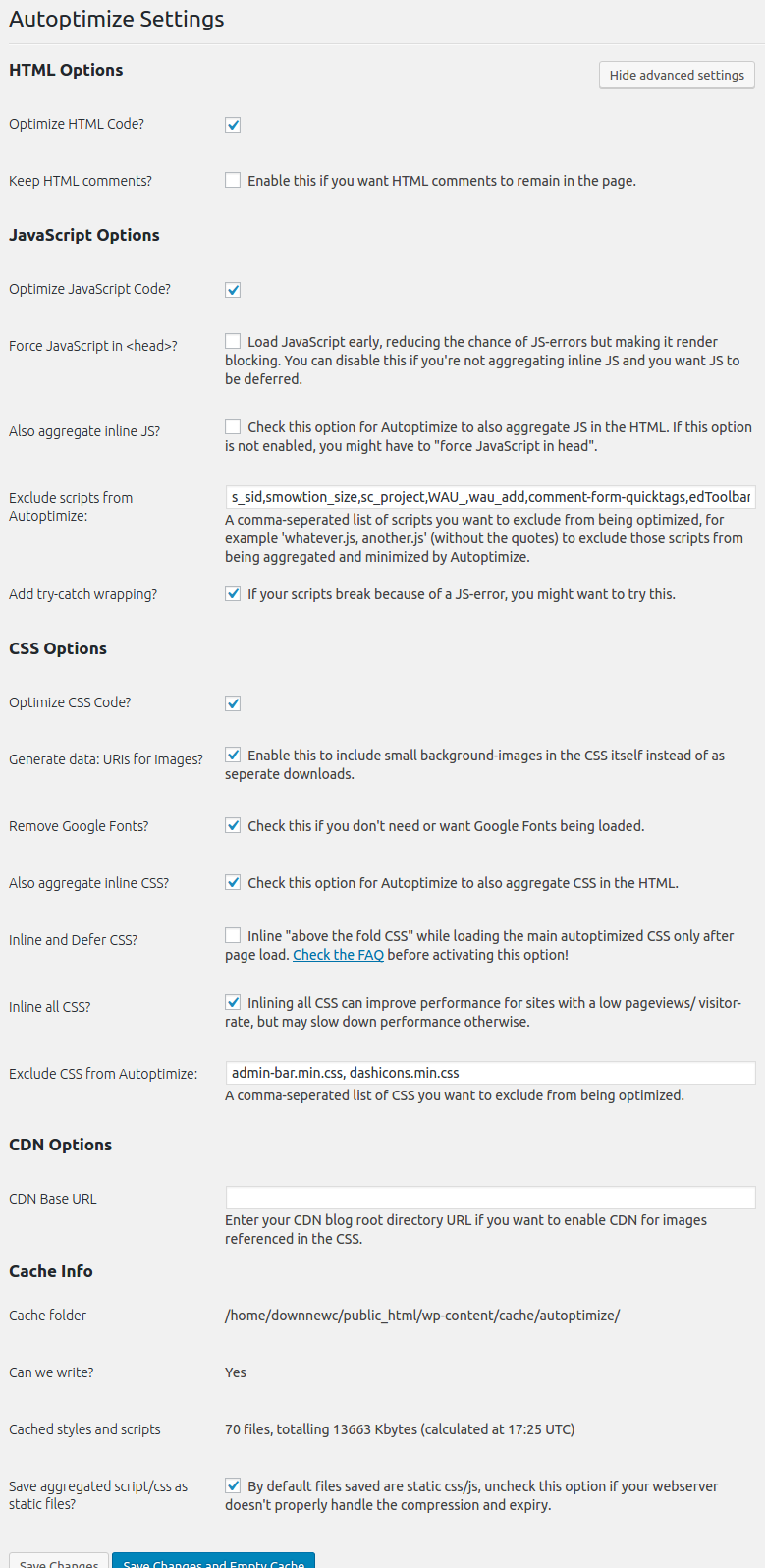
Under Settings>Autoptimize>:
The settings below are the ones that worked best during our testing and are highly recommended to follow but your theme may require different settings.

  1. Enable: Optimize HTML Code?
  2. Enable: Optimize JavaScript Code?
  3. Disable: Force JavaScript in?
  4. Disable: Also aggregate inline JS?
  5. Exclude scripts from Autoptimize:
    s_sid,smowtion_size,sc_project,WAU_,wau_add,comment-form-quicktags,edToolbar,ch_client,seal.js,jquery.js,frontend.min.js,quicktags.min.js,tinymce.min.js
  6. Enable: Add try-catch wrapping?
  7. Enable: Optimize CSS Code?
  8. Enable: Generate data: URIs for images?
  9. Enable: Remove Google Fonts?
  10. Enable: Also aggregate inline CSS?
  11. Disable: Inline and Defer CSS?
  12. Enable: Inline all CSS?
  13. Exclude CSS from Autoptimize: admin-bar.min.css, dashicons.min.css

Autoptimize

WP Super Cache

GD Booster can not be used with this plugin, we recommend using Autoptimize to compliment WP Super Cache
WP Super Cache is a very popular caching plugin for WordPress and is now compatible with GeoDirectory. For WP Super Cache and GeoDirectoy to work together properly there are a few settings you must enable.

Under Settings>WP Super Cache>Advanced make sure to set the following settings:

  1. Enable: Don’t cache pages for known users.
  2. Enable: Don’t cache pages with GET parameters. (?x=y at the end of a url)

Useful plugins

Here you can find a list of plugins we think might be useful to you if you are looking to extend your GD site. There are plenty of other plugins about, but we know the ones listed here all work without any conflict with GD.

  1. Autoptimize
  2. Better Search Replace
  3. Code Snippets
  4. Easy Theme and Plugin Upgrades
  5. Report Content
  6. Widget Logic
  7. Yoast SEO Free
  8. WP Super Cache
  9. WPML
  10. Email

Autoptimize

  1. Autoptimize is a popular html optimization plugin for WordPress and is now compatible with GeoDirectory.
  2. For Autoptimize and GeoDirectory to work together properly there are a few settings you must enable.
  3. Please keep reading here for details of those settings.
  4. GD Booster can not be used with this plugin, we recommend using WP Super Cache to compliment Autoptimize.

Better Search Replace

  1. Better Search Replace will assist with changing URLs or slugs etc in your database.
  2. It is also very helpful when changing your site from HTTP to HTTPS.
  3. Read more here 

Code Snippets

  1. The Code Snippets plugin is an easy, clean and simple way to add code snippets to your site. It removes the need to add custom snippets to your theme’s functions.php file.
  2. It also allows you to update the files of a (child) theme without losing any customizations, because they are stored in the database instead of in your theme files.
  3. After installtion visit our ‘Tips and Tricks‘ page for snippets.
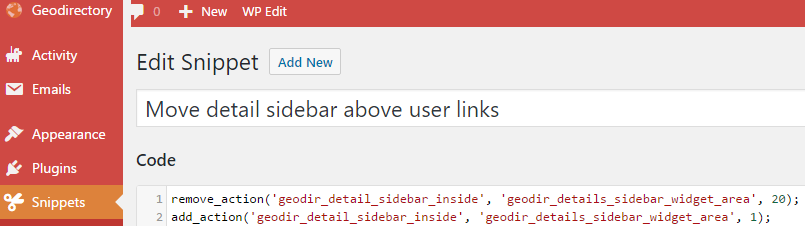
  4. Screenshot of an example snippet:
  5. Make sure you activate the snippet when using the Code Snippets plugin.
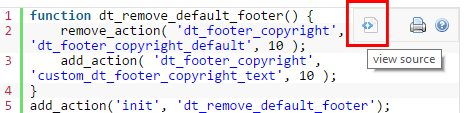
  6. To copy and paste any code from snippets in the GeoDIrectory documentation, hover over the right hand corner of the snippet and select view source:

Easy Theme and Plugin Upgrades

  1. WordPress has a built-in feature to install themes and plugins by supplying a zip file. Unfortunately, you cannot upgrade a theme or plugin using the same process. Instead, WordPress will say “destination already exists” when trying to upgrade using a zip file and will fail to upgrade the theme or plugin.
  2. Easy Theme and Plugin Upgrades fixes this limitation in WordPress by automatically upgrading the GeoDirectory theme or plugin if it already exists.

Report Content

  1. This plugin allows you to add a simple Ajax powered form to your listings so that your visitors can report inappropriate content, broken links and bugs.
  2. To make it work with your GD listings:
    1. Install and activate the Report Content plugin the usual way.
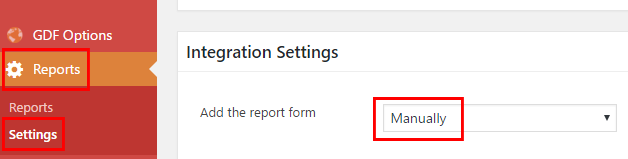
    2. Once installed select Reports > Settings from your WordPress admin menu, and under Integration Settings, set Add the report form to Manual:
    3. To add the Report form to your GD Detail pages, add this code to your child theme’s functions.php file, or use the Code Snippets plugin:

      [php]add_action(‘geodir_details_main_content’, ‘wprc_report_submission_form’,60);[/php]

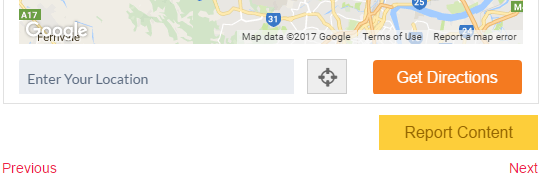
  3. And this is how it should all look:

Widget Logic

  1. The Widget Logic plugin lets you control on which pages widgets appear using WP’s conditional tags.
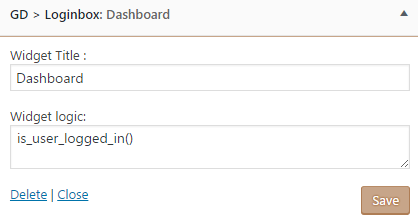
  2. This example will show the dashboard widget only to users that are logged in:
  3. Some GD specific codes to use:
    1. Only shows the widget if the post type is Places:

      [php]geodir_get_current_posttype()==’gd_place'[/php]

      for a single GD Place detail page

      [php]is_singular( ‘gd_place’ )[/php]

      for a GD Place Archive Page

      [php]is_post_type_archive(‘gd_place’)[/php]

    2. Will show the widget if the location is Queensland:

      [php]strtolower(geodir_get_current_location(array(‘echo’ => false)))==strtolower(‘queensland’)[/php]

    3. Will show the widget if the page is a Custom Post Type page for Places, ie not for a category, AND if the location is Queensland:

      [php]geodir_is_page(‘pt’) && get_query_var( ‘post_type’ )==’gd_place’ && strtolower(geodir_get_current_location(array(‘echo’ => false)))==strtolower(‘queensland’)[/php]

    4. Will show the widget if the location has the slug el-dorado-hills in the URL:

      [php]in_array(‘el-dorado-hills’, geodir_get_current_location_terms(‘query_vars’))[/php]

  4. You can find all the Conditional tags here.
  5. If the code does not work as expected, the first thing to check is that you are using straight quotes instead of curly quotes; this can happen when copying and pasting code.

Yoast SEO

    1. The Yoast SEO helps you write bettercontent with previews and page analaysis.
    2. Search the forums for hundreds of tips on how to use this plugin to improve your rankings.
    3. Yoast SEO is the best and only plugin that can be used for creating sitemaps (sitemap.xml) when the Location Manager Add On is active.

Yoast SEO by Team Yoast

WP Super Cache

  1. WP Super Cache is a very popular caching plugin for WordPress and is now compatible with GeoDirectory.
  2. For WP Super Cache and GeoDirectory to work together properly there are a few settings you must enable.
  3. Under Settings > WP Super Cache > Advanced make sure to set the following settings:
    1. Enable: Don’t cache pages for known users.
    2. Enable: Don’t cache pages with GET parameters. (?x=y at the end of a url)
  4. GD Booster can not be used with this plugin, we recommend using Autoptimize to compliment WP Super Cache

WPML

WPML makes it easy to create a multilingual GeoDirectory site. All that is required is the Multilingual Blog plugin itself. Once installed check the following settings:

  1. WPML > Languages > Language URL format: select Different languages in directories (examples: yoursite.com/en, yoursite.com/fr etc)
  2. WPML > Translation Options > Custom Posts: select your Custom Post types, like Places and Events.
    (This option will not show if you have the WPML Translation Management plugin active – in that case, go here)
  3. If you want to translate Custom Post Type slugs as well, you need the Multilingual CMS plugin.

Review GD translation documentation

Default Featured Image

Have you ever wanted to create a slideshow with another plugin, but, found that the Listing Featured Images didn’t appear as expected? This plugin will ‘tick’ an additional option for the listing featured image so that the featured image, the first image for you listing, can be used in other ways and by other plugins on your site.

  1. Use a Default Featured Image with other third party plugins to create slideshows or other displays.
  2. GeoDirectory has you covered for GD specific lists, but you can use this plugin when you need a solution to work with other plugins.
  3. Get Default Featured Image on WordPress.org

Anti-Spam on Registration

We have two recommendations for keeping unwanted Spammers from registering on your site.

  1. Paid plugin – https://wordpress.org/plugins/cleantalk-spam-protect/
  2. Free plugin – Stop Spammer Registrations – https://wordpress.org/plugins/stop-spammer-registrations-plugin/

Email Log

Wondering why you aren’t receiving email from your site?

  1. Email Log https://wordpress.org/plugins/email-log/
  2. Log each email that is created by the site, and verify if it is sent out or not.

Moving videos to the sidebar of the detail page

Introduction

  1. One of the standard custom fields is a video field where you or your users can add a YouTube video to a listing.
  2. That video then will show on the detail page in the content section of the listing.
  3. This article explains how you can move the video from the content section to the sidebar.

Before:

After:

Step 1: Install Code Snippets plugin

  1. You can add the code below to your child theme’s functions.php file as well, but using the Code Snippets plugin makes it easier to keep track of the code, and it will be less likely the code is overwritten by a theme update.

Step 2: Code

Add a new code snippet, and copy and paste the following code:

[php]
add_filter(‘geodir_detail_page_tab_is_display’, ‘custom_gd_hide_video_tab’, 10, 2);
function custom_gd_hide_video_tab($value, $tab) {
if ($tab == ‘post_video’) {
$value = false;
}
return $value;
}

add_action(‘geodir_detail_sidebar_inside’, ‘custom_gd_show_video_in_sidebar’, 1);
function custom_gd_show_video_in_sidebar() {
global $post;
$video = ”;
if (geodir_is_page(‘preview’)) {
$video = isset($post->geodir_video) ? $post->geodir_video : ”;
} elseif (geodir_is_page(‘detail’)) {
$video = geodir_get_video($post->ID);
}
if ($video != ”) {
echo ‘<div class="geodir-video-wrapper">’;
echo wp_oembed_get(stripslashes($video));
echo ‘</div>’;
}
}

add_action(‘wp_head’, ‘custom_video_responsive_css’);
function custom_video_responsive_css() {
if (geodir_is_page(‘preview’) || geodir_is_page(‘detail’)) {
?>
<style type="text/css">
.geodir-video-wrapper {
margin-top: 20px;
position: relative;
padding-bottom: 56.25%; /* 16:9 */
padding-top: 25px;
height: 0;
margin-bottom: 10px;
}

.geodir-video-wrapper iframe {
position: absolute;
top: 0;
left: 0;
width: 100%;
height: 100%;
}
</style>
<?php
}
}
[/php]

Make sure you activate the snippet when using the Code Snippets plugin.

Step 3: Adding video link

When adding the video link, only add the link to the video. For example:

[html]https://www.youtube.com/watch?v=rxgWHzMvXOY[/html]

Step 4: Add a tip for your users

You can add a description to the video field at GD > Place Settings > Custom fields > Video field:

Changing the layout of addresses

The default display of addresses is in this format:

Address: Street Address
City
Region
ZIP or postcode
Country

That format is not always how addresses are set out in some countries, or you want to drop the region or country etc.

The following code, when added to functions.php of your child theme, or as a code snippet when you use the Code Snippets plugin, will output exactly the same as the default display above:

[php]
add_filter(‘geodir_show_post_address’, ‘geodir_change_address_order’ , 100 , 2) ;
function geodir_change_address_order($html , $vars)
{
global $post, $preview, $wpdb;
$field_icon=”;
if (strpos($field_icon,’http’) !== false) {$field_icon_af = ”;}
elseif($field_icon==”){$field_icon_af = ‘<i class="fa fa-home"></i>’;}
else{$field_icon_af = $field_icon; $field_icon=”;}

if(!$preview)
{
$html = ‘

‘;
$html .= ‘<span class="geodir-i-location" style="’.$field_icon.’">’.$field_icon_af;
$html .= ‘&nbsp;Address:&nbsp;’;
$html .= ‘</span>’;
//print_r($_POST);

if($post->post_address){ $html .= ‘<span itemprop="streetAddress">’.$post->post_address.'</span>
‘;}
if($post->post_city){ $html .= ‘<span itemprop="addressLocality">’.$post->post_city.'</span>
‘;}
if($post->post_region){ $html .= ‘<span itemprop="addressRegion">’.$post->post_region.'</span>
‘;}
if($post->post_zip){ $html .= ‘<span itemprop="postalCode">’.$post->post_zip.'</span>
‘;}
if($post->post_country){ $html .= ‘<span itemprop="addressCountry">’.$post->post_country.'</span>
‘;}
$html .= ‘

‘;
}
return $html ;
}
[/php]

Always back up your functions.php before making changes, in case you make a mistake!

By adjusting parts of the code, we can move things around, or delete parts. Let’s for example change the format to:

Address:
Street Address
City ZIP or postcode
Country

The following changes to the above code give an example of how the address format can be customized:

[php]
if($post->post_address){ $html .= ‘
<span itemprop="streetAddress">’.$post->post_address.'</span>
‘;}
if($post->post_city){ $html .= ‘<span itemprop="addressLocality">’.$post->post_city.'</span> ‘;}
if($post->post_zip){ $html .= ‘<span itemprop="postalCode">’.$post->post_zip.'</span>
‘;}
if($post->post_country){ $html .= ‘<span itemprop="addressCountry">’.$post->post_country.'</span>
‘;}
if($post->post_region){}
[/php]

Linking to Google Maps from a detail page

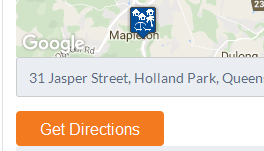
  1. You can get Google Map directions to the location of a listing from a standard GD detail page.
    To get directions, you enter an address in the address field, and then click Get Directions:
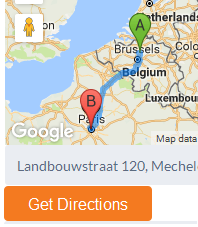
  2. That will give directions on the Google map on the website page:
  3. The code snippet below will create a link on the detail page, that open Google Maps with the location of the GD listing ready on the map.
  4. On a mobile device you can then use the Google Map App to get directions.

    [php]function geodirectory_detail_page_google_map_link( $options, $canvas ) {
    global $post;

    if ( $canvas == ‘detail_page_map_canvas’ && !empty( $post->post_latitude ) && !empty( $post->post_longitude ) ) {
    ?>
    <p><a href="http://maps.google.com/?q=<?php echo $post->post_latitude . ‘,’ . $post->post_longitude ;?>" target="_blank"><?php echo __( ‘Get Directions on Google Maps’, ‘geodirectory’ ); ?></a></p>
    <?php
    }
    }
    add_action( ‘geodir_map_after_render’, ‘geodirectory_detail_page_google_map_link’, 10, 2 );[/php]
Changing the position on the page

  1. The above code will add the link below the map on the detail page.
  2. If you want to add the link in the profile tab, you can use this code:

    [php]function geodirectory_detail_page_google_map_link() {
    global $post, $preview;

    if ( !$preview && !empty( $post->post_latitude ) && !empty( $post->post_longitude ) ) {
    $maps_url = add_query_arg( array(
    ‘q’ => $post->post_latitude . ‘,’ . $post->post_longitude,
    ), ‘http://maps.google.com/’ );
    ?>
    <p><a href="<?php echo $maps_url; ?>" target="_blank"><?php echo __( ‘Get Directions on Google Maps’, ‘geodirectory’ ); ?></a></p>
    <?php
    }
    }
    add_action( ‘geodir_after_description_on_listing_detail’, ‘geodirectory_detail_page_google_map_link’);[/php]
  3. If you would like to move the link to the top, replace the string
    geodir_after_description_on_listing_detail
    with
    geodir_before_description_on_listing_detail

CSV Tips and Tricks

Saving a CSV correctly

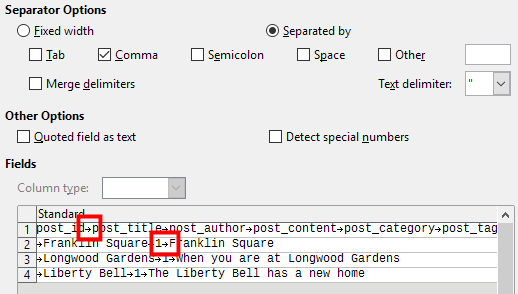
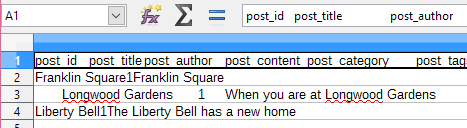
  1. We regularly see CSV files that are saved with incorrect settings, for example they are not saved with comma separated values (CSV), but tab separated values, and then they look like this when opened:
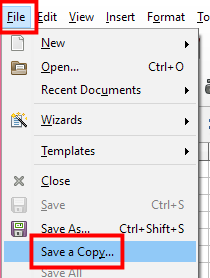
  2. To make sure you save your CSV file correctly, choose Save a copy from the File menu:
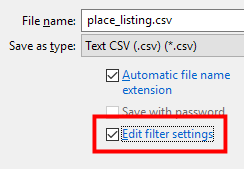
  3. In the next dialog box, tick Edit filter settings and then Save:
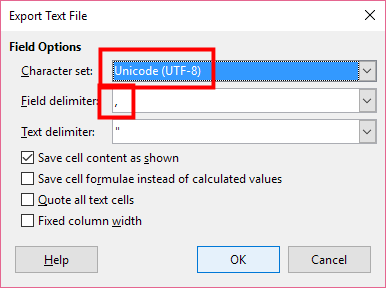
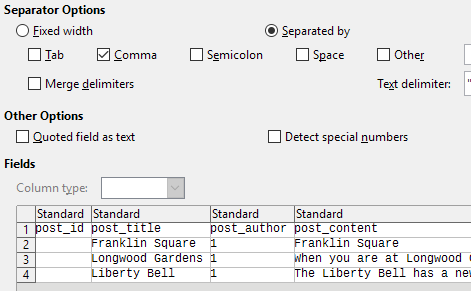
  4. In the next dialog box, make sure you pick UTF-8 as character set and comma as field delimiter:
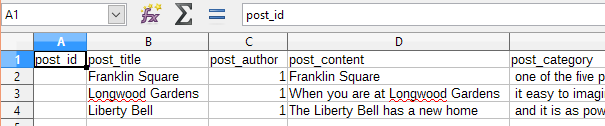
  5. Your file should now look like this when opened as a comma delimited file:

GeoTheme to GeoDirectory Conversion Tutorial

Before you start:

  1. BACKUP EVERYTHING! (yes that is me shouting)
  2. Make sure you have the latest GeoTheme (GT) installed (3.7.1).
  3. Make sure your WordPress (WP) is up to date (4.5+)

For this tutorial we will be converting the site barra-accommodation.co.uk from GT to GD.
Please don’t try this on a live site, we will be copying our entire site to a sub directory and running the conversion there first.

Make a dev site for the conversion:

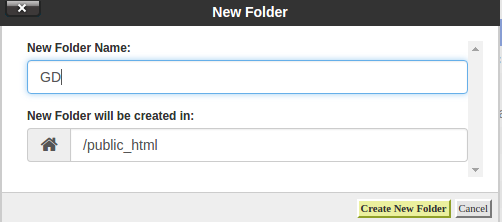
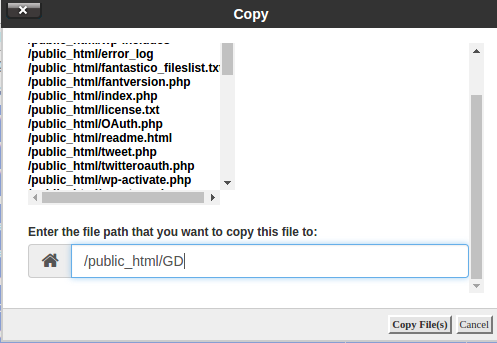
  1. Copy your site files to a sub-folder or sub-domain for testing the conversion, in our case we will be copying our site to a /GD/ sub-folder. Below i am using Cpanel but the same can be achieved with SSH or FTP.
    gd-folder-createcopy-files
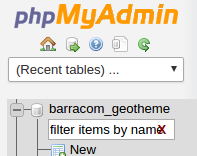
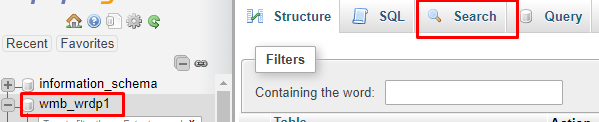
  2. Copy Your DataBase (DB), in my case i am using phpMyAdmin to do this which is included in cpanel usually.
    Select your table:
    select-dbSelect “Operations”:
    select-operations
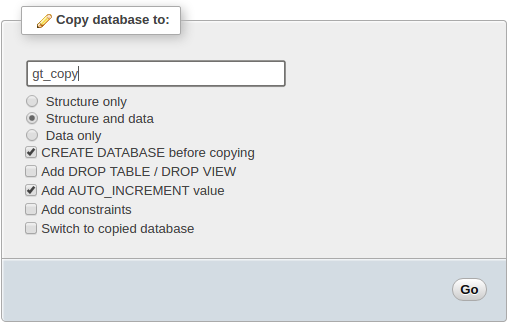
    Copy the table:
    name-new-db
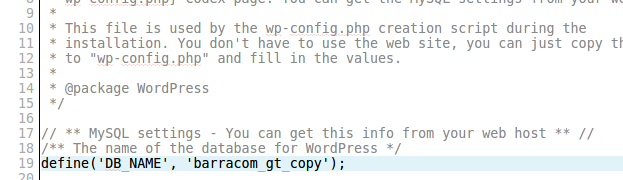
  3. Edit your wp-config.php file in your dev site to use the copied Database.
    edit-wp-config
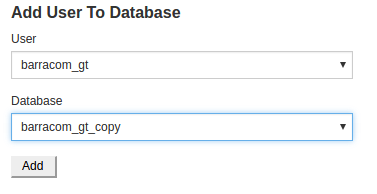
  4. Make sure the DB user has privileges on the new table, you can use Cpanel for this to add the user to the copied table:
    add-user-to-db
  5. Finally change the “siteurl” and “home” values to the new url in your DB wp_options table.
    chnge-urls-db
    to our dev url with /GD at the end:
    urls-change-db
  6. Dev Note:  If you have plugin “Query Monitor” installed and active it can cause problems, just delete the folder from your plugins if you are getting 500 error on your dev site.

You should now have a working dev site that we will use for the conversion.

Start The Conversion:

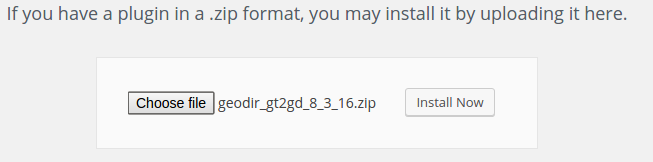
  1. Install and activate the GT2GD conversion plugin DOWNLOAD Latest
    gt2gd-install
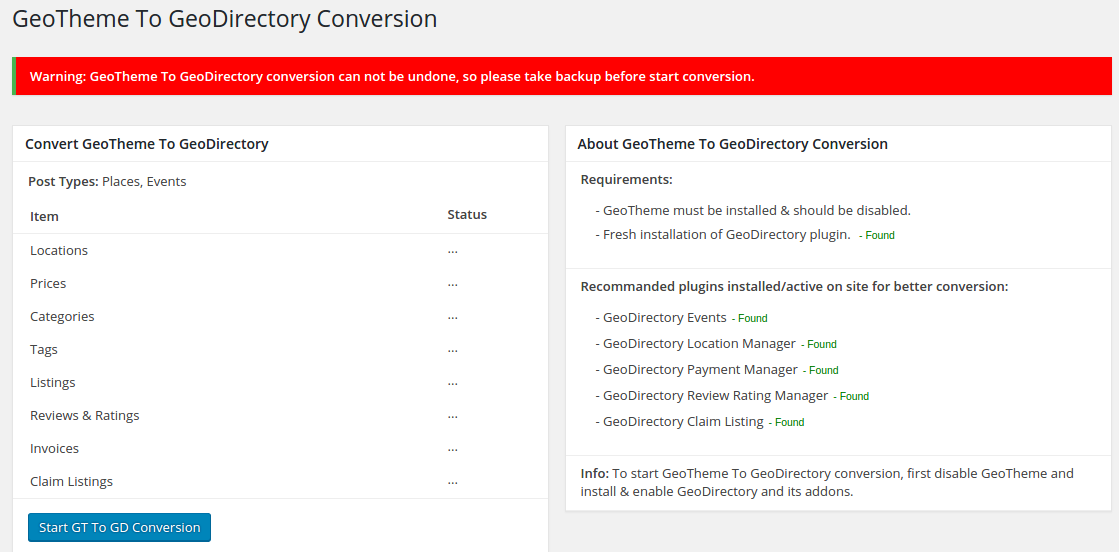
  2. Go to the GT2GD admin screen, here it will have most instructions on what to do next but in this case you can continue to follow this tutorial:
    gt2gd-screen
  3. Switch theme to a non GT theme, i would suggest Directory Starter which can be installed direct from your wp-admin area by searching themes for “Directory Starter” but you could use just a standard WP theme.
  4. Disable any non essential plugins, especially any caching plugins.
  5. Install and activate GeoDirectory and set the default location and then any addons you will be using.  It is important to install and activate addons like Location Manager, Events, Payments Manager, Claim listings addons etc if you have this sort of info in your GT install. (or just activate everything if your not sure). You dont need to add any setting for the addons at first, you can do that after the conversion.
  6. Now visit the GT2GD admin screen again and you should now see the button to start the conversion:
    start-conversionClick the button to start the conversion:
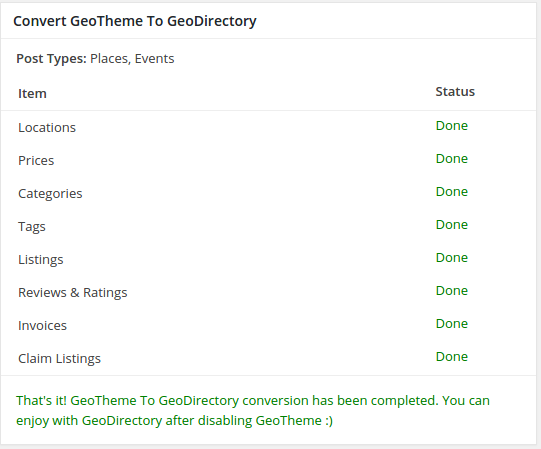
    conversion-done
  7. Once done, go to both Place & Event Settings for custom fields and simple save any ONE field, this will rebuild the sort order which can stop some fields showing on the edit pages.
  8. Check over your listings to make sure they converted properly.

If the conversion worked for your site you can then either reverse the steps for creating the dev site to copy the dev site to the main site or simply carry out the conversion on your live site (assuming you have another backup), if copying the dev site over be sure to search the DB for any dev site urls. You might want to setup your theme and setting on your dev site first before making it live, and remember to setup your new payment settings etc.

If you changed some settings on your dev site and now your live site seems to be pointing to them you can use a plugin called Better Search Replace to replace your dev site urls to your live site urls: https://wordpress.org/plugins/better-search-replace/

If you had existing PayPal subscription payments (recurring) you will need to add this snippet of code to your child theme functions file to be sure the PayPal payment updates your listing ok.

As always if you have any problems please open a new post on our support forum.

Thanks,

The GeoDirectory Team