
Introduction
The marker cluster addon improves map and site performance by clustering markers from nearby locations. The single ‘marker cluster’ represents several locations at once, and clicking the cluster zooms in and expands the individual markers.
If you have multiple widget maps you can use the settings to choose which widget maps display clusters.
Installation
- Visit wpgeodirectory.com ( Buy a subscription if Required )
- Navigate to My Account > Downloads ( Login if Required )
- Download Geodir Marker Cluster zip file.
- Go to your WordPress site dashboard, Navigate to Plugins > Add New > Upload Plugin
- Browse and Upload the zip file you downloaded from wpgeodirectory.com
- Activate the plugin.
Configuration
Navigate to Geodirectory > Design > Marker Cluster
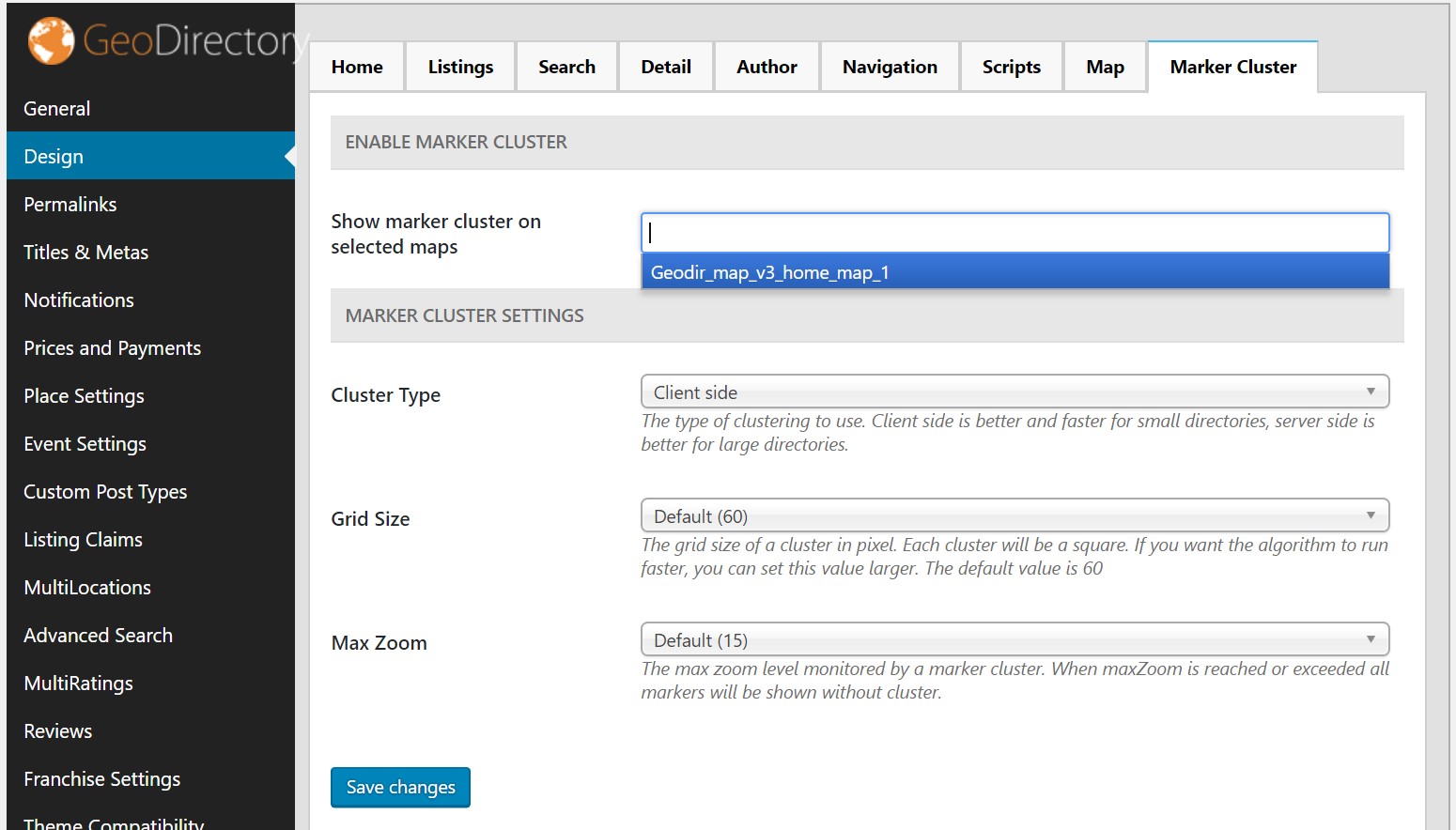
Enable Marker Cluster
- Show marker cluster on selected widget maps
- select the widget map names to apply marker cluster.
- if you see no items in dropdown that means you are not using any widget maps in WordPress – Appearance – Widgets.
- Navigate to Appearance > Widgets and then use GD > GMap Home Page widget in GD Home Top section
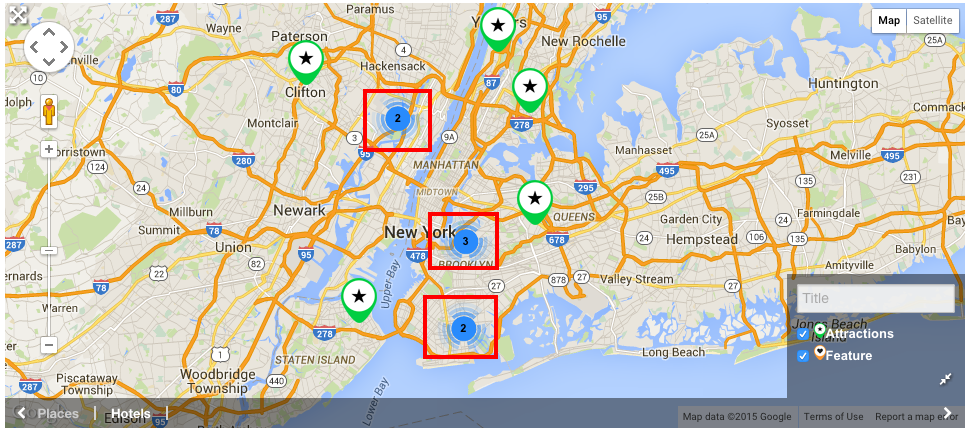
- Clusters are marked with red square in the following screenshot.
Marker Cluster Settings
- Cluster Type
- Server side rendering can be used to improve performance of GD Home Maps created with widgets and shortcodes.
- Grid Size
- The grid size of a cluster in pixel.
- Each cluster will be a square.
- If you want the algorithm to run faster, you can set this value larger.
- The default value is 60
- Max Zoom
- The max zoom level monitored by a marker cluster.
- When maxZoom is reached or exceeded all markers will be shown without cluster.
- The default value is 15