Updating or changing franchises using CSV import

Introduction

Maybe you already have a number of listings and you just installed the Franchise Manager Add-on, and you want to re-organize your listings, assigning some as main listings and some as franchises.

Or you want to add new listings to your directory using the CSV upload.

Or you just want to make some changes to some of your franchise listings.

Updating or changing franchises using CSV import

  1. Make sure you are familiar with the CSV import and export functionalities of GD.
  2. Activate the Franchise Manager Add-on if not done already.
  3. Make sure your main listings are added to your database already. If not, add them using your admin area or a CSV  import.
  4. Export your listings using the CSV export at GD > Import & Export.
  5. The table below shows an example of an exported CSV:
    post_id post_title ignored columns gd_is_franchise gd_franchise_lock franchise ignored columns
     10 Main 1 geodir_email, post_title  0
     11 Chain 0  0
     12 Franchise1 0  10
    1. post_id: An exported file always has a post_id for each post.
    2. gd_is_franchise: 1 means this is a main listing.
    3. gd_franchise_lock: This are the locked custom fields.
    4. franchise: A number other than zero here means this is a franchise of a main listing, in this example Franchise1 is a franchise of the Main listing.
  6. Now let’s make a few changes:
    1. Add a new franchise to Main.
    2. Change Chain into a main listing, and do lock the video custom field.
    3. Make Franchise1 a franchise of Chain.
  7. This is the new CSV file to upload:
    post_id post_title ignored columns gd_is_franchise gd_franchise_lock franchise ignored columns
     10 Main 1 geodir_email, post_title  0
     11 Chain 1 geodir_video  0
     12 Franchise1 0  11
    Franchise2 0  10
    1. Leave the post_id of existing listings, so they will be overwritten when re-uploading.
    2. New listings should not have a post_id.
    3. Changing gd_is_franchise to 1 changes Chain into a main listing.
    4. Adding geodir_video to gd_franchise_lock for Chain means that all future franchises of Chain will show the same video custom field as the main listing.
    5. Changing franchise from 10 to 11 for Franchise1 now assigns Franchise1 as a franchise of Chain instead of Main.
    6. Franchise 2 is a new listing, so does not have post_id and is assigned as a franchise of the listing with post_id 10 (Main).
  8. Finally, re-upload the CSV file, and make sure to select Update listing if post with post_id already exists on the Import & Export page.

Franchise addon filters

You can use these filters in your child theme’s functions.php file.

Change the tab

  • This code will change the title of the More Franchises tab: change More Branches to the text of your choice.
  • You can change gd_place to use the code for another custom post type.

[php]
function geodir_franchise_change_franchises_tab_text($text, $post_type) {
if ($post_type == ‘gd_place’) {
$text = __(‘More Branches’, ‘geodir-franchise’);
}
return $text;
}
add_filter( ‘geodir_franchise_franchises_tab_text’, ‘geodir_franchise_change_franchises_tab_text’, 10, 2 );
[/php]

Change the link to all franchise listings

  • This code will change the title of the View all franchises link: change View all branches to the text of your choice.
  • You can change gd_place to use the code for another custom post type.

[php]
function geodir_franchise_change_all_link_text($text, $post_type) {
if ($post_type == ‘gd_place’) {
$text = __(‘View all branches’, ‘geodir-franchise’);
}
return $text;
}
add_filter( ‘geodir_franchise_all_franchises_link_text’, ‘geodir_franchise_change_all_link_text’, 10, 2 );
[/php]

Change the Add franchise link

  • This code will change the title of the Add Franchise link: change Add Branch to the text of your choice.
  • You can change gd_place to use the code for another custom post type.

[php]
function geodir_franchise_change_add_link_text($text, $post_type) {
if ($post_type == ‘gd_place’) {
$text = __(‘Add Branch’, ‘geodir-franchise’);
}
return $text;
}
add_filter( ‘geodir_franchise_add_franchise_link_text’, ‘geodir_franchise_change_add_link_text’, 10, 2 );
[/php]

Franchise Manager Add-on

On this page

Introduction Applications Installation Configuration Integration with the Pricing Manager addon
Usage Adding the main listing Adding the branch listingsPrice Options

Introduction

The Franchise Manager allows users to submit listings for chains of businesses or franchises faster and allows directory owners to monetize those listings in a smarter way if combined with the Prices and Payments Addon.

After entering the main listing for a new Chain, fields of the Add Listing form can be locked. This way you can pre-populate most fields but allow the address, telephone number and email address to be entered separately for all branches of the chain. When the main listing is edited, locked fields are edited for all branches too.

If the Prices and Payments Addon is installed, you need to enable franchises for the price packages of your choice, and you can set a different price for the main listing and a different price for the extra branches.
If not using the Prices and Payments addon, franchises will automatically be activated for all of your listings.

A new tab appears in all listings belonging to a franchise, showing the other franchisees listings.

It is possible to browse the list of all franchisees belonging to the same chain in a regular listings page too.

Applications

Here are a few examples to give you an idea how you could use the Franchise Manager:

Main listing Branch listings
Fast food chain All locations
Brewer of special beer All distributors
Rock band All regular venues where the band plays
Dietician All health centers visited regularly

Installation

Installation is done by uploading the ZIP file in the plugin section of your WordPress admin area.

Installing GD Addons

Configuration

Setup

Once you activated the Franchise Manager, you will get a new set of settings in the GD admin panel:

Most settings at GD > Franchise Settings are straight forward.

First you need to select the Custom Post Type(s) where you want to enable the Franchise features:

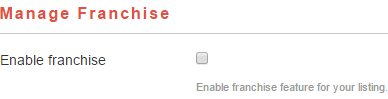
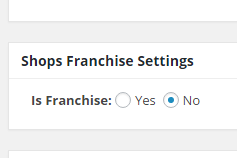
If you are not using the Payments Manager, then a new option will be available in both the frontend and backend Add Listing form for that CPT:

Frontend Backend

Integration with the Pricing Manager addon

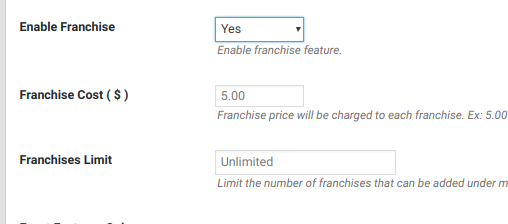
  1. If you are using the Payments Manager addon, then you will need to allow Franchises in the relevant price package before your users will have the option to use the franchise feature.
  2. You will first need to Enable Franchise in the price package and then save.
  3. Then re-edit the same price package to set the Franchise Cost and  the Franchises Limit.

Usage

Adding the main listing

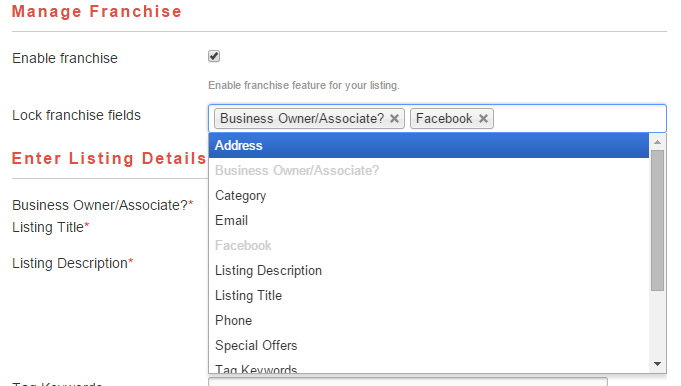
  1. When the user add their main listing, they can lock selected fields for all the branch listings.
  2. The locked fields will be auto-populated in any branch listing submitted.
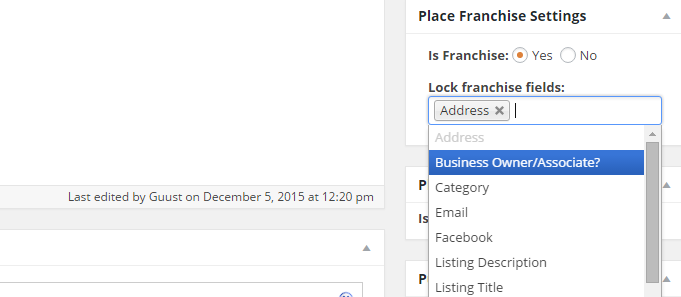
  3. If adding a franchise in the backend, these options will appear in the sidebar:

Adding the branch listings

  1. Branch listings can only be submitted by the same user that added the main listing.
  2. Branch listings need to be added from the front end.
  3. The custom fields locked by the main listing owner cannot be edited in the branch listings.
  4. If the main listing owner updates a locked field in the main listing, the same custom field will be updated in all branch listings.
    Example: a fast food chain has locked the special offer field, and can change that field on all branch listings to run a promotion in all the stores.

Price Options

If you are all setup and ready to sell the franchise listing option to your listing owner customers, then you will need to add the franchise option to at least once of your Price Packages. Go to:

GeoDirectory – Prices and Payments – Prices (tab) – Edit (choose a package to allow franchises)

Adjust the franchise options for the package as desired.