GD Core Plugin – Titles & Metas

These are the sections you will find when you install the GeoDirectory Core (free) plugin only:

OverviewGeneral – Google AnalyticsDesignPermalinks – Titles & Metas – NotificationsSet Default LocationPlace Settings – Theme Compatibility – Import & ExportGD Tools

On this page:

Introduction – Available variables – Using title & meta variables in widget titles

Introduction

  1. This image shows where to find the Titles & Metas settings:
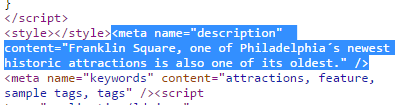
  2. These settings allow you to change the meta title

    and the meta description (Meta descriptions are commonly used on search engine result pages (SERPs) to display preview snippets for a webpage):
  3. If you use the Yoast SEO plugin, the settings added to GD > Titles & Metas will not work, you will need to use the settings of the Yoast SEO plugin.

Available variables

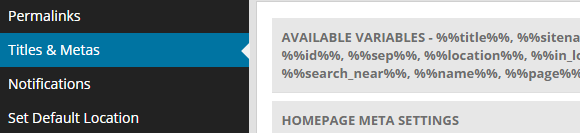
All meta titles and meta descriptions can use the following variables:

%%title%% Title of a listing.
Do not use for listings pages.
%%sitename%% Your site name as entered at WP Settings > General Settings > Site Title.
%%sitedesc%% Your site description as entered at WP Settings > General Settings > Tagline.
%%excerpt%% This refers to the WP excerpt you can add to listings, posts and pages.
%%pt_single%% The singular form of a Custom Post Type, for example Place or Event.
%%pt_plural%% The plural form of a Custom Post Type, for example Places or Events.
%%category%% Indeed, the category.
%%id%% The ID of the page or listing.
%%sep%% Separator between parts.
%%location%% Location in this format: city, region, country.
%%in_location%% Location with a prefix of your choice in this format: in city, region, country.
You can translate in in the core language file.
%%location_single%% Location referring to the location of the page itself, for example Madrid, or Japan.
%%in_location_single%% Location referring to the location of the page itself, with a prefix of your choice, for example in Los Angeles, or in Argentina.
You can translate in in the core language file.
%%search_term%% Whatever was entered as a search term (for search pages only).
%%search_near%% Location entered in the Near field of the GD Search (for search pages only).
%%name%% Name of the user (for author pages only).
%%page%% Title of a WP page.
%%pagenumber%%
%%pagetotal%%

Using title & meta variables in widget titles

  1. To enable the use the above variables in the titles of GD widgets, add this code to your child theme’s functions.php file, or use the Code Snippets plugin:

    [php]// Use title and meta variables in widget titles.
    function gd_widget_title( $title ) {
    if ( !empty( $title ) ) {
    $title = geodir_filter_title_variables( $title, ‘location’, ” );
    }

    return $title;
    }
    add_filter( ‘widget_title’, ‘gd_widget_title’, 10, 1 );
    add_filter( ‘bestof_widget_title’, ‘gd_widget_title’, 10, 1 );
    add_filter( ‘gd_features_widget_title’, ‘gd_widget_title’, 10, 1 );
    add_filter( ‘geodir_cpt_categories_widget_title’, ‘gd_widget_title’, 10, 1 );
    add_filter( ‘geodir_popular_location_widget_title’, ‘gd_widget_title’, 10, 1 );
    add_filter( ‘geodir_location_description_widget_title’, ‘gd_widget_title’, 10, 1 );
    add_filter( ‘geodir_location_neighbourhood_widget_title’, ‘gd_widget_title’, 10, 1 );[/php]

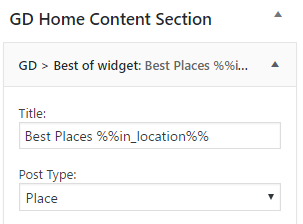
  2. You can now add as a title to one of the above widgets, for example:
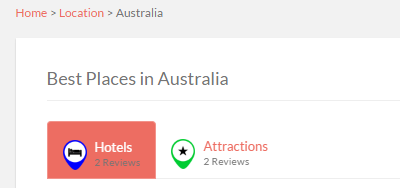
  3. And this would be the result for one of the location pages:

Add Google API KEY

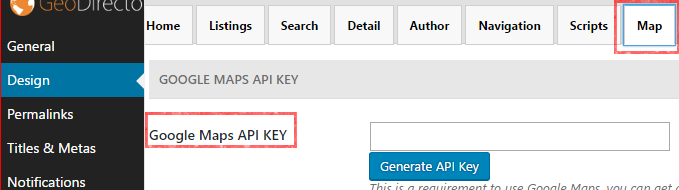
  1. You can find the setting in GeoDirectory under GeoDirectory > Design > Map > Google Maps API KEY:
  2. Log into your Google account in another tab or window.
  3. Click on Generate API Key.
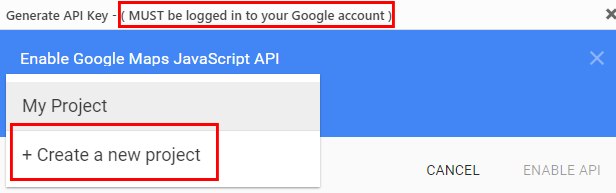
  4. In the popup, select Create a new project:
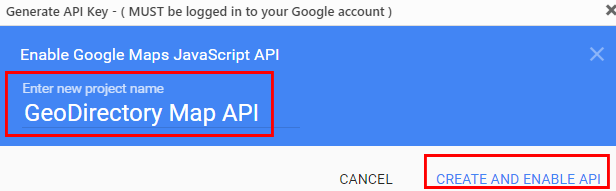
  5. When the popup shows the New Project, change the name if you like, and then click Create and enable API:
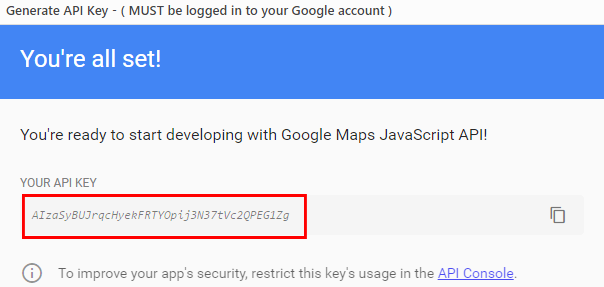
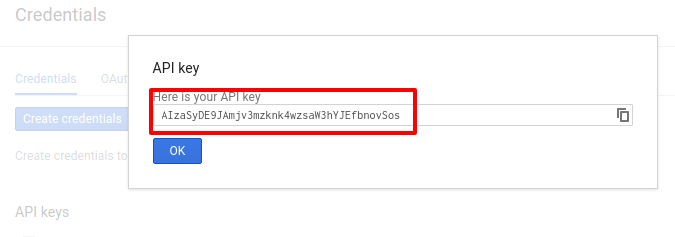
  6. Copy the key from the next screen:
  7. Close the popup.
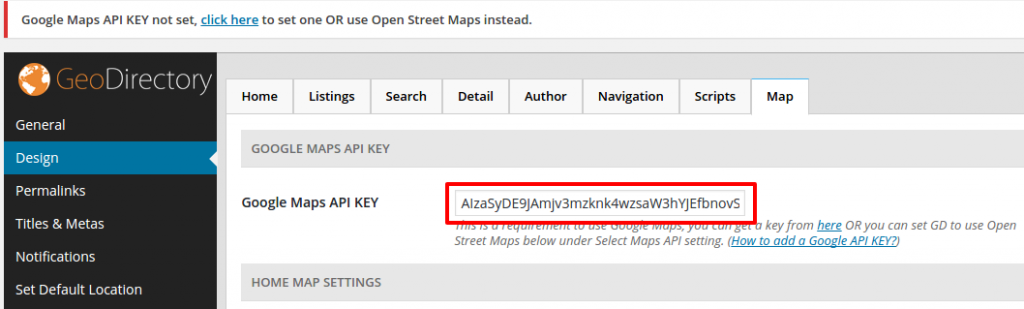
  8. Paste the key in the API key field:
  9. Scroll to the bottom of the page and Save.
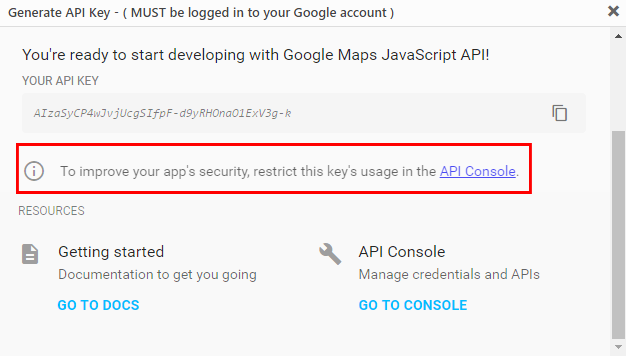
  10. Once you have it up and running, you may want to restrict the API to your website domain by clicking on Generate API Key, selecting the project you created earlier and go to the API console:
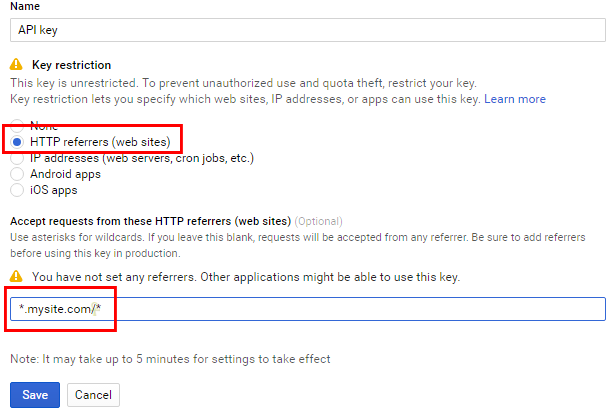
  11. Under credentials for the key created, select HTTP referrers, and then add *.mysite.com/* (change to your domain) in the HTTP referrers field, and then Save:


Versions 1.6.10 of the GD core plugin and earlier:

You can find the setting in GeoDirectory under GeoDirectory > Design > Map > Google Maps API KEY

  1. Go to this link to start (you will need a google account)
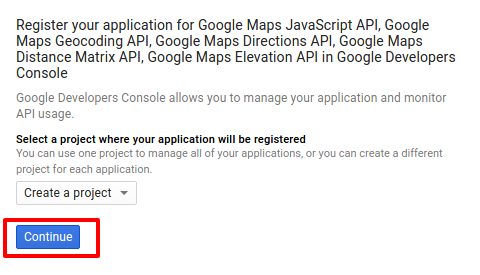
  2. Click Continue to add a new project (or you can select a current one)
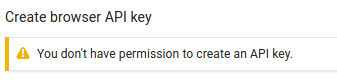
  3. If you see this message: “You don’t have permission to create an API key” follow this step, if not skip to the next step.
    permissions

    It means exactly what it says.
    You’ll need to create new credentials before an API key can be generated.

    Click on the “Credentials” link in the left hand sidebar
    Click the “Create credentials” button
    Select the “API Key” option
    Then click the “Browser key” button from the pop-up
    Now you’ll be taken back to the create a browser key step above and can proceed.

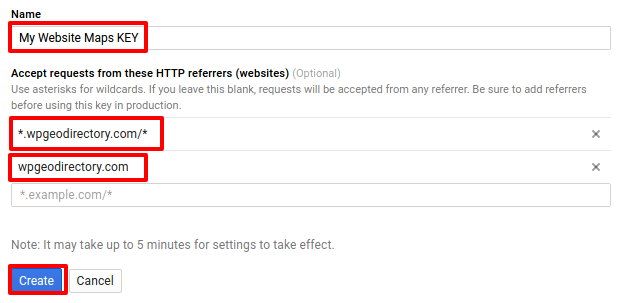
  4. It is important you follow this step exactly:
    You will need to add two urls here,enter the name of your project and the url of your site, add one as: *.yoursite.com/*
    AND one as
    yoursite.com

    as shown below:gkey2You will then be presented with your API KEY:

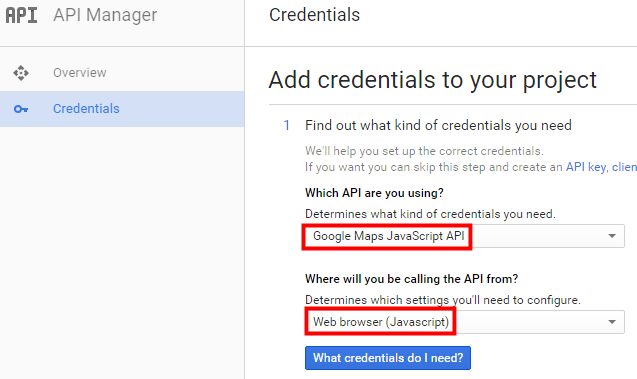
    If you already have a project with a verified domain, you might be presented with a different screen, in that case select those settings to get your API key:
  5. Copy and paste your API KEY into your GeoDirectory Settings and click save:
  6. Wait for a while before checking, Google says this can take 5 minutes but we have found it to take up to 15 minutes in some cases.

Once that is all done, you can happily use google maps 🙂

If you did not use our tutorial link or you already have a current project:

…If you did not use the link we provided to create a new API key they you will have to manually activate several API’s:

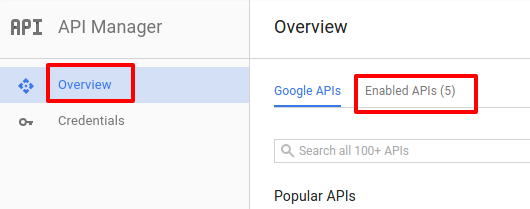
  1. In your API project click “Overview” and then “Enabled API’s”
    overview
  2. Make sure the below APIs are enabled:
    apis
  3. If they are not all enabled then click “Google API’s” and search for them and enable them.

GeoDirectory does not have access to your filesystem


If you receive the above error message this will mean that things like import / export won’t work as they can’t read or write files to the system, this will also cause problems for most of our themes as they dynamically write styles files from your settings.

You should follow the above links and read the page which explains the problems http://codex.wordpress.org/Editing_wp-config.php#WordPress_Upgrade_Constants

This problem is usually fixed by following the below steps:

1. Open your wp-config.php file located in the root of your website (you will need to do this via FTP or some other file manager)

2. Somewhere near the bottom of the file, usually just below the line “define(‘WP_DEBUG’, false);” try adding the line:
“define( ‘FS_METHOD’, ‘direct’ );” and then upload and refresh your admin area to see if the message has disappeared.  If the message does not disappear after a refresh try changing the line you added and specifically the ‘direct’ to the following and each time try uploading and refreshing to see if it fixes it:  “ssh2“, “ftpext“, or “ftpsockets“.

3. If #2 did not fix your problem try adding these two lines:
define( ‘FTP_USER’, ‘username’ );
define( ‘FTP_PASS’, ‘password’ );
Replacing the ‘username’ and ‘password’ with your FTP username and password, again try uploading and refreshing to see if it fixes the problem, if the problem persists repeat #2 now that you have the ftp user/pass defined.

The above three steps should fix the majority of problems, if not then please post in our support forum and a member of our support staff will assist.


GD Core Plugin – Theme Compatibility

These are the sections you will find when you install the GeoDirectory Core (free) plugin only:

OverviewGeneral – Google AnalyticsDesignPermalinksNotificationsSet Default LocationPlace Settings – Theme Compatibility – Import & ExportGD Tools

GD Core Plugin – Theme Compatibility

GeoDirectory is compatible with any theme that features templates that follow the default HTML5 structure.

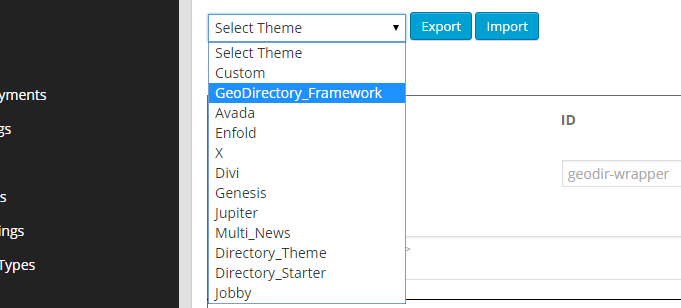
For any theme featuring custom HTML5 structures, it can be adjusted using the theme compatibility admin page.

For some themes we included the tweaks needed to get out of the box compatibility:

  • 2017
  • Avada
  • Boss
  • Divi
  • Enfold
  • Flatsome
  • Genesis
  • GeoDirectory Framework (of course)
  • Jobby
  • Jupiter
  • Kleo
  • MultiNews
  • X

By selecting each of them you will see that the options below will change.

For any theme featuring custom html5 structures that is not on that list, the compatibility options have to be tweaked accordingly.

This requires a little bit of experience templating with HTML and CSS.

GD Core Plugin – GD Tools

These are the sections you will find when you install the GeoDirectory Core (free) plugin only:

OverviewGeneral – Google AnalyticsDesignPermalinksNotificationsSet Default LocationPlace Settings – Theme Compatibility – Import & ExportGD Tools

On this page:

GD pages check – Multisite DB conversion check – Ratings check – Sync GD tags – Sync GD Categories – Clear all GD version numbers – Load custom fields translation

GeoDirectory > GD Tools

The GD Tools are your friend when things go wrong, and you should run these checks before seeking support.
If there is anything that seems broken, the GD tools might identify your problem and even fix it.

GD pages check

Run this tool if your GD pages are not working as you expect, or seem to be missing.

Multisite DB conversion check

This tool was introduced when GD became multi-site compatible a while ago. It is still useful to check if your GD database tables are intact and existing as expected. 

Ratings check

Checks ratings for correct location and content settings.

Sync GD tags

This tool can be used when tags are showing in the back end but are missing from the front end.

Sync GD Categories

This tool can be used when categories are missing from the details table (so they do not show up on the detail pages of your listings) but showing in other places in the back end (only checks posts with missing category info in details table).

Clear all GD version numbers

This tool will clear all GD version numbers so any upgrade functions will run again. 

Load custom fields translation

Translating custom fields is explained in detail here.

GD Core Plugin – Export & Import

These are the sections you will find when you install the GeoDirectory Core (free) plugin only:

OverviewGeneral – Google AnalyticsDesignPermalinksNotificationsSet Default LocationPlace Settings – Theme Compatibility – Import & ExportGD Tools

On this page:

Important things to know – GD Listings – Import CSVMandatory fields for listings – Other fieldsUploading images – Import tips – GD Listings – Export CSV – GD Categories – Import CSV – Mandatory fields for categories – GD Categories – Export CSV – Tips and Tricks – Useful resources

GeoDirectory > Import & Export

The Import & Export page allows you to upload listings or categories via a CSV file.

Go to your WordPress Dashboard and navigate to GeoDirectory > Import & Export 
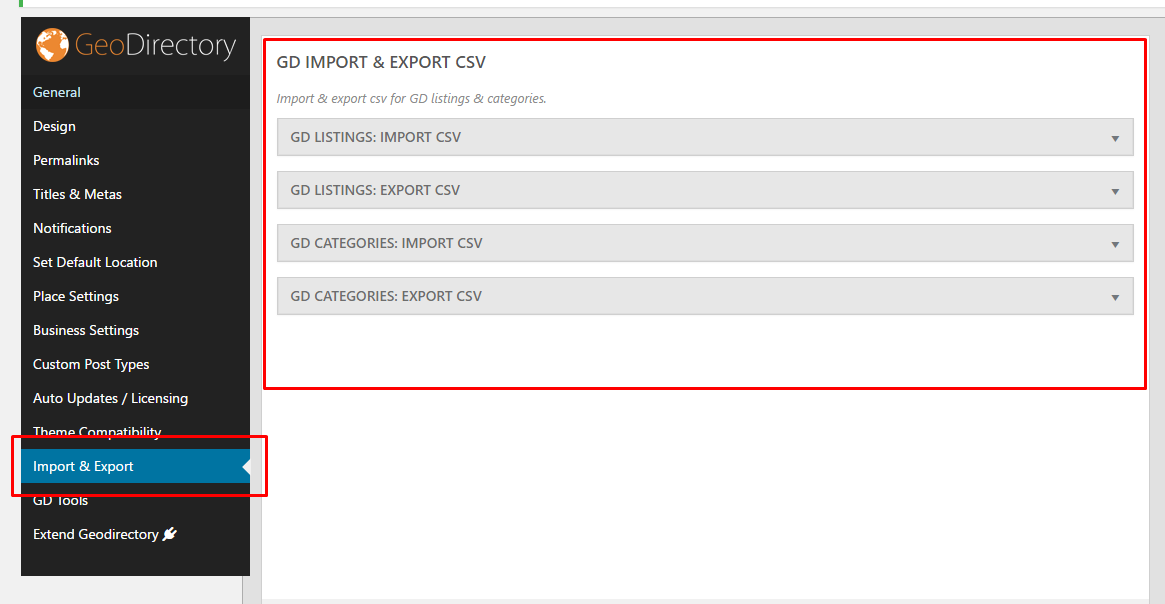
You can also download your listings.

Important things to know !

CSV files should only be edited with OpenOffice or LibreOffice Calc. This is because Microsoft Excel has auto-formatting built in which can not be disabled; we have seen many cases where this leads to broken phone numbers, addresses and 90% of the time wrong GPS information.

Download OpenOffice here: https://www.openoffice.org/download

Download LibreOffice here: http://www.libreoffice.org

  1. Do not change the order or the names of the columns of the CSV files.
  2. Do not delete any columns.
  3. Data separator for the CSV file MUST be comma (,) and delimiter MUST be double-quote (“)
  4. When adding a listing in a subcategory, you should also add the main category. Separate category names with a comma
  5. Categories may not contain commas. Categories with commas will make your import fail.
  6. You may import any UTF-8 characters from any language, but your spreadsheet must be UTF-8. If your CSV is not UTF-8 it will probably fail, so, save CSV as UTF-8.

GD Listings – Import CSV

The Import CSV  section allows you to upload listings via a CSV file.
You also can download a sample CSV file to get you started.

post_id
  • The first column in the CSV file is for the post_id.
  • This field should be left blank, unless you want to update (overwrite) a listing.
  • You can get the post_id of existing listings by exporting your GD listings.
  • Do NOT add a post_id when importing new listings; WP needs to create its own post_id to avoid database conflicts.

Your CSV listings file needs to have data for all mandatory fields for the listings you want to upload.

These are the mandatory fields for listings:

  • post_title: title or heading
  • post_author: the WordPress ID of the WP user, for example you can use 1 for the first admin account created
  • post_content: description
  • post_category: use the name of the category or the slug;
    • this category has to be created for the post_type before you import!
    • if adding the listing in a sub-category, also add the parent category
  • post_type: for example gd_place or gd_event; this CPT has to be created in WP admin before you import!
    Keep reading for mandatory fields for gd_event post types.

The following fields (also mandatory) all relate to the location of your listings.

Note 1: If you are using the Custom Post Type addon and have disabled the requirement to use a physical location for a CPT, then you can leave these fields blank.

Note 2: We strongly suggest to add a few listings from the frontend, and then export those listings first. That will show you the type and format of the data required to be imported. Also, review the location notes if you have not done so already. 

If you want to add locations outside your default location, you will need to install the MultiLocations addon before you can import your data.

  • post_address: Street address [This can be the actual street address, or the name of the Business, etc – it just cannot be blank]
  • post_city: City, town etc
  • post_region: state, province etc
  • post_country: country
  • post_latitude: latitude in signed degrees format, for example -20.97625669
  • post_longitude: longitude in signed degrees format, for example 162.45444

The following fields (also mandatory) all relate to the date and time of your events.

  • event_date: This is the first date of the event – use this format 19/07/2015 even if the display of your dates is set different in your WP admin.
  • event_enddate: Must be completed unless the event is recurring.
  • For recurring events, we suggest you add at least one using the frontend or backend of your site, and then export the CSV file do review the requirements for the various fields.

Other fields

  • post_author: Enter the ID of the user you want to assign the listing to. If left blank, then the post will be assigned to the user with ID 1, usually the administrator.
  • post_status: Enter either publish or draft. If left blank, then the listing will be set to draft.

Uploading images

  • The CSV file has columns for any images you want to add to your listings, look for the IMAGE columns,
  • You can add additional columns if you want to add more images to your listings, they all should be named IMAGE.
  • You only need to add the filename of the image, for example photo.jpg. The extension should be in lowercase, ie: .jpg, not .JPG. Uppercase file extensions will result in the image not being recognized when viewed in the site.
  • When you finished uploading your CSV file, you need to upload your images by FTP into the upload folder for the current month; the folder location will be in this format:
    /wp-content/uploads/year/month, for example /wp-content/uploads/2014/11
  • The filename of the image will be used for the title attribute of the image, for example My_Photo.jpg will give a title attribute of My_Photo.
  • The optimum image size is 800 x 600 pixels.
  • Make sure your WordPress settings are set as follows: Settings > Media > Organise my uploads into month- and year-based folders, and Save changes > Yes.

Import tips

  1. It is possible that your category counts in the popular category or the CPT categories widget needs fixing after importing new listings. To do that go to GD > GD Tools and run Location category counts.

GD Listings – Export CSV

Exporting your listings gives you the opportunity to edit listings and re-upload them.

Exporting is also very handy after you have created extra custom fields or categories; just create one finished listing with the custom fields etc, and then export to get your very own sample CSV you can then use to upload your other listings.

GD Categories – Import CSV

You can import your categories and subcategories using a CSV file instead of adding your categories one by one from the admin area.

Download the sample file to check out the required structure and data.

Do NOT add a cat_id when importing new categories; WP needs to create its own cat_id to avoid database conflicts.

Your CSV categories file needs to have data for all mandatory fields for the categories you want to upload.

These are the mandatory category fields for categories:

  • cat_name: the name of the category
  • cat_slug: the slug to be used in your URLs
  • cat_posttype: for example gd_place or gd_event; this CPT has to be created in WP admin before you import!
  • cat_icon: the map marker to be used on your maps

GD Categories – Export CSV

Exporting your categories gives you the opportunity to edit them and re-upload them.

Tips and Tricks

See also CSV Tips and Tricks

Moving posts from one post type to another

  1. Create the new Custom Post Type and its categories
  2. Export the listings from the old CPT
  3. Change the post_type and post_category in the exported file
  4. Check the following import option: Update listing if post with post_id already exists.
  5. This will move all the listings from the gd_place table into the new CPT table, changing the categories.

Adding latitude and longitude in bulk to your CSV import file

The Find Latitude and Longitude website is currently offline while they are changing their site from a free tool to a paid version.

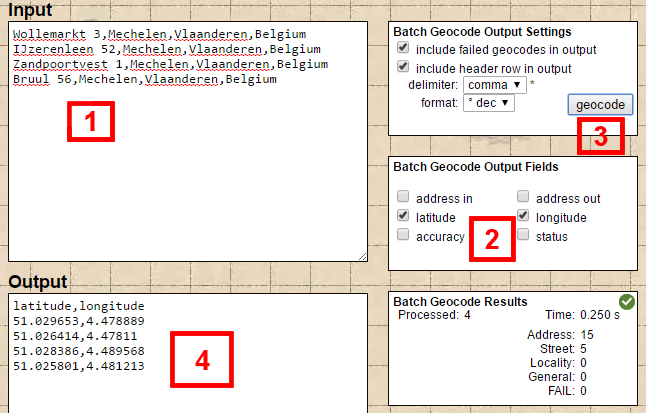
Go the the batch code page at the Find Latitude and Longitude website.

Step 1: Input one address per line in the input field:

  1. The easiest is to add the addresses to the CSV file first, and then copy and paste into the input field.

Step 2: Adjust the Batch Geocode Output Fields settings (optional)

Step 3: Click the Geocode button in the Batch Geocode Settings box.

Step 4: Copy the list that appeared in the output field with all the lat and long coordinates and paste it directly into your CSV file.
Useful resources

  1. myGeoPosition.com
  2. Find Latitude and Longitude
    The Find Latitude and Longitude website is currently offline while they are changing their site from a free tool to a paid version.
  3. geocodio: convert US and Canadian street addresses only into map coordinates and vice versa.
  4. Géocoder un fichier CSV: convert French street addresses only into map coordinates
  5. GPS Visualizer’s Address Locator: you will need to use your own API key
  6. Batch geocoding
  7. Batch geocoding – US only

Troubleshooting

Enable Debugging to Generate Error Logs for Imports

If, after reading the document above, the import is still encountering errors, you can enable debugging in WordPress so that the import will create error logs that will contain more details about the issues with the import.

  1. Enable debugging: https://www.wpbeginner.com/wp-tutorials/how-to-set-up-wordpress-error-logs-in-wp-config/
  2. Re-run the import.
  3. Review the WordPress error log.
  4. Address problems with the import file.
  5. Re-run the import.
  6. Review the WordPress error log.
  7. If additional questions remain about how to remedy errors with the import file, create a support request

GD Core Plugin – Google Analytics

These are the sections you will find when you install the GeoDirectory Core (free) plugin only:

Overview General Google Analytics Design Permalinks Titles & Permalinks Notifications Set Default Location Place Settings Theme Compatibility Import & Export GD Tools

GeoDirectory > General > Google Analytics

This option will show meaningful statistics to your listing owners, read more about GD’s Front end Google Analytics here.

This setup guide assumes you already have your Google Analytics profile setup for your website. It will not work without an active Google Analytics account.

If you use the Pricing Manager, Google Analytics can be turned on and off for different packages.

Show business owner Google Analytics stats:

  1. This option simply enables or disables the showing of Google Analytics to users.

Google analytics access

  1. Click on Authorize.
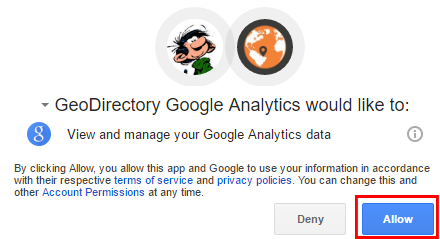
  2. That will open a popup:
  3. Click Allow.
  4. That will generate a special code:
  5. Copy that code and paste it in the Google analytics Auth Code field:
  6. Now Save.
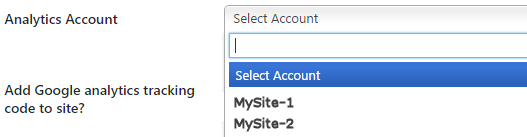
  7. This will populate the Analytics Account field with the sites set up in your Analytics account:
  8. Select the correct website profile and Save.

Add Google analytics tracking code to site?

  1. If you have not added your tracking code yet anywhere else on your site, select Yes here. That is by far the simplest way to add the code to your site.

Auto refresh active users?

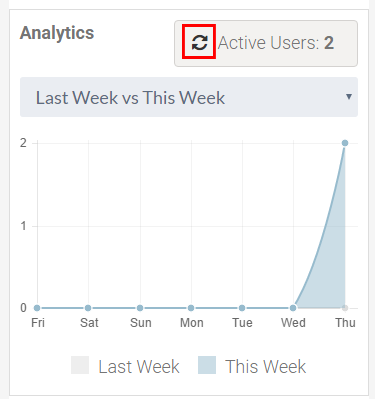
  1. Select here if you want the statistics to auto-refresh or when the user clicks the refresh button again:

Time interval for auto refresh active users

  1. If you have set the above setting to auto-refresh, set the interval between data refresh.

GD Core Plugin – Permalinks

These are the sections you will find when you install the GeoDirectory Core (free) plugin only:

Overview General Google Analytics Design Permalinks Titles & Metas Notifications Set Default Location Place Settings Theme Compatibility Import & Export GD Tools

On this page:

Add location in urls Add category in listing urls Listing url prefix GeoDirectory Pages

Permalinks settings

This page is about GeoDirectory Permalink settings, not WordPress Permalink settings.
Be aware that for GD to work properly, you need to set the WordPress Permalink settings to Post name: Read more

Add location in urls

Add location slug in listing urls:
Ticking this option will add the location of the listing to the URL, for example
mydomain.com/places/united-states/texas/dallas/hotels/my-listing
instead of
mydomain.com/places/hotels/chestnut-hill-hotel/

Add full location info with country, region and city slug in listing urls:
Use this option if your directory covers more than one region and/or country.
You can also use this option if your site only covers one region or city, but you want to include the full location in the URL of your listings.
Example: mydomain.com/places/united-states/texas/dallas/hotels/my-listing

Add city slug in listing urls:
You can only use this option  if your site only covers one region or city, do not use if your directory covers more than one region and/or country.
Example: mydomain.com/places/dallas/hotels/my-listing

Add category in listing urls

Tick or untick to include the category name in your URLS, for example
mydomain.com/places/hotels/my-listing
or
mydomain.com/places/my-listing

Listing url prefix

Enter the default name here for your listings, for example places or business or listings etc.

URL examples:
mydomain.com/places/my-listing
mydomain.com/business/my-listing
mydomain.com/listings/my-listing

If you use the Custom Post Type addon, then the listing url prefix will be replaced with the slug you enter there.

GeoDirectory Pages

GD will automatically add 8 pages that will be used as templates to create all your directory pages: GD Home page, Add Listing, Listing Preview, Listing Success, Location, Terms and Conditions page, Info page and Login page.

You can change the title and slug of these pages at the normal WordPress pages settings.

Only the Terms and Conditions page option can be left blank, all other options should have a page selected.
Each Geodirectory page should be unique, meaning that a single page from your site should not be selected for more than one of the Geodirectory Pages.


Custom field examples

On this page:

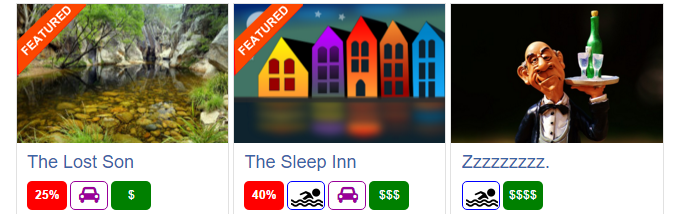
Special icons

The icons you see above are created using custom fields and some CSS styling.

is created using a checkbox custom field and an image background.
is created using a select custom field.
is created using a text custom field.
is created using a checkbox custom field and a FontAwesome background.


Creating the custom fields

The above examples all use these settings:

  1. Is active: Yes
  2. Show on listing page: Yes
  3. Complete any other fields as you wish
Custom field settings:
  1. Choose a Checkbox field
  2. HTML variable name: pool (example only – needs to be a unique name)
Custom field settings:
  1. Choose a Select field
  2. HTML variable name: range (example only – needs to be a unique name)
  3. Option values: Cheap/$,Modest/$$,Expensive/$$$,Rip-Off/$$$$ 
    1. Example only
    2. The text before the / is the choice your users will see, and the text after the / is the text displayed on your site.
Custom field settings:
  1. Choose a Text field
  2. Field data type: NUMBER
  3. HTML variable name: discount (example only – needs to be a unique name)
Custom field settings:
  1. Choose a Checkbox field
  2. HTML variable name: parking (example only – needs to be a unique name)

Styling your custom field output

To style the result of your custom fields on your website, add the following to your child theme’s style.css file:

[css].geodir-entry-meta {clear: both;}[/css]

Then also add the relevant codes below:

  1. Examples only.
  2. Adjust to suit your site etc.
  3. Every custom field automatically is asigned a CSS class like geo_HTML variable name
CSS code:

[css]
/* Pool label style */
.geodir_pool {
float: left;
display: inline;
clear:none !important;
margin: 3px 3px 3px 0px;
border-radius: 5px;
border: 1px solid blue;
background: white;
background-image: url("/img/pool.png");
background-repeat: no-repeat;
color: transparent;
font-weight: 400;
width: 38px;
text-align: center;
background-position: 3px;
}
.geodir_pool .geodir-i-checkbox {
display: none;
}
[/css]

CSS code:

[css]/* Range label style */
.geodir_range {
float: left;
display: inline;
clear:none !important;
margin: 3px 3px 3px 0px;
border-radius: 5px;
background: none repeat scroll 0 0 green;
color: #fff;
font-weight: 400;
width: 40px;
text-align: center;
padding: 6px 0 !important;
}
.geodir_range .geodir-i-select {
display: none;
}[/css]

CSS code:

[css]/* Discount label style */
.geodir_discount:after {
content: "%";
}
.geodir-i-text {
display: none;
}
.geodir_discount {
background: none repeat scroll 0 0 red;
border-radius: 5px;
color: #fff;
font-weight: bold;
text-align: center;
padding: 6px 0 !important;
width: 40px;
float: left;
display: inline;
clear:none!important;
margin: 3px 3px 3px 0px;
}[/css]

CSS code:
  1. This button uses FontAwesome to create the images.
  2. If you look at the code below, you’ll see content: “\f1b9”
  3. That is the FontAwesome code for the image  of the car.
  4. To find the CSS code for any FontAwesome “letter”, have a look at the FontAwesome cheatsheet.
  5. There you will find all FontAwesome “letters”, and to get the CSS code, remove &#x from the beginning of the code, and ; from the end of the code, and add a \ in front.
  6. For example the CSS code for fa-car [] is \f1b9

[css]/* Parking label style */
.geodir_parking {
float: left;
display: inline;
clear:none !important;
margin: 3px 3px 3px 0px;
border-radius: 5px;
border: 1px solid #990099;
background: white;
color: transparent;
width: 38px;
text-align: center;
background-position: 3px;
height: 29px;
}
.geodir_parking:before {
font-family: FontAwesome;
content: "\f1b9";
color: #990099;
font-size: 18px;
padding-left: 8px;
}
.geodir_parking .geodir-i-checkbox {
display: none;
}[/css]

Adding customer logos

Creating the custom field

  1. Create a File Upload custom field
  2. For the HTML variable name, the below example uses logo (example only – needs to be a unique name)
  3. For this example we have added it to the sidebar

Styling your custom field output

If you now upload a file as a logo, it will look like this, so we will need to add some CSS to make it look a bit better:

Removing “Logo:”

Adding this CSS will remove the label:

[css].geodir_logo .geodir-i-select span { display: none !important;}[/css]

Adding this CSS will resize the logo:

[css].geodir_logo .geodir-custom-post-gallery .geodir_thumbnail {background-size: initial;}
.geodir_logo .geodir-custom-post-gallery {width: 100% !important;}
.geodir_logo .geodir-custom-post-gallery {
border: none;
margin-bottom: -10px;
margin-top: -10px;
}[/css]

And this is the result:

Core Shortcodes

On this page

Home Page Map Custom Post Type Categories Listings Page Map Listing Slider Login Box Popular Post Category Popular Post View Recent Reviews Related Listings Search GD Listings GD Best Of Add Listing Form

Home Page Map

Shortcode: [gd_homepage_map]

This shortcode is the equivalent of the GD > GMap – Home Page widget.

Parameters:
  • width – A number of pixels or percent (default = 960px)
  • height – A number of pixels (default = 425px)
  • maptype – One of HYBRID, SATELLITE or ROADMAP (default = ROADMAP) – not case sensitive
  • zoom – A number between 1 (narrowest) or 19 (widest) (default = 13)
  • autozoom – True or False (default = false)
  • child_collapse – True or False (default = false)
  • scrollwheel – True or False (default = false)
  • marker_cluster – 1 or on – 0 or off, (default = 0)

Example: [gd_homepage_map width=100% height=300 scrollwheel=false]

Custom Post Type Categories

Shortcode: [gd_cpt_categories]

This shortcode is the equivalent of the GD > CPT – Categories widget.

Parameters:
  • title – the title for the cpt categories
  • post_type – The custom post types to use (default = shows all) (examples: ‘gd_place’ or ‘gd_place,gd_event’)
  • hide_empty – Hide empty categories? True or False (default = false)
  • show_count – Show category count? True or False (default = false)
  • hide_icon – Hide category icon? True or False (default = false)
  • cpt_left – Show CPT on same line? True or False (default = false)
  • sort_by – Categories sort by. ‘az’ or ‘count’ (default = count)
  • max_count – Maximum number of sub-categories count. (default = shows all)
  • max_level – Maximum level of sub-categories depth. (default = 1)

Example: [gd_cpt_categories show_count=1]

Listings Page Map

Shortcode: [gd_listing_map]

This shortcode is the equivalent of the GD > GMap – Listing Page widget.

Parameters:
  • width – A number of pixels or percent (default = 294px)
  • height – A number of pixels or percent (default = 370px)
  • zoom – A number between 1 (narrowest) or 19 (widest) (default = 13)
  • autozoom – True or False (default = false)
  • sticky – True or False (default = false)
  • scrollwheel – True or False (default = false)
  • marker_cluster – 1 or on – 0 or off, (default = 0)
  • maptype – One of HYBRID, SATELLITE or ROADMAP (default = ROADMAP) – not case sensitive
  • post_type – The slug for the post_type (default = gd_place)
  • event_type – The events filter (for gd_event CPT only) (default = all)
    Options: all, today, upcoming, past
  • category – ID number of the category to show – if more than one, separate by comma (default = 0 for all)

Example: [gd_listing_map width=100% height=300 scrollwheel=false category="2,3,4"]

Listing Slider

Shortcode: [gd_listing_slider]

This shortcode is the equivalent of the GD > Listing Slider widget.

Parameters:
  • post_type – The slug for the post_type (default = gd_place)
  • category – ID number of the category to show (default = 0 for all)
  • post_number – Number of posts to show (default = 5)
  • slideshow – True or False (default = false)
  • animation_loop – True or False (default = false)
  • direction_nav – True or False (default = false)
  • slideshow_speed – A positive number of milliseconds (default = 5000)
  • animation_speed – A positive number of milliseconds (default = 600)
  • animation – Either slide or fade (default = slide)
  • order_by – Options available: az, latest, featured, high_review, high_rating, random (default = latest)
  • show_title – True or False (default = false)(this is the post title over image)
  • show_featured_only – True or False (default = false)
  • title – the title for the title of the slider

Example: [gd_listing_slider post_number=5 category=3 slideshow=true show_featured_only=true]

Login Box

Shortcode: [gd_login_box]

This shortcode is the equivalent of the GD > Login box widget.

No parameters

Example: [gd_login_box]

Popular Post Category

Shortcode: [gd_popular_post_category]

This shortcode is the equivalent of the GD > Popular Post Category widget.

Parameters:
  • category_limit – Number of categories to show (default = 15)
  • title – (default = ‘Popular Categories’)
  • parent_only – true or false (default = ‘true’)

Example: [gd_popular_post_category category_limit=10 parent_only=true]

Popular Post View

Shortcode: [gd_popular_post_view]

This shortcode is the equivalent of the GD > Popular Post View widget.

Parameters:
  • post_type – The slug for the post_type (default = gd_place)
  • category – Category IDs to filter listings. Example: ’12’ or ‘12,33’. (default = 0 for all)
  • post_number – Number of posts to show (default = 5)
  • layout – Number of columns to show (default = 2)
  • add_location_filter – Filter listings by current location. (true or false, default = false
  • list_sort – Options available: az, latest, featured, high_review, high_rating, random (default = latest)
  • use_viewing_post_type – Filter listings by current viewing post type. (true or false, default = true)
  • character_count – Number of characters to show from the Excerpt (Min/default = 20)
  • listing_width – A percent between 20 and 100 (default = ‘’)
  • show_featured_only – Display only featured listings. (true or false, default = false)
  • show_special_only – Display only listings with Special Offers. (true or false, default = false)
  • with_pics_only – Only display listings which have an image available. (true or false, default = false)
  • with_videos_only – Only display listings which have video available. (true or false, default = false)
  • title – (default = ‘the name of the custom post type’)
  • hide_if_empty – Hide widget if no listings found. (true or false, default = false)

Example:

[gd_popular_post_view category=3 layout=5 add_location_filter=true character_count=0 show_featured_only=true]

Recent Reviews

Shortcode: [gd_recent_reviews]

This shortcode is the equivalent of the GD > Recent Reviews widget.

Parameters:
  • count – Number of posts to show (default = 5)

Example: [gd_recent_reviews count=5]

Related Listings

Shortcode: [gd_related_listings]

This shortcodes is the equivalent of the GD > Related Listings widget.

Parameters:
  • post_number – Number of posts to show (default = 5)
  • relate_to – Either category or tags (default=category)
  • layout – Number of columns to show (default = 2)
  • add_location_filter – True or False (default = false)
  • listing_width – A percent between 20 and 100 (default = ‘’)
  • list_sort – Options available: az, latest, featured, high_review, high_rating, random (default = latest)
  • character_count – Number of characters to show from the Excerpt (Min/default = 20)

Example: [gd_related_listings relate_to=tags layout=3 add_location_filter=true list_sort=featured character_count=0]

Search

Shortcode: [gd_advanced_search]

This shortcode is the equivalent of the GD > Search widget.

No parameters unless Advanced Search addon is active:

  • show_adv_search – If the advanced search section should be shown: (‘default’, ‘always’, ‘searched’)
  • post_type – The custom post types to show by default (examples: ‘gd_place’ or ‘gd_event’)

Example: [gd_advanced_search show_adv_search='always']

GD Listings

Shortcode: [gd_listings]

This shortcode is almost the equivalent of what you see on the GD category listings pages.

Parameters:
  • title – (default = )
  •  – Set the title(default = “”)
  • post_type – The custom post type to use (default=gd_place)
  • category – The category ids “1,3” (default = ”)
  • list_sort – Options available: az, latest, featured, high_review, high_rating, random (default = latest)
  • event_type – Event type filter. Should today, upcoming, past, all. Default empty.(default = “”)
  • post_number – Number of posts to show per page (default = 10)
  • post_author – Filter by current_user, current_author or ID (default = unfiltered)
    • post_author=”current_user” will filter the listings by author id of the logged in user
    • post_author=”current_author” will filter the listings by author id of current viewing post/listing
      [Only for Detail pages: this option will show other listings of the same author on the detail page only]
      [also works on Author pages, but only if you do not use any other plugin that replaces the Author page (for example UsersWP)]
    • post_author=”11″ will filter the listings by author id = 11
    • post_author=” “ If left empty, all listings will be shown
  • layout – Number of columns to show (default = 2)
  • listing_width – A percent between 20 and 100 (default = ‘’)
  • character_count – Number of characters to show from the Excerpt (Min/default = 20)
  • add_location_filter – True or False (default = true)
  • show_featured_only – options are 1 [true] or 0 [false] (default = 0)
  • show_special_only – options are 1 [true] or 0 [false] (default = 0)
  • with_pics_only – Display listings with images – options are 1 [true] or 0 [false] (default = 0)
  • with_videos_only – Display listings with videos – options are 1 [true] or 0 [false] (default = 0)
  • with_pagination – Display pagination – options are 1 [true] or 0 [false] (default = 1)
  • top_pagination – Display pagination on top – options are 1 [true] or 0 [false] (default = 0)
  • bottom_pagination – Display pagination on bottom – options are 1 [true] or 0 [false] (default = 1)
  • tags – Filter by tags (default = unfiltered), for example tags=”Museum,Garden”. Note that this filter uses the name/title of the tag, not the slug, and that spaces should be removed. ex. “Great Place” becomes “GreatPlace”.
  • show_favorites_only – options are 1 [true] or 0 [false] (default = 0)
  • favorites_by_user – Values should be “current”‘ or user id [eg 5] or empty (default = empty)
    • favorites_by_user=”current”, shortcode will show the listings which are favorites by author of current viewing post.
    • favorites_by_user=”12″, shortcode will show the listings which are favorites by user id “12”.
    • favorites_by_user=”” or empty, shortcode will show the listings which are favorites by current logged user(if logged in).

Example:

[gd_listings post_type="gd_place" layout=4 category="1,3" post_number="4" list_sort="high_review"]
[gd_listings post_type="gd_event" add_location_filter="0" layout="4" post_number="4" show_favorites_only="1"]


Note:
When displaying a grid of 4 or 5 listings the description will be automatically hidden. To unhide it, use the following custom CSS at GD – Design – Scripts – Custom CSS
[css]
.geodir_category_list_view li.geodir-gridview .geodir-content .geodir-entry-content {
display: block;
}
[/css]

GD Best of

Shortcode: [gd_bestof_widget]

Parameters:

      • title – widget title (default = ”)
      • post_type – The custom post type to use (default=gd_place)
      • post_limit – Number of posts to show (default = 5)
      • categ_limit – The number of category to show (default = 3)
      • character_count – Number of characters to show from the Excerpt (Min/default = 20)
      • use_viewing_post_type – overridess parameter post_type if visiting another custom port type archive (default = false)
      • add_location_filter – True or False (default = false)
      • tab_layout – bestof-tabs-on-top or bestof-tabs-on-left or bestof-tabs-as-dropdown (default = bestof-tabs-on-top)

Example:

[gd_bestof_widget title="widget title" post_type=gd_hotel post_limit=5 categ_limit=6 character_count=50 use_viewing_post_type=true add_location_filter=true tab_layout=bestof-tabs-as-dropdown]


Add Listing Form

Shortcode: [gd_add_listing]

  1. This shortcode allows you to create your own Add Listing page(s).
  2. By default GD uses the same Add Listing page to generate different forms for all different Custom Post Types and/or price packages.  For example:
    1. https://yoursite.com/add-listing/?listing_type=gd_place&package_id=1
    2. https://yoursite.com/add-listing/?listing_type=gd_event&package_id=6
  3. Do not add this shortcode to the Add Listing page selected at GD > Permalinks > GeoDirectory Pages > Add Listing page.
    That page is reserved for GD generated pages, so only add this shortcode to any extra WP pages.
  4. After you have created all your custom Add Listing pages, you might have to permanently delete the temporary default Add Listing page that is selected at GD > Permalinks > GeoDirectory Pages > Add Listing page before your custom Add Listing pages will work.
Parameters:
  • listing_type – The custom post type to use (default=gd_place)
  • login_msg – The message to show to logged out users (default = You must login to post.)
  • show_login – show the login widget to logged out users (default = false)

Example: [gd_add_listing listing_type=gd_event login_msg="Please register and login to submit listings" show_login=true]