| Introduction | |
| Installation | |
| Snazzy Maps | |
| Settings | General – Manage Styles – featureType – elementType – stylers |
| Example | Removing Google’s points of interest |
| More information | |
Introduction
Custom Google Maps for GeoDirectory allows you to modify the look and feel of all Google Maps on your GD website, through an easy user interface with color pickers and simple to use options.
This way you can make the maps of your website look totally personalized and unique.
Installation
After uploading and activating the Addon, you will find the settings in your WP admin area > GeoDirectory > Custom Google Maps.
Snazzy Maps
- Snazzy Maps is a repository of different color schemes for Google Maps aimed towards web designers and developers.
- You can browse all the different map styles contributed by users, and then export that style and import it into your GD website.
- This blog post explains how to import the Snazzy Maps styles.
Settings
General
Here you can choose which map you want to show as a customized map.
Choose from your location map, listings map, and the detail page map.
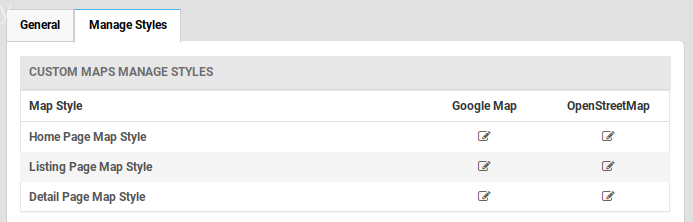
Manage Styles
The settings allow you to customize the presentation of the standard Google maps, changing the visual display of such elements as roads, parks, and built-up areas etc.
featureType: Every map is composed by adding different features, like roads, points of interest, waterways etc.
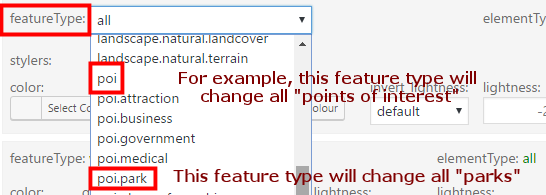
Read more about the different map features on the Google Developers website.
elementType: Every feature like a road, or a country border etc, are a combination of different elements, like the color of a waterway, or the color of the river’s edge.
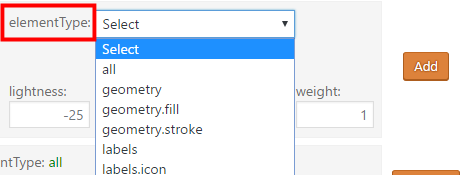
Read more about the different elements on the Google Developers website.
stylers: Every element of a feature can be styled.
Read more about the different stylers on the Google Developers website.
Example
Removing Google’s points of interest
- A default Google map has “points of interest”, like restaurants, cinemas etc.
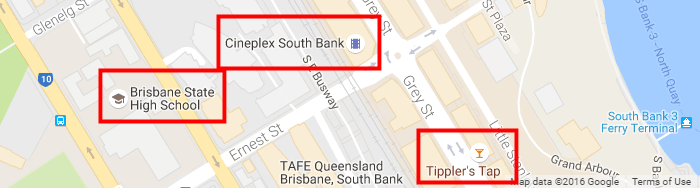
- So let’s remove them so you can add your own GD listings to the map:
- Select featureType poi
- Select all elementTypes
- Turn visibility off
- Then click Add:
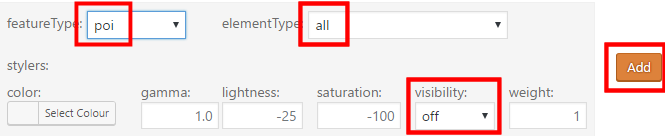
- Now click Preview below the map, and you will see all points of interest will be invisible:
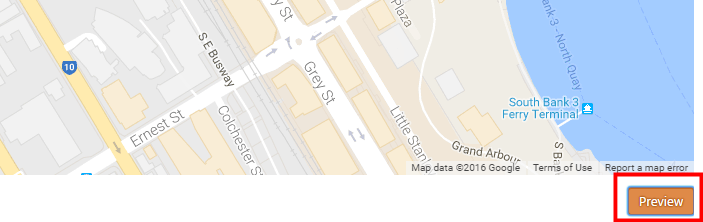
- Once you are happy with the styles you added, click Save Styles.
More information
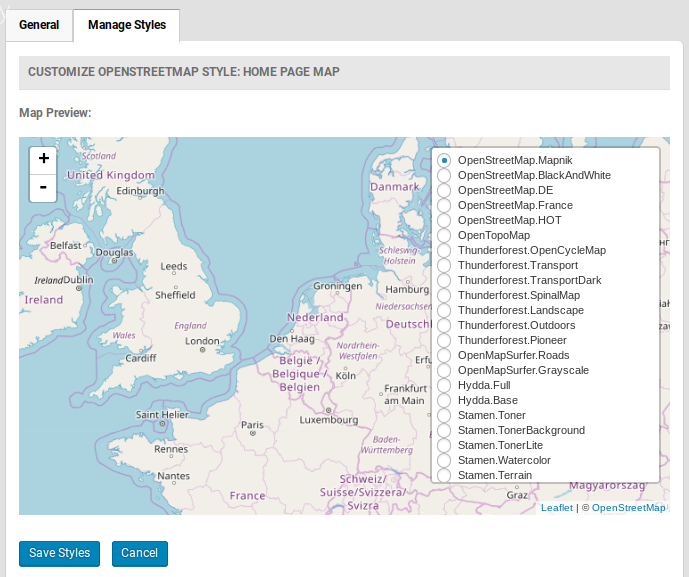
Open Street Map Base Layers
The Custom Maps Addon also enables your maps to show different Open Street Map Baselayers. Choose an Open Street Map setting first, then adjust the baselayer.