Creating different Event types

On this page:

IntroductionScenarioPreparationUser experience

Introduction

  1. You can create different Custom Post Types, but you can only have one Event Custom Post Type.
  2. This article explains how you can create different Event types, with the use of the Payments Manager.
  3. The options and idea explained below can also be used for other Custom Post Types.

Scenario

  1. We want our users to add Festivals and Markets, and Festival submissions can include the name of artists, and Market submissions can include details of the organisers.
  2. But we want to make it easy, so when they choose to add a Festival, they are not shown any Market specific fields.

Preparation

Categories

  1. Go to Events > Event Categories and add your categories:

Price packages

  1. Go to GD > Prices and Payments and create or edit Event price packages.
  2. We will create a Festivals and a Markets package:
  3. After creating the Festivals package, save it first.
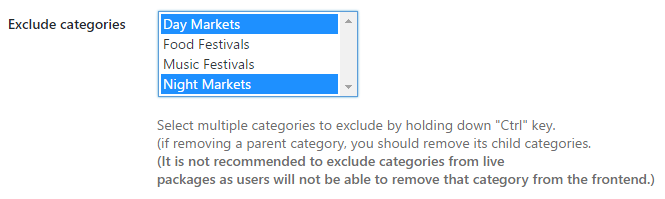
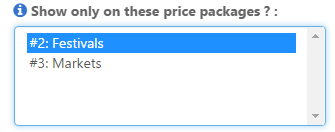
  4. Then choose to edit again, and now you will be able to exclude all the Event categories that are not Festival categories:
  5. Repeat for the Markets package.

Custom fields

  1. Go to GD > Event Settings and create an Artists custom field.
  2. Make sure to restrict the custom field to the Festival package only:
  3. Repeat for the Markets only custom field.

User experience

  1. Now you can link direct to the packages like this if you like:
    1. Festivals: yoursite.com/add-listing/?listing_type=gd_event&package_id=2
    2. Markets: yoursite.com/add-listing/?listing_type=gd_event&package_id=3
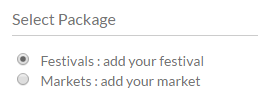
  2. And your users can also select from the Add Listing page:
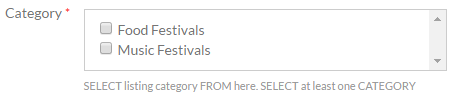
  3. If they choose the Festival package, then the festival categories will be the only ones available for selection:
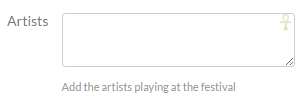
  4. Only the Festival specific custom fields will be available too:

The GD Search explained

On this page:

1. Custom Post Type selector 2. Category selector 3. “Search for” field 4. “Near” field 5. The “Near me” compass 6. Filtering with custom fields Adding a Select custom field to the search bar

Read Understanding navigation, searching and browsing … to understand the basic search function better.

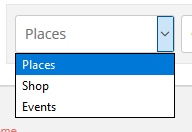
1. Custom Post Type (CPT) selector

This selector will only be shown if you have more than one Custom Post Type.


  1. The CPT selector defaults to the current CPT of a Listings, detail or search page. For example on an Events category page, Events will be listed first in the selector.
  2. On a location page or any standard WP page or post, the order of the CPTs in the selector can be determined by changing the order at GD > Custom Post Types > Choose a CPT > Advance Mode tab > Order in post type list (Custom Post Types addon required).

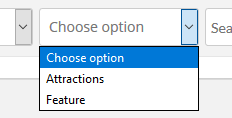
2. Category selector

The categories drop down can be set up for each Custom Post Type and the Advanced Search addon is required.

  1. Activate the Advanced Search addon.
  2. Go to GD > Place (or other CPT) Settings > Custom Fields tab.
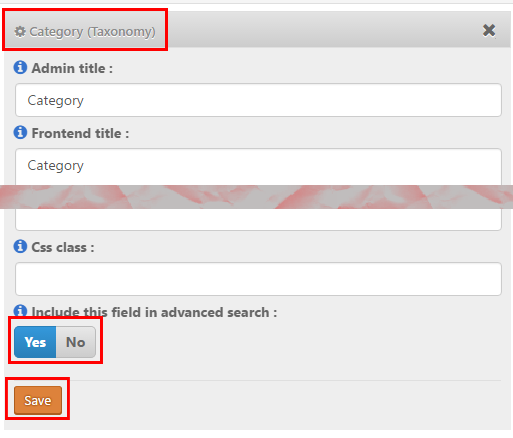
  3. Select Yes to include the categories drop down in the Advanced Search:
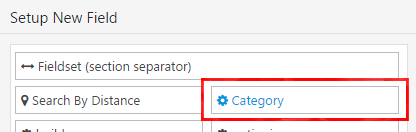
  4. Then go to the Advanced Search tab and click on the Category field on the left hand side, that will move it to the available fields on the right:
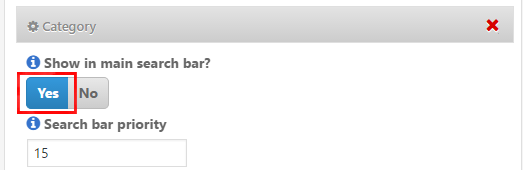
  5. Now open the Category field there, and select to Show in main search bar
    :
  6. The Search bar priority setting allows you to move the Category selector left or right in the main search bar.

3. “Search for” field

  1. GD will check the entry titles, description and taxonomies (tags and categories) of the listings.
  2. The search will not check custom fields or locations.
  3. The search will only search one Custom Post type at the time.
  4. With the Advanced Search addon, you can set this field to auto-suggest listings based on the title of the listings, see Search Autocompleter settings.
  5. You can change the default text at GD > Design > Search.

4. “Near” field

  1. When you enter a location in the Near field, GD will calculate the center of that location.
  2. GD then will look for all listings within an area with a default that match the Search for criteria.
  3. Your default search area is set at GD > General > Search.
  4. The default GD search is not an IN search, but a search NEAR THE CENTER OF.
    For example, assuming your search area is set to 40 square miles:

    1. If you enter World Trade Center, you will get listings around that building.
    2. If you enter United States, you will get listings somewhere around Buffalo in Kansas, because that is where Google situates the center of the United States.
    3. If you enter California, you will get listings somewhere in the Sierra National Forest.
  5. Be aware of some issues:
    1. If you enter a ZIP or a postcode, be aware that that postcode might be used by different countries in the world and might return results around the center of a city in a different country.
    2. A similar issue might occur for place names of cities in different countries.
    3. Please review Add location specific text to (Near) search for Google.
  6. Although the default search for this field is a NEAR THE CENTER OF search, with the Advanced Search addon, you can set this field to auto-suggest locations based on the title of the listings, see Near Autocompleter settings.
    Please note that if you have the Location Manager addon activated, the Near Autocompleter will start giving suggestions as your visitor starts searching, which if selected will search IN the location being entered (ie the city or region in the address of the listing) and will not search an area NEAR THE CENTER OF that location”
  7. You can change the default text at GD > Design > Search.

5. The “Near me” compass

  1. This compass will only show if you have the Advanced Search addon active.
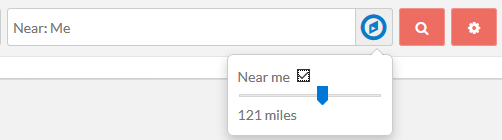
  2. It allows for the search to be limited or expanded by a radius around the visitor’s current location (if Near me is ticked) or near the center of the location selection in the Near field (if Near me is not ticked):
  3. Also review the Geolocation settings.

6. Filtering with custom fields

  1. This will only work if you have the Advanced Search addon active.
  2. Create your custom fields at GD > Place (or other CPT) Settings > Custom Fields.
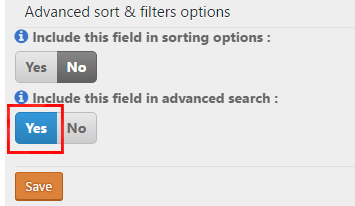
  3. Then navigate to the Custom fields tab and expand any custom field you would like to filter with search and tick the checkbox Include this field in filter:
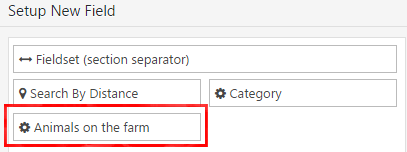
  4. Then go to the Advanced Search tab and click on the custom field on the left hand side, that will move it to the available fields on the right:
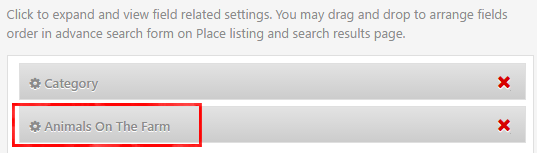
  5. Now open the field by clicking on it, and select the settings:
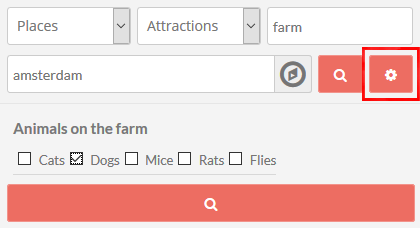
  6. Now clicking on the Search cogwheel will open the custom filter:
  7. Now if your visitors click the search button in the example above, the results will return:
    1. Listings from the Places CPT only,
    2. that are in the Attractions category, and
    3. have farm in the title, description, category or tag of the listing, and
    4. are around the center of Amsterdam (depending on the radius set in the system), and
    5. will be filtered to only return those listings that have dogs.

Adding a Select custom field to the search bar

  1. Select custom fields can also be added to the search bar – but only Select, not Multiselect or any other, they can only be added to the Customized Search section as explained above.
  2. Follow steps 1 to 4 from 6. Filtering with custom fields above.
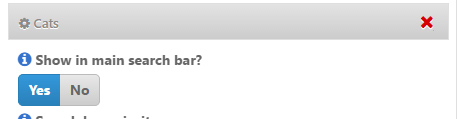
  3. Now open your Select custom field there, and select to Show in main search bar
    :
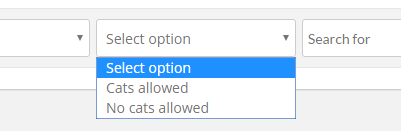
  4. That will add the Select custom field to the main search bar:

Location Manager – Manage Location

These are the sections you will find when you install the Location Manager:

Introduction and Location Settings tabManage Location tab – SEO Settings tab – Add/Edit Location tab – Translate Countries tab

On this page:

IntroductionCity Neighbourhoods – Adding or editing locations – Merging locations

Introduction

  1. The Manage Location tab is where you can edit or merge locations, and add meta data for your location pages.
  2. Here you can also divide locations into neighborhoods.

City Neighborhoods

  1. Locations are based on the Google Maps API, and the size of cities (towns, suburbs or villages etc depending on the country) can vary greatly from country to country. Your locations need to be therefore always city > region > country, exactly like Google suggests when you add a listing from the frontend.
  2. In some countries, cities are divided into smaller sections, for example New York City is divided in the boroughs of Bronx, Manhattan, Brooklyn, Queens and Staten Island.
  3. The neighborhoods need to be manually added in the backend, and need to be manually selected by users adding listings.

Adding neighborhoods

  1. For this example we will add the New York City boroughs as GD neighborhoods.
  2. At GD > Multilocations > Manage Location tab, find the city you want to add neighborhoods.
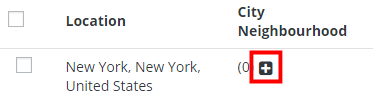
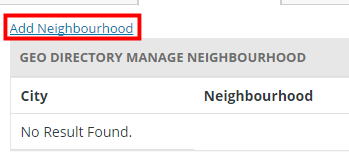
  3. Click on the plus sign + and then click on Add Neighborhood:
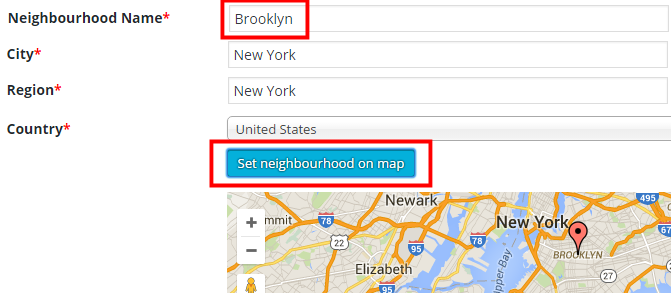
  4. Then add the name of the neighborhood, and Set neighborhood on map:
  5. Keep adding all neighborhoods.

Location switcher

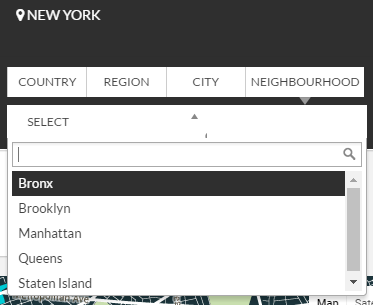
  1. Your visitors will now be able to filter locations by neighborhood:

Adding listings

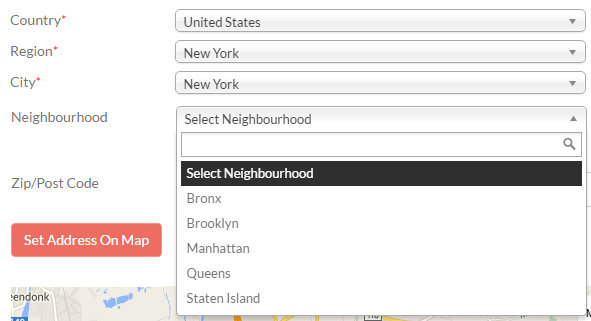
  1. Your users will now be able so select the neighborhoods when adding listings:

Adding or editing locations

  1. As part of your initial GD Core plugin, you should already have a default location set.
    It is one of the compulsory basic installation steps.
  2. Best practice is not to add locations here, because every location will have a page created and you will only end up with empty pages.
    Wait for your users to add listings and locations will be automatically created as your users add listings from the frontend.
  3. There might be some occasions when you need to modify a location. For example a location has been added that does not conform to what the Google Map API would have added, and you need to correct the spelling for example.
  4. Do not delete locations unless you have no listings in that location; deleting locations will delete all listings in the location!

City Meta and City Description

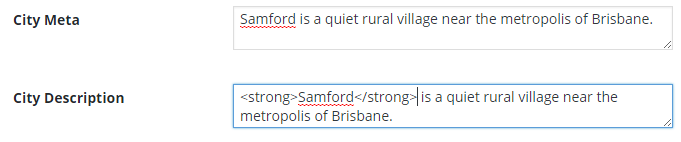
  1. Towards the bottom of the editing page for each location, you will find City Meta and City Description fields.
    Enter your data (you can use HTML in the City Description field):
  2. The City Meta data will now be added to the source of the relevant location page:
  3. This information is also used for the GD > Location Description widget.

Merging locations

  1. Sometimes your users add locations to your database using different spelling than a location already in your database (for example LasVegas, Texas, US instead of Las Vegas, Texas, United States).
  2. Your GD database will treat this as two different locations.
  3. There is a tool to merge these two locations.
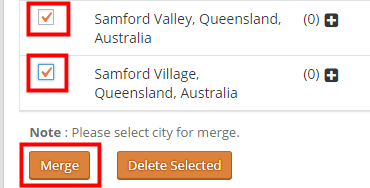
  4. From the Manage Locations tab, select the locations you want to merge.
  5. Scroll to the bottom of the page, and click Merge.
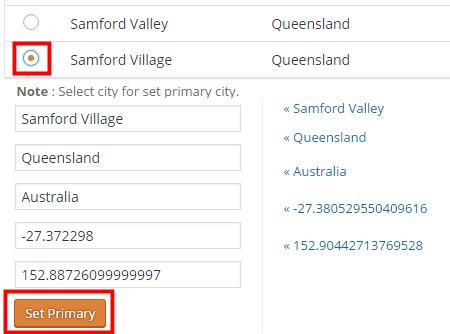
  6. On the next page, select the correct location you want to keep, and then click Set Primary.
  7. That will re-assign the correct location to all your listings in any of the locations you merged.
  8. Do not delete a location because that will also delete any listings in that location!
  9. You can also use the above process to correct any of your locations: just add the correct location first and then merge with any incorrect locations.

Linking Custom Post Types

On this page:

Introduction

With the Custom Post Types (CPT) addon, you can link two CPTs together, in the same way events can be linked to other listings.
Because CPTs can have different custom fields, pricing etc, this feature greatly enhances what can be listed on your site.

Applications

Here are a few examples to give you an idea how you could use this feature:

CPT Linked to CPT
Fast food chain Our hamburgers
Rock band All regular venues where the band plays
Car brands Our models

For the rest of the article we will use a car manufacturer CPT, and a car model CPT.

Installation

  1. Create your CPTs and adjust all settings as required, below are the settings we use for the example. Note that this is only an example, adjust the settings for your situation:
    CPT Cars Models Comments
    Has address Yes No We do not need addresses for the car models (optional)
    Franchise enabled Yes No We will allow dealerships to be added (optional)
  2. Go to the settings for the CPT you want to be able to link to another CPT. In our example we want the different car models to be linked to the car CPT, so we go to GD > Custom Post Types > Model CPT (example only) > Advanced Mode > Link business.
  3. Tick Link Business, select the CPT you want to link it to, and Save.

Usage

  1. When a user now adds a listing in the linked CPT (Models in our example), they can link it to a listing in the linkable CPT (Cars in our example).
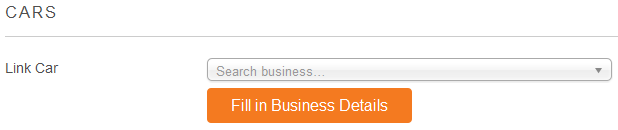
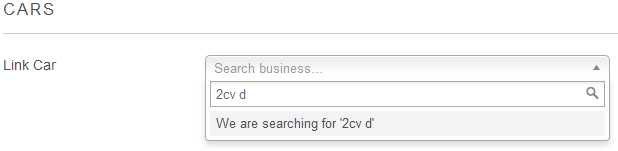
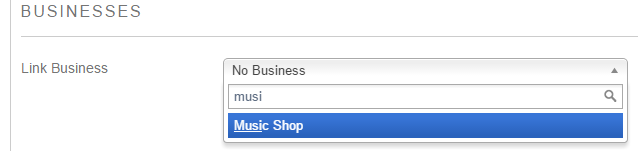
  2. The Add Listing form for the linked CPT will have a search option to find the listing in the linkable CPT:
  3. Start typing at least the first three letters of the listing you want to connect (this is not a search function, but a auto-population function).
  4. You cannot connect a listing to a linkable CPT listing of another user (unless you are an administrator).
  5. When the system finds the listing, select it and click Fill in business details.
  6. This will pre-fill some fields of the new listing with the same data as the linkable listing.
  7. Change title, description etc as required.
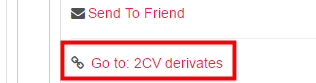
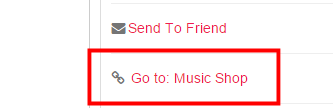
  8. And this is how it will look, in the sidebar you will get a link from all linked listings to the linkable listing:

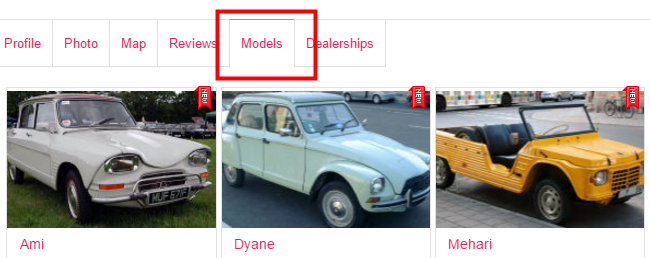
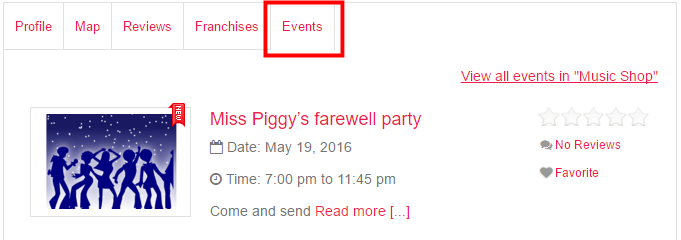
    and on the detail page of that linkable listing, you will get a tab with all linked listings”
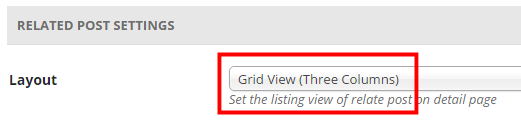
  9. To change the layout in the tab with linked listings, go to GD > Design > Detail tab > Related Post Settings > Layout, and select the list view or the grid view of your choice there:

Updating or changing franchises using CSV import

Introduction

Maybe you already have a number of listings and you just installed the Franchise Manager Add-on, and you want to re-organize your listings, assigning some as main listings and some as franchises.

Or you want to add new listings to your directory using the CSV upload.

Or you just want to make some changes to some of your franchise listings.

Updating or changing franchises using CSV import

  1. Make sure you are familiar with the CSV import and export functionalities of GD.
  2. Activate the Franchise Manager Add-on if not done already.
  3. Make sure your main listings are added to your database already. If not, add them using your admin area or a CSV  import.
  4. Export your listings using the CSV export at GD > Import & Export.
  5. The table below shows an example of an exported CSV:
    post_id post_title ignored columns gd_is_franchise gd_franchise_lock franchise ignored columns
     10 Main 1 geodir_email, post_title  0
     11 Chain 0  0
     12 Franchise1 0  10
    1. post_id: An exported file always has a post_id for each post.
    2. gd_is_franchise: 1 means this is a main listing.
    3. gd_franchise_lock: This are the locked custom fields.
    4. franchise: A number other than zero here means this is a franchise of a main listing, in this example Franchise1 is a franchise of the Main listing.
  6. Now let’s make a few changes:
    1. Add a new franchise to Main.
    2. Change Chain into a main listing, and do lock the video custom field.
    3. Make Franchise1 a franchise of Chain.
  7. This is the new CSV file to upload:
    post_id post_title ignored columns gd_is_franchise gd_franchise_lock franchise ignored columns
     10 Main 1 geodir_email, post_title  0
     11 Chain 1 geodir_video  0
     12 Franchise1 0  11
    Franchise2 0  10
    1. Leave the post_id of existing listings, so they will be overwritten when re-uploading.
    2. New listings should not have a post_id.
    3. Changing gd_is_franchise to 1 changes Chain into a main listing.
    4. Adding geodir_video to gd_franchise_lock for Chain means that all future franchises of Chain will show the same video custom field as the main listing.
    5. Changing franchise from 10 to 11 for Franchise1 now assigns Franchise1 as a franchise of Chain instead of Main.
    6. Franchise 2 is a new listing, so does not have post_id and is assigned as a franchise of the listing with post_id 10 (Main).
  8. Finally, re-upload the CSV file, and make sure to select Update listing if post with post_id already exists on the Import & Export page.

Linking events to places

On this page:

Introduction Preparation Usage Options

Introduction

Events can be linked to other listings owned by the same user (or optionally from any other user), with the following result:

  • The event detail page will have a link to the place listing in the sidebar
  • The event will be added to a tab of the place listing

Preparation

You will need:

  1. The Event Manager activated with at least one category.
    1. By default, users can only link events to their own listings in the selected CPT. If you want any other user to link an event to a listing of another user, go to GD > Event Settings > Any linking Author and tick Allow linking to any post not just users own posts?
  2. The Pricing Manager activated.
    1. Create or edit a price package (can be free) and activate the event linking:

Usage

When a user adds an event, they will have the option to connect the event with another non-event listing.

  1. The Add Listing form for the event will have a search option to find the listing:
  2. Start typing at least the first three letters of the listing you want to connect.
  3. When the system finds the listing, you have two options:
    1. Select it: This will connect the event with the listing.
    2. Select it and click Fill in business details: This will pre-fill the main fields and address of the new event with the same data as the business listing. You can then change title, description etc as required.

Options

You can change how many events are shown in the listing’s Events tab at GD > Design > Detail > Linked events settings.

Claim Listings Add-on Overview

Introduction

In a nutshell, with this addon a user can claim the listing posted on your website.

For Example:

  1. A random user submits the business KFC, under restaurants category.
  2. Now an authorised person from KFC can claim this listing by clicking “Business owner?” link.
  3. He/She has to fill the information like Name, Contact Number, Position in Business and a message like “Hi i am the owner of this business and i would like to claim it…”.

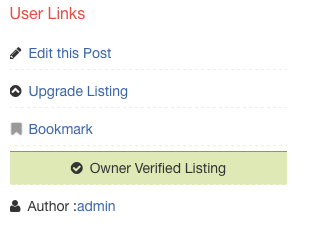
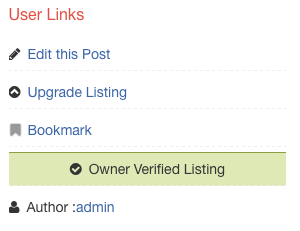
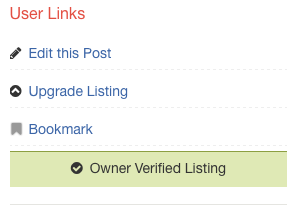
Once you approve the claim, the listing will be marked as Verified and a message will be displayed in listing page like Owner Verified Listing

Installation

  1. Visit wpgeodirectory.com ( Buy a subscription if Required )
  2. Navigate to My Account > Downloads ( Login if Required )
  3. Download Geodir Claim Listing zip file.
  4. Go to your WordPress site dashboard, Navigate to  Plugins > Add New > Upload Plugin
  5. Browse and Upload the zip file you downloaded from wpgeodirectory.com
  6. Activate the plugin.

Dependencies

Some features of this plugin may depend on the following plugin(s).

  1. Prices and Payments ( Optional )

Before Business Claim
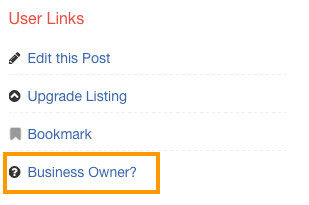
beforeclaim

After Business Claim

afterclaim

Configuration

After plugin activation, you will be redirected to Listing Claims page.
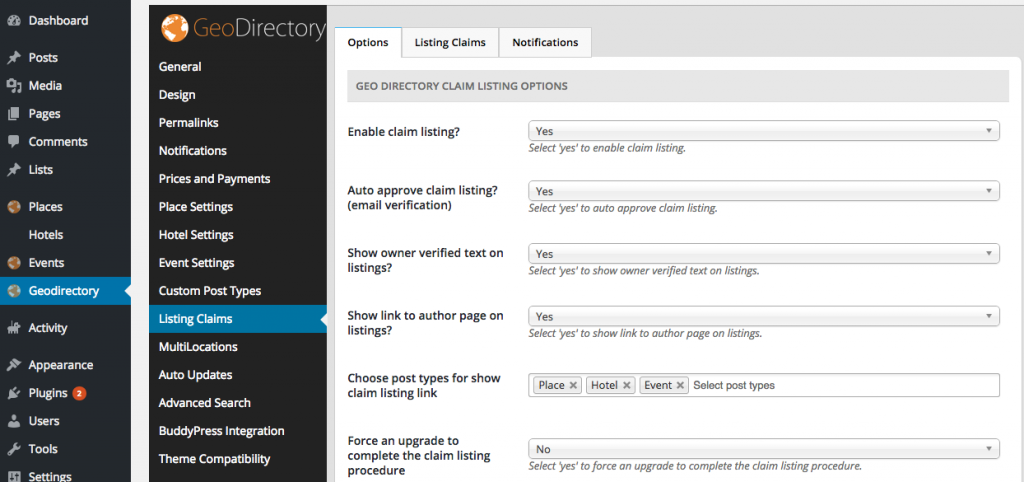
claim-listings

Options Tab

GeoDirectory Claim Listing Options

  1. Enable claim listing?
    1. Select ‘yes’ to enable claim listing.
    2. When set to No, claim listing will be disabled. However you can still view old listing claims by clicking Listing Claims tab.
  2. Auto approve claim listing? (email verification)
    1. Select ‘yes’ to auto approve claim listing.
    2. When set to Yes, a verification email will be sent to logged in user’s email address when the user submit Business Owner? form
    3. Verification Email content would look like this.
      1. Dear Client,Your request to become the owner of the below listing needs to be verified. By clicking the VERIFY link below you are stating you are legally associated with this business and have the owners consent to edit the listing. If you are not associated with this business and edit the listing with malicious intent you will be solely liable for any legal action or claims for damages. Thank you 
    4. You can modify the email content by visiting this page.  GeoDirectory > Listing Claims > Notifications Tab > Claim listing verification required
  3. Show owner verified text on listings?
    1. Select ‘yes’ to show owner verified text on listings.
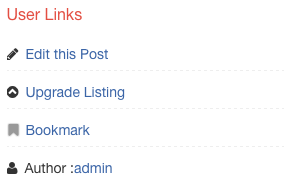
    2. When set to No
      1. showverifiedtextno
    3. When set to Yes
      1. showverfiedtextyes
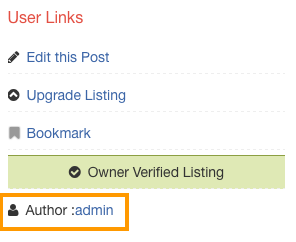
  4. Show link to author page on listings?
    1. Select ‘yes’ to show link to author page on listings.
    2. When set to No
      1. showauthorno
    3. When set to Yes
      1. showauthoryes
  5. Choose post types for show claim listing link
    1. Select post types
    2. For the selected post types Business Owner? link will be displayed on the listing detail page.
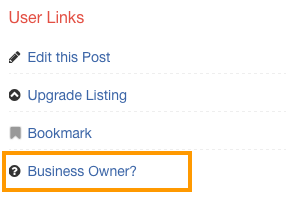
    3. businessownerlink
  6. Force an upgrade to complete the claim listing procedure
    1. Select ‘yes’ to force an upgrade to complete the claim listing procedure.
    2. Note: This option requires Prices and Payments addon. So make sure its active if you are planning to use this option. Otherwise this option will be useless.
    3. Note: Make sure you configured Prices and Payments addon properly.
    4. With prices and payments addon, the business claim popup looks like this.
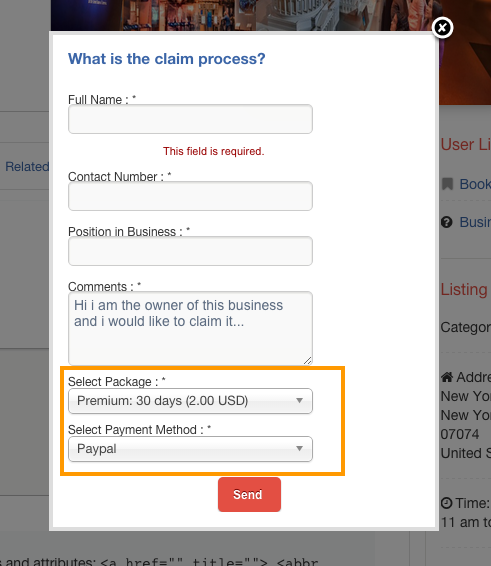
    5. pricesandpaypopup

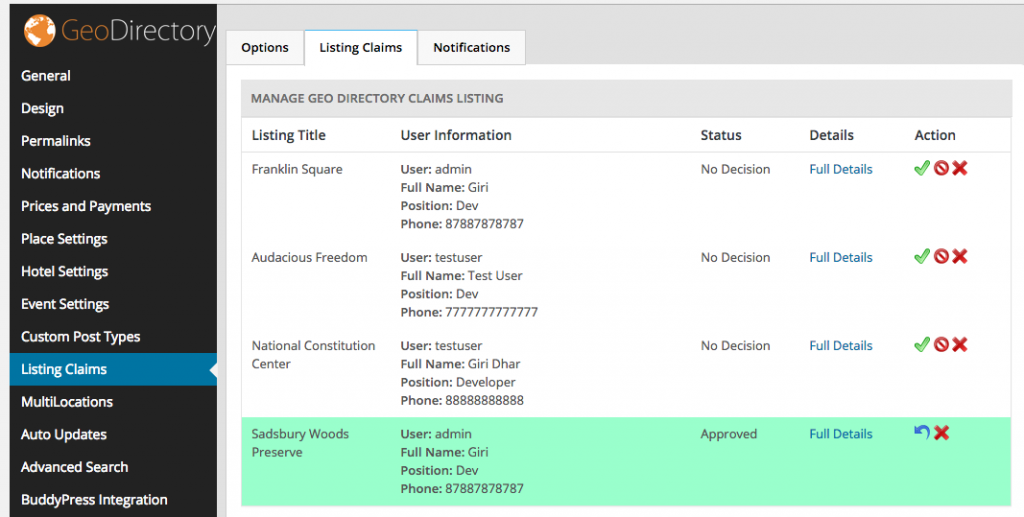
Listing Claims Tab

listingclaimstab

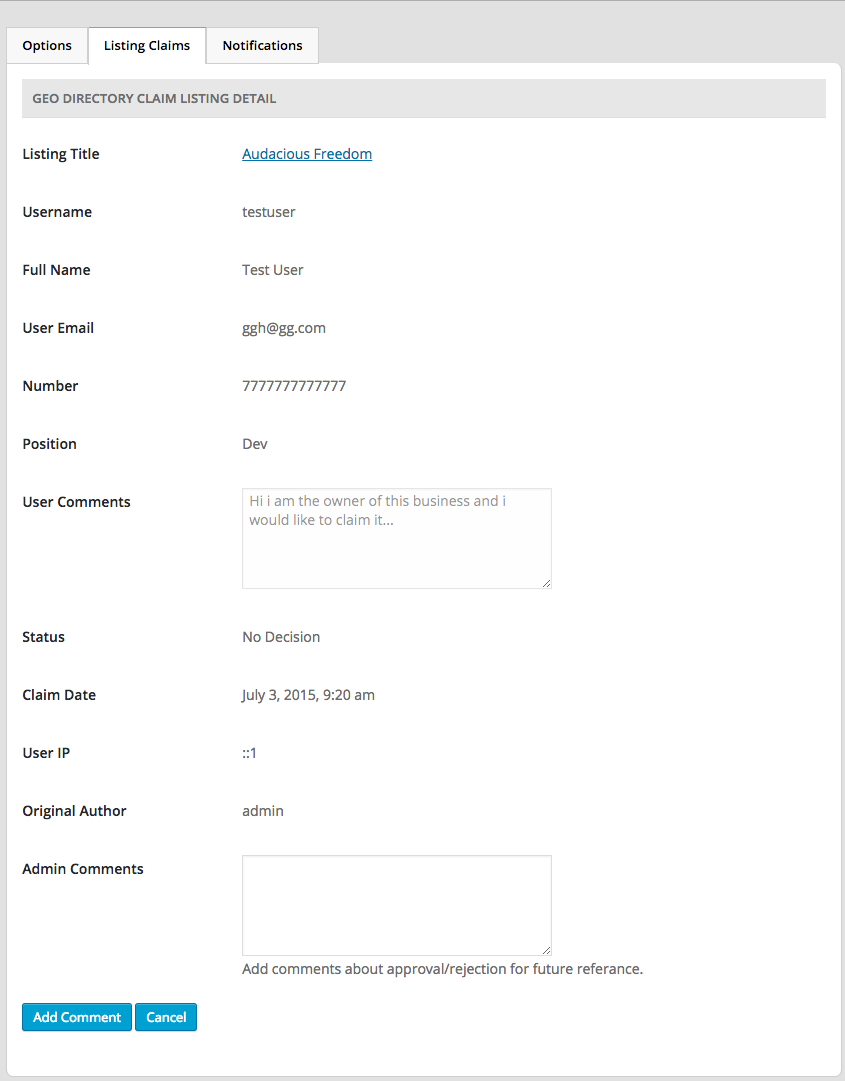
Full Details page

  1. Listing Title
    1. The Listing title for which the claim was made.
  2. Username
    1. Username of the Claimer.
  3. Full Name
    1. Full name of the Claimer
  4. User Email
    1. Email of the Claimer.
  5. Number
    1. Phone number of the Claimer.
  6. Position
    1. The Claimer’s position in his/her company.  Ex: CEO, Marketing Manager etc.
  7. User Comments
    1. The Claimer’s message to the admin.
  8. Status
    1. The status of the claim. Possible values are
      1. No Decision
      2. Approved
      3. Rejected
  9. Claim Date
    1. The date when the claim was made.
  10. User IP
    1. The Claimer’s IP address.
  11. Original Author
    1. The username of the person who created the listing.
  12. Admin Comments
    1. Add comments about approval/rejection for future reference.

Notifications Tab

This is where you set Email Subject and Email Content of Claim Listing related emails.
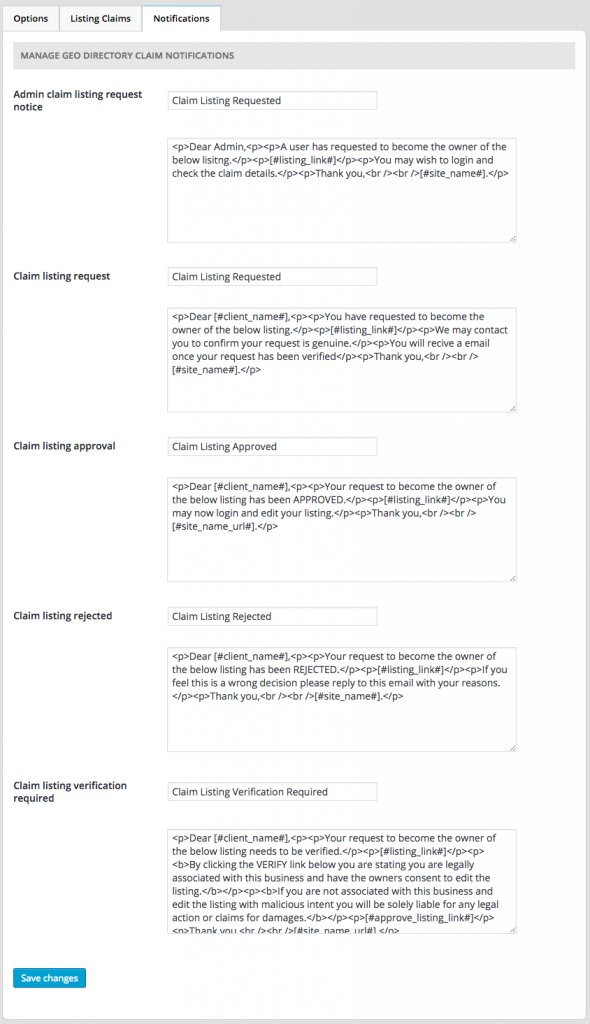
notificationstab

  1. Admin claim listing request notice
    1. This email will be sent to site Admin
    2. This email will be triggered, when a claim is requested.
    3. Default subject would be: Claim Listing Requested
    4. The email content would look like

      Dear Admin,

      A user has requested to become the owner of the below lisitng.

      [#listing_link#]

      You may wish to login and check the claim details.

      Thank you,

      [#site_name#].


  2. Claim listing request
    1. This email will be sent to the Claimer.
    2. This email will be triggered, when a claim is requested.
    3. Default subject would be: Claim Listing Requested
    4. The email content would look like

      Dear [#client_name#],

      You have requested to become the owner of the below listing.

      [#listing_link#]

      We may contact you to confirm your request is genuine.

      You will recive a email once your request has been verified

      Thank you,

      [#site_name#].


  3. Claim listing approval
    1. This email will be sent to the Claimer.
    2. This email will be triggered, when a claim is approved by site admin.
    3. Default subject would be: Claim Listing Approved
    4. The email content would look like

      Dear [#client_name#],

      Your request to become the owner of the below listing has been APPROVED.

      [#listing_link#]

      You may now login and edit your listing.

      Thank you,

      [#site_name_url#].


  4. Claim Listing Rejected
    1. This email will be sent to the Claimer.
    2. This email will be triggered, when a claim is rejected by site admin.
    3. Default subject would be: Claim Listing Rejected
    4. The email content would look like

      Dear [#client_name#],

      Your request to become the owner of the below listing has been REJECTED.

      [#listing_link#]

      If you feel this is a wrong decision please reply to this email with your reasons.

      Thank you,

      [#site_name#].


  5. Claim Listing Verification Required
    1. This email will be sent to the Claimer.
    2. This email will be triggered, when a claim is requested and Auto approve claim listing? option set to Yes.
    3. Default subject would be: Claim Listing Verification Required
    4. The email content would look like

      Dear [#client_name#],

      Your request to become the owner of the below listing needs to be verified.

      [#listing_link#]

      By clicking the VERIFY link below you are stating you are legally associated with this business and have the owners consent to edit the listing.

      If you are not associated with this business and edit the listing with malicious intent you will be solely liable for any legal action or claims for damages.

      [#approve_listing_link#]

      Thank you,

      [#site_name_url#].


Testing Claim Manager for “Auto approval”

Testing claim functionality is done in multiple steps. This test uses the following settings:

  • Geodirectory – Listing Claims – Enable claim listing? – Check
  • Geodirectory – Listing Claims – Auto approve claim listing? (email verification) – Check
  • Create user called “Owner” with a secondary email that is accessible (Owner email)

Admin:

  • Navigate to the site and Login as Admin
  • Create new listing “Owner Listing” – Set Owner Email as Listing Email
  • Publish listing

Owner:

  • Navigate to the site and Login as Owner (use a different browser, or open a new window in Chrome incognito with ctrl-shift-N)
  • Navigate to the listing
  • Click claim link to claim listing (‘Business Owner’ or ‘Claim’ if you are using Supreme)
  • Complete the the form
  • Submit form
  • Check Owner Email for “Claim listing verification required” Notification
  • Follow Link in Email to verify claim of the listing (link will only work if the Owner opens it and is able to login to the site.).
  • Check Owner Email for “Claim listing approval” Notification

If you have done this process and do not have success, you can make a new support request as follows.

Make a new topic in the right forum: https://wpgeodirectory.com/support/forum/claim-listings-addon/claim-listings-addon-support/

Include the following information:

WP Login URL:
Listing URL (to be claimed by Owner):
WP Username for Owner:
WP Password for Owner:
WP Username for Admin:
WP Password for Admin:

Marker Cluster Add-on Overview

Introduction

The marker cluster addon improves map and site performance by clustering markers from nearby locations. The single ‘marker cluster’ represents several locations at once, and clicking the cluster zooms in and expands the individual markers.

If you have multiple widget maps you can use the settings to choose which widget maps display clusters.

Installation

  1. Visit wpgeodirectory.com ( Buy a subscription if Required )
  2. Navigate to My Account > Downloads ( Login if Required )
  3. Download Geodir Marker Cluster zip file.
  4. Go to your WordPress site dashboard, Navigate to  Plugins > Add New > Upload Plugin
  5. Browse and Upload the zip file you downloaded from wpgeodirectory.com
  6. Activate the plugin.

Configuration

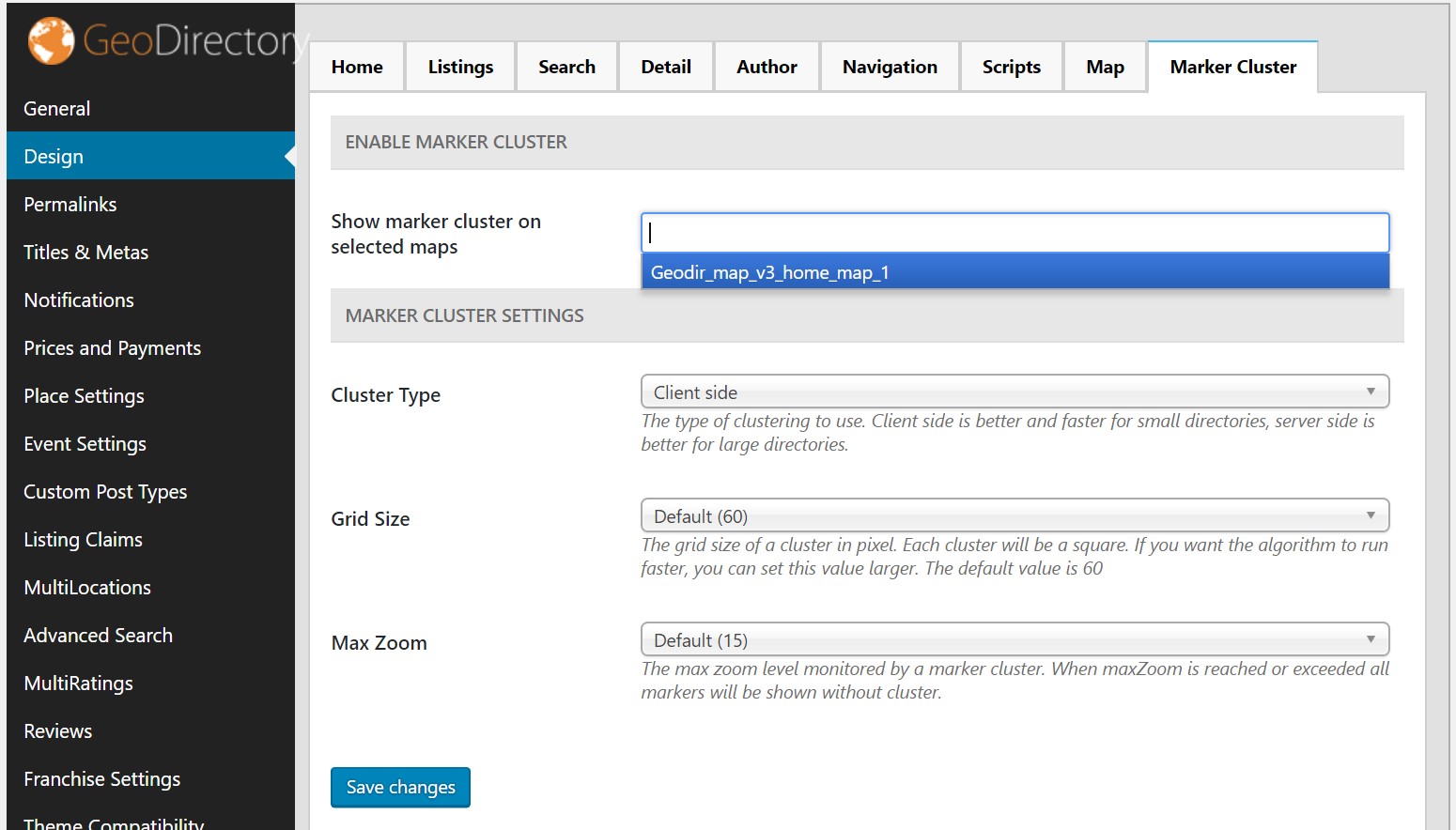
Navigate to Geodirectory > Design > Marker Cluster

Enable Marker Cluster

  1. Show marker cluster on selected widget maps
    1. select the widget map names to apply marker cluster.
    2. if you see no items in dropdown that means you are not using any widget maps in WordPress – Appearance – Widgets.
      1. Navigate to Appearance > Widgets and then use GD > GMap Home Page widget in GD Home Top section
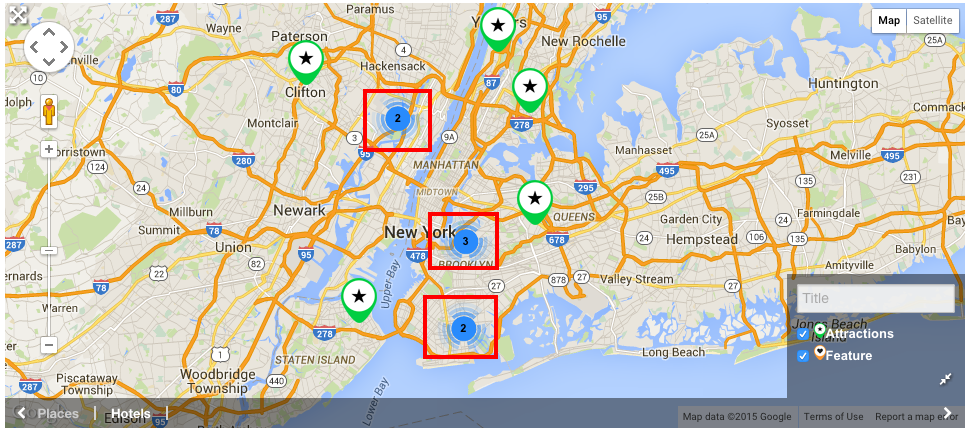
    3. Clusters are marked with red square in the following screenshot.

Marker Cluster Settings

  1. Cluster Type
    1. Server side rendering can be used to improve performance of GD Home Maps created with widgets and shortcodes.
  2. Grid Size
    1. The grid size of a cluster in pixel.
    2. Each cluster will be a square.
    3. If you want the algorithm to run faster, you can set this value larger.
    4. The default value is 60
  3. Max Zoom
    1. The max zoom level monitored by a marker cluster.
    2. When maxZoom is reached or exceeded all markers will be shown without cluster.
    3. The default value is 15

Ajax Duplicate alert Add-on Overview

Introduction

Keep your database clean and free from duplicate or degraded entries with the Ajax Duplicate Alert add-on.

With the add-on activated, GeoDirectory will check new entry titles in real time against those already among the titles in the database. If it finds a match, it will warn the user that they are about to add a duplicate. The user will be prompted to check the existing entry before going ahead with their new entry.

It is easy to set parameters for the add-on to check. For each custom post type (CPT) you can specify whether the add-on should check against: Listing Title; Address; Phone or E-mail.

Installation

  1. Visit wpgeodirectory.com ( Buy a subscription if Required )
  2. Navigate to My Account > Downloads ( Login if Required )
  3. Download Geodir Ajax Duplicate Alert zip file.
  4. Go to your WordPress site dashboard, Navigate to  Plugins > Add New > Upload Plugin
  5. Browse and Upload the zip file you downloaded from wpgeodirectory.com
  6. Activate the plugin.

Configuration

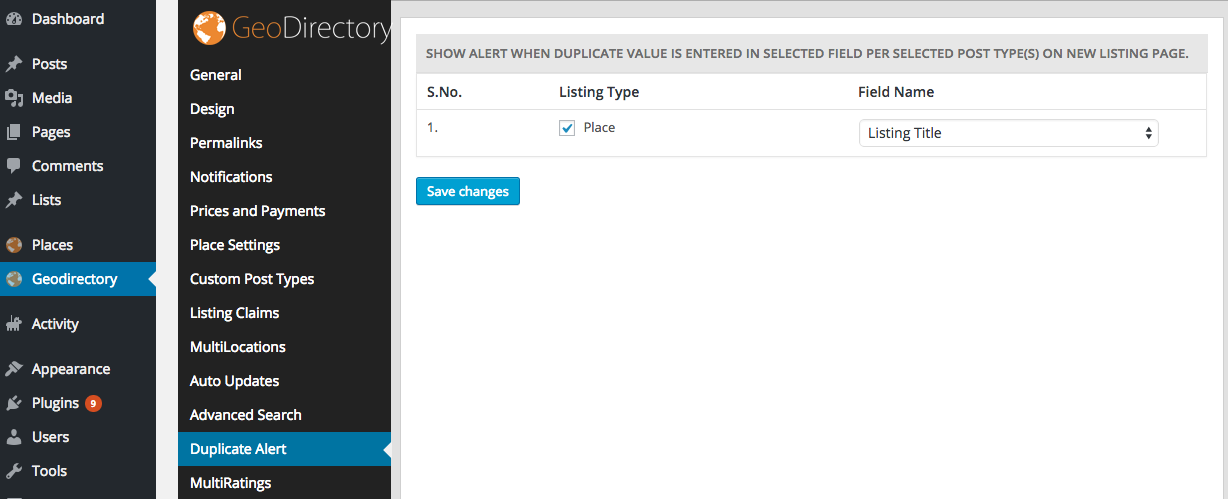
You will be automatically redirected to Duplicate Alert setting page, after plugin activation.

To Enable Ajax Duplicate Alert for a Post Type

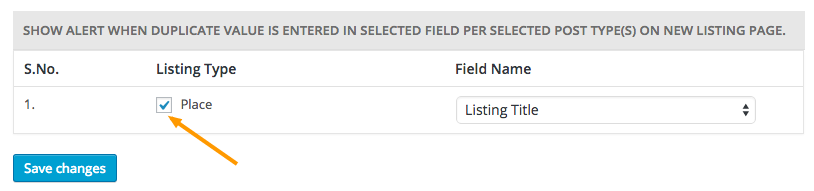
To Enable Ajax Duplicate Alert for a Post Type,  please make sure you checked the checkbox right next to the Post Type name.

checked

Available Field Names

  1. Listing Title
    1. When selected
      1. listtitle
  2. Address
    1. When selected
      1. address
  3. Zip/Post Code
    1. When selected
      1. zip
  4. Time
    1. When selected
  5. Phone
    1. When selected
      1. phone
  6. Email
    1. When selected
      1. email

Franchise addon filters

You can use these filters in your child theme’s functions.php file.

Change the tab

  • This code will change the title of the More Franchises tab: change More Branches to the text of your choice.
  • You can change gd_place to use the code for another custom post type.

[php]
function geodir_franchise_change_franchises_tab_text($text, $post_type) {
if ($post_type == ‘gd_place’) {
$text = __(‘More Branches’, ‘geodir-franchise’);
}
return $text;
}
add_filter( ‘geodir_franchise_franchises_tab_text’, ‘geodir_franchise_change_franchises_tab_text’, 10, 2 );
[/php]

Change the link to all franchise listings

  • This code will change the title of the View all franchises link: change View all branches to the text of your choice.
  • You can change gd_place to use the code for another custom post type.

[php]
function geodir_franchise_change_all_link_text($text, $post_type) {
if ($post_type == ‘gd_place’) {
$text = __(‘View all branches’, ‘geodir-franchise’);
}
return $text;
}
add_filter( ‘geodir_franchise_all_franchises_link_text’, ‘geodir_franchise_change_all_link_text’, 10, 2 );
[/php]

Change the Add franchise link

  • This code will change the title of the Add Franchise link: change Add Branch to the text of your choice.
  • You can change gd_place to use the code for another custom post type.

[php]
function geodir_franchise_change_add_link_text($text, $post_type) {
if ($post_type == ‘gd_place’) {
$text = __(‘Add Branch’, ‘geodir-franchise’);
}
return $text;
}
add_filter( ‘geodir_franchise_add_franchise_link_text’, ‘geodir_franchise_change_add_link_text’, 10, 2 );
[/php]