Geo Travel – Genesis Child Theme – Overview


Introduction
Genesis Framework
Preparation
Home Page Setup
Widgets and Widget Areas
FAQ – Frequently Asked Questions

Introduction

The Geo Travel – Genesis Child Theme is a mobile responsive and HTML5 theme especially developed to optimize GD with Genesis Framework.

View the demo

Genesis Framework

Genesis Framework is premium theme, and one of the most popular and widely used theme frameworks. The Genesis Framework parent theme is required when you wish to use the GeoTravel Child theme.

To proceed with installation of the Geo Travel – Genesis Child Theme theme you will need your own copy of the Genesis Framework parent theme.

Get Genesis Framework Here: https://my.studiopress.com/themes/genesis/

Preparation

  1. Install BUT DO NOT ACTIVATE the Genesis Framework. Link: https://my.studiopress.com/themes/genesis/
  2. Download the Geo Travel – Genesis Child Theme from your download area. Link: https://wpgeodirectory.com/your-account/
  3. Upload the Geo Travel – Genesis Child Theme and activate it.
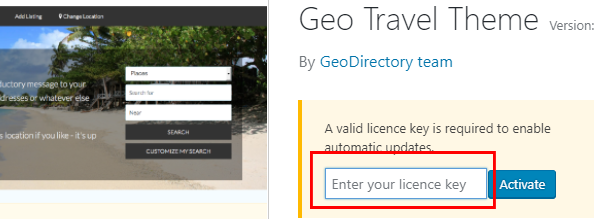
  4. You will need to enter your license so you are notified if the child theme needs updating:

Home Page Setup

Home Settings

GeoTravel Child theme works best when the WordPress Site’s Home page is set to a different page as “GD Home”, the home page of your GeoDirectory directory.

To set this up on your site, the same way the demo works:

  1. Go to GeoDirectory > Permalinks > GD Home and choose a page as your directory homepage. By default this is set to a page called “GD Home” but you can set it to any page you like.
  2. Save the settings
  3. Go to WordPress > Settings > Reading and choose a different page for the “Static Front Page” of your site.
  4. Save the settings
  5. Visit the site home page to see the changes.

Home Page Featured Area Setup

The following instructions will help you setup the background image and the upper featured area for the homepage to match the demo.

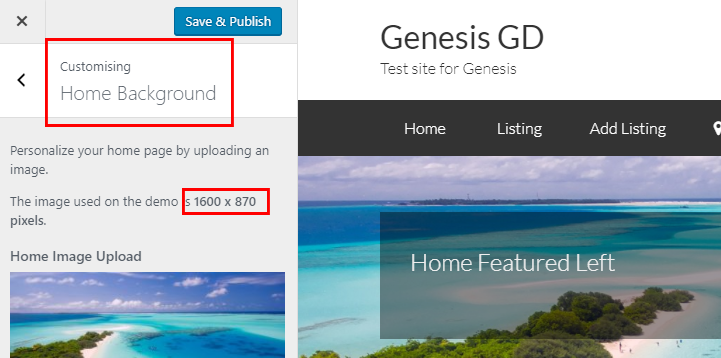
  1. Go to Appearance > Customize > Home Background and upload the background image for the homepage:
  2. Go to Appearance > Widgets.
  3. Add a text widget to the Home Featured Left widget area and add your custom text.
  4. Add the GD Search widget to the Home Featured Right widget area.

Home Page Widgets

GeoDirectory uses widgets to display listings. You can read more about all the widgets that are available here: https://wpgeodirectory.com/docs/widgets/ .

To setup your site to match the demo, add the following elements on your site.

Dummy Data

Add dummy data to populate the widgets on the home page. You can skip this if you already have listings on your site.

  1. Go to GeoDirectory > General > Dummy Data
  2. Adjust: Select 10 or more.
  3. Insert data
Latest Places

Add a GD Popular Post widget to the Home Top widget area.

  1. Go to Appearance > Appearance > Widgets
  2. Adjust: On the left side of the screen find the “GD Popular Post View widget.
  3. Adjust: Select the widget and choose to add to “Home Top“.
  4. Find the GD Home Top widget area on the right side and open the settings for the GD Popular Post View widget.
  5. Adjust: Title > “Latest %posttype_plural_label%“.
  6. Adjust: Sort by > “Latest“.
  7. Adjust: Number of posts > “5“.
  8. Adjust: Layout > “Grid View (5 Columns)“.
  9. Save settings
  10. Visit the site home page to see the changes.

Widgets and Widget Areas

The Geo Travel – Genesis Child Theme uses the following widget areas:

  1. The blue sections will show on all your site’s pages.
  2. The yellow sections are only for the home page. To see the Home page sections you must have a different pages for WordPress Front Page and GD Home Page. If they are the same page, only the GD template will be shown.
    Logo Header Right widget area
    Menu section
    Home Featured Right widget area Home Featured Left widget area
    Home Top widget area
    Home Middle widget area
    Home Bottom widget area
    Footer 1 widget area Footer 2 widget area Footer 3 widget area
     Copyright text
    Disclaimer widget area
  3. A Secondary and Primary Sidebar widget area used on all WP pages and posts, depending on the Genesis layout selected at Genesis > Theme Settings > Select Default Layout.
  4. An After Entry widget area that is used after the content of a WP post on the WP post pages.

FAQ – Frequently Asked Questions

Is the Genesis Framework really required?

Yes, the Geo Travel – Genesis Child theme won’t work without the Genesis Framework.

How do I change the footer area?

To change the footer text in the Geo Travel – Genesis Child theme, look for the following code in the functions.php file, and adjust as required.

[css]//* Add My Custom Footer Links[/css]

I added additional content to the GD Home page with a builder ,why doesn’t it show up?

The GD Home page content area will be overwritten by the GeoDirectory plugin when it renders the GD Home page. This will also effect your site home page, if you have your site home page set to the same page as “GD Home”.

Builders can be used on other WP Pages, but their content will be overwritten when used on the pages chosen in the GeoDirectory Permalinks settings.

Supreme Directory Overview

Introduction:

Supreme Directory is a Child Theme of our free Directory Starter theme, that lets you create a modern directory portal with the help of GeoDirectory WordPress plugin.

Prerequisites:

Before installing our theme, lets install its dependencies.

  1. GeoDirectory (Required)
  2. Directory Starter ( Required since its the Parent Theme of Supreme Directory)

Permalinks Configuration:

Navigate to Settings > Permalinks > Common Settings. Make sure Post name is selected.

GeoDirectory Installation:

  1. Navigate to Plugins > Add New
  2. Search for GeoDirectory – Ultimate Business Directory
  3. Install it
  4. GeoDirectory needs at least one location in order to work. So Set a default location first by following this tutorial. ( Tip: If you need multi locations, check our MultiLocations addon )
  5. You must set GeoDirectory Pages. Navigate to Geodirectory > Permalinks > Geodirectory Pages and set the pages:
    gdpages

We suggest to install dummy data before proceeding.

Directory Starter Theme Installation:

  1. Navigate to Appearance > Themes > Add New
  2. Enter “Directory Starter” in search box
  3. Install it
  4. Activate it
  5. For theme documentation visit here

Supreme Directory Installation:

Please follow this tutorial to install the theme.

How to change the logo

Supreme Directory Theme has several options available in the WordPress Customizer.
To change the logo:

  1. Navigate to WordPress – Appearance – Customizer
  2. Within the Customize Navigate to Header – Logo
  3. Upload your logo and publish the changes
  4. Visit your home page to see the changes

Home Page

for the home page you can use the default gd-home page or create a custom home page. In the demo we used the second approach and created the content below the featured area with Beaver Builder Lite.

After installing Supreme Directory, the home page used by default is gd-home, to change that, create a custom home page and than assign it as front page from Settings >> Reading (WordPress settings).

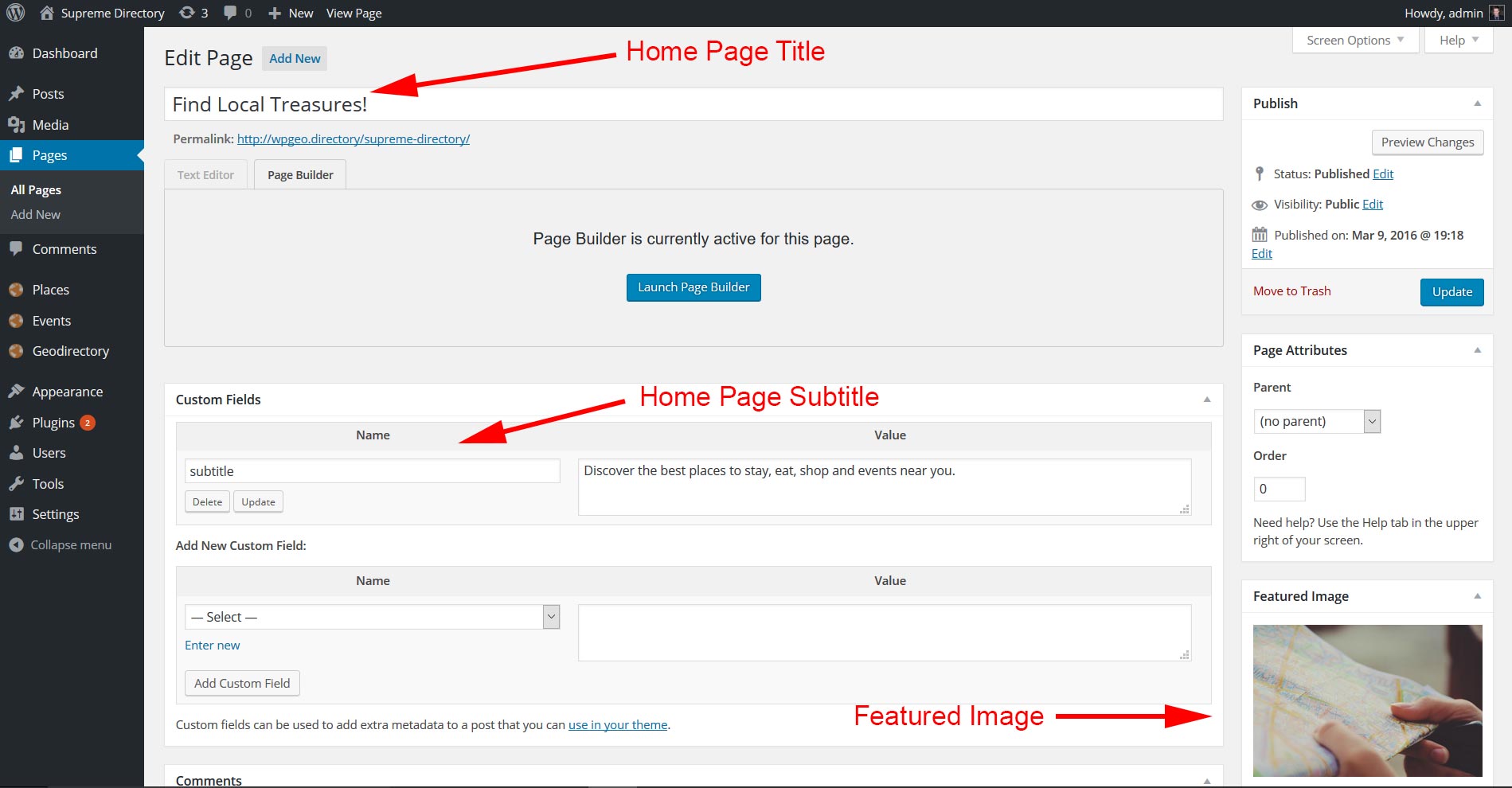
The image for the featured area is the page featured image. If you don’t add a featured image, the page will use a default image, that you can easily change from within your child theme. The suggested minimum size for Featured image is 1400×788. The higher the image the more perceivable will be the parallax effect.

The featured area title is the page title, while the subtitle is a custom field with key : subtitle.

If you decide to use the gd-home content can be built as usual with widgets.

home

The search form and the popular category widget of the featured area, are progrmatically added to the template.

Location Page

The location page will work just like the home page with the exception that its content can only be edited via widgets (like the gd-home page).

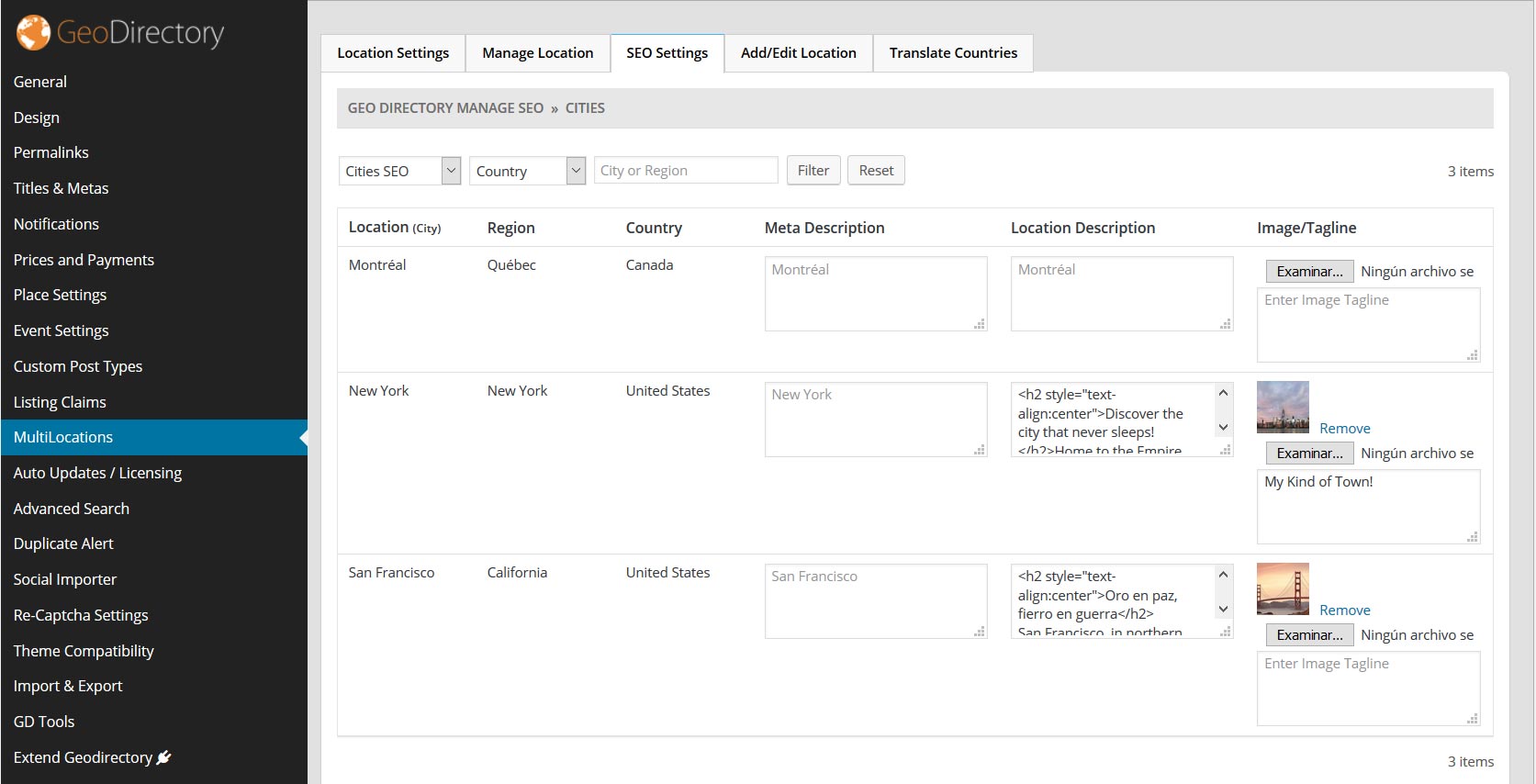
If you install the Location Manager add-on you can assign a featured image and a subtitle to each location (Country / Region / City) via Seo Settings tab of the Location Manager admin page. We recommend images 1400 x 788 px.

location

Listings, Search and Author Page

A fixed Map occupying 40% of the screen width, is programatically added to the right sidebar of these templates, no other widgets are accepted in this pages’ sidebar. You can move the map from the right to the left from GD >> Design >> Detail. You can add extra widgets only in the Top and Bottom widgets areas.

For more control of the Author page check out UsersWP GeoDirectory Integration.

Also the search widget is programatically included in these pages.

Listing Detail Page

Featured Image: The 1st image uploaded to the listing gallery is used as the featured image in the parallax hero section at the top of the detail page. The suggested minimum size for Featured image is 1400×788. However we must make sure they are not being resized. Here is the way to setup the recommended settings: go to GD >> Design >> Home and enable: Resize image large size (Use default wordpress media image large size for featured image upload. If unchecked then default geodirectory image large size ( 800×800 ) will be used.) Then go to Setting >> Media and set the large size max width to 1400 (or anything you prefer). That will stop you original image from being resized.

Custom fields: You can add fields to the core “Places” and choose where the fields show up on the Detail page. Visit the core places settings documentation and see the section about “Where to show”: https://wpgeodirectory.com/docs/core-place-settings/#custom

Addons and 3rd party plugins

Supreme Directory has been tested with all GeoDIrectory Add-ons and it is compatible with UsersWP, Invoicing, and Buddypress.

How to preserve the changes you make to Supreme Directory Theme

Supreme Directory Theme is a Child them of Directory Starter. It is not possible to make a child theme of a child theme. Every time there is a new version of Supreme Directory Theme, the files will be overwritten with the update.
To preserve your changes, you will need to:

  1. Place CSS in GD > Design > Scripts > Custom style css code
  2. Place PHP into a new Snippet using the Code Snippets plugin

Common changes for the Supreme Directory Theme

Please refer to the following pages to find common changes that our members have made to the Supreme Directory Theme

  1. FAQs for Supreme Directory Theme: https://wpgeodirectory.com/docs/supreme-theme-faqs/
  2. Common Code Snippets: https://wpgeodirectory.com/docs/common-code-snippets/

Directory Starter Theme – Overview

Introduction:

If you are planning to create a location-based directory site, then you’re on the right track.

Directory Starter is a theme specifically designed for GeoDirectory plugin. Please note that GeoDirectory plugin is Optional. If you need just a simple WordPress theme for your blog, you can use Directory Starter theme without GeoDirectory plugin.

But if you would like to unleash the full potential of this theme, then you should definitely use this theme with GeoDirectory Plugin.

Note: This documentation assumes that you have a fresh WordPress installation.

GeoDirectory:

GeoDirectory is a free WordPress plugin that offers all the basic features you need to create a location based directory site. With its premium addons you can get additional features like “Paid Listing”, “Multiple Ratings” etc, but addons are not mandatory.

GeoDirectory has been downloaded more than 75000 times and its the best Directory plugin available for WordPress.  GeoDirectory is in this Geolocation business for a long time and it has dedicated support staffs.

If your website is gonna be a serious business for you, then you need serious people who can back you up. So GeoDirectory plugin will be your perfect choice.

Links

Demo:

We have created a demo site to show you the demo of Directory Starter theme. Demo uses our GeoDirectory plugin and its addons.

http://wpgeo.directory/starter/

Directory Theme Installation:

  1. Navigate to Appearance > Themes > Add New
  2. Enter “Directory Starter” in search box
  3. Install it
  4. Activate it

Menus:

  1. Go to Appearance > menus
  2. Create 2 menus. Name it “Primary Menu” and “Footer Links”.
  3. Make sure you assign those 2 menus to the theme menu locations using checkbox.

Settings:

Heads Up: Directory Theme uses wordpress built-in customizer feature for settings. So it doesn’t have a different settings page.

For example, To upload logo navigate to Appearance > Customize > Header > Logo

Here are the list of settings available

  1. General
    1. Site Identity
      1. Contains settings like Site Title, Tagline and Favicon
    2. Spacing
      1. Contains setting like Desktop Container Width and Padding
    3. Static Front Page
      1. Same setting you found in Settings -> Reading
    4. Alert Colors
      1. Alert box color settings available here.  These settings will be useful when BuddyPress installed. ( Oh yes.. Did we say that our theme is compatible with BuddyPress plugin? )
    5. Button Colors
      1. The primary button color settings available here
  2. Header
    1. Logo
      1. As you might have guessed, you can upload your site logo from here
    2. Header Image
      1. If you need an image as header background you can use this setting.
    3. Text Colors
      1. All header text color settings available here
    4. Background Colors
      1. All header background color settings available here
    5. Spacing
      1. All header height, padding, margin settings available here
  3. Body
    1. Background Image
      1. If you need an image as main content background you can use this setting.
    2. Text Colors
      1. All main content text color settings available here
    3. Background Colors
      1. All main content background color settings available here
    4. Typography
      1. Font settings like font family, font size available here
  4. Footer
    1. Background Colors
      1. All footer background color settings available here


    1. Spacing
      1. All footer related padding setting available here
    2. Copyright text
      1. You can change your site’s copyright text here
  1. Menus
    1. Menu Locations
      1. Primary Menu
        1. This is the menu you found in header
      2. Footer Links
        1. This is the menu you want to display near copyright text. When this menu not available copyright text will be centered. Else copyright text will be float left
  2. Widgets
    1. Contains your widget list


Using it with GeoDirectory:

Installation:

  1. Navigate to Plugins > Add New
  2. Search for GeoDirectory – Ultimate Business Directory
  3. Install it

Links

Configuration:

  1. GeoDirectory needs at least one location in order to work. So Set a default location first.
    1. To set default location, navigate to Geodirectory > Set Default Location
    2. Enter a city. Ex: New York, then click “Set Address on Map” button
    3. Save it
  2. If you would like to install our dummy data, navigate to Geodirectory > General > Dummy Data
    1. Choose the number of listings you need, then click “Insert Sample Data Please” button
  3. Set the home page to display “GD Home Page”
    1. To set home page, navigate to Settings > Reading
    2. “Front page displays” should set to “A static page”. Select “GD Home Page” for “Front Page”
  4. All widgets are automatically created by GD plugin. But we need to reorder home map and popular category widget for “Directory Starter” theme.
    1. So navigate to Appearance > Widgets
    2. Expand “GD Home Top Section”
    3. Re-Order the widgets in the following order. Just drag.
      1. GD > GMap Home Page
      2. GD > Popular Post Category
      3. GD > Search
  5. Would you like to add Add listing ( Ex. Add Hotel ) and View Listing ( Ex. Hotels ) links to the Main Menu? If Yes Navigate to Geodirectory > Design > Navigation > Show geodirectory navigation in selected menu locations > Select Primary Menu (This is the menu you created earlier)

Optional GeoDirectory Addons:

  1. GeoDirectory Custom Post Types
  2. GeoDirectory Advance Search Filters
  3. GeoDirectory Review Rating Manager
  4. GeoDirectory Location Manager
  5. GeoDirectory Marker Cluster
  6. GeoDirectory Payment Manager
  7. GeoDirectory Claim Manager
  8. GeoDirectory Events
  9. GeoDirectory AffiliateWP Integration
  10. GeoDirectory Ajax Duplicate Alert
  11. GeoDirectory BuddyPress Integration
  12. GD Booster
  13. GeoDirectory ReCaptcha
  14. GeoDirectory Social Importer
  15. Stripe Payment GeoDirectory Add On

Heads Up!

We have given small description, simple configuration and usage info for each plugin. Please note the configuration explained here is the minimal configuration your plugin requires in order to work.  So not all settings explained in this documentation. You can visit individual plugin documentation page for full configuration information.

Geodirectory Custom Post Types:

By default Geodirectory ships with only one generic post type called Places. But there are situations where you would like separate the listings by post type. An example would be, you have a automobile listing website where you list cars and bikes. It would make sense if you have a separate post type for Cars and separate post type for Bikes. In such cases, this plugin will help you.   

Installation:

  1. Visit wpgeodirectory.com ( Buy a subscription if Required )
  2. Navigate to My Account > Downloads ( Login if Required )
  3. Download Geodir Custom Posts zip file.
  4. Go to your WordPress site dashboard, Navigate to  Plugins > Add New > Upload Plugin
  5. Browse and Upload the zip file you downloaded from wpgeodirectory.com
  6. Activate the plugin.

Links

Configuration:

If you want the new post type links to appear in homepage navigation menu, then make sure to check the settings in Geodirectory > Design > Navigation after creating the post type.

Usage:

  1. Navigate to Geodirectory > Custom Post Types > Add Post Type
  2. You can keep the default fields as it as, but make sure you fill the following fields
    1. Post type
      1. Lowercase, Singular.  Ex: hotel
    2. Listing slug
      1. Lowercase, Plural. Ex: hotels
    3. Order in post type list
      1. Integer. Ex: 10
    4. Name
      1. Title Case, Plural. Ex: Hotels
    5. Singular name
      1. Title Case, Singular. Ex: Hotel
  3. Save it.
  4. If you don’t need any location support for this post type, navigate to GeoDirectory > General
    1. Select the post types for this setting. Select CPT to disable physical location

Geodirectory Advance Search Filters:

With this addon you can create unlimited search filters. When activated, this plugin adds a button called “Advanced” near “search” button. When you click “Advanced” button, it will display all search filters. A practical example would be, you have a job website and you would like to offer users some option to filter the search results with option like “Min Experience”, “Min Salary” etc. So they can narrow the search results.

Installation:

  1. Visit wpgeodirectory.com ( Buy a subscription if Required )
  2. Navigate to My Account > Downloads ( Login if Required )
  3. Download Geodir Advance Search Filters zip file.
  4. Go to your WordPress site dashboard, Navigate to  Plugins > Add New > Upload Plugin
  5. Browse and Upload the zip file you downloaded from wpgeodirectory.com
  6. Activate the plugin.

Links

Configuration:

No configuration needed.

Usage:

  1. Navigate to Geodirectory > Place Settings -> Custom Fields
  2. You can add existing custom fields in advanced search or you can create a new custom field and then include in advanced search.
  3. To add existing custom field (Ex: Category), just expand the field by double clicking it and then make sure you checked “Include this field in filter” option, which is available under “Advanced sort & filters options” section.
  4. To add a new custom field, just click the type of field you would like to add from the left side, fill the necessary options and then save it.
  5. Once you checked “Include this field in filter” option, that field will be available on the next tab (Advance Search)
  6. Click the field, you would like to display in advance filters,  enter the front end title and then save it.
  7. Repeat the steps to add more fields.
  8. The fields you created so far can be displayed using GD > Search widget.

Geodirectory Review Rating Manager:

By default GeoDirectory ships with only one rating type. if you need multi rating, then you should install this plugin. With this plugin you can create unlimited rating fields.  For example you can  split your ratings like Performance, Speed, Price, reliability, Support, Overall etc.

Installation:

  1. Visit wpgeodirectory.com ( Buy a subscription if Required )
  2. Navigate to My Account > Downloads ( Login if Required )
  3. Download Geodir Review Rating Manager zip file.
  4. Go to your WordPress site dashboard, Navigate to  Plugins > Add New > Upload Plugin
  5. Browse and Upload the zip file you downloaded from wpgeodirectory.com
  6. Activate the plugin.

Links

Configuration:

  1. To enable Multi Rating manager, navigate to Geodirectory > MuiltiRatings
  2. Make sure you checked Enable multirating option.
  3. If you need Font Awesome rating icon support, navigate to Geodirectory > MultiRatings > Font Awesome Tab
  4. Check Enable Font Awesome checkbox
  5. If you need different color, for font-awesome rating icon, then enter the preferred color in Rating Icon Color text box.

Usage:

  1. Overall rating will be available by default. So you have to create only individual ratings.
  2. Let’s say you are planning to create individual ratings like Performance, Speed, Price, Reliability, Support.
  3. For each and every rating, navigate to Geodirectory > MultiRatings > Rating Styles Tab
    1. Enter Rating Title. Ex: Performance
    2. Enter Rating Text
      1. 1 Star Text ( Ex: Terrible )
      2. 2 Star Text ( Ex: Poor )
      3. 3 Star Text ( Ex: Average )
      4. 4 Star Text ( Ex: Very Good )
      5. 5 Star Text ( Ex: Excellent )
    3. Upload a Rating off image.  If you don’t have a rating image just download and upload this rating icon. http://your-domain.com/wp-content/plugins/geodir_review_rating_manager/icons/stars.png
      1. Note this rating icon will not be used when font awesome rating icon option enabled.
    4. Save Style
    5. Repeat steps for all other individual ratings.
  4. For each and every rating styles you have created, navigate to Geodirectory > MultiRatings > Create Ratings Tab
    1. For Select multirating style field select the rating style you created. Ex: Performance
    2. Enter Rating title. Ex: Performance
    3. Select Showing method. If you want the ratings displayed as a dropdown, then select dropdown option. Else leave that field as it is.
    4. Select post types where you want the ratings to appear.
    5. Save Changes
    6. Repeat steps for all other individual ratings

GeoDirectory Location Manager:

By default, you can set only one default location. But if you would like to support more than one location, then you need this plugin. You can create unlimited locations and your users can switch to any location using “location switcher”. You can easily create craigslist type site, with this add-on

Installation:

  1. Visit wpgeodirectory.com ( Buy a subscription if Required )
  2. Navigate to My Account > Downloads ( Login if Required )
  3. Download Geodir Location Manager zip file.
  4. Go to your WordPress site dashboard, Navigate to  Plugins > Add New > Upload Plugin
  5. Browse and Upload the zip file you downloaded from wpgeodirectory.com
  6. Activate the plugin

Links

Configuration:

  1. Navigate to Geodirectory > MultiLocations
  2. Check Show location switcher in menu option.
  3. Make sure you have your Main Menu selected in Geodirectory > Design > Navigation > Show geodirectory navigation in selected menu locations

Usage:

  1. To add a new location, navigate to Geodirectory > MultiLocations > Add/Edit Location Tab
    1. Enter the city you want to add. Ex: Texas
    2. Enter the region. This is optional. So you can leave it blank.
    3. Click Set City on Map button.
    4. Save it.
    5. Repeat steps to add more locations.
  2. When location switcher enabled, you can switch locations from your website front end.

GeoDirectory Marker Cluster:

If you have too many listings, then it won’t look pretty to display all of them in a map. With marker cluster addon, you can display the count when too many listing available for particular area. When the use click the count, it will zoom the map and then display the listings.  

Installation:

  1. Visit wpgeodirectory.com ( Buy a subscription if Required )
  2. Navigate to My Account > Downloads ( Login if Required )
  3. Download Geodir Marker Cluster zip file.
  4. Go to your WordPress site dashboard, Navigate to  Plugins > Add New > Upload Plugin
  5. Browse and Upload the zip file you downloaded from wpgeodirectory.com
  6. Activate the plugin

Links

Configuration:

  1. Navigate to Geodirectory > Design > Marker Cluster Tab
  2. Select the home map in Show marker cluster on selected maps field.

Usage:

  1. Visit your site’s home page.
  2. When you have more listings you will see numbers in your home map.
  3. Click any of those numbers
  4. Map will be zoomed and display listings from that particular area.

GeoDirectory Payment Manager:

You can monetize your website by having paid listings with this addon. Just ask the user to pay a small fee to list on your website. Or offer free listing with limited options and then ask user to upgrade the listing if they need full options. PayPal and Stripe supports recurring payment feature.

Installation:

  1. Visit wpgeodirectory.com ( Buy a subscription if Required )
  2. Navigate to My Account > Downloads ( Login if Required )
  3. Download Geodir Payment Manager  zip file.
  4. Go to your WordPress site dashboard, Navigate to  Plugins > Add New > Upload Plugin
  5. Browse and Upload the zip file you downloaded from wpgeodirectory.com
  6. Activate the plugin

Links

Configuration:

  1. Navigate to Geodirectory > Prices and Payments > Prices Tab
  2. Click Add Price link
  3. Enter Price title  Ex: Premium
  4. Select Post type
  5. Enter Price amount ( $ ) Ex: 5
  6. Enter Number of Days.  Ex: 30  (set to 0 to never expire)
  7. Set Status to Active
  8. Click Submit
  9. Configure your payment gateways in Geodirectory > Prices and Payments > Payments Tab

Usage:

  1. Go to any listing detail page you created.
  2. Click Upgrade Listing from the sidebar.
  3. Set Select Package option to Premium
  4. Check Please accept our terms and conditions checkbox
  5. Click Review Your Listing button
  6. Click Checkout to Upgrade Now button
  7. Select Payment Method
  8. Complete Payment
  9. Note: If the payment method Pre Bank Transfer is selected, listing will be in draft mode after hitting success page. Admin may have to approve it manually.

GeoDirectory Claim Manager:

With this add-on, business owners can literally “claim” their listings, identify themselves as the business owner and get verified.

Installation:

  1. Visit wpgeodirectory.com ( Buy a subscription if Required )
  2. Navigate to My Account > Downloads ( Login if Required )
  3. Download Geodir Claim Listing zip file.
  4. Go to your WordPress site dashboard, Navigate to  Plugins > Add New > Upload Plugin
  5. Browse and Upload the zip file you downloaded from wpgeodirectory.com
  6. Activate the plugin

Links

Configuration:

    1. Navigate to Geodirectory > Listing Claims
    2. Set Enable claim listing? to Yes
    3. Set Auto approve claim listing? (email verification) to Yes
    4. Set Show owner verified text on listings? to Yes
    5. Set Show link to author page on listings? to Yes
    6. Make sure you selected post types in Choose post types for show claim listing link
    7. Set Yes or No for Force an upgrade to complete the claim listing procedure
    8. Save Changes

Usage:

  1. Go to any listing detail page you created.
  2. Click Business Owner? link from the sidebar.
  3. Fill the Claim Form and then submit it.
  4. All listing claims will be available under Geodirectory > Listing Claims > Listing Claims Tab
  5. You can Approve, Reject or Delete Listing Claim requests from there.

GeoDirectory Events:

If you are planning to list events on your website, then this plugin will be a big help to you. This plugin supports one time event, recurring events etc.  You can also link listings to an event.

Installation:

  1. Visit wpgeodirectory.com ( Buy a subscription if Required )
  2. Navigate to My Account > Downloads ( Login if Required )
  3. Download Geodir Event Manager zip file.
  4. Go to your WordPress site dashboard, Navigate to  Plugins > Add New > Upload Plugin
  5. Browse and Upload the zip file you downloaded from wpgeodirectory.com
  6. Activate the plugin

Links

Configuration:

  1. Navigate to Geodirectory > Design > Navigation and add Event to all the instances where Place already selected.
  2. Additional configuration available in Geodirectory > Event Settings
  3. If you don’t want recurring feature, disable it from there.
  4. To link a business follow these steps.
    1. Let’s say you would like to link Places in Events.
    2. Navigate to Geodirectory > Prices and Payments > Prices
    3. You have edit both Place package and Event package and then Set Link business to Yes
    4. Now if you visit Add Place page, you can see a new section called BUSINESSES where you can link your Places

Usage:

Visit Add Event page. You can see a section called EVENT SCHEDULE

GeoDirectory AffiliateWP Integration:

AffiliateWP is a affiliate marketing plugin. This addon helps you to integrate AffiliateWP with GeoDirectory

Installation:

  1. Visit wpgeodirectory.com ( Buy a subscription if Required )
  2. Navigate to My Account > Downloads ( Login if Required )
  3. Download Geodir AffiliateWP Integration zip file.
  4. Go to your WordPress site dashboard, Navigate to  Plugins > Add New > Upload Plugin
  5. Browse and Upload the zip file you downloaded from wpgeodirectory.com
  6. Activate the plugin

Links

Configuration:

  1. Make sure AffiliateWP wordpress plugin is active.
  2. When GeoDirectory AffiliateWP Integration plugin is active a new checkbox (GeoDirectory) will be available in Affiliates > Settings > Integrations  
  3. Check it
  4. Save Changes

GeoDirectory Ajax Duplicate Alert:

If you need unique listings, then you can use this plugin to prevent duplicate listing. It will display alert when already existing duplicate title entered for title field. You can also prevent duplicates for the following fields. Listing Title, Address, Zip/Post Code, Time, Phone, Email  

Installation:

  1. Visit wpgeodirectory.com ( Buy a subscription if Required )
  2. Navigate to My Account > Downloads ( Login if Required )
  3. Download Geodir Ajax Duplicate Alert zip file.
  4. Go to your WordPress site dashboard, Navigate to  Plugins > Add New > Upload Plugin
  5. Browse and Upload the zip file you downloaded from wpgeodirectory.com
  6. Activate the plugin

Links

Configuration:

  1. Navigate to Geodirectory > Duplicate Alert
  2. Select Listing Type and Field name
  3. For example, if you want to prevent duplicate Title in Places post type, select Place for Listing Type and Listing Title for Field name  

Usage:

  1. Add Listing page will display errors like A Place with this field is already listed! Please make sure you are not adding a duplicate entry when duplicate title entered


GeoDirectory BuddyPress Integration:

This add-on helps you to integrate BuddyPress with GeoDirectory. So your users can found all their listing, edit it, delete it from BuddyPress profile page. Its a must use plugin, if you need BuddyPress support for your GeoDirectory website.

Installation:

  1. Visit wpgeodirectory.com ( Buy a subscription if Required )
  2. Navigate to My Account > Downloads ( Login if Required )
  3. Download Geodir Buddypress Integration zip file.
  4. Go to your WordPress site dashboard, Navigate to  Plugins > Add New > Upload Plugin
  5. Browse and Upload the zip file you downloaded from wpgeodirectory.com
  6. Activate the plugin

Links

Configuration:

  1. Make sure BuddyPress plugin is active
  2. Navigate to Geodirectory > BuddyPress Integration
  3. Select the post types in Show listings in BuddyPress dashboard
  4. Select the post types in Show reviews in BuddyPress dashboard
  5. Check Use BuddyPress registration form
  6. Check Redirect GD dashboard my listing link to BuddyPress profile
  7. Check Redirect GD dashboard favorite link to BuddyPress profile
  8. Check Link blog author link to the BuddyPress profile link
  9. Save Changes

Usage:

  1. Three new tabs Listings, Favorites, Reviews will be available in BuddyPress dashboard.
  2. If your username is admin, you can access buddypress dashboard using this link. http://your-domain.com//members/admin/

GD Booster:

This is a cache plugin from GeoDirectory. This plugin helps you to speed up your website. If you have large traffic on your website, then its a huge payload for your service since the pages has to be generated for each and every request. This plugin helps you to reduce server payload by caching the pages. So when the same page requested next time, it will be served from the cache instead of generating again. You can prevent server crash with good caching plugins.  GD Booster is optimised for GeoDirectory listings.

Installation:

  1. Visit wpgeodirectory.com ( Buy a subscription if Required )
  2. Navigate to My Account > Downloads ( Login if Required )
  3. Download Geodir Gd Booster zip file.
  4. Go to your WordPress site dashboard, Navigate to  Plugins > Add New > Upload Plugin
  5. Browse and Upload the zip file you downloaded from wpgeodirectory.com
  6. Activate the plugin

Links

Configuration:

  1. Navigate to GD Booster
  2. Select  Yes, enable GD Booster!
  3. Save All Changes

Usage:

  1. When GD Booster active, pages will be cached. So make sure you clear your cache if your changes not getting reflected on your website.

GeoDirectory Re-Captcha:

reCAPTCHA is a free CAPTCHA service from Google that helps protect your site against spam, malicious registrations and other forms of attacks. This addon helps you integrate reCAPTCHA to all GeoDirectory related forms.

Installation:

  1. Visit wpgeodirectory.com ( Buy a subscription if Required )
  2. Navigate to My Account > Downloads ( Login if Required )
  3. Download Geodir reCAPTCHA zip file.
  4. Go to your WordPress site dashboard, Navigate to  Plugins > Add New > Upload Plugin
  5. Browse and Upload the zip file you downloaded from wpgeodirectory.com
  6. Activate the plugin

Links

Configuration:

  1. Navigate to Geodirectory > Re-Captcha Settings
  2. Configure Google Re-Captcha Keys
  3. Check Enable Google reCAPTCHA for checkboxes for the forms you need.
  4. Save Changes

Usage:

Re-Captcha field will be available in the forms you selected.

GeoDirectory Social Importer:

With this add-on, you can import listing from facebook and yelp. Just enter the listing page url and then click “Import”. Data will be imported.

Installation:

  1. Visit wpgeodirectory.com ( Buy a subscription if Required )
  2. Navigate to My Account > Downloads ( Login if Required )
  3. Download Geodir Social Importer zip file.
  4. Go to your WordPress site dashboard, Navigate to  Plugins > Add New > Upload Plugin
  5. Browse and Upload the zip file you downloaded from wpgeodirectory.com
  6. Activate the plugin

Links

Configuration:

  1. Navigate to Geodirectory > Social Importer
  2. Configure Facebook App Details if you are planning to support facebook
  3. Configure Yelp if you are planning to support Yelp

Usage:

  1. When social importer plugin active, Import Details from Social section will be available in Add listing page.

Stripe Payment GeoDirectory Add-On:

This add-on adds, stripe payment gateway support to GeoDirectory payment manager.

Installation:

  1. Visit wpgeodirectory.com ( Buy a subscription if Required )
  2. Navigate to My Account > Downloads ( Login if Required )
  3. Download GeoDir Stripe Payment Gateway zip file.
  4. Go to your WordPress site dashboard, Navigate to  Plugins > Add New > Upload Plugin
  5. Browse and Upload the zip file you downloaded from wpgeodirectory.com
  6. Activate the plugin

Links

Configuration:

  1. Navigate to Geodirectory > Prices and Payments > Payments Tab
  2. Configure stripe gateway

Usage:

  1. Stripe gateway will be available in list of payment methods while listing upgrade. Users can proceed with stripe if they want


Installing Themes

1. Download your new Theme ZIP file to your computer.

You can buy individual Themes of your choice at Theme Tailors, or you can buy a membership that includes all Addons and themes here.

2. Login to your WordPress Admin

Log in to the WordPress Admin area of your website.

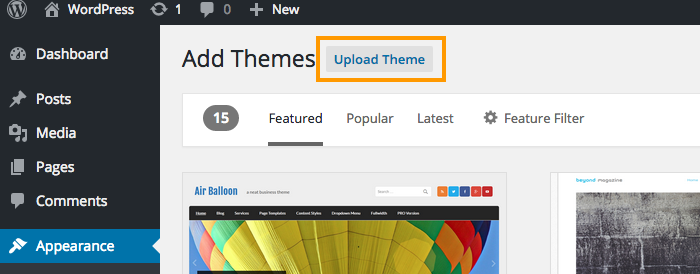
Navigate to Appearance > ThemesAdd New > and click on Upload Theme

3. Upload your Theme

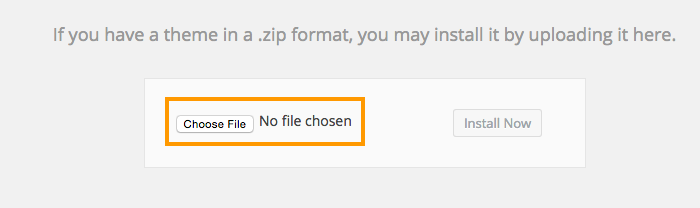
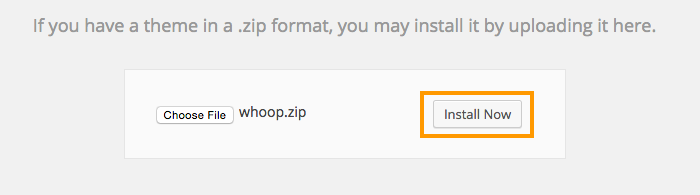
Browse for the Theme ZIP file on your computer.

Once you selected the ZIP file, click Install Now.

theme-install-now

4. Activate your Theme

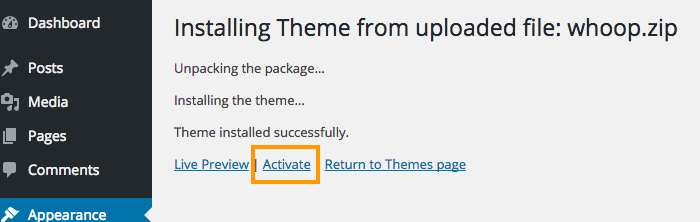
Wait for the upload to happen and then activate your Theme.


Whoop Theme – Available Widgets

Available Widgets

Here is the list of widgets, added by whoop.

For GeoDirectory

  1. Your Next Review Awaits
  2. User Info
  3. Review of the Day

For GeoDirectory Events

  1. Are you interested?
  2. Popular & Latest Events

For BuddyPress

  1. Recent Activity
  2. Event Updates ( Also depends on GeoDirectory Events )
  3. Friends

For bbPress

  1. Today in Talk

Tip: All whoop widget names start with Whoop >   Example : Whoop > Your Next Review Awaits   So all whoop widgets can be easily found on widgets section when you search for Whoop >  using CTRL + F ( CMD + F on MAC )


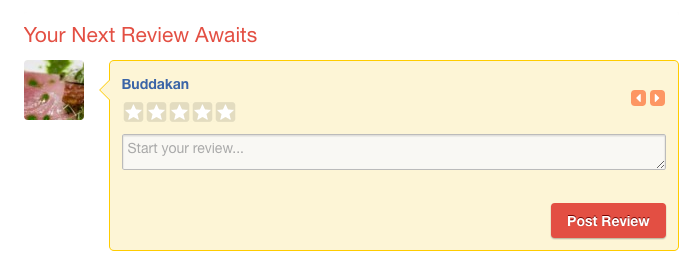
Your Next Review Awaits

your-next-review

  1. Only logged in users can see this widget
  2. This widget fetches posts from current user’s bookmarks. ( User can bookmark a post from listing page by clicking bookmark button.)bookmark-button
  3. This widget needs upto 10 posts. So when not enough ( current user’s ) bookmarked posts available, it will look for some high rated posts which are not yet reviewed by current user.

User Info

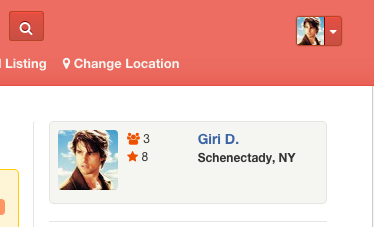
user-info

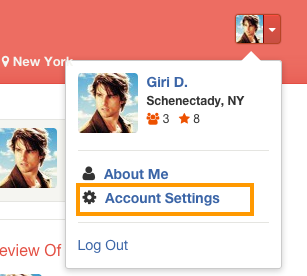
  1. This widget displays logged in user’s information.
  2. The number 3 from above screenshot is user’s friend count. ( BuddyPress required )
  3. The number 8 from above screenshot is the number of reviews user posted.
  4. That Schenectady, NY part coming from Account Settings > Profile Info > My Hometown  ( BuddyPress required )
  5. Account Settings link can be found here.
  6. account-settings

Review of the Day

review-of-the-day

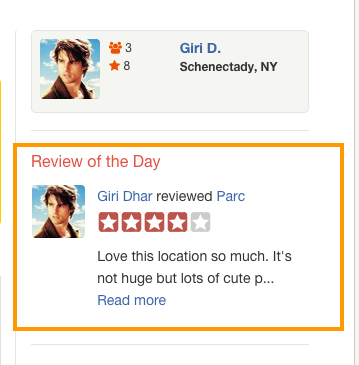
  1. This widget will be visible only when there is a Review of the Day available.
  2. You may have to set Review of the Day everyday.
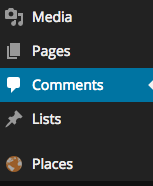
  3. To set review of the day, Navigate to Comments 
  4. comments-page
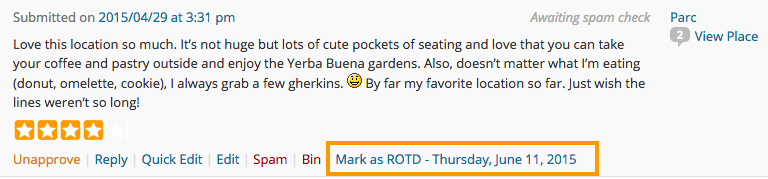
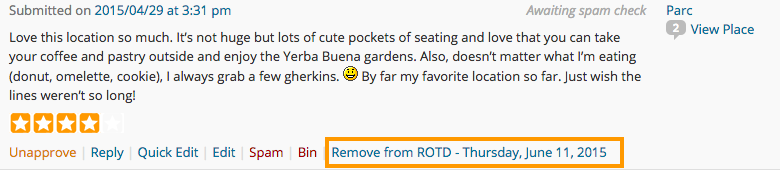
  5. Under each comment ( Only reviews ), you can see a link named Mark as ROTD – ( Current Day and Date ). Clicking that link will mark that review as Review of the Day.
  6. mark-as-rotd
  7. If you would like to undo, you can click  Remove from ROTD – ( Current Day and Date )
  8. remove-from-totd

Are you interested? ( GeoDirectory Events required )

are-you-interested

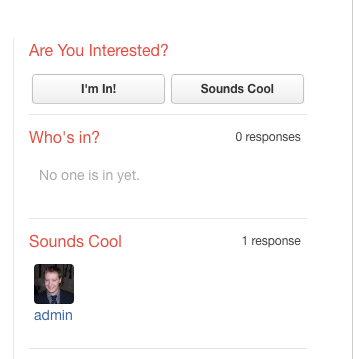
  1. Only logged in users can able to see this widget.
  2. This widget is applicable only for Events post type. For other post types, it won’t get displayed.
  3. Enroll ( I’m in, Sounds Cool ) buttons will be visible only for future events. i.e The current event’s event start date should be greater than current date.
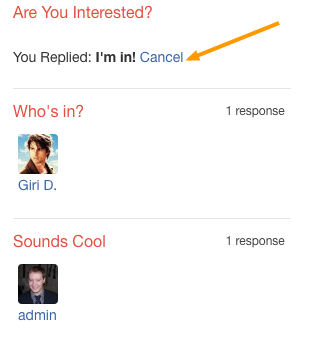
  4. Users can undo their actions by clicking Cancel link.
  5. undo-enroll

Popular & Latest Events ( GeoDirectory Events required )

pop-lat-events

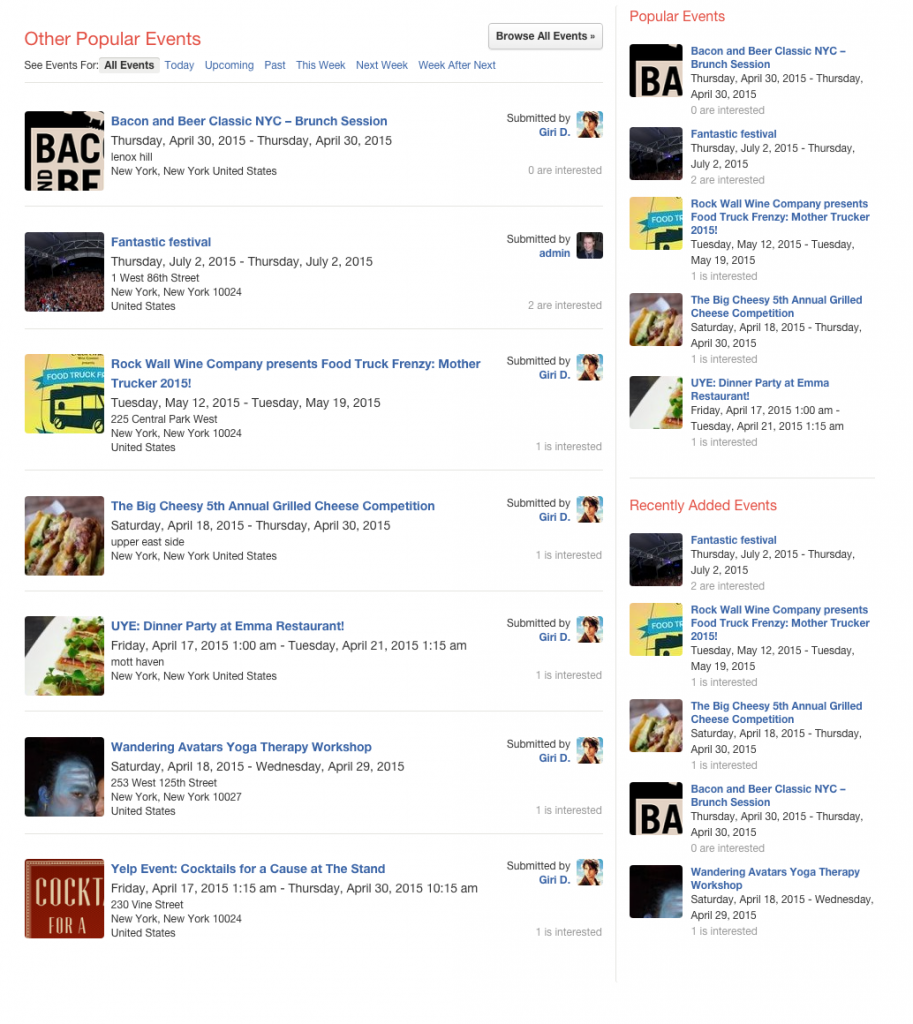
In the above screenshot, same widget is used 3 times with different widget names.

  1. You can use this widget to list popular events or latest events.
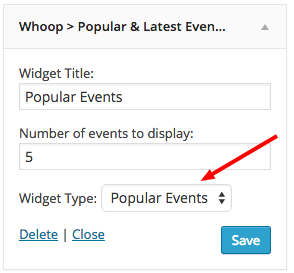
  2. You can set the widget listing type by selecting widget type. ( Refer the following screenshot )
  3. widget-type
  4. When you place the widget in main content, the layout will be displayed differently. It will display, Browse all events button, See event for links and the submitter info. ( refer other popular events in the above screenshot )

Recent Activity ( BuddyPress Required )

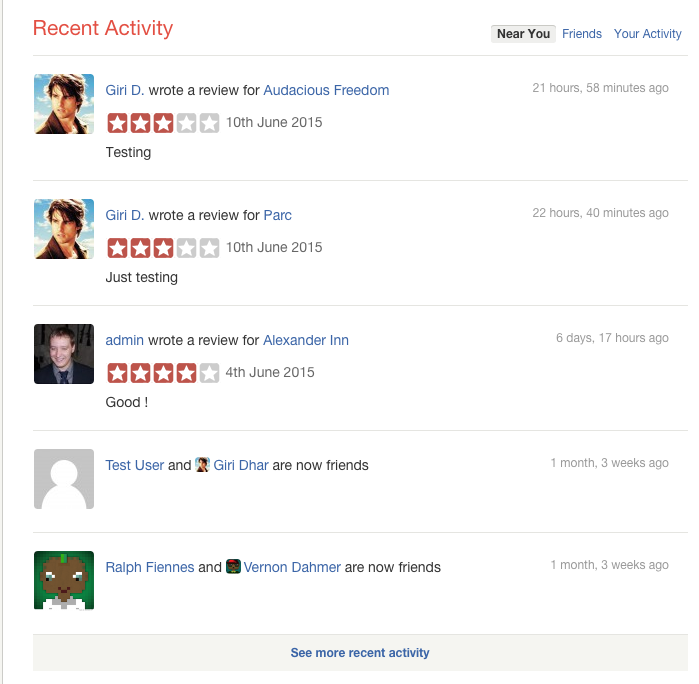
recent-activity

  1. This widget displays information about the recent activity.
  2. Only logged in users can see filter links. ( Near You, Friends and Your Activity)
  3. Activity will be recorded and displayed, when a user becomes a friend with another user.
  4. Activity will be recorded and displayed, when a user write a review for a place.

Event Updates ( BuddyPress & GeoDirectory Events Required )

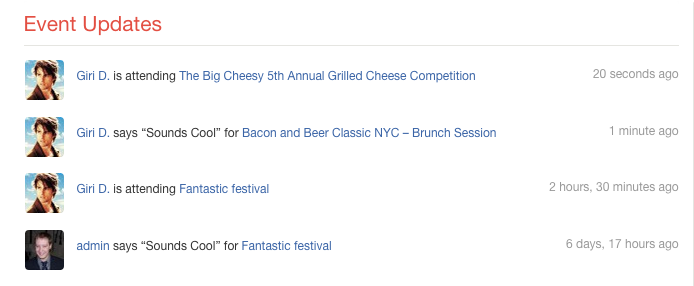
event-updates

  1. When a user click I’m in or Sounds Cool button from Are You Interested? widget, the activity will be recorded.
  2. The latest 5 activities will be displayed in Event Updates widget.

Friends ( BuddyPress Required )

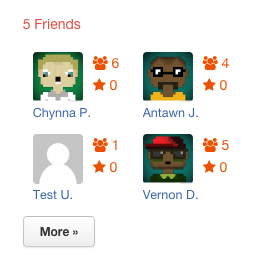
friends

  1. This widget can be displayed only on BuddyPress user profile pages.
  2. So place your widget in BuddyPress Sidebar
  3. You can set the number of users to display on the widget. Default value is 4.

Today in Talk ( bbPress Required )

today-in-talk

  1. This widget shows latest forum topics


GeoDirectory Lists – Overview

Introduction

Using GeoDirectory Lists, you can create your own place list.  Example: My Favorite Restaurants

Note: As of now GeoDirectory Lists can be used only with Whoop theme. Other themes are not supported yet.

Prerequisites

  1. GeoDirectory
  2. Whoop Theme (Optional)
  3. Posts 2 Posts
  4. Buddypress (Optional)

Posts 2 Posts

GeoDirectory Lists heavily depends on Posts 2 Posts Plugin. So Please install it first before installing GeoDirectory Lists.

Installation

Please follow this tutorial, to install the plugin.

Reset Permalinks

  1. Navigate to Settings > Permalinks > Common Settings.
  2. Select Default option and then save it.
  3. Now select Post name and then save it again.

Links

  1. List index can be accessed by visiting yourdomain.com/lists/
  2. A new list can be created by visiting yourdomain.com/add-list/
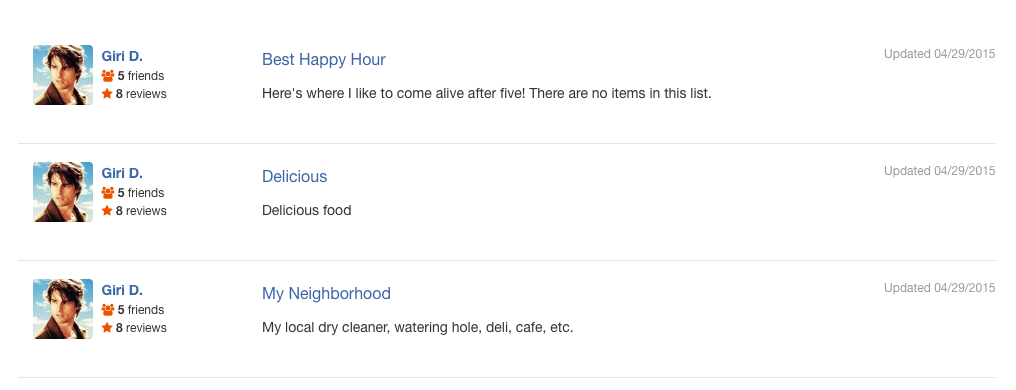
Index Page screenshot

list-index

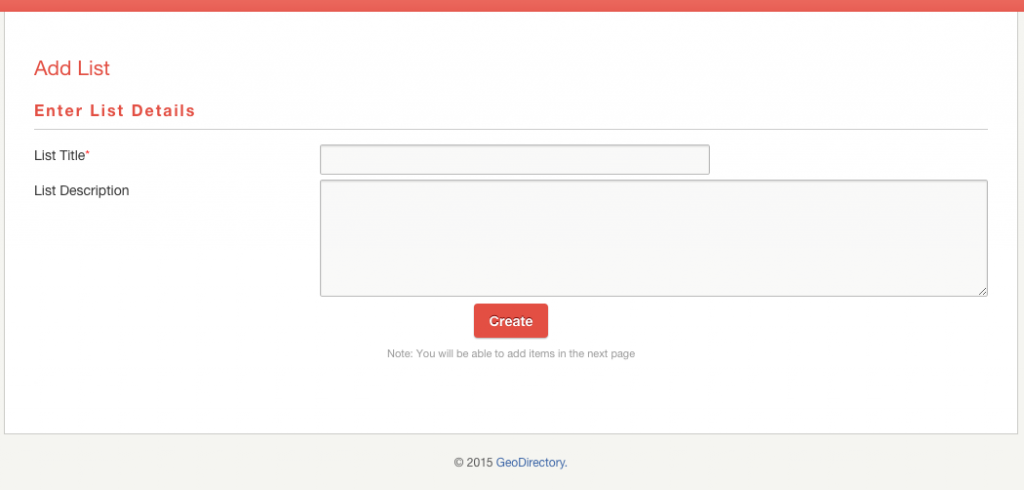
Add List Page screenshot

list-add

To create a List

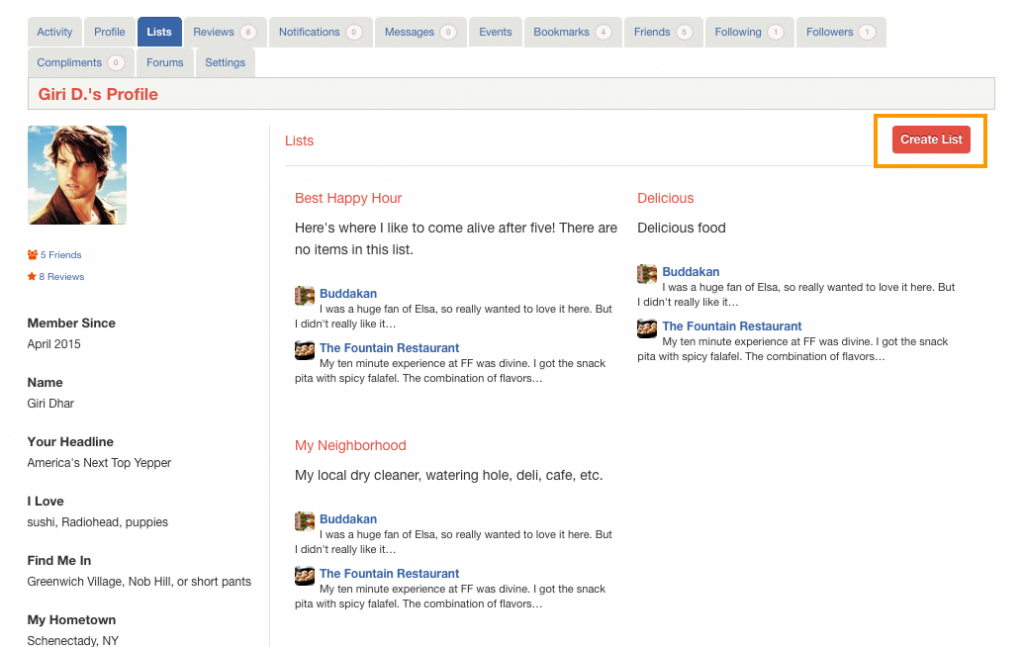
  1. Navigate to Account Settings > Lists
  2. Click Create List button.
  3. create-list
  4. Enter List Title and List Description and then click Create
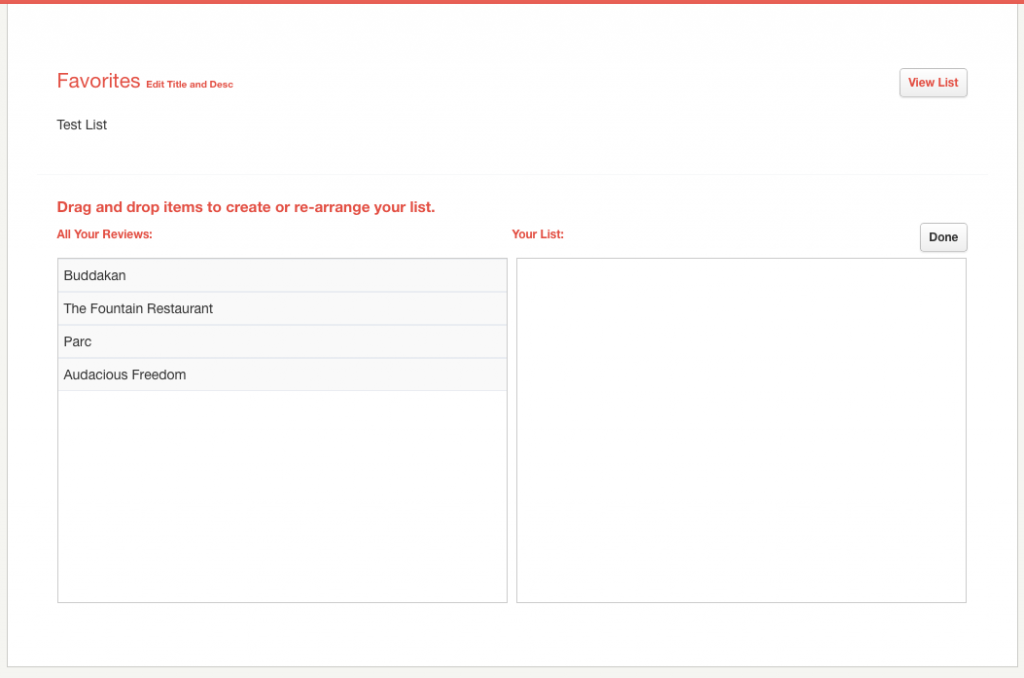
  5. You will redirected to a page where you can add items to your list.
  6. Drag and Drop items from the left side to right side. Note: You can see only the listings your reviewed.
  7. add-items
  8. After adding items to your list click Done to save.
  9. Click View List to view your list.

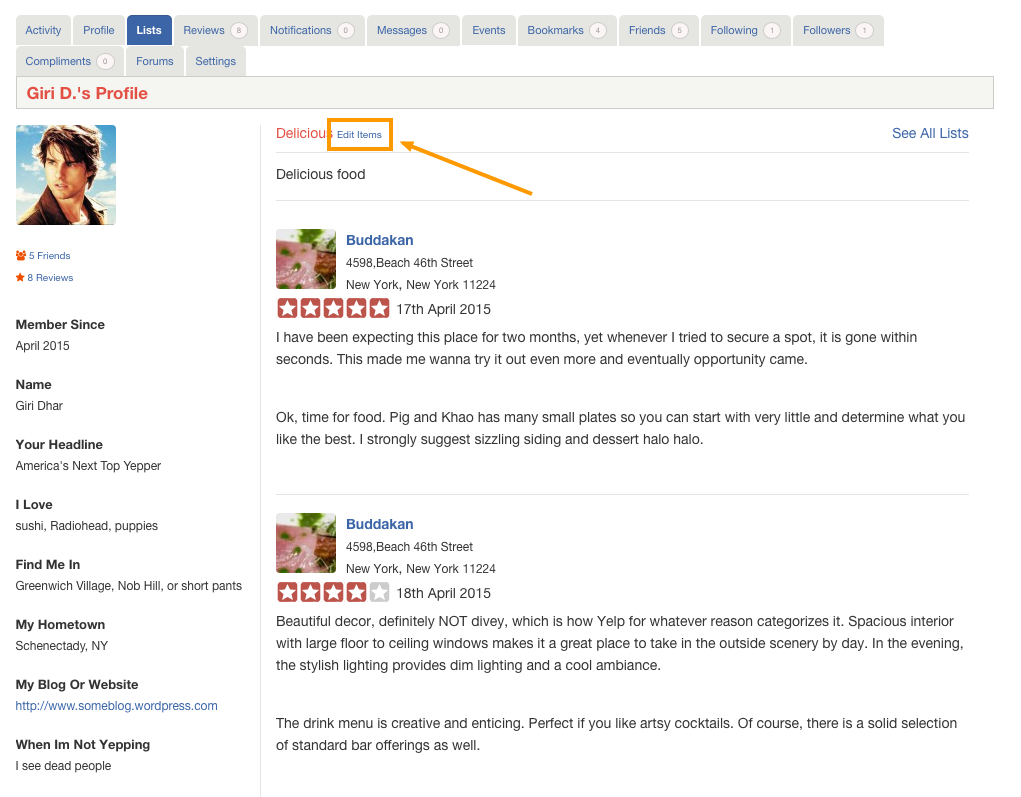
To Edit List Items

edit-items

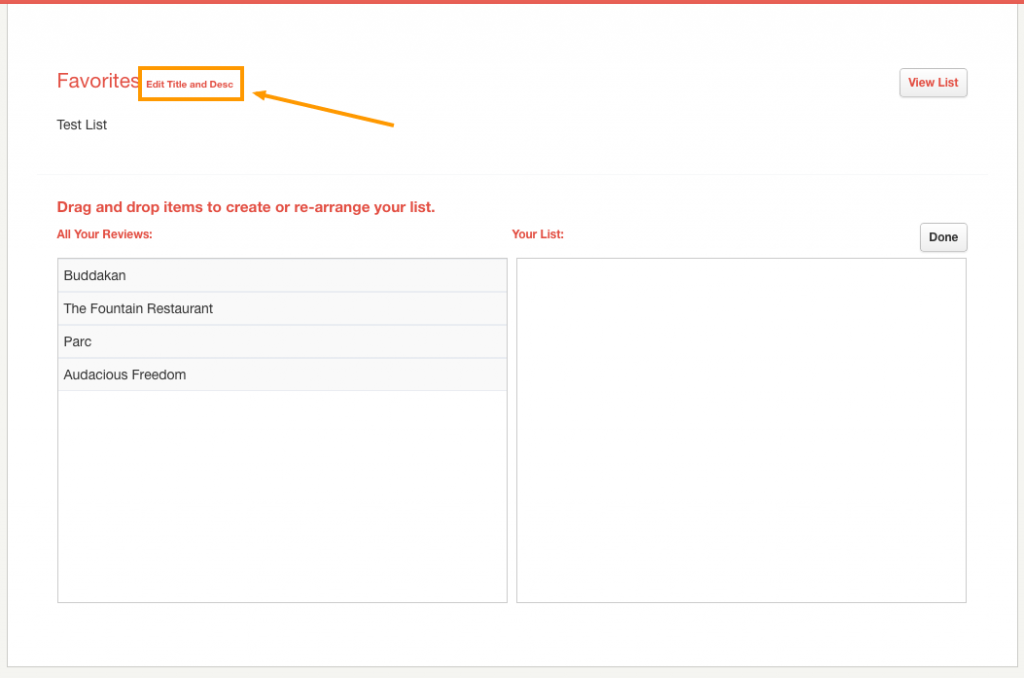
To Edit List Title and Description

edit-title


BuddyPress Compliments – Overview

Introduction

BuddyPress Compliments is a buddypress addon created by GeoDirectory. BuddyPress members can compliment each other using this plugin.

Note: As of now BuddyPress Compliments can be used only with Whoop theme. Other themes are not supported yet.

Prerequisites

BuddyPress Compliments depends on the following in order to work.

  1. BuddyPress
  2. Whoop Theme

Installation

Please follow this tutorial, to install the plugin.

Configuration and Usage

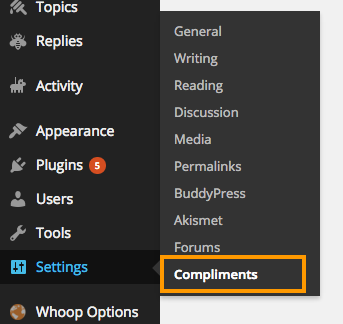
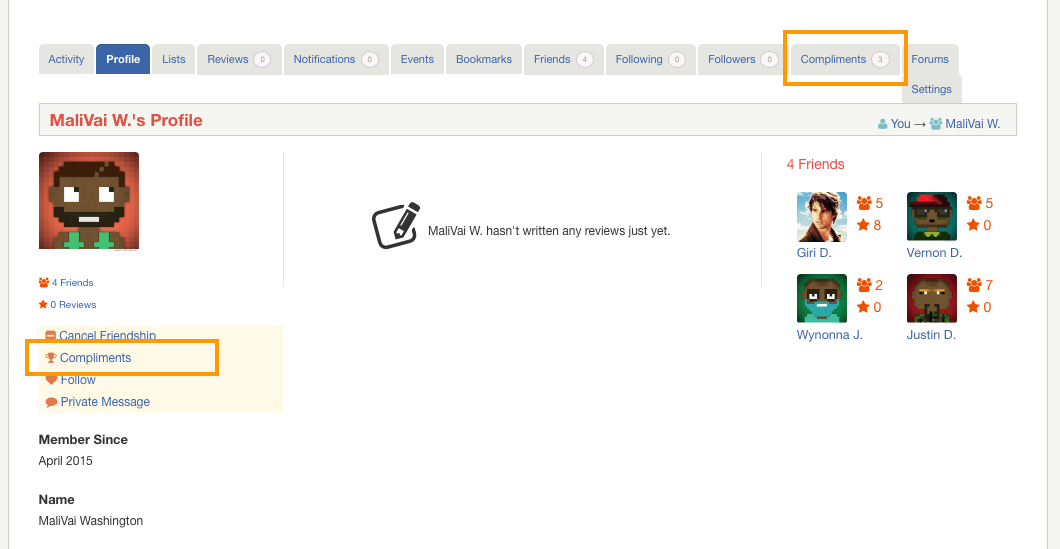
After plugin activation, you can see a new menu link compliments under settings

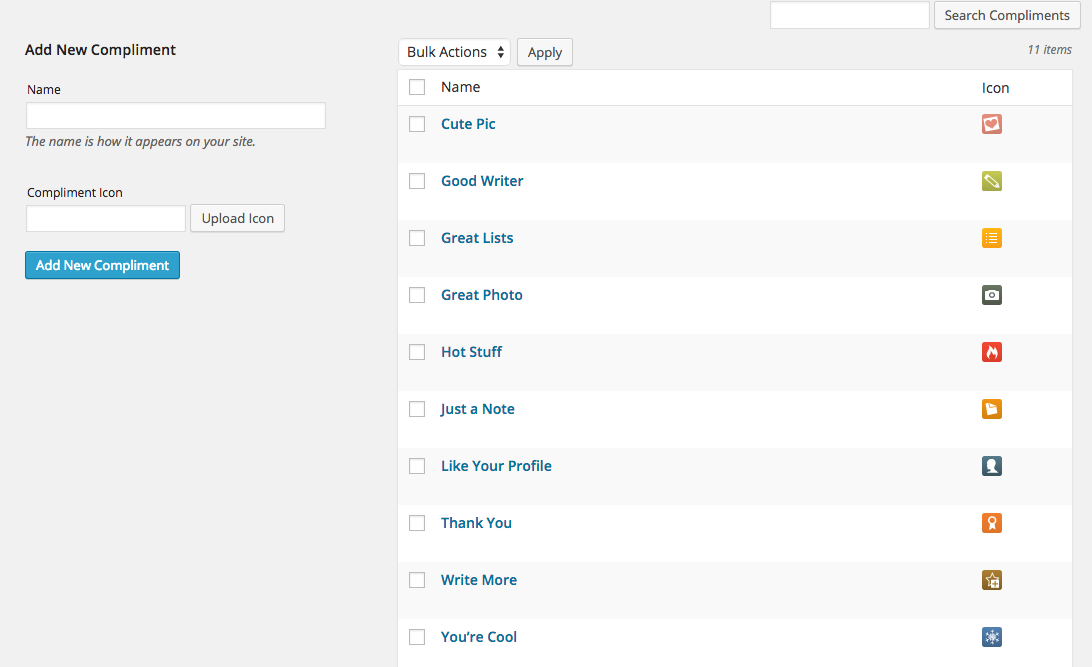
  1. You can add unlimited number of compliment types with icons.
  2. Please note, the recommended icon size is 20px x 20px
  3. Here is the screenshot of compliment page where you can add compliment types.
  4. A Compliment button and Compliments tab are added to each profile page. ( Note: Compliments button will not be visible on logged in user’s profile page.
  5. When you click Compliments button a popup will be displayed with compliment types.
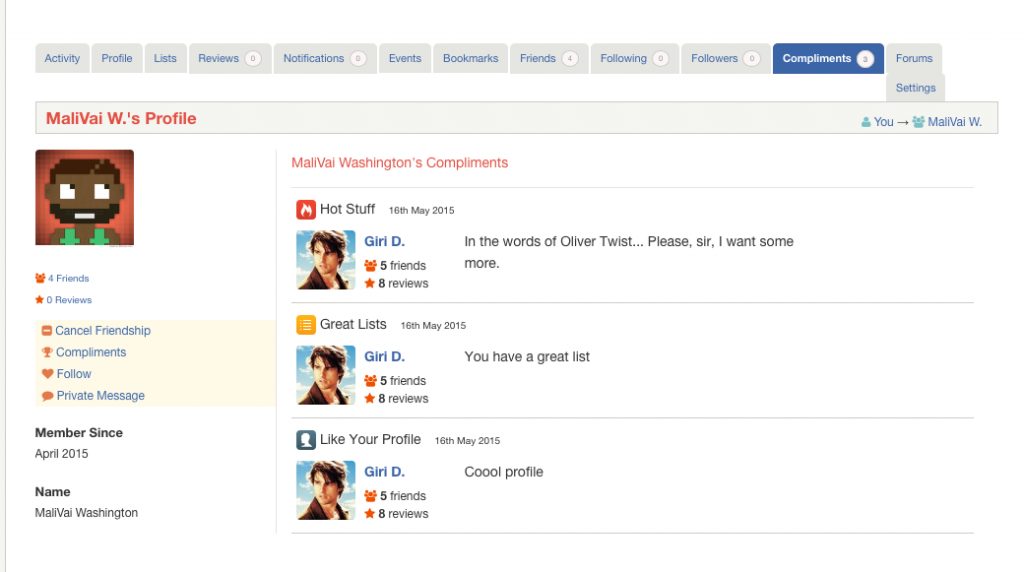
  6. Submitted compliments will be visible in user’s compliments section.
  7. compliments-section


Themes – Creating a Menu

Go to Menu Dashboard

Navigate to Appearance > Menus

Create a Menu

Enter your preferred menu name in the Menu Name text field, then click Create Menu button.create-menu

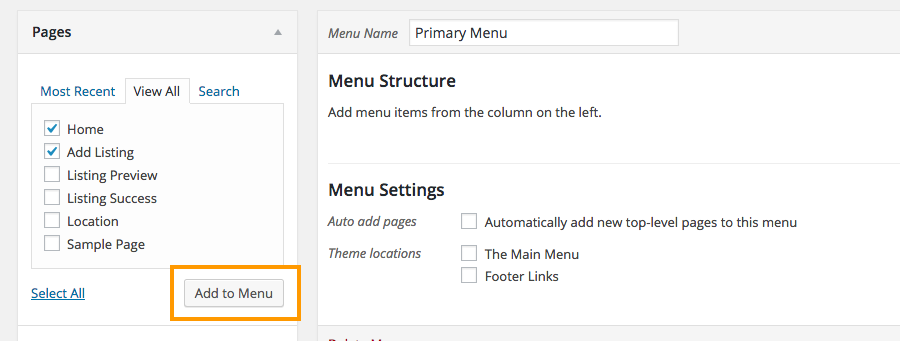
Add some Menu Items

Check the menu items you need and then click Add to Menu button. 

add-menu-items

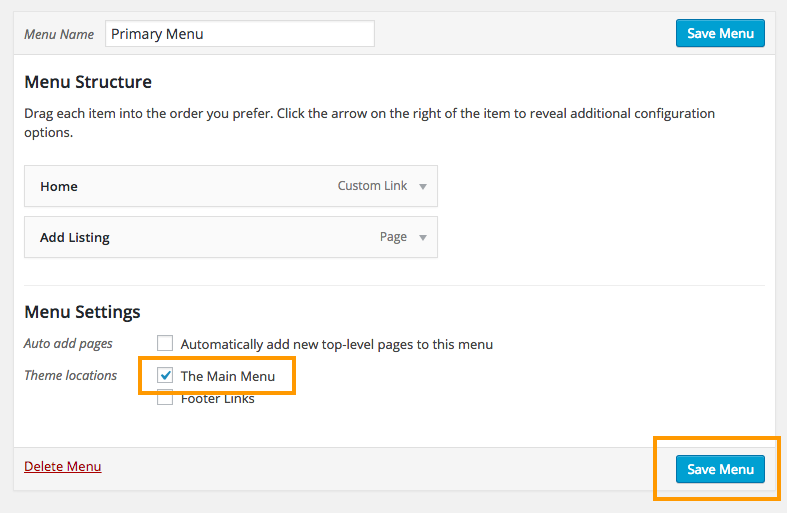
Set Menu Location

If you are planning to display your menu, then make sure you check at least one of the Theme Locations.  Sometimes you might wanna display your current menu on a widget. In that case you don’t have to check the theme locations.  Finally save your menu by clicking Save Menu button. 

save-menu


Whoop Theme – Overview

Introduction

Do you ever wanted to have your own website like Yelp?  Don’t worry.. We have got you covered. GeoDirectory’s Whoop theme makes your GeoDirectory powered site look like a yelp clone as close as possible. Sounds cool eh..? Alright.. Its time to get our hands dirty. This documentation assumes that you have a fresh WordPress installation. Let’s get started.

Prerequisites

Before installing our theme, lets install its dependencies.

  1. GeoDirectory (Required)
    1. GeoDirectory Events (Optional)
    2. GeoDirectory Lists (Optional)
      1. Posts 2 Posts (Required for GeoDirectory Lists)
  2. BuddyPress (Optional)
    1. BuddyPress Integration ( Required )
    2. BuddyPress Follow (Optional)
    3. BuddyPress Compliments (Optional)
    4. Invite Anyone (Optional)
  3. bbPress (Optional)

IMPORTANT

If used with GD + BBpress + BuddyPress and possibly several add-ons, this is no tool for a shared hosting or the average VPS. Having a Directory, Forum and Social Network requires resources so make sure to use at least a High End VPS or a beefier Dedicated Server.

Permalinks Configuration

Navigate to Settings > Permalinks > Common Settings. Make sure Post name is selected.

GeoDirectory Installation

  1. Navigate to Plugins > Add New
  2. Search for GeoDirectory – Ultimate Business Directory
  3. Install it
  4. GeoDirectory needs at least one location in order to work. So Set a default location first by following this tutorial. ( Tip: If you need multi locations, check our MultiLocations addon )
  5. You must set GeoDirectory Pages.  Navigate to Geodirectory > Permalinks > Geodirectory Pages and set the pages
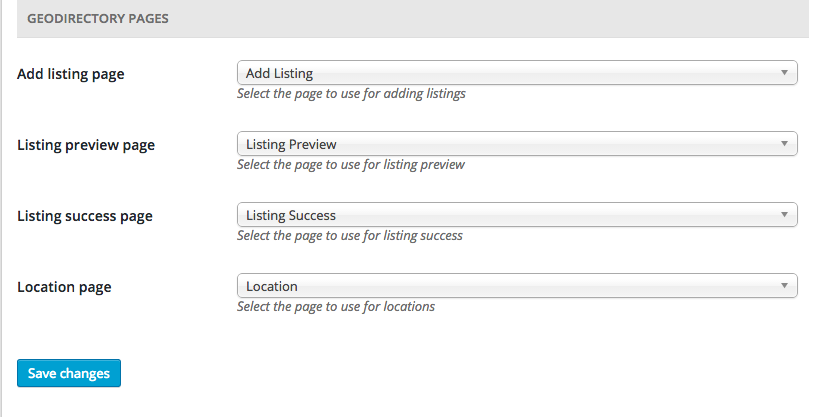
  6. gdpages

GeoDirectory Events Installation

  1. Visit wpgeodirectory.com ( Buy a subscription if Required )
  2. Navigate to My Account > Downloads ( Login if Required )
  3. Download Geodir Event Manager zip file.
  4. Go to your WordPress site dashboard, Navigate to  Plugins > Add New > Upload Plugin
  5. Browse and Upload the zip file you downloaded from wpgeodirectory.com
  6. Activate the plugin.

GeoDirectory Lists Installation

  1. Visit wpgeodirectory.com ( Buy a subscription if Required )
  2. Navigate to My Account > Downloads ( Login if Required )
  3. Download Geodir List Manager zip file.
  4. Go to your WordPress site dashboard, Navigate to  Plugins > Add New > Upload Plugin
  5. Browse and Upload the zip file you downloaded from wpgeodirectory.com
  6. Activate the plugin.

Posts 2 Posts Installation

  1. Navigate to Plugins > Add New
  2. Search for Posts 2 Posts
  3. Install it

BuddyPress Installation

  1. Navigate to Plugins > Add New
  2. Search for BuddyPress
  3. Install it
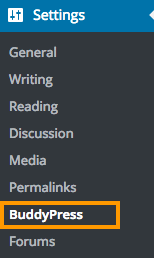
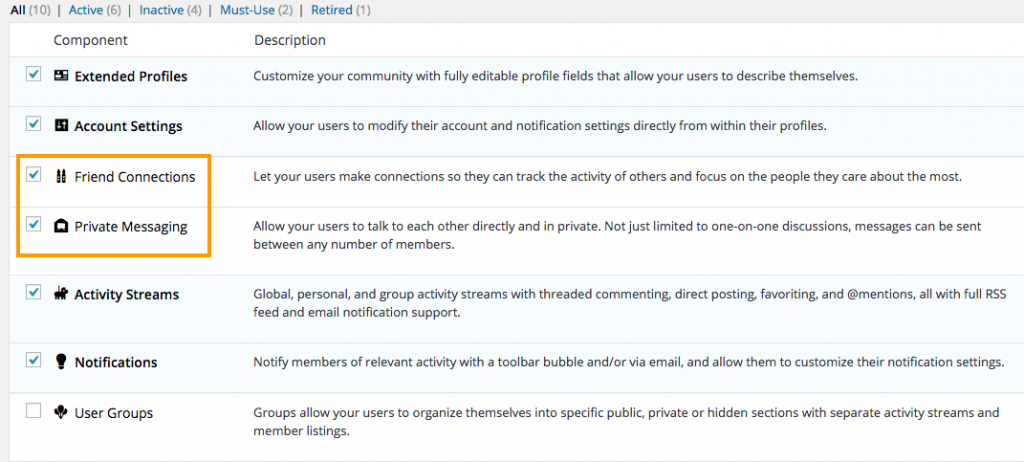
  4. After BuddyPress activation, navigate to Settings > BuddyPress and Enable the following components.
    1. Friend Connections
    2. Private Messaging

    buddypress

    buddy-components

    If BuddyPress pages not working, reset your Permalinks.

    To reset your permalinks,

    1. Navigate to Settings > Permalinks > Common Settings. 
    2. Select Default option and then save your settings.
    3. Now select Post name option and then save your settings again.

BuddyPress Integration Installation

  1. Visit wpgeodirectory.com ( Buy a subscription if Required )
  2. Navigate to My Account > Downloads ( Login if Required )
  3. Download Geodir Buddypress Integration zip file.
  4. Go to your WordPress site dashboard, Navigate to  Plugins > Add New > Upload Plugin
  5. Browse and Upload the zip file you downloaded from wpgeodirectory.com
  6. Activate the plugin.

BuddyPress Follow Installation

  1. Navigate to Plugins > Add New
  2. Search for BuddyPress Follow
  3. Install it

BuddyPress Compliments Installation

  1. Navigate to Plugins > Add New
  2. Search for BuddyPress Compliments
  3. Install it

Invite Anyone Installation

  1. Navigate to Plugins > Add New
  2. Search for Invite Anyone
  3. Install it

bbPress Installation

  1. Navigate to Plugins > Add New
  2. Search for bbPress
  3. Install it

Heads Up!

If you are planning to use BuddyPress, please install it first before installing whoop theme, since whoop creates some BuddyPress custom fields while theme activation. If you don’t do that, you may have to deactivate and activate the theme again and when you do that, your widget settings might get lost.

Theme Installation

Please follow this tutorial to install the theme.

Menus

Whoop has 2 menu locations.

The Main Menu

Footer Links

footer-links

For each menu location, please create a menu and assign to the location by following this tutorial.

Basic Configuration

Lets make sure we have some basic settings in order to make our theme work properly.

  1. Would you like to add Add listing ( Ex. Add Hotel ) and View Listing ( Ex. Hotels ) links to the Main Menu? If Yes Navigate to Geodirectory > Design > Navigation > Show geodirectory navigation in selected menu locations > Select The Main Menu

Header

If you have followed our instructions correctly so far, then your current header might look similar to this screenshot.

header-view

Upload your logo

We believe, you are interested in adding your logo. If this is the case, navigate to Whoop Options  > Header Styling Options Site Logo, then upload your logo there by clicking upload button. Recommended logo size would be 160px width and 60px height. Make sure you click Save Changes button after setting your logo.

If you refresh your home page, now the header might look like this.

Add search box

Ok Lets add the search box in header.

  1. Navigate to Appearance > Widgets
  2. Click on “GD > Search” widget. A popup will appear with a list of widget locations.
  3. Scroll to the bottom of the popup. You will see a widget location named GD Header Right. Click on it. Make sure its checked. Then click Add Widget button. Refer the following screenshot.
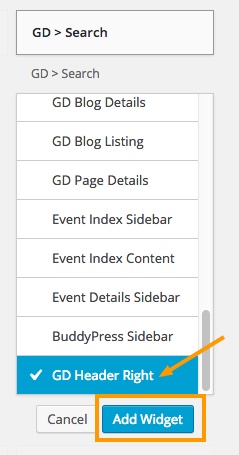
  4. search-widget
  5. Thats it. Now refresh your home page. Your header might look like this.

Voila. Header part completed. That wasn’t so hard. Was it?

Footer

Footer Widgets
  1. Navigate to Whoop Options > Footer Styling Options > Enable footer widget areas
  2. Select the number of footer widget you need.

In our case we selected 4. So the Footer has 4 widget locations.
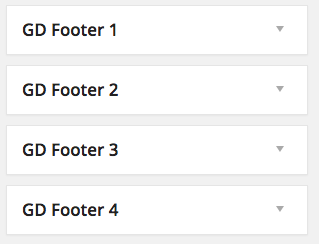
footer-wid-locations

So we need 4 menu widgets for our footer.

  1. Create 4 new menus by following this tutorial  But don’t set them to any menu location.
  2. You will see a widget called Custom Menu in Appearance > Widgets section.
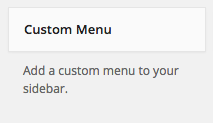
  3. custom-menu
  4. Add that Custom Menu widget in all 4 widget locations and select menu for each widget location.
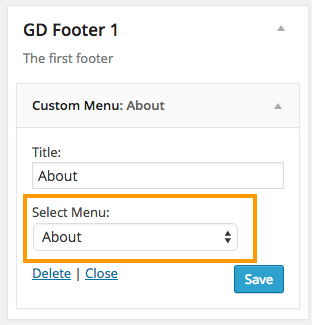
  5. select-menu
  6. You final result might look like this.
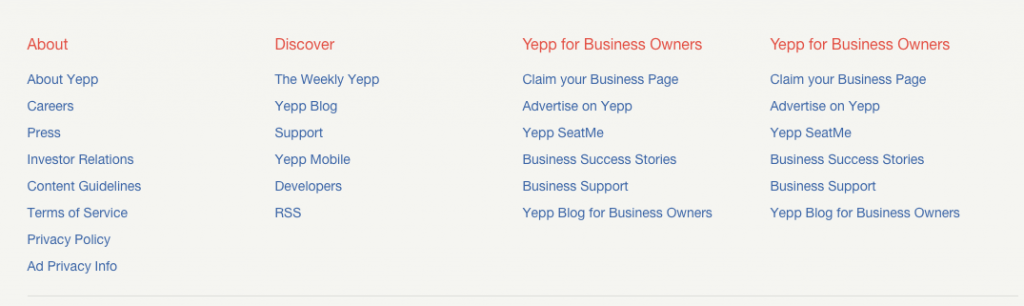
  7. footer-widget
  8. Footer widget section completed.
Copyright Text

Most likely, you would like to change your copyright text. If this is the case Navigate to Whoop Options > Footer Styling Options > Copyright Text

In that textarea field, clear everything and then enter your new copyright text. You can copy and paste the following text and alter as you prefer.

Copyright © 2004–2015 Whoop Inc. Whoop, Whoop logo, Whoop burst and related marks are registered trademarks of Whoop.

The result might look like this.

copyright-text

Footer Links

If you assign any menu to Footer Links menu location, then it will be displayed on the right side of copyright area.

Add some listings

Navigate to Places > Add New to add some listings. Please add at least 10 listings. If you are in a hurry then navigate to Geodirectory > General > Dummy Data and then populate your site with some dummy data which can be deleted later.

Tip: By default GeoDirectory supports only one post type called Places. So if you are planning to add more post types like Hotels, Restaurants, Bars etc., then check our Custom Post Types addon.

After adding some listings, you home page might look like this.


bbPress data

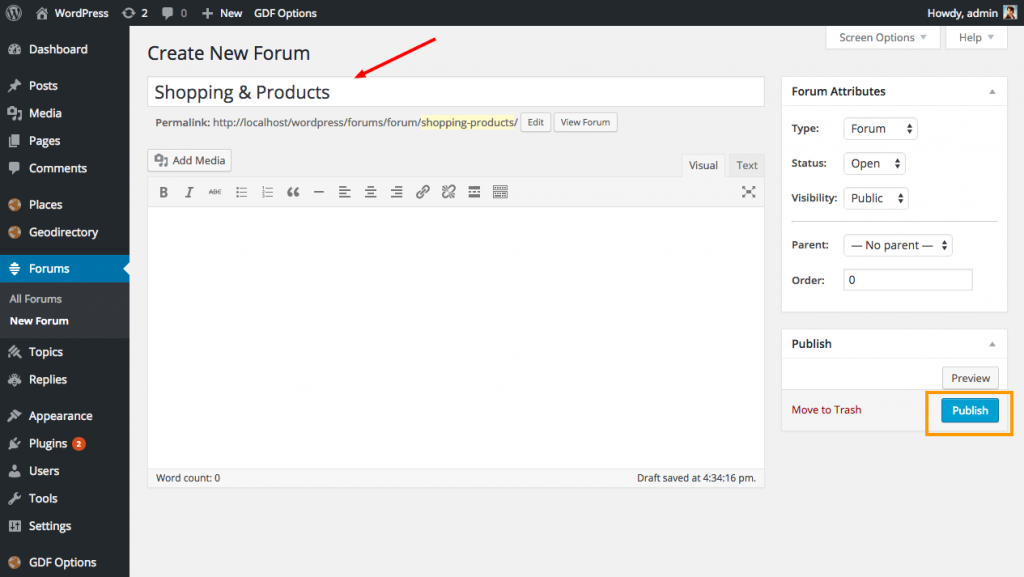
  1. Add some forums
  2. forums-forum
  1. Add some topics by visiting yourdomainname.com/forums . Make sure you created some forums first.
  2. Add some replies to each topic.

Available Widgets

A number of widgets included in whoop.  You can read more about each widget and its description by visiting this page.

Home Page

Navigate to Appearance > Widgets

Lets use some widgets to build our home page.

Before proceed, make sure you know about widget locations.  Widget locations indicated using arrows on the following screenshot.
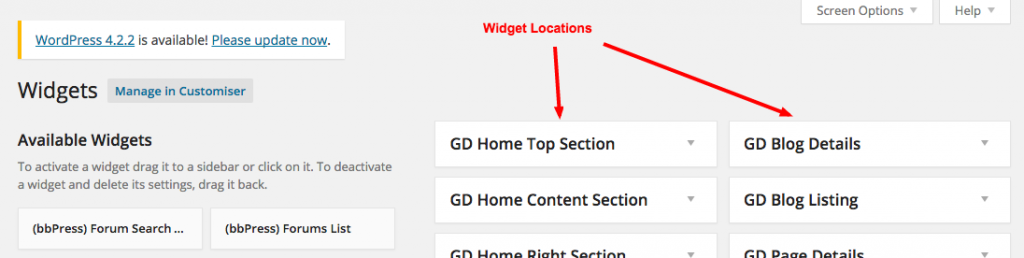
wid-locations

Remove Default widgets from home page

Expand the following widget locations and completely remove all widgets from them.

  1. GD Home Top Section
  2. GD Home Content Section
  3. GD Home Right Section

Check the following screenshot for example.
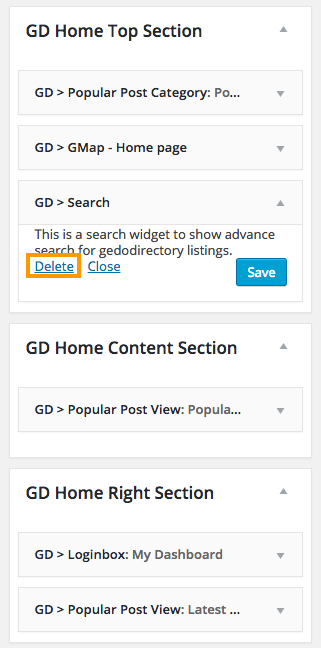
remove-home-widget


Once you remove everything, the home page might look like this.

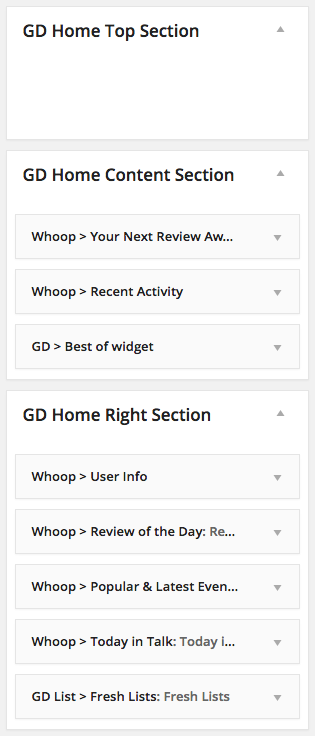
Now lets add some widgets to the these locations.

  1. GD Home Content Section
    1. Whoop > Your Next Review Awaits
    2. Whoop > Recent Activity
    3. GD > Best of widget
      1. Set Tab Layout to Tabs on Left
  2. GD Home Right Section
    1. Whoop > User Info
    2. Whoop > Review of the Day
    3. Whoop > Popular & Latest Events
    4. Whoop > Today in Talk
    5. GD List > Fresh Lists

home-add-widget

Listing Pages

Expand the following widget locations and remove only marked widgets from them.
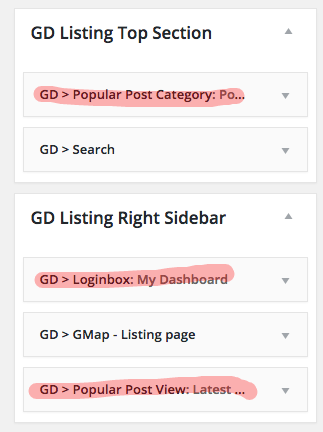
listing-page

Search Pages

Lets keep the same listing page structure in search page too.

Expand the following widget locations and remove only marked widgets from them.
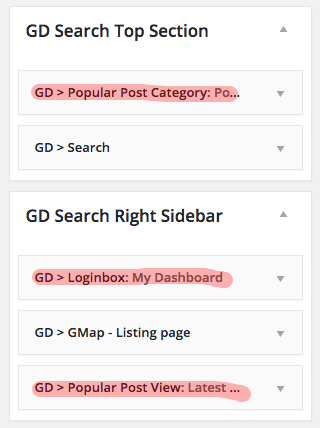
search

Listing Detail ( Single ) Pages

Lets remove all widgets from the following widget locations.

Expand the following widget locations and completely remove all widgets from them.
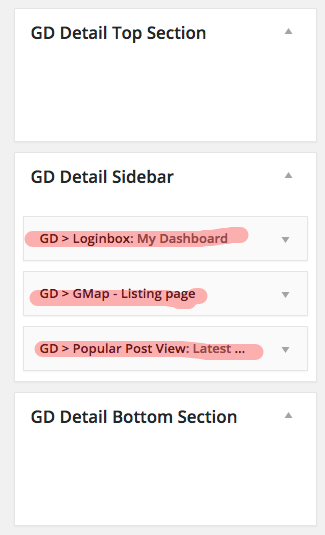
detail-widget

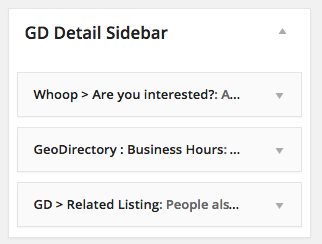
Now add the following widgets to GD Detail Sidebar

  1. Whoop > Are You Interested?  ( GeoDirectory Events Required and will be displayed only on single event pages )
  2. GeoDirectory : Business Hours  ( GD Business Hours Required : Note this was a third party plugin that is no longer available. GeoDirectory V2 will include Business Hours )
  3. GD > Related Listing

detail-sidebar2

For GD Business Hours you can use the following settings.
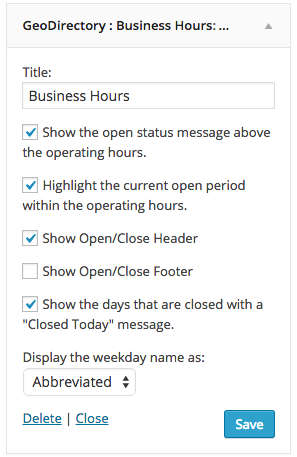
gdbishours

Note: GD Business Hour widget will be displayed only if you have filled the Business Hours information. This is how it look in sidebar.
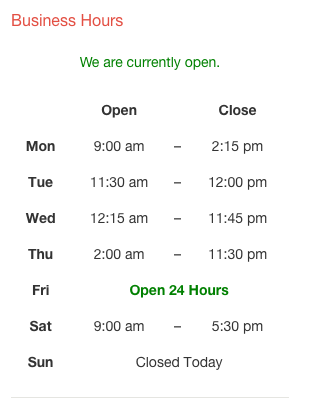
business-hours

You might wanna remove the following details from the sidebar. ( Note: They are not widgets )
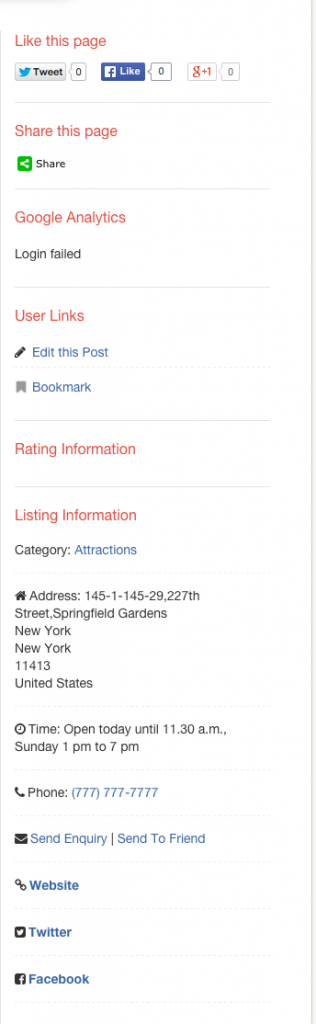
detail-sidebar

Its recommended to keep Listing Information and remove all other info boxes. But you can remove Listing Information box too if you prefer.

To remove those info boxes, Navigate to Geodirectory > Design > Detail and then Check the following checkboxes.
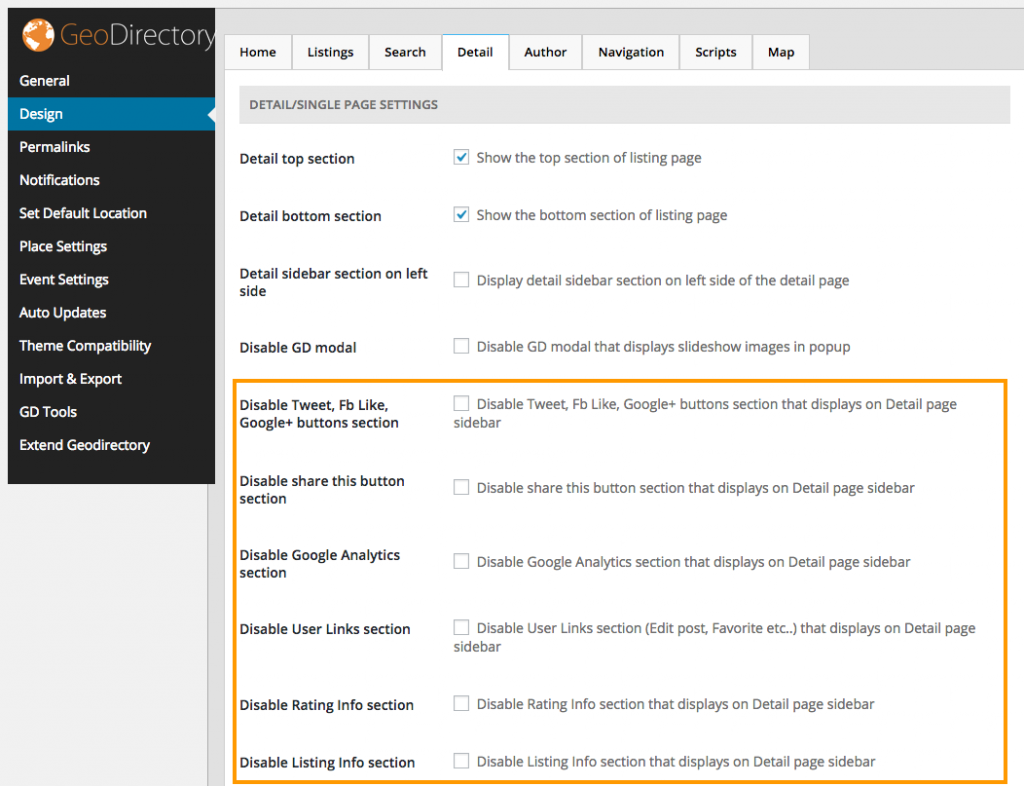
disable-info

Event Pages

Event Listing Page

events-listing

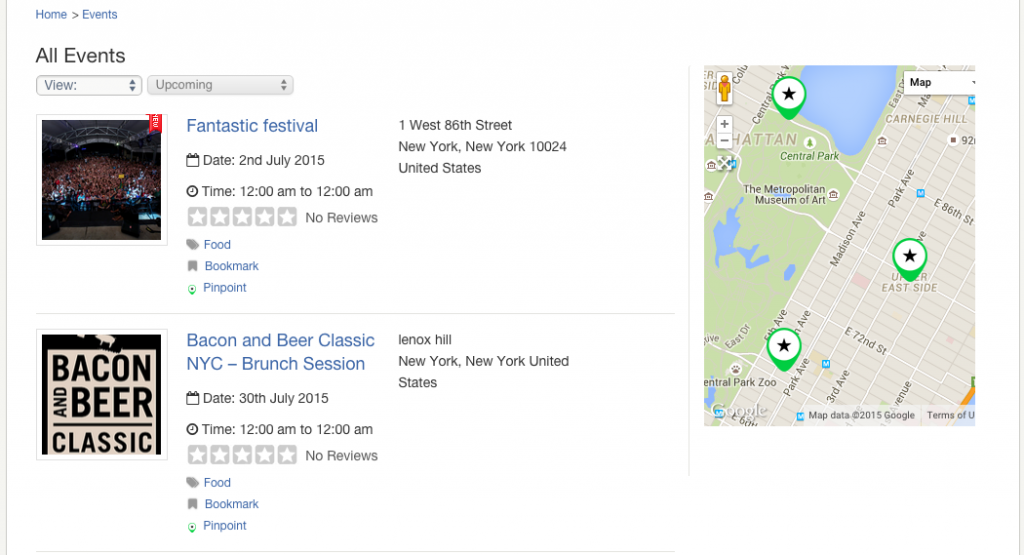
When you visit, yourdomain.com/events/  you can see normal event listing page, generated by GeoDirectory. Widgets used in this page comes from GD Listing Top Section, GD Listing Right Sidebar ( Scroll above and refer Listing Pages section )

Event Index Page

This page can be accessed by visiting this url.

yourdomain.com/events/?e_index=true

event-index

When GeoDirectory Events active, whoop registers the following widget locations.
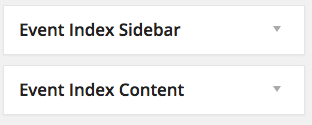
event-index-sidebar

Just place the following widgets in those widget locations.

  1. Event Index Sidebar
    1. Whoop > Popular & Latest Events ( Widget Type: Popular events )
    2. Whoop > Popular & Latest Events ( Widget Type: Latest events )
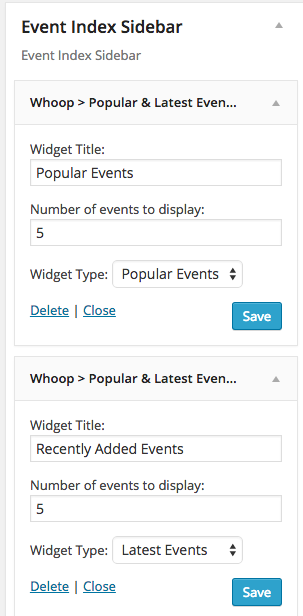
    3. event-sidebar-widgets
  2. Event Index Content
    1. Whoop > Event Updates
    2. Whoop > Popular & Latest Events ( Widget Type: Popular events )
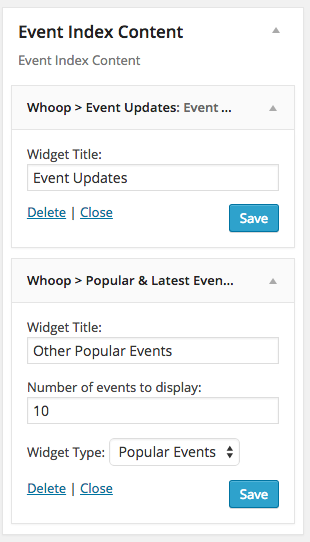
    3. event-index-widgets


BuddyPress Follow

No additional configuration required for BuddyPress follow. After plugin activation you can see two new tabs called Following, Followers in member profile page.

BuddyPress Compliments

To configure BuddyPress compliments, please follow this tutorial.

GeoDirectory Lists

To configure GeoDirectory Lists, follow this tutorial.

BuddyPress Profile Fields

BuddyPress profile can be Edited from Account settings > Profile Info

Some profile fields are automatically created when you activate whoop theme. ( BuddyPress must be activated before activating whoop theme. So If you don’t see any profile fields, activate some other theme and then activate whoop again )

To add more fields or Delete existing fields, Navigate to Users > Profile Fields
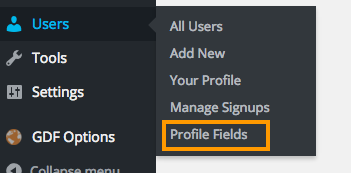
profile-fields

  1. Don’t remove Name field, since its required
  2. Don’t rename Group

Hide tabs from BuddyPress

If you would like to hide some tabs on BuddyPress profile pages, Navigate to Whoop Options > BuddyPress Options
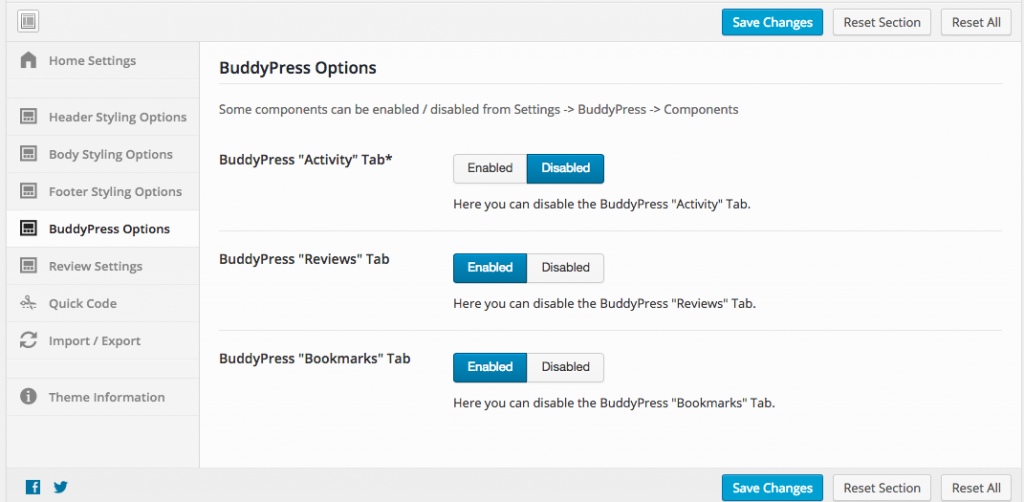
buddytabs

Limit 1 Review / User / Post

By default user can post unlimited number of reviews on a listing. If you would like to limit 1 review for each listing, then navigate too Whoop Options > Review Settings > Limit 1 Review / User / Post  > Enabled
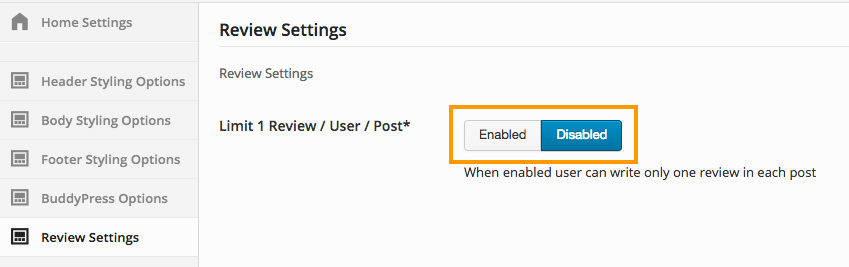
limit-review

Translate Whoop

Whoop theme is one of the Geodirectory Framework themes. Each Geodirectory Framework theme is translated with the same textdomain for the language file.

The file should be located on the server at:

/wp-content/languages/themes

File should be named as in the following examples:

geodirectory_framework-en_US.mo / geodirectory_framework-en_US.po
geodirectory_framework-es_ES.mo / geodirectory_framework-es_ES.po
etc