The GD Search explained

On this page:

1. Custom Post Type selector 2. Category selector 3. “Search for” field 4. “Near” field 5. The “Near me” compass 6. Filtering with custom fields Adding a Select custom field to the search bar

Read Understanding navigation, searching and browsing … to understand the basic search function better.

1. Custom Post Type (CPT) selector
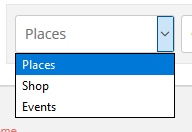
This selector will only be shown if you have more than one Custom Post Type.


  1. The CPT selector defaults to the current CPT of a Listings, detail or search page. For example on an Events category page, Events will be listed first in the selector.
  2. On a location page or any standard WP page or post, the order of the CPTs in the selector can be determined by changing the order at GD > Custom Post Types > Choose a CPT > Advance Mode tab > Order in post type list (Custom Post Types addon required).

2. Category selector
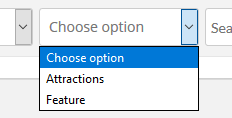
The categories drop down can be set up for each Custom Post Type and the Advanced Search addon is required.

  1. Activate the Advanced Search addon.
  2. Go to GD > Place (or other CPT) Settings > Custom Fields tab.
  3. Select Yes to include the categories drop down in the Advanced Search:
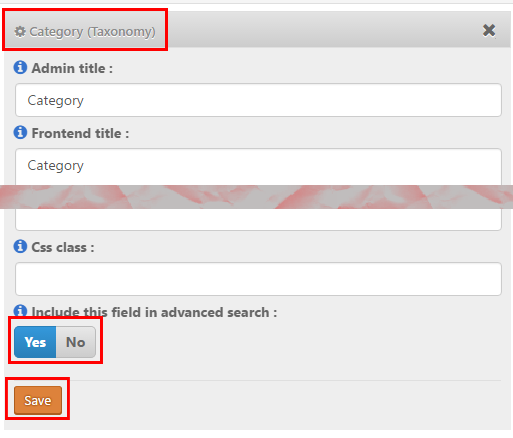
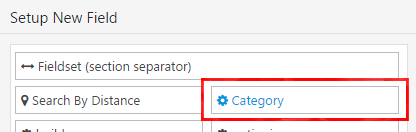
  4. Then go to the Advanced Search tab and click on the Category field on the left hand side, that will move it to the available fields on the right:
  5. Now open the Category field there, and select to Show in main search bar
    :
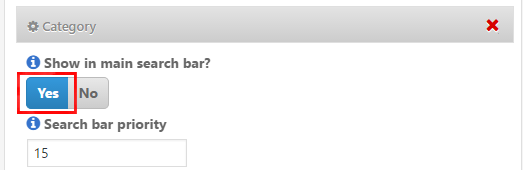
  6. The Search bar priority setting allows you to move the Category selector left or right in the main search bar.

3. “Search for” field

  1. GD will check the entry titles, description and taxonomies (tags and categories) of the listings.
  2. The search will not check custom fields or locations.
  3. The search will only search one Custom Post type at the time.
  4. With the Advanced Search addon, you can set this field to auto-suggest listings based on the title of the listings, see Search Autocompleter settings.
  5. You can change the default text at GD > Design > Search.

4. “Near” field

  1. When you enter a location in the Near field, GD will calculate the center of that location.
  2. GD then will look for all listings within an area with a default that match the Search for criteria.
  3. Your default search area is set at GD > General > Search.
  4. The default GD search is not an IN search, but a search NEAR THE CENTER OF.
    For example, assuming your search area is set to 40 square miles:

    1. If you enter World Trade Center, you will get listings around that building.
    2. If you enter United States, you will get listings somewhere around Buffalo in Kansas, because that is where Google situates the center of the United States.
    3. If you enter California, you will get listings somewhere in the Sierra National Forest.
  5. Be aware of some issues:
    1. If you enter a ZIP or a postcode, be aware that that postcode might be used by different countries in the world and might return results around the center of a city in a different country.
    2. A similar issue might occur for place names of cities in different countries.
    3. Please review Add location specific text to (Near) search for Google.
  6. Although the default search for this field is a NEAR THE CENTER OF search, with the Advanced Search addon, you can set this field to auto-suggest locations based on the title of the listings, see Near Autocompleter settings.
    Please note that if you have the Location Manager addon activated, the Near Autocompleter will start giving suggestions as your visitor starts searching, which if selected will search IN the location being entered (ie the city or region in the address of the listing) and will not search an area NEAR THE CENTER OF that location”
  7. You can change the default text at GD > Design > Search.

5. The “Near me” compass

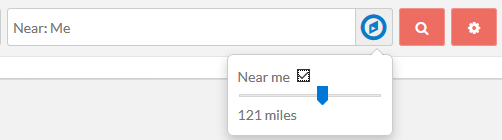
  1. This compass will only show if you have the Advanced Search addon active.
  2. It allows for the search to be limited or expanded by a radius around the visitor’s current location (if Near me is ticked) or near the center of the location selection in the Near field (if Near me is not ticked):
  3. Also review the Geolocation settings.

6. Filtering with custom fields

  1. This will only work if you have the Advanced Search addon active.
  2. Create your custom fields at GD > Place (or other CPT) Settings > Custom Fields.
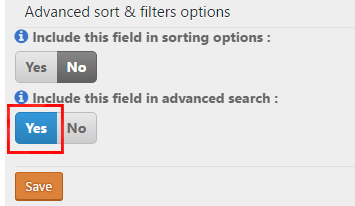
  3. Then navigate to the Custom fields tab and expand any custom field you would like to filter with search and tick the checkbox Include this field in filter:
  4. Then go to the Advanced Search tab and click on the custom field on the left hand side, that will move it to the available fields on the right:
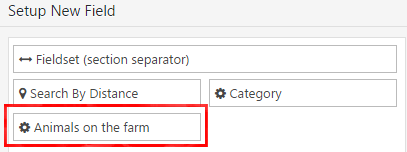
  5. Now open the field by clicking on it, and select the settings:
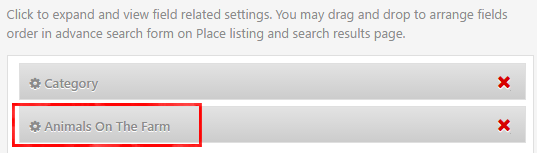
  6. Now clicking on the Search cogwheel will open the custom filter:
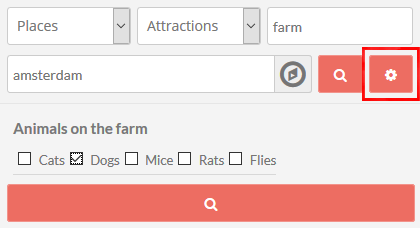
  7. Now if your visitors click the search button in the example above, the results will return:
    1. Listings from the Places CPT only,
    2. that are in the Attractions category, and
    3. have farm in the title, description, category or tag of the listing, and
    4. are around the center of Amsterdam (depending on the radius set in the system), and
    5. will be filtered to only return those listings that have dogs.

Adding a Select custom field to the search bar

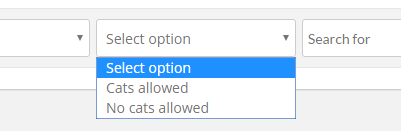
  1. Select custom fields can also be added to the search bar – but only Select, not Multiselect or any other, they can only be added to the Customized Search section as explained above.
  2. Follow steps 1 to 4 from 6. Filtering with custom fields above.
  3. Now open your Select custom field there, and select to Show in main search bar
    :
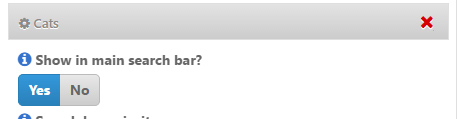
  4. That will add the Select custom field to the main search bar:
Location Manager – Manage Location

These are the sections you will find when you install the Location Manager:

Introduction and Location Settings tabManage Location tab – SEO Settings tab – Add/Edit Location tab – Translate Countries tab

On this page:

IntroductionCity Neighbourhoods – Adding or editing locations – Merging locations

Introduction

  1. The Manage Location tab is where you can edit or merge locations, and add meta data for your location pages.
  2. Here you can also divide locations into neighborhoods.

City Neighborhoods

  1. Locations are based on the Google Maps API, and the size of cities (towns, suburbs or villages etc depending on the country) can vary greatly from country to country. Your locations need to be therefore always city > region > country, exactly like Google suggests when you add a listing from the frontend.
  2. In some countries, cities are divided into smaller sections, for example New York City is divided in the boroughs of Bronx, Manhattan, Brooklyn, Queens and Staten Island.
  3. The neighborhoods need to be manually added in the backend, and need to be manually selected by users adding listings.

Adding neighborhoods

  1. For this example we will add the New York City boroughs as GD neighborhoods.
  2. At GD > Multilocations > Manage Location tab, find the city you want to add neighborhoods.
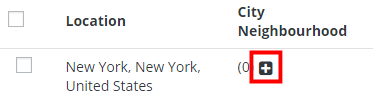
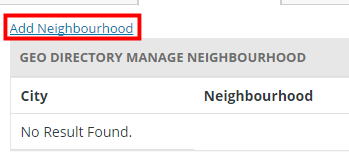
  3. Click on the plus sign + and then click on Add Neighborhood:
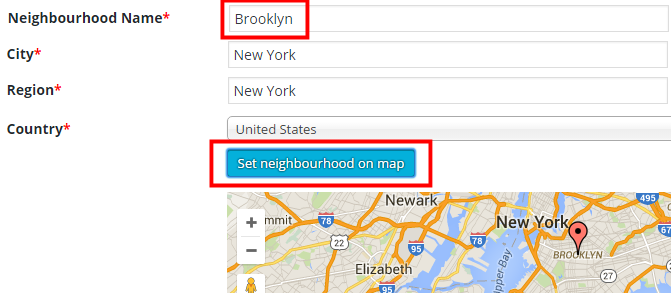
  4. Then add the name of the neighborhood, and Set neighborhood on map:
  5. Keep adding all neighborhoods.

Location switcher

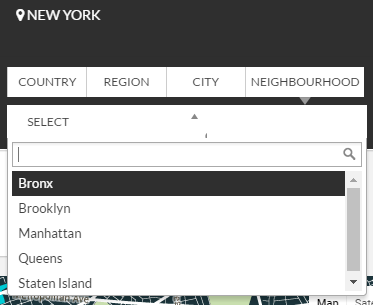
  1. Your visitors will now be able to filter locations by neighborhood:

Adding listings

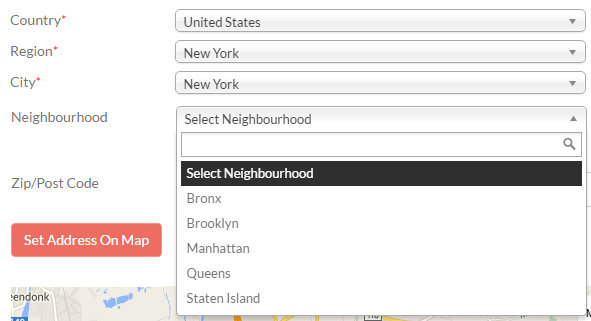
  1. Your users will now be able so select the neighborhoods when adding listings:

Adding or editing locations

  1. As part of your initial GD Core plugin, you should already have a default location set.
    It is one of the compulsory basic installation steps.
  2. Best practice is not to add locations here, because every location will have a page created and you will only end up with empty pages.
    Wait for your users to add listings and locations will be automatically created as your users add listings from the frontend.
  3. There might be some occasions when you need to modify a location. For example a location has been added that does not conform to what the Google Map API would have added, and you need to correct the spelling for example.
  4. Do not delete locations unless you have no listings in that location; deleting locations will delete all listings in the location!

City Meta and City Description

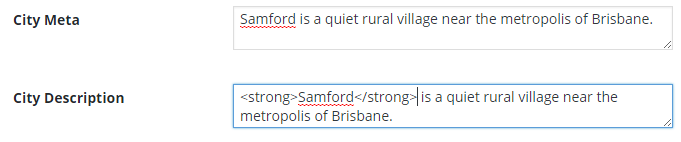
  1. Towards the bottom of the editing page for each location, you will find City Meta and City Description fields.
    Enter your data (you can use HTML in the City Description field):
  2. The City Meta data will now be added to the source of the relevant location page:
  3. This information is also used for the GD > Location Description widget.

Merging locations

  1. Sometimes your users add locations to your database using different spelling than a location already in your database (for example LasVegas, Texas, US instead of Las Vegas, Texas, United States).
  2. Your GD database will treat this as two different locations.
  3. There is a tool to merge these two locations.
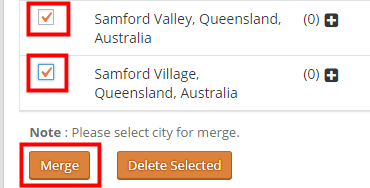
  4. From the Manage Locations tab, select the locations you want to merge.
  5. Scroll to the bottom of the page, and click Merge.
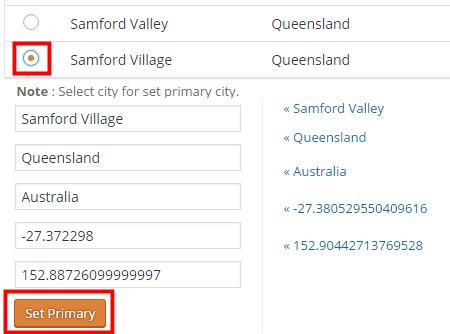
  6. On the next page, select the correct location you want to keep, and then click Set Primary.
  7. That will re-assign the correct location to all your listings in any of the locations you merged.
  8. Do not delete a location because that will also delete any listings in that location!
  9. You can also use the above process to correct any of your locations: just add the correct location first and then merge with any incorrect locations.

Location Manager Addon – Widgets

This page is a work in progress …

When you install the Location Manager Addon, you’ll find a number of new GD widgets in the appearance section of your WP admin area.

Widget name Can be used on these pages:
Home Listings Search Detail Author Non-GD pages
GD > Location Description yes yes yes yes yes yes
GD > Popular Location yes yes yes yes yes yes

GD > Location Description

  1. For each location (city or town), you can add custom content for both the meta description and on-page content.
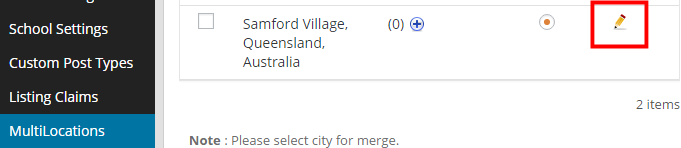
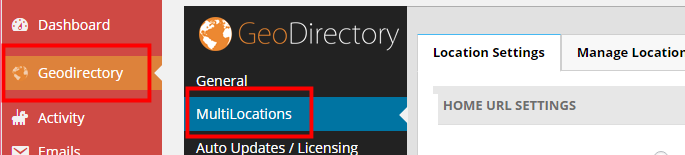
  2. Navigate to GeoDirectory > Multilocations > Manage Location and filter for the location.
  3. Then choose edit:
  4. Towards the bottom of the editing page, you will find City Meta and City Description fields.
    Enter your data (you can use HTML in the City Description field):
  5. The City Meta data will now be added to the source of the relevant location page:
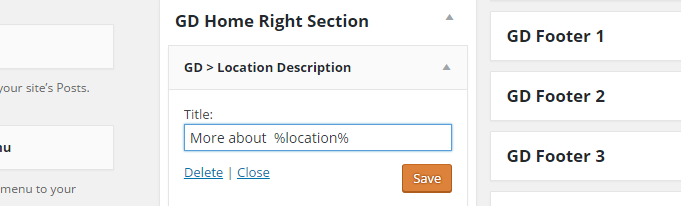
  6. To add the City Description to the page, add the GD > Location Description widget to any widget area of the Home (Location) sections.
    You can use %location% in the title, that will adjust to the location name:
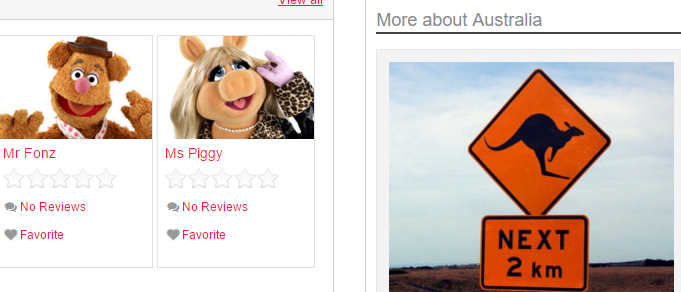
  7. This is how it will show on the location page (The widget will only show on location pages that have custom data added):
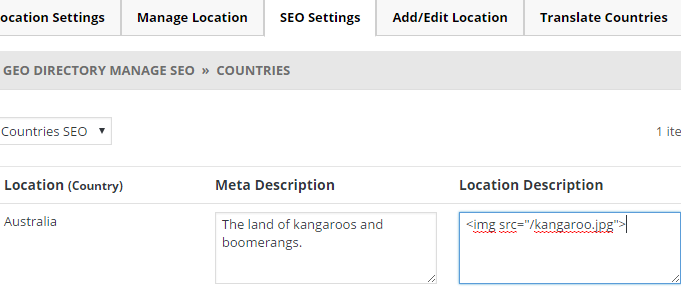
  8. For regions and countries, you will find the Meta Description and Location Description fields at the SEO Settings tab:

GD > Popular Location

  1. This widget will add a list of links to locations on your pages.
  2. Look in the sidebar of this demo page for an example.

Options

  1. Title: Leave blank if you do not want a heading
  2. Number of locations: By default all locations will be displayed, unless you add a number here.
  3. Pagination:
  4. Don’t filter for current location: by default, the widget will only display links to locations within the selected country or region. Ticking this option will display popular locations outside the selected country or region too.

Translating countries and map directions

On this page:

Changing the map language and directions Translating country names 
More information Translating regions or cities

Changing the map language and directions

The default language of your GeoDirectory maps is English, but you can change that to any language supported by Google maps. This is how:

  1. Go to your WP admin  area
  2. Navigate to GeoDirectory > Design > Map
  3. Under default map settings, change the language at Default map language

This will also change the directions given on any listing detail page, when visitors enter their address in the directions field below the map.

To translate other language strings related to your maps (like Enter Your Location below the map on the detail page), review the core translation article.

Translating country names

This only applies if you use the Location Manager (MultiLocations).

  1. Translate the countries in the language file of the core GD plugin (review the core translation article).
  2. In your WP admin area, navigate to GeoDirectory > MultiLocations > Translate Countries.
  3. Select the countries you want to translate, and click Update.
  4. This will change the country name and the country URL site-wide.

More information

Translating regions or cities

  1. Only countries can be translated, regions and cities cannot be translated.
  2. The name and slugs of regions and cities will be added as per the Map API.
  3. If you have a multi-language site with WPML, all regions and cities will have the same name and slug across the different languages.

How to use GD without street addresses?

From version 1.4.6.1 of the GeoDirectory core plugin and version 1.1.6 of the Custom Post Type addon, you can use listing types that do not need an address, and that will not be displayed on the maps.

Until then (or if you do not use the Custom Post Type addon), for the maps to work correctly, every listing in your directory needed an exact location on the map.

But that does not mean that you have to display the address of the listing.

This article explains how you can hide your street addresses. This might also be hqndy if you want to add listings to the maps, but you want to hide street addresses, or country details etc.

Hiding the address on the detail page

This will apply to all your listings.

The display of the different levels of the address are controlled by CSS classes:

    1. span[itemprop=”streetAddress”]
    2. span[itemprop=”addressLocality”]
    3. span[itemprop=”addressRegion”]
    4. span[itemprop=”addressCountry”]
    5. span[itemprop=”postalCode”]

    For example, if you only want to display the region and country, add this to your child theme’s style.css file:

    [css]span[itemprop="streetAddress"],
    span[itemprop="addressLocality"],
    span[itemprop="postalCode"] {
    display: none;
    }[/css]

    Modifying the Add Listing page

    This can be applied differently for each Custom Post Type.

    Option 1: Require street input (recommended)

    Edit GD > Place Settings > Custom fields > Field:Address > Front end description.

    For example: The street address will not be shown on your listing, but your business location will be shown on the map at this address. You can also just enter the city name for a more generic display on the map. 

    Option 2: Do not require street input

    You can remove the requirement for the street address by CSS:

    [css]#geodir_post_address_row {
    display: none;
    }[/css]

    This option means that the street address will be calculated by the Google map and will be either the address where the marker is dragged, or the city name if Set Address On Map is clicked.

    Option 3: Remove all address fields (not recommended)

    You can remove all the address fields and set addresses by dragging the marker on the map only. The Google API will still fill in the complete address, but it will not be displayed on the Add Listing form.

    This option can lead to incorrect locations being added to your database, and might require some maintenance.

    Add this to your CSS for option 3:

    [css]#geodir_post_address_row,
    #geodir_post_country_row,
    #geodir_post_region_row,
    #geodir_post_city_row,
    #post_set_address_button,
    #geodir_post_zip_row {
    display: none
    }[/css]

    Location Manager Shortcodes

    Location Tab Switcher Location Switcher Current Location Name Location Description Location Neighbourhoods Popular Locations Popular in Neighbourhood

    Location Tab Switcher

    Shortcode: [gd_location_tab_switcher]

    This is like the location switcher usually added to the menu.

    Parameters:
    • none
    Example:

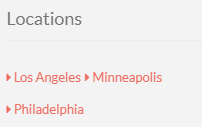
    Location Switcher

    Shortcode: [gd_location_switcher]

    This is best used on a page or a wide content area, this shows searchable lists of locations.

     All Locations Demo

    Parameters:

    • none

    Current Location Name

    Shortcode: [gd_current_location_name]

    1. Returns the current location name
    2. Only works on GD pages that have the location name in the URL, so GD > Permalinks need to be set to include
    Parameters:
    • none

    Location Description

    Shortcode: [gd_location_description]

    return the current location description

    Parameters:

    • none

    Location Neighbourhoods

    Shortcode: [gd_location_neighbourhood] or [gd_location_neighborhood]

    returns list of current neighbourhoods

    Parameters:

    • none

    Popular Locations

    Shortcode: [gd_popular_location]

    return a list of popular locations

    Parameters:

    • none


    Popular in Neighbourhood

    Shortcode: [gd_popular_in_neighborhood] or [gd_popular_in_neighborhood]

    Parameters:

    • post_type – The slug for the post_type (default = gd_place)
    • category – ID number of the category to show (default = 0 for all)
    • list_sort – One of az, latest, featured, high_review, high_rating, random (default = latest)
    • post_number – Number of posts to show (default = 5)
    • layout – Number of columns to show (default = 2)
    • character_count – Number of characters to show from the Excerpt (Min/default = 20)

    Location Manager – Location Settings

    These are the sections you will find when you install the Location Manager:

    Introduction and Location Settings tabManage Location tab – SEO Settings tab – Add/Edit Location tab – Translate Countries tab

    On this page:

    Introduction – Installation – Location Settings – Home URL SettingsMain Navigation SettingsGeo Directory Location SettingsAdd Listing Form Settings

    Introduction

    1. With our MultiLocations Manager you can turn your GeoDirectory into a global directory. As standard, GeoDirectory can be setup from a single location and listings can be added only for that location, but with our Location Manager plugin, you can let users set the location of their listings and the location will be stored in your locations database. This means visitors can then select any added location and browse listings only from that area (you can also browse from “Everywhere”).
    2. The areas you can filter listings by are: Countries, regions, city or neighborhoods. Apart from neighborhoods all other areas can be added by a user when they add their listing. So the location does not have to be in your database for a user to be able to add a listing.
    3. If a duplicate city is added with slightly different spelling, there is a tool to merge the two cities. Locations can also be edited/added by the admin from the backend.

    Installation

    After uploading and activating the Addon, you will be taken to the Settings page:

    Location Settings

    Home URL Settings

    1. This setting allows you to choose the URL of the Home link in your breadcrumb, either clicking Home in the breadcrumb will take you to the homepage of your website, or clicking Home in the breadcrumb will take you to the location page for the selected location.
    2. Home page should go to Site root (ex: mysite.com/) will take you to your homepage:
    3. Home page should go to Current location page (ex: mysite.com/location/glasgow/) will take you to the start page for the selected location:

    Main Navigation Settings

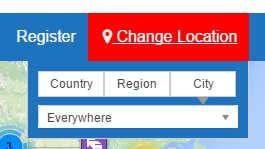
    Show location switcher in menu

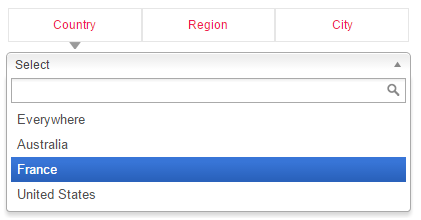
    This setting will add a navigation tool to your main menu:

    • It will allow your visitors to easily choose a city, region or country on your site
    • It highlights the location your visitors has browsed to


    It is highly recommended to use the location switcher, it makes life a lot easier for your visitors.
    Make sure you have selected a menu to be used for your GeoDirectory links at GD > Design > Navigation

    List drilled-down Regions, Cities or List all Countries, Regions, Cities
    1. The first option (List drilled-down Regions, Cities) will narrow the list of regions or cities, depending of the choices made by your visitors.
      1. For example if a visitor has selected United States as country, then only US states and cities will be available in the Region and Cities filter.
      2. If the user then chooses Florida from the Region filter, then only Florida cities will be shown in the Cities filter.
    2. The second option (List all Countries, Regions, Cities) will always list all regions and cities in your database, regardless of any other filter already applied.
      1. For example, if a visitor has selected United States as country, all regions and cities in other countries will still be available in the Region and Cities filters.

    Geo Directory Location Settings

    Country – Region – City
    1. The settings for countries, regions and cities are basically the same:
      1. Choose to accept listings for every country, region or city
      2. Or restrict to particular countries, regions and cities.
    2. If you tick the Everywhere box, Everywhere will be listed as an option for countries, regions or cities.This allows your visitors to zoom out.
      1. For example if a visitor has browsed to Orlando, they can choose to see all the listings for Florida by either choosing the Everywhere option for Cities, or they can choose Florida from the Region filter.
    Wish to enable neighborhoods?

    Refer to City Neighborhoods.

    Examples:

    Directory for the United Kingdom and Ireland:
    Country > enable selected countries > select United Kingdom and Ireland
    Region > enable Multi Regions
    City > enable Multi Cities
    Note: you would need at least one location in the United Kingdom and one in Ireland before the countries will be available for selection

    Directory for Japan:
    Country > enable default country
    Region > enable Multi Regions
    City > enable Multi Cities

    Add Listing Form Settings

    The following settings affect how users add addresses and locations for their listings in the Add Listing forms.

    Disable Google address autocomplete?

    This will stop the address suggestions when you start typing in the address box on the Add Listing page:

    Show all locations in dropdown?

    Rather than showing a few locations only and then searching as the user types a location, you can choose to present all current locations in your database at once. This can be useful if you have a small directory but can break your site if you have many locations.

    Disable set address on map from changing address fields

    By default after selecting your location from the dropdowns, clicking on Set address on map will move the marker to that location. You can disable, this may be useful if you have a small directory and you have custom locations or your locations are not known by the Google API and they break the address.
    Highly recommended not to enable this.

    Disable move map pin from changing address fields

    By default, dragging the marker on the map will change the location fields to match. Similar to the previous option, you can disable this, it might be useful if you have a small directory and you have custom locations or your locations are not known by the Google API and they break the address.
    Highly recommended not to enable this.