Linking Custom Post Types

On this page:

Introduction

With the Custom Post Types (CPT) addon, you can link two CPTs together, in the same way events can be linked to other listings.
Because CPTs can have different custom fields, pricing etc, this feature greatly enhances what can be listed on your site.

Applications

Here are a few examples to give you an idea how you could use this feature:

CPT Linked to CPT
Fast food chain Our hamburgers
Rock band All regular venues where the band plays
Car brands Our models

For the rest of the article we will use a car manufacturer CPT, and a car model CPT.

Installation

  1. Create your CPTs and adjust all settings as required, below are the settings we use for the example. Note that this is only an example, adjust the settings for your situation:
    CPT Cars Models Comments
    Has address Yes No We do not need addresses for the car models (optional)
    Franchise enabled Yes No We will allow dealerships to be added (optional)
  2. Go to the settings for the CPT you want to be able to link to another CPT. In our example we want the different car models to be linked to the car CPT, so we go to GD > Custom Post Types > Model CPT (example only) > Advanced Mode > Link business.
  3. Tick Link Business, select the CPT you want to link it to, and Save.

Usage

  1. When a user now adds a listing in the linked CPT (Models in our example), they can link it to a listing in the linkable CPT (Cars in our example).
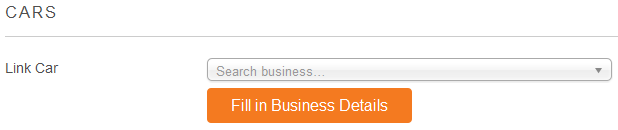
  2. The Add Listing form for the linked CPT will have a search option to find the listing in the linkable CPT:
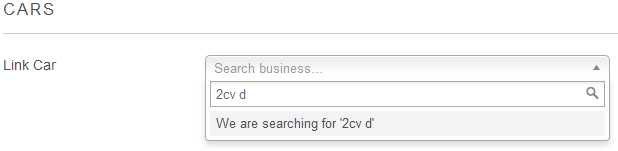
  3. Start typing at least the first three letters of the listing you want to connect (this is not a search function, but a auto-population function).
  4. You cannot connect a listing to a linkable CPT listing of another user (unless you are an administrator).
  5. When the system finds the listing, select it and click Fill in business details.
  6. This will pre-fill some fields of the new listing with the same data as the linkable listing.
  7. Change title, description etc as required.
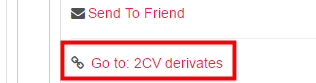
  8. And this is how it will look, in the sidebar you will get a link from all linked listings to the linkable listing:

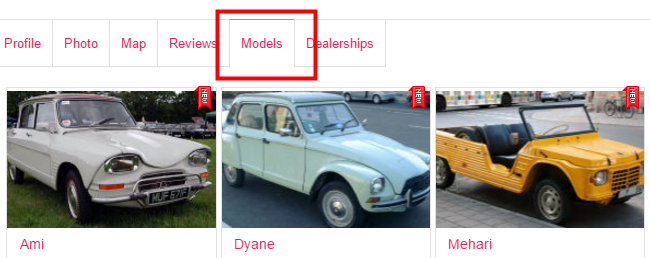
    and on the detail page of that linkable listing, you will get a tab with all linked listings”
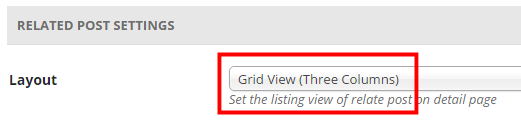
  9. To change the layout in the tab with linked listings, go to GD > Design > Detail tab > Related Post Settings > Layout, and select the list view or the grid view of your choice there:

Custom Post Type Shortcodes

CPT Listings

Shortcode: [gd_cpt_listings]

Parameters:

  • cpt_img_width – width of the thumbnail for the CPT
  • cpt_img_height – height of the thumbnail for the CPT
  • title – the title for the cpt listings
  • cpt_exclude – post types to exclude (default shows all) (examples: ‘gd_place’ or ‘gd_place,gd_event’)
  • cpt_hide_name – hide CPT name? True or False (default = false)

This example shows a widget with the CPT images at 120×90 pixels:
[gd_cpt_listings cpt_img_width=120 cpt_img_height=90]

This example shows a widget with a custom title, and does not show a link to the gd_place CPT:
[gd_cpt_listings title="Browse listings" cpt_exclude=gd_place]

Custom Post Types Add-on – Overview

Introduction

Our free GeoDirectory plugin ships with only one Post Type called Places. But sometimes you would like to have separate name for each listing type ( Ex: Bars, Hotels, Restaurants etc )  instead of one generic name Place.

Understanding Places, Categories, Listings and Custom Post Types

By installing our Custom Post Types add-on, you are removing that barrier. You can create Unlimited number of Post Types.

The advantages of this plugin are that instead of trying to manage a large diverse directory with many categories all under the one post type, you can split these into more manageable CPTs, you will then be able to add different custom fields to each CPT and be able to manage pricing for each easier.

This plugin also integrates well with our Advance Search Filters addon and will let you search per post type and also have different advanced filters per post type, for example a CPT “Hotels” could have filters such as “Free WiFi” and another CPT “Points of Interest” could have a filter “Great for Kids”.

Installation

  1. Visit wpgeodirectory.com ( Buy a subscription if Required )
  2. Navigate to My Account > Downloads ( Login if Required )
  3. Download Geodir Custom Posts zip file.
  4. Go to your WordPress site dashboard, Navigate to  Plugins > Add New > Upload Plugin
  5. Browse and Upload the zip file you downloaded from wpgeodirectory.com
  6. Activate the plugin.

Configuration

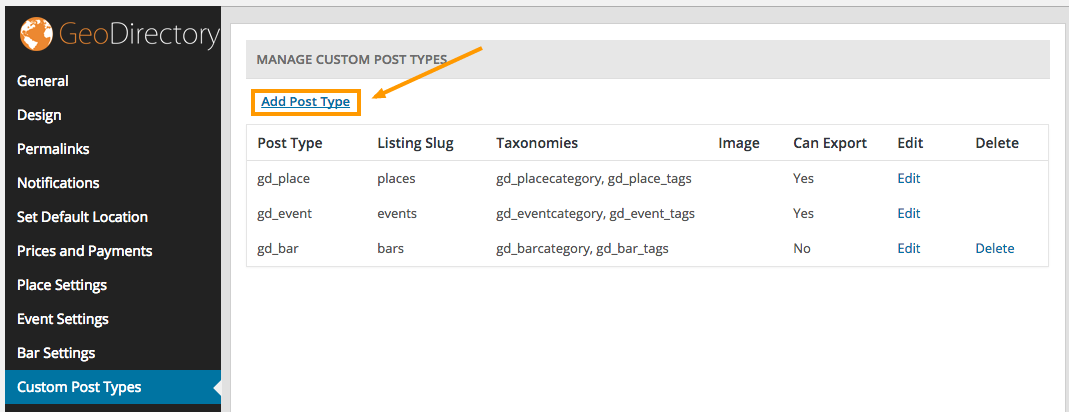
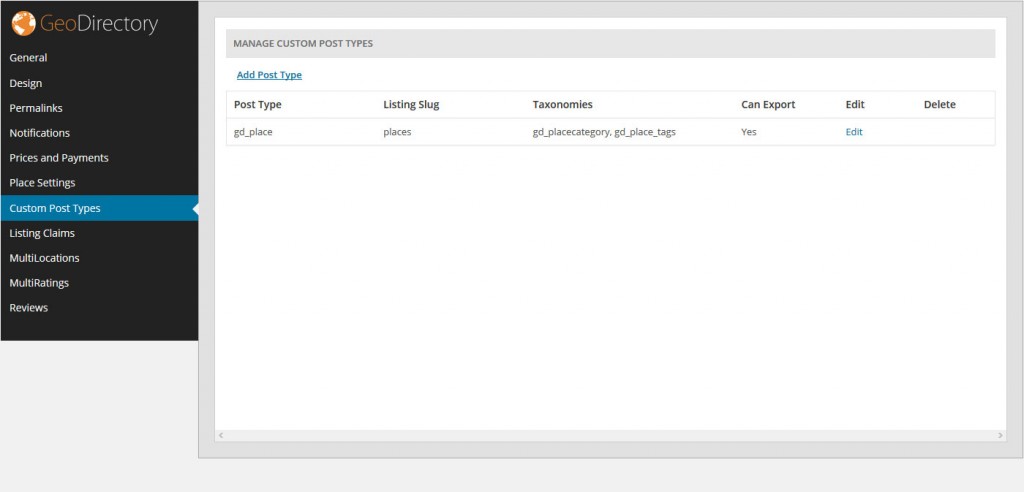
After activation you will be redirected to GeoDirectory > Custom Post Types page. This is the page where you can Add, Edit or Delete your post types.  No additional configuration needed.
 

gd_cpt

To Add a new post type

To add a new post type, click the “Add Post Type” link from the Custom Post Types page.
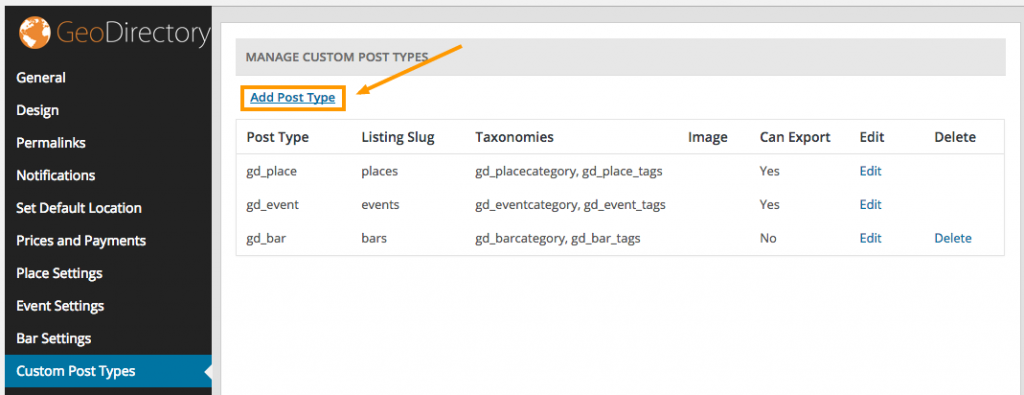
toadd

List of form fields and accepted values

The following example assumes you are planning to create a custom post type called Bars. If you are planning to create different post type, change the values accordingly.

Post Type

  1. Post type
    1. The new post type system name
    2. Usually singular.
    3. Minimum 2 characters
    4. Maximum 17 characters
    5. Lower-case characters and underscores only.
    6. Once added the post type system name cannot be changed.
    7. Example:  bar
  2. Listing slug
    1. The listing slug name.
    2. This will be displayed in your url.
    3. Minimum 2 characters.
    4. Maximum 20 characters.
    5. Lower-case characters, underscores and hyphen(-) only.
    6. Example:  bars
  3. Order in post type list
    1. Position at which this post type will appear in post type list everywhere on the website.
    2. Note: If the entered value is already an order of other post type then this will not make any effect.
    3. Example:  4
  4. Upload default image
    1. Default post type image.
    2. If you set an image here, this will be used as listing thumbnail image when no image available.

Labels

  1. Name
    1. General name for the post type.
    2. Usually plural.
    3. Example: Bars
  2. Singular name
    1. Name for one object of this post type.
    2. Defaults to value of name.
    3. Example: Bar
  3. Add new
    1. The add new text.
    2. The default is Add New for both hierarchical and non-hierarchical types.
    3. Example: Add New
  4. Add new item
    1. The add new item text.
    2. If you leave this blank Add New Item text will be used.
    3. Example: Add New Bar
  5. Edit item
    1. The edit item text.
    2. If you leave this blank Edit Item text will be used.
    3. Example: Edit Bar
  6. New item
    1. The new item text.
    2. if you leave this blank New Item text will be used.
    3. Example: New Bar
  7. View item
    1. The view item text.
    2. If you leave this blank View Item text will be used.
    3. Example: View Bar
  8. Search items
    1. The search items text.
    2. If you leave this blank Search Items text will be used.
    3. Example: Search Bars
  9. Not found
    1. The not found text.
    2. If you leave this blank Not Found text will be used.
    3. Example: No Bar Found
  10. Not found in trash
    1. The not found in trash text.
    2. If you leave this blank Not Found In Trash text will be used.
    3. Example: No Bar Found in Trash
  11. Profile tab label
    1. Text label for “Profile” tab on post detail page.
    2. This is Optional. So leave Empty unless necessary.
  12. More Info tab label
    1. Text label for “More Info” tab on post detail page.
    2. This is Optional. So leave Empty unless necessary.
  13. Photo tab label
    1. Text label for Photo” tab on post detail page.
    2. This is Optional. So leave Empty unless necessary.
  14. Map tab label
    1. Text label for “Map” tab on post detail page.
    2. This is Optional. So leave Empty unless necessary.
  15. Reviews tab label
    1. Text label for “Reviews” tab on post detail page.
    2. This is Optional. So leave Empty unless necessary.
  16. Related Listing tab label
    1. Text label for “Related Listing” tab on post detail page.
    2. This is Optional. So leave Empty unless necessary.

Nav Menus

  1. Posts
    1. If checked it will disable post listings (of the current post type ) in Appearance > Menus.
  2. Categories
    1. If checked it will disable post categories (of the current post type ) in Appearance > Menus.
  3. Tags
    1. If checked it will disable post tags (of the current post type ) in Appearance > Menus.

Supports

Registers support of certain feature(s) for a given post type. Each feature has a direct impact on the corresponding field displayed in the post edit screen

  1. Author
    1. If checked, Author feature will be enabled for current post type.
  2. Thumbnail
    1. If checked, Thumbnail feature will be enabled for current post type.
    2. Current theme must also support post-thumbnails.
  3. Excerpt
    1. If checked, Excerpt (Short description ) feature will be enabled for current post type.
  4. Custom fields
    1. If checked, Custom fields feature will be enabled for current post type.
  5. Comments
    1. If checked, Comments feature will be enabled for current post type.
    2. Also will see comment count balloon on edit screen when checked.
  6. Post formats
    1. If checked, Post formats feature will be enabled for current post type.

Description

  1. Description
    1. A short descriptive summary of what the post type is.

Menu Icon

  1. Menu Icon
    1. The url to the icon to be used for this menu.

Can Export

  1. Can Export
    1. When set to True, current post type data can be exported.

SEO

  1. Meta Keywords
    1. Meta keywords will appear in head tag of this post type listing page.
  2. Meta Description
    1. Meta description will appear in head tag of this post type listing page.

To Edit a post type

To edit a post type, click the “Edit” link from the Custom Post Types page.
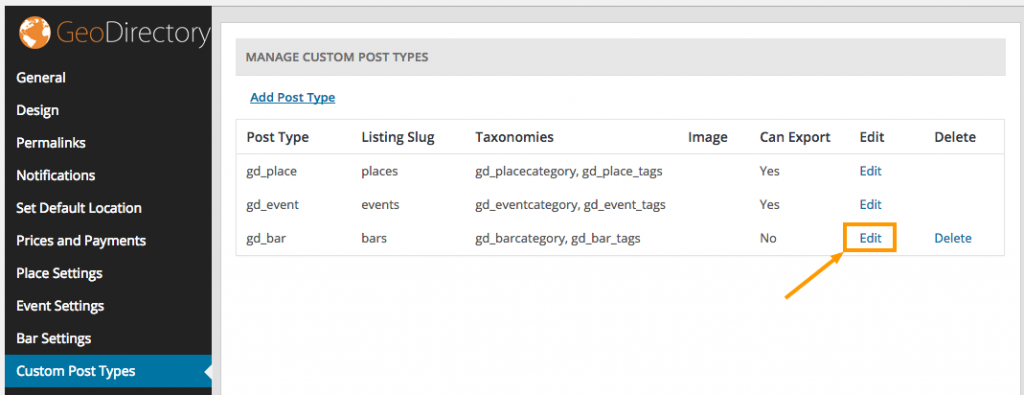
toedit

To Delete a post type

To Delete a post type, click the “Delete” link from the Custom Post Types page.
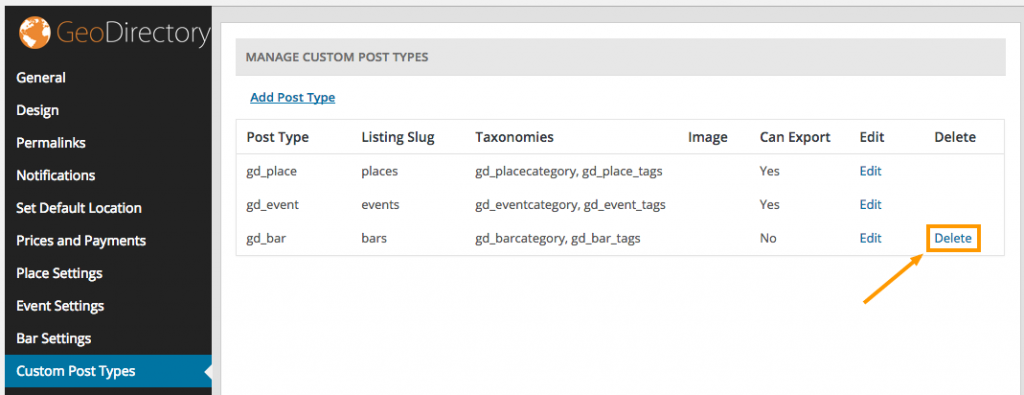
todelete

Usage

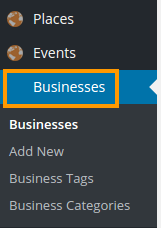
Once you created a new post type, you can see new menu items in the following areas.
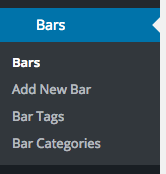
barsmenu

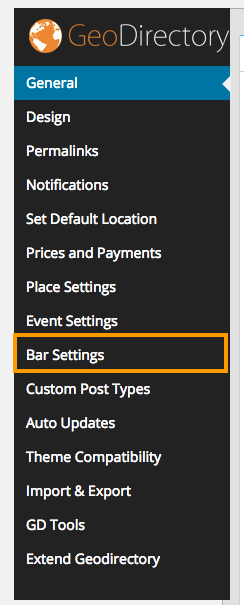
barsettings

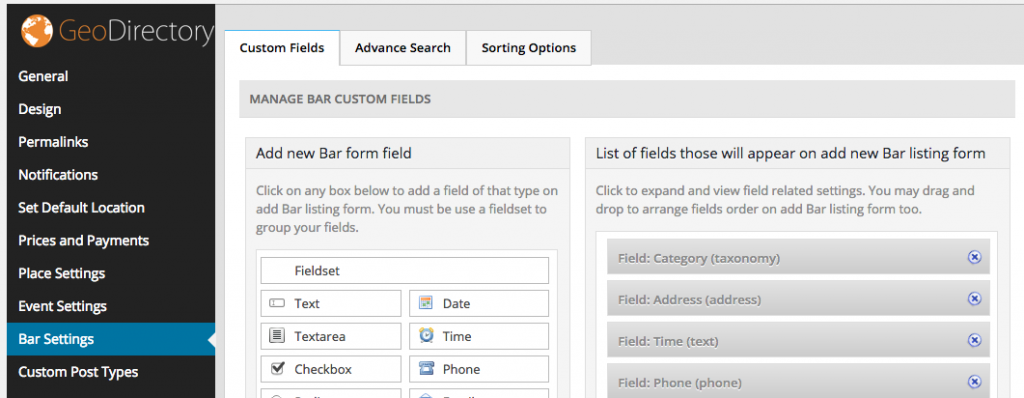
Bar Settings

bartabs

This page has the following tabs.

  1. Custom Fields
  2. Sorting Options
  3. Advanced Search ( Advanced search filters Required )

Custom Fields

To know more about custom fields, visit this section

Sorting Options

To know more about sorting options, visit this section

Advanced Search

To know more about advanced search, visit this section

Understanding Places, Categories, Listings and Custom Post Types

Introduction

Once you installed your GD directory plugin, you will need to create categories before you can add any listings to your directory.

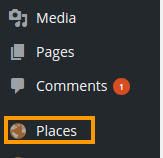
The free GD plugin will automatically create a new custom type of WordPress posts, which allows you to add content to your directory. The GD plugin calls these custom posts Places, and you will find them in the main WP admin menu.
core-places
In the GeoDirectory context, these posts are called listings.

Every listing will need to be in a category, or the listing will not be added to the GD maps.

GD will work with one level of sub-category as well:

Places > Category > Sub-category > Listing

Examples using GD core

One example is a local directory, and this could be your setup:

Category Sub-category Listing OR Category Listings
Restaurants French L’escargot Restaurants L’escargot
La Baguette La Baguette
Italian Mario Mario
The Pizza Dude The Pizza Dude
Accommodation Hotels The Sleep Inn Accommodation The Sleep Inn
The Rich The Rich
Bed and Breakfast Chez Nous Chez Nous
The Rooster The Rooster

Extending your directory

The above examples are based an the standard free GD plugin installation: All your listings and categories will need to be of the same custom post type Places.

Custom Post Types Addon

The Custom Post Types Addon (CPT) lets you add as many CPTs as you need.

As standard, GeoDirectory comes with one CPT called Places (see above), new CPTs will have their own dedicated sidebar menu and management system just like Places.

ctp

Why and when to use Custom Post Types?

The advantages of this plugin are that instead of trying to manage a large diverse directory with many categories all under the one post type, you can split these into more manageable CPTs.

Factors worth considering whether you want to organise your site with different CPTs:

  • you can add different custom fields to each Custom Post Type
  • it is easier to manage different pricing levels with CPTs than categories
  • a listing can only be submitted to one CPT at the time, but it is possible to submit the same listing to more than one category
  • Some widgets can only be filtered on one CPT at the time.
  • Maps can only show one CPT at the time but can show multiple categories at the same time.

Events Addon

The Events Addon is a custom post type specifically designed for the way events are prioritized by dates.

With this plugin you can let users add their events to your site. Events are ordered by upcoming date by default. Users can enter recurring dates for their events instead of having to create lots of separate events. As this is also a custom post type you have the usual ability to add custom fields and sort options.

Examples using CTP and Events addons

CTP Category Sub-category Listing
Enjoy Restaurants French L’escargot
La Baguette
Italian Mario
The Pizza Dude
Accommodation Hotels The Sleep Inn
The Rich
Bed and Breakfast Chez Nous
The Rooster
Events Markets Weekly Farmers Market
Antiques Show
Music Concerts Milli Vanilla
Elvis Presley Live
Lessons Bagpipe School
Local Health Doctors Doctors R Us
Fitness Centres Fitness4U
Building Hardware Nuts&Bolts
Carpenters We’ll Nail You