The GD Search explained

On this page:

1. Custom Post Type selector 2. Category selector 3. “Search for” field 4. “Near” field 5. The “Near me” compass 6. Filtering with custom fields Adding a Select custom field to the search bar

Read Understanding navigation, searching and browsing … to understand the basic search function better.

1. Custom Post Type (CPT) selector
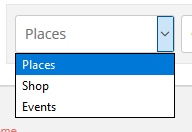
This selector will only be shown if you have more than one Custom Post Type.


  1. The CPT selector defaults to the current CPT of a Listings, detail or search page. For example on an Events category page, Events will be listed first in the selector.
  2. On a location page or any standard WP page or post, the order of the CPTs in the selector can be determined by changing the order at GD > Custom Post Types > Choose a CPT > Advance Mode tab > Order in post type list (Custom Post Types addon required).

2. Category selector
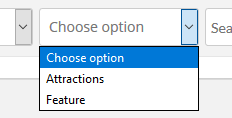
The categories drop down can be set up for each Custom Post Type and the Advanced Search addon is required.

  1. Activate the Advanced Search addon.
  2. Go to GD > Place (or other CPT) Settings > Custom Fields tab.
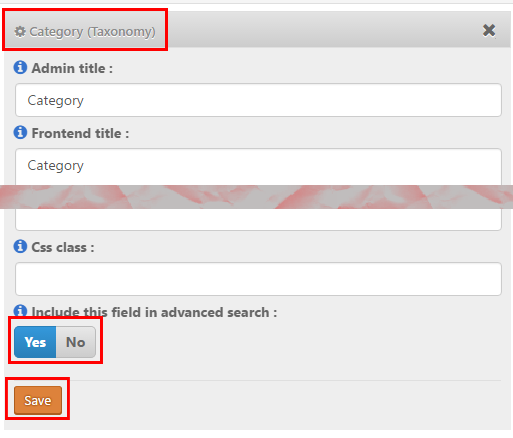
  3. Select Yes to include the categories drop down in the Advanced Search:
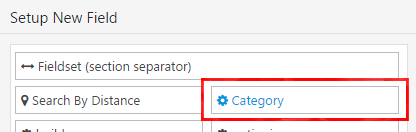
  4. Then go to the Advanced Search tab and click on the Category field on the left hand side, that will move it to the available fields on the right:
  5. Now open the Category field there, and select to Show in main search bar
    :
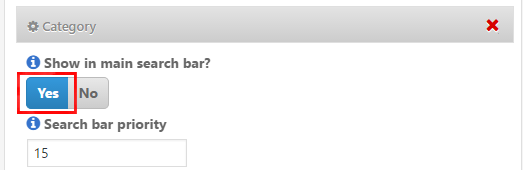
  6. The Search bar priority setting allows you to move the Category selector left or right in the main search bar.

3. “Search for” field

  1. GD will check the entry titles, description and taxonomies (tags and categories) of the listings.
  2. The search will not check custom fields or locations.
  3. The search will only search one Custom Post type at the time.
  4. With the Advanced Search addon, you can set this field to auto-suggest listings based on the title of the listings, see Search Autocompleter settings.
  5. You can change the default text at GD > Design > Search.

4. “Near” field

  1. When you enter a location in the Near field, GD will calculate the center of that location.
  2. GD then will look for all listings within an area with a default that match the Search for criteria.
  3. Your default search area is set at GD > General > Search.
  4. The default GD search is not an IN search, but a search NEAR THE CENTER OF.
    For example, assuming your search area is set to 40 square miles:

    1. If you enter World Trade Center, you will get listings around that building.
    2. If you enter United States, you will get listings somewhere around Buffalo in Kansas, because that is where Google situates the center of the United States.
    3. If you enter California, you will get listings somewhere in the Sierra National Forest.
  5. Be aware of some issues:
    1. If you enter a ZIP or a postcode, be aware that that postcode might be used by different countries in the world and might return results around the center of a city in a different country.
    2. A similar issue might occur for place names of cities in different countries.
    3. Please review Add location specific text to (Near) search for Google.
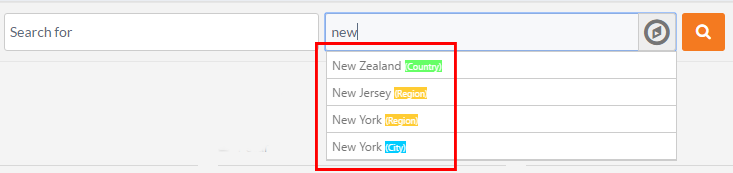
  6. Although the default search for this field is a NEAR THE CENTER OF search, with the Advanced Search addon, you can set this field to auto-suggest locations based on the title of the listings, see Near Autocompleter settings.
    Please note that if you have the Location Manager addon activated, the Near Autocompleter will start giving suggestions as your visitor starts searching, which if selected will search IN the location being entered (ie the city or region in the address of the listing) and will not search an area NEAR THE CENTER OF that location”
  7. You can change the default text at GD > Design > Search.

5. The “Near me” compass

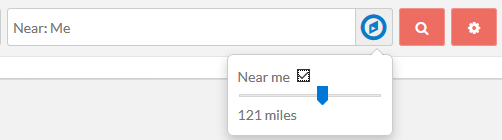
  1. This compass will only show if you have the Advanced Search addon active.
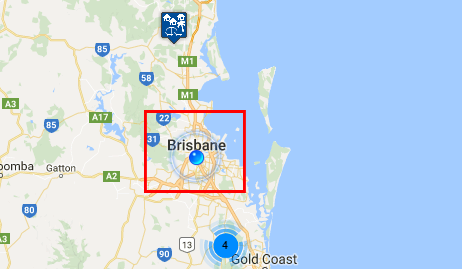
  2. It allows for the search to be limited or expanded by a radius around the visitor’s current location (if Near me is ticked) or near the center of the location selection in the Near field (if Near me is not ticked):
  3. Also review the Geolocation settings.

6. Filtering with custom fields

  1. This will only work if you have the Advanced Search addon active.
  2. Create your custom fields at GD > Place (or other CPT) Settings > Custom Fields.
  3. Then navigate to the Custom fields tab and expand any custom field you would like to filter with search and tick the checkbox Include this field in filter:
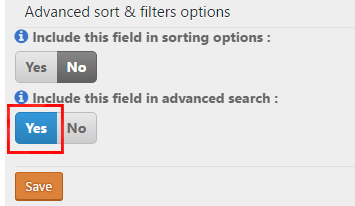
  4. Then go to the Advanced Search tab and click on the custom field on the left hand side, that will move it to the available fields on the right:
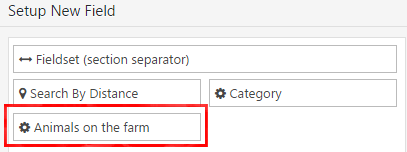
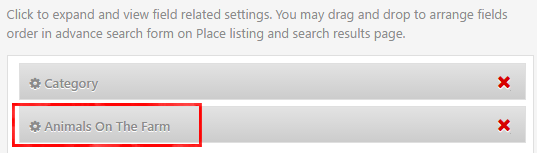
  5. Now open the field by clicking on it, and select the settings:
  6. Now clicking on the Search cogwheel will open the custom filter:
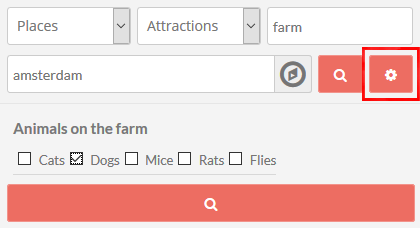
  7. Now if your visitors click the search button in the example above, the results will return:
    1. Listings from the Places CPT only,
    2. that are in the Attractions category, and
    3. have farm in the title, description, category or tag of the listing, and
    4. are around the center of Amsterdam (depending on the radius set in the system), and
    5. will be filtered to only return those listings that have dogs.

Adding a Select custom field to the search bar

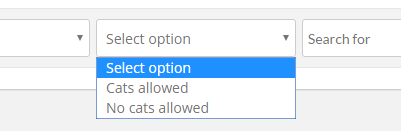
  1. Select custom fields can also be added to the search bar – but only Select, not Multiselect or any other, they can only be added to the Customized Search section as explained above.
  2. Follow steps 1 to 4 from 6. Filtering with custom fields above.
  3. Now open your Select custom field there, and select to Show in main search bar
    :
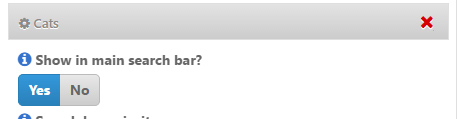
  4. That will add the Select custom field to the main search bar:
Advanced Search Filters Addon – Search By Distance

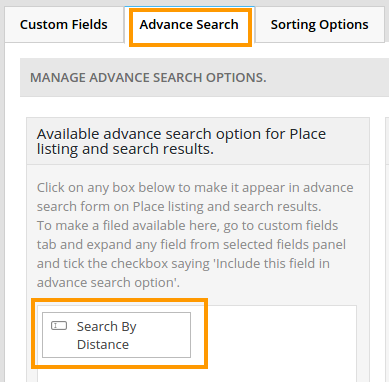
When you activate the Advanced Search Filters Addon, the Search By Distance field will automatically be added to the fields you can add to your custom search.

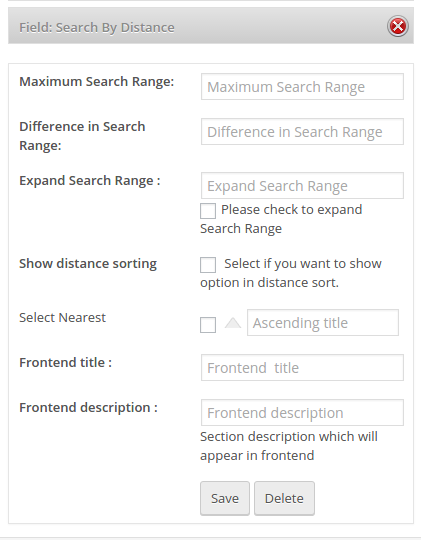
When you click on Field: Search by Distance, you’ll see the following options:

Options

Maximum Search Range

Enter the maximum radius of the search zone you want to create, for example if you want your visitors to search any listing within 50 miles or kilometers from the current location, then you would enter 50.

You have to set your choice of miles or kilometers at
WP admin > GeoDirectory > General > Search > Show search distances in miles or km

Difference in Search Range

Here you decide how many different search radii you make available to your visitors.

If you enter a fifth of the Maximum Search Range, there will be 5 options; if you enter half of the Maximum Search Range, then there will be 2 options.

Expand Search Range

If you leave this blank, then all options as per Difference in Search Range will be shown.

Entering a  number lower than the number of options as per Difference in Search Range will only show that lower number of options, and will add a More link to expand the options so all will be shown.

Show distance sorting:

Tick this if you want your visitors to be able to sort the search results in order of distance, either ascending or descending.

You will also need to provide text for the ascending or descending options.

Frontend title

This will be shown as the heading of the Search By Distance filter.

Frontend description

Optional description shown below to give your visitors tips about how to use the filter.

Examples

Example 1: all options

The following example illustrates all the options:

  1. The search will search all relevant listings within a maximum 100 km radius (Maximum Search Range = 100)
  2. Visitors will be able to choose a smaller radius than 100km, in 20 km increments (Difference in Search Range = 20)
  3. Visitors will initially have 4 options to choose from (Expand Search Range = 4)
  4. Visitors will be able to order the search results by closest or furthest away (Show distance sorting = checked)
  5. The first image is how the search will initially show: Our heading and 4 options
  6. The second image shows what happens if the visitor clicked on More; all the options would be revealed
  7. The third image shows how the visitor can choose to order by closest or furthest away

Example 2: minimal options

  1. Visitors will only have two options because the Difference in Search Range is half of the maximum radius
  2. No other options will be available to the visitor

Advanced Search Filters Addon – Overview

On this page

Introduction – Installation – Configuration (search autocompleter settings – near autocompleter settings – redirect settings on first time loadgeolocation settings)

Introduction

This addon extends the default GeoDirectory search widget by letting you filter search results by certain custom fields you may have added to your listings.

For example, if you had added a custom select field Pet Friendly you could then filter results that only include pet friendly listings, this could be useful for hotels, café’s, bars etc.

You can also filter by multiple values, you could set up your directory so you could search for Pet Friendly, F” listings within 10 miles of the location you enter in the Near field.

This plugin also integrates well with our GeoDirectory Custom Post Types plugin to allow you to add different filter options per post type and also search per post type.

Installation

Installation is done by uploading the ZIP file in the plugin section of your WordPress admin area.
Installing GD Addons

Configuration

Once you activated the Advanced Search Filters addon, you will get a new set of settings in the GD admin panel:

SEARCH AUTOCOMPLETER SETTINGS

Enable Search autocompleter: This setting will start giving suggestions as your visitor start searching:

Autosubmit the form on select a Search option: If this option is selected, the search form will automatically load the detail page of the listing selected.

Min chars needed to trigger autocomplete: Enter a number of characters here before the autocompleter search is triggered.

Max Results to be returned by autocomplete: Enter a number here to limit the number of listings presented by the autocompleter.

NEAR AUTOCOMPLETER SETTINGS

This setting will only be here if you have the Location Manager addon activated.

Enable Near autocompleter: This setting will start giving suggestions as your visitor start searching:

Autosubmit the form on select a Search option: If this option is selected, the search form will automatically load the detail page of the listing selected.

REDIRECT SETTINGS ON FIRST TIME LOAD

This setting will only be here if you have the Location Manager addon activated.

You will need to have a secure site – HTTPS – with a SSL certificate installed for geolocation and redirection to work in all browsers and devices.

There are 3 options:

  1. No redirect: You guessed right, no redirection
  2. Redirect to nearest location (on first time load users will be auto geolocated and redirected to nearest geolocation found): With this option,
    1. the system will try to locate where the visitor is located
    2. if there are listings within the set search radius, a page will be served with those listings and the location of the visitor
    3. if there are no listings close to the visitor, then the system will look in your database to determine what the closest location is to the visitor
    4. and then serve the location page for that location.
    5. Example:
      1. There are only 2 locations in your database: New York City and Los Angeles.
      2. A visitor who is in San Francisco visits your website.
      3. The system will redirect to yoursite.com/location/united-states/california/los-angeles
  3. Redirect to default location (on first time load users will be redirected to default location: This setting will redirect your visitors on first entry to the location page of your default location.
    Using the example just above, if New York City is your default location, any visitors landing on your site will be redirected to yoursite.com/location/united-states/new-york/new-york-city.

GEOLOCATION SETTINGS

You will need to have a secure site – HTTPS – with a SSL certificate installed for geolocation and redirection to work in all browsers and devices.

Default Near Me miles limit (1-200): 

Choose miles or kilometers at GD > General > Search