
Avada Compatibility – header.php

UPDATE: As of Avada 3.8+ they have now added compatibility hooks for us and the modifications done to the header.php in the child theme are no longer required, please either delete or rename the header.php file in your child theme if you have previously made the changes below.

The Avada theme lacks any hooks or actions and as such to make GeoDirectory 100% compatible you must make two small changes to the header.php.  

Please follow the steps below:

#1 Move the header.php to your child theme.  You should be running a child theme with Avada, you should copy the header.php from the core Avada theme folder to your child theme folder, if you already have a header.php in your child theme then you should just edit that. (you can edit the core Avada header.php but you will have to do this again if you update Avada)

#2 Edit the file.  You should be able to make these edit from the Appearance>Editor Screen in WordPress, of you can edit the file and upload it.

Edit 1)
Look for:

[php]avada_current_page_title_bar( $c_pageID );[/php]

Replace with:

[php]if(apply_filters( ‘avada_current_page_title_bar_change’, false,$c_pageID)){ do_action(‘avada_replace_page_title’,$c_pageID); }else{
avada_current_page_title_bar( $c_pageID );
}
[/php]

Edit 2)

Look for:

[php]?>
<div id="main" class="clearfix <?php echo $main_class; ?>" style="<?php echo $main_css; ?>">
[/php]
Replace with:

[php]do_action(‘avada_before_main’);
?>
<div id="main" class="clearfix <?php echo $main_class; ?>" style="<?php echo $main_css; ?>">
[/php]
Themes – GeoDirectory

GeoDirectory Framework

The GeoDirectory Framework is specially designed to be used with the GeoDirectory plugin, but it can be used without it. You can enable and disable widget areas and also style almost any area of your website from within the Framework Options Page.

There are also GeoDirectory Framework child themes available:

  • GDF modern child theme
  • GDF child theme

Compatibility for popular themes

Compatibility for some popular themes is included in the core plugin and new themes compatibility can be both imported or exported.

Themes compatibility currently included for:

  • Avada
  • Enfold
  • Divi
  • Genesis
  • Jupiter
  • MultiNews
  • X

To use these themes with GeoDirectory, follow these steps:

  1. Upload to your server:
    1. Main theme
    2. Optional but strongly recommended: a child theme for your theme
    3. GeoDirectory plugin
  2. Then go to GeoDirectory > Theme Compability > Select your theme

Avada

To use the Avada theme, follow further instructions here.

Translating themes (including GeoDirectory themes)

This article is about translating your theme, and making sure that your translations are not lost when there is an update to your theme.
The example used is the GeoDirectory Framework Theme, but the instructions apply for all themes.

The first thing you should have done after deciding to use the GDF theme is to use a child theme, this way you won’t lose your changes when the main theme is updated.
You can download both the GeoDirectory Framework Theme and its child theme, and the GDF Modern child theme from your download area.

Let’s get started:

1. Download poedit or check here for alternatives

2. Download the main theme’s  language file to your computer using FTP. For the GDF theme that file is at
/wp-content/themes/GeoDirectory_framework/languages/en_US.po.

3. Open poedit and choose

  1. Edit a translation (if you want to keep your site in US English)
  2. Create a new translation (if you are using any other language for your site)

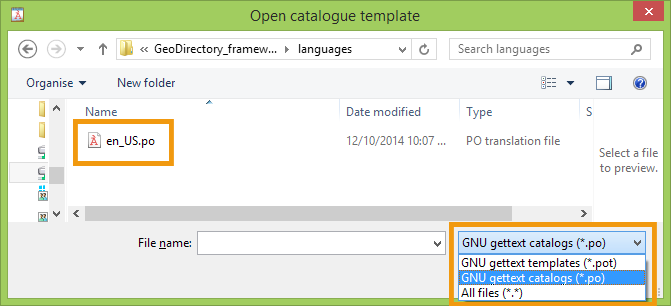
4. Select the en_US.po from your computer.
You might have to change the type of file displayed from .POT to .PO.

Skip step 5 and 6 if you are not translating to another language, but only editing the US English version.

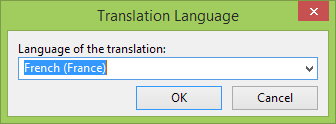
5. If you are translating to another language, then poedit will ask you what language you want to use for your translation.
For example if you are translating to French you would choose French from the list provided:

6. Save your translated file in the same format as the original language file:
In our example that would be fr_FR.po.

7. Change any of the language strings you want to translate or change.
When you then save the .po file, a .mo file will automatically be created.

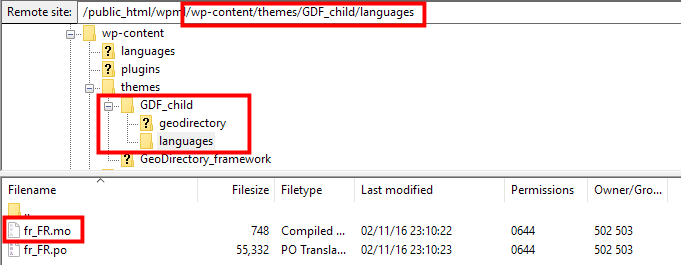
8. Upload the .mo file (in our case en_US.mo or fr_FR.mo) to your child theme languages folder.
If there is no languages folder in your child theme just create one.
The result should look like this /wp-content/themes/GDF_child/languages/en_US.mo or /wp-content/themes/GDF_child/languages/fr_FR.mo.

9. If you have not set the language of your website yet, you do that by going to your wp-admin area, and then go to Settings > General > Site language and select your language there.
If your language is not available there, then you can download your WordPress language file here.

10. Go to your homepage and refresh to see your changes :).

Protect your files during theme updates
WordPress 4.6 introduced a new option to all you to store your theme translation in the following location:

/wp-content/languages/themes/my-theme-en_US.mo

When you store your translation in this folder, it will not be overwritten. The file should be named the same as the theme folder name.