The World’s Most Advanced And Scalable WordPress Directory Plugin
GeoDirectory is an enterprise-grade WordPress plugin for building scalable business directories, city guides, real estate listings, job boards, event sites, classifieds, and local discovery platforms. Unlike generic listing plugins, it uses custom database tables, not WordPress post meta, so sites perform well from small local portals to directories with hundreds of thousands or millions of listings. Core features include optimized search, maps, reviews, frontend submission, and an extensive add-on ecosystem for customization. Rated 4.8/5 across 700+ reviews on WordPress.org and Capterra.
Get GeoDirectoryWhat can i do with GeoDirectory?
Online directory websites are a valuable resource for individuals and businesses alike.
These websites provide a comprehensive list of businesses, organizations, and individuals, often organized by category or location.
This blog post will answer some of the most frequently asked questions about online directory websites.
Whether you’re looking for information or want to increase your visibility online, this post will provide the answers you need.
Let’s get started!
1. What is a business online directory website?
A business online directory website is a website that uses directory software to create an online directory.
The final goal is to list businesses, often organized by category or location.
These directories provide information about the products or services offered by the businesses listed, as well as contact details and other relevant information.
Business directory websites help people find the information they need about businesses in their area or within a specific industry.
They can also be a valuable tool for businesses looking to increase their visibility and attract new customers.
2. What is business directory software?
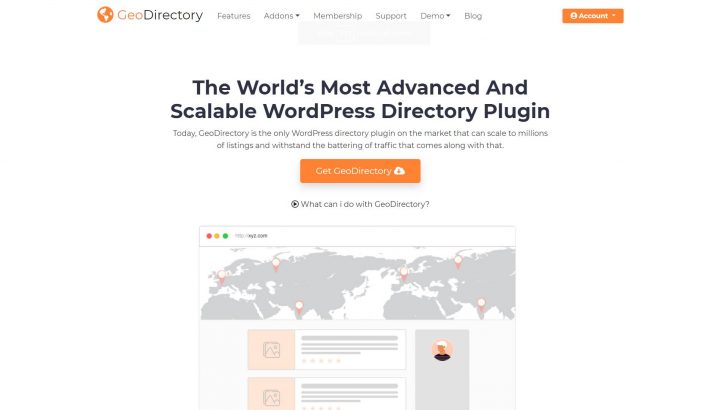
A business directory plugin is a type of software that allows users to create and manage an online directory website of businesses, organizations, or individuals.
This type of software typically includes features such as adding, editing, and deleting listings, categorizing listings by location or industry, and searching for listings based on various criteria.
Some business directory software may also include additional features such as ratings and reviews, payment processing, and integration with other tools or platforms.
Business directory software is indispensable for individuals or businesses creating and managing an online directory website.
3. What is a web directory example?

A web directory is an online directory that lists websites, often organized by category or subject.
A web directory example could be a directory that lists websites related to travel, such as hotels, airlines, and travel agencies.
The directory would provide brief descriptions of the websites and their services and links to them.
This type of directory can be helpful for people looking for information on a specific topic, such as travel, as it provides a curated list of websites in one place.
Other examples of web directories include directories of online stores, blogs, and forums.
Here are some specific examples of web directories:
- Yahoo! Directory: This was one of the oldest and most well-known web directories. It was organized into categories and subcategories, making it easy to find websites on various topics. The directory was shut down in 2014.
- DMOZ (The Open Directory Project): This directory was a collaborative effort by a community of editors who work to categorize and list websites on a wide range of topics.
- Best of the Web: This directory focuses on high-quality websites and provides brief descriptions of the sites to help users find the information they need.
- JoeAnt: This directory is organized into categories and subcategories and allows users to rate and review the websites listed.
- WebWorldIndex: This directory is a human-edited directory that lists websites on a wide range of topics. It also allows users to submit their websites for inclusion in the directory.
- Business.com: This directory focuses on businesses and provides information on various industries and companies. It also offers tools and resources for businesses looking to increase their online presence.
4. Is the online directory website business model profitable?
It can be profitable if the webmaster successfully promotes the directory, reaches a good distribution level, and generates consistent traffic.
The online directory website business model can be profitable only if it is well-managed and successfully monetizes its traffic and user base.
As with any business, the level of profitability will depend on several factors, including the size of the user base, the quality of the directory’s content, and the effectiveness of its monetization strategies.
To be profitable, online directory websites must attract a sufficient number of users and generate enough revenue through advertising, subscriptions, or other sources to cover its costs and generate a profit.
Additionally, the directory must compete with other directories in the market and provide value to its users to retain them and continue to grow its user base.
Mastering SEO (search engine optimization) is the surest way to build a profitable business around an online directory website.
5. How do online business directories make money?

Online business directories can make money through various monetization techniques.
One way is through advertising, where the directory sells ad space on its website to businesses looking to increase their visibility.
Another way is through subscription fees, where users must pay a fee to access certain features or information on the directory.
Additionally, some directories may offer premium listings, where businesses can pay to have their information prominently displayed or highlighted in the directory.
Another way for directories to make money is through commissions for leads.
In this case, they earn a commission for each customer referred to a business through the directory.
Overall, online business directories can generate revenue through one or a combination of these methods.
6. How do you start a profitable online directory?

To start a profitable online directory, you must carefully plan and execute a sound business strategy.
Here are some steps to follow:
- Identify a specific niche or market to focus on. This will help you to differentiate your directory from others and attract a targeted audience.
- Develop a comprehensive list of businesses, organizations, or individuals to include in your directory. This will be the core of your directory and should be updated regularly to ensure it is accurate and up-to-date.
- Create a user-friendly and engaging website to host your directory. This will be your business’s face, so make it visually appealing and easy to navigate.
- Implement effective monetization strategies. This could include selling advertising space, offering subscription plans, or offering premium listings.
- Promote your directory to attract users and increase visibility. This could include marketing efforts such as search engine optimization (SEO), social media marketing, or content marketing.
- Monitor your performance and make adjustments as needed. This could include regularly updating your content, improving your website, or refining your monetization strategies.
This is the best way to create a profitable online directory that provides value to its users and generates revenue for your business.
7. How do you create a successful directory?

The key to creating a successful directory is to focus on providing value to your users.
This means offering a comprehensive and up-to-date list of businesses, organizations, or individuals, along with relevant information and details.
It also means creating a user-friendly and engaging website that is easy to navigate and search.
By providing value to your users, you will be able to attract and retain a loyal audience, which is essential for the success of your directory.
In addition to providing value to your users, building a solid brand is essential.
This means creating a consistent and professional image for your online directory website.
This could include developing a unique logo and color scheme, creating engaging and informative content, and promoting your directory through various channels.
By building a solid brand, you will be able to establish your directory as a trusted and reliable source of information, which will help to attract and retain users.
8. How much should you charge for a directory listing?

The amount you charge for a directory listing will depend on several factors, including the size and scope of your directory, the value of the listing to the business, and the competition in the market.
In general, you should aim to charge a fair price that reflects the value of the listing to the business and allows you to generate a profit.
One approach is to offer different pricing tiers for listings with different levels of visibility and features.
For example, you could offer a basic listing for free or a low fee, allowing businesses to upgrade to a premium listing for a higher price.
This allows businesses to choose the level of exposure and features that best meets their needs and budget.
Regularly reviewing and adjusting your pricing is also essential to ensure it remains competitive and fair.
This could involve conducting market research to understand the pricing of similar directories and regularly soliciting feedback from your customers to ensure they are satisfied with the value they receive for their listing fee.
Overall, the key to setting a fair price for directory listings is to assess the value of the listing to the business carefully and regularly review and adjust your pricing to reflect market conditions and customer feedback.
9. How do I promote my website directory?

There are many ways to promote your website directory and increase its visibility.
Here are some tips:
- Optimize your website for search engines. This involves using keywords and other techniques to improve your website’s ranking in search engine results pages (SERPs), making it more likely that users will find your directory when searching for relevant terms.
- Use social media to promote your directory. Share links to your directory and its content on social media platforms such as Facebook, Twitter, and LinkedIn to reach a wider audience and drive traffic to your website.
- Engage with your target audience. Comment on relevant blog posts and forums, join industry groups and associations and attend industry events to raise awareness of your directory and its value proposition.
- Offer valuable content. In addition to listing businesses, organizations, and individuals, consider offering articles, blog posts, videos, or other content that provide value to your target audience. This can help to establish your directory as a trusted and authoritative source of information.
- Collaborate with other websites and directories. Consider partnering with other websites or directories that serve similar audiences to cross-promote each other’s content and drive traffic to your website.
By following these tips, you can effectively promote your website directory and increase its visibility and reach.
10. Are directories good for SEO?

Yes, directories can be good for SEO.
Search engines crawl and index websites, including directories.
Good quality directories can help improve a website’s visibility in search engine results pages (SERPs) by providing additional inbound links.
This can help to improve the website’s search engine ranking and make it more likely that users will find the website when searching for relevant terms.
In addition, directories can provide valuable information and context about the website and its content, which can help search engines understand its relevance and authority.
This can improve the website’s ranking and visibility in search engine results.
However, it is essential to note that not all directories are equal in terms of their value for SEO.
Some directories may be more reputable and authoritative than others, providing more value in improving a website’s search engine ranking.
Therefore, it is critical to carefully research and evaluate the directories you consider using for your website’s SEO.
11. How do I sell my business directory?

If you are looking to sell your business directory, there are a few steps you can take to maximize its value and attract potential buyers. Here are some tips:
- Gather all relevant information and documents. This could include financial statements, user data, and contracts with advertisers or other partners.
- Create a detailed and professional business plan that outlines the current state of your directory and its future potential.
- Consider engaging the services of a business broker or advisor who can help you to find potential buyers and negotiate a sale. This would include listing on sites like Flippa.com, MicroAcquire, or Empire Flippers.
- Reach out to potential buyers, such as other directory websites or businesses in related industries, and present your directory and its value proposition.
- Negotiate the terms of the sale, including the purchase price and any ongoing obligations or commitments.
- Finalize the sale and transfer ownership of the directory according to the terms of the agreement.
By executing this strategy, you can effectively sell your business directory and maximize its value.
Would you like us to answer more questions about Online Business Directories? Ask your questions in the comment below, and we will update this article!
You can get GeoDirectory here today:
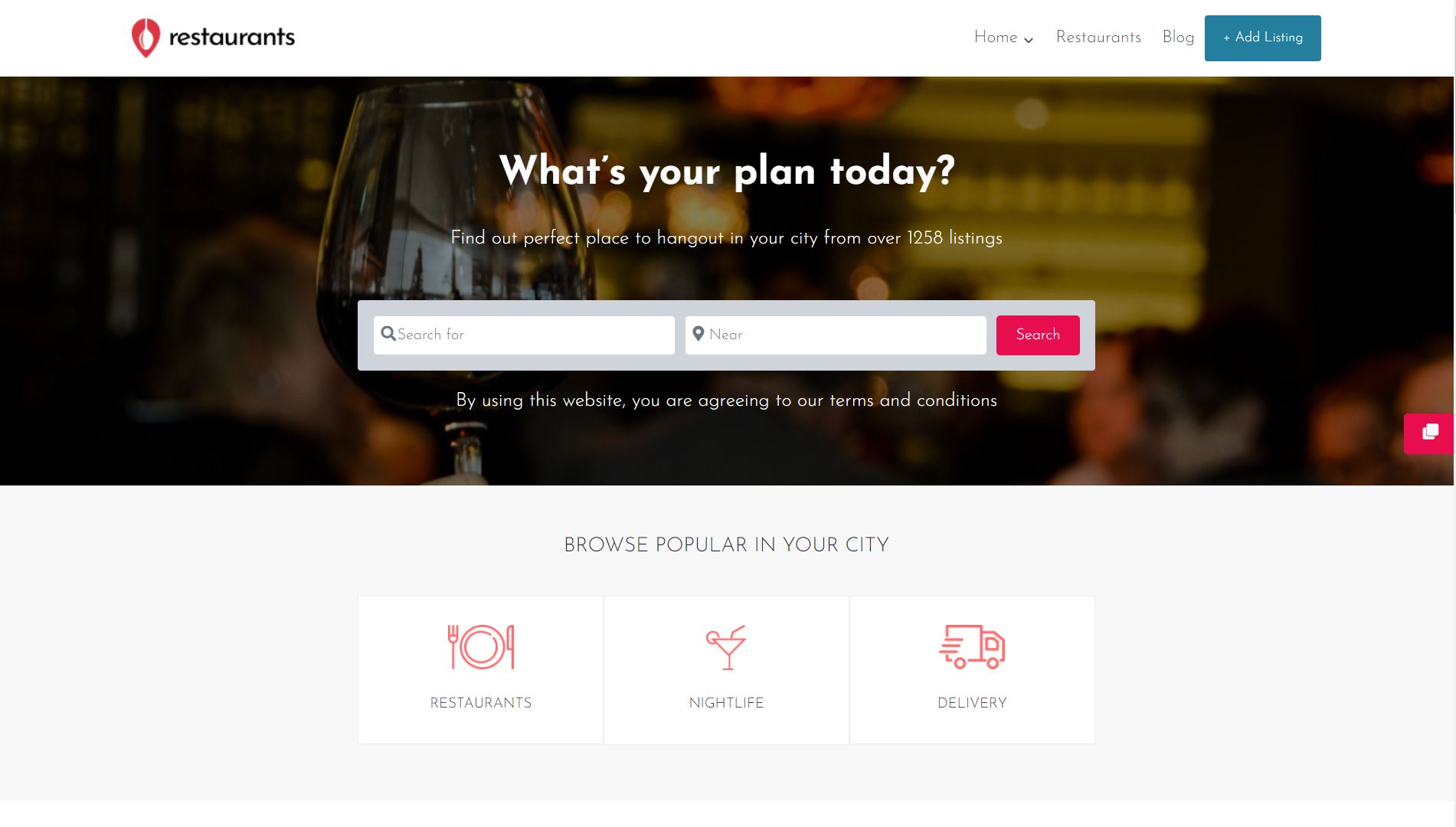
Most “how to build a restaurant directory” guides eventually push you toward Grubhub, Uber Eats, DoorDash, or Yelp for the discovery and ordering side.
The pitch is convenient: list your restaurant on someone else’s platform, pay a fee for visibility and orders, watch the customers roll in.
The math gets ugly fast.
Grubhub, Uber Eats, and DoorDash take 15-30% of every order, plus delivery fees on the customer side that push average ticket prices well above what the restaurant charges at the door.
Yelp charges $300-1,000+/month for premium business pages, with the listings of non-paying competitors appearing on their pages by default.
OpenTable charges restaurants $1 per online reservation and $0.25 per phone reservation, plus a $249/month base fee.
None of those platforms give the restaurant the customer email, the order history, or the marketing relationship.
You can build your own restaurant directory website with full marketplace capability for a fraction of those costs, own the customer relationship, and keep the commission.
This post walks through the practical build, step by step, using the free GeoDirectory plugin as the directory engine and the optional GeoMarketplace add-on to turn it into a multi-vendor ordering platform.
What a Restaurant Directory Site Actually Needs
Strip away the noise and a serious restaurant directory has the same core features as Yelp or Grubhub at their useful core:
- Searchable restaurant database with filters for cuisine, neighborhood, price range, dietary options (vegan, gluten-free), and “open now”
- Map view with pins for every listing and clickable info windows
- Detailed listing pages with photos, menu, hours, contact details, and reviews
- User accounts for restaurant owners (to manage their listing) and diners (to leave reviews and save favorites)
- Front-end submission so restaurant owners can claim or add their own listings without WordPress admin access
- Optional: orderable menu items per restaurant, with multi-vendor commission split (the Grubhub feature, without the Grubhub commission)
- Optional: paid premium listings, paid claim listings, and ad slots for monetization
The GeoDirectory plugin handles every item on that list, with the GeoMarketplace add-on handling the multi-vendor ordering piece.
What You Need (Free Stack)
Three pieces of software, plus a domain and hosting:
- WordPress, the free CMS that powers 43% of the web
- The free GeoDirectory plugin for the directory engine, search, maps, and listing pages
- A theme that pairs cleanly with GeoDirectory (Elementor PRO with the Hello theme, the free Kadence theme, or one of our free BlockStrap themes)
Total cost for the free directory setup: $0 in software, plus $5-15/month for WordPress hosting and $10-15/year for a domain.
For the broader case against SaaS directory platforms, see our best business directory software guide.
For step-by-step build guidance on directory websites generally, see our tutorial on how to create a directory website.
Step 1: Set Up WordPress Hosting and a Domain
Skip this section if you already have a blank WordPress site ready.
For a fresh setup, pick a WordPress hosting provider that gives you at least 2GB RAM and SSD storage. Managed WordPress hosts handle the underlying optimization automatically.
Register a domain that matches what people will type when they search for your directory (e.g., bestbrooklynrestaurants.com, valenciafoodguide.com).
Step 2: Install AyeCode Connect
AyeCode Connect is the free helper plugin that imports pre-built restaurant directory demos directly into your WordPress site, saves you the layout work, and syncs any premium add-on licenses you own.
Navigate to Plugins → Add New in your WordPress admin and search for AyeCode Connect.
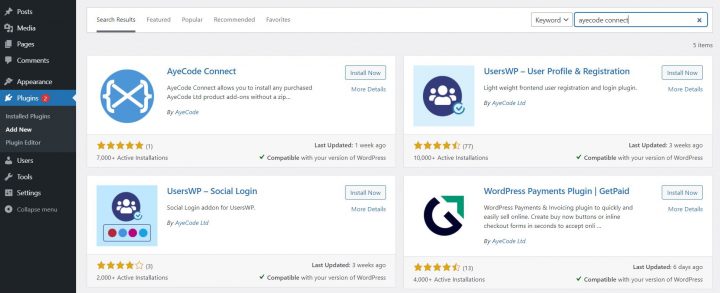
Click Install, then Activate.
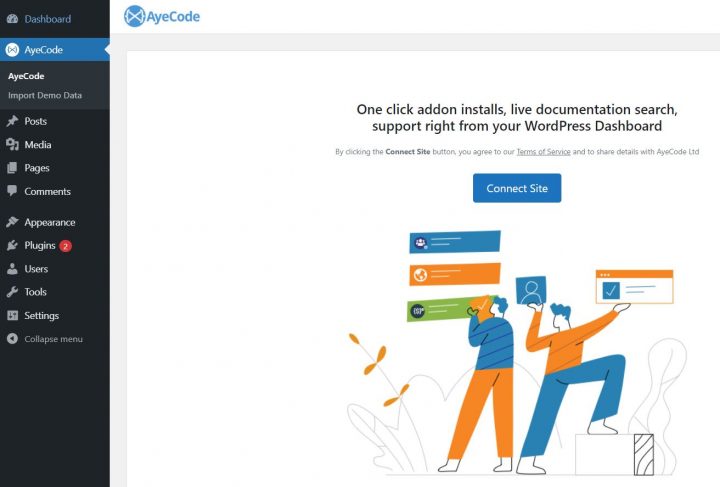
Click the Connect Site button to link your WordPress site to the AyeCode demo library. Registration is free.
Step 3: Import a Restaurant Directory Demo
Two pre-built restaurant directory demos are available through AyeCode Connect, one for each page builder approach.
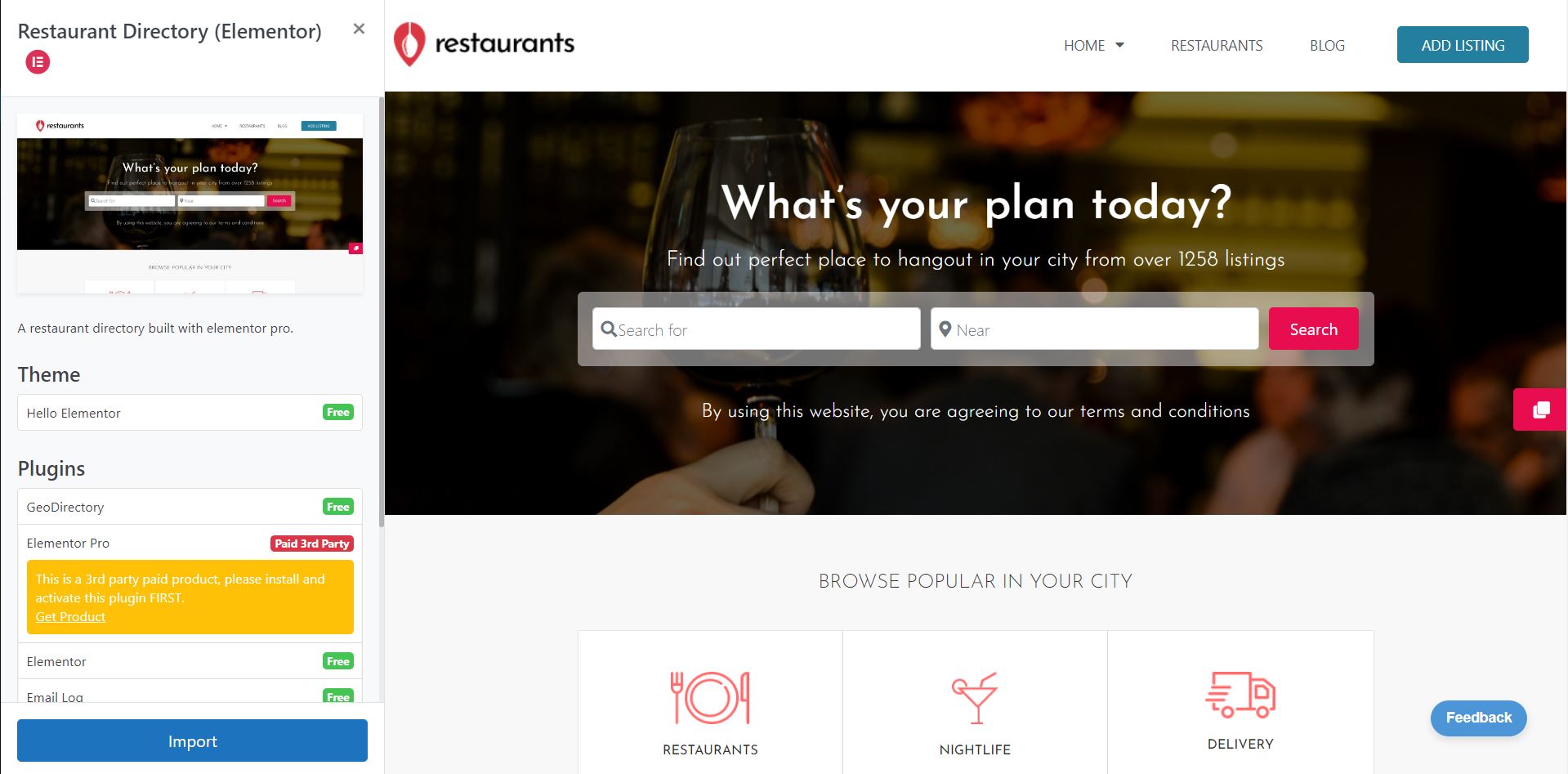
Option A: Elementor PRO + GeoDirectory
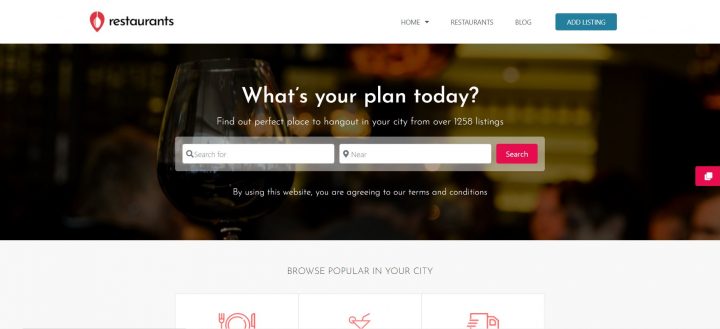
The Elementor PRO path gives you maximum visual flexibility for custom listing templates, archive pages, and search results.
Cost: $59/year for Elementor PRO (entry tier), plus the free GeoDirectory plugin.
Setup: install the free Elementor plugin, upload the Elementor PRO ZIP from your Elementor account, install the free Hello theme by Elementor, then in AyeCode Connect go to Import Demo Data → Elementor restaurant directory → View → Import.
Option B: Kadence Theme + GeoDirectory (Free Path)
The Kadence path is fully free, faster on regular hosting because it uses native Gutenberg blocks, and has no recurring page builder costs.
Cost: $0 for the Kadence theme, $0 for GeoDirectory, $0 for the demo. Total: $0 in software.
Setup: in AyeCode Connect, go to Import Demo Data → Kadence restaurant directory → View → Import.
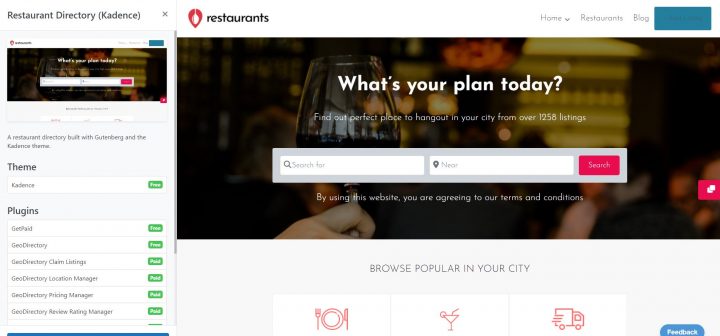
The import installs the free Kadence theme, GeoDirectory plugin, restaurant-specific custom fields, and a set of demo listings to use as a starting point.
For the deeper comparison of which page builder fits which type of operator, see our guide to how page builder choice affects directory site performance.
Step 4: Customize and Add Your Restaurants
Once the demo is imported, the post-import workflow is the same for both paths:
- Replace the placeholder logo with your brand mark
- Adjust colors and typography in the theme customizer to match your brand
- Edit the menu navigation to match your site structure (Home, Restaurants, Cuisines, Neighborhoods, Add Your Restaurant, Contact)
- Replace the demo listings with your real restaurants under Places in the WordPress admin (or use the front-end submission form)
- Configure the contact form and lead capture flow
- Submit your sitemap to Google Search Console
You can add listings one at a time through the front-end form (the same form your restaurant owners will use) or in bulk via CSV import.
The Marketplace Bonus: Orderable Menu Items Per Restaurant
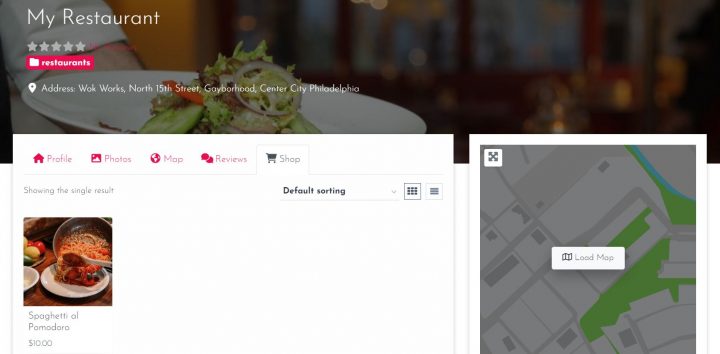
Beyond the basic directory, the GeoMarketplace add-on turns your restaurant directory into a multi-vendor marketplace where each restaurant becomes its own shop.
Restaurant owners create their menu items as products tied to their listing. Diners order through the directory. You collect a commission on every order, at whatever percentage you set.
This is the Grubhub model on your own platform, with you setting the commission rate instead of paying 15-30% to a third party.
What You Need for the Marketplace Setup
- WooCommerce (free) for the underlying e-commerce engine
- MultiVendorX (free) for the multi-vendor functionality
- The GeoMarketplace add-on (premium, included in the GeoDirectory Membership) to connect WooCommerce + MultiVendorX + GeoDirectory into one workflow
GeoMarketplace also works with Dokan, WCFM, and WCV if you have a strong preference for one of those over MultiVendorX.
Marketplace Setup Walkthrough
Install WooCommerce: Plugins → Add New → Search WooCommerce → Install and Activate. Run through the WooCommerce setup wizard.
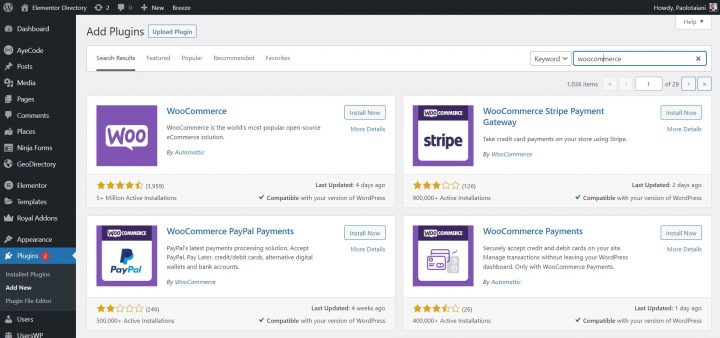
Install MultiVendorX: Plugins → Add New → Search MultiVendorX → Install and Activate. Set your commission percentage in the MultiVendorX settings.
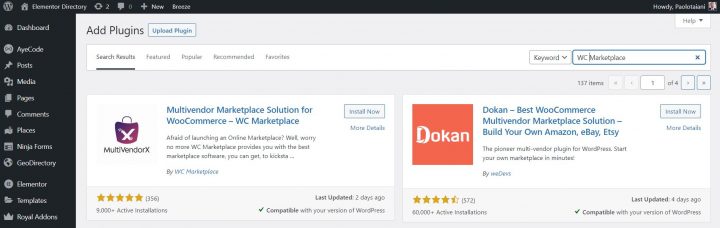
Install GeoMarketplace: if you have an AyeCode Membership and AyeCode Connect set up, go to GeoDirectory → Extensions and install GeoMarketplace from there. Otherwise upload the GeoMarketplace ZIP through Plugins → Add New → Upload Plugin.
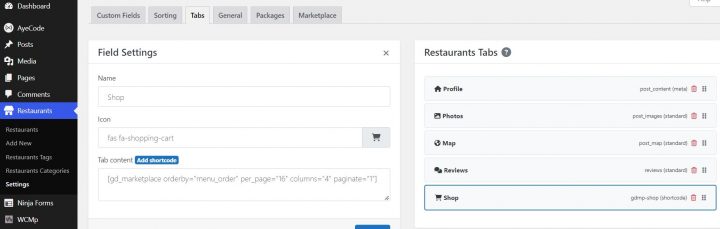
Add the Shop tab to restaurant listings: Restaurant → Settings → Tabs → Insert “Shop” tab → Save.
How Restaurant Owners Sign Up and Sell
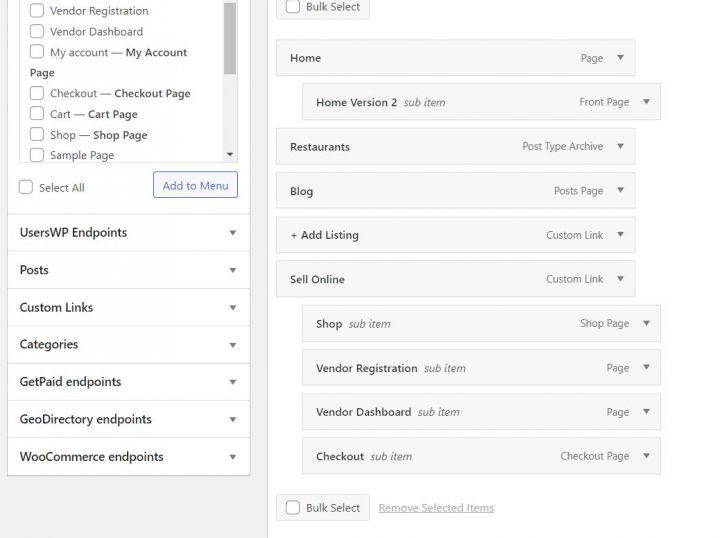
Create two pages in your WordPress menu: Vendor Registration and Vendor Dashboard.
Enable WordPress general registration: Settings → General → “Anyone can register”.
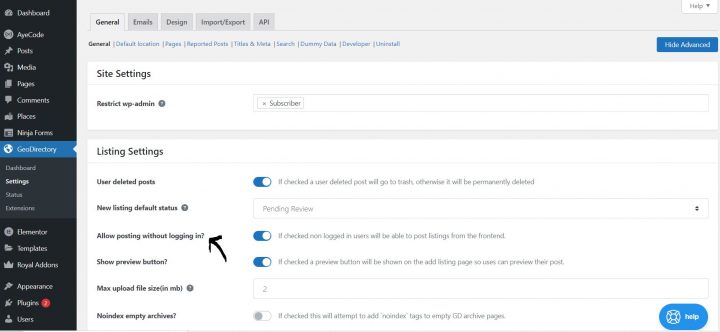
In GeoDirectory: GeoDirectory → General → Show Advanced → Allow posting without logging in.
Restaurant owners now have a four-step flow:
- Submit their restaurant through the Add Listing form (creates the listing and the user account in one step)
- Receive an email to set their password
- Apply to become a vendor through the Vendor Dashboard
- Once approved by you (the admin), create menu items as WooCommerce products tied to their listing
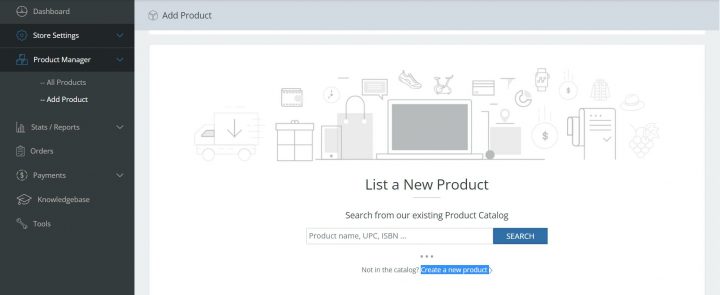
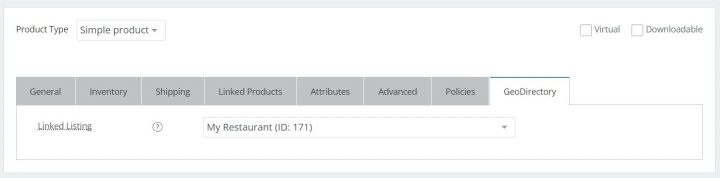
The product is then linked to the restaurant listing through the GeoDirectory tab in the product creation form.
After admin approval, the menu item appears under the Shop tab of the restaurant’s listing page. Customers order through your site, and your commission gets deducted automatically from each sale.
Hiding Premium Restaurant Data Behind Member Login
Many serious restaurant directory operators eventually want to gate premium fields behind member registration: the direct phone number, the owner’s email, reservation booking links, or premium photo galleries.
The cleanest way to handle this in GeoDirectory is with our free BlockStrap themes and BlockStrap page builder plugin, both of which support block-level visibility rules tied to UsersWP membership tiers.
This is genuinely different from how every other directory plugin handles membership gating. For the full architectural breakdown and worked examples, see our guide to the best WordPress membership plugin for directory sites.
Other Ways to Monetize a Restaurant Directory
Beyond the marketplace commission, three additional revenue streams work well for restaurant directories:
Paid Premium Listings
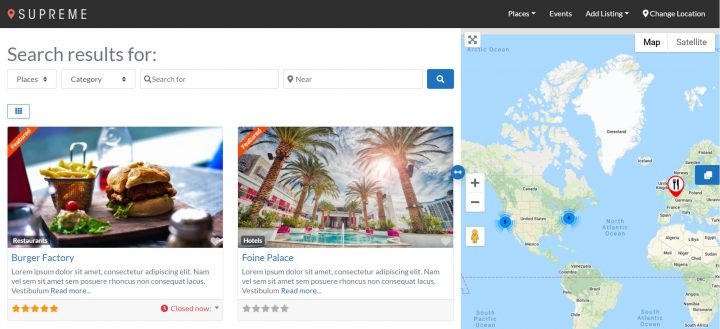
Restaurants pay a recurring fee for featured placement in category pages and search results, additional photos and videos, longer descriptions, and direct contact links.
The Pricing Manager add-on handles the listing tiers and the recurring billing.
Paid Claim Listings
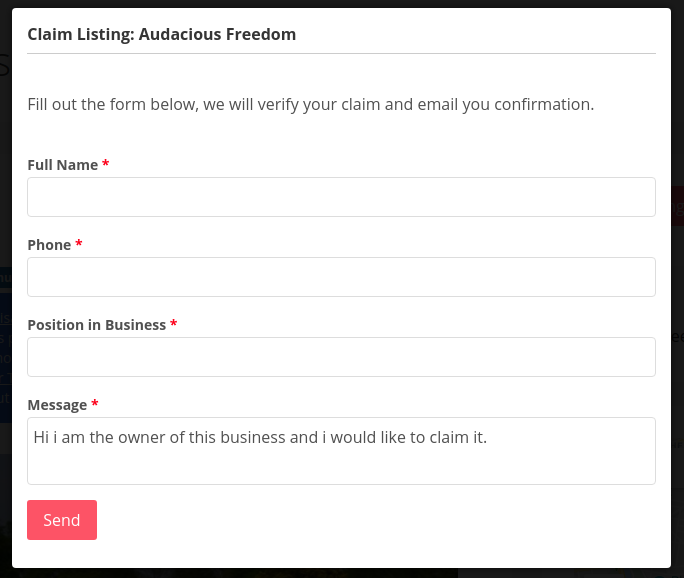
Add restaurants yourself (from public sources), then charge restaurant owners a fee to claim and manage their listings.
The Claim Listings add-on handles the claim workflow, with Pricing Manager handling the paid upgrade flow.
Sell Ads
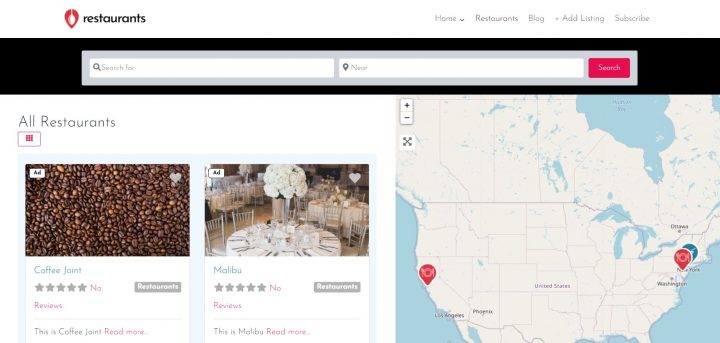
Sell ad slots on search results, category pages, blog posts, or the home page. Ads can be styled to look like listings or as traditional banner placements.
The Pricing Manager and Advertising add-ons handle the sales and rotation.
What This Costs to Build and Run
Honest cost breakdown:
- Domain: $10-15/year
- WordPress hosting: $5-15/month ($60-180/year)
- GeoDirectory plugin: Free
- Kadence theme: Free (or Elementor PRO at $59/year for the Elementor path)
- AyeCode Connect plugin: Free
- WooCommerce: Free
- MultiVendorX: Free
- GeoDirectory Membership (for GeoMarketplace + monetization add-ons): $139/year single site or $229/year unlimited sites
Year-one total for a full restaurant directory with marketplace and monetization layer: $215-400 depending on hosting tier and which page builder path you pick.
Year-one cost of running a single restaurant on Yelp (premium page) + OpenTable + Grubhub commissions: easily $10,000+ for a restaurant doing meaningful online ordering volume.
The directory side is producing recurring revenue for you (commissions, premium listings, ads). The platform side is paying rent to someone else, forever.
The Practical Path
The fastest way to launch a restaurant directory that you own is:
- Buy a domain and basic WordPress hosting
- Install AyeCode Connect
- Import the Kadence restaurant directory demo (or Elementor PRO if you prefer)
- Customize the branding (logo, colors, typography)
- Replace demo listings with your real restaurants
- Set up the GeoMarketplace stack if you want orderable menu items
- Open front-end submission so restaurant owners can add themselves
- Submit your sitemap to Google Search Console
A weekend of focused work gets you a working site.
The first three months of consistent content (neighborhood food guides, cuisine roundups, new restaurant announcements) build the SEO foundation.
By month six, organic search starts producing diners and restaurant owner inquiries.
By year two, your restaurant directory is producing more orders, more featured listings, and more ad revenue than you could justify paying Yelp for in a single month.
Final Thoughts
The restaurant industry runs on rented attention.
Yelp, Grubhub, Uber Eats, DoorDash, OpenTable, and TripAdvisor have built billion-dollar businesses by sitting between diners and restaurants, charging both sides for the introduction.
The operators who own their own restaurant directories stop paying that toll.
The technical setup takes a weekend. The free GeoDirectory plugin handles the listings, the maps, the search, the reviews, the customer accounts, and the marketplace infrastructure.
For the broader case against SaaS directory platforms across all categories, see our best business directory software guide.
For the parallel real estate equivalent of this tutorial, see how to build a real estate website.
For the membership-gating side of the stack, see our guide to the best WordPress membership plugin for directory sites.
Stop renting customers from delivery apps.
Build the directory.

GeoDirectory version 2.1.1.0 introduces a new, highly anticipated feature:
Conditional Logic for Custom Fields
This new feature allows you to create dependencies between fields, based on the conditions that you set.
Dependent fields will only be displayed and editable, if the input entered on the fields they depend on, matches the right conditions.
This feature is fundamental for business directory listings, with many custom fields making it possible to select preset fields only when these apply.
An easy-to-understand example is represented by custom fields for Car Classified Listings.
Presumably, you will have a field labeled “Brand”, where users will select their car manufacturers such as Ford, GMC, or Lamborghini.
And you will have a field labeled “Models“, where you select the model of the selected Brand of cars. If you select Ford, this field will display models such as C-Max, Fiesta, Focus, Fusion, Mustang, and so on.
If you select Lamborghini, this field will display models such as Huracan, Aventador, Gallardo, Murcielago, Diablo, and so on.

To create this example, we added 3 custom fields to our setup. Brands, Ford Models, and Lamborghini Models.
On the Ford Models Field, we set the condition to show only when you select the Ford option in the Brands field.
On the Lamborghini Models Field, we set the condition to show only when you select the Lamborghini option in the Brands field.
It is as easy as that.
Another case in point would be Real Estate Listing.
Let’s show a full tutorial, including how to set up the fields, using our WordPress Real Estate Theme.
Conditional Fields for Real Estate Listings
Our Real Estate listing demo includes a field labeled Property Type with options such as Houses, Apartments, and Land and another field asking for furnished/unfurnished status. Obviously, the second field never applies to Land properties.
In this case, we will add a Conditional Logic to the Furnishing select custom field by doing the following:
1. Open the Furnishing Select Field.
2. Click the “+ Conditional Field” link at the lower-left corner of the custom field options.
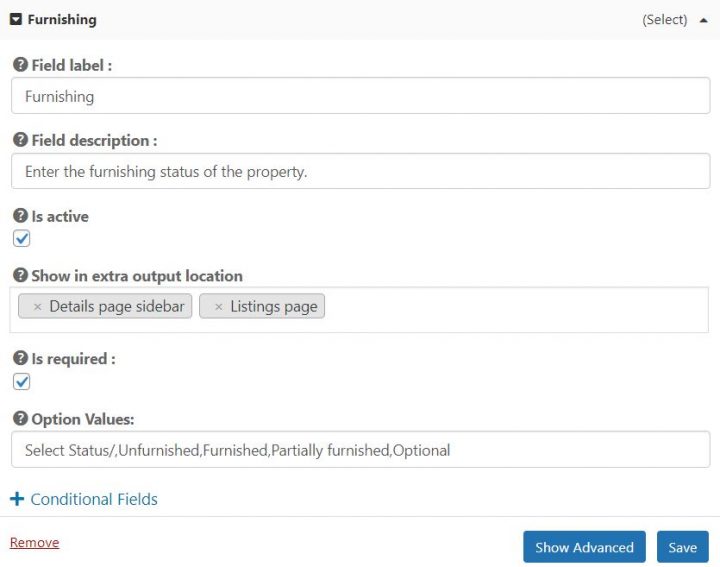
3 After clicking on it, a new set of options will appear.
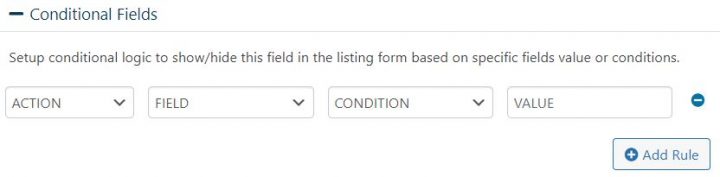
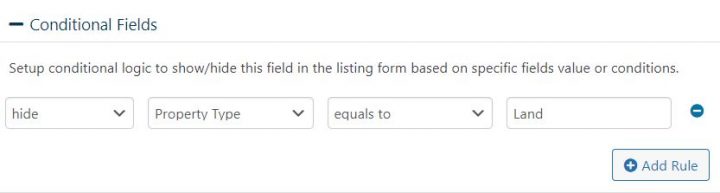
4 For our example, we will need to set them as follows:
- ACTION = HIDE
- FIELD = Property Type
- CONDITION = equals to
- VALUE = Land
and save the custom field. Below you can see what this will look like.
After doing that, this is the result on the Front End:
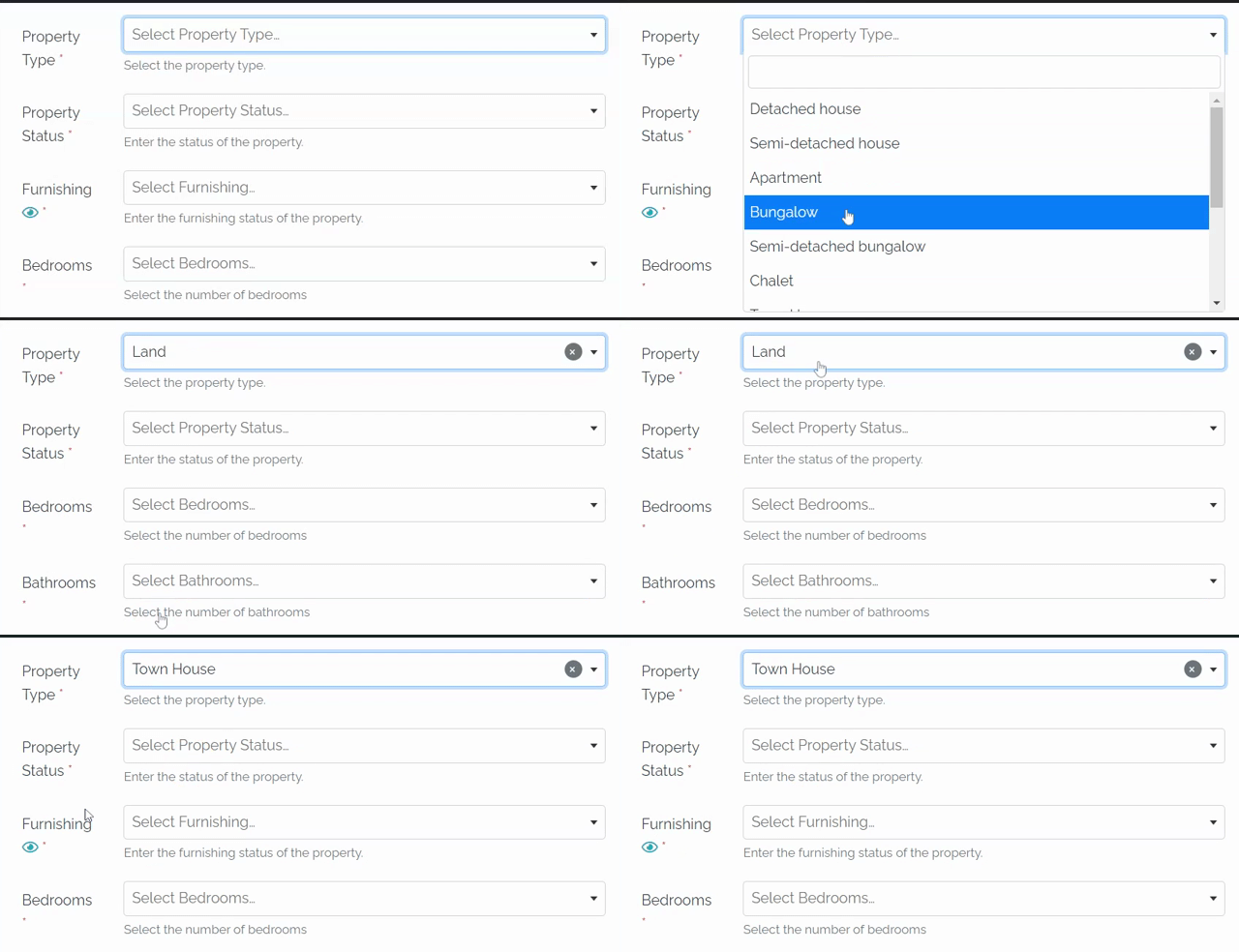
The same conditions can be added to other fields like the bedrooms or bathrooms fields, which are not needed if you are listing a piece of land.
You can also add multiple conditions if you need to do so.
The available options are:
- ACTION = SHOW/HIDE
- FIELD = All your fields
- CONDITION = empty, not empty, equals to, not equals, greater than, less then, contains.
- VALUE = accept text
And you can add as many as you wish for each field.
What are you going to build with GeoDirectory conditional custom fields?
Let us know in the comment down below…
Are you looking for a WordPress Store Locator plugin to help you increase sales at your store or shop?
If yes, you should check out these top plugins that can help you boost your business.
A WordPress store locator plugin is a great way to ensure that customers know exactly where to go when they want to buy from you.
If your business has more than one location, you should consider installing a where-to-buy store locator plugin.
These allow you to list all your locations on a single page so visitors can browse them all at once.
You can also add maps showing where they are located to each listing.
There are thousands of free and paid WordPress plugins available today. The problem is finding the right one. That’s where our experts come in.
They scour the web to find the best WordPress plugins every day. And they share their findings with you.
Some of the top WordPress plugins can help businesses improve their visibility and increase sales.
WordPress Store Locator Plugins Compared
That said, which store locator WordPress plugins are the best?
In theory, any Google Maps plugin that allows adding more than one location could be used as a Store Locator.
However, that might not be enough for everyone.
This article will look at some of the most popular out there.
In addition, we will be paying particular attention to their Rich Snippets support.
From the point of view of a local business, Rich Snippets are crucial for SEO as these help search engines display beneficial results about your business.
For instance, if you run a restaurant, Rich Snippets will highlight Menus, Service Hours, Specials, etc.
GeoDirectory

| Active Installs | Ratings | Updates | Support |
|---|---|---|---|
| +10000 | 4.7/5 | Weekly | Within 24 hrs |
Our flagship plugin, GeoDirectory, is by far the most sophisticated shop locator plugin on this list.
Integrated with Google Maps and OpenStreetMap, it has many features that are otherwise not found in most Store Locator WordPress plugins.
For example, it is fully integrated with Elementor and Elementor PRO.
Please don’t take our word for it, though.
Consider this.
Major Features
This is entirely free.
GeoDirectory has numerous custom extensions that offer seamless integration with third-party plugins and extended features.
- Google Maps and the OpenStreetMaps API
- Custom Google Map icons
- Search for physical stores near your current locations (proximity)
- Search Radius
- Physical store location pages, each with its map, custom image gallery, contact details, dedicated contact form, and customer reviews
- Full support for WordPress REST API
- Unlimited custom fields for displaying location info
- A wide range of widgets that can be used as shortcodes or Gutenberg blocks in virtually any content field
- Ability to add unlimited locations and location metadata
- CSV manager for export, import, and bulk editing of store listings
- Rich Snippets Support – Yes! 🙂
- Responsive design that works with any page builder plugin like Elementor, Divi, Oxygen, Bricks, Breakdance, and Beaver Builder (just to name a few)
- Integration with WPML multilingual plugin
For example:
- GeoLocation
- Advanced search
- Custom Post Type to handle different types of stores
- Claim listing for the business owner
- Custom-designed Google Maps
- Events locator (Now a free plugin)
- SEO Location Manager for multi-city store locating capability
- Map Marker Clusters and many more.
If you are building a business directory website (generic store locator for your city), you can even charge business owners to submit their listings on your map.
If you need to build an advanced Store Locator on your WordPress website, GeoDirectory should be your first choice.
WP Store Locator
| Active Installs | Ratings | Updates | Support |
|---|---|---|---|
| +60000 | 4.8/5 | Rarely | Within 24/48 hrs |
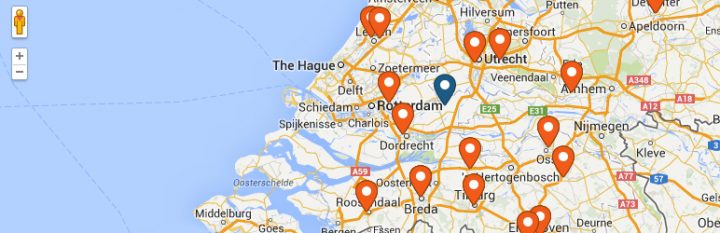
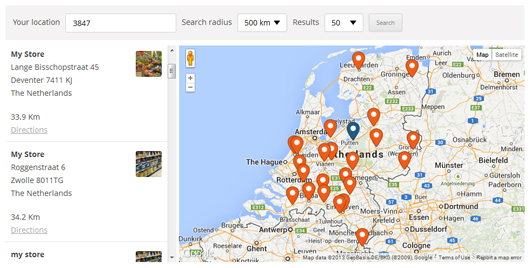
The WP Store Locator is a free plugin that adds all your locations to a map you can fully customize.
The map and navigator can be in whatever language you choose.
You can add custom labels for each location and help users find nearby locations using multiple filters, such as proximity radius or category.
WP Store Locator allows you to display any number of stores and change the frontend language from the admin panel.
The shortcodes are highly customizable, so you can choose what to display on the front end of your site.
Be it opening or closing hours, alternate addresses, landmarks, phone numbers, etc.
This WP plugin has custom markers that users can drag on the map to set their desired location.
Beyond that, marker clustering is also available should there be multiple stores nearby.
Overall, this is a very feature-rich plugin that can fit the needs of any user.
However, the biggest downside is that some features that are otherwise available out of the box in most plugins require you to rely on add-ons.
For instance, bulk import, detailed statistics, and search widgets are mainly managed using add-ons with WP Store Locator.
Major Features
- Support localization and works well with multilingual plugins
- Ability to showcase marker cluster on the frontend
- Supports Geolocation via Google Maps API
- Comes with custom filters to sort CPTs based on user requirements
- Supports Rich Snippets – No (Partial Support; but single entry pages do not use Local Business Rich Snippets)
Yoast Local SEO for WordPress
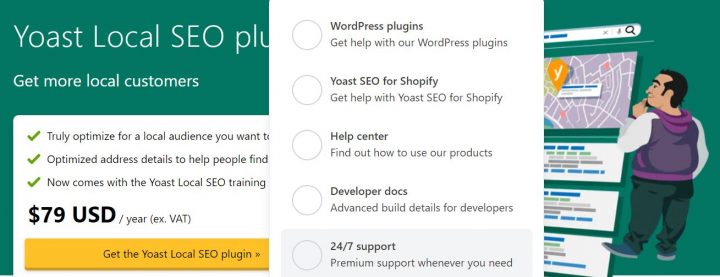
Yoast has become the de facto leader when it comes to WordPress SEO.
Their main SEO plugin is free and backed by the Local SEO plugin, primarily meant as a store locator.
Local SEO by Yoast allows users to filter stores and other locations by radius and ZIP codes.
You can add your store’s address to the store locator page, specify the opening and closing hours, and add any custom info using shortcodes.
The plugin also supports custom widgets that display store location info in the sidebar or footer.
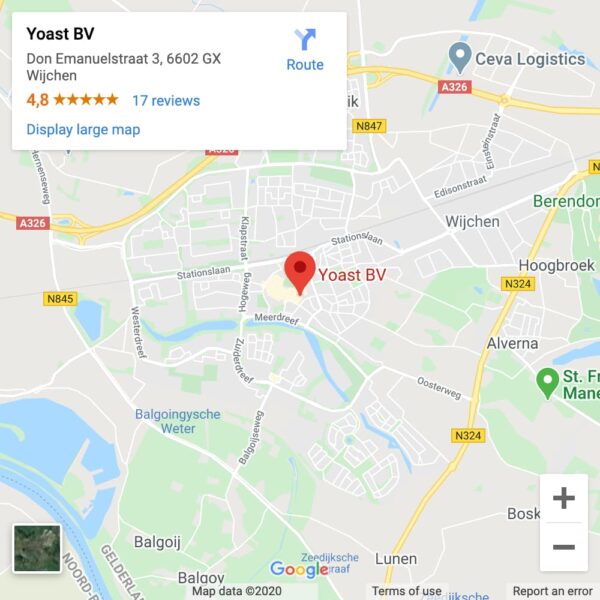
That said, Yoast’s biggest issue with Local SEO is the absence of a free version.
More importantly, this is not a bonafide store locator plugin per se.
Instead, it is a companion plugin for the mainstream Yoast SEO plugin.
It offers seamless integration with Yoast SEO, handling metadata and XML sitemaps, etc. Still, it does not boast any additional features other plugins offer.
Lastly, it is worth mentioning that if you have virtual locations for your store, this particular plugin might not be the best fit for you.
Price – $79 + VAT
Major Features
- Offers tight integration with the Yoast SEO plugin
- It integrates well with WooCommerce and can add location-specific features to WooCommerce products.
- Supports KML file generation and can add the relevant info to your search engine XML sitemap automatically
- Supports Rich Snippets – Yes
Locatoraid Store Locator

| Active Installs | Ratings | Updates | Support |
|---|---|---|---|
| +2000 | 4.5/5 | Rarely | Within a week |
Locatoraid Store Locator is another lightweight plugin that includes many configurable styles for front-end display.
Regarding modus operandi, Locataraid follows the same approach as all other plugins on this list.
It lets you add locations your customers can browse through, supports custom shortcodes for the more straightforward display of store locations, and can insert maps with text search, radius and proximity search, etc.
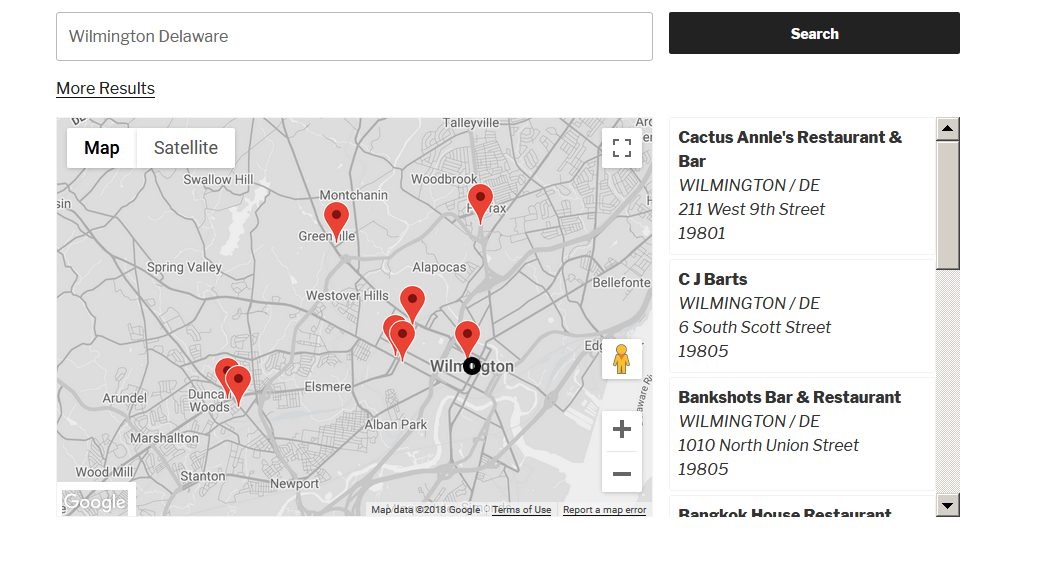
In addition to all of that, Locataraid also comes with custom widgets and highly tweakable map styles.
On the downside, though, geolocation is hard to set up, and Locataraid seems to mainly require users to manually type in their address or ZIP code to fetch nearby store locations.
It might be time-consuming and a minor hindrance for some users.
Major Features
- Tweakable and customizable map styles
- Supports multiple locations and custom fields
- Ability to bulk import locations in a few clicks
- Supports Rich Snippets – No (Partial Support; single entry pages do not support Local Business Rich Snippet fully)
Agile Store Locator
| Active Installs | Ratings | Updates | Support |
|---|---|---|---|
| +10000 | 4.9/5 | Frequent | Within 48 hrs |
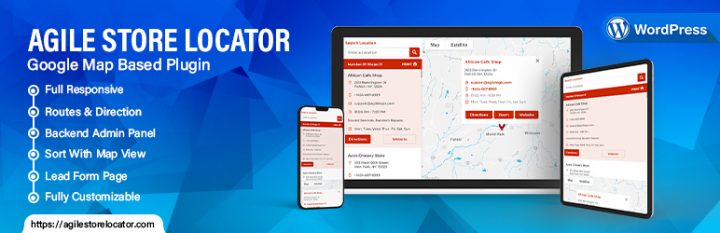
Agile Store Locator is a handy WordPress plugin that renders maps on your website’s front end using Google Maps.
This WP plugin supports Geolocation and custom fields and offers decent customization features for the maps display.
That said, the free version only seems to be able to search for or locate stores based on manual input—ZIP code, city, country, etc.
Major Features
- Google Maps and Google Geocoding API
- Support for custom fields
- Multilingual support
- Ability to display maps in different languages
- Rich Snippets Support – No
WP Go Maps (formerly WP Google Maps)
| Active Installs | Ratings | Updates | Support |
|---|---|---|---|
| +400000 | 4.8/5 | Frequent | 48/72 hrs |
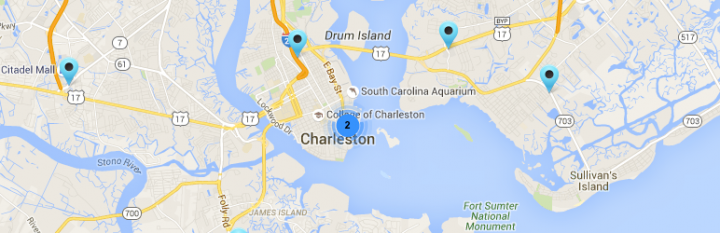
WP Go Maps is not a Store Locator plugin per se, but rather a mapping plugin that supports Google Maps and Open Street Maps.
It is extremely popular, with over 400,000 active installs.
The free version allows users to create one map by simply right-clicking on the map and adding unlimited map markers with all the information they need to find store locations.
The free version allows your website visitors to search by address and radius.
Free version notable features include:
- Unlimited map markers by simply typing in the address
- Elementor Map block
- Edit your map markers with the click of a button
- Drag map markers to an exact location
- Support for translations
- Define your width, height, and zoom level for your map
- Add animations to your map markers!
- Restrict a store locator search by country
- Add Polygons to your Map
- Add Polylines / Routes to your map
- Google Maps Autocomplete
- Set the max zoom level for your map
- Serve your map marker data via your database or an XML file
Store Locator Plus for WordPress
| Active Installs | Ratings | Updates | Support |
|---|---|---|---|
| +7000 | 4.3/5 | Frequent | unreliable |
Store Locator Plus lets you create a location search on your website, regardless of the number of stores you need to manage.
You can create a page without unique settings, specify your default location, and add a shortcode to the location search page.
This particular plugin is ideal for people who wish to add a simple search bar to their site to locate stores.
If you are looking for highly customizable options, Store Locator Plus for WordPress is probably not the first choice you think of.
Add custom add-ons (paid extensions) to this plugin for additional features.
Such as enabling or disabling search options, categorizing locations, creating SEO-focused pages for each area, and so on.
You must implement a few add-ons or extensions to get the most out of this plugin.
For instance, extensions are necessary to integrate social media links with store locations or add custom fields to your location data.
Store Locator Plus also works seamlessly with Gravity Forms and Event Location Manager to link events to the location of your business.
Lastly, it supports multiple countries and languages without any paid add-ons.
Major Features
- Support for multiple countries and locations
- Localized in various languages
- There is no hard limit on the number of locations that you can add
- Easily customizable with HTML and CSS tweaks
- A wide range of paid add-ons and extensions to get the most out of your site
- Support for WordPress REST API to help use WP as a headless CMS, integrate with mobile apps, and so on.
- Does not support Rich Snippets
WARNING: This plugin was suspended for a long time from the wp.org plugin directory for security issues.
It appears that the problem was solved now, but handling the situation was quite unprofessional.
To Sum it up…
In this article, we have compiled some of the most popular WordPress plugins that may help you build store locator functionality on your website.
Each has its features and abilities, but most users will be satisfied with any of the above plugins.
Which one should you use? Yes, it depends on your requirements.
For instance, if integration with Yoast SEO is the only aspect of your search, Local SEO by Yoast is an obvious choice.
On the other hand, if the widest selection of features in the free version and a stellar array of premium extensions is something you’re looking for, GeoDirectory is what you should choose for your site.
Which store locator WordPress plugin do you prefer and why? Have your say in the comments below!

At AyeCode, We Love Affiliate Marketing!
Affiliate Marketing is one of the things, which made GeoDirectory as successful as it is.
When in 2011 we launched GeoTheme, the predecessor of GeoDirectory, our affiliate program, and a few awesome affiliate marketers, gave our first product the visibility that it needed to take off.
It helped us create an audience.
Affiliate marketing is definitely one of the reasons why we have been profitable since day one, and we have been growing ever since.
Today, we still rely on Affiliate Marketing, and we pay five figures per year to our partners in affiliate commissions.
Currently, we have 277 affiliates, but 7 of them, are accountable for 80% of the revenues generated by our affiliate program.
This means that you don’t need too many of them, you need a few good ones.
BTW, if you want to join our Affiliate Program, we do offer a 30% commission for each sale and you can register here.
What is Affiliate marketing?
In case you don’t know, affiliate marketing for the eCommerce industry consists of offering a commission for each sale referred by a third-party website.
An Affiliate plugin will help you automate this process.
Website owners who want to promote your products can register on your website’s affiliate program.
The plugin will provide “special links” to your partners and will track anytime a visitor lands on your store, after clicking on one of these special links on a partner’s website.
If the same visitor purchases one of your products or services, or a premium listing, the affiliate plugin will record the commission.
At the end of the month, you can generate a payout report of all commissions and pay your affiliate partners.
Should you start an Affiliate program for your directory?
If you are selling premium listings, absolutely yes! Do it now…
If you haven’t, you are not taking full advantage of your online business.
Seasoned Directory Developers know how challenging monetizing a directory can be. Especially when it is newly launched.
A well thought Affiliate Marketing Program can greatly help you with that.
For example, in the case of a Local Business Directory, you could contact every Local SEO, Web Developers, and Marketing agency in your area and let them know they can earn a percentage for each premium listing that they buy for their local clients.
Their clients are your clients!
Other than sending you targeted traffic, affiliate partners will improve your backlink profile, and as a consequence, your SEO (Search Engine Optimization).
Most affiliate partners will cloak the affiliate links on their websites. Some will add the “nofollow” tag to them.
However, a good percentage will still give you a 100% “dofollow” link and each backlink can make a big difference for your website’s rankings.
What Affiliate Plugin should I use with GeoDirectory?
Until recently, you only had one choice. However, you had to buy that plugin and our integration add-on just to get started.
Unless your directory was already generating decent revenues, the initial investment could appear a bit high.
Today the answer is a no-brainer. You should use SliceWP!
SliceWP is the newest Affiliate plugin for WordPress, its core plugin is free, it is incredibly easy to use and its developers, just made it fully compatible with our GetPaid plugin.
As a consequence, it is compatible with GeoDirectory too!
The free plugin is more than enough to get you started and if you manage to attract a few good affiliate partners (3 or 4) they will have a huge impact on your revenues.
I’m sold, show me how it’s done!
This is the easy part. It will literally take minutes.
I’m assuming you already have GeoDirectory installed and you are selling Paid Premium listings using the GeoDirectory Pricing Manager Add-on and the GetPaid plugin.
1. Install SliceWP

Go to Plugins > Add New, search SliceWP, click on Install Now and Activate. This will launch the setup wizard.
2. Complete the Setup Wizard
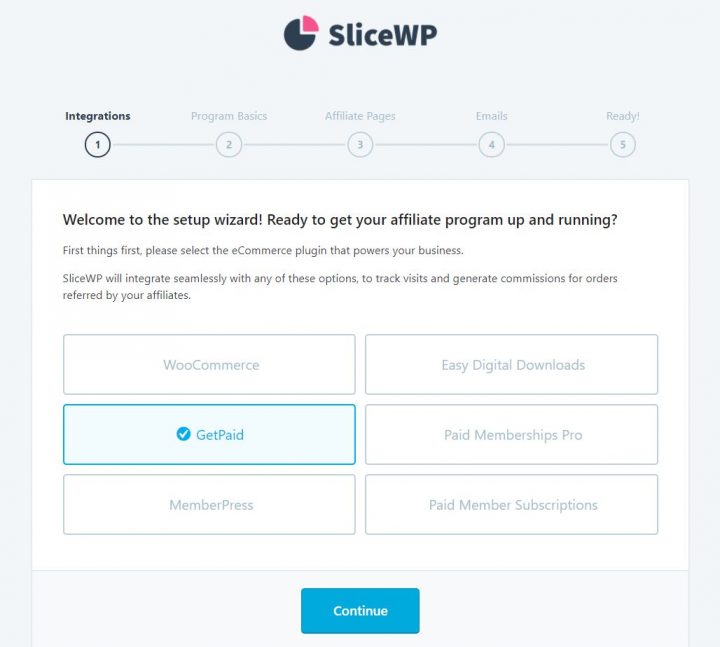
- Select GetPaid
- Set your Sale Commission Rate, Subscription Commission Rate, Currency, Cookie Duration and Allow visitors to register as affiliates.
- Create the pages needed: Affiliate Register Page, Affiliate Login Page, and Affiliate Account Page
- Enable the notifications needed (all 4)
- All required options are now setup. You are almost done, click Review Settings to fine-tune your configuration of SliceWP
Here you can add the final touches through options that are not required like:
- Exclude Taxes
- Reject Commissions on Refund
- Zero Amount Commissions
- Affiliate Own Commissions
And a few other options.
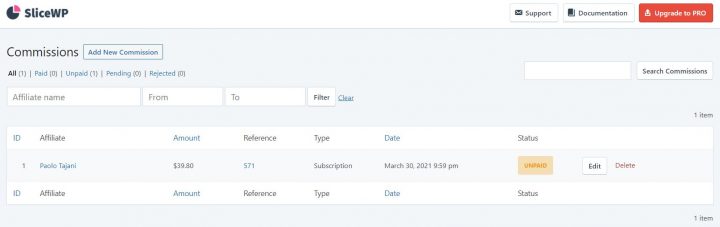
From now on, every sale referred by an affiliate partner will be tracked and a commission will be recorded.
This is how commissions will look like on the backend:
This is how the affiliate account will look like on the frontend with the starter theme:
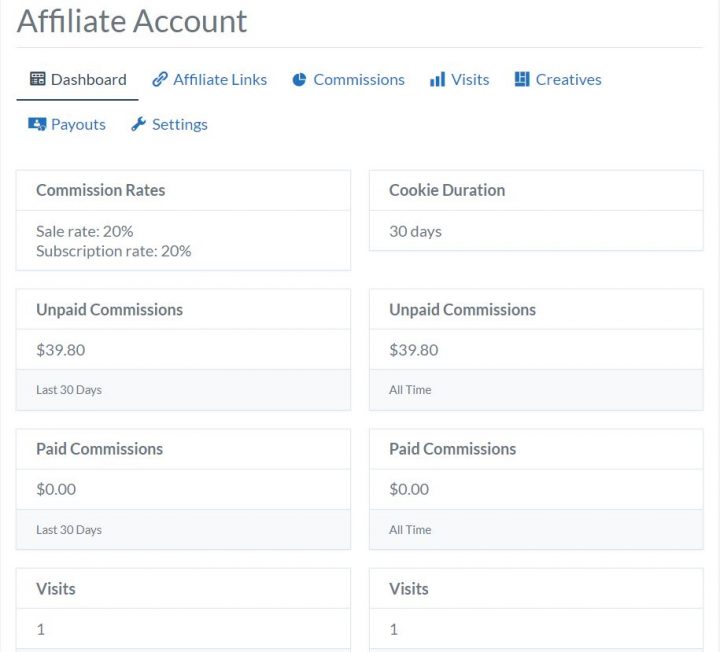
As the site admin, you will be able to moderate the affiliate partners’ registration. You can track referrals, visits, and you will be able to add creatives (Marketing material like logos and banners.)
Payout files are easy to create by start and end dates and you can set a minimum amount.
SliceWP Premium Features
If this is not enough, you have several premium add-ons to choose from.
For a very reasonable price, you can add extra features like:
- Lifetime Commissions
- Custom Affiliate Fields
- Recurring Commissions
- Product Commission Rates
- Affiliate Commission Rate
and much more.
That’s it!
If you wish to test it, you can do so on this demo: https://demos.ayecode.io/starter/
You can register a new affiliate here:
https://demos.ayecode.io/starter/affiliate-registration/
You can login as affiliate here:
https://demos.ayecode.io/starter/affiliate-login/
And you will find the affiliate account page here:
https://demos.ayecode.io/starter/affiliate-account/
We hope you will enjoy using SliceWP, if you have any questions about it, please leave it in the comments down below.
Disclaimer
AyeCode is not currently affiliated with SliceWP, nor do we own any interest in it. We are suggesting to our audience purely because we like it, and because its developers were kind enough to make it compatible with GetPaid.
We think it is a fantastic addition for any Online Directory Developer.
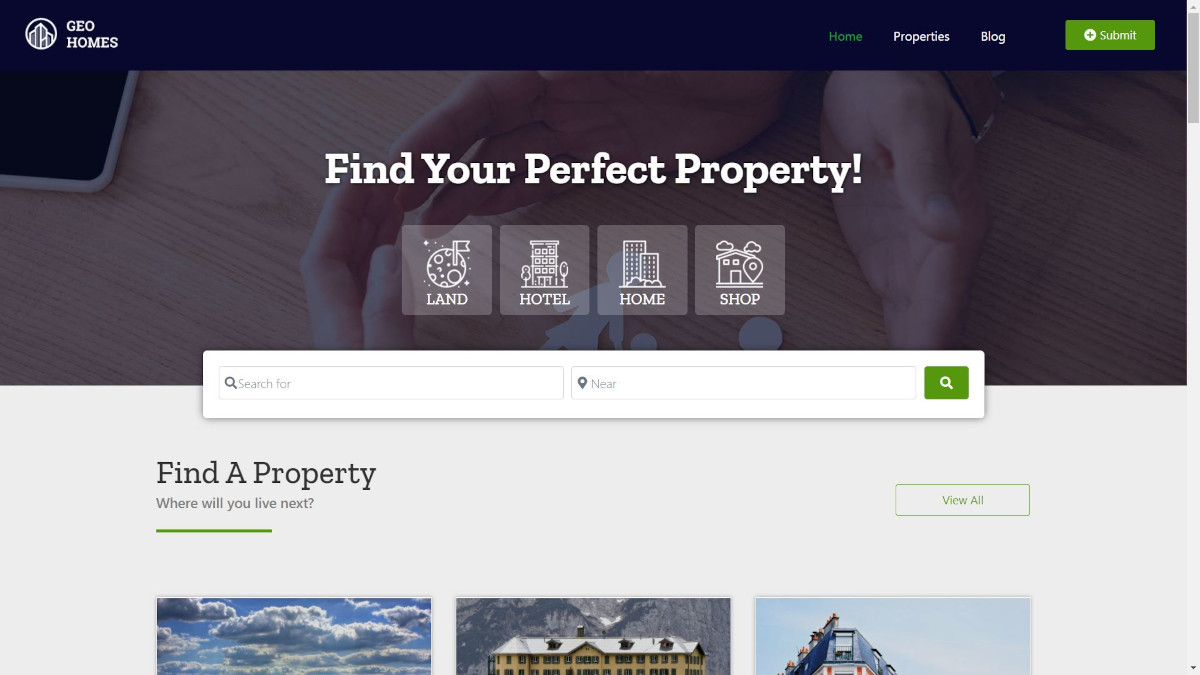
Building a real estate listings directory on WordPress comes down to a single architectural choice: which page builder or theme framework you use.
The three serious options in 2026 are BlockStrap (the framework behind the free Real Estate Listings theme), Elementor PRO, and the Kadence theme.
All three work cleanly with GeoDirectory and produce a functional real estate site in under an hour.
The trade-offs between them are real, and worth understanding before you start.
This post covers the Elementor PRO path and the Kadence path step by step, plus the framework for picking between them.
If you want the third option (the recommended BlockStrap path), see our guide to how to build a real estate website, which walks through the same workflow with the Real Estate Listings theme that ships pre-configured for real estate use cases.
Which Path Fits Which Operator
BlockStrap + Real Estate Listings Theme (Recommended)
The free Real Estate Listings theme built on the BlockStrap framework is the fastest path to a working real estate site.
It uses native WordPress blocks (no page builder dependency), loads fast on regular hosting, and ships with a real estate-specific design out of the box.
This is the path covered in detail in our how to build a real estate website guide.
Choose this if: you want the simplest, fastest setup with no recurring page builder costs.
Elementor PRO
Elementor PRO is the most flexible visual page builder in the WordPress ecosystem.
It lets you design custom layouts, listing templates, archive pages, and search results visually, with deep dynamic data integration into GeoDirectory.
The trade-offs: Elementor PRO requires a $59/year subscription (entry tier), adds frontend weight that benefits from higher-quality hosting, and has a steeper learning curve than the native-blocks approach.
Choose this if: you need full design flexibility, you already use Elementor across other sites, or you have a designer on the team who works in Elementor.
Kadence Theme
Kadence is a popular free WordPress theme with optional paid add-ons (Kadence Pro, Kadence Blocks Pro).
It uses native Gutenberg blocks like BlockStrap, but the styling and theme architecture are different.
The trade-offs: Kadence is excellent for general WordPress sites but is not real estate-specific the way the Real Estate Listings theme is. You will spend time customizing the design to feel like a real estate site rather than a generic one.
Choose this if: you already use Kadence on other sites and want consistency across your stack, or you prefer Kadence’s specific design system over BlockStrap.
Path A: GeoDirectory + Elementor PRO
Step 1: Set Up WordPress Hosting
Skip this step if you already have a blank WordPress site set up.
For Elementor PRO specifically, lean toward hosting plans with at least 2GB of RAM and SSD storage. Elementor adds frontend weight that benefits from faster infrastructure.
Managed WordPress hosts (Kinsta, WP Engine, Cloudways, SiteGround) handle the underlying optimization automatically.
Step 2: Install Elementor and Elementor PRO
From your WordPress admin, go to Plugins → Add New.
Search for Elementor, install, and activate the free version.
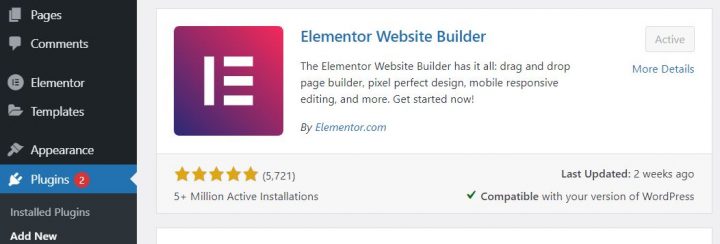
Then click Add New → Upload Plugin and install Elementor PRO by uploading the ZIP file from your Elementor account.
Elementor PRO is a paid subscription, starting at $59/year for the entry tier. Purchase directly from Elementor.com.
Step 3: Install the AyeCode Connect Plugin
Navigate to Plugins → Add New.
Search for AyeCode Connect.
Click Install, then Activate.
A new AyeCode menu item appears in the WordPress sidebar with two submenus: AyeCode and Import Demo Data.
Step 4: Connect to the AyeCode Demo Library
Click the Connect Site button and register (or log in if you already have an AyeCode account).
Registration is free.
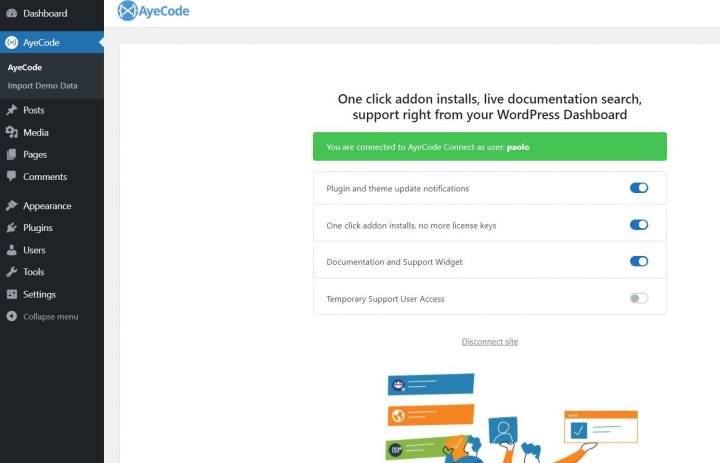
The connection lets AyeCode automatically install premium add-ons you have a license for. If you do not have a license, demos still install without the premium features.
Step 5: Import the Elementor Real Estate Demo
Navigate to AyeCode → Import Demo Data.
Select the demo called Real Estate (Elementor).
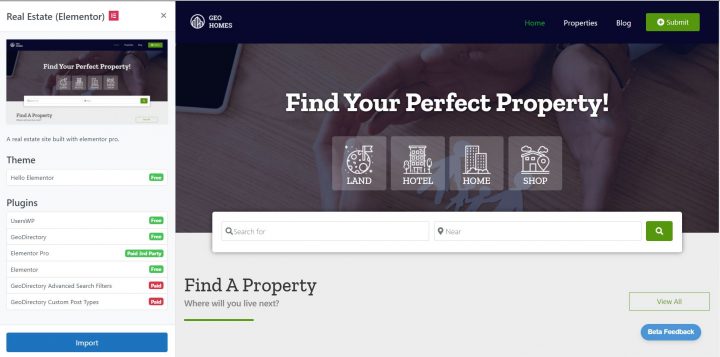
Click View, then Import.
The import installs the GeoDirectory plugin, the Real Estate Directory add-on, the Elementor-specific templates, and a set of demo property listings.
When the import finishes, view the site. You have a working Elementor-based real estate directory ready to customize.
Path B: GeoDirectory + Kadence Theme
The Kadence path is simpler than the Elementor path because you do not need to install or pay for a separate page builder.
Step 1: Set Up WordPress Hosting
Same as the Elementor path, but Kadence’s lighter weight means you can use lower-tier hosting if budget is a constraint.
Step 2: Install the AyeCode Connect Plugin
Follow the same steps as the Elementor path above.
Step 3: Connect to the AyeCode Demo Library
Same connection process as the Elementor path.
Step 4: Import the Kadence Real Estate Demo
Navigate to AyeCode → Import Demo Data.
This time select the demo called Real Estate (Kadence).
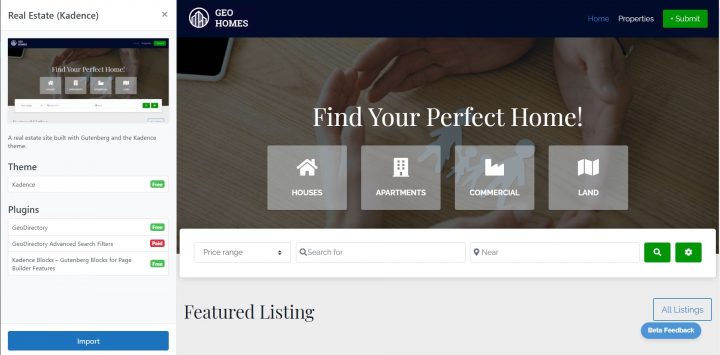
Click View, then Import.
The import installs the GeoDirectory plugin, the Real Estate Directory add-on, the free Kadence theme, and a set of demo property listings.
Nothing else needs to be installed in advance. Kadence is free, GeoDirectory is free, the Real Estate Directory add-on is free.
After the Import (Both Paths)
The post-import customization is similar for both paths:
- Replace the placeholder logo with your brand mark
- Adjust colors and typography in the theme customizer (Appearance → Customize for Kadence, Appearance → Editor for the BlockStrap-based themes, Templates > Theme Builder for Elementor PRO)
- Edit the menu navigation to match your site structure (Home, Listings, Agents, Areas, Contact)
- Replace the demo property listings with your real properties under Places in the WordPress admin
- Configure the contact form and lead capture flow
- Submit your sitemap to Google Search Console
For the deeper walkthrough of replacing demo listings and configuring real estate-specific features (mortgage calculator, energy rating, walk score, virtual tour), see our how to build a real estate website guide.
Performance Notes
One real difference between the paths worth flagging.
Elementor PRO sites add frontend weight that benefits from higher-quality WordPress hosting. On budget shared hosting, an Elementor-based real estate site will feel measurably slower than a Kadence or BlockStrap-based site running the same content.
This is not an Elementor flaw, it is the cost of the visual flexibility that makes Elementor so powerful.
Native-block themes like Kadence and BlockStrap stay fast on regular WordPress hosting because they output cleaner HTML and require less JavaScript on the frontend.
For real estate sites that need to load fast on mobile (where most property browsing happens), the native-block paths have a real performance advantage.
For real estate sites where the design flexibility justifies the performance trade-off (luxury listings, agencies with strong brand identity), Elementor PRO remains the strongest choice.
The Practical Path
For most operators starting a real estate listings directory:
The free BlockStrap + Real Estate Listings theme path is the simplest, fastest, and lowest-cost starting point.
The Kadence path (covered above) is the right call if you already use Kadence on other sites and want stack consistency.
The Elementor PRO path (also covered above) is the right call if you need the design flexibility and have the hosting budget to support it.
All three paths run on the same underlying GeoDirectory plugin and the free Real Estate Directory add-on, so the listings, search, maps, mortgage calculator, energy rating, walk score, and virtual tour features work identically regardless of which path you pick.
For the broader comparison of WordPress real estate plugins (including GeoDirectory vs Easy Property Listings, Estatik, WPL, and the MLS-dependent options), see our guide to the best real estate listing plugins for WordPress.
For the broader case against SaaS directory platforms across all directory categories, see our best business directory software guide.
Final Thoughts
The right page builder for your real estate listings directory is the one that matches your existing workflow, your hosting budget, and your need for design flexibility.
All three serious paths (BlockStrap, Elementor PRO, Kadence) produce a working real estate site in under an hour using the GeoDirectory demo import.
For most operators, free and fast wins.
For operators with specific design or workflow requirements, the paid Elementor PRO path remains worth the investment.
Pick the path that fits, install AyeCode Connect, import the demo, and have a functional real estate listings directory live by the end of the afternoon.
How the WordPress Directory Theme niche started
When we started this journey, there were only a couple of other players in the WordPress Directory Theme niche.
GeoPlaces by Templatic and Directorypress by PremiumPress.
At that point, Stiofan and I still didn’t know each other. We met in the Templatic forums after buying their theme to build our directories.
However, we found Templatic to be flawed, buggy, and unsuitable for use in developing a live website.
Stiofan started using it, adding fixes to it and making it work for him. It turned into his Barra directory website.
Over 80% of the theme needed major fixes, so we decided to team up, fork it, and create an alternative product.
That’s how we created GeoTheme. After that, Vantage from AppThemes was released and then we saw products popping up one after the other.
Today ThemeForest.net lists 163 items and counting that are a WordPress Directory Theme (last time we checked they were 157).
Several other independent Theme Shops sell their own WordPress Directory Theme too.
GeoTheme ceased to exist over 2 years ago. We decided to turn it into a plugin called GeoDirectory, so webmasters can use it anyway they see fit.
This allows directories to be added to any existing websites without any change being needed to the theme or website.
With so many options, which one to choose in 2021?
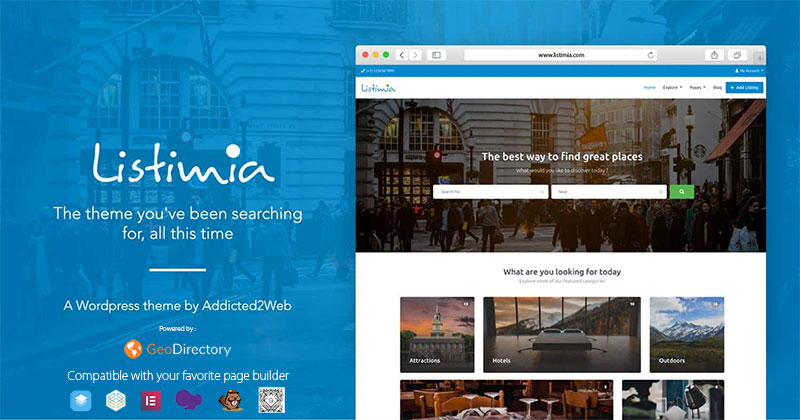
Our 1st answer would be Listimia + GeoDirectory for obvious reasons. Listimia was released in June 2019 and you can see it in this DEMO.
It only costs $39 and revolving around GeoDirectory makes it the most feature-rich Directory Theme for WordPress. Did we say it is sleek, elegant, and professional?
Should you prefer not to make this journey with us, at least let us help you choose wisely.
For that, we bought, installed, and tested the 7 most popular WordPress Directory Themes, so that we can provide scrupulous and objective reviews from specialists of the directory niche.
To praise their Pros and expose their Cons.
Affiliate link disclosure
We hope you appreciate our effort! Having invested $500 to buy all these themes, we need to recoup the investment. Some of the links on this article are “affiliate links”. This means if you click on the link and purchase the item, we will receive an affiliate commission.
Testing Criteria
First of all, we decided to test only 7 themes. The 4 top-selling themes of the moment from ThemeForest.net and the 3 top rankings on the Google.com SERP for the keyword “WordPress directory theme”.
They are:
1) Listify by Astoundify
2) Listable by Pixelgrade
3) ListingPro by Cridio Studio
4) MyListing by 27collective
5) DirectoryEngine by EngineThemes
6) Vantage by AppThemes
7) Directory by Templatic
We will test and evaluate them for:
1) Ease of use
2) Design quality
3) Flexibility
4) Use of SEO best practices
5) Quality of support & documentation
6) Quality of code, use of WordPress best practices, and scalability
Why didn’t you review this or that other theme too?
Because of time restraints. There are hundreds of them and we couldn’t review them all. We picked the theme for which the market was showing the strongest preference.
Listify by Astoundify
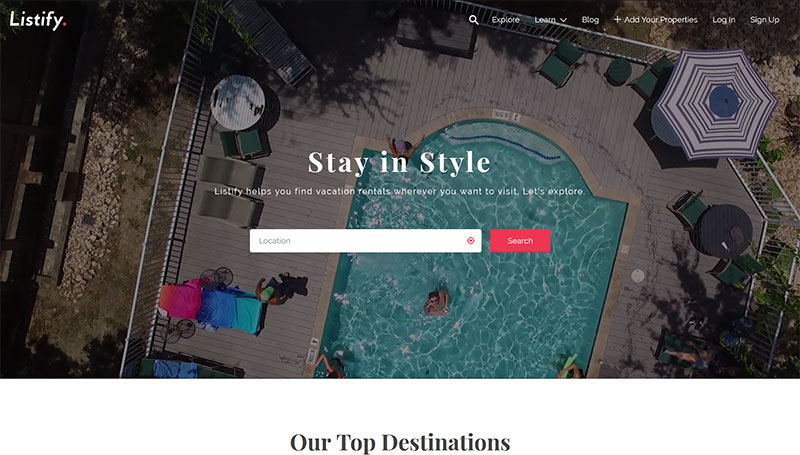
Ease of use
Installing and setting up this theme was as straightforward as could be.
The setup guide allows you to set up a staging website in less than 5 minutes.
The only tedious part is the procedure to get the Google Maps API Key, which was more of a struggle than anything else in the rest of the install wizard.
I suggest the authors look at our API KEY for Google Maps plugin.
They’ll learn how to streamline the procedure from several steps to a couple of clicks.
Design quality
Listify design is outstanding and easily customizable and should prove accessible even to users with little to no coding/CSS knowledge.
The “Customizer” section contains Style Kits and other options for the user to modify the website style like the logo, elements colors, labels, and typography.
Flexibility
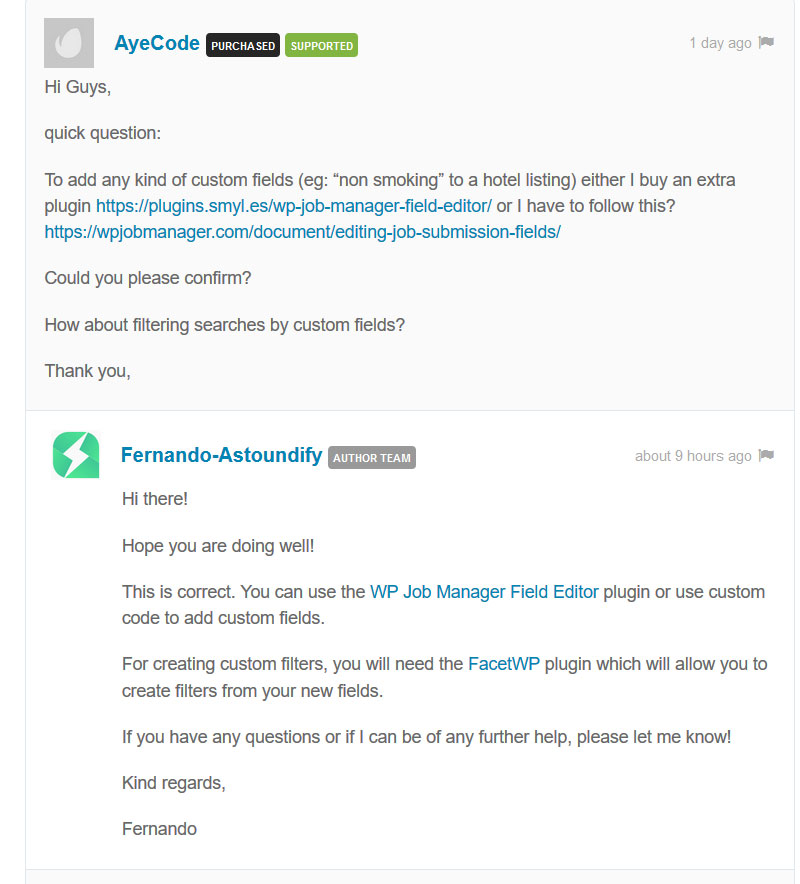
A 3rd party plugin, called WP Job Manager, actually powers the theme, so
there are few built-in options for the management of fields and links.
The first thing that I wanted to test was custom fields to see how Listify handles the posts meta.
I was surprised to find that it basically doesn’t actually handle fields very well.
If you want to add a custom field to the front end add-listing form and listing pages, you have to add code snippets to your child theme or buy yet another premium plugin.
Search filters by custom fields as a consequence are not available. You can filter by location, by category, by keyword, or by tag.
With an extra premium plugin called FacetWP, you can extend that, but I didn’t test it and I can’t say to what extent.
Listify is compatible with WPML, but Polylang is recommended to create a multilingual website.
Use of SEO best practices
The location field is a taxonomy. Because of that, this theme is more suited for a local directory. Bootstrapping a successful website with multiple locations could be next to impossible.
You can search and filter by category and location. But you can only browse archives of listings by location OR by category. For Directories with listings from more than one city, this is a huge SEO limit.
If you want to see the “Private Room” listings in San Diego on the Listify demo, you can only do that by using their search engine. If you copy the URL returned :
and paste it a new browser window, you will see that it won’t show “Private Room” listings in San Diego, but a generic search results page.
This is SEO unfriendly.
You can’t handle SEO meta with SEO Yoast for similar search results pages.
No relevant Title. No relevant metas. Nothing in the URL to help Google index your website for “Private rooms in San Diego”.
For a good directory there should be an archive under a similar structure:
listify-demos.astoundify.com/rentals/united-states/california/san-diego/single-room
That structure allows to assign a unique meta title and meta descriptions and it would be 100% SEO optimized.
Listify handles Rich Snippets but it integrates them in the most basic way possible.
Quality of support & documentation
The documentation is extensive and clear. Support is also polite and efficient.
I submitted one query via comments on the product page and received a response in less than 24 hours.
Quality of code, use of WordPress best practices, and scalability
Out of the box, because it doesn’t use Custom Fields, Listify is scalable, in a similar manner to how WordPress is for posts and pages.
Adding custom fields to the equation, via code snippets or plugin, would quickly degrade performances. This because of how the custom fields are saved in the database.
Code Comments: In general, the code quality is good, lots of the important functions have code comments, but there are still many without any comments or that lack full descriptions, and as such would not be up to WordPress standards.
Actions & Filters: The theme has 134 do_action() and 187 apply_filters() which is good to see (in general the more actions and filters the easier it is for developers to work with).
Escaping (security): Seems good and up to WP standards.
Listify conclusions
While great design and quick setup are definitely obvious pros, this theme is, unfortunately, totally dependent on other plugins. In our opinion, Wp Job Manager is less than ideal for building a business directory.
Since Astoundify has been sold and we don’t know the new developers, I can’t guarantee that Listify is still as stable as it was when we 1st tested. If and when we’ll get the time to check the latest updates, we’ll report here.
Listable by Pixelgrade
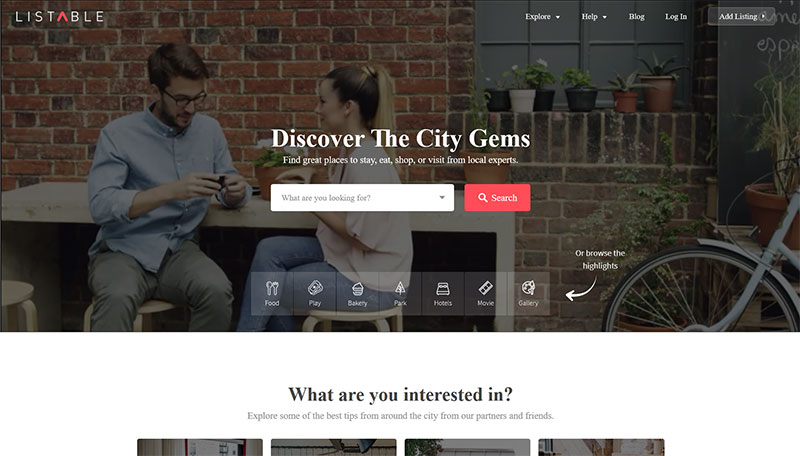
Ease of use
Listable gave a very good first impression, although it wasn’t as smooth and fast as the previous one.
After a few minutes of work, my staging website looked similar to the Listable official demo.
Listable features Mapbox integration. Mapbox is an alternative to Google Maps, although it offers only 1600 map views per day and becomes pretty expensive after that, so it’s not a great choice.
Google Maps is available. They require adding the API key manually, which is time-consuming. Listable’s authors should have a look at what we suggested to the Astoundify team about this.
Design quality
Listable’s major strength is its sleek and pixel-perfect design.
Their customizer options allow the editing of most elements. Tweaking Colors Schemes, Managing Fonts, or adding Custom CSS
Flexibility
Just like Listify, Listable’s weakest point is the plugin powering the directory. WP Job Manager, which I think is far from ideal for a business directory.
Again, in order to create custom fields, you need an extra premium plugin or extra code. The only difference is the Locations that are not a taxonomy, but a post meta.
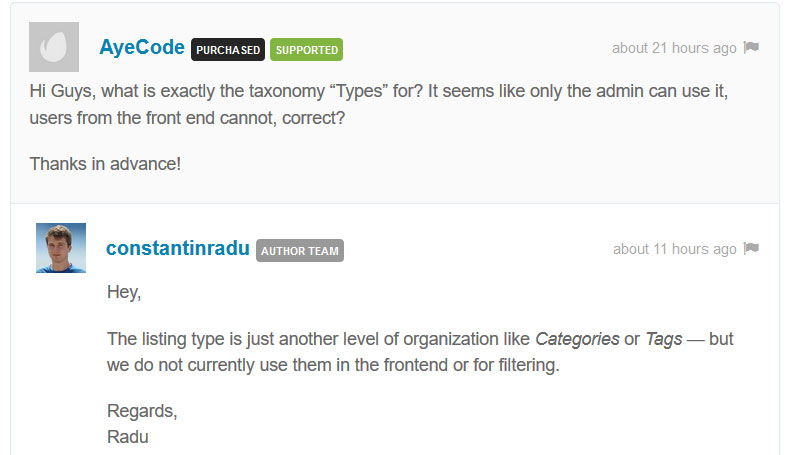
An extra taxonomy offered is the listing types. I didn’t see their utility because they appear to be for admin only.
Listable is fully compatible with WPML. I tested it and can personally confirm.
Use of SEO best practices
Even though the Location field is not a taxonomy (it is a custom field), the issues are the same that we saw with Listify.
Google will never index your category archives by city (if you have more than one).
A Directory of Hotels located in several cities, including New York, will not rank for keywords like “Hotels in New York”.
With this structure is better to create a single city or a hyper-local directory only.
Listable handles Rich Snippets, but it integrates them in a basic way.
Quality of support & documentation
The documentation is extensive and clear and support is polite and efficient.
I submitted one query via comments on the product page and received an answer in less than 12 hours.
Quality of code, use of WordPress best practices, and scalability
Out of the box, because it doesn’t use Custom Fields, Listable is scalable just like Listify.
But like Listify, if you try to add custom fields performance problems quickly arise.
Code Comments: Some code comments exist, but most functions are un-commented and ones that have comments are not up to WP standards.
Actions & Filters: The theme has 141 do_action() and 136 apply_filters() (in general the more actions and filters the easier it is for developers to work with).
Escaping (security): Mostly good and to WP standards though I would like to see all POST data escaped even in the backend functions.
Listable conclusions
Great design and easy setup, but same problems as Listify, as again their choice to use WP Job Manager limited their potential.
Also, because most of the plugins are premium, I couldn’t test them all. Buying them all would bring the total investment to over $300.
For example, I couldn’t test paid listings, claim listings, bookmarks, and listings tags. All monetization options come at an extra cost.
The same consideration I made for Listify is valid for Listable too. It’s a shame that it’s not compatible with GeoDirectory. Plenty of our current members would have bought it.
ListingPro by Cridio Studio
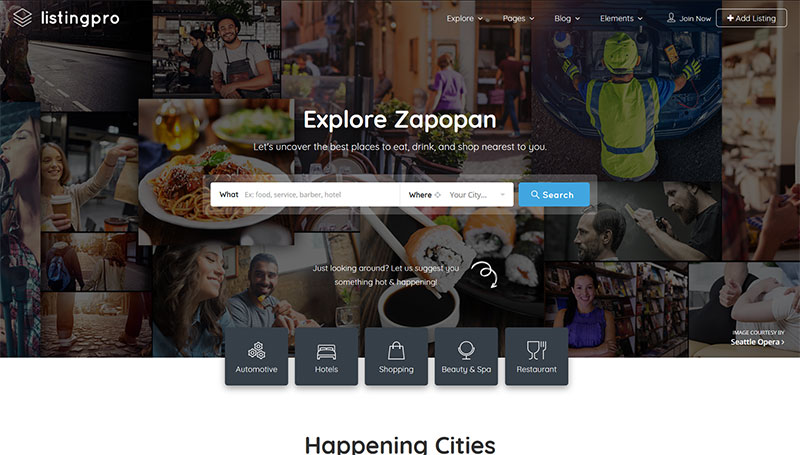
Ease of use
Things didn’t go very smoothly with ListingPro at first. I unzipped the archive and found 5 zip files in it:
- Documentation-1.0.zip,
- listingpro.zip,
- listingpro-Bulk-import-addon.zip,
- listingpro-child.zip, and Live-demo-Content.zip.
I installed both the parent and the child theme and activated the child theme. I was redirected to the setup wizard page, where the first step requires installing the mandatory and recommended plugins. This step failed and I couldn’t proceed.
I had to ask for support, which, fortunately, was very fast in getting back to me. They explained that to set up everything I had to activate the parent theme. This shows the process is buggy because activating the parent or child theme shouldn’t change anything.
If it’s better for the setup process to activate the parent theme first, why not hide the child theme zip file and add a step to the setup wizard that installs and activates the child theme once everything else is done? (Like Listify does.)
In any case, after activating the parent theme the problem was gone and I had a staging website similar to their official demo to start my tests.
The author added a default Google Maps API key, to avoid users seeing an error on their maps when first visiting the website.
This is good and bad.
It’s positive to avoid showing an error to the users at first. But that API key will quickly reach its limit, all users that missed changing it and will be presented with the map error. Possibly when their website is live, which is worse.
And, as in the two previous themes, with ListingPro you can’t fetch the Maps API automatically.
Design quality
The front-end design for ListingPro is outstanding and the customization options are limitless, but the excessive use of colors on the dashboard is a bit grating and quickly becomes an eyesore.
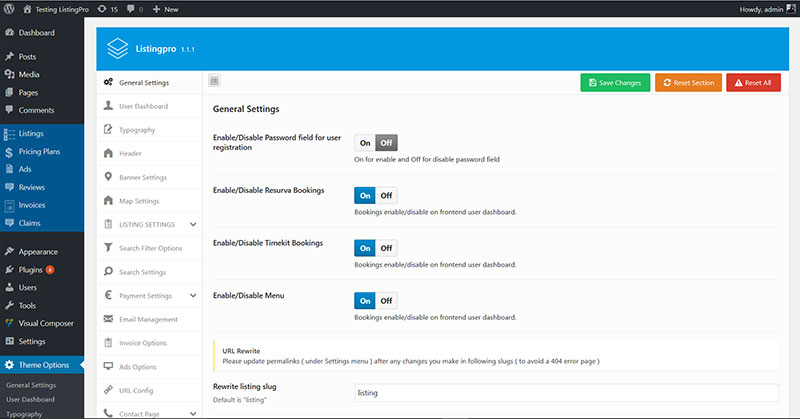
I prefer when plugins and themes blend graciously into the WordPress UI, using its original styles and elements.
ListingPro doesn’t use the Theme Customizer for its styling and customization options. Being all in the dashboard theme options means that you can’t preview your styling changes while doing them.
Flexibility
ListingsPro is a WordPress Directory Theme that comes with all Directory features built-in. It doesn’t rely on 3rd party plugins to operate the directory portion of the theme.
This is a big advantage, especially for those on a tight budget.
Unlike WP Job Manager, ListingsPro handles custom fields. You can create fields of the following types: Text, Checkbox, Checkbox (Switch On/Off), Multi check, Radio, and Select.
Custom fields are unavailable as advanced search filters and are only used as Additional Business Info. Advance search filters are predefined and the admin cannot edit them. They are Price, Open Time, Highest Rated, Most Reviewed, and Categories.
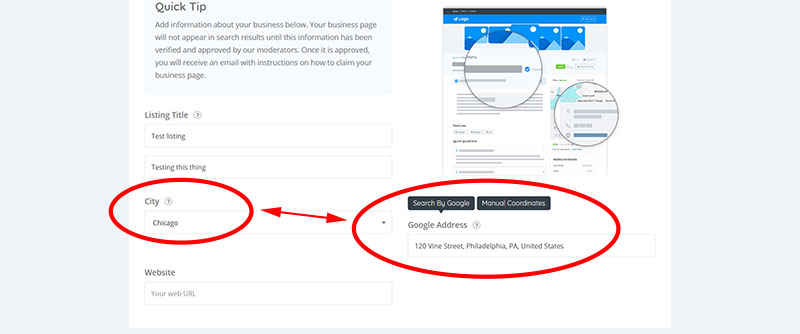
Locations are a Taxonomy and the add listing page requires to select a location. This means that if you want to build a countrywide directory, you must enter all Cities of that country in advance.
Because there is no proper validation, you can input an address from a city (even if is not valid) and select a different city as your location. This is sloppy design, and could really use a more thought out approach from the designer.
Another taxonomy offered is: “features”. Features are category dependent. A taxonomy nested within another taxonomy.
ListingPro features two options for monetization: Paid listings and ads. Paid listings allow the enabling and disabling of a few options.
You can show or hide: Contact information, Google map, Video, and the Gallery.
Paid Ads give listing owners the option to buy extra impressions in featured areas of the theme. This is very interesting but its implementation is pretty basic. For example, you can only set one price and ad duration per ad slot.
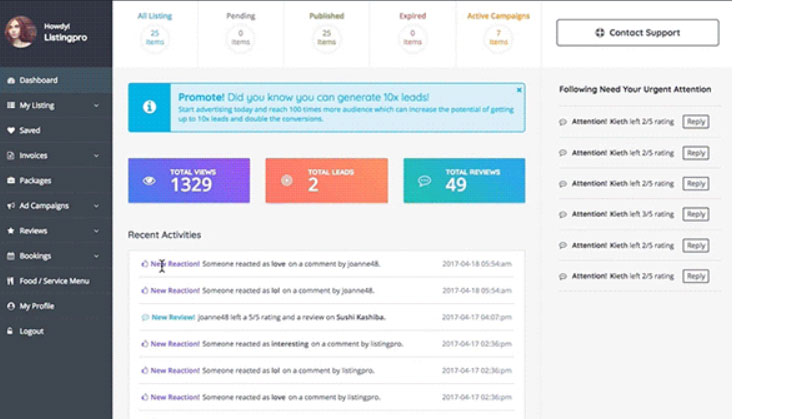
Our favorite section of this theme is the User Dashboard. It is very well thought out
Use of SEO best practices
ListingPro has the same flaws in this aspect that the previous two themes had. It doesn’t provide Search Engine friendly archives of categories filtered by location.
Not really suitable for a Directory covering multiple cities, it can be used for a hyper-local or city directory with a limited number of listings.
ListingPro doesn’t handle Rich Snippets.
Quality of support & documentation
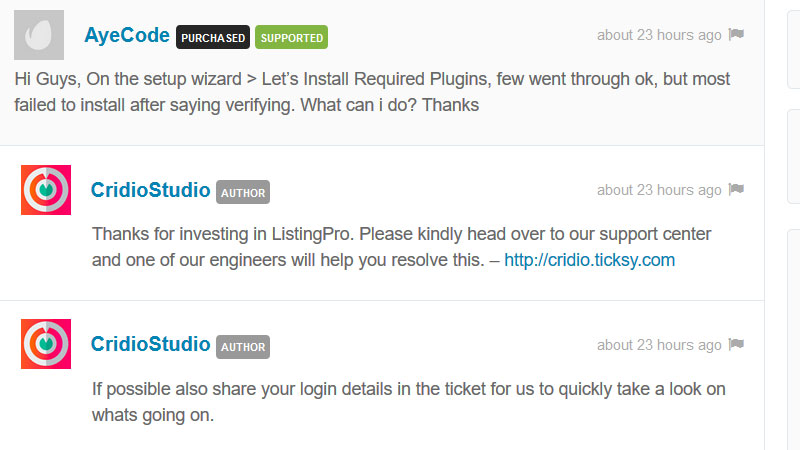
Documentation is not 100% complete and it can’t be searched. Support is extremely efficient, we posted 1 comment and received a reply within minutes. I was invited to use their ticketing system, which was a positive and user-friendly experience
Quality of code, use of WordPress best practices and scalability
The manner in which data is stored in the database makes ListingPro the worst theme so far, at least in terms of performance and scalability. Everything is saved as posts and post meta. Listings, Prices, Ads, Reviews, Invoices, and Claims are all post types.
With a total of 9 listings, I had 82 rows in the wp_post table and 1340 rows in the wp_postmeta table.
Building a directory with thousands of listings using this theme would be literally impossible without spending a fortune on hosting.
Code Comments: Very basic comments exist for some things but in general most things have no comments. I did not find any comments up to WP standards.
Actions & Filters: The theme has 14 do_action() and 31 apply_filters() (in general the more actions and filters the easier it is for developers to work with).
Escaping (security): Very poor escaping and we actually found an extremely serious XSS vulnerability during our basic checks (we have reported this to the author)
ListingPro conclusions
A great design with some very good ideas, but an overall immature product with too many major architectural flaws.
It reminds me of Templatic’s GeoPlaces.
It is obvious that the author studied the graphic side of this project in great detail. But it is also evident that whoever wrote the code had little to no experience building high-performance scalable applications.
They also need to learn how to make their code secure. Codewise this is the 3rd worst tested theme.
ListingPro is currently not suitable for a live application in our opinion.
MyListing by 27collective
Ease of use
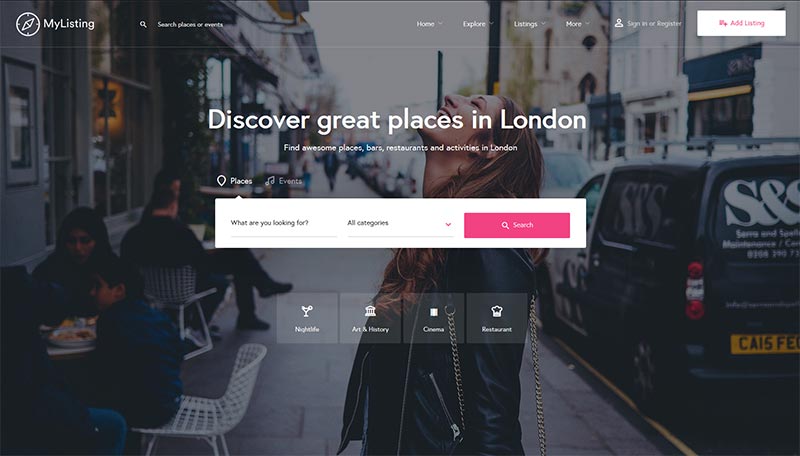
I started installing MyListing in a multisite network but had a hard time recreating a demo through WP All Import. That is their suggested tool to import dummy data and create a demo. I’m not sure if this is a known issue or if missed something.
When I tried on a standalone WordPress install the problem was no longer there and I was up and running with a demo very similar to their official demo in just a few seconds.
MyListing requires several plugins to be installed:
- Wp Job Manager
- WooCommerce
- Elementor
- All-in-One WP Migration
- Contact Form 7
Because of this, fast loading pages are to be expected on high-performance servers only.
Even their demo is not extremely fast and loads on average in 7.4 secs when tested from 20 locations.
On a live directory website that would result in a very high bounce rate.
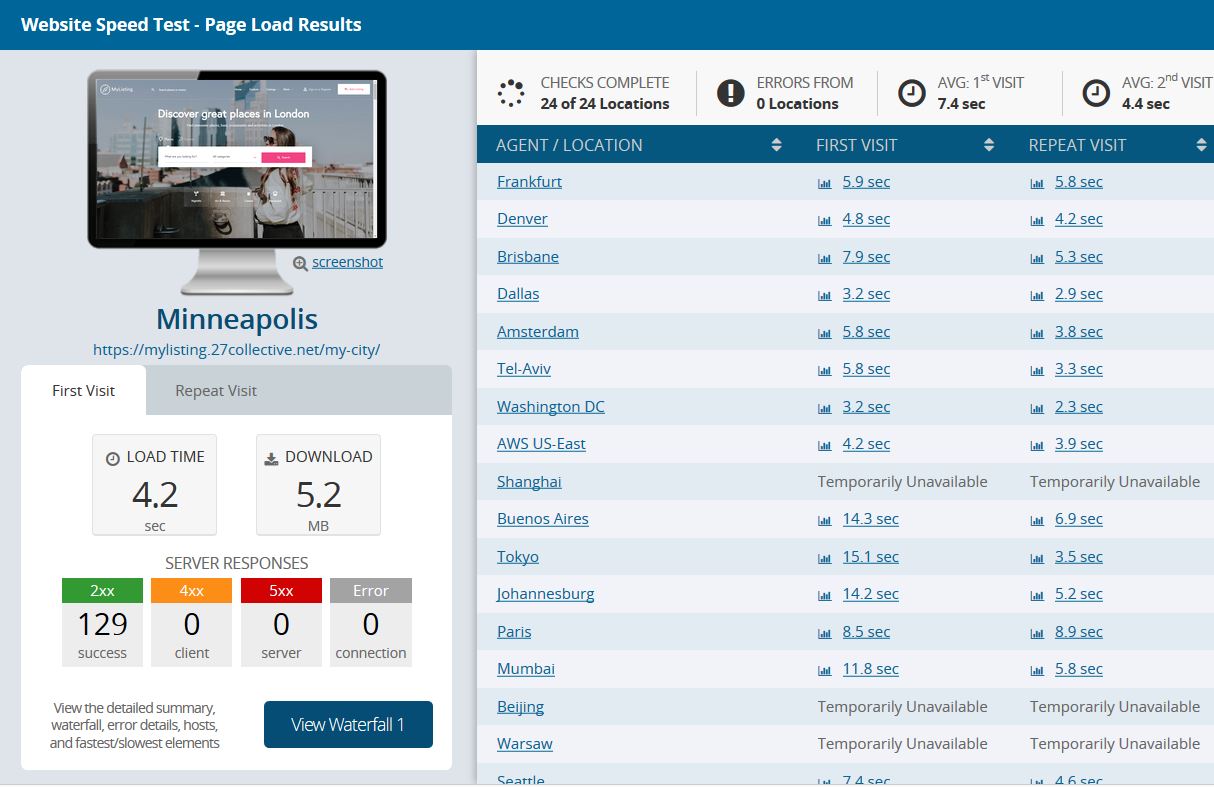
We used this speed loading test tool to get those statistics.
As with all previous themes tested MyListing won’t allow you to fetch the Maps API automatically.
Design quality
MyListing is highly integrated with the Elementor plugin and offers a lot of customization options. You can basically design most of it through the Elementor page builder.
You can customize the home page, the explore page (search), and a few other templates. You cannot edit the listing detail page.
The general design quality is outstanding, although I find the typography to be slightly too small for modern standards and hard on the eye.
MyListing is another theme that doesn’t follow WordPress standards and avoid using the Theme Customizer, for its styling and customization options.
Flexibility
MyListing uses WP Job Manager as a base for the directory and shares the same limitation of Listify and Listable. They integrated the Advanced Custom Fields plugin for some theme options, and also built their own custom fields system.
Prices are set through WooCommerce, as products and the payments are managed by WooCommerce too.
In our opinion, this is a bit too much. We developed a lightweight plugin called Invoicing plugin to manage payments for GeoDirectory because any other e-commerce system was adding an excessive amount of useless code to the directory.
For example, you’ll have a system to manage parcel shipping, on a website that doesn’t ship anything.
Use of SEO best practices
MyListing has the same flaws in this aspect that the previous 3 themes had. Custom Taxonomies are used for categories and locations, which means that it’s impossible to visit a page showing listings of 1 category for a specific location with a nice SEO optimized URL.
Mylisting handles Rich Snippets, but it presents few errors too.
Quality of support & documentation
The documentation appears to be complete and it can be browsed via the sticky menu on the left sidebar. We haven’t tested support, but I don’t see negative reviews for inefficient or substandard support, so they must be doing a good job.
Quality of code, use of WordPress best practices, and scalability
Because they used the default WordPress architecture for custom fields, scalability for MyListing will be a huge problem. I created 1 test listing with 5 images and that resulted in 7 rows in the wp_posts database table and 59 rows in the wp_postmeta database table.
MyListing conclusions
It’s definitely aesthetically pleasing, and, being easy to customize via Elementor, is a great tool for the beginner Directory Developers, but most of the projects built with this theme will have a very hard time scaling their business if the website starts getting traction.
This theme forces you to install:
Wp Job Manager, Wp Job Manager WC Paid Listings, Elementor, WooCommerce, and their own MyListing Add-on. It couldn’t get more bloated.
Someone may wonder why they have mostly 5-star reviews and no negative reviews at all. This struck me as suspicious, especially considering the flaws that we identified in this theme.
Apparently, people who leave negative reviews have been banned from getting support and updates.
That made me discover that Envato deletes reviews made by people who received a refund for any given product. I consider that an awful business practice by Envato.
While I’m not suggesting that this is MyListing authors standard behavior with customers, I can personally tell that they have a hard time dealing with negative feedback, because they also contacted me directly asking me to modify this review.
I’d suggest they take negative feedback as information to improve their product, rather than taking it as personal offenses and witch hunt anyone that dares to critique their product.
You can make a great-looking website with MyListing, but it will be slow to the point of becoming unusable if hit by a decent amount of traffic.
DirectoryEngine by EngineThemes
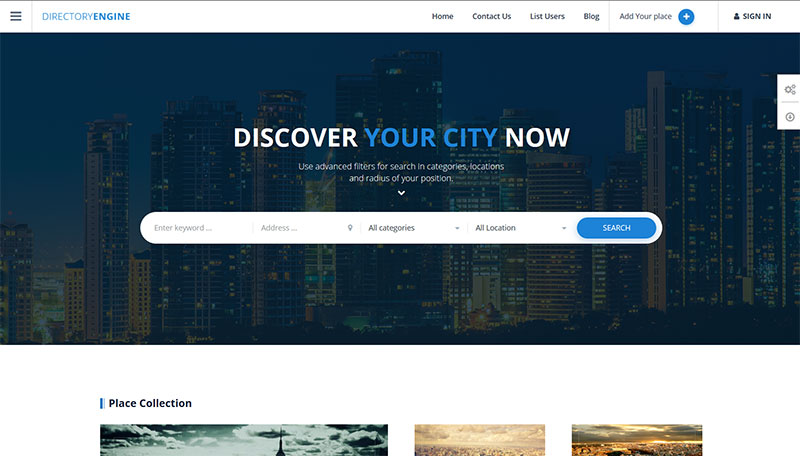
Ease of use
I’m not a fan of Themes that come with bundled plugins. Because most of the time the bundled plugins are out of date. You have to start the install by updating 1 or more plugins via FTP because the bundled plugin can’t be automatically updated (unless you buy a license for that too).
DirectoryEngine comes with 2 bundled plugins: Revolution Slider and Visual Composer, of course, both were outdated, and I had to update them via FTP.
The documentation tells to install the dummy data using the WP Importer plugin, and the theme provides a tool to automatically import it.
Like all 3 previous themes, the Google Maps API key must be generated manually.
All in all, it took me approx 15 minutes to get a staging site similar to their demo. That’s not too bad.
Design quality
The quality of the design is high, but not as pixel perfect and comparable to the previous 3 themes.
Customizer options allow to modify the sections of the home page and the general website colors only, and there are few really substantial design options.
Flexibility
DirectoryEngine is one more WordPress Directory Theme that doesn’t handle custom fields out of the box. They can be added, but only programmatically.
If you can’t create custom fields, you also cannot use them as search filters.
There are 4 custom post types: Places, Events, Packs, and Testimonials.
Places are used for listings.
Events are special offers that listings owners can add.
Packs are for listing prices.
Testimonials are not clearly defined and have no obvious use.
You can create unlimited listing prices, but all they do is limit the number of places and events that a user can enter and the length of their availability. There are settings to determine how many pictures or categories a listing can accept, but that will affect all prices.
Locations are items of a taxonomy.
Just like ListingPro, while adding a listing, you can select an address from a city and in the location field,m you can select a different city.
At the time of writing, DirectoryEngine is several years old, and I find this to be unacceptable. What’s worse, they describe this as a “feature” in the documentation:
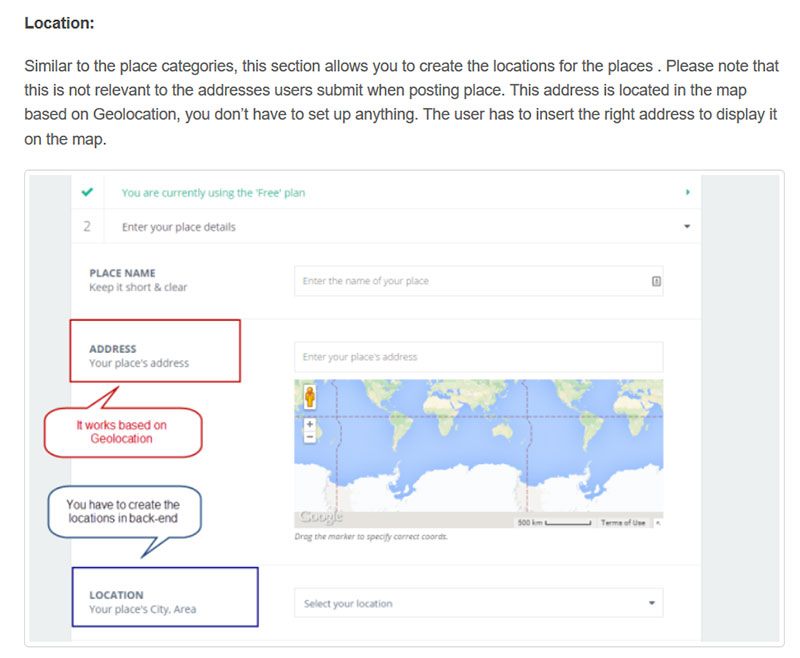
Use of SEO best practice
DirectoryEngine has the same SEO flaws of all Themes tested so far.
Being location a taxonomy, there is no way to browse archives of listings of a given category filtered by a defined location. The only way to do it is via their search engine, which is not SEO friendly.
The way locations are handled is amateurish at best. You can rank a website made with DirectoryEngine on major Search Engines only if the directory accepts listings for 1 city or for a smaller geographical area.
DirectoryEngine uses rich snippets correctly.
Quality of support & documentation
The documentation seems to be slightly outdated, however it covers all features of the theme. Support replied within 24hrs the first time. The second time, when we reported a serious vulnerability in their theme, they didn’t reply at all.
Quality of code, use of WordPress best practices, and scalability
With 4 listings, 7 events, and 3 prices the post and postmeta tables have respectively 311 and 936 rows. I see here the same scalability problems that ListingPro has: insurmountable.
Code Comments: Most things have code comments and most are to WP standards though parameters, for the most part, lack descriptions, in general though, it is better than the vast majority.
Actions & Filters: The theme has 100 do_action() and 137 apply_filters() (in general the more actions and filters the easier it is for developers to work with).
Escaping (security): I started checking this code and the first 3 things I found had exploits such as XSS, login page spoofing, and the ability to view or delete content from the site.
DirectoryEngine conclusions
I had high expectations for this theme and after testing it, I can’t help but say that I’m disappointed. For a product that has been available for several years, it still has critical flaws, despite being widely used. I wouldn’t hesitate to ask for a refund if I had purchased it for my own personal use.
There is definitely a fine designer at work behind this theme, but the quality of the back-end application is rather unprofessional.
I would have to conclude the authors have very little knowledge of security and scalability. No one should ever install this theme on their site.
Vantage by AppThemes
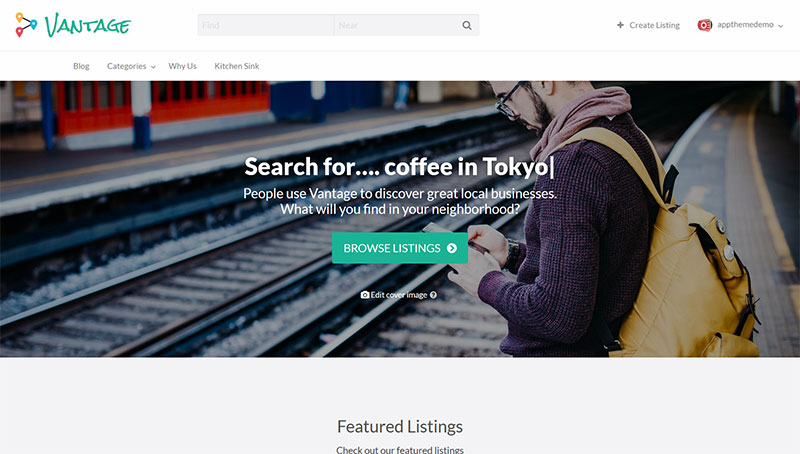
Vantage has been around for several years, and as such it’s the most mature product on this list. It has been recently re-designed, and I have considered this a direct competitor for a long time. I was very curious to finally get my hands on it and properly evaluate it.
Ease of use
Installing and setting up Vantage was a very enjoyable experience. The setup guide is as good as the Install Wizard of Listify. I had a demo website that looked similar to the AppThemes original demo in less than 5 minutes.
The only weak point is the Google Maps API key requirement that could be streamlined, just like for the previous 4 themes.
Design quality
The new flat design is modern and clean, a huge step ahead compared to the old Vantage design.
The customizer options allow modifying the site identity elements like the logo and site icon. Color schemes, the color of individual items, background image, and layouts.
Flexibility
Out of the 5 themes tested so far, Vantage is the first that really handles custom fields. Because you can’t use them as an advanced search filter though, they are not as useful as they could be.
The location field is a text field. It calculates Latitude and longitude coordinates automatically from whatever the user input in it. The lack of validation on this field allows users to enter just about anything. Saving the form after inputting an invalid address returns PHP warnings.

The price option allows the setting of recurring and non-recurring prices. Limit the number of categories that a user can select for each listing. Set the listing duration period and featured status for search and category archives.
Available payment options out of the box are Paypal and Bank Transfer. There are extra payment gateways, child themes, and other premium extensions that come at an extra cost. We didn’t test any of them.
Use of SEO best practice
Just like the other themes, the Location part of Vantage is not ideal. It is not sufficient to create a decent Directory structure with listings submitted for more than 1 location.
You can rank the listing detail page and the category pages, but not by location. This because the only way to browse listings by location, is via the search engine that returns non SEO friendly results page, with URLs like this:
yoursite.com/listings/?ls=test&location=milan&st=listing&lat=0&lng=0
There is no way to assign a unique meta title and description to these search results pages. Because of that, it’s very improbable that Google or other search engines will rank them for relevant keywords and locations.
Vantage handles Rich Snippets, but it integrates them in the most basic way.
Quality of support & documentation
The documentation for this WordPress Directory Theme is extended and very well organized in 4 sections:
- Documentation – Install guides, release notes, and more.
- Tutorials – Our themes and plugins tutorial library.
- Developers – Our API documentation. Extend our products.
- Sellers – Documentation for our Marketplace sellers.
Support is very kind and helpful. I submitted a support request via their support forum and got an answer within 24 hours.
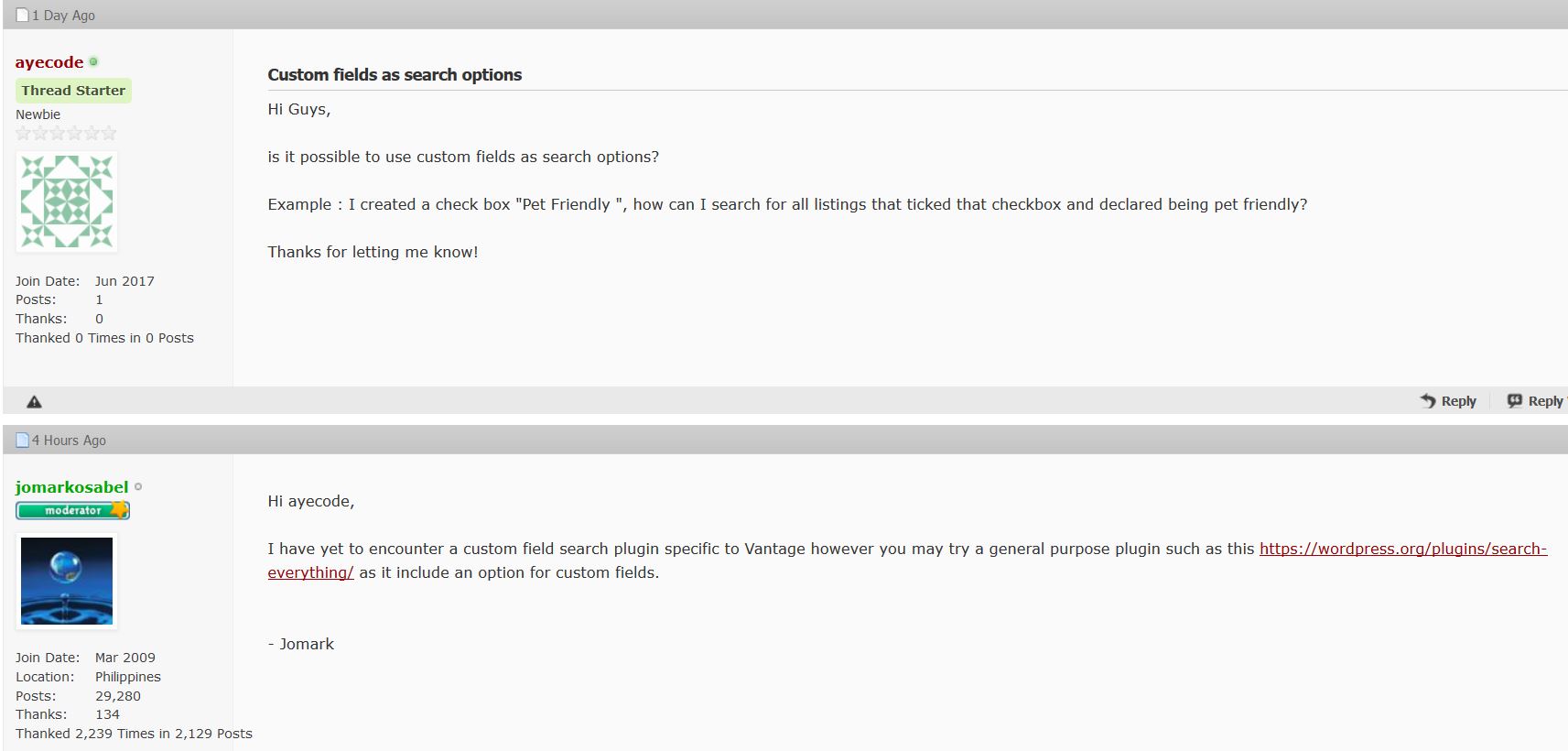
Quality of code, use of WordPress best practices, and scalability
Vantage doesn’t employ a database structure that is ideal for a directory. With only 3 listings, the wp_posts table had already 49 rows and the wp_postmeta 246. The use of extra custom fields would make the second figure grow exponentially.
Scalability problems could arise very soon without investing enough resources in high-end server infrastructure.
Code Comments: This is very well commented and most code comments are to WP standards, seeing so much quality code comments give a developer confidence.
Actions & Filters: The theme has 238 do_action() and 230 apply_filters() (in general the more actions and filters the easier it is for developers to work with).
Escaping (security): Security and WP standards were up to scratch. No major problems could be identified.
Vantage conclusion
Great design and excellent setup procedure. A directory can be set up and used within minutes. It is effective for use on a single-city directory.
However, it is unsuitable as a directory for a region, country or world-wide directory. It wouldn’t be SEO friendly.
Of the 7 themes tested, I would have to conclude that Vantage is definitely the best overall product.
Directory by Templatic
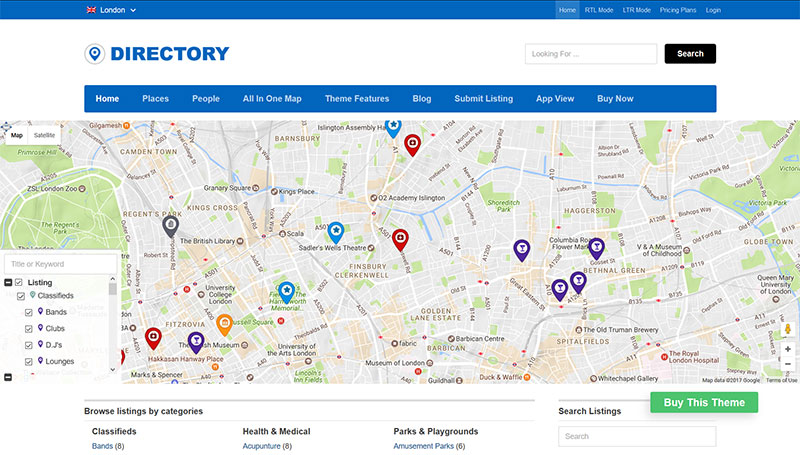
Ease of use
I tested this theme when it was first released, and I was unimpressed. However, the latest version left me pleasantly surprised. It’s fast, easily-installed, and makes import dummy data easy. I was able to set up a staging website identical to their demo in just a few minutes.
The level of improvement is impressive.
Design quality
When it was first released in early 2014, the design was modern and sleek, however now it starts to be a bit outdated, and while they provide several child themes with different designs, they all come at an extra cost.
Some of the design options are available in the customizer section, some in the theme setting. It’d be more convenient to have them all in the customizer.
Flexibility
Directory is by far the most flexible of all 7 tested themes in terms of features.
It handles Custom Post Types (Listing types), and for each Custom post type, you can create any kind of custom fields. Finally, you can use all custom fields as advanced search filters.
The theme database comes with all Countries listed and almost 4000 regions. The system creates cities when adding listings, but there is no tool to merge them, in case of typos or other database errors. This is something that shouldn’t be missed when users can add locations to the database.
Strangely, even though there are regions and countries, you are unable to browse listing by region or country, only by city. It’s a step forward compared to the other 5 themes, but still far from ideal. An ideal directory would include the option to browse by “All locations”, country, region, city, and neighborhood.
Money-making and business opportunities are very good. You can set prices with good flexibility. You can set Prices for “single submission” or for “subscription” including a set number of listings. Set them recurring or as one-time fee payments. Also, add an up-sell price for each category. Another option is the duration of the package and the featured placement of the listing.
Use of SEO best practices
Even though with Directory you can finally present archives filtered by category + location, the amount of flexibility in managing Titles and Metas is close to non-existent. You can create a category description, but that will be the same for all locations.
We are still very far from an ideally SEO optimized directory tool.
Directory handles Rich Snippets, but it integrates them in the most basic way.
Quality of support & documentation
The docs are very well organized and easy to search. Although their support team replied to my support request within 24hrs, they couldn’t understand my question, despite being pretty straight-forward.
Quality of code, use of WordPress best practices and scalability
Buggy code was what we best remember about Templatic’s themes. Directory is no different.
We found options that don’t save, security holes, and a deficient database structure.
The database structure is the worst of all Themes tested. With 13 listings, 15 pages, and 4 posts, the post table has 105 rows and the postmeta counts 1,308 rows.
Finally, the advance search widget queries are SQL killers. They JOIN the postmeta table once for each custom field that you filter.
Scaling this Directory Theme beyond a few hundred listings could be next to impossible.
Code Comments: Most things have some sort of code comments, somethings are to WP standards but not everything, maybe 50/50.
Actions & Filters: The theme has 487 do_action() and 319 apply_filters() (in general the more actions and filters the easier it is for developers to work with).
Escaping (security): Most things are escaped, but there are still lots of things that are not which could lead to XSS on the backend. In general, the code is sloppy with many PHP warnings and Notices and, in many places, lacks basic security checks for things like sending emails and SQL injection.
Considering the previous points, Directory isn’t something I would want to run on my server.
Directory conclusions
Compared to GeoPlaces of 4 years ago, the theme shows a lot of improvements. Especially in terms of new features and options, but the underlying structure is the same. Not scalable and buggy.
Final Conclusions
We were pretty shocked to discover that half of the themes tested were so poorly coded.
Similar products can undermine WordPress’s reputation in our opinion.
The quality of the backend application should always be equal or superior to the quality of the design.
If it’s unable to meet the standard of design then your customer is receiving a product that doesn’t match what was promised.
Obviously, we advised the Themes’ authors about the possible exploits and as far as we know the ListingPro authors already corrected its XSS vulnerability.
Apart from that, Vantage ranks #1, Listify #2, Listable #3, ListingPro, MyListing, and Directory tied #4 and DirectoryEngine is by far the worst.
The last four themes in our opinion are not suitable for a production website.
A message to the authors of Directory Themes
Why would you bother to build the directory features of your themes from scratch (or use a plugin that’s not made for it)?
If you had to develop an E-Commerce theme today, would you build the entire shopping cart or use WooCommerce for that?
Without a doubt, GeoDirectory is far superior to the Directory options included in all of the themes that we tested.
You are still in time to correct that mistake and let us handle probably 90% of the support requests that are sent your way.
Cooperating is better than competing 🙂
We hope you enjoyed this extended review and should you wish to add anything to it, please do so in the comments down below!
WordPress Add Class to Body
In many cases, the auto-generated classes are not sufficient and we may need to add some custom classes.
To add custom classes, we will use the WordPress filter:
- body_class
Below we will show you snippets of the most requested examples.
But first a little introduction to explain to beginners more about Body Classes.
WordPress Custom Body Classes are something any WordPress developer will need to deal with, sooner or later.
Using a plugin for this would be overkill because in most cases all we need are a couple of lines of code.
So, how do we add WordPress Custom Body classes?
WordPress has both a body_class function and a body_class filter (hook).
The body_class function is used in themes to add the classes autogenerated by WordPress, to the body tag of your website.
This is how it is added to the header.php file of your theme:
<body <?php body_class($class); ?>>Depending on which page is visited, WordPress will output specific classes.
1) For the default “Hello World” post, the body classes are:
<body class="single single-post postid-1 single-format-standard logged-in admin-bar no-sidebar customize-support">2) The body classes of the sample page are:
<body class="page page-id-2 page-template-default logged-in admin-bar no-sidebar customize-support">3) The body classes of the category archive pages are:
<body class="archive category category-uncategorized category-1 logged-in admin-bar no-sidebar hfeed customize-support">4) The body classes of the author archive page are:
<body class="archive author author-admin author-1 logged-in admin-bar no-sidebar hfeed customize-support">5) The body class of the home page (assuming you have one)
<body class="home blog logged-in admin-bar no-sidebar hfeed customize-support">The 5 examples provided above, are common to most default themes when the admin user is logged in.
When logged out, the classes will be slightly different.
Classes in HTML are used to style a web page via CSS.
When copying the following snippets into your functions.php file, new custom body classes will appear on your website markup.
We will be using the body_class filter.
Adding a WordPress custom body class
function my_custom_body_class($classes) {<br />
// add 'my-class' to the default autogenerated classes, for this we need to modify the $classes array.<br />
$classes[] = 'my-class';<br />
// return the modified $classes array<br />
return $classes;<br />
}</p>
<p>// add my custom class via body_class filter<br />
add_filter('body_class','my_custom_body_class');
This will add the new class: “my-class” to the body tag of all pages of your website.
<body class="home blog logged-in admin-bar no-sidebar hfeed my-class customize-support">What if I need to add more than 1 class?
Adding 2 or more WordPress custom body classes
function my_custom_body_classes($classes) {<br />
// add 'my-class' and 'my-class-2' to the default autogenerated classes, for this we need to modify the $classes array.<br />
$classes[] = 'my-class';<br />
$classes[] = 'my-class-2';<br />
// return the modified $classes array<br />
return $classes;<br />
}</p>
<p>// add my custom classes via body_class filter<br />
add_filter('body_class','my_custom_body_classes');
This will be the result:
<body class="home blog logged-in admin-bar no-sidebar hfeed my-class my-class-2 customize-support">What if I want to add a body class only on one particular page where we want to add some custom style via CSS?
Adding a WordPress custom body class to a specific page
This can be done in several ways:
1) Add a custom body class using the page ID
function my_custom_body_class_id($classes) {<br />
// add 'my-class' only to page with ID 1.<br />
if ( is_page( '1' ) )<br />
$classes[] = 'my-class';<br />
// return the modified $classes array<br />
return $classes;<br />
}</p>
<p>// add my custom class via body_class filter<br />
add_filter('body_class','my_custom_body_class_id');
This will be the result on the page with id 2, while all other pages will not have the custom class.
<body class="page page-id-2 page-template-default logged-in admin-bar no-sidebar my-class customize-support">2) Add a custom body class using the page slug
function my_custom_body_class_slug($classes) {<br />
// add 'my-class' only to page with slug contact-form.<br />
if ( is_page( 'contact-form' ) )<br />
$classes[] = 'my-class';<br />
// return the modified $classes array<br />
return $classes;<br />
}</p>
<p>// add my custom class via body_class filter<br />
add_filter('body_class','my_custom_body_class_slug');
This will add the custom class “my-class” on the page with the slug contact-form, while all other pages will not have the custom class.
3) Add a custom body class using the page title
function my_custom_body_class_title($classes) {<br />
// add 'my-class' only to page with title Contact Form.<br />
if ( is_page( 'Contact Form' ) )<br />
$classes[] = 'my-class';<br />
// return the modified $classes array<br />
return $classes;<br />
}</p>
<p>// add my custom class via body_class filter<br />
add_filter('body_class','my_custom_body_class_title');
This will add the custom class “my-class” on the page with the title Contact Form, while all other pages will not have the custom class.
4) Add a custom body class using the page template
function my_custom_body_class_template($classes) {<br />
// add 'my-class' only to pages using my custom template.<br />
if ( is_page_template( 'my-custom-page-template' ) )<br />
$classes[] = 'my-class';<br />
// return the modified $classes array<br />
return $classes;<br />
}</p>
<p>// add my custom class via body_class filter<br />
add_filter('body_class','my_custom_body_class_template');
This will add the custom class “my-class” on the page using the template my-custom-page-template. All other pages will not have the custom class.
We can also add the custom class to a category or tag page, both via ID or category/tag slug.
Adding a WordPress custom body class to a category or tag archive
1) Categories
function my_custom_body_class_category($classes) {<br />
// add 'my-class' only to the my-category archive.<br />
if ( is_category( 'my-category' ) )<br />
$classes[] = 'my-class';<br />
// return the modified $classes array<br />
return $classes;<br />
}</p>
<p>// add my custom class via body_class filter<br />
add_filter('body_class','my_custom_body_class_category');
2) Tags
function my_custom_body_class_tag($classes) {<br />
// add 'my-class' only to the my-tag archive.<br />
if ( is_tag( 'my-tag' ) )<br />
$classes[] = 'my-class';<br />
// return the modified $classes array<br />
return $classes;<br />
}</p>
<p>// add my custom class via body_class filter<br />
add_filter('body_class','my_custom_body_class_tag');
This will only add the custom body class in the archive page of the category my-category and tag my-tag.
We can also add a custom body class to the single page of every post in the category my-category or with the tag my-tag.
We will use in_catgeory and has_tag functions.
1) Categories (both archive and single page)
function my_custom_body_class_in_category($classes) {<br />
// add 'my-class' to the my-category archive and single posts of the category.<br />
if ( in_category( 'my-category' ) )<br />
$classes[] = 'my-class';<br />
// return the modified $classes array<br />
return $classes;<br />
}</p>
<p>// add my custom class via body_class filter<br />
add_filter('body_class','my_custom_body_class_in_category');
2) Tags (both archive and single page)
function my_custom_body_class_has_tag($classes) {<br />
// add 'my-class' to the my-tag archive and single posts with that tag.<br />
if ( has_tag( 'my-tag' ) )<br />
$classes[] = 'my-class';<br />
// return the modified $classes array<br />
return $classes;<br />
}</p>
<p>// add my custom class via body_class filter<br />
add_filter('body_class','my_custom_body_class_has_tag');
These last 2 examples will add the custom class in both the archive page and the single page.
Adding the Category name as WordPress custom body class in each post
If you wish to add the category nice name as a custom body class to each post, you will need the following snippet:
function my_custom_body_class_category_in_single($classes) {<br />
     if (is_single() || is_category()) {<br />
       global $post;<br />
       foreach((get_the_category($post->ID)) as $category) {<br />
         $classes[] = $category->category_nicename;<br />
       }<br />
     }<br />
     return $classes;<br />
   }<br />
add_filter('body_class','my_custom_body_class_category_in_single');
For example, if you are visiting a post of the category “Travel” the above snippet will add the body class Travel so that you can style posts of each category differently.
Adding a WordPress custom body class when visited from a mobile device
We can easily do so using the wp_is_mobile function.
function my_custom_body_class_mobile( $classes ) {<br />
    if ( wp_is_mobile() ) {<br />
        $classes[] = 'mobile';<br />
    }<br />
    return $classes;<br />
}<br />
add_filter( 'body_class', 'my_custom_body_class_mobile' );
Custom body classes can also be added to 1 or all pages created by a plugin (depending on the plugin).
GeoDirectory
GeoDirectory adds its custom body classes. Every GeoDirectory page for example will have the body class: geodir-page.
If the advance search and/or the custom post type add-on are installed, the classes: geodir_advance_search and geodir_custom_posts will be added respectively.
Example of a GD Home page:
<body class="single single-post postid-1 single-format-standard logged-in admin-bar no-sidebar customize-support">In listings pages (custom post type or category archive) you will find a different class for each Custom Post Type.
For example in Places, there will be post-type-archive-gd_place.
In the listing details page you will also find a different class for each Custom Post Type used, for example in Places there will be: single-gd_place.
However, there could be a time when other custom body classes could be needed. Let’s give some examples:
1) Add a custom body class to the location page
// add extra class via body_class filter<br />
add_filter('body_class', 'gd_location_custom_body_class');</p>
<p>function gd_location_custom_body_class($classes)<br />
{<br />
if (geodir_is_page('location')) {<br />
$classes[] = 'gd-location';<br />
}<br />
// return the modified $classes array<br />
return $classes;<br />
}
the same conditional tag
geodir_is_page()2) Add a custom body class to the listing preview page
// add extra class via body_class filter<br />
add_filter('body_class', 'gd_preview_custom_body_class');</p>
<p>function gd_preview_custom_body_class($classes)<br />
{<br />
if (geodir_is_page('preview')) {<br />
$classes[] = 'gd-preview';<br />
}<br />
// return the modified $classes array<br />
return $classes;<br />
}
3) Add a custom body class on detail page for different price packages
 // add extra custom class via body_class filter<br />
add_filter('body_class','gd_price_custom_body_class');<br />
function gd_price_custom_body_class($classes) {<br />
global $post;<br />
if ( $post->package_id == 1) {<br />
$classes[] = 'price-1';<br />
}<br />
elseif ( $post->package_id == 2) {<br />
$classes[] = 'price-2';<br />
}<br />
else {}<br />
// return the modified $classes array<br />
return $classes;<br />
}
4) Add a custom body class in the search page for different CPT searched
add_filter('body_class','gd_search_cpt_custom_body_class');</p>
<p>function gd_search_cpt_custom_body_class($classes) {<br />
if (isset($_GET['stype']) == 'gd_place') {<br />
$classes[] = 'search_gd_place';<br />
}<br />
return $classes;<br />
}
WooCommerce
1) Add a custom body class to all WooCommerce pages
function my_custom_body_class_woo($classes) {<br />
// add 'my-class' to all woocom pages.<br />
if ( is_woocommerce() )<br />
$classes[] = 'my-class';<br />
// return the modified $classes array<br />
return $classes;<br />
}</p>
<p>// add my custom class via body_class filter<br />
add_filter('body_class','my_custom_body_class_woo');
2) Add a custom body class to the Shop page only
function my_custom_body_class_woo_shop($classes) {<br />
// add 'my-class' only to the shop page.<br />
if ( is_shop() )<br />
$classes[] = 'my-class';<br />
// return the modified $classes array<br />
return $classes;<br />
}</p>
<p>// add my custom class via body_class filter<br />
add_filter('body_class','my_custom_body_class_woo_shop');
3) Add a custom body class to the Product Category page
function my_custom_body_class_woo_cat($classes) {<br />
// add 'my-class' only to the product category archives.<br />
if ( is_product_category() )<br />
$classes[] = 'my-class';<br />
// return the modified $classes array<br />
return $classes;<br />
}</p>
<p>// add my custom class via body_class filter<br />
add_filter('body_class','my_custom_body_class_woo_cat');
4) Add a custom body class to a specific Product Category page
function my_custom_body_class_woo_cat_a($classes) {<br />
// add 'my-class' only to a specific product category archive.<br />
if ( is_product_category( 'my-category' ) )<br />
$classes[] = 'my-class';<br />
// return the modified $classes array<br />
return $classes;<br />
}</p>
<p>// add my custom class via body_class filter<br />
add_filter('body_class','my_custom_body_class_woo_cat_a');
5) Add a custom body class to the Product page
function my_custom_body_class_woo_prod($classes) {<br />
// add 'my-class' to product pages.<br />
if ( is_product() )<br />
$classes[] = 'my-class';<br />
// return the modified $classes array<br />
return $classes;<br />
}</p>
<p>// add my custom class via body_class filter<br />
add_filter('body_class','my_custom_body_class_woo_prod');
6) Add a custom body class to a specific Product page
function my_custom_body_class_woo_prod_a($classes) {<br />
// add 'my-class' only to the my-product single page.<br />
if ( is_product( 'my-product' ) )<br />
$classes[] = 'my-class';<br />
// return the modified $classes array<br />
return $classes;<br />
}</p>
<p>// add my custom class via body_class filter<br />
add_filter('body_class','my_custom_body_class_woo_prod_a');
There are plenty of other WooCommerce conditional tags such as
- is_product_tag() for tag archives
- is_cart() for the shopping cart page
- is_checkout() for the checkout page
- is_account_page() for the customer account pages
You can find them all here: https://docs.woothemes.com/document/conditional-tags/
Adding WordPress custom body classes to pages generated by other plugins
The same can be done for any plugin offering conditional tags.
For example, you can find the conditional tags of bbPress here: https://codex.bbpress.org/bbpress-conditional-tags/
an example?
1) add a custom body tag to all bbPress pages you will need this:
function my_custom_body_class_bbpress($classes) {<br />
// add 'my-class' only to bbpress page.<br />
if ( is_bbpress() )<br />
$classes[] = 'my-class';<br />
// return the modified $classes array<br />
return $classes;<br />
}</p>
<p>// add my custom class via body_class filter<br />
add_filter('body_class','my_custom_body_class_bbpress');
You will find conditional tags for BuddyPress too and most of the best plugins out there.
Removing Body Classes
While you can add something via filters, you can also remove it:
function remove_body_class( $classes ) {</p>
<p>foreach ( $classes as $key =&amp;gt; $value ) {<br />
if ( $value == 'my-class' ) unset( $classes[ $key ] );<br />
}</p>
<p>return $classes;</p>
<p>}<br />
add_filter( 'body_class', 'remove_body_class' );Are you having trouble adding or removing body classes from your WordPress website? Ask for a specific example in a comment down below and I will do my best to provide it!
A Directory Plugin for Elementor pro
today we released GeoDirectory V 2.0.0.85.
In this version, the integration with Elementor is tighter than ever. Especially with Elementor Pro.
Now you can design all templates of GeoDirectory using Elementor Pro and Elementor’s dynamic widgets.
We also started creating ready-made templates for you to use on your site, as the starting point for more complex templates or simply to get familiar with the process.
We’ll add more templates in the coming weeks, and we hope you’ll enjoy this new version and its features.
In the video below, Stiofan, we’ll walk you through this new version’s features and how you can customize GeoDirectory templates with Elementor Pro and its dynamic widgets.
How to use Elementor Pro Contact Forms inside GeoDirectory listings
We didn’t stop there. Until this new version, you could only use Ninja Forms as a contact form for the listings.
Now you can use Elementor Pro forms too. The following video shows you how to add the contact form while designing the Listing single-page template.
If you use Elementor extensively, you probably noticed one thing that we added that we think to improve Elementor. The hide conditions in the CSS.
The new dynamic content conditions hide any element easily with CSS.
If you didn’t notice, Stiofan uses it at min 3.54 of the video.
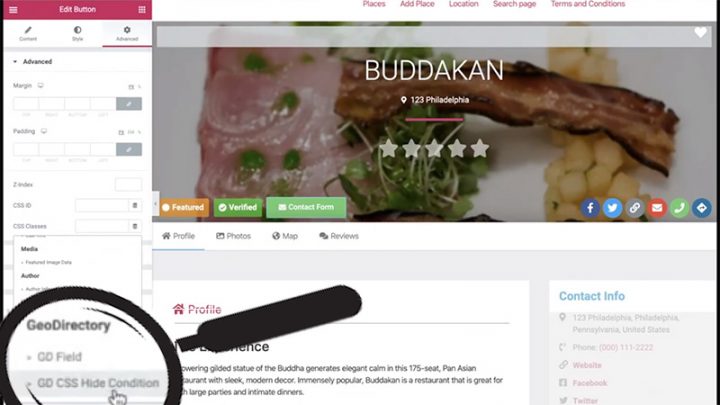
In this video about the integration with Elementor PRO Dynamic Content. you can see a more detailed explanation of this new feature.
Stiofan also explains in detail, how to use GeoDirectory data with the Elementor PRO widgets. For example, how to populate an Elementor Gallery with images from a listing. Or images added by used in the reviews.
He also shows us how to hide for example the rating stars, when there are no ratings.
Now that we have explored the integration between GeoDirectory and Elementor, let’s see how to:
Create an Elementor Directory Website by only using free plugins.
As usual, if you have any questions, don’t hesitate to comment below!
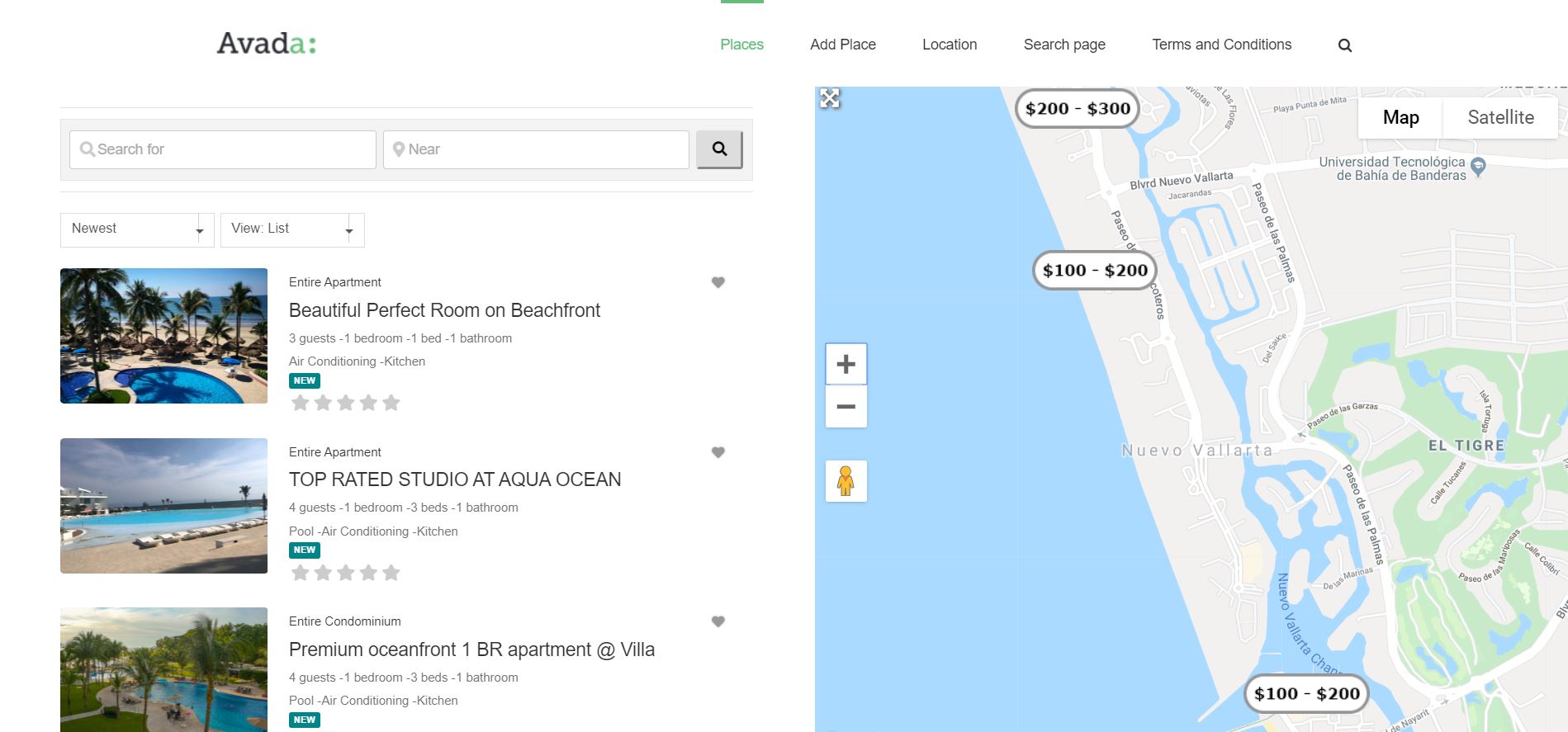
approximately 6 months ago we released V2 of GeoDirectory and we promised it would be a lot easier to customize your design with it.
Being compatible with most page builders and themes, you could already do fantastic template designs with GeoDirectory V2, but now that we are fine-tuning it, you will be able to do even more awesome stuff with it.
We decided to start with Avada and the Fusion Builder.
With the current version of GeoDirectory, you had to :
- add new widget areas in Avada
- add the GD widgets needed to complete the design
- finally, use these widgets areas through the Fusion Builder
You could achieve almost anything with that and CSS later, but it wasn’t intuitive nor as easy as customizing a design with the default elements of Fusion Builder.
GeoDirectory Elements will be within the Fusion Builder
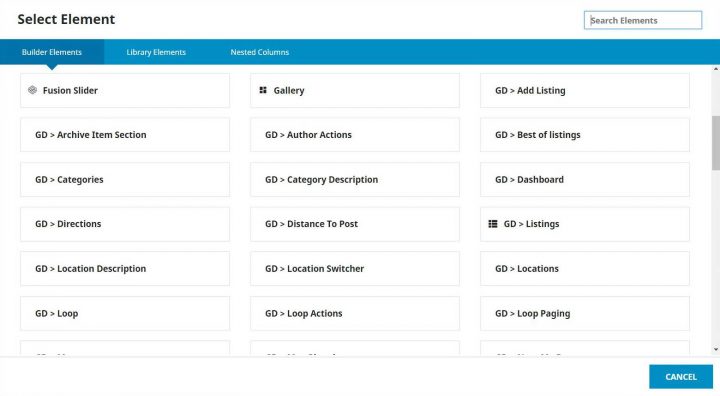
From the next version of GeoDirectory which will be 2.0.0.68 (beta available on GitHub now), all GeoDirectory Widgets / Shortcodes / Blocks, will also be available as Elements of the Fusion Builder.
This makes it a lot easier to design, and we can now dig into the tutorial on how to create a page to look similar to Airbnb’s listings page or search results page.
Assuming you have installed Avada and GeoDirectory, this is how I made it.
Disclaimer: It was not possible to design a page that looks like Airbnb ONLY with GeoDirectory and Fusion Builder. I had to write a few lines of CSS. 11 new rules, 5 for the archive page template (the listings page) and 6 for the archive item page template (each listing inside the listings page).
That said, I’m not really an Avada expert, and there are so many options that probably what I did, could be done without as much CSS. Maybe even none.
I’ll leave that to Fusion Builder Masters to tell. If you know of solutions to avoid my custom CSS, I’d appreciate you letting me know via a comment down below, and I’ll update the tutorial.
1 Create the needed Custom Fields
I started adding the custom fields that AirBnB uses through Place > Settings. I only added the exact one I needed to replicate the design and save time, but everything can be done.
We needed four selects for :
- Guests
- Bedrooms
- Beds
- Bathrooms
and one multisect for amenities like:
- Kitchen
- Pool
- Air Conditioning
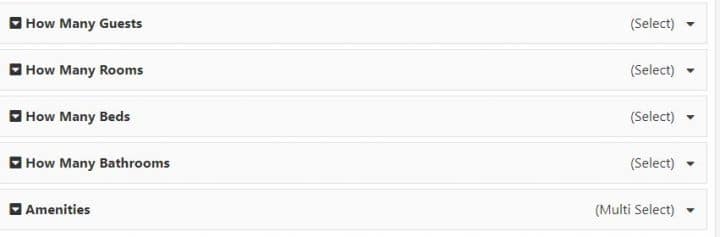
2 Editing the Archive Page Template
After publishing a few dummy listings, I needed a new Archive Page template. I called the page Avada Listings 1 and assigned it via GeoDirectory settings as the new Archive page template.
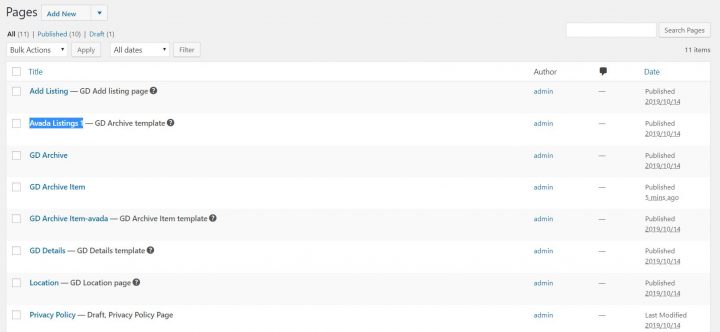
Then I needed to prepare the page and make it use the entire screen. I know there is an option to make Avada pages use the full-width of the screen, but that affects the whole site, so I used CSS to do that.
.geodir-archive #main .fusion-row {max-width:100%}
html:not(.avada-has-site-width-percent) .geodir-archive #main {padding:0}
.geodir-archive #main  {padding:0}
.geodir-archive .post-content .fusion_builder_column_1_2.fusion-column-first > .fusion-column-wrapper {padding-left: 8% !important;}
.geodir-archive .avada-page-titlebar-wrapper {display:none}
What the above does is simple. Makes the area below the header and above the footer using the full width of the screen, removes general padding, and adds padding only to the left of the listings list. It also hides the Avada title bar that, on a similar page, is not necessary. The page will look like this:

Now we can edit the page with Fusion Builder. You can use both Front End and Back End, but the preview of the Front End won’t be 100% accurate, the reason why I used the back end builder.
We need two columns, and in the right column, we will add the GD > Map element, while in the left column, we will add :
- GD > Search
- GD > Loop Actions
- GD > Loop
- GD > Loop Paging
The only options that we need to tweak are for the Map, where we need to set the height at 85vh. To obtain the fixed map effect on scroll, I used a plugin called: Sticky Menu (or Anything!) on Scroll by Mark Senff.
We could have written our own custom JS, but this plugin is lightweight and if you only have 1 element to stick to, it works like a charm.
If you set it up correctly, it also pushes the map when the footer appears.
As options for this plugin, I set the following:
- Sticky Element = .geodir-archive-map-wrap
- Push-up element = .fusion-footer
The Push-up Element option can be found in Advanced Settings.
That’s it for now.
The page now will look like this:
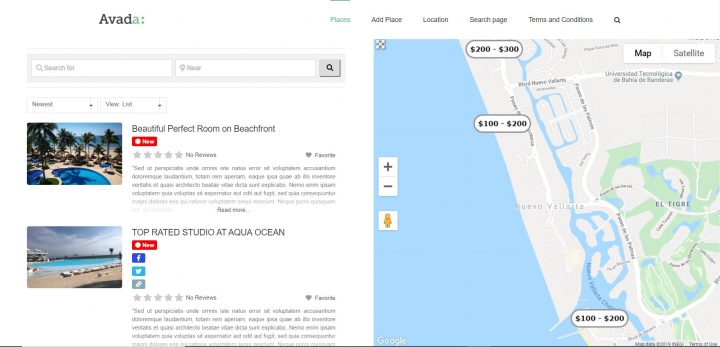
3 Editing the Archive Item Page Template
Now I need to customize the design of each listing, and that can be done by editing the Archive Item Page template.
I created a new Archive Item Page template, and I called it: GD Archive Item-avada
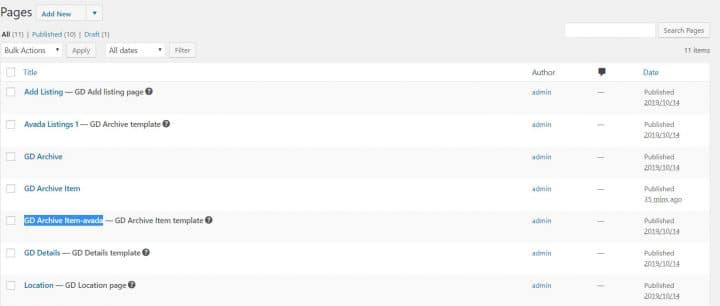
I opened it with the Fusion Builder back-end editor, and I added the following GD Elements:
- GD > archive item section set as open left
- GD > post images set as a slideshow
- GD > archive item section set as close left
- GD > archive item section set as open right
- GD > post meta with key=”post_category” and show=”value”
- GD > post favorite with show=”icon” and alignment=”right”
- GD > post title
- GD > post meta with key=”how_many_guests” and show=”value” and alignment=”left”
- GD > post meta with key=”how_many_rooms” and show=”value” and alignment=”left”
- GD > post meta with key=”how_many_beds” and show=”value” and alignment=”left”
- GD > post meta with key=”how_many_bathrooms” and show=”value”
- GD > post meta with key=”amenities” show=”value”
- GD > post badge key=”post_date” condition=”is_less_than” search=”+30″ badge=”NEW” bg_color=”#008489″ txt_color=”#ffffff” size=”small”
- GD > post rating show=”stars” alignment=”left”
- GD archive item section set as “close right”
4 Adding some more custom CSS
Last thing I needed some CSS to make things look pretty and organized, like on the Airbnb page:
.geodir-post-title, .geodir-post-rating {clear: left;}
.geodir-field-amenities li::after,.geodir-field-how_many_guests::after,.geodir-field-how_many_rooms::after,.geodir-field-how_many_beds::after {content:" - ";}
.geodir-field-amenities ul {margin:0;padding:0}
.geodir-field-amenities li:last-child::after {content:"";}
.geodir-field-amenities li {list-style: none;float: left;}
.gd-badge-meta {display: block;margin-left: 0;clear: both;}
The above CSS will only work if you have the exact same custom fields and does the following:
- adjust the position of the title and rating stars
- adds the ” – ” separator between the custom fields
- adjust the amenity multi-select, that by default is presented as a list
- adjust the positioning of the “NEW” badge
That’s it. The result is what you see here:
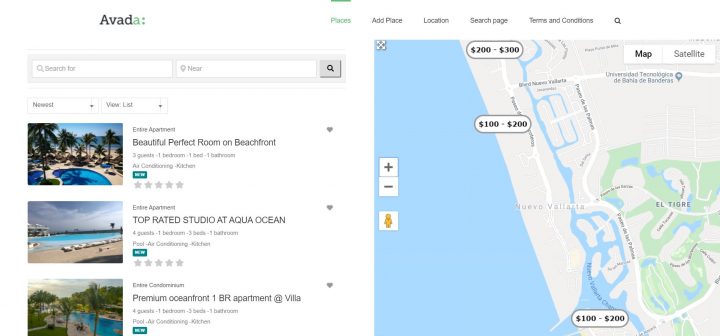
I know it is not 100% identical to Airbnb, but hey, it took me 2 hours, I barely knew how to use Avada.
I just wanted to show you the level of customization that is possible with GeoDirectory and Fusion Builder.
For us, this is pretty impressive, but if it’s not for you, would you please tell us what would make it impressive in your opinion?
If you leave a comment, we’d love to hear your feedback.
I’m sure someone will ask, so I will answer directly here.
How I created the markers with prices? That’s simple. I used categories like:
-Apartment (Parent)
–100 – 200 (sub)
–200 – 300 (sub)
I designed the markers with each price fork with Photopea.com, and uploaded the marker for each sub-category.
When adding listings, I assigned the sub-category as the default category so that the marker with prices would be used in all maps.
I hope you enjoyed this tutorial.
Let me know if you have any questions regarding this in the comments down below!