Introduction | What you need to know
Translation Files | Core | Addons | Themes | Download
Translation process | Setup | Edit | PoEdit
More information | Resources | FAQ
Introduction
WordPress and GeoDirectory both are configured with English by default, but can easily be translated into other languages. In this document we will introduce the how translated strings are stored, edited, and loaded to a site to display a new translation.
The goal of this guide is not just to help you become familiar with translation. Once the new translations are setup in the GD site, you can edit and update your translation files any time. Once you start translating, and even changing the default text, you will probably find many ways to make the text ‘speak’ to your community of users.
What you need to know
- .po and .mo files are the standard method for storing “translated strings”.
- .po files are for doing translations.
- .mo files are for showing translations on your site.
- .po files can be edited with PoEdit, the free cross-platform desktop translation app.
- When you edit a .po file in PoEdit, and then save the file, PoEdit will also create/update a matching .mo file.
- Store BOTH the .po and the .mo files in the the proper site folder.
- GeoDirectory Core Translations are maintained at https://translate.wordpress.org/projects/wp-plugins/geodirectory, so go there if you want to download existing translations of GD Core.
- GeoDirectory Addon Translations are maintained at https://wpgeodirectory.com/translate/projects, so go there if you want to download existing translations of GD Addons.
- Finished translation files for plugins are stored in wp-content/languages/plugins/
- Finished translations for themes are stored in wp-content/languages/themes/
Core Translation Files
GeoDirectory Core plugin translations are maintained at https://translate.wordpress.org/projects/wp-plugins/geodirectory. If you are looking for existing translations of the GeoDirectory Core plugin in additional languages, you can go there to see which languages are available.
If your language is not currently available or at less than “100%” then consider joining the GeoDirectory translation team where members work together to make excellent, accurate translations available in every language. Visit the Translators Handbook to find out more.
GeoDirectory Core Languages Folder Location
Once you have completed your translation of GeoDirectory core plugin into a new language, the .po and .mo files must be transferred to your GD Site, usually by FTP. On your GD Site, the translation files for GeoDirectory core are stored in “wp-content/languages/plugins/”.
Use the following table to “check your work”. The most common reasons that a translation file won’t load is because it is named incorrectly or because it is stored in an improper folder.
| Name | .po/.mo folder path and file name (text domain) |
|---|---|
| GeoDirectory Core | /wp-content/languages/plugins/geodirectory-en_US.mo |
Addon Translation Files
GeoDirectory Addon translations are maintained https://wpgeodirectory.com/translate/projects. If you are looking for existing translations of addons you should go there to see if your desired language is available.
If your language is not currently available or at less than “100%” then consider joining the GeoDirectory translation team where members work together to make excellent, accurate translations available in every language. Visit the Translators Handbook to find out more.
GeoDirectory Addons Languages Folder Location
Translated files for GeoDirectory Addons are stored in “wp-content/languages/plugins/”. Use the following table to “check your work”. The most common reasons that a translation file won’t load is because it is incorrectly named or because it is stored in an improper folder.
| Addon/Theme name | .po/.mo folder path (text domain) |
|---|---|
| Advance Search Filters | /wp-content/languages/plugins/geodiradvancesearch-en_US.mo |
| Ajax Duplicate Alert | /wp-content/languages/plugins/geodir_duplicatealert-en_US.mo |
| BuddyPress Integration | /wp-content/languages/plugins/gdbuddypress-en_US.mo |
| Claim Listing | /wp-content/languages/plugins/geodirclaim-en_US.mo |
| Custom Google Maps | /wp-content/languages/plugins/geodir_customgmaps-en_US.mo |
| Custom Post Types | /wp-content/languages/plugins/geodir_custom_posts-en_US.mo |
| Event Manager | /wp-content/languages/plugins/geodirevents-en_US.mo |
| Franchise Manager | /wp-content/languages/plugins/geodir-franchise-en_US.mo |
| Location Manager | /wp-content/languages/plugins/geodirlocation-en_US.mo |
| Markercluster | /wp-content/languages/plugins/geodir_markercluster-en_US.mo |
| Payment Manager | /wp-content/languages/plugins/geodir_payments-en_US.mo |
| Review Rating Manager | /wp-content/languages/plugins/geodir_reviewratings-en_US.mo |
| Name | /wp-content/languages/plugins/geodir_sagepay-en_US.mo |
| Social Importer | /wp-content/languages/plugins/geodir_socialimporter-en_US.mo |
Theme Translation Files
Only the default English translation is available for AyeCode’s GeoDirectory themes. You can find the default file inside the languages folder of the theme.
GeoDirectory Themes Language Folder Location
Translated files for GeoDirectory themes are stored in “wp-content/languages/themes/”. Use the following table to “check your work”. The most common reasons that a translation file won’t load is because it is incorrectly named or because it is stored in an improper folder.
| Addon/Theme name | .po/.mo folder path (text domain) |
|---|---|
| Directory Starter Theme | /wp-content/languages/themes/directory-starter-en_US.mo |
| Supreme Directory Child Theme | /wp-content/languages/themes/supreme-directory-en_US.mo |
Download Existing Translations for a Plugin
Here we provide an example of how to download an existing translation.
In the example below, we will download an Italian translation of GeoDirectory Core, and then add the translation file to the GD site.
- Navigate to the GeoDirectory language project pages.
- Select the language and addon of your choice.
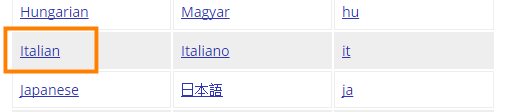
- Example: Italian:
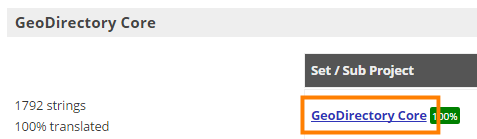
- Select the language file you want:
- Scroll to the bottom of the page and Export the file (accept the defaults so you download the whole PO file):

- Load the file to the proper folder (See Translating Addons for more information).
Change the file extension, if necessary, for your locale. Example: -it to -it_IT.
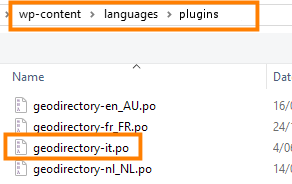
- Create the MO file using PoEdit or download from the same page where you downloaded the PO file:
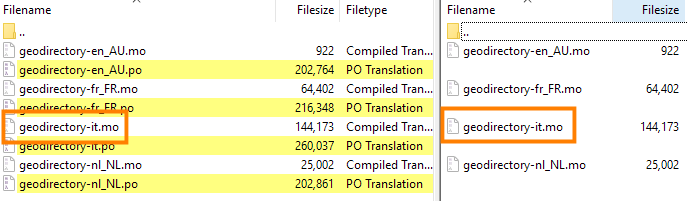
- Review the translations on your site. If you find untranslated strings, continue to the next section for information about how to edit the translation files.
Translation Process
Setup New Language Translation Files on the Site
First, the translations need to be setup on the site. Here is the overview of that process:
- Download an existing translation or create a new file. In either case, save the translation .po file to the desktop.
- Open the file with PoEdit and select the new language.
- Save the file with PoEdit on to the desktop with the new locale.
- Find the .po and .mo files on the desktop.
- Transfer the .mo and .po files via FTP to the proper site folder.
Edit an existing language translation
Once your translation files are setup, then you can edit them any time you want with this process:
- Login to the site with FTP and navigate to the appropriate languages folder.
- Download the appropriate .po file from the site folder, and save a backup copy in another location.
- Open with PoEdit, Translate with PoEdit, Save with PoEdit.
- Identify the new .po and .mo files in your local save location.
- Transfer the .mo and .po files via FTP to the proper site folder.
Translating with PoEdit
This example is for translation of the core plugin. The process is the same for any plugin or theme, with the notable exception that the files are stored in the site in different folders.
- Download POedit and install the free program.
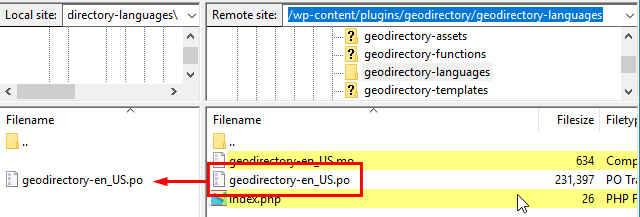
- Download the default translation. Each plugin or theme comes with English language .po and .mo files. Use FTP or cPanel to download the default language .po file to your local machine. You only need the .po file. PoEdit will create a new .mo file upon save.
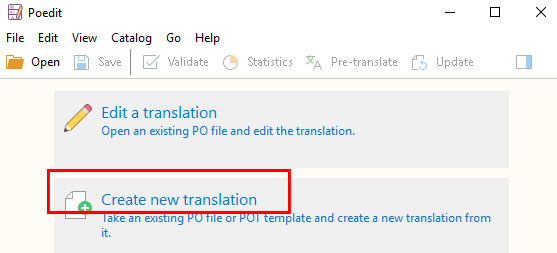
- Open Poedit and select Create new translation:
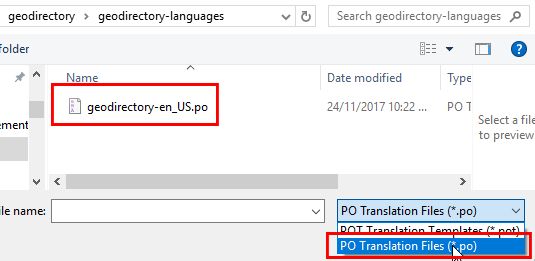
- Navigate to the .po file and open it:
- Select the new language:
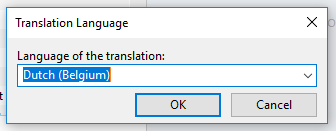
- Make sure to select exactly the same language you have at WP > Settings > General:

- Now save the file:
- Poedit will give you the correct extension, in our example that will be nl_BE.po.
- Make sure the filename matches the default translation filename. Example: geodirectory-nl_BE.po.
- PoEdit saves the .po and the .mo files: geodirectory-nl_BE.po and geodirectory-nl_BE.mo
- transfer BOTH the .po and the .mo files via FTP to the proper folder on the site.
- Save a backup of the files on your desktop and in your personal cloud, just in case of emergency.
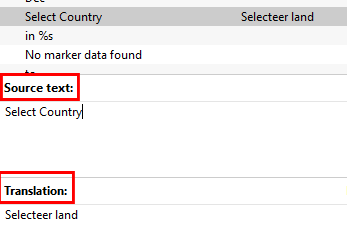
- Translate the remaining strings. Now that the workflow is setup, you can Now translate any language string you want, and save the file once finished:
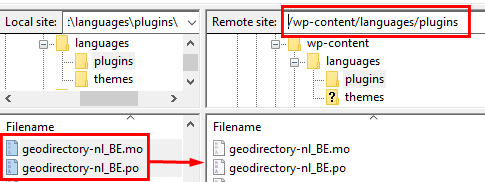
- When you are ready, upload both the .mo and .po file to the /wp-content/languages/plugins/ folder on the server.
Create the folder if it does not exist yet:
- Go to your website and refresh to see your changes 🙂
Resources
FAQ – Frequently Asked Questions about Translation
- Can I change “Place Title” and “Place Description”?
- To change Place Title and Place Description on the Add Listing page, you need to use the language file and look for %s Title and %s Description.
%s refers to the singular name of the custom post type, which you can set using the Custom Post Types addon, or by translating Place and Places in the language file.
For example to change Place Title to Business Name, you would translate %s Title to %s Name, and change Place to Business.
- How do I translate the “New” and “Featured” banners.
 To translate the “New” and “Featured” banners used for GD listings, you can copy and paste the blank images below, adjust them as required and upload to your website. Then add the following CSS:
[css].geodir_new_listing {
background: url(‘http://reference to your new image’) no-repeat scroll left top transparent;
}
ul li .geodir_featured_img {
background: url(‘http://reference to your featured image’) no-repeat;
}[/css]Right-click to download and save:


- Translating the days in the Events Calendar
- When adding the Events Calendar Widget, you will have 4 options for the format of the day:
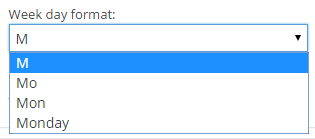
If you want to translate the days on the calendar, you will have to choose another option than the first option.
In the translation file for the Events Manager, you can then translate the strings that match the option you have chosen.