
When you finished installing your GD core plugin, you can extend your GeoDirectory site by adding any of the Addons.
1. Download your new Addon ZIP file to your computer
2. Login to your WordPress Admin
3. Upload your Addon
4. Activate your Addon
5. Review the Addon settings
6. Auto Updates
7. Manual Updates
8. Frequently Asked Questions
1. Download your new Addon ZIP file to your computer.
You can buy individual Addons of your choice here, or you can buy a membership that includes all Addons and themes here.
2. Login to your WordPress Admin
- Log in to the WordPress Admin area of your website.
- Navigate to Plugins > Add New > and click on Upload
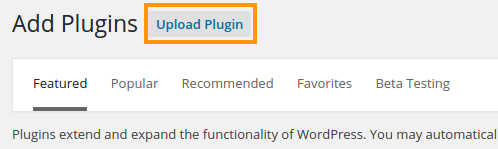
3. Upload your Addon
- Browse for the Addon ZIP file on your computer.
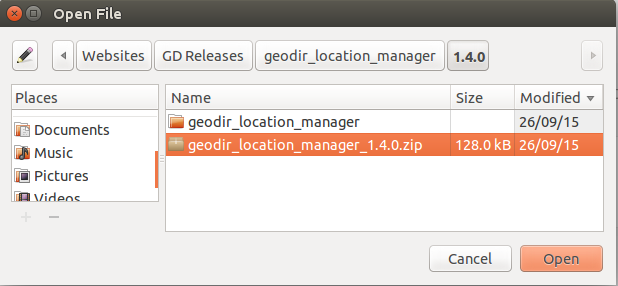
- Once you selected the ZIP file, click install.
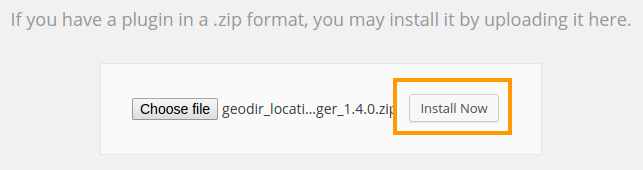
4. Activate your Addon
- Wait for the upload to happen and then activate your Addon.
5. Review the Addon settings
As soon the Addon is activated, you will be taken to the Settings page of the new plugin:
6. Auto Updates / Licensing
- To keep your plugins up to date, you need to install the WP Easy Updates plugin.
- Follow steps 3 and 4 above to activate the WP Easy Updates plugin.
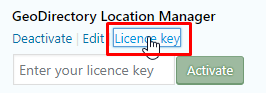
- You now will be able to add your license for your addon:

- Click on Licence key and add your licence:
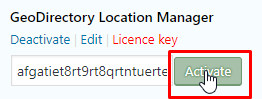
- Click on Activate:
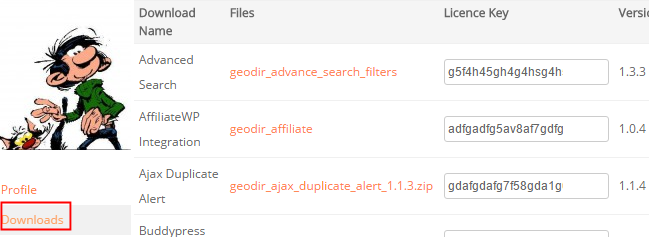
- To get your licences, go to your download area at https://wpgeodirectory.com/your-account/
- In future, your Addons will be able to be updated with a single click, just like any other WordPress plugins.
7. Manual Updates
-
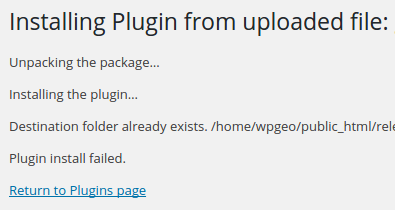
WordPress has a built-in feature to install themes and plugins by supplying a zip file. Unfortunately, you cannot upgrade a theme or plugin using the same process. Instead, WordPress will say “destination already exists” when trying to upgrade using a zip file and will fail to upgrade the theme or plugin.
- Install and activate Easy Theme and Plugin Upgrades
- Download the addon you want to update from https://wpgeodirectory.com/your-account/.
- Visit the plugin page of your site and choose “Add New” and then “Upload Plugin”.
- Find the addon file, and choose “Install”
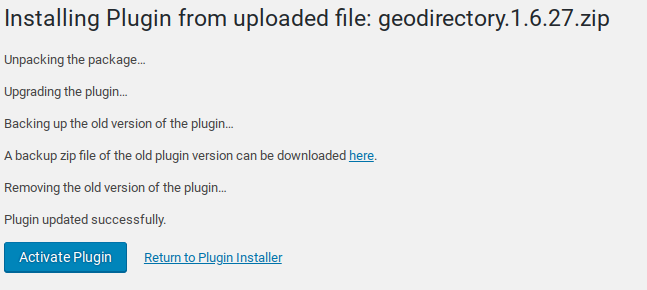
- Next you should see a confirmation like the following:
Easy Theme and Plugin Upgrades fixes this limitation in WordPress by automatically upgrading the GeoDirectory theme or plugin if it already exists.
To perform a manual upgrade of an addon:
8. Frequently Asked Questions
Why do my automatic updates fail?
Incorrect/Updated License/Key
If you purchased a new subscription after your old one expired, your keys will have changed.
Get your license key from https://wpgeodirectory.com/your-account/.
Carefully copy and paste into the appropriate license field.
Page Cache Issue
If you copied and pasted the key, but the update still fails, try:
1. Deactivate the key
2. Refresh the plugin page
3. Copy and paste the key again, then Activate
4. After activation, refresh the page again and try the update.
If that still doesn’t work, you can try a manual update.
Review Setup of Automatic Updates
Find the setup guide for autoupdates here: https://wpgeodirectory.com/docs/installing-addons/#updates
Double Check Licensing and Membership
Make sure your licenses are added at WordPress > Installed Plugins and that your membership is active.
Update Single Site Licenses when Changing Site URL
If you have a single site license, then whenever your site domain changes you will need to update the license for each plugin. For example, you might have been working on a development site at one URL, and now you have moved the site to a new URL. Follow these steps to deactivate the license at the old URL and activate the license at the new URL.
1. Visit the old site at the old URL.
2. Visit the old site plugin page.
3. Find the addon license and click “Deactivate”.
4. Visit the new site at the new URL and go to the plugins page.
5. Find the addon license and paste your license code, then press Activate.
Update Single Site License for a decommissioned site
It may be that you started working on a site, then changed the URL or deleted or otherwise decommissioned the site. In this case, follow these steps:
1. Visit https://wpgeodirectory.com/your-account/purchase-history/
2. Select “View Licences” for the product.
3. Select “Manage Sites”
4. Select the sites where you want to deactivate the license.
[qa cat=wp-easy-updates search=none title=none homelink=none]