Better Search Replace plugin

  1. Better Search Replace will assist with changing URLs or slugs etc in your database.
  2. It is also very helpful when changing your site from HTTP to HTTPS.

Changing slugs that have -1 appended

  1. Sometimes when you add a new location or category etc, the slug [part URL] might get a “-1” appended. For example mysite.com/location/east-sussex-1/
  2. This happens because WP does not allow duplicate slugs, and there already is something else using the slug east-sussex.
  3. This can be a tag, or a post name etc.
  4. It can also still be in the database from an old plugin you deleted.
  5. The solution is to search the database for the slug east-sussex and change it to east-sussex-2
  6. Then search for east-sussex-1 and replace all results (except the one you just changed) with east-sussex.

First replace the “correct” slug in the database

  1. Go to your database using phpMyAdmin.
  2. Search for the “correct” slug and replace it if required.
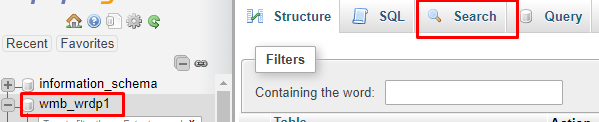
  3. Go to the Search:
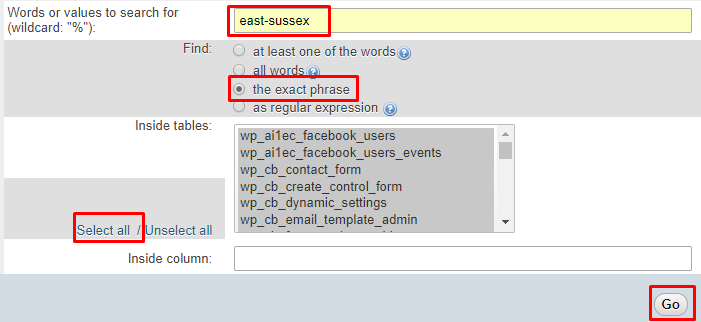
  4. Search for east-sussex:
  5. Review the results:
  6. Adjust if you like by double clicking the field and changing the slug:

Using Better Search Replace

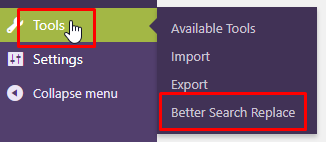
  1. After installing the Better Search Replace plugin, go to Tools > Better Search Replace:
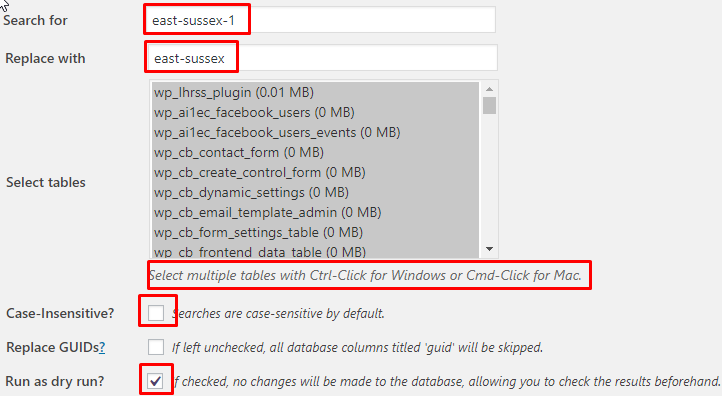
  2. Let’s now search for the slug that we want to replace:
  3. You can now review where the slugs will be replaced:
  4. If all is OK, run the process, but un-tick the “Run as dry run” box.
  5. Once that is done, re-save WP Settings > Permalinks.

Do you provide refunds?

If you are not satisfied with our products and services you should get your money back, it is as simple as that!

Ask for a refund within 30 days from your initial purchase here. You will get it, no questions asked.

Should you open a dispute, instead of asking for a refund, we will keep 50% of the disputed amount, for our time having to gather evidence and submit it.

It is a member’s responsibility to stop payments authorized through PayPal or Stripe. If you decide to stop the membership and discontinue using our Products, please remember to login to your PayPal and cancel the Authorization. (see instruction here for Paypal). For payment made through Stripe, you’ll need to contact us directly.

Geo Travel – Genesis Child Theme – Overview


Introduction
Genesis Framework
Preparation
Home Page Setup
Widgets and Widget Areas
FAQ – Frequently Asked Questions

Introduction

The Geo Travel – Genesis Child Theme is a mobile responsive and HTML5 theme especially developed to optimize GD with Genesis Framework.

View the demo

Genesis Framework

Genesis Framework is premium theme, and one of the most popular and widely used theme frameworks. The Genesis Framework parent theme is required when you wish to use the GeoTravel Child theme.

To proceed with installation of the Geo Travel – Genesis Child Theme theme you will need your own copy of the Genesis Framework parent theme.

Get Genesis Framework Here: https://my.studiopress.com/themes/genesis/

Preparation

  1. Install BUT DO NOT ACTIVATE the Genesis Framework. Link: https://my.studiopress.com/themes/genesis/
  2. Download the Geo Travel – Genesis Child Theme from your download area. Link: https://wpgeodirectory.com/your-account/
  3. Upload the Geo Travel – Genesis Child Theme and activate it.
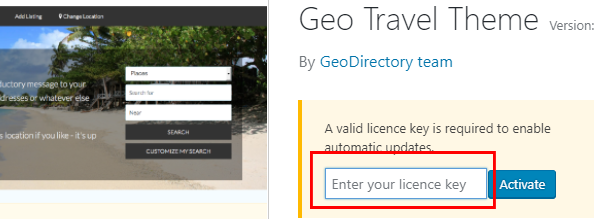
  4. You will need to enter your license so you are notified if the child theme needs updating:
Home Page Setup

Home Settings

GeoTravel Child theme works best when the WordPress Site’s Home page is set to a different page as “GD Home”, the home page of your GeoDirectory directory.

To set this up on your site, the same way the demo works:

  1. Go to GeoDirectory > Permalinks > GD Home and choose a page as your directory homepage. By default this is set to a page called “GD Home” but you can set it to any page you like.
  2. Save the settings
  3. Go to WordPress > Settings > Reading and choose a different page for the “Static Front Page” of your site.
  4. Save the settings
  5. Visit the site home page to see the changes.

Home Page Featured Area Setup

The following instructions will help you setup the background image and the upper featured area for the homepage to match the demo.

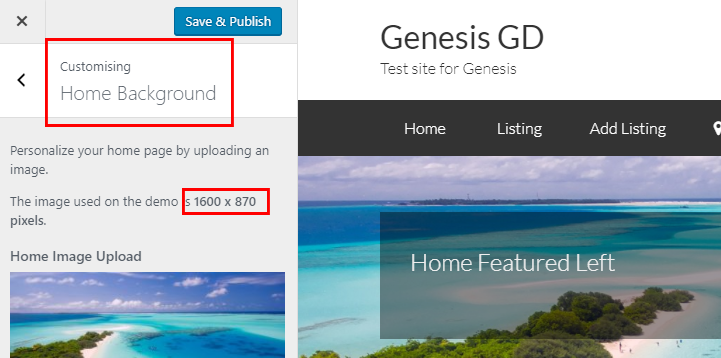
  1. Go to Appearance > Customize > Home Background and upload the background image for the homepage:
  2. Go to Appearance > Widgets.
  3. Add a text widget to the Home Featured Left widget area and add your custom text.
  4. Add the GD Search widget to the Home Featured Right widget area.

Home Page Widgets

GeoDirectory uses widgets to display listings. You can read more about all the widgets that are available here: https://wpgeodirectory.com/docs/widgets/ .

To setup your site to match the demo, add the following elements on your site.

Dummy Data

Add dummy data to populate the widgets on the home page. You can skip this if you already have listings on your site.

  1. Go to GeoDirectory > General > Dummy Data
  2. Adjust: Select 10 or more.
  3. Insert data
Latest Places

Add a GD Popular Post widget to the Home Top widget area.

  1. Go to Appearance > Appearance > Widgets
  2. Adjust: On the left side of the screen find the “GD Popular Post View widget.
  3. Adjust: Select the widget and choose to add to “Home Top“.
  4. Find the GD Home Top widget area on the right side and open the settings for the GD Popular Post View widget.
  5. Adjust: Title > “Latest %posttype_plural_label%“.
  6. Adjust: Sort by > “Latest“.
  7. Adjust: Number of posts > “5“.
  8. Adjust: Layout > “Grid View (5 Columns)“.
  9. Save settings
  10. Visit the site home page to see the changes.

Widgets and Widget Areas

The Geo Travel – Genesis Child Theme uses the following widget areas:

  1. The blue sections will show on all your site’s pages.
  2. The yellow sections are only for the home page. To see the Home page sections you must have a different pages for WordPress Front Page and GD Home Page. If they are the same page, only the GD template will be shown.
    Logo Header Right widget area
    Menu section
    Home Featured Right widget area Home Featured Left widget area
    Home Top widget area
    Home Middle widget area
    Home Bottom widget area
    Footer 1 widget area Footer 2 widget area Footer 3 widget area
     Copyright text
    Disclaimer widget area
  3. A Secondary and Primary Sidebar widget area used on all WP pages and posts, depending on the Genesis layout selected at Genesis > Theme Settings > Select Default Layout.
  4. An After Entry widget area that is used after the content of a WP post on the WP post pages.

FAQ – Frequently Asked Questions

Is the Genesis Framework really required?

Yes, the Geo Travel – Genesis Child theme won’t work without the Genesis Framework.

How do I change the footer area?

To change the footer text in the Geo Travel – Genesis Child theme, look for the following code in the functions.php file, and adjust as required.

[css]//* Add My Custom Footer Links[/css]

I added additional content to the GD Home page with a builder ,why doesn’t it show up?

The GD Home page content area will be overwritten by the GeoDirectory plugin when it renders the GD Home page. This will also effect your site home page, if you have your site home page set to the same page as “GD Home”.

Builders can be used on other WP Pages, but their content will be overwritten when used on the pages chosen in the GeoDirectory Permalinks settings.

Translating GD Listings in a multilingual site

How do you add a listing in more than one language on your WPML – GeoDirectory site?

Let’s say we want to add an English and a Dutch version of the same listing. These are the steps required:

  1. Add the listing the normal way, yourself or user submission.
  2. Once that is done, login as administrator and navigate to the new listing in the backend.
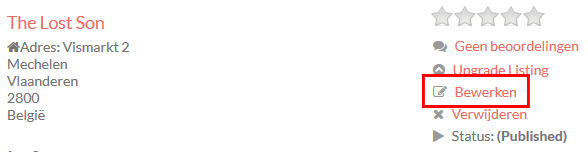
  3. Once there, click the + sign to add a translation of the listing:
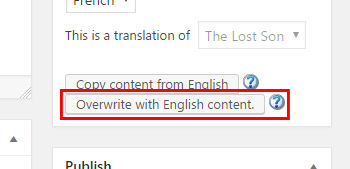
  4. This will open a new listing, and once there, click Overwrite with English content:
  5. Save the Dutch version of the listing. You will now have a listing with two language versions:
  6. Translate the Dutch version as required, or if this was a user submitted listing, notify your user, who now can log in to the Dutch version of your site, and will find his listing in his dashboard, ready for translation:
  7. Now your visitors will be able to switch languages for the listing while looking at the detail page.

Adding two different listings from the frontend will not link them together, even if using the same address. You need to create the listing in the other language in the backend for them to stay connected.

Translating Custom Post Types

Translating Custom Post Types names

  1. If you only want to translate your CPT names (like Place and Places), follow the instructions here. Only the Multilingual Blog plugin is required then.
  2. But if you also want to translate the CPT slugs, you will need to keep reading below.

Translating Custom Post Types slugs

  1. Translate your CPT names (like Place and Places) as explained above.
  2. To translate your CPT slugs (like /places/ or /events/ etc), you will need WPML’s String Translation plugin, and the Translation Management plugin which are part of the Multilingual CMS plugin.
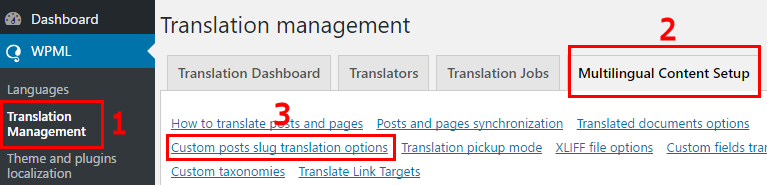
  3. Once the String Translation and Translation Management plugins are activated, go to WPML > Translation Management, and select the Multilingual Content Setup tab. and then select Custom posts slug translation options:

  4. Select and save Translate custom posts slugs (via WPML String Translation):

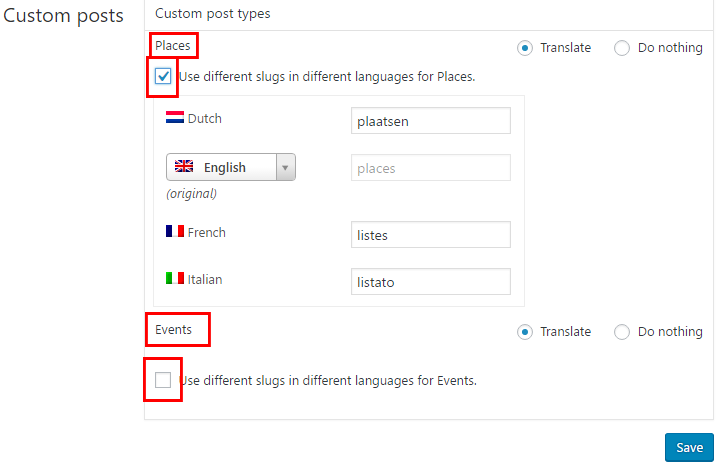
  5. Now scroll down the page to Custom posts, and select the CPTs to translate and add your translations before saving:

Creating different Event types

On this page:

IntroductionScenarioPreparationUser experience

Introduction

  1. You can create different Custom Post Types, but you can only have one Event Custom Post Type.
  2. This article explains how you can create different Event types, with the use of the Payments Manager.
  3. The options and idea explained below can also be used for other Custom Post Types.

Scenario

  1. We want our users to add Festivals and Markets, and Festival submissions can include the name of artists, and Market submissions can include details of the organisers.
  2. But we want to make it easy, so when they choose to add a Festival, they are not shown any Market specific fields.

Preparation

Categories

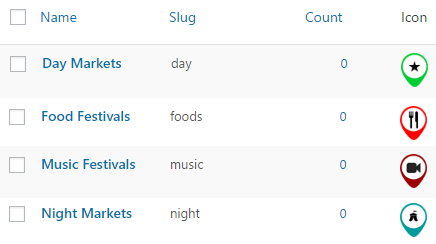
  1. Go to Events > Event Categories and add your categories:

Price packages

  1. Go to GD > Prices and Payments and create or edit Event price packages.
  2. We will create a Festivals and a Markets package:
  3. After creating the Festivals package, save it first.
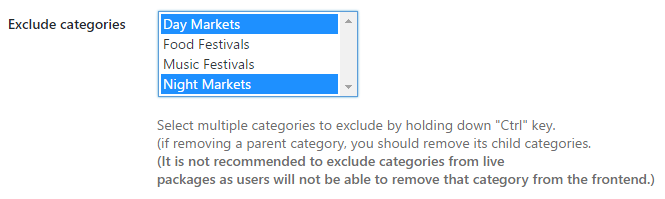
  4. Then choose to edit again, and now you will be able to exclude all the Event categories that are not Festival categories:
  5. Repeat for the Markets package.

Custom fields

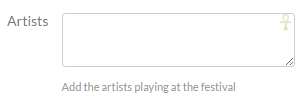
  1. Go to GD > Event Settings and create an Artists custom field.
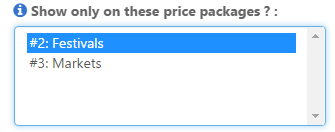
  2. Make sure to restrict the custom field to the Festival package only:
  3. Repeat for the Markets only custom field.

User experience

  1. Now you can link direct to the packages like this if you like:
    1. Festivals: yoursite.com/add-listing/?listing_type=gd_event&package_id=2
    2. Markets: yoursite.com/add-listing/?listing_type=gd_event&package_id=3
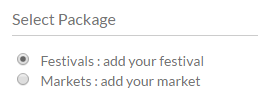
  2. And your users can also select from the Add Listing page:
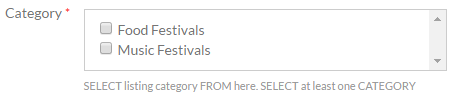
  3. If they choose the Festival package, then the festival categories will be the only ones available for selection:
  4. Only the Festival specific custom fields will be available too:

The GD Search explained

On this page:

1. Custom Post Type selector 2. Category selector 3. “Search for” field 4. “Near” field 5. The “Near me” compass 6. Filtering with custom fields Adding a Select custom field to the search bar

Read Understanding navigation, searching and browsing … to understand the basic search function better.

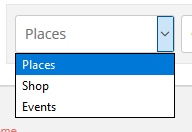
1. Custom Post Type (CPT) selector

This selector will only be shown if you have more than one Custom Post Type.
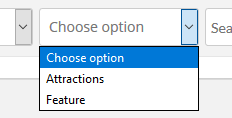


  1. The CPT selector defaults to the current CPT of a Listings, detail or search page. For example on an Events category page, Events will be listed first in the selector.
  2. On a location page or any standard WP page or post, the order of the CPTs in the selector can be determined by changing the order at GD > Custom Post Types > Choose a CPT > Advance Mode tab > Order in post type list (Custom Post Types addon required).

2. Category selector

The categories drop down can be set up for each Custom Post Type and the Advanced Search addon is required.
  1. Activate the Advanced Search addon.
  2. Go to GD > Place (or other CPT) Settings > Custom Fields tab.
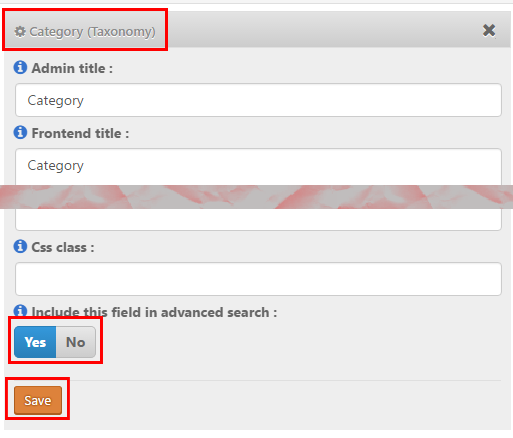
  3. Select Yes to include the categories drop down in the Advanced Search:
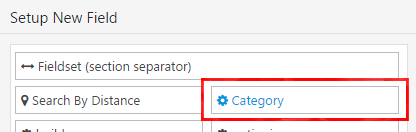
  4. Then go to the Advanced Search tab and click on the Category field on the left hand side, that will move it to the available fields on the right:
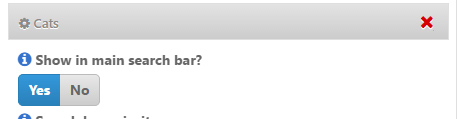
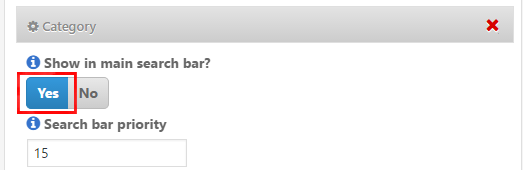
  5. Now open the Category field there, and select to Show in main search bar
    :
  6. The Search bar priority setting allows you to move the Category selector left or right in the main search bar.

3. “Search for” field

  1. GD will check the entry titles, description and taxonomies (tags and categories) of the listings.
  2. The search will not check custom fields or locations.
  3. The search will only search one Custom Post type at the time.
  4. With the Advanced Search addon, you can set this field to auto-suggest listings based on the title of the listings, see Search Autocompleter settings.
  5. You can change the default text at GD > Design > Search.

4. “Near” field

  1. When you enter a location in the Near field, GD will calculate the center of that location.
  2. GD then will look for all listings within an area with a default that match the Search for criteria.
  3. Your default search area is set at GD > General > Search.
  4. The default GD search is not an IN search, but a search NEAR THE CENTER OF.
    For example, assuming your search area is set to 40 square miles:

    1. If you enter World Trade Center, you will get listings around that building.
    2. If you enter United States, you will get listings somewhere around Buffalo in Kansas, because that is where Google situates the center of the United States.
    3. If you enter California, you will get listings somewhere in the Sierra National Forest.
  5. Be aware of some issues:
    1. If you enter a ZIP or a postcode, be aware that that postcode might be used by different countries in the world and might return results around the center of a city in a different country.
    2. A similar issue might occur for place names of cities in different countries.
    3. Please review Add location specific text to (Near) search for Google.
  6. Although the default search for this field is a NEAR THE CENTER OF search, with the Advanced Search addon, you can set this field to auto-suggest locations based on the title of the listings, see Near Autocompleter settings.
    Please note that if you have the Location Manager addon activated, the Near Autocompleter will start giving suggestions as your visitor starts searching, which if selected will search IN the location being entered (ie the city or region in the address of the listing) and will not search an area NEAR THE CENTER OF that location”
  7. You can change the default text at GD > Design > Search.

5. The “Near me” compass

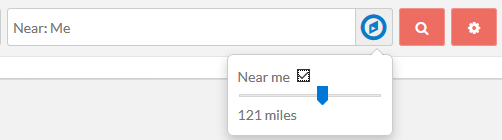
  1. This compass will only show if you have the Advanced Search addon active.
  2. It allows for the search to be limited or expanded by a radius around the visitor’s current location (if Near me is ticked) or near the center of the location selection in the Near field (if Near me is not ticked):
  3. Also review the Geolocation settings.

6. Filtering with custom fields

  1. This will only work if you have the Advanced Search addon active.
  2. Create your custom fields at GD > Place (or other CPT) Settings > Custom Fields.
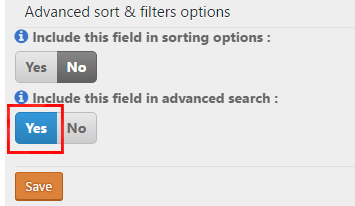
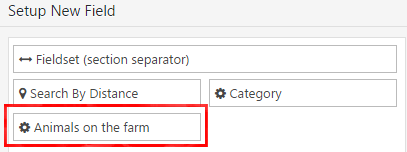
  3. Then navigate to the Custom fields tab and expand any custom field you would like to filter with search and tick the checkbox Include this field in filter:
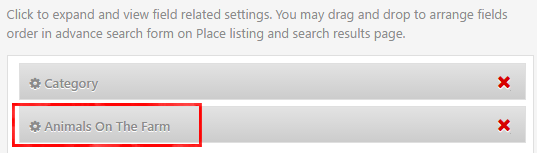
  4. Then go to the Advanced Search tab and click on the custom field on the left hand side, that will move it to the available fields on the right:
  5. Now open the field by clicking on it, and select the settings:
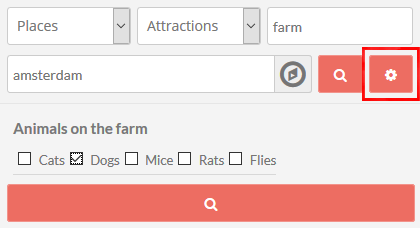
  6. Now clicking on the Search cogwheel will open the custom filter:
  7. Now if your visitors click the search button in the example above, the results will return:
    1. Listings from the Places CPT only,
    2. that are in the Attractions category, and
    3. have farm in the title, description, category or tag of the listing, and
    4. are around the center of Amsterdam (depending on the radius set in the system), and
    5. will be filtered to only return those listings that have dogs.

Adding a Select custom field to the search bar

  1. Select custom fields can also be added to the search bar – but only Select, not Multiselect or any other, they can only be added to the Customized Search section as explained above.
  2. Follow steps 1 to 4 from 6. Filtering with custom fields above.
  3. Now open your Select custom field there, and select to Show in main search bar
    :
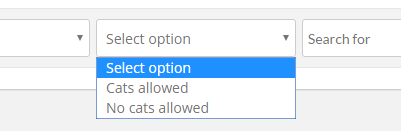
  4. That will add the Select custom field to the main search bar:

Useful plugins

Here you can find a list of plugins we think might be useful to you if you are looking to extend your GD site. There are plenty of other plugins about, but we know the ones listed here all work without any conflict with GD.

  1. Autoptimize
  2. Better Search Replace
  3. Code Snippets
  4. Easy Theme and Plugin Upgrades
  5. Report Content
  6. Widget Logic
  7. Yoast SEO Free
  8. WP Super Cache
  9. WPML
  10. Email

Autoptimize

  1. Autoptimize is a popular html optimization plugin for WordPress and is now compatible with GeoDirectory.
  2. For Autoptimize and GeoDirectory to work together properly there are a few settings you must enable.
  3. Please keep reading here for details of those settings.
  4. GD Booster can not be used with this plugin, we recommend using WP Super Cache to compliment Autoptimize.

Better Search Replace

  1. Better Search Replace will assist with changing URLs or slugs etc in your database.
  2. It is also very helpful when changing your site from HTTP to HTTPS.
  3. Read more here 

Code Snippets

  1. The Code Snippets plugin is an easy, clean and simple way to add code snippets to your site. It removes the need to add custom snippets to your theme’s functions.php file.
  2. It also allows you to update the files of a (child) theme without losing any customizations, because they are stored in the database instead of in your theme files.
  3. After installtion visit our ‘Tips and Tricks‘ page for snippets.
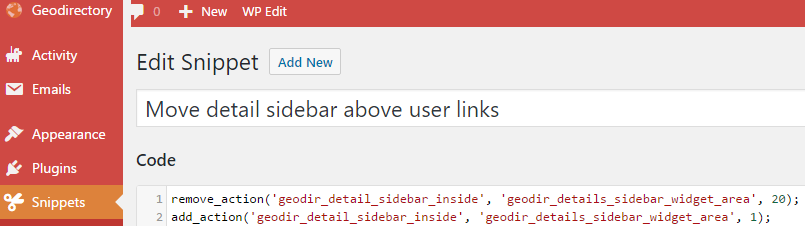
  4. Screenshot of an example snippet:
  5. Make sure you activate the snippet when using the Code Snippets plugin.
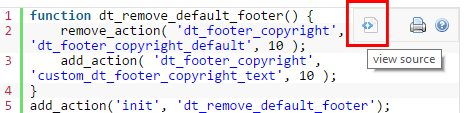
  6. To copy and paste any code from snippets in the GeoDIrectory documentation, hover over the right hand corner of the snippet and select view source:

Easy Theme and Plugin Upgrades

  1. WordPress has a built-in feature to install themes and plugins by supplying a zip file. Unfortunately, you cannot upgrade a theme or plugin using the same process. Instead, WordPress will say “destination already exists” when trying to upgrade using a zip file and will fail to upgrade the theme or plugin.
  2. Easy Theme and Plugin Upgrades fixes this limitation in WordPress by automatically upgrading the GeoDirectory theme or plugin if it already exists.

Report Content

  1. This plugin allows you to add a simple Ajax powered form to your listings so that your visitors can report inappropriate content, broken links and bugs.
  2. To make it work with your GD listings:
    1. Install and activate the Report Content plugin the usual way.
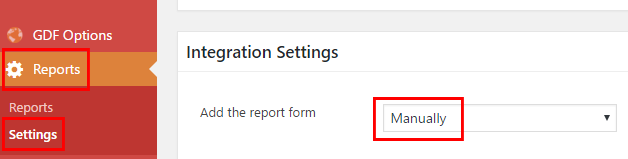
    2. Once installed select Reports > Settings from your WordPress admin menu, and under Integration Settings, set Add the report form to Manual:
    3. To add the Report form to your GD Detail pages, add this code to your child theme’s functions.php file, or use the Code Snippets plugin:

      [php]add_action(‘geodir_details_main_content’, ‘wprc_report_submission_form’,60);[/php]

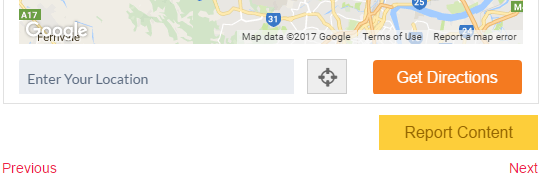
  3. And this is how it should all look:

Widget Logic

  1. The Widget Logic plugin lets you control on which pages widgets appear using WP’s conditional tags.
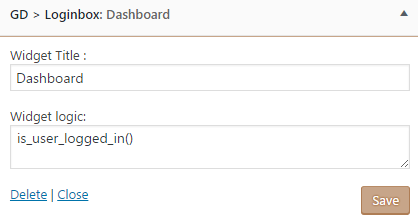
  2. This example will show the dashboard widget only to users that are logged in:
  3. Some GD specific codes to use:
    1. Only shows the widget if the post type is Places:

      [php]geodir_get_current_posttype()==’gd_place'[/php]

      for a single GD Place detail page

      [php]is_singular( ‘gd_place’ )[/php]

      for a GD Place Archive Page

      [php]is_post_type_archive(‘gd_place’)[/php]

    2. Will show the widget if the location is Queensland:

      [php]strtolower(geodir_get_current_location(array(‘echo’ => false)))==strtolower(‘queensland’)[/php]

    3. Will show the widget if the page is a Custom Post Type page for Places, ie not for a category, AND if the location is Queensland:

      [php]geodir_is_page(‘pt’) && get_query_var( ‘post_type’ )==’gd_place’ && strtolower(geodir_get_current_location(array(‘echo’ => false)))==strtolower(‘queensland’)[/php]

    4. Will show the widget if the location has the slug el-dorado-hills in the URL:

      [php]in_array(‘el-dorado-hills’, geodir_get_current_location_terms(‘query_vars’))[/php]

  4. You can find all the Conditional tags here.
  5. If the code does not work as expected, the first thing to check is that you are using straight quotes instead of curly quotes; this can happen when copying and pasting code.

Yoast SEO

    1. The Yoast SEO helps you write bettercontent with previews and page analaysis.
    2. Search the forums for hundreds of tips on how to use this plugin to improve your rankings.
    3. Yoast SEO is the best and only plugin that can be used for creating sitemaps (sitemap.xml) when the Location Manager Add On is active.

Yoast SEO by Team Yoast

WP Super Cache

  1. WP Super Cache is a very popular caching plugin for WordPress and is now compatible with GeoDirectory.
  2. For WP Super Cache and GeoDirectory to work together properly there are a few settings you must enable.
  3. Under Settings > WP Super Cache > Advanced make sure to set the following settings:
    1. Enable: Don’t cache pages for known users.
    2. Enable: Don’t cache pages with GET parameters. (?x=y at the end of a url)
  4. GD Booster can not be used with this plugin, we recommend using Autoptimize to compliment WP Super Cache

WPML

WPML makes it easy to create a multilingual GeoDirectory site. All that is required is the Multilingual Blog plugin itself. Once installed check the following settings:

  1. WPML > Languages > Language URL format: select Different languages in directories (examples: yoursite.com/en, yoursite.com/fr etc)
  2. WPML > Translation Options > Custom Posts: select your Custom Post types, like Places and Events.
    (This option will not show if you have the WPML Translation Management plugin active – in that case, go here)
  3. If you want to translate Custom Post Type slugs as well, you need the Multilingual CMS plugin.

Review GD translation documentation

Default Featured Image

Have you ever wanted to create a slideshow with another plugin, but, found that the Listing Featured Images didn’t appear as expected? This plugin will ‘tick’ an additional option for the listing featured image so that the featured image, the first image for you listing, can be used in other ways and by other plugins on your site.

  1. Use a Default Featured Image with other third party plugins to create slideshows or other displays.
  2. GeoDirectory has you covered for GD specific lists, but you can use this plugin when you need a solution to work with other plugins.
  3. Get Default Featured Image on WordPress.org

Anti-Spam on Registration

We have two recommendations for keeping unwanted Spammers from registering on your site.

  1. Paid plugin – https://wordpress.org/plugins/cleantalk-spam-protect/
  2. Free plugin – Stop Spammer Registrations – https://wordpress.org/plugins/stop-spammer-registrations-plugin/

Email Log

Wondering why you aren’t receiving email from your site?

  1. Email Log https://wordpress.org/plugins/email-log/
  2. Log each email that is created by the site, and verify if it is sent out or not.

Moving videos to the sidebar of the detail page

Introduction

  1. One of the standard custom fields is a video field where you or your users can add a YouTube video to a listing.
  2. That video then will show on the detail page in the content section of the listing.
  3. This article explains how you can move the video from the content section to the sidebar.

Before:

After:

Step 1: Install Code Snippets plugin

  1. You can add the code below to your child theme’s functions.php file as well, but using the Code Snippets plugin makes it easier to keep track of the code, and it will be less likely the code is overwritten by a theme update.

Step 2: Code

Add a new code snippet, and copy and paste the following code:

[php]
add_filter(‘geodir_detail_page_tab_is_display’, ‘custom_gd_hide_video_tab’, 10, 2);
function custom_gd_hide_video_tab($value, $tab) {
if ($tab == ‘post_video’) {
$value = false;
}
return $value;
}

add_action(‘geodir_detail_sidebar_inside’, ‘custom_gd_show_video_in_sidebar’, 1);
function custom_gd_show_video_in_sidebar() {
global $post;
$video = ”;
if (geodir_is_page(‘preview’)) {
$video = isset($post->geodir_video) ? $post->geodir_video : ”;
} elseif (geodir_is_page(‘detail’)) {
$video = geodir_get_video($post->ID);
}
if ($video != ”) {
echo ‘<div class="geodir-video-wrapper">’;
echo wp_oembed_get(stripslashes($video));
echo ‘</div>’;
}
}

add_action(‘wp_head’, ‘custom_video_responsive_css’);
function custom_video_responsive_css() {
if (geodir_is_page(‘preview’) || geodir_is_page(‘detail’)) {
?>
<style type="text/css">
.geodir-video-wrapper {
margin-top: 20px;
position: relative;
padding-bottom: 56.25%; /* 16:9 */
padding-top: 25px;
height: 0;
margin-bottom: 10px;
}

.geodir-video-wrapper iframe {
position: absolute;
top: 0;
left: 0;
width: 100%;
height: 100%;
}
</style>
<?php
}
}
[/php]

Make sure you activate the snippet when using the Code Snippets plugin.

Step 3: Adding video link

When adding the video link, only add the link to the video. For example:

[html]https://www.youtube.com/watch?v=rxgWHzMvXOY[/html]

Step 4: Add a tip for your users

You can add a description to the video field at GD > Place Settings > Custom fields > Video field: