Location Manager Shortcodes

Location Tab Switcher Location Switcher Current Location Name Location Description Location Neighbourhoods Popular Locations Popular in Neighbourhood

Location Tab Switcher

Shortcode: [gd_location_tab_switcher]

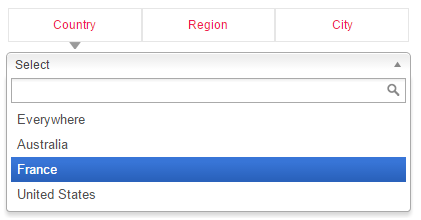
This is like the location switcher usually added to the menu.

Parameters:
  • none
Example:

Location Switcher

Shortcode: [gd_location_switcher]

This is best used on a page or a wide content area, this shows searchable lists of locations.

 All Locations Demo

Parameters:

  • none

Current Location Name

Shortcode: [gd_current_location_name]

  1. Returns the current location name
  2. Only works on GD pages that have the location name in the URL, so GD > Permalinks need to be set to include

Parameters:
  • none

Location Description

Shortcode: [gd_location_description]

return the current location description

Parameters:

  • none

Location Neighbourhoods

Shortcode: [gd_location_neighbourhood] or [gd_location_neighborhood]

returns list of current neighbourhoods

Parameters:

  • none

Popular Locations

Shortcode: [gd_popular_location]

return a list of popular locations

Parameters:

  • none


Popular in Neighbourhood

Shortcode: [gd_popular_in_neighborhood] or [gd_popular_in_neighborhood]

Parameters:

  • post_type – The slug for the post_type (default = gd_place)
  • category – ID number of the category to show (default = 0 for all)
  • list_sort – One of az, latest, featured, high_review, high_rating, random (default = latest)
  • post_number – Number of posts to show (default = 5)
  • layout – Number of columns to show (default = 2)
  • character_count – Number of characters to show from the Excerpt (Min/default = 20)
Avada Compatibility – header.php

UPDATE: As of Avada 3.8+ they have now added compatibility hooks for us and the modifications done to the header.php in the child theme are no longer required, please either delete or rename the header.php file in your child theme if you have previously made the changes below.

The Avada theme lacks any hooks or actions and as such to make GeoDirectory 100% compatible you must make two small changes to the header.php.  

Please follow the steps below:

#1 Move the header.php to your child theme.  You should be running a child theme with Avada, you should copy the header.php from the core Avada theme folder to your child theme folder, if you already have a header.php in your child theme then you should just edit that. (you can edit the core Avada header.php but you will have to do this again if you update Avada)

#2 Edit the file.  You should be able to make these edit from the Appearance>Editor Screen in WordPress, of you can edit the file and upload it.

Edit 1)
Look for:

[php]avada_current_page_title_bar( $c_pageID );[/php]

Replace with:

[php]if(apply_filters( ‘avada_current_page_title_bar_change’, false,$c_pageID)){ do_action(‘avada_replace_page_title’,$c_pageID); }else{
avada_current_page_title_bar( $c_pageID );
}
[/php]

Edit 2)

Look for:

[php]?>
<div id="main" class="clearfix <?php echo $main_class; ?>" style="<?php echo $main_css; ?>">
[/php]

Replace with:

[php]do_action(‘avada_before_main’);
?>
<div id="main" class="clearfix <?php echo $main_class; ?>" style="<?php echo $main_css; ?>">
[/php]

Translating Addons

Translating Addons is much the same as translating core with one exception, the file names differ.
Please see the translating core docs and then when saving your .mo files please see the reference guide below for file names.

You can find some ready made translations in our languages project, find out more here.

Addon name .mo location path (text domain)
CORE /wp-content/languages/plugins/geodirectory-en_US.mo
Advance Search Filters /wp-content/languages/plugins/geodiradvancesearch-en_US.mo
Ajax Duplicate Alert /wp-content/languages/plugins/geodir_duplicatealert-en_US.mo
Autocompleter /wp-content/languages/plugins/geodir_autocompleter-en_US.mo
(Deprecated from core version 1.3 – merged with Advance Search Filters)
BuddyPress Compliments /wp-content/languages/plugins/bp-compliments-en_US.mo
BuddyPress Integration /wp-content/languages/plugins/gdbuddypress-en_US.mo
Claim Listing /wp-content/languages/plugins/geodirclaim-en_US.mo
Custom Google Maps /wp-content/languages/plugins/geodir_customgmaps-en_US.mo
Custom Post Types /wp-content/languages/plugins/geodir_custom_posts-en_US.mo
Event Manager /wp-content/languages/plugins/geodirevents-en_US.mo
Franchise Manager /wp-content/languages/plugins/geodir-franchise-en_US.mo
Location Manager /wp-content/languages/plugins/geodirlocation-en_US.mo
Markercluster /wp-content/languages/plugins/geodir_markercluster-en_US.mo
Payment Manager /wp-content/languages/plugins/geodir_payments-en_US.mo
Review Rating Manager /wp-content/languages/plugins/geodir_reviewratings-en_US.mo
SagePay Payment Gateway /wp-content/languages/plugins/geodir_sagepay-en_US.mo
Social Importer /wp-content/languages/plugins/geodir_socialimporter-en_US.mo

Translate Core

Introduction Translation process More information

Introduction

  1. All our plugins and themes are in English by default, but all of them come with .po files.
  2. .po files are the standard way WordPress themes and plugins are translated, or the files can just be used to change the wording used by default for English language sites.
  3. There are many programs you can use to edit these .po language files but we recommend using Poedit.
  4. Translation programs like Poedit create a matching .mo file when a .po file is translated.
  5. It is those .mo files that contain the translated language strings to show the translations on your site.
  6. You can find some ready made translations in our languages project, find out more here.

Translation process

We will translate the core GD plugin here, but the process is the same for all plugins and addons.

Translating themes also follows the same process except for the location where you should upload the .mo file.

  1. Download POedit and install the program on your local machine (you only need the free version, but the paid version will assist translations with suggestions).
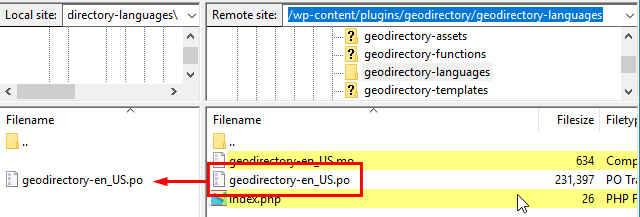
  2. Using FTP or your host’s control panel, download the plugins default .po file to your local machine:
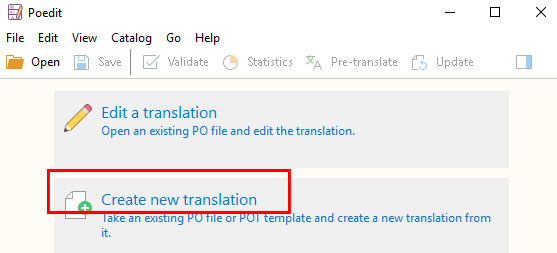
  3. Open the Poedit program and select Create new translation:
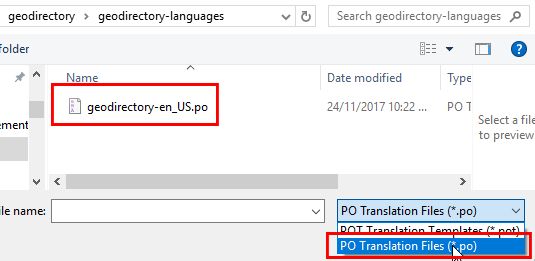
  4. Navigate to the .po file you downloaded at step 2, and open the file:
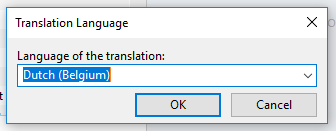
  5. Poedit will ask you to select the new language:
  6. Make sure to select exactly the same language you have at WP > Settings > General:
  7. Now save the file:
    1. Poedit will give you the correct extension, in our example that will be nl_BE.po.
    2. Make sure that the rest of the filename saved is the same as the original .po file, in our example that will be geodirectory-nl_BE.po.
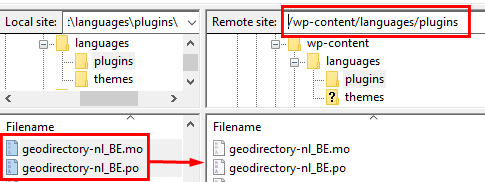
    3. You will need to upload the newly created files to /wp-content/languages/plugins/ on your server, so we suggest you save it to a copy of the same folder on your local machine to make
    4. You will see that Poedit creates 2 files: geodirectory-nl_BE.po and geodirectory-nl_BE.mo
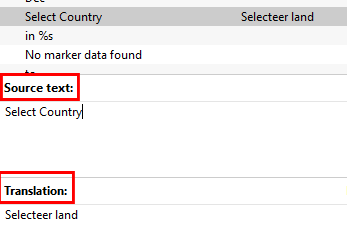
  8. Now translate any language string you want, and save the file once finished:
  9. When you are ready, upload both the .mo and .po file to the /wp-content/languages/plugins/ folder on the server.
    Create the folder if it does not exist yet:
  10. Go to your website and refresh to see your changes 🙂

More information

  1. Translation FAQs.
  2. You can find some ready made translations in our languages project, find out more here.
  3. Translating themes.
  4. Translating GD addons.