
This page is a work in progress …
When you install the Location Manager Addon, you’ll find a number of new GD widgets in the appearance section of your WP admin area.
| Widget name | Can be used on these pages: | |||||
| Home | Listings | Search | Detail | Author | Non-GD pages | |
| GD > Location Description |  |
 |
|
|
|
|
| GD > Popular Location | |
|
|
|
|
|
GD > Location Description
- For each location (city or town), you can add custom content for both the meta description and on-page content.
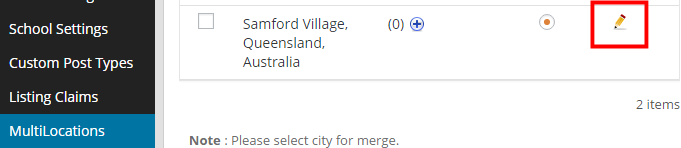
- Navigate to GeoDirectory > Multilocations > Manage Location and filter for the location.
- Then choose edit:
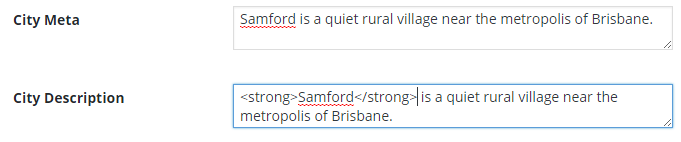
- Towards the bottom of the editing page, you will find City Meta and City Description fields.
Enter your data (you can use HTML in the City Description field):
- The City Meta data will now be added to the source of the relevant location page:

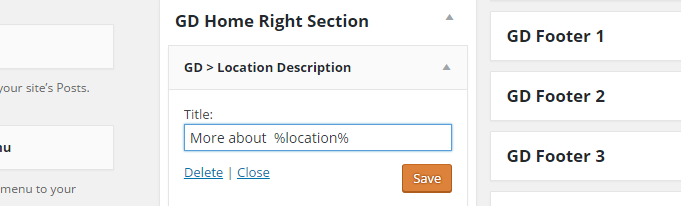
- To add the City Description to the page, add the GD > Location Description widget to any widget area of the Home (Location) sections.
You can use %location% in the title, that will adjust to the location name:
- This is how it will show on the location page (The widget will only show on location pages that have custom data added):

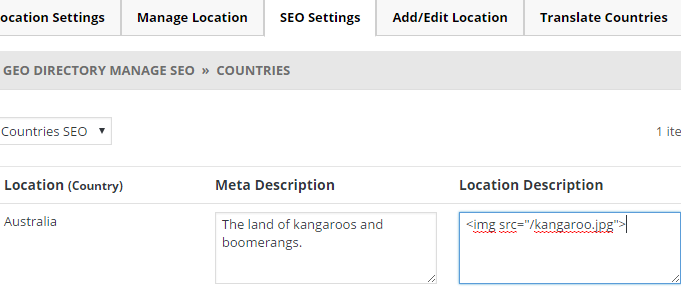
- For regions and countries, you will find the Meta Description and Location Description fields at the SEO Settings tab:
GD > Popular Location
- This widget will add a list of links to locations on your pages.
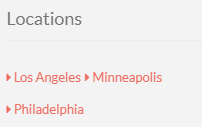
- Look in the sidebar of this demo page for an example.
Options
- Title: Leave blank if you do not want a heading
- Number of locations: By default all locations will be displayed, unless you add a number here.
- Pagination:
- Don’t filter for current location: by default, the widget will only display links to locations within the selected country or region. Ticking this option will display popular locations outside the selected country or region too.