These are the sections you will find when you install the GeoDirectory Core (free) plugin only:
Overview – General – Google Analytics – Design – Permalinks – Notifications – Set Default Location – Place Settings – Theme Compatibility – Import & Export – GD Tools
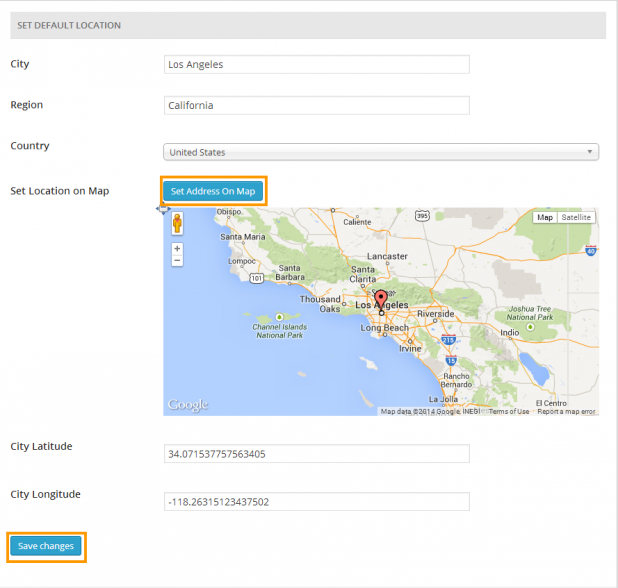
GeoDirectory > Set Default Location
After you activated your GeoDirectory plugin, the first thing to do is to set a Default Location to get the plugin to work.
You have two ways to set the default location:
#1 Enter a city, region and country
for your default location and then click Set Address On Map, this will set the GPS info as required and move the map marker to the correct location.
City: This refers to city, town etc.
Region: State, Province, etc, depending on your location.
Then click Save changes.
There is no need to enter the latitude or longitude.
Allow your site to connect to the Google database after you click Set Address On Map and before you save your location. This makes sure that your location is entered correctly.
#2 You can drag the map marker
to the location you wish to use as a default location and we will try to fill in the location details, you should check the location details and make any corrections as required.
Then click Save changes to set the default location.
There is no need to enter the latitude or longitude.