Where can I find GeoDirectory Developers for hire?

If you need to hire one or more GeoDirectory Developers to customize your website, make sure to visit this directory of GeoDirectory developers for hire.

You will find Full Stack developers, Front end developers, Back end developers, Implementers and SEOs.

If you have a great experience with a developer, please don’t hesitate to give him a great review. If you had problems with one of them, you can get in touch with us directly and we will try to help negotiate a favorable solution. If that doesn’t happen, they’ll deserve your negative review.

GeoDirectory Discounts and Coupon Codes

Visitors frequently ask if there are any discounts or coupon codes available. We decided to create this page to inform our visitors and members about any ongoing promotions, discounts or valid coupon codes.

This is the only page to be referenced for official GeoDirectory discounts and coupon codes. If you find a coupon code in any another website and that coupon code is not referenced here, it might be expired or simply an inaccurate information.

List of valid coupon codes

15% discount on memberships only
CODE: 15PERCENTSUBS2020
Valid until December 31th, 2020

10% discount on all products or memberships
CODE: 10PERCENT2020
Valid until December 31, 2020

Recurring Promotions

Many themes and plugins Shops offer discounts regularly throughout the years, especially during the big yearly sales like Black Friday, Labour Day or End of Year sales just to name few of the most popular.

Since we started, we are offering every year a Black Friday through Cyber Monday sale with discounts of up to 40% (the percentage might change every year). At the moment that is the only recurring discount promotion that we honor every year and you may expect it this and next year too.

We may come up with other promotions throughout the year, but we decide for them on the spot and as such, they are not guaranteed.

Discounts for Non-Profit, NGOs and Charitable Organizations

We appreciate groups coming together to better our communities and the world in general. Unfortunately, our aggressive price point means we cannot provide any further discounts. To learn more about pricing, please see the GeoDirectory pricing page.

Supreme Directory Overview

Introduction:

Supreme Directory is a Child Theme of our free Directory Starter theme, that lets you create a modern directory portal with the help of GeoDirectory WordPress plugin.

Prerequisites:

Before installing our theme, lets install its dependencies.

  1. GeoDirectory (Required)
  2. Directory Starter ( Required since its the Parent Theme of Supreme Directory)

Permalinks Configuration:

Navigate to Settings > Permalinks > Common Settings. Make sure Post name is selected.

GeoDirectory Installation:

  1. Navigate to Plugins > Add New
  2. Search for GeoDirectory – Ultimate Business Directory
  3. Install it
  4. GeoDirectory needs at least one location in order to work. So Set a default location first by following this tutorial. ( Tip: If you need multi locations, check our MultiLocations addon )
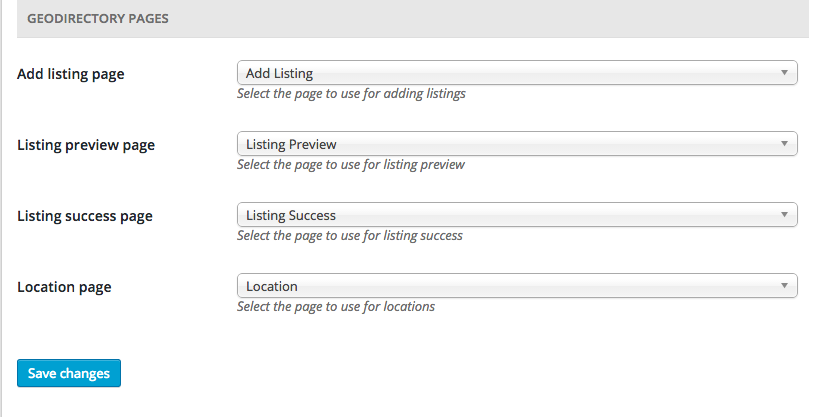
  5. You must set GeoDirectory Pages. Navigate to Geodirectory > Permalinks > Geodirectory Pages and set the pages:
    gdpages

We suggest to install dummy data before proceeding.

Directory Starter Theme Installation:

  1. Navigate to Appearance > Themes > Add New
  2. Enter “Directory Starter” in search box
  3. Install it
  4. Activate it
  5. For theme documentation visit here

Supreme Directory Installation:

Please follow this tutorial to install the theme.

How to change the logo

Supreme Directory Theme has several options available in the WordPress Customizer.
To change the logo:

  1. Navigate to WordPress – Appearance – Customizer
  2. Within the Customize Navigate to Header – Logo
  3. Upload your logo and publish the changes
  4. Visit your home page to see the changes

Home Page

for the home page you can use the default gd-home page or create a custom home page. In the demo we used the second approach and created the content below the featured area with Beaver Builder Lite.

After installing Supreme Directory, the home page used by default is gd-home, to change that, create a custom home page and than assign it as front page from Settings >> Reading (WordPress settings).

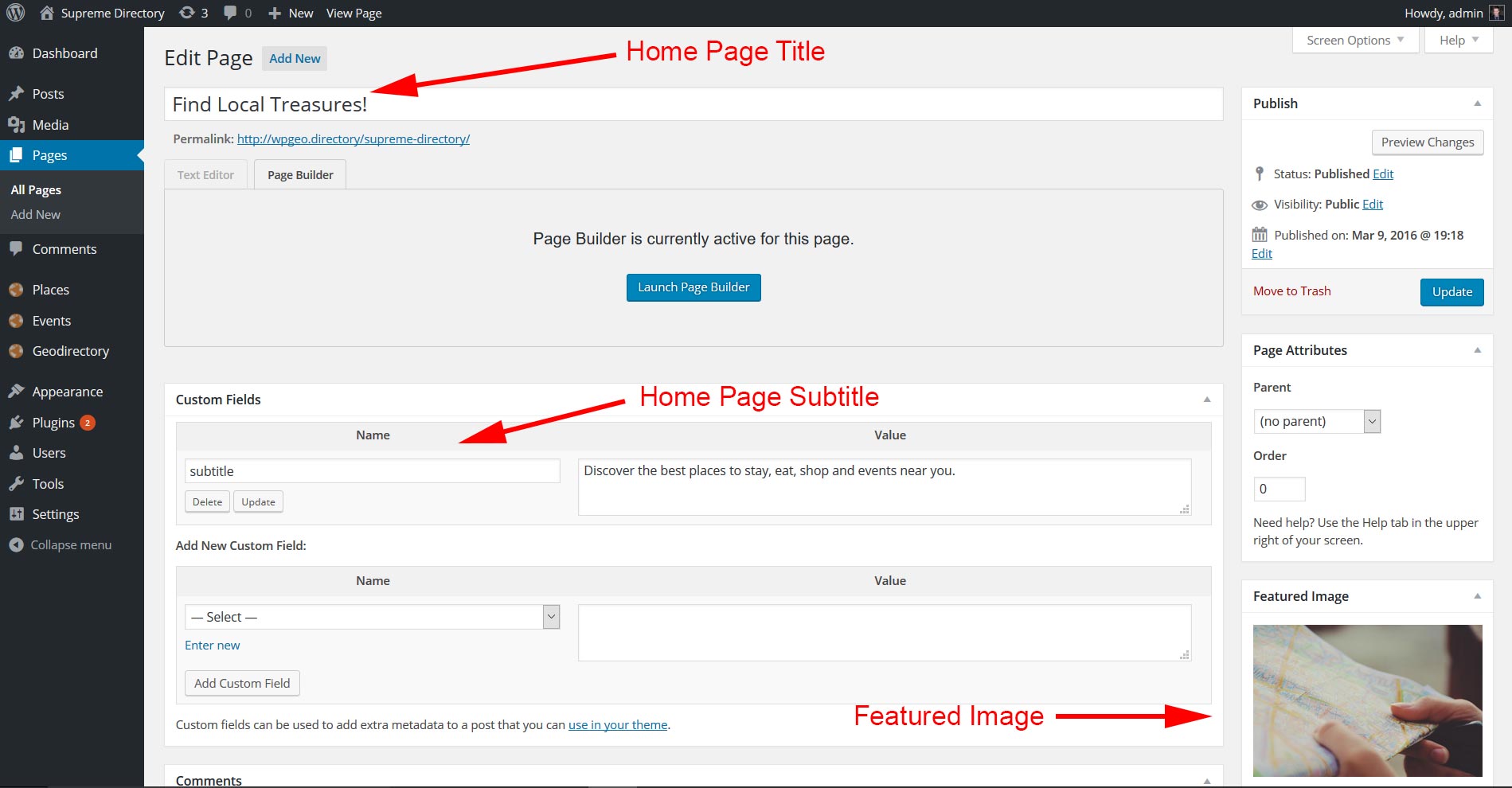
The image for the featured area is the page featured image. If you don’t add a featured image, the page will use a default image, that you can easily change from within your child theme. The suggested minimum size for Featured image is 1400×788. The higher the image the more perceivable will be the parallax effect.

The featured area title is the page title, while the subtitle is a custom field with key : subtitle.

If you decide to use the gd-home content can be built as usual with widgets.
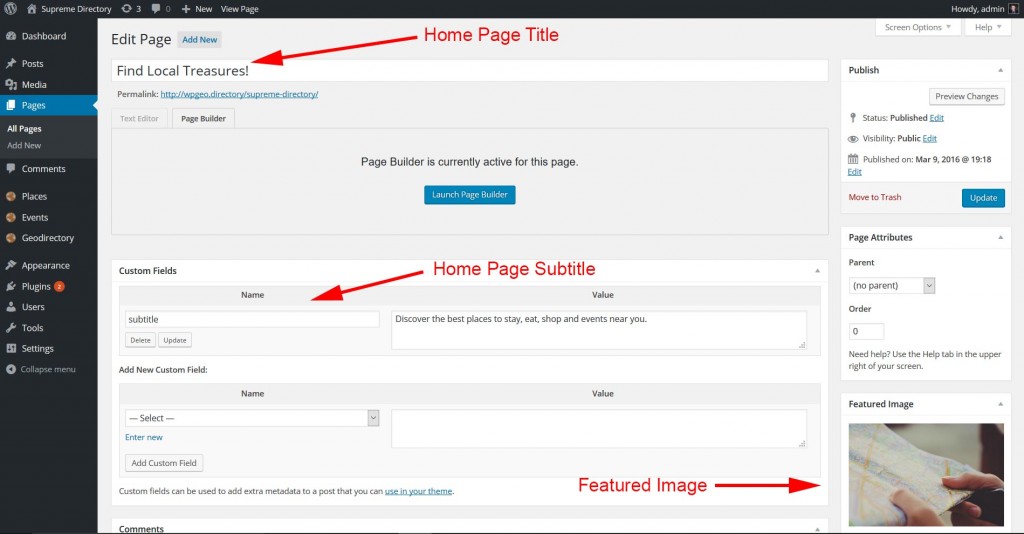
home

The search form and the popular category widget of the featured area, are progrmatically added to the template.

Location Page

The location page will work just like the home page with the exception that its content can only be edited via widgets (like the gd-home page).

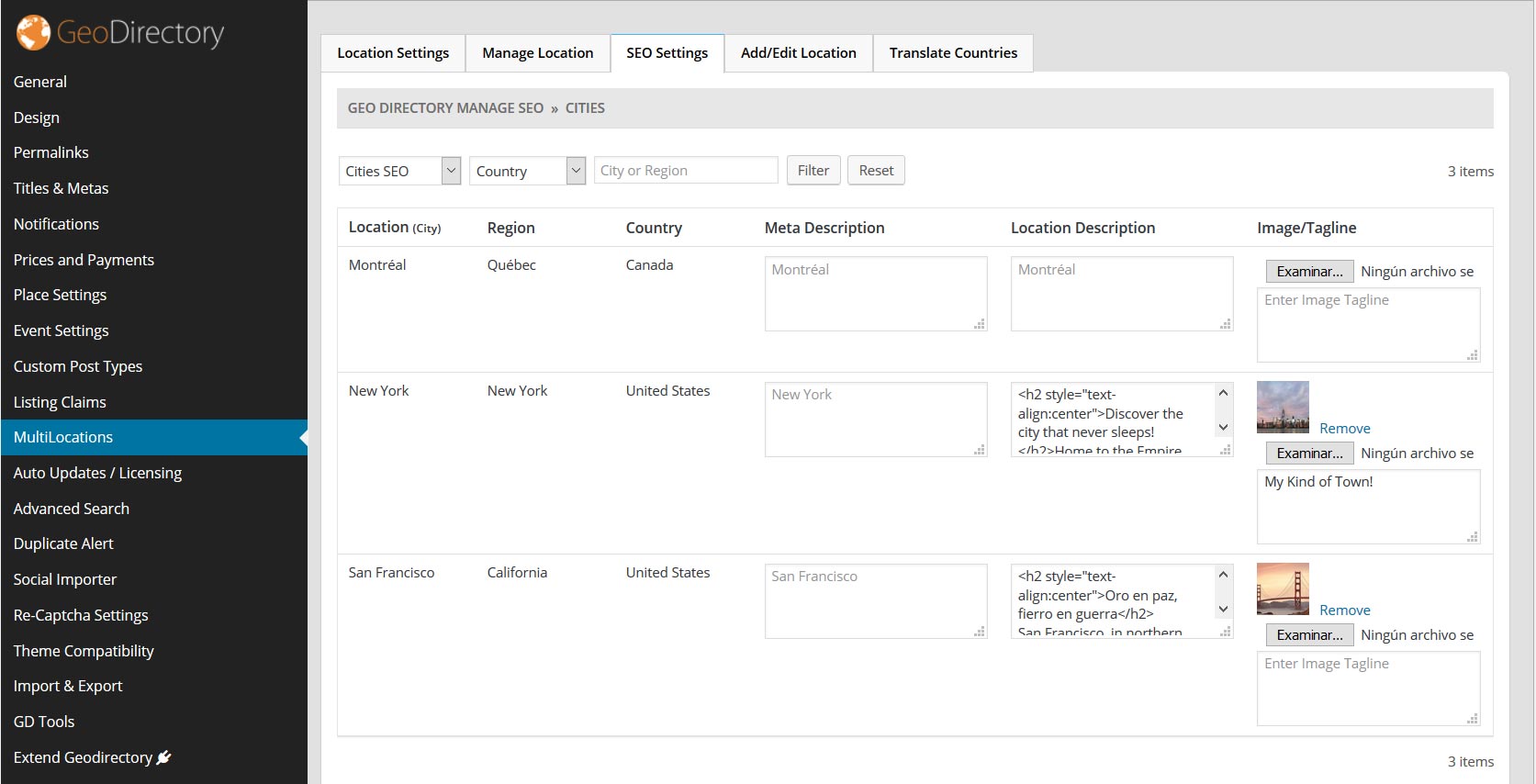
If you install the Location Manager add-on you can assign a featured image and a subtitle to each location (Country / Region / City) via Seo Settings tab of the Location Manager admin page. We recommend images 1400 x 788 px.
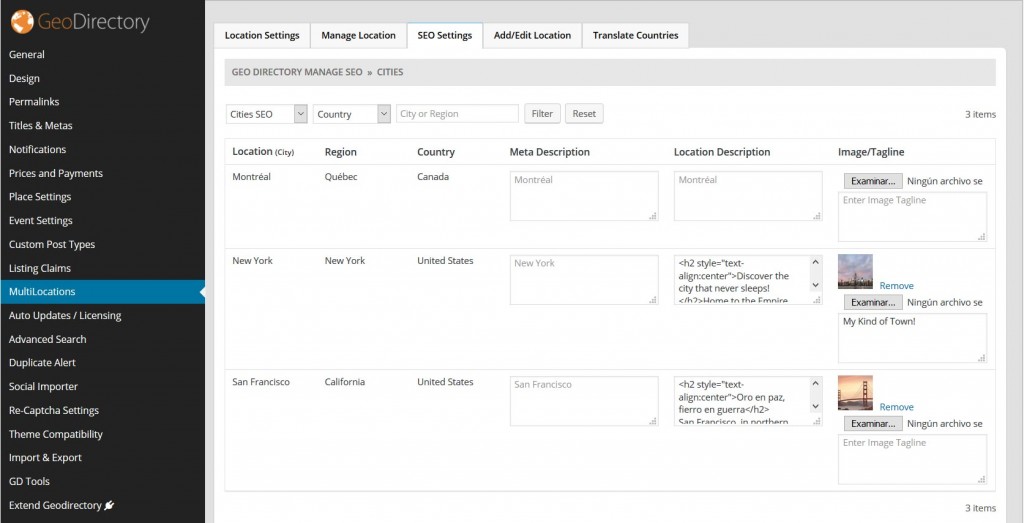
location

Listings, Search and Author Page

A fixed Map occupying 40% of the screen width, is programatically added to the right sidebar of these templates, no other widgets are accepted in this pages’ sidebar. You can move the map from the right to the left from GD >> Design >> Detail. You can add extra widgets only in the Top and Bottom widgets areas.

For more control of the Author page check out UsersWP GeoDirectory Integration.

Also the search widget is programatically included in these pages.

Listing Detail Page

Featured Image: The 1st image uploaded to the listing gallery is used as the featured image in the parallax hero section at the top of the detail page. The suggested minimum size for Featured image is 1400×788. However we must make sure they are not being resized. Here is the way to setup the recommended settings: go to GD >> Design >> Home and enable: Resize image large size (Use default wordpress media image large size for featured image upload. If unchecked then default geodirectory image large size ( 800×800 ) will be used.) Then go to Setting >> Media and set the large size max width to 1400 (or anything you prefer). That will stop you original image from being resized.

Custom fields: You can add fields to the core “Places” and choose where the fields show up on the Detail page. Visit the core places settings documentation and see the section about “Where to show”: https://wpgeodirectory.com/docs/core-place-settings/#custom

Addons and 3rd party plugins

Supreme Directory has been tested with all GeoDIrectory Add-ons and it is compatible with UsersWP, Invoicing, and Buddypress.

How to preserve the changes you make to Supreme Directory Theme

Supreme Directory Theme is a Child them of Directory Starter. It is not possible to make a child theme of a child theme. Every time there is a new version of Supreme Directory Theme, the files will be overwritten with the update.
To preserve your changes, you will need to:

  1. Place CSS in GD > Design > Scripts > Custom style css code
  2. Place PHP into a new Snippet using the Code Snippets plugin

Common changes for the Supreme Directory Theme

Please refer to the following pages to find common changes that our members have made to the Supreme Directory Theme

  1. FAQs for Supreme Directory Theme: https://wpgeodirectory.com/docs/supreme-theme-faqs/
  2. Common Code Snippets: https://wpgeodirectory.com/docs/common-code-snippets/

Core Shortcodes

On this page

Home Page Map Custom Post Type Categories Listings Page Map Listing Slider Login Box Popular Post Category Popular Post View Recent Reviews Related Listings Search GD Listings GD Best Of Add Listing Form

Home Page Map

Shortcode: [gd_homepage_map]

This shortcode is the equivalent of the GD > GMap – Home Page widget.

Parameters:
  • width – A number of pixels or percent (default = 960px)
  • height – A number of pixels (default = 425px)
  • maptype – One of HYBRID, SATELLITE or ROADMAP (default = ROADMAP) – not case sensitive
  • zoom – A number between 1 (narrowest) or 19 (widest) (default = 13)
  • autozoom – True or False (default = false)
  • child_collapse – True or False (default = false)
  • scrollwheel – True or False (default = false)
  • marker_cluster – 1 or on – 0 or off, (default = 0)

Example: [gd_homepage_map width=100% height=300 scrollwheel=false]

Custom Post Type Categories

Shortcode: [gd_cpt_categories]

This shortcode is the equivalent of the GD > CPT – Categories widget.

Parameters:
  • title – the title for the cpt categories
  • post_type – The custom post types to use (default = shows all) (examples: ‘gd_place’ or ‘gd_place,gd_event’)
  • hide_empty – Hide empty categories? True or False (default = false)
  • show_count – Show category count? True or False (default = false)
  • hide_icon – Hide category icon? True or False (default = false)
  • cpt_left – Show CPT on same line? True or False (default = false)
  • sort_by – Categories sort by. ‘az’ or ‘count’ (default = count)
  • max_count – Maximum number of sub-categories count. (default = shows all)
  • max_level – Maximum level of sub-categories depth. (default = 1)

Example: [gd_cpt_categories show_count=1]

Listings Page Map

Shortcode: [gd_listing_map]

This shortcode is the equivalent of the GD > GMap – Listing Page widget.

Parameters:
  • width – A number of pixels or percent (default = 294px)
  • height – A number of pixels or percent (default = 370px)
  • zoom – A number between 1 (narrowest) or 19 (widest) (default = 13)
  • autozoom – True or False (default = false)
  • sticky – True or False (default = false)
  • scrollwheel – True or False (default = false)
  • marker_cluster – 1 or on – 0 or off, (default = 0)
  • maptype – One of HYBRID, SATELLITE or ROADMAP (default = ROADMAP) – not case sensitive
  • post_type – The slug for the post_type (default = gd_place)
  • event_type – The events filter (for gd_event CPT only) (default = all)
    Options: all, today, upcoming, past
  • category – ID number of the category to show – if more than one, separate by comma (default = 0 for all)

Example: [gd_listing_map width=100% height=300 scrollwheel=false category="2,3,4"]

Listing Slider

Shortcode: [gd_listing_slider]

This shortcode is the equivalent of the GD > Listing Slider widget.

Parameters:
  • post_type – The slug for the post_type (default = gd_place)
  • category – ID number of the category to show (default = 0 for all)
  • post_number – Number of posts to show (default = 5)
  • slideshow – True or False (default = false)
  • animation_loop – True or False (default = false)
  • direction_nav – True or False (default = false)
  • slideshow_speed – A positive number of milliseconds (default = 5000)
  • animation_speed – A positive number of milliseconds (default = 600)
  • animation – Either slide or fade (default = slide)
  • order_by – Options available: az, latest, featured, high_review, high_rating, random (default = latest)
  • show_title – True or False (default = false)(this is the post title over image)
  • show_featured_only – True or False (default = false)
  • title – the title for the title of the slider

Example: [gd_listing_slider post_number=5 category=3 slideshow=true show_featured_only=true]

Login Box

Shortcode: [gd_login_box]

This shortcode is the equivalent of the GD > Login box widget.

No parameters

Example: [gd_login_box]

Popular Post Category

Shortcode: [gd_popular_post_category]

This shortcode is the equivalent of the GD > Popular Post Category widget.

Parameters:
  • category_limit – Number of categories to show (default = 15)
  • title – (default = ‘Popular Categories’)
  • parent_only – true or false (default = ‘true’)

Example: [gd_popular_post_category category_limit=10 parent_only=true]

Popular Post View

Shortcode: [gd_popular_post_view]

This shortcode is the equivalent of the GD > Popular Post View widget.

Parameters:
  • post_type – The slug for the post_type (default = gd_place)
  • category – Category IDs to filter listings. Example: ’12’ or ‘12,33’. (default = 0 for all)
  • post_number – Number of posts to show (default = 5)
  • layout – Number of columns to show (default = 2)
  • add_location_filter – Filter listings by current location. (true or false, default = false
  • list_sort – Options available: az, latest, featured, high_review, high_rating, random (default = latest)
  • use_viewing_post_type – Filter listings by current viewing post type. (true or false, default = true)
  • character_count – Number of characters to show from the Excerpt (Min/default = 20)
  • listing_width – A percent between 20 and 100 (default = ‘’)
  • show_featured_only – Display only featured listings. (true or false, default = false)
  • show_special_only – Display only listings with Special Offers. (true or false, default = false)
  • with_pics_only – Only display listings which have an image available. (true or false, default = false)
  • with_videos_only – Only display listings which have video available. (true or false, default = false)
  • title – (default = ‘the name of the custom post type’)
  • hide_if_empty – Hide widget if no listings found. (true or false, default = false)

Example:

[gd_popular_post_view category=3 layout=5 add_location_filter=true character_count=0 show_featured_only=true]

Recent Reviews

Shortcode: [gd_recent_reviews]

This shortcode is the equivalent of the GD > Recent Reviews widget.

Parameters:
  • count – Number of posts to show (default = 5)

Example: [gd_recent_reviews count=5]

Related Listings

Shortcode: [gd_related_listings]

This shortcodes is the equivalent of the GD > Related Listings widget.

Parameters:
  • post_number – Number of posts to show (default = 5)
  • relate_to – Either category or tags (default=category)
  • layout – Number of columns to show (default = 2)
  • add_location_filter – True or False (default = false)
  • listing_width – A percent between 20 and 100 (default = ‘’)
  • list_sort – Options available: az, latest, featured, high_review, high_rating, random (default = latest)
  • character_count – Number of characters to show from the Excerpt (Min/default = 20)

Example: [gd_related_listings relate_to=tags layout=3 add_location_filter=true list_sort=featured character_count=0]

Search

Shortcode: [gd_advanced_search]

This shortcode is the equivalent of the GD > Search widget.

No parameters unless Advanced Search addon is active:

  • show_adv_search – If the advanced search section should be shown: (‘default’, ‘always’, ‘searched’)
  • post_type – The custom post types to show by default (examples: ‘gd_place’ or ‘gd_event’)

Example: [gd_advanced_search show_adv_search='always']

GD Listings

Shortcode: [gd_listings]

This shortcode is almost the equivalent of what you see on the GD category listings pages.

Parameters:
  • title – (default = )
  •  – Set the title(default = “”)
  • post_type – The custom post type to use (default=gd_place)
  • category – The category ids “1,3” (default = ”)
  • list_sort – Options available: az, latest, featured, high_review, high_rating, random (default = latest)
  • event_type – Event type filter. Should today, upcoming, past, all. Default empty.(default = “”)
  • post_number – Number of posts to show per page (default = 10)
  • post_author – Filter by current_user, current_author or ID (default = unfiltered)
    • post_author=”current_user” will filter the listings by author id of the logged in user
    • post_author=”current_author” will filter the listings by author id of current viewing post/listing
      [Only for Detail pages: this option will show other listings of the same author on the detail page only]
      [also works on Author pages, but only if you do not use any other plugin that replaces the Author page (for example UsersWP)]
    • post_author=”11″ will filter the listings by author id = 11
    • post_author=” “ If left empty, all listings will be shown
  • layout – Number of columns to show (default = 2)
  • listing_width – A percent between 20 and 100 (default = ‘’)
  • character_count – Number of characters to show from the Excerpt (Min/default = 20)
  • add_location_filter – True or False (default = true)
  • show_featured_only – options are 1 [true] or 0 [false] (default = 0)
  • show_special_only – options are 1 [true] or 0 [false] (default = 0)
  • with_pics_only – Display listings with images – options are 1 [true] or 0 [false] (default = 0)
  • with_videos_only – Display listings with videos – options are 1 [true] or 0 [false] (default = 0)
  • with_pagination – Display pagination – options are 1 [true] or 0 [false] (default = 1)
  • top_pagination – Display pagination on top – options are 1 [true] or 0 [false] (default = 0)
  • bottom_pagination – Display pagination on bottom – options are 1 [true] or 0 [false] (default = 1)
  • tags – Filter by tags (default = unfiltered), for example tags=”Museum,Garden”. Note that this filter uses the name/title of the tag, not the slug, and that spaces should be removed. ex. “Great Place” becomes “GreatPlace”.
  • show_favorites_only – options are 1 [true] or 0 [false] (default = 0)
  • favorites_by_user – Values should be “current”‘ or user id [eg 5] or empty (default = empty)
    • favorites_by_user=”current”, shortcode will show the listings which are favorites by author of current viewing post.
    • favorites_by_user=”12″, shortcode will show the listings which are favorites by user id “12”.
    • favorites_by_user=”” or empty, shortcode will show the listings which are favorites by current logged user(if logged in).

Example:

[gd_listings post_type="gd_place" layout=4 category="1,3" post_number="4" list_sort="high_review"]
[gd_listings post_type="gd_event" add_location_filter="0" layout="4" post_number="4" show_favorites_only="1"]


Note:
When displaying a grid of 4 or 5 listings the description will be automatically hidden. To unhide it, use the following custom CSS at GD – Design – Scripts – Custom CSS
[css]
.geodir_category_list_view li.geodir-gridview .geodir-content .geodir-entry-content {
display: block;
}
[/css]

GD Best of

Shortcode: [gd_bestof_widget]

Parameters:

      • title – widget title (default = ”)
      • post_type – The custom post type to use (default=gd_place)
      • post_limit – Number of posts to show (default = 5)
      • categ_limit – The number of category to show (default = 3)
      • character_count – Number of characters to show from the Excerpt (Min/default = 20)
      • use_viewing_post_type – overridess parameter post_type if visiting another custom port type archive (default = false)
      • add_location_filter – True or False (default = false)
      • tab_layout – bestof-tabs-on-top or bestof-tabs-on-left or bestof-tabs-as-dropdown (default = bestof-tabs-on-top)

Example:

[gd_bestof_widget title="widget title" post_type=gd_hotel post_limit=5 categ_limit=6 character_count=50 use_viewing_post_type=true add_location_filter=true tab_layout=bestof-tabs-as-dropdown]


Add Listing Form

Shortcode: [gd_add_listing]

  1. This shortcode allows you to create your own Add Listing page(s).
  2. By default GD uses the same Add Listing page to generate different forms for all different Custom Post Types and/or price packages.  For example:
    1. https://yoursite.com/add-listing/?listing_type=gd_place&package_id=1
    2. https://yoursite.com/add-listing/?listing_type=gd_event&package_id=6
  3. Do not add this shortcode to the Add Listing page selected at GD > Permalinks > GeoDirectory Pages > Add Listing page.
    That page is reserved for GD generated pages, so only add this shortcode to any extra WP pages.
  4. After you have created all your custom Add Listing pages, you might have to permanently delete the temporary default Add Listing page that is selected at GD > Permalinks > GeoDirectory Pages > Add Listing page before your custom Add Listing pages will work.
Parameters:
  • listing_type – The custom post type to use (default=gd_place)
  • login_msg – The message to show to logged out users (default = You must login to post.)
  • show_login – show the login widget to logged out users (default = false)

Example: [gd_add_listing listing_type=gd_event login_msg="Please register and login to submit listings" show_login=true]