
Introduction:
Supreme Directory is a Child Theme of our free Directory Starter theme, that lets you create a modern directory portal with the help of GeoDirectory WordPress plugin.
Prerequisites:
Before installing our theme, lets install its dependencies.
- GeoDirectory (Required)
- Directory Starter ( Required since its the Parent Theme of Supreme Directory)
Permalinks Configuration:
Navigate to Settings > Permalinks > Common Settings. Make sure Post name is selected.
GeoDirectory Installation:
- Navigate to Plugins > Add New
- Search for GeoDirectory – Ultimate Business Directory
- Install it
- GeoDirectory needs at least one location in order to work. So Set a default location first by following this tutorial. ( Tip: If you need multi locations, check our MultiLocations addon )
- You must set GeoDirectory Pages. Navigate to Geodirectory > Permalinks > Geodirectory Pages and set the pages:
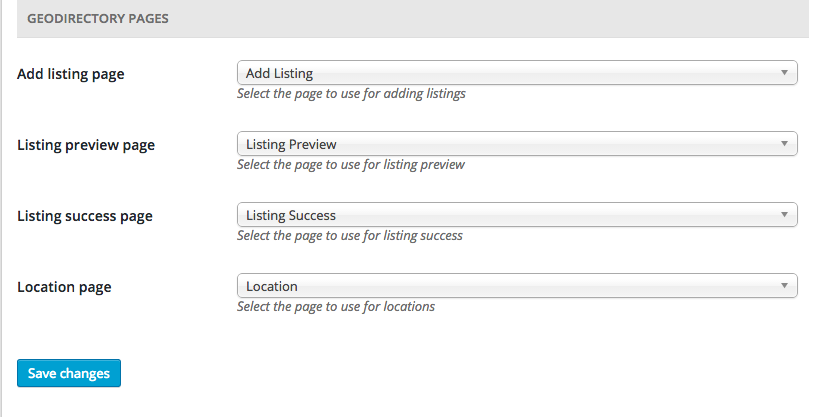
We suggest to install dummy data before proceeding.
Directory Starter Theme Installation:
- Navigate to Appearance > Themes > Add New
- Enter “Directory Starter” in search box
- Install it
- Activate it
- For theme documentation visit here
Supreme Directory Installation:
Please follow this tutorial to install the theme.
How to change the logo
Supreme Directory Theme has several options available in the WordPress Customizer.
To change the logo:
- Navigate to WordPress – Appearance – Customizer
- Within the Customize Navigate to Header – Logo
- Upload your logo and publish the changes
- Visit your home page to see the changes
Home Page
for the home page you can use the default gd-home page or create a custom home page. In the demo we used the second approach and created the content below the featured area with Beaver Builder Lite.
After installing Supreme Directory, the home page used by default is gd-home, to change that, create a custom home page and than assign it as front page from Settings >> Reading (WordPress settings).
The image for the featured area is the page featured image. If you don’t add a featured image, the page will use a default image, that you can easily change from within your child theme. The suggested minimum size for Featured image is 1400×788. The higher the image the more perceivable will be the parallax effect.
The featured area title is the page title, while the subtitle is a custom field with key : subtitle.
If you decide to use the gd-home content can be built as usual with widgets.
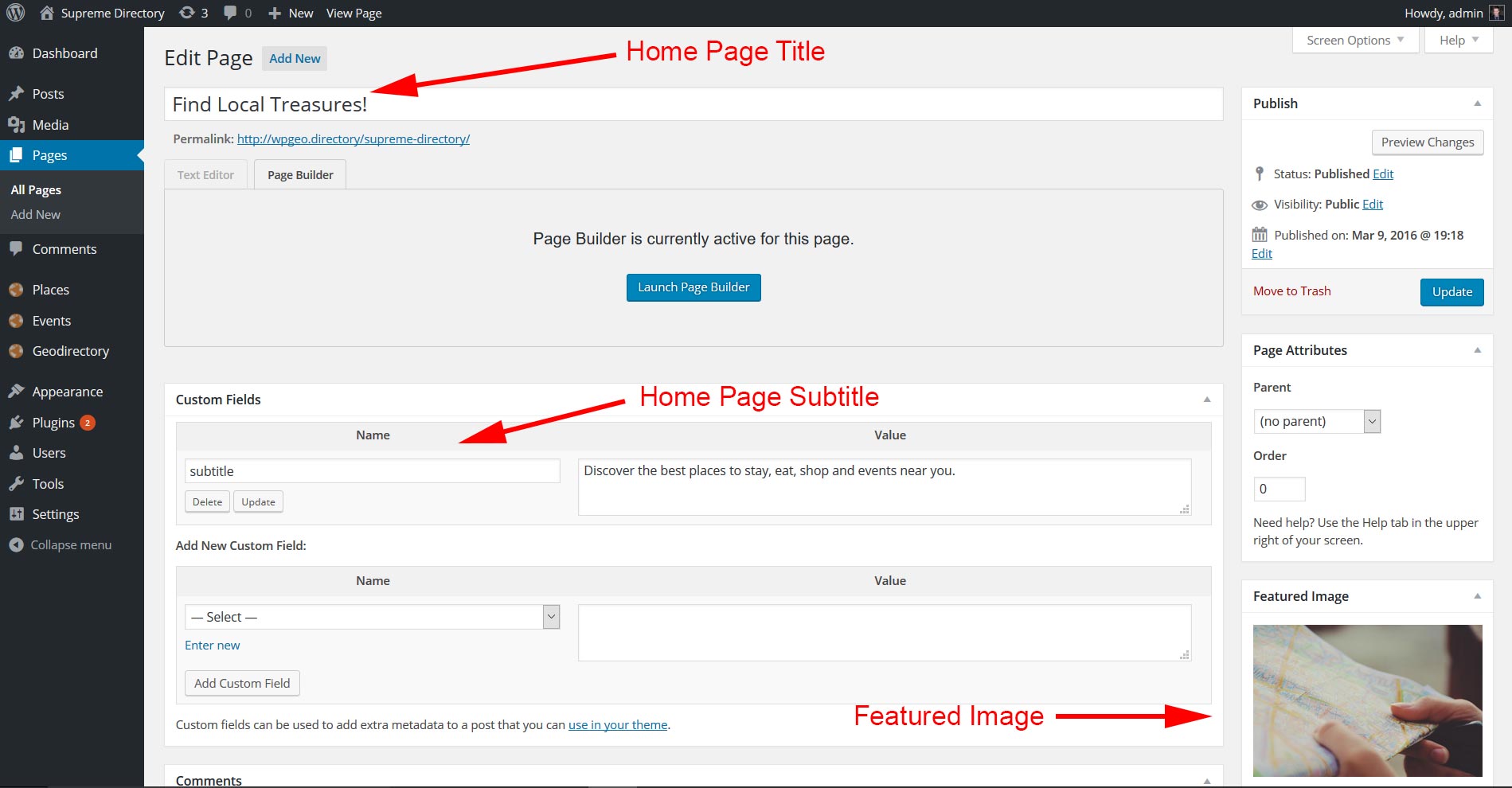
The search form and the popular category widget of the featured area, are progrmatically added to the template.
Location Page
The location page will work just like the home page with the exception that its content can only be edited via widgets (like the gd-home page).
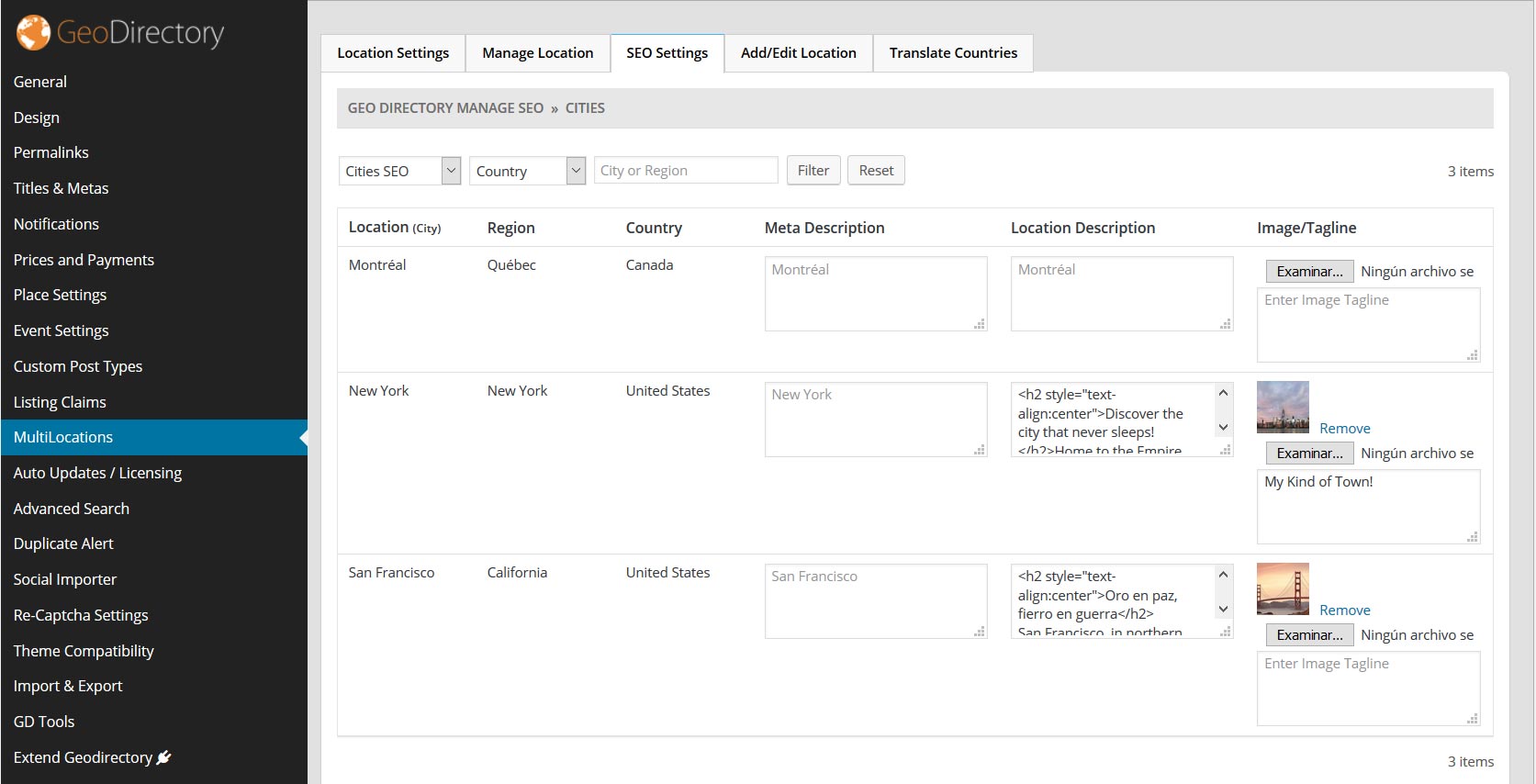
If you install the Location Manager add-on you can assign a featured image and a subtitle to each location (Country / Region / City) via Seo Settings tab of the Location Manager admin page. We recommend images 1400 x 788 px.
Listings, Search and Author Page
A fixed Map occupying 40% of the screen width, is programatically added to the right sidebar of these templates, no other widgets are accepted in this pages’ sidebar. You can move the map from the right to the left from GD >> Design >> Detail. You can add extra widgets only in the Top and Bottom widgets areas.
For more control of the Author page check out UsersWP GeoDirectory Integration.
Also the search widget is programatically included in these pages.
Listing Detail Page
Featured Image: The 1st image uploaded to the listing gallery is used as the featured image in the parallax hero section at the top of the detail page. The suggested minimum size for Featured image is 1400×788. However we must make sure they are not being resized. Here is the way to setup the recommended settings: go to GD >> Design >> Home and enable: Resize image large size (Use default wordpress media image large size for featured image upload. If unchecked then default geodirectory image large size ( 800×800 ) will be used.) Then go to Setting >> Media and set the large size max width to 1400 (or anything you prefer). That will stop you original image from being resized.
Custom fields: You can add fields to the core “Places” and choose where the fields show up on the Detail page. Visit the core places settings documentation and see the section about “Where to show”: https://wpgeodirectory.com/docs/core-place-settings/#custom
Addons and 3rd party plugins
Supreme Directory has been tested with all GeoDIrectory Add-ons and it is compatible with UsersWP, Invoicing, and Buddypress.
How to preserve the changes you make to Supreme Directory Theme
Supreme Directory Theme is a Child them of Directory Starter. It is not possible to make a child theme of a child theme. Every time there is a new version of Supreme Directory Theme, the files will be overwritten with the update.
To preserve your changes, you will need to:
- Place CSS in GD > Design > Scripts > Custom style css code
- Place PHP into a new Snippet using the Code Snippets plugin
Common changes for the Supreme Directory Theme
Please refer to the following pages to find common changes that our members have made to the Supreme Directory Theme
- FAQs for Supreme Directory Theme: https://wpgeodirectory.com/docs/supreme-theme-faqs/
- Common Code Snippets: https://wpgeodirectory.com/docs/common-code-snippets/