Location Manager Shortcodes

Location Tab Switcher Location Switcher Current Location Name Location Description Location Neighbourhoods Popular Locations Popular in Neighbourhood

Location Tab Switcher

Shortcode: [gd_location_tab_switcher]

This is like the location switcher usually added to the menu.

Parameters:
  • none
Example:

Location Switcher

Shortcode: [gd_location_switcher]

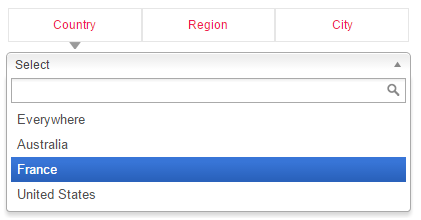
This is best used on a page or a wide content area, this shows searchable lists of locations.

 All Locations Demo

Parameters:

  • none

Current Location Name

Shortcode: [gd_current_location_name]

  1. Returns the current location name
  2. Only works on GD pages that have the location name in the URL, so GD > Permalinks need to be set to include
Parameters:
  • none

Location Description

Shortcode: [gd_location_description]

return the current location description

Parameters:

  • none

Location Neighbourhoods

Shortcode: [gd_location_neighbourhood] or [gd_location_neighborhood]

returns list of current neighbourhoods

Parameters:

  • none

Popular Locations

Shortcode: [gd_popular_location]

return a list of popular locations

Parameters:

  • none


Popular in Neighbourhood

Shortcode: [gd_popular_in_neighborhood] or [gd_popular_in_neighborhood]

Parameters:

  • post_type – The slug for the post_type (default = gd_place)
  • category – ID number of the category to show (default = 0 for all)
  • list_sort – One of az, latest, featured, high_review, high_rating, random (default = latest)
  • post_number – Number of posts to show (default = 5)
  • layout – Number of columns to show (default = 2)
  • character_count – Number of characters to show from the Excerpt (Min/default = 20)

Social Importer Addon

IMPORTANT: Facebook requires that all apps be submitted to Facebook for review (link). Facebook review is very slow, and so far we are not aware of any Social Importer apps having received approval for the permissions required.
See this forum topic for more information.

Introduction
Installation & Translation
Facebook Setup Update March 2018 Posting to FB
Yelp Setup

 Introduction

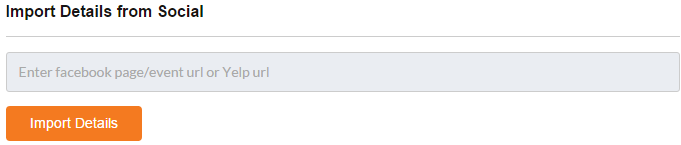
The Social Importer Addon allows your listing owners to import their business or event information from Facebook, or their business information from Yelp. Users who visit your site’s frontend Add-Listing page can enter the URL in the dedicated field and then click Import to bring their details into the form. Once your GD site is connected to your FB app, you can also choose a FB page where new GD listings will be posted.

Once set up, an extra field will be added to the Add listing forms:

Installation

  • Adding the Social Importer Addon to your site is done in the usual way, see Installing Addons.
  • “Social Importer” will be added to your GD menu once the Addon is activated

Setup Facebook

Facebook:

  1. Login to your Facebook developer account.
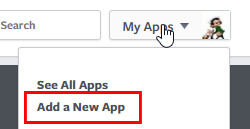
  2. Go to My Apps > Add a New App
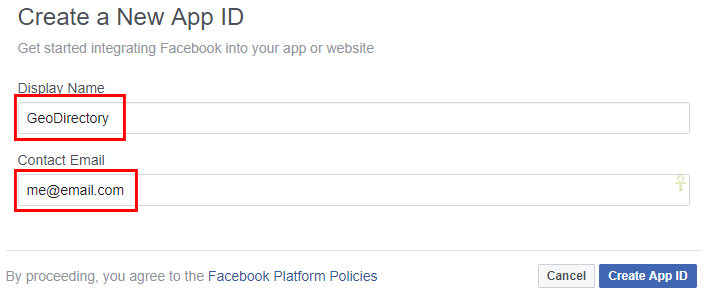
  3. On the next screen, add a Display Name and your email, and then click Create App ID:
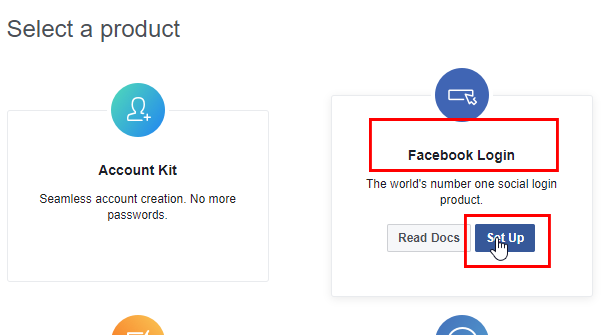
  4. Next select Facebook Login ( earlier app versions automatically added Facebook Login, so it may already be set up as per image in step 10):
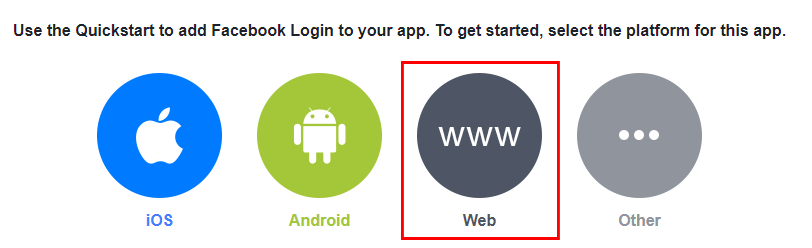
  5. Choose Website:
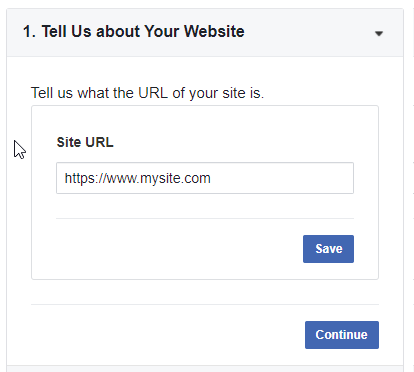
  6. On the next screen, all you have to enter is your site URL, exactly as it is at WP Settings > General > WordPress Address (URL):
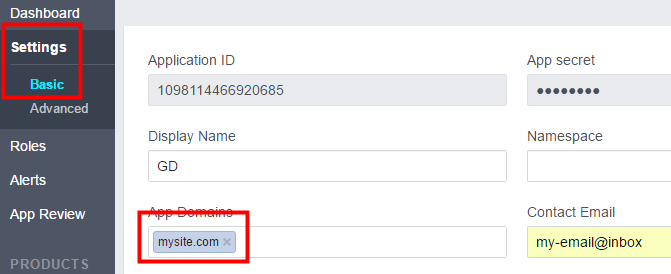
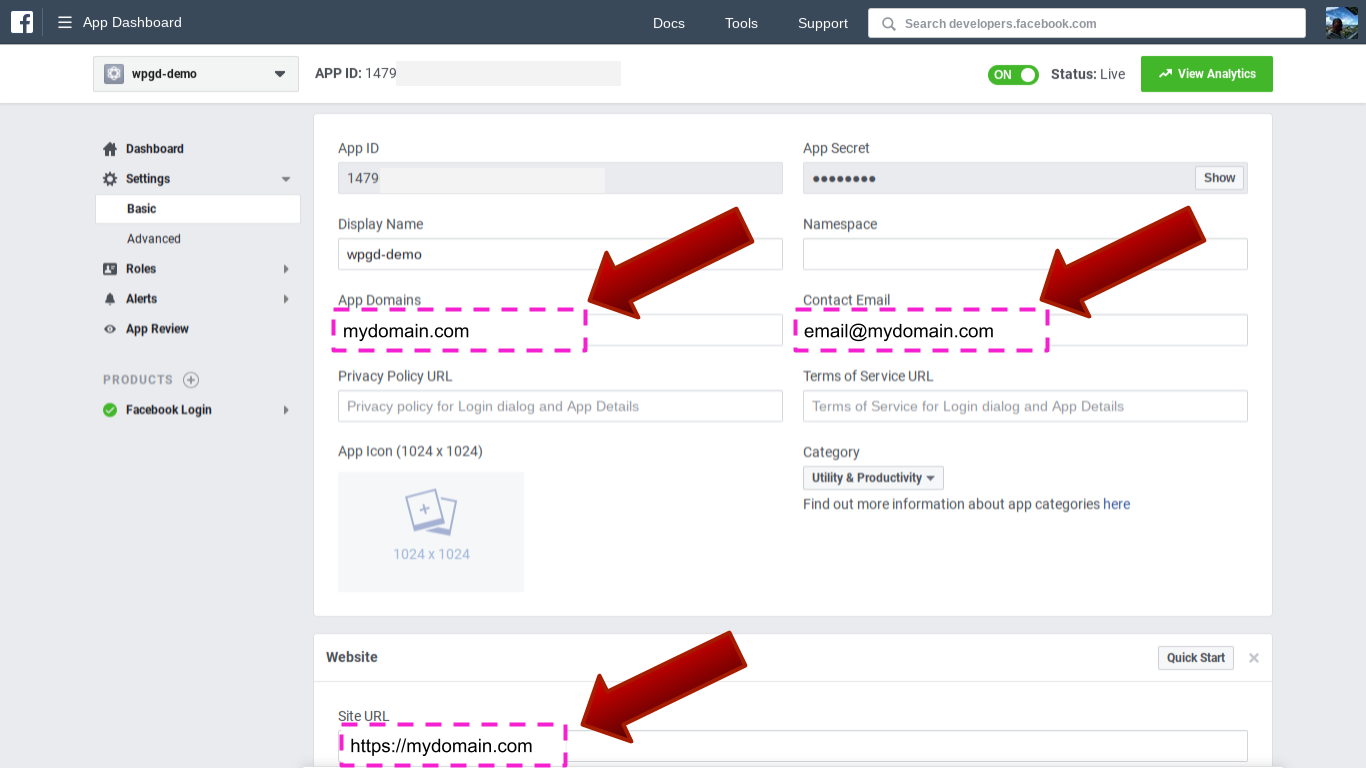
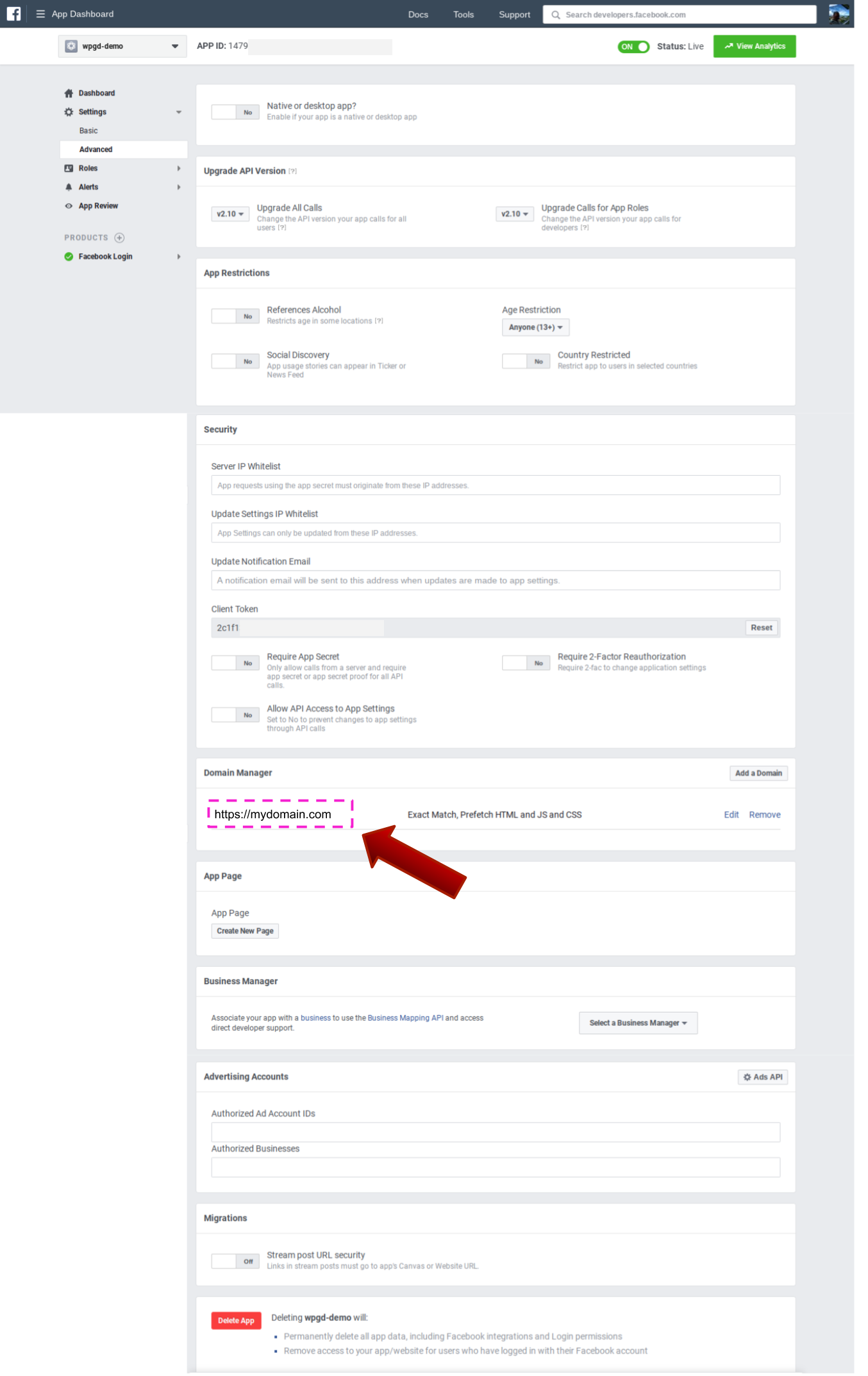
  7. Under Settings > Basic, enter your website domain (not URL or web address), example: mysite.com

  8. Click Save Changes.
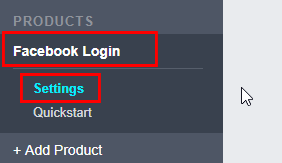
  9. Go to Products > Facebook Login (if it is not listed then add it under products):
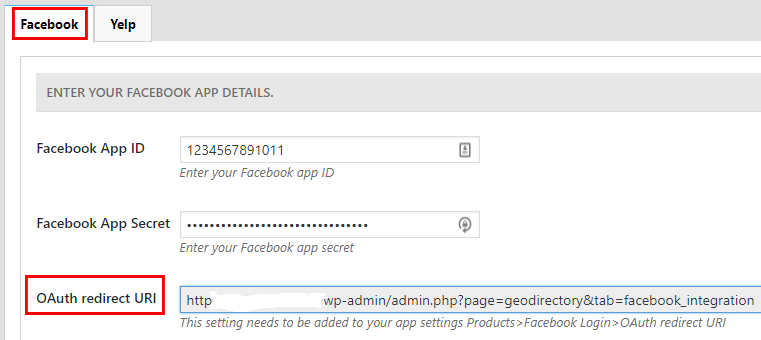
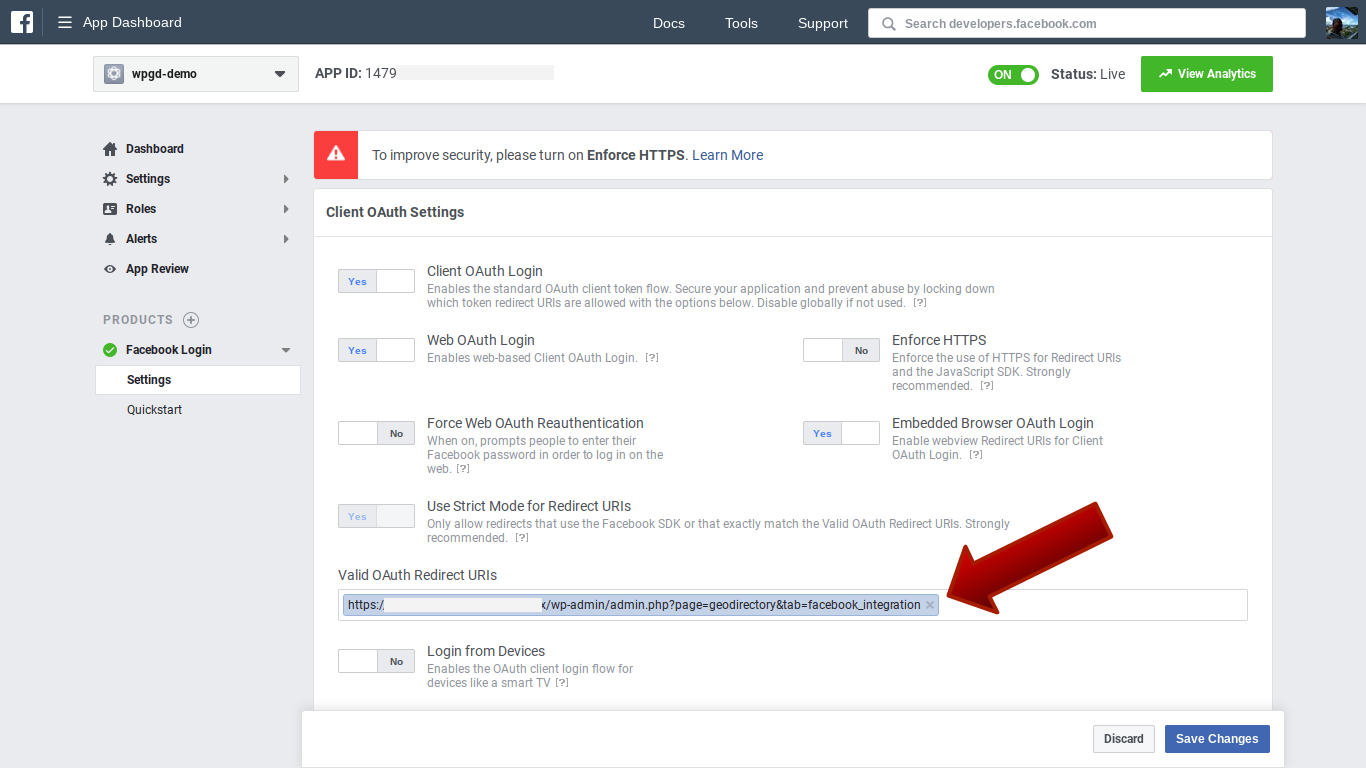
  10. You need to enter your OAuth redirect URI, which you can find at GD > Social Importer > Facebook > OAuth redirect URI:
    The exact URL should be in the format: https://my-website.com/admin.php?page=geodirectory&tab=facebook_integration
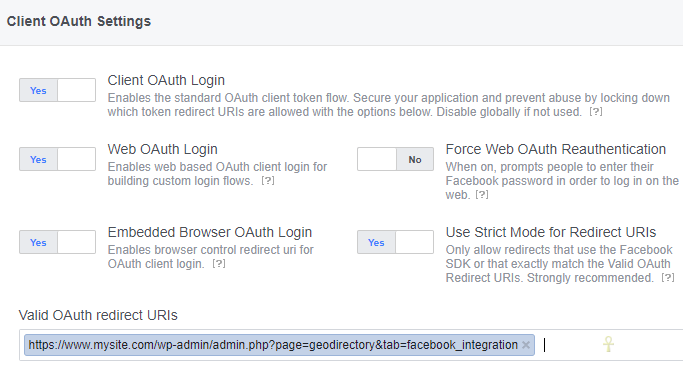
  11. You may already have other URIs there and this URI should be in addition, make sure you get the URI exactly right, if you use www. and your site does not use it then it will fail.
  12. Make sure on that page that Web OAuth Login is set to Yes:
  13. Open your website in another tab or window and navigate to GeoDirectory > Social Importer > Facebook.
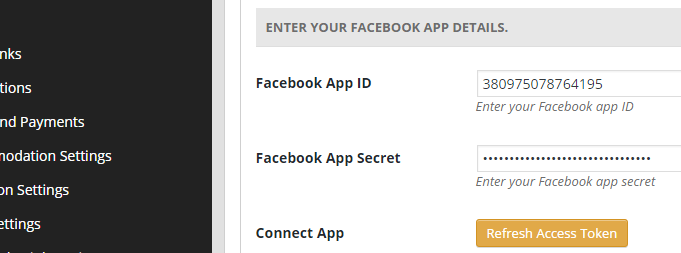
  14. Copy and paste the Facebook App ID and Facebook App Secret from Facebook to your site.
  15. Save first and then click Connect Your App.
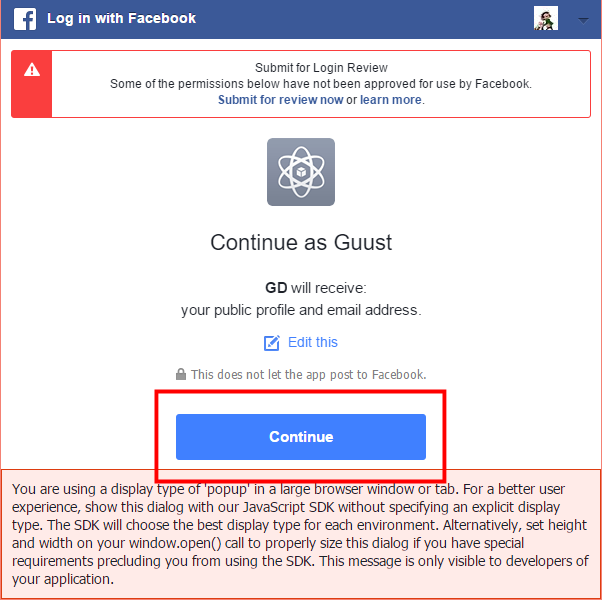
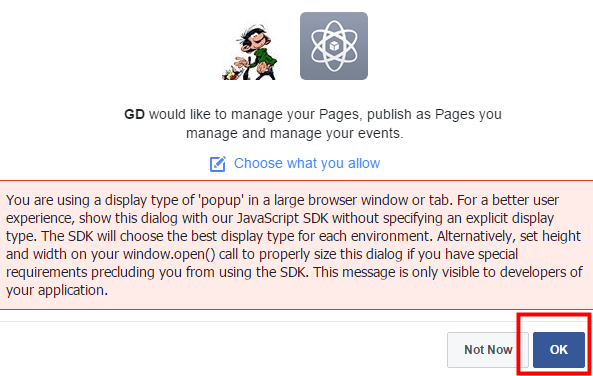
  16. This will open a window like this, ignore everything, and just click Continue:
  17. In the next screen, again ignore everything and click OK:
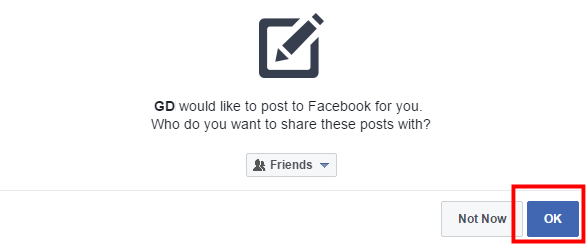
  18. In the next screen, again ignore everything and click OK:
  19. Once finished, your Facebook settings should look like this:
  20. Now click Save changes.
  21. That should connect the Facebook app and your site, and you should see the expiry date of your token:

Facebook App settings March 2018

FB APP Basic Settings

FB APP Advanced Settings

FB APP – FB LOGIN Settings

Posting GeoDirectory listings to your Facebook page

Once your GD site is connected to your FB app, a list of pages you manage will be available for the Post to page settings.

Select the Facebook Page where new GD listings will be posted and Save.

Yelp Setup

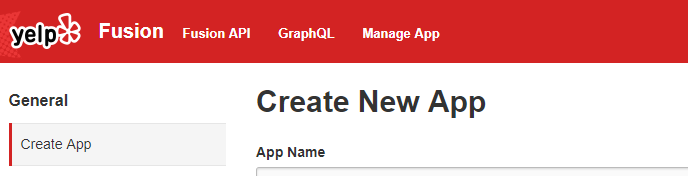
  1. Create a Yelp account and then login to your Yelp developer account and select Yelp Fusion.
  2. Then click on Manage App and you will get the Create New App screen:
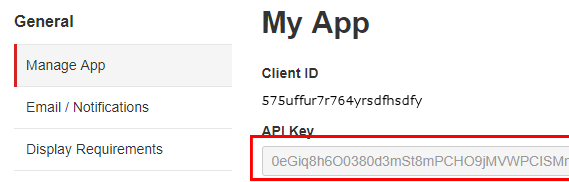
  3. After filling in the form, click on Create New App and your Client ID will be ready:
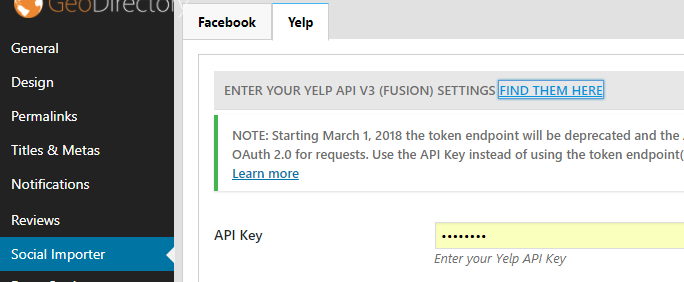
  4. Enter the details at GD > Social Importer > Yelp tab > App ID:
  5. Click Save Changes.

Installing Addons

When you finished installing your GD core plugin, you can extend your GeoDirectory site by adding any of the Addons.
1. Download your new Addon ZIP file to your computer
2. Login to your WordPress Admin
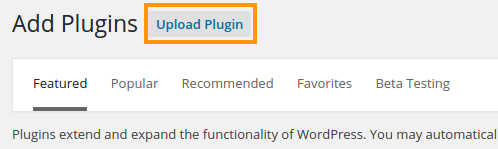
3. Upload your Addon
4. Activate your Addon
5. Review the Addon settings
6. Auto Updates
7. Manual Updates
8. Frequently Asked Questions

1. Download your new Addon ZIP file to your computer.

You can buy individual Addons of your choice here, or you can buy a membership that includes all Addons and themes here.

2. Login to your WordPress Admin

  1. Log in to the WordPress Admin area of your website.
  2. Navigate to PluginsAdd New > and click on Upload

3. Upload your Addon

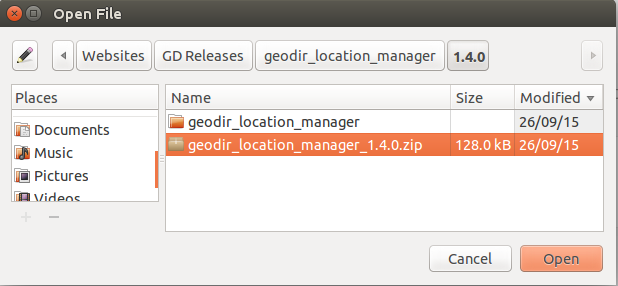
  1. Browse for the Addon ZIP file on your computer.
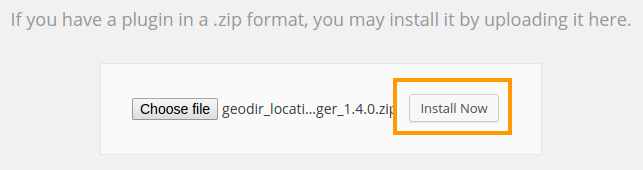
  2. Once you selected the ZIP file, click install.

4. Activate your Addon

  1. Wait for the upload to happen and then activate your Addon.

5. Review the Addon settings

As soon the Addon is activated, you will be taken to the Settings page of the new plugin:

6. Auto Updates / Licensing

  1. To keep your plugins up to date, you need to install the WP Easy Updates plugin.
  2. Follow steps 3 and 4 above to activate the WP Easy Updates plugin.
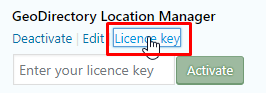
  3. You now will be able to add your license for your addon:
  4. Click on Licence key and add your licence:
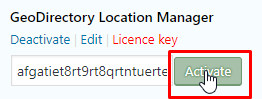
  5. Click on Activate:
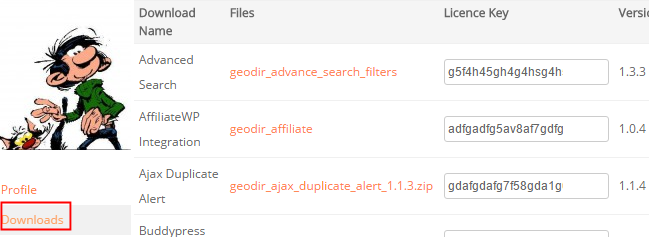
  6. To get your licences, go to your download area at https://wpgeodirectory.com/your-account/
  7. In future, your Addons will be able to be updated with a single click, just like any other WordPress plugins.

7. Manual Updates

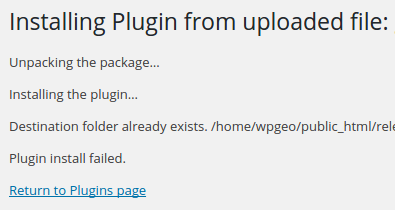
    WordPress has a built-in feature to install themes and plugins by supplying a zip file. Unfortunately, you cannot upgrade a theme or plugin using the same process. Instead, WordPress will say “destination already exists” when trying to upgrade using a zip file and will fail to upgrade the theme or plugin.

    Easy Theme and Plugin Upgrades fixes this limitation in WordPress by automatically upgrading the GeoDirectory theme or plugin if it already exists.

    To perform a manual upgrade of an addon:

    1. Install and activate Easy Theme and Plugin Upgrades
    2. Download the addon you want to update from https://wpgeodirectory.com/your-account/.
    3. Visit the plugin page of your site and choose “Add New” and then “Upload Plugin”.
    4. Find the addon file, and choose “Install”
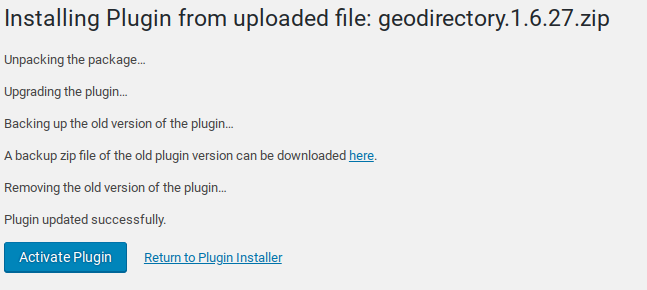
    5. Next you should see a confirmation like the following:

    8. Frequently Asked Questions

    Why do my automatic updates fail?

    Incorrect/Updated License/Key
    If you purchased a new subscription after your old one expired, your keys will have changed.
    Get your license key from https://wpgeodirectory.com/your-account/.
    Carefully copy and paste into the appropriate license field.

    Page Cache Issue
    If you copied and pasted the key, but the update still fails, try:
    1. Deactivate the key
    2. Refresh the plugin page
    3. Copy and paste the key again, then Activate
    4. After activation, refresh the page again and try the update.

    If that still doesn’t work, you can try a manual update.

    Review Setup of Automatic Updates
    Find the setup guide for autoupdates here: https://wpgeodirectory.com/docs/installing-addons/#updates

    Double Check Licensing and Membership
    Make sure your licenses are added at WordPress > Installed Plugins and that your membership is active.

    Update Single Site Licenses when Changing Site URL
    If you have a single site license, then whenever your site domain changes you will need to update the license for each plugin. For example, you might have been working on a development site at one URL, and now you have moved the site to a new URL. Follow these steps to deactivate the license at the old URL and activate the license at the new URL.

    1. Visit the old site at the old URL.
    2. Visit the old site plugin page.
    3. Find the addon license and click “Deactivate”.
    4. Visit the new site at the new URL and go to the plugins page.
    5. Find the addon license and paste your license code, then press Activate.

    Update Single Site License for a decommissioned site
    It may be that you started working on a site, then changed the URL or deleted or otherwise decommissioned the site. In this case, follow these steps:

    1. Visit https://wpgeodirectory.com/your-account/purchase-history/
    2. Select “View Licences” for the product.
    3. Select “Manage Sites”
    4. Select the sites where you want to deactivate the license.

    [qa cat=wp-easy-updates search=none title=none homelink=none]

Location Manager – Location Settings

These are the sections you will find when you install the Location Manager:

Introduction and Location Settings tabManage Location tab – SEO Settings tab – Add/Edit Location tab – Translate Countries tab

On this page:

Introduction – Installation – Location Settings – Home URL SettingsMain Navigation SettingsGeo Directory Location SettingsAdd Listing Form Settings

Introduction

  1. With our MultiLocations Manager you can turn your GeoDirectory into a global directory. As standard, GeoDirectory can be setup from a single location and listings can be added only for that location, but with our Location Manager plugin, you can let users set the location of their listings and the location will be stored in your locations database. This means visitors can then select any added location and browse listings only from that area (you can also browse from “Everywhere”).
  2. The areas you can filter listings by are: Countries, regions, city or neighborhoods. Apart from neighborhoods all other areas can be added by a user when they add their listing. So the location does not have to be in your database for a user to be able to add a listing.
  3. If a duplicate city is added with slightly different spelling, there is a tool to merge the two cities. Locations can also be edited/added by the admin from the backend.

Installation

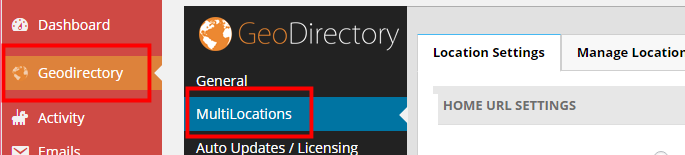
After uploading and activating the Addon, you will be taken to the Settings page:

Location Settings

Home URL Settings

  1. This setting allows you to choose the URL of the Home link in your breadcrumb, either clicking Home in the breadcrumb will take you to the homepage of your website, or clicking Home in the breadcrumb will take you to the location page for the selected location.
  2. Home page should go to Site root (ex: mysite.com/) will take you to your homepage:
  3. Home page should go to Current location page (ex: mysite.com/location/glasgow/) will take you to the start page for the selected location:

Main Navigation Settings

Show location switcher in menu

This setting will add a navigation tool to your main menu:

  • It will allow your visitors to easily choose a city, region or country on your site
  • It highlights the location your visitors has browsed to


It is highly recommended to use the location switcher, it makes life a lot easier for your visitors.
Make sure you have selected a menu to be used for your GeoDirectory links at GD > Design > Navigation

List drilled-down Regions, Cities or List all Countries, Regions, Cities
  1. The first option (List drilled-down Regions, Cities) will narrow the list of regions or cities, depending of the choices made by your visitors.
    1. For example if a visitor has selected United States as country, then only US states and cities will be available in the Region and Cities filter.
    2. If the user then chooses Florida from the Region filter, then only Florida cities will be shown in the Cities filter.
  2. The second option (List all Countries, Regions, Cities) will always list all regions and cities in your database, regardless of any other filter already applied.
    1. For example, if a visitor has selected United States as country, all regions and cities in other countries will still be available in the Region and Cities filters.

Geo Directory Location Settings

Country – Region – City
  1. The settings for countries, regions and cities are basically the same:
    1. Choose to accept listings for every country, region or city
    2. Or restrict to particular countries, regions and cities.
  2. If you tick the Everywhere box, Everywhere will be listed as an option for countries, regions or cities.This allows your visitors to zoom out.
    1. For example if a visitor has browsed to Orlando, they can choose to see all the listings for Florida by either choosing the Everywhere option for Cities, or they can choose Florida from the Region filter.
Wish to enable neighborhoods?

Refer to City Neighborhoods.

Examples:

Directory for the United Kingdom and Ireland:
Country > enable selected countries > select United Kingdom and Ireland
Region > enable Multi Regions
City > enable Multi Cities
Note: you would need at least one location in the United Kingdom and one in Ireland before the countries will be available for selection

Directory for Japan:
Country > enable default country
Region > enable Multi Regions
City > enable Multi Cities

Add Listing Form Settings

The following settings affect how users add addresses and locations for their listings in the Add Listing forms.

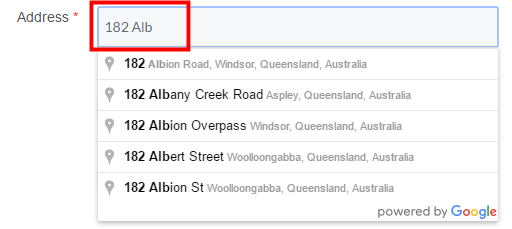
Disable Google address autocomplete?

This will stop the address suggestions when you start typing in the address box on the Add Listing page:

Show all locations in dropdown?

Rather than showing a few locations only and then searching as the user types a location, you can choose to present all current locations in your database at once. This can be useful if you have a small directory but can break your site if you have many locations.

Disable set address on map from changing address fields

By default after selecting your location from the dropdowns, clicking on Set address on map will move the marker to that location. You can disable, this may be useful if you have a small directory and you have custom locations or your locations are not known by the Google API and they break the address.
Highly recommended not to enable this.

Disable move map pin from changing address fields

By default, dragging the marker on the map will change the location fields to match. Similar to the previous option, you can disable this, it might be useful if you have a small directory and you have custom locations or your locations are not known by the Google API and they break the address.
Highly recommended not to enable this.

Advanced Search Filters Addon – Search By Distance

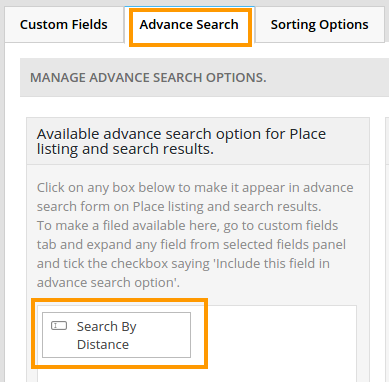
When you activate the Advanced Search Filters Addon, the Search By Distance field will automatically be added to the fields you can add to your custom search.

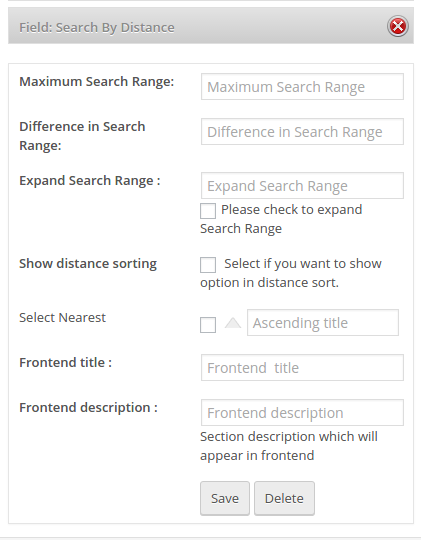
When you click on Field: Search by Distance, you’ll see the following options:

Options

Maximum Search Range

Enter the maximum radius of the search zone you want to create, for example if you want your visitors to search any listing within 50 miles or kilometers from the current location, then you would enter 50.

You have to set your choice of miles or kilometers at
WP admin > GeoDirectory > General > Search > Show search distances in miles or km

Difference in Search Range

Here you decide how many different search radii you make available to your visitors.

If you enter a fifth of the Maximum Search Range, there will be 5 options; if you enter half of the Maximum Search Range, then there will be 2 options.

Expand Search Range

If you leave this blank, then all options as per Difference in Search Range will be shown.

Entering a  number lower than the number of options as per Difference in Search Range will only show that lower number of options, and will add a More link to expand the options so all will be shown.

Show distance sorting:

Tick this if you want your visitors to be able to sort the search results in order of distance, either ascending or descending.

You will also need to provide text for the ascending or descending options.

Frontend title

This will be shown as the heading of the Search By Distance filter.

Frontend description

Optional description shown below to give your visitors tips about how to use the filter.

Examples

Example 1: all options

The following example illustrates all the options:

  1. The search will search all relevant listings within a maximum 100 km radius (Maximum Search Range = 100)
  2. Visitors will be able to choose a smaller radius than 100km, in 20 km increments (Difference in Search Range = 20)
  3. Visitors will initially have 4 options to choose from (Expand Search Range = 4)
  4. Visitors will be able to order the search results by closest or furthest away (Show distance sorting = checked)
  5. The first image is how the search will initially show: Our heading and 4 options
  6. The second image shows what happens if the visitor clicked on More; all the options would be revealed
  7. The third image shows how the visitor can choose to order by closest or furthest away

Example 2: minimal options

  1. Visitors will only have two options because the Difference in Search Range is half of the maximum radius
  2. No other options will be available to the visitor

Advanced Search Filters Addon – Overview

On this page

Introduction – Installation – Configuration (search autocompleter settings – near autocompleter settings – redirect settings on first time loadgeolocation settings)

Introduction

This addon extends the default GeoDirectory search widget by letting you filter search results by certain custom fields you may have added to your listings.

For example, if you had added a custom select field Pet Friendly you could then filter results that only include pet friendly listings, this could be useful for hotels, café’s, bars etc.

You can also filter by multiple values, you could set up your directory so you could search for Pet Friendly, F” listings within 10 miles of the location you enter in the Near field.

This plugin also integrates well with our GeoDirectory Custom Post Types plugin to allow you to add different filter options per post type and also search per post type.

Installation

Installation is done by uploading the ZIP file in the plugin section of your WordPress admin area.
Installing GD Addons

Configuration

Once you activated the Advanced Search Filters addon, you will get a new set of settings in the GD admin panel:

SEARCH AUTOCOMPLETER SETTINGS

Enable Search autocompleter: This setting will start giving suggestions as your visitor start searching:

Autosubmit the form on select a Search option: If this option is selected, the search form will automatically load the detail page of the listing selected.

Min chars needed to trigger autocomplete: Enter a number of characters here before the autocompleter search is triggered.

Max Results to be returned by autocomplete: Enter a number here to limit the number of listings presented by the autocompleter.

NEAR AUTOCOMPLETER SETTINGS

This setting will only be here if you have the Location Manager addon activated.

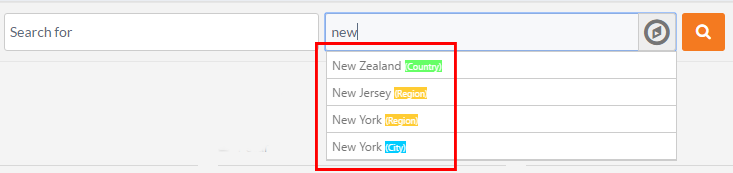
Enable Near autocompleter: This setting will start giving suggestions as your visitor start searching:
Autosubmit the form on select a Search option: If this option is selected, the search form will automatically load the detail page of the listing selected.

REDIRECT SETTINGS ON FIRST TIME LOAD

This setting will only be here if you have the Location Manager addon activated.

You will need to have a secure site – HTTPS – with a SSL certificate installed for geolocation and redirection to work in all browsers and devices.

There are 3 options:

  1. No redirect: You guessed right, no redirection
  2. Redirect to nearest location (on first time load users will be auto geolocated and redirected to nearest geolocation found): With this option,
    1. the system will try to locate where the visitor is located
    2. if there are listings within the set search radius, a page will be served with those listings and the location of the visitor
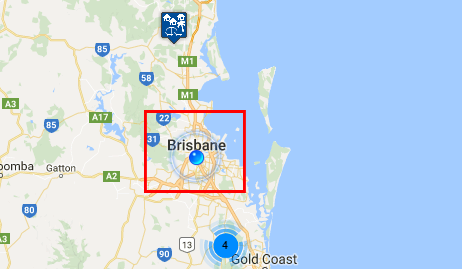
    3. if there are no listings close to the visitor, then the system will look in your database to determine what the closest location is to the visitor
    4. and then serve the location page for that location.
    5. Example:
      1. There are only 2 locations in your database: New York City and Los Angeles.
      2. A visitor who is in San Francisco visits your website.
      3. The system will redirect to yoursite.com/location/united-states/california/los-angeles
  3. Redirect to default location (on first time load users will be redirected to default location: This setting will redirect your visitors on first entry to the location page of your default location.
    Using the example just above, if New York City is your default location, any visitors landing on your site will be redirected to yoursite.com/location/united-states/new-york/new-york-city.

GEOLOCATION SETTINGS

You will need to have a secure site – HTTPS – with a SSL certificate installed for geolocation and redirection to work in all browsers and devices.

Default Near Me miles limit (1-200): 

Choose miles or kilometers at GD > General > Search

Understanding Places, Categories, Listings and Custom Post Types

Introduction

Once you installed your GD directory plugin, you will need to create categories before you can add any listings to your directory.

The free GD plugin will automatically create a new custom type of WordPress posts, which allows you to add content to your directory. The GD plugin calls these custom posts Places, and you will find them in the main WP admin menu.

core-places
In the GeoDirectory context, these posts are called listings.

Every listing will need to be in a category, or the listing will not be added to the GD maps.

GD will work with one level of sub-category as well:
Places > Category > Sub-category > Listing

Examples using GD core

One example is a local directory, and this could be your setup:

Category Sub-category Listing OR Category Listings
Restaurants French L’escargot Restaurants L’escargot
La Baguette La Baguette
Italian Mario Mario
The Pizza Dude The Pizza Dude
Accommodation Hotels The Sleep Inn Accommodation The Sleep Inn
The Rich The Rich
Bed and Breakfast Chez Nous Chez Nous
The Rooster The Rooster

Extending your directory

The above examples are based an the standard free GD plugin installation: All your listings and categories will need to be of the same custom post type Places.

Custom Post Types Addon

The Custom Post Types Addon (CPT) lets you add as many CPTs as you need.

As standard, GeoDirectory comes with one CPT called Places (see above), new CPTs will have their own dedicated sidebar menu and management system just like Places.

ctp

Why and when to use Custom Post Types?

The advantages of this plugin are that instead of trying to manage a large diverse directory with many categories all under the one post type, you can split these into more manageable CPTs.

Factors worth considering whether you want to organise your site with different CPTs:

  • you can add different custom fields to each Custom Post Type
  • it is easier to manage different pricing levels with CPTs than categories
  • a listing can only be submitted to one CPT at the time, but it is possible to submit the same listing to more than one category
  • Some widgets can only be filtered on one CPT at the time.
  • Maps can only show one CPT at the time but can show multiple categories at the same time.

Events Addon

The Events Addon is a custom post type specifically designed for the way events are prioritized by dates.

With this plugin you can let users add their events to your site. Events are ordered by upcoming date by default. Users can enter recurring dates for their events instead of having to create lots of separate events. As this is also a custom post type you have the usual ability to add custom fields and sort options.

Examples using CTP and Events addons

CTP Category Sub-category Listing
Enjoy Restaurants French L’escargot
La Baguette
Italian Mario
The Pizza Dude
Accommodation Hotels The Sleep Inn
The Rich
Bed and Breakfast Chez Nous
The Rooster
Events Markets Weekly Farmers Market
Antiques Show
Music Concerts Milli Vanilla
Elvis Presley Live
Lessons Bagpipe School
Local Health Doctors Doctors R Us
Fitness Centres Fitness4U
Building Hardware Nuts&Bolts
Carpenters We’ll Nail You