GD reCAPTCHA Add-on Overview

Introduction

The GD reCAPTCHA addon integrates the new Google reCAPTCHA api and allows you to add the noCAPTCHA reCAPTCHA widget to any GeoDirectory form.

It can be added to:

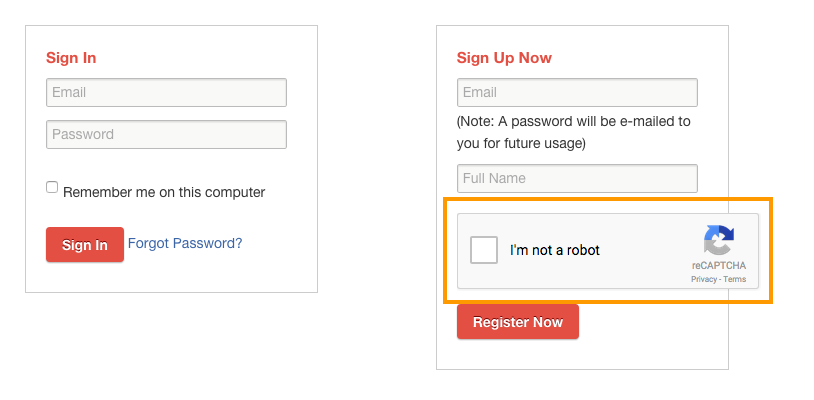
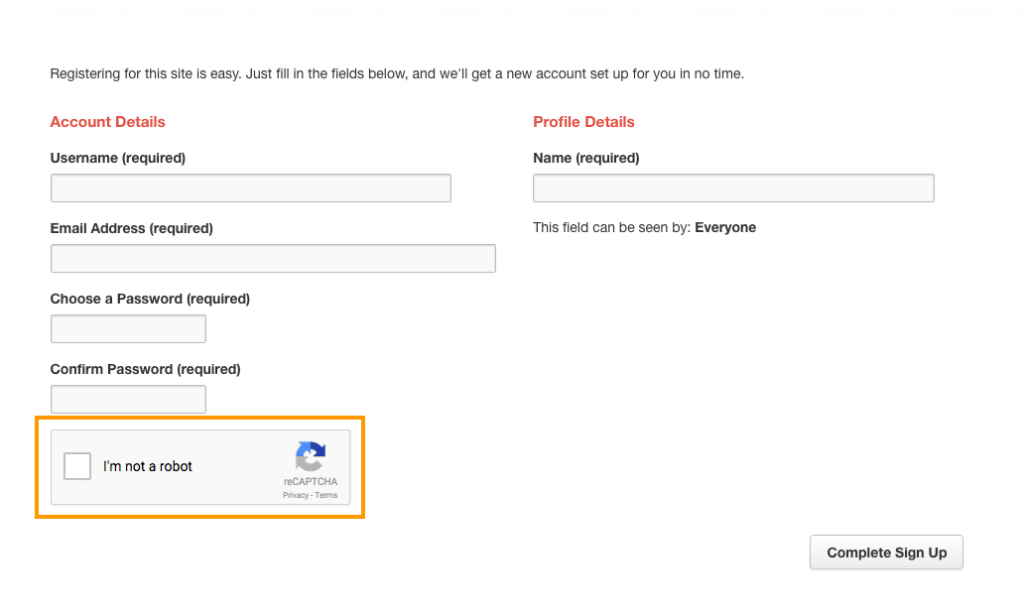
  • GeoDirectory Registration
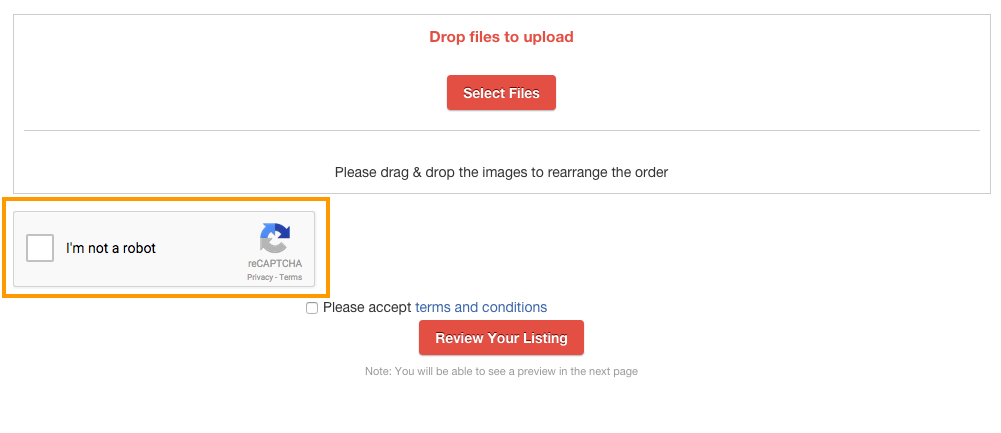
  • GeoDirectory Add Listing
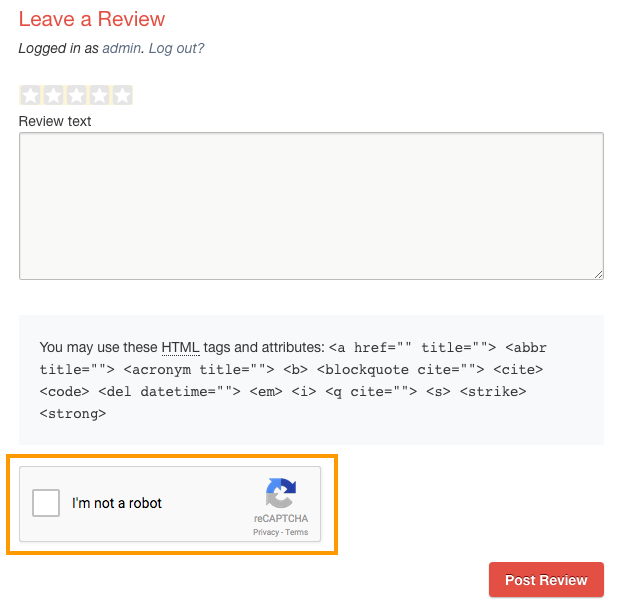
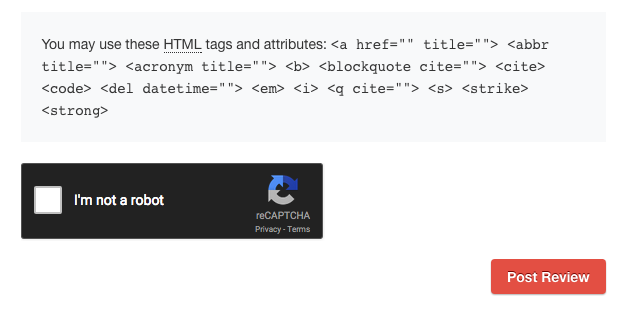
  • GeoDirectory Comments
  • GeoDirectory Send To Friend
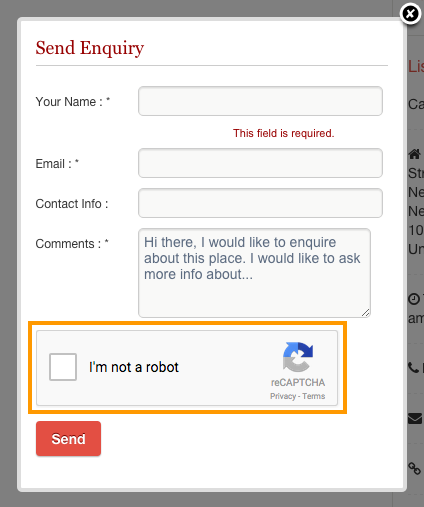
  • GeoDirectory Send Enquiry
  • GeoDirectory Claim Listing

It can also be disabled for logged in users, based on user’s role.

Installation

  1. Visit wpgeodirectory.com ( Buy a subscription if Required )
  2. Navigate to My Account > Downloads ( Login if Required )
  3. Download Geodir reCAPTCHA zip file.
  4. Go to your WordPress site dashboard, Navigate to  Plugins > Add New > Upload Plugin
  5. Browse and Upload the zip file you downloaded from wpgeodirectory.com
  6. Activate the plugin.

Configuration

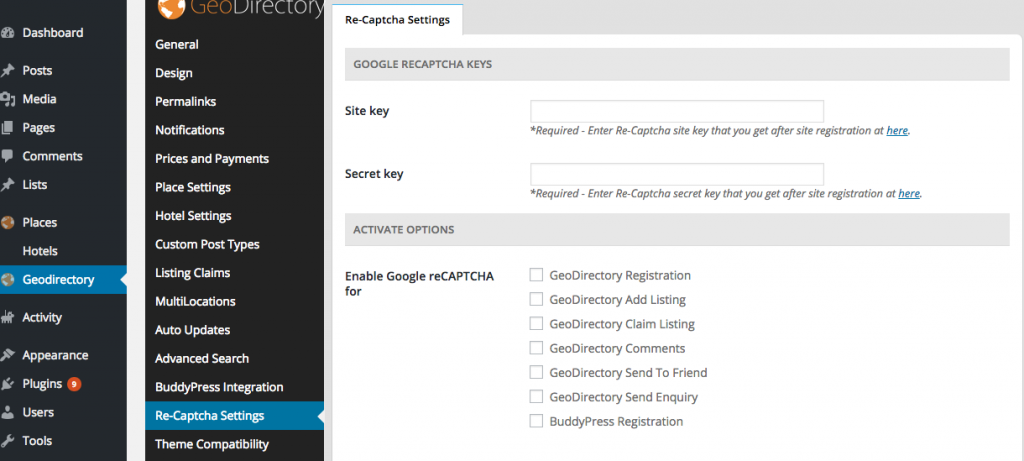
recaptchasettings

Re-Captcha Settings Tab

Google Re-Captcha Keys

  1. Site Key
    1. This is a required field.
    2. To get your site Key
      1. Visit this page
      2. Register a new site or click the site if you have added already
      3. Make sure to select reCaptcha V2
      4. Keys are available under Adding reCAPTCHA to your site section.
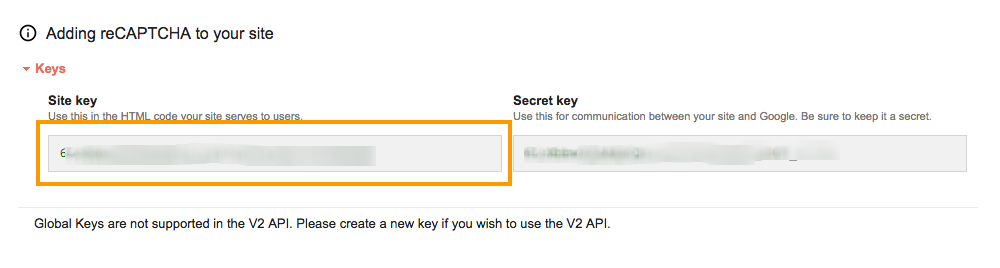
      5. sitekey
  2. Secret Key
    1. This is a required field.
    2. To get your site Key
      1. Visit this page
      2. Register a new site or click the site if you have added already.
      3. Keys are available under Adding reCAPTCHA to your site section.
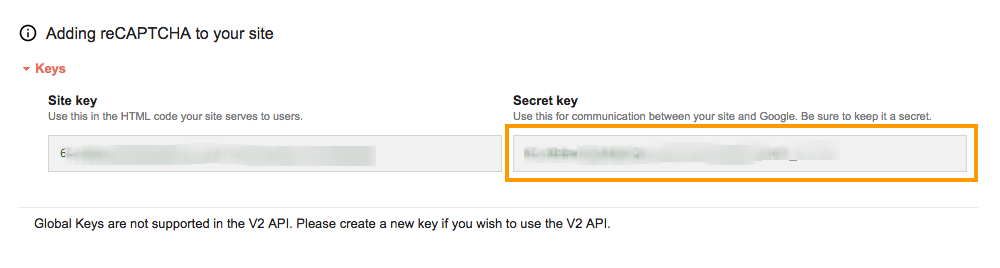
      4. secretkey

Activate Options

  1. Enable Google reCAPTCHA for
    1. GeoDirectory Registration
      1. georeg
    2. GeoDirectory Add Listing
      1. addlisting
    3. GeoDirectory Claim Listing
      1. claim
    4. GeoDirectory Comments
      1. comments
    5. GeoDirectory Send To Friend
    6. GeoDirectory Send Enquiry
      1. sendenq
    7. BuddyPress Registration
      1. buddysignup
  2. Disable Google reCAPTCHA for
    1. Administrator
    2. Editor
    3. Author
    4. Contributor
    5. Subscriber
  3. Captcha Title
    1. Captcha title to be displayed above captcha code, leave blank to hide.
  4. Captcha Theme
    1. Select color theme of captcha widget
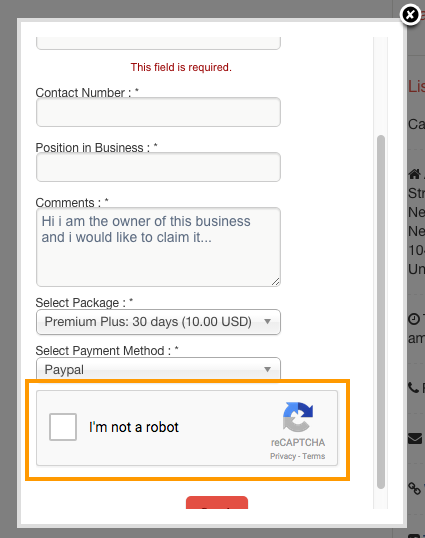
      1. Light
      2. Dark
        1. dark

Custom Post Types Add-on – Overview

Introduction

Our free GeoDirectory plugin ships with only one Post Type called Places. But sometimes you would like to have separate name for each listing type ( Ex: Bars, Hotels, Restaurants etc )  instead of one generic name Place.

Understanding Places, Categories, Listings and Custom Post Types

By installing our Custom Post Types add-on, you are removing that barrier. You can create Unlimited number of Post Types.

The advantages of this plugin are that instead of trying to manage a large diverse directory with many categories all under the one post type, you can split these into more manageable CPTs, you will then be able to add different custom fields to each CPT and be able to manage pricing for each easier.

This plugin also integrates well with our Advance Search Filters addon and will let you search per post type and also have different advanced filters per post type, for example a CPT “Hotels” could have filters such as “Free WiFi” and another CPT “Points of Interest” could have a filter “Great for Kids”.

Installation

  1. Visit wpgeodirectory.com ( Buy a subscription if Required )
  2. Navigate to My Account > Downloads ( Login if Required )
  3. Download Geodir Custom Posts zip file.
  4. Go to your WordPress site dashboard, Navigate to  Plugins > Add New > Upload Plugin
  5. Browse and Upload the zip file you downloaded from wpgeodirectory.com
  6. Activate the plugin.

Configuration

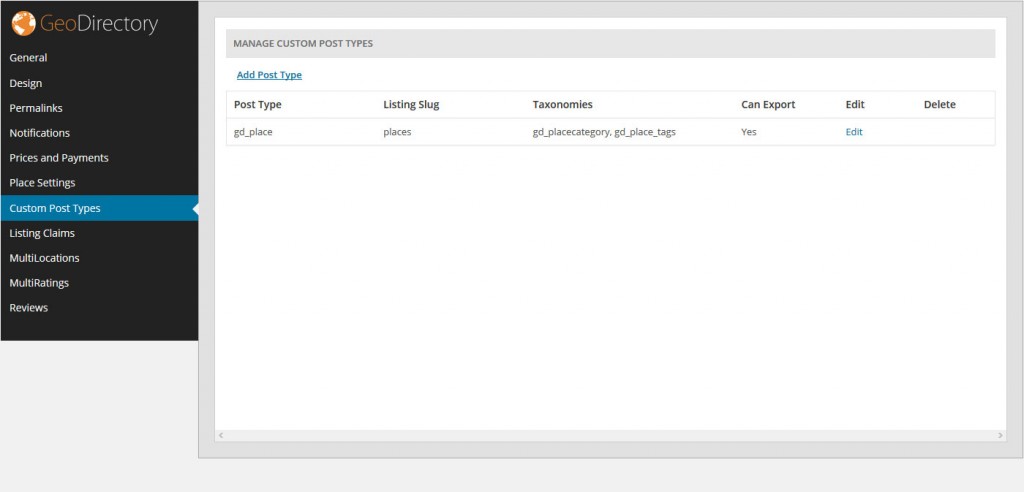
After activation you will be redirected to GeoDirectory > Custom Post Types page. This is the page where you can Add, Edit or Delete your post types.  No additional configuration needed.


gd_cpt

To Add a new post type

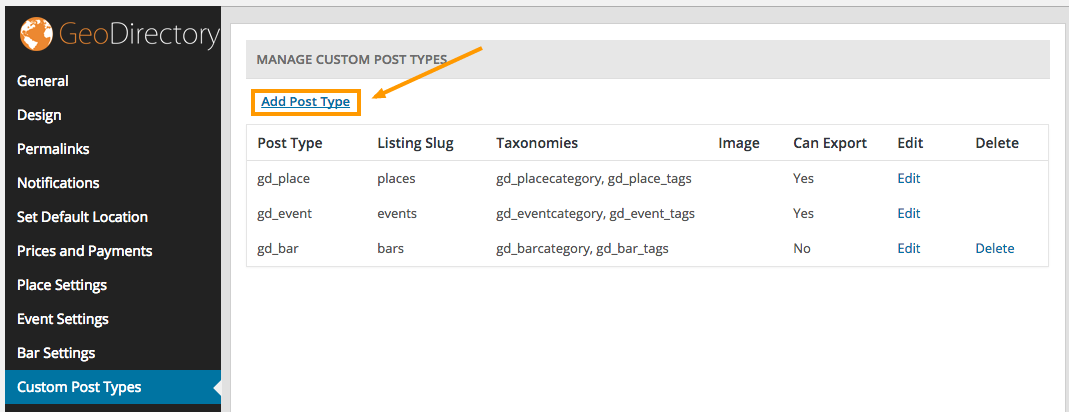
To add a new post type, click the “Add Post Type” link from the Custom Post Types page.

toadd

List of form fields and accepted values

The following example assumes you are planning to create a custom post type called Bars. If you are planning to create different post type, change the values accordingly.

Post Type

  1. Post type
    1. The new post type system name
    2. Usually singular.
    3. Minimum 2 characters
    4. Maximum 17 characters
    5. Lower-case characters and underscores only.
    6. Once added the post type system name cannot be changed.
    7. Example:  bar
  2. Listing slug
    1. The listing slug name.
    2. This will be displayed in your url.
    3. Minimum 2 characters.
    4. Maximum 20 characters.
    5. Lower-case characters, underscores and hyphen(-) only.
    6. Example:  bars
  3. Order in post type list
    1. Position at which this post type will appear in post type list everywhere on the website.
    2. Note: If the entered value is already an order of other post type then this will not make any effect.
    3. Example:  4
  4. Upload default image
    1. Default post type image.
    2. If you set an image here, this will be used as listing thumbnail image when no image available.

Labels

  1. Name
    1. General name for the post type.
    2. Usually plural.
    3. Example: Bars
  2. Singular name
    1. Name for one object of this post type.
    2. Defaults to value of name.
    3. Example: Bar
  3. Add new
    1. The add new text.
    2. The default is Add New for both hierarchical and non-hierarchical types.
    3. Example: Add New
  4. Add new item
    1. The add new item text.
    2. If you leave this blank Add New Item text will be used.
    3. Example: Add New Bar
  5. Edit item
    1. The edit item text.
    2. If you leave this blank Edit Item text will be used.
    3. Example: Edit Bar
  6. New item
    1. The new item text.
    2. if you leave this blank New Item text will be used.
    3. Example: New Bar
  7. View item
    1. The view item text.
    2. If you leave this blank View Item text will be used.
    3. Example: View Bar
  8. Search items
    1. The search items text.
    2. If you leave this blank Search Items text will be used.
    3. Example: Search Bars
  9. Not found
    1. The not found text.
    2. If you leave this blank Not Found text will be used.
    3. Example: No Bar Found
  10. Not found in trash
    1. The not found in trash text.
    2. If you leave this blank Not Found In Trash text will be used.
    3. Example: No Bar Found in Trash
  11. Profile tab label
    1. Text label for “Profile” tab on post detail page.
    2. This is Optional. So leave Empty unless necessary.
  12. More Info tab label
    1. Text label for “More Info” tab on post detail page.
    2. This is Optional. So leave Empty unless necessary.
  13. Photo tab label
    1. Text label for Photo” tab on post detail page.
    2. This is Optional. So leave Empty unless necessary.
  14. Map tab label
    1. Text label for “Map” tab on post detail page.
    2. This is Optional. So leave Empty unless necessary.
  15. Reviews tab label
    1. Text label for “Reviews” tab on post detail page.
    2. This is Optional. So leave Empty unless necessary.
  16. Related Listing tab label
    1. Text label for “Related Listing” tab on post detail page.
    2. This is Optional. So leave Empty unless necessary.

Nav Menus

  1. Posts
    1. If checked it will disable post listings (of the current post type ) in Appearance > Menus.
  2. Categories
    1. If checked it will disable post categories (of the current post type ) in Appearance > Menus.
  3. Tags
    1. If checked it will disable post tags (of the current post type ) in Appearance > Menus.

Supports

Registers support of certain feature(s) for a given post type. Each feature has a direct impact on the corresponding field displayed in the post edit screen

  1. Author
    1. If checked, Author feature will be enabled for current post type.
  2. Thumbnail
    1. If checked, Thumbnail feature will be enabled for current post type.
    2. Current theme must also support post-thumbnails.
  3. Excerpt
    1. If checked, Excerpt (Short description ) feature will be enabled for current post type.
  4. Custom fields
    1. If checked, Custom fields feature will be enabled for current post type.
  5. Comments
    1. If checked, Comments feature will be enabled for current post type.
    2. Also will see comment count balloon on edit screen when checked.
  6. Post formats
    1. If checked, Post formats feature will be enabled for current post type.

Description

  1. Description
    1. A short descriptive summary of what the post type is.

Menu Icon

  1. Menu Icon
    1. The url to the icon to be used for this menu.

Can Export

  1. Can Export
    1. When set to True, current post type data can be exported.

SEO

  1. Meta Keywords
    1. Meta keywords will appear in head tag of this post type listing page.
  2. Meta Description
    1. Meta description will appear in head tag of this post type listing page.

To Edit a post type

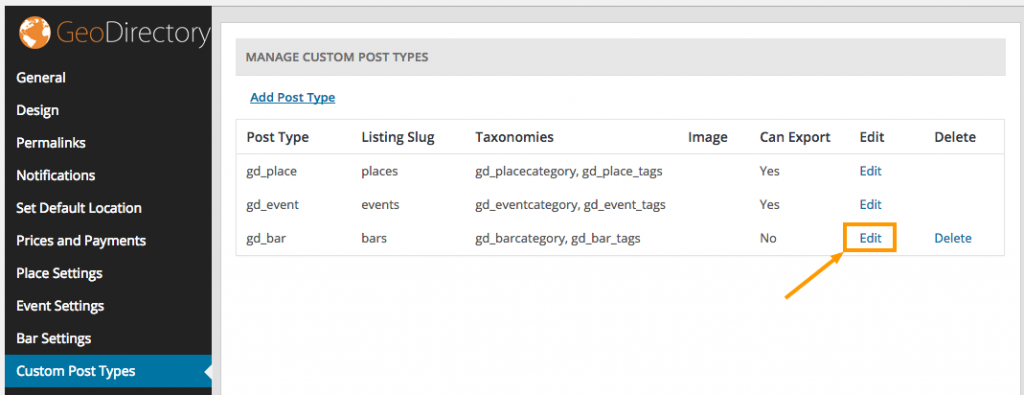
To edit a post type, click the “Edit” link from the Custom Post Types page.

toedit

To Delete a post type

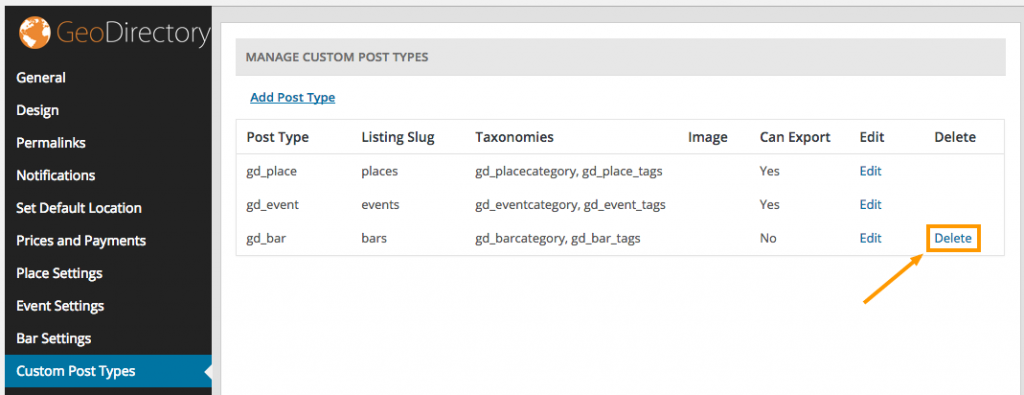
To Delete a post type, click the “Delete” link from the Custom Post Types page.

todelete

Usage

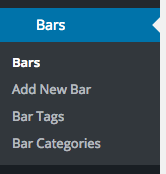
Once you created a new post type, you can see new menu items in the following areas.

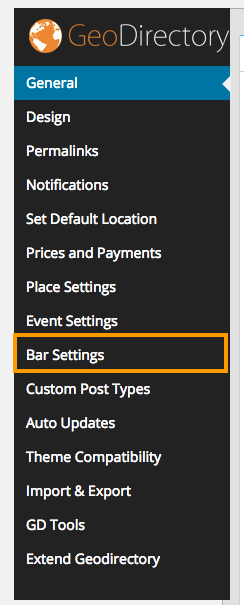
barsmenu

barsettings

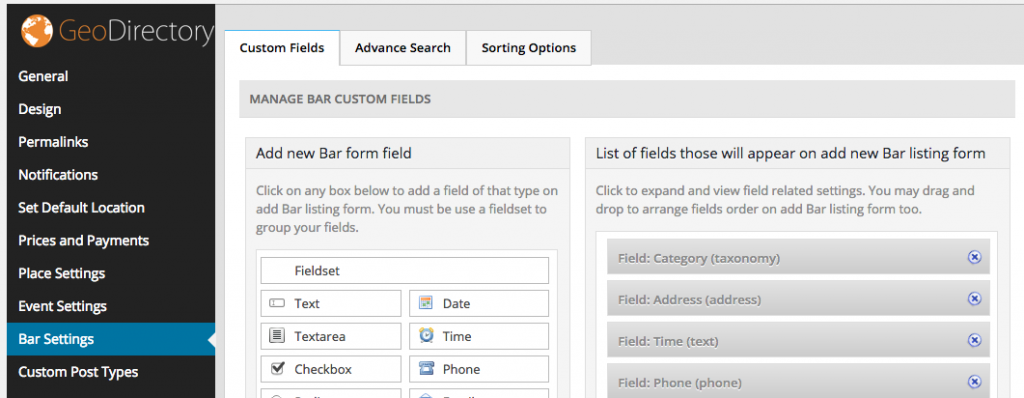
Bar Settings

bartabs

This page has the following tabs.

  1. Custom Fields
  2. Sorting Options
  3. Advanced Search ( Advanced search filters Required )

Custom Fields

To know more about custom fields, visit this section

Sorting Options

To know more about sorting options, visit this section

Advanced Search

To know more about advanced search, visit this section

GeoDirectory Lists – Overview

Introduction

Using GeoDirectory Lists, you can create your own place list.  Example: My Favorite Restaurants

Note: As of now GeoDirectory Lists can be used only with Whoop theme. Other themes are not supported yet.

Prerequisites

  1. GeoDirectory
  2. Whoop Theme (Optional)
  3. Posts 2 Posts
  4. Buddypress (Optional)

Posts 2 Posts

GeoDirectory Lists heavily depends on Posts 2 Posts Plugin. So Please install it first before installing GeoDirectory Lists.

Installation

Please follow this tutorial, to install the plugin.

Reset Permalinks

  1. Navigate to Settings > Permalinks > Common Settings.
  2. Select Default option and then save it.
  3. Now select Post name and then save it again.

Links

  1. List index can be accessed by visiting yourdomain.com/lists/
  2. A new list can be created by visiting yourdomain.com/add-list/
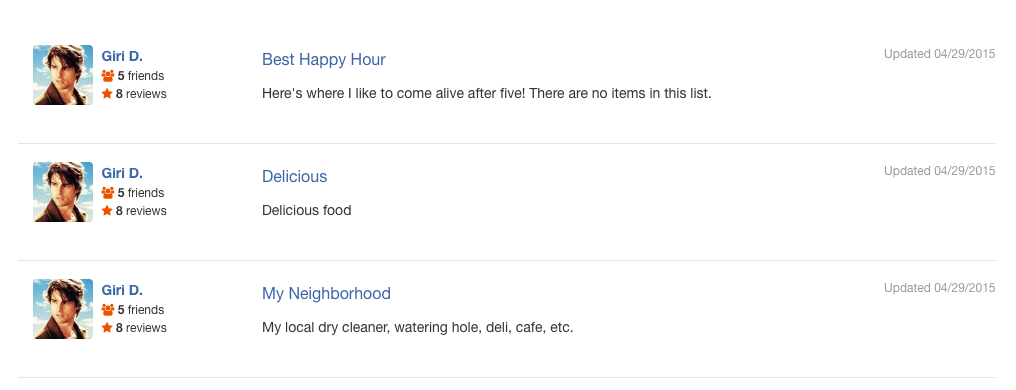
Index Page screenshot

list-index

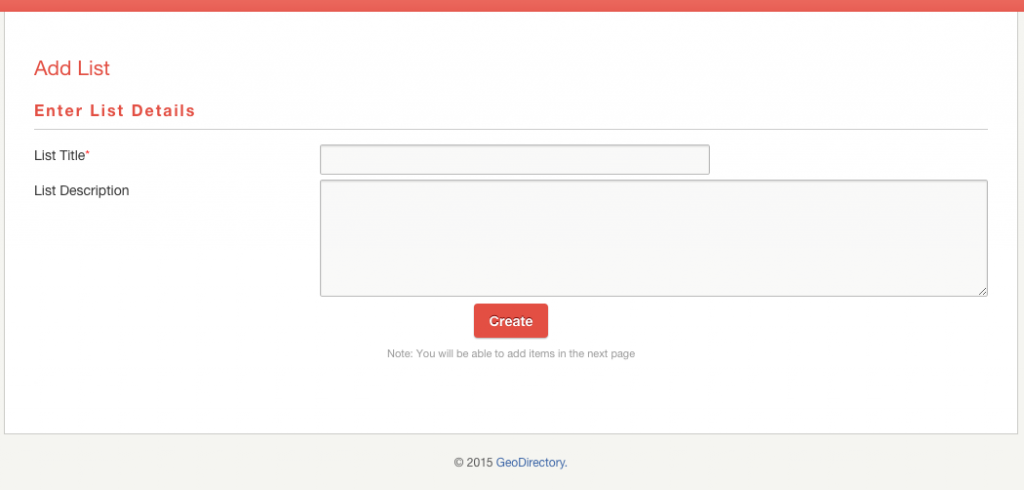
Add List Page screenshot

list-add

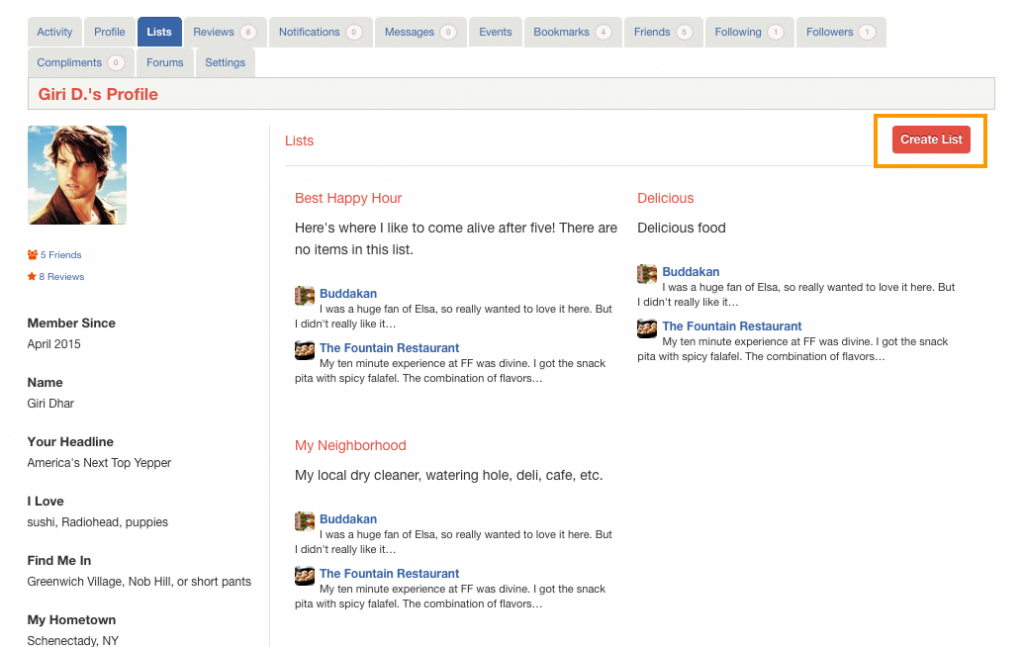
To create a List

  1. Navigate to Account Settings > Lists
  2. Click Create List button.
  3. create-list
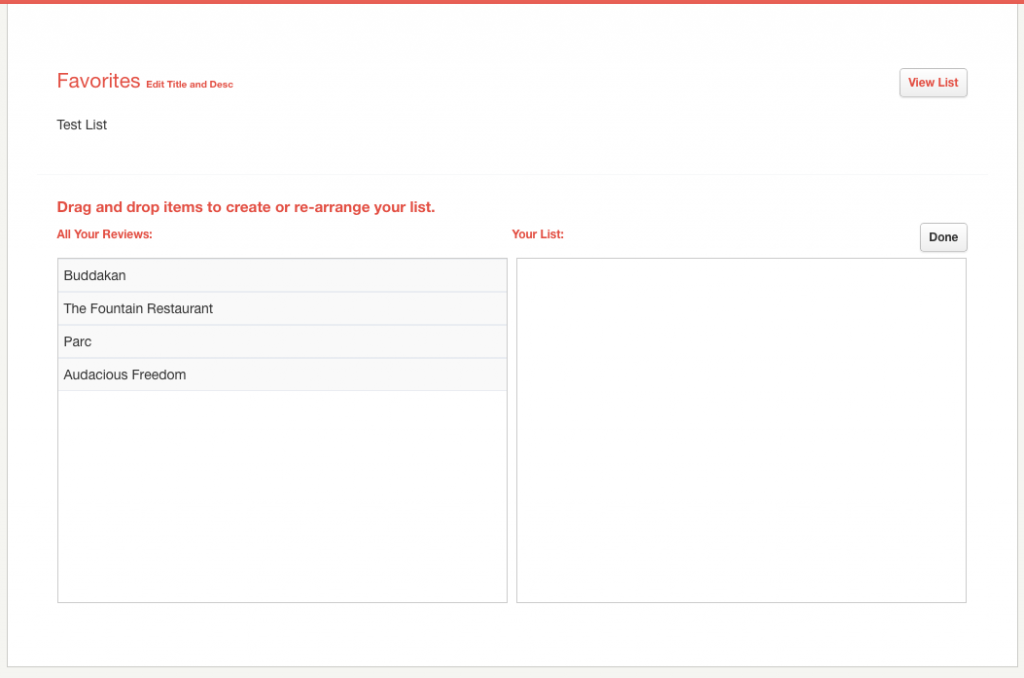
  4. Enter List Title and List Description and then click Create
  5. You will redirected to a page where you can add items to your list.
  6. Drag and Drop items from the left side to right side. Note: You can see only the listings your reviewed.
  7. add-items
  8. After adding items to your list click Done to save.
  9. Click View List to view your list.

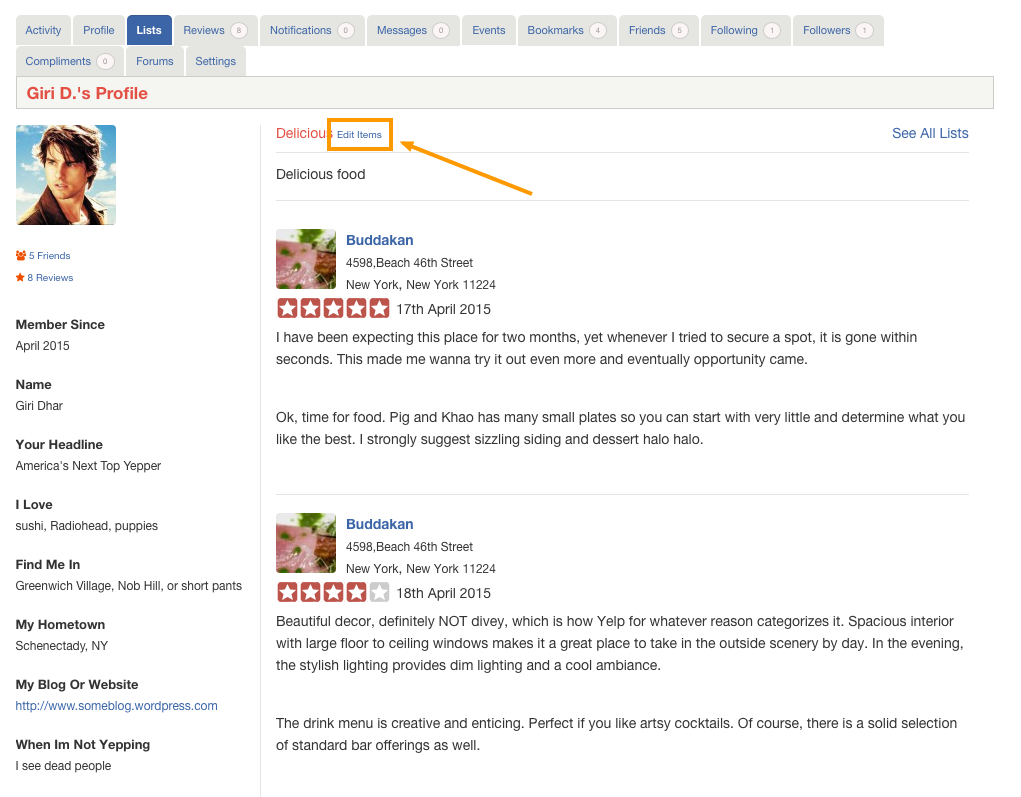
To Edit List Items

edit-items

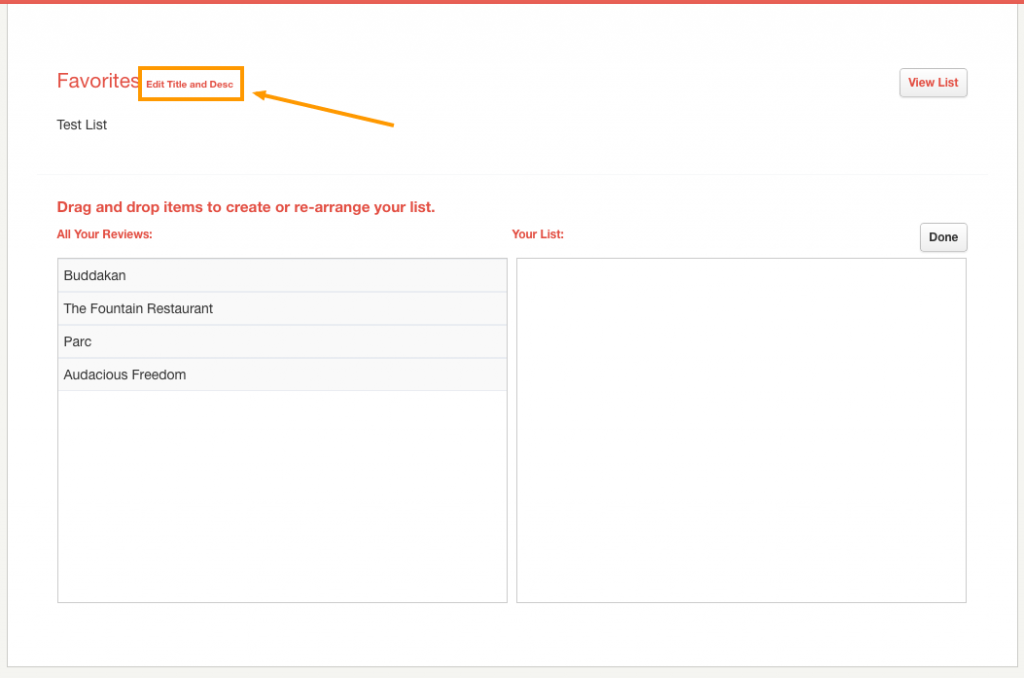
To Edit List Title and Description

edit-title


BuddyPress Compliments – Overview

Introduction

BuddyPress Compliments is a buddypress addon created by GeoDirectory. BuddyPress members can compliment each other using this plugin.

Note: As of now BuddyPress Compliments can be used only with Whoop theme. Other themes are not supported yet.

Prerequisites

BuddyPress Compliments depends on the following in order to work.

  1. BuddyPress
  2. Whoop Theme

Installation

Please follow this tutorial, to install the plugin.

Configuration and Usage

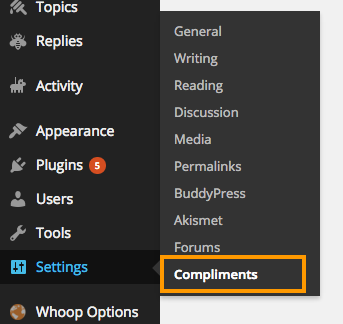
After plugin activation, you can see a new menu link compliments under settings

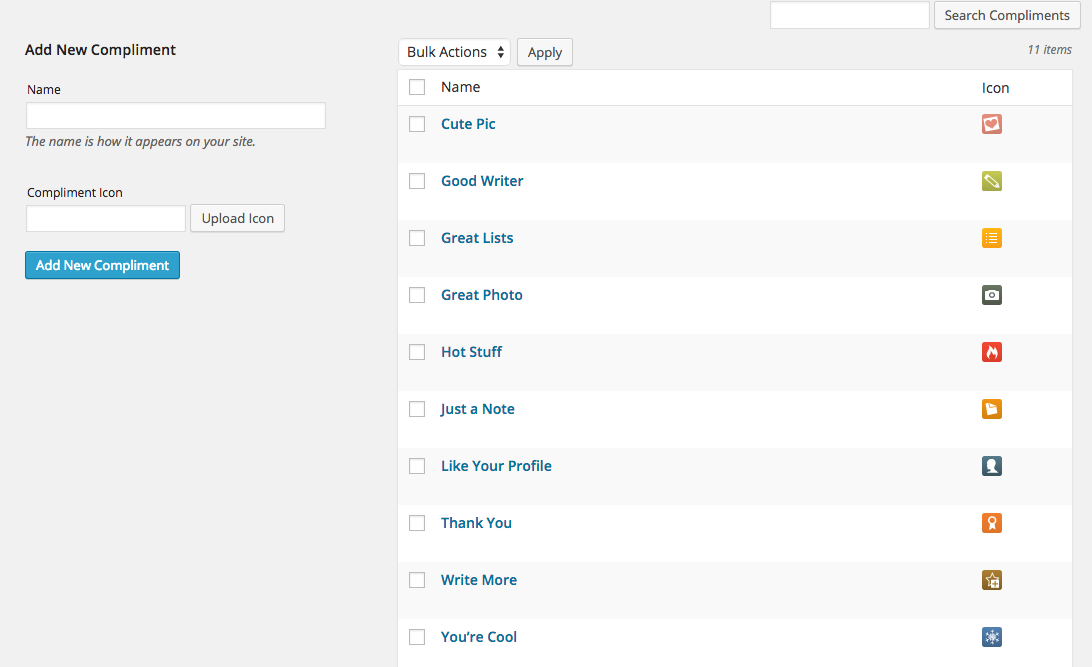
  1. You can add unlimited number of compliment types with icons.
  2. Please note, the recommended icon size is 20px x 20px
  3. Here is the screenshot of compliment page where you can add compliment types.
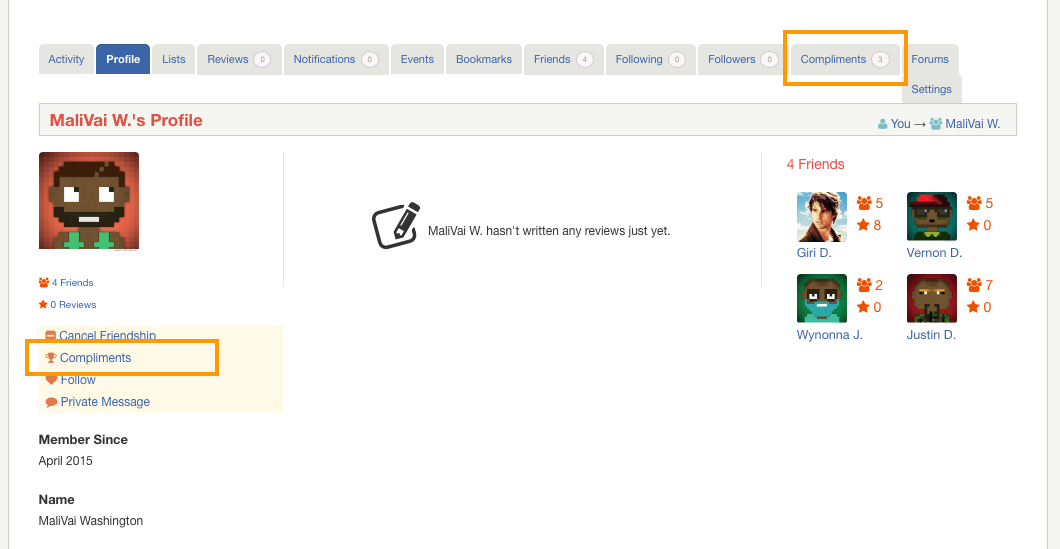
  4. A Compliment button and Compliments tab are added to each profile page. ( Note: Compliments button will not be visible on logged in user’s profile page.
  5. When you click Compliments button a popup will be displayed with compliment types.
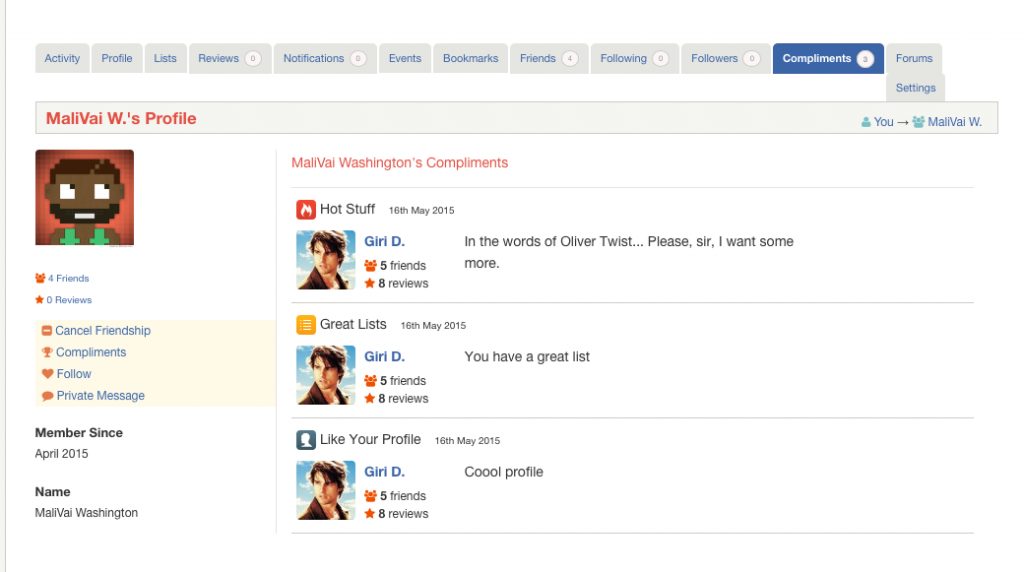
  6. Submitted compliments will be visible in user’s compliments section.
  7. compliments-section


Custom Maps Addon

Introduction
Installation
Snazzy Maps
Settings GeneralManage Styles – featureTypeelementType – stylers
Example Removing Google’s points of interest
More information

Open Street Map Base Layers

Introduction

Custom Google Maps for GeoDirectory allows you to modify the look and feel of all Google Maps on your GD website, through an easy user interface with color pickers and simple to use options.

This way you can make the maps of your website look totally personalized and unique.

Installation

After uploading and activating the Addon, you will find the settings in your WP admin area > GeoDirectory > Custom Google Maps.

Snazzy Maps

  1. Snazzy Maps is a repository of different color schemes for Google Maps aimed towards web designers and developers.
  2. You can browse all the different map styles contributed by users, and then export that style and import it into your GD website.
  3. This blog post explains how to import the Snazzy Maps styles. 

Settings

General

Here you can choose which map you want to show as a customized map.

Choose from your location map, listings map, and the detail page map.

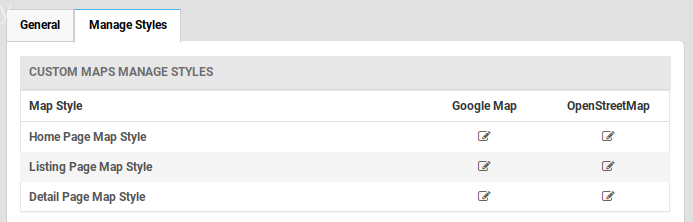
Manage Styles

The settings allow you to customize the presentation of the standard Google maps, changing the visual display of such elements as roads, parks, and built-up areas etc.

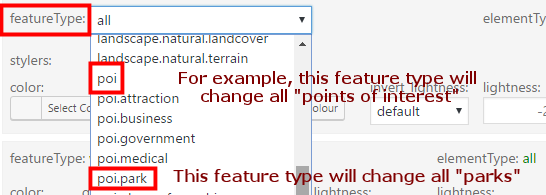
featureType: Every map is composed by adding different features, like roads, points of interest, waterways etc.

Read more about the different map features on the Google Developers website.

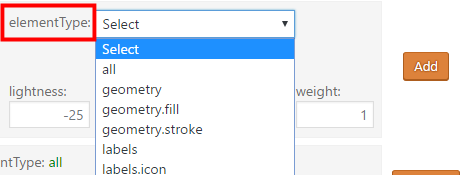
elementType: Every feature like a road, or a country border etc, are a combination of different elements, like the color of a waterway, or the color of the river’s edge.

Read more about the different elements on the Google Developers website.

stylers: Every element of a feature can be styled.

Read more about the different stylers on the Google Developers website.

Example

Removing Google’s points of interest

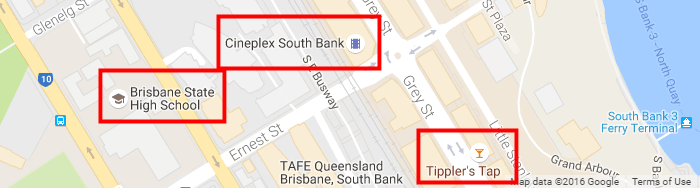
  1. A default Google map has “points of interest”, like restaurants, cinemas etc.
  2. So let’s remove them so you can add your own GD listings to the map:
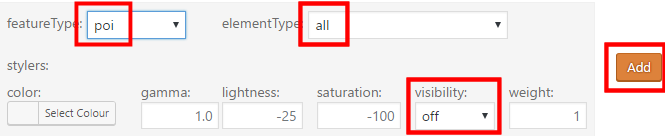
    1. Select featureType poi
    2. Select all elementTypes
    3. Turn visibility off
  3. Then click Add:
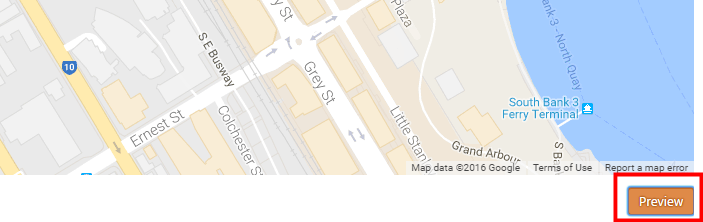
  4. Now click Preview below the map, and you will see all points of interest will be invisible:
  5. Once you are happy with the styles you added, click Save Styles.

More information

Styled Maps – Google website

Open Street Map Base Layers

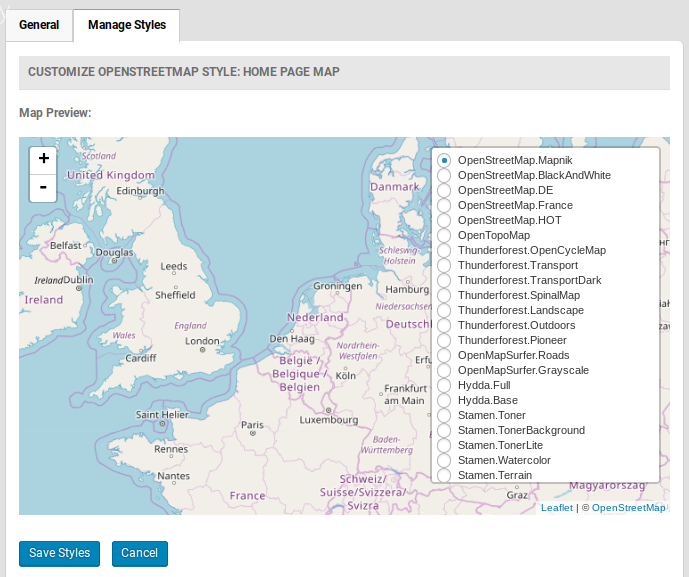
The Custom Maps Addon also enables your maps to show different Open Street Map Baselayers. Choose an Open Street Map setting first, then adjust the baselayer.

Events Addon – Widgets

This page is a work in progress, please visit the forum if you need extra help in the meantime.

Introduction GD > Are you interested GD > Related Events Listing

Introduction>

When you install the Events Addon, you’ll find a number of new GD widgets in the appearance section of your WP admin area.

Widget name Can be used on these pages:
Home Listings Search Detail Author Non-GD pages
GD > Are you interested yes yes yes yes yes yes
GD > Related Events Listing yes yes yes yes yes yes

GD > Are you interested

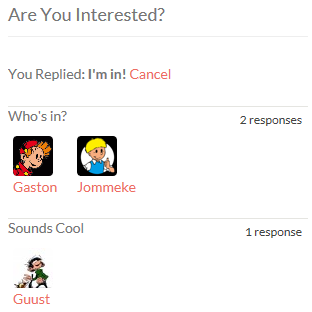
  1. This widget can only be used on the detail pages of your listings, and will show only on events detail pages.
  2. The widget will only show to logged in users.
  3. Logged in users will be able to confirm they are attending the event or they maybe will be attending.
  4. Once an event has passed, the buttons to attend will disappear, but the information will stay visible.
  5. Here is an example:

GD > Related Events Listing

Settings

This Events widget is specifically for the detail pages of your listings, and will show the events that have been submitted for a particular place.

The widget will only work on the default custom post type Places; it will not show on any other custom post type detail pages.

Most of the settings are self-explaining, and are the same as some of the settings of the Popular Post View widget, with one main difference:

Enable Location Filter: You can show events at a listing automatically on the detail page of that listing if you have both the Prices and Payment Addon and Events Addon enabled. Just follow these steps:

  1. In the Prices and Payment settings, set Link business to Yes in the Events pricing.
  2. Add the Related Events Listing widget to the detail page, and enable the Location Filter
  3. Now if the same user adds an event and chooses one of the listings from the Fill in Business Details menu, that event will automatically be listed on the detail page for the listing.

Event Manager Shortcodes

On this page:

Event ListingsEvent CalendarRelated Events

Event Listings

Shortcode: [gd_event_listing]

Parameters:

  • category – ID number of the category to show (default = 0 for all)
  • post_number – Number of posts to show (default = 5)
  • layout – Number of columns to show (default = 2)
  • add_location_filter – True or False (default = false)
  • listing_width – A percent between 20 and 100 (default = ‘’)
  • list_sort – One of az, upcoming, latest, featured, high_review, high_rating, random (default = latest)
  • list_filter – One of all, today, upcoming, past (default = all)
  • character_count – Number of characters to show from the Excerpt (Min/default = 20)
  • title – title

This example shows a widget with 5 listings in a row of 5 (5 grid), showing upcoming events ordered by earliest first, and the widget will have a tile Featured Events:
[gd_event_listing layout=5 post_number=5 list_sort=upcoming list_filter=upcoming title=”Featured Events”]

Event Calendar

Shortcode: [gd_event_calendar]

Parameters:
  • title – title
  • day – One of sunday or monday

Related Events

Shortcode: [gd_related_events]

Parameters:

  • post_number – Number of posts to show (default = 5)
  • layout – Number of columns to show (default = 2)
  • event_type – One of all, today, upcoming, past (default = all)
  • add_location_filter – True or False (default = false)
  • listing_width – A percent between 20 and 100 (default = ‘’)
  • list_sort – One of az, latest, featured, high_review, high_rating, random (default = latest)
  • character_count – Number of characters to show from the Excerpt (Min/default = 20)

Events Addon – Overview

Introduction Visit the demo events page
Installation
Events settings User navigationGeneral settings
Custom fields
Sorting options
Linked events settings

Introduction

The GeoDirectory Events Addon is a custom post type specifically designed for the way events usually are prioritized by dates.

With this plugin you can let users add their events to your site. Events are ordered by upcoming date by default. Users can enter recurring dates for their events instead of having to create lots of separate events. As this is also a custom post type you have the usual ability to add custom fields and sort options.

Events perfectly integrates with all other GeoDirectory addons:

Visit the demo events page

Installation

After uploading and activating the Addon, you will be taken to the Settings page:

WordPress Admin > GeoDirectory > Event Settings.

Events Settings

User navigation

Once activated, you will need to visit the Navigation page to enable your users to add their events to your site:

WordPress Admin > GeoDirectory > Design > Navigation

All other settings are accessed at WordPress Admin > GeoDirectory > Event Settings

General settings

Default event filter

  • Your visitors can filter the events to show only upcoming events (today + future), today’s events (today only), past events (yesterday and before), or all events together.
  • The Default event filter settings will set the initial choose on the events page.
Disable Recurring Feature

  • When your users add an event, they will be able to add
    • A one-off event, either a full day event, or start and finish can be nominated.
    • Recurring events: dayly, weekly, monthly, yearly or custom (pick all applicable dates), either as full day events, or start and finish can be nominated.
  • The Disable Recurring Feature setting will restrict event submissions to one-off events only.

Custom fields

Sorting options

  • When your visitors visit your events page, they will be presented with a drop down menu that allows them to filter the events.
  • You can change how they can filter the events by organizing the sorting options in this tab.
  • Visit this page to learn more about sorting options.

Linked events settings

  • When you activate the Events addon, a new option will be added for the detail page.
  • To change these settings, in your admin area, go to GeoDirectory > Design > Detail > Linked events settings.
  • The settings there should be self-explanatory.

Translating countries and map directions

On this page:

Changing the map language and directions Translating country names 
More information Translating regions or cities

Changing the map language and directions

The default language of your GeoDirectory maps is English, but you can change that to any language supported by Google maps. This is how:

  1. Go to your WP admin  area
  2. Navigate to GeoDirectory > Design > Map
  3. Under default map settings, change the language at Default map language

This will also change the directions given on any listing detail page, when visitors enter their address in the directions field below the map.

To translate other language strings related to your maps (like Enter Your Location below the map on the detail page), review the core translation article.

Translating country names

This only applies if you use the Location Manager (MultiLocations).

  1. Translate the countries in the language file of the core GD plugin (review the core translation article).
  2. In your WP admin area, navigate to GeoDirectory > MultiLocations > Translate Countries.
  3. Select the countries you want to translate, and click Update.
  4. This will change the country name and the country URL site-wide.

More information

Translating regions or cities

  1. Only countries can be translated, regions and cities cannot be translated.
  2. The name and slugs of regions and cities will be added as per the Map API.
  3. If you have a multi-language site with WPML, all regions and cities will have the same name and slug across the different languages.

How to use GD without street addresses?

From version 1.4.6.1 of the GeoDirectory core plugin and version 1.1.6 of the Custom Post Type addon, you can use listing types that do not need an address, and that will not be displayed on the maps.

Until then (or if you do not use the Custom Post Type addon), for the maps to work correctly, every listing in your directory needed an exact location on the map.

But that does not mean that you have to display the address of the listing.

This article explains how you can hide your street addresses. This might also be hqndy if you want to add listings to the maps, but you want to hide street addresses, or country details etc.

Hiding the address on the detail page

This will apply to all your listings.

The display of the different levels of the address are controlled by CSS classes:

    1. span[itemprop=”streetAddress”]
    2. span[itemprop=”addressLocality”]
    3. span[itemprop=”addressRegion”]
    4. span[itemprop=”addressCountry”]
    5. span[itemprop=”postalCode”]

    For example, if you only want to display the region and country, add this to your child theme’s style.css file:

    [css]span[itemprop="streetAddress"],
    span[itemprop="addressLocality"],
    span[itemprop="postalCode"] {
    display: none;
    }[/css]

    Modifying the Add Listing page

    This can be applied differently for each Custom Post Type.

    Option 1: Require street input (recommended)

    Edit GD > Place Settings > Custom fields > Field:Address > Front end description.

    For example: The street address will not be shown on your listing, but your business location will be shown on the map at this address. You can also just enter the city name for a more generic display on the map. 

    Option 2: Do not require street input

    You can remove the requirement for the street address by CSS:

    [css]#geodir_post_address_row {
    display: none;
    }[/css]

    This option means that the street address will be calculated by the Google map and will be either the address where the marker is dragged, or the city name if Set Address On Map is clicked.

    Option 3: Remove all address fields (not recommended)

    You can remove all the address fields and set addresses by dragging the marker on the map only. The Google API will still fill in the complete address, but it will not be displayed on the Add Listing form.

    This option can lead to incorrect locations being added to your database, and might require some maintenance.

    Add this to your CSS for option 3:

    [css]#geodir_post_address_row,
    #geodir_post_country_row,
    #geodir_post_region_row,
    #geodir_post_city_row,
    #post_set_address_button,
    #geodir_post_zip_row {
    display: none
    }[/css]