MultiRatings and Reviews Add-on Overview

Introduction

With our slick reviews and ratings manager you can turn your site into a professional reviews directory. No hassle!

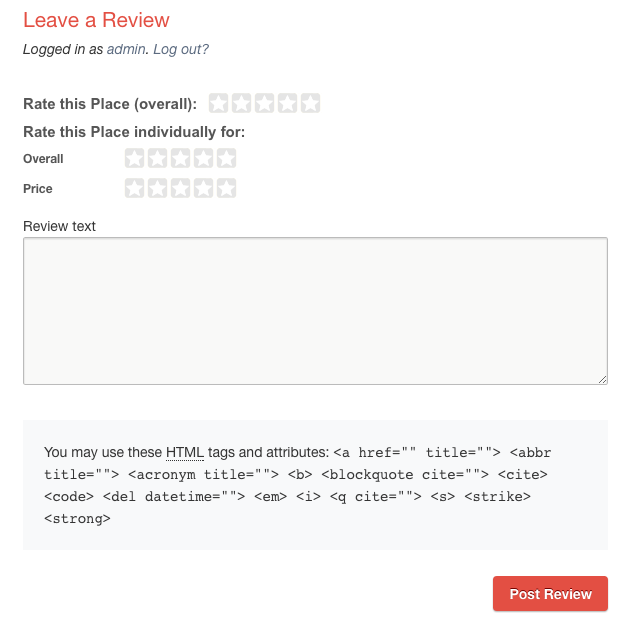
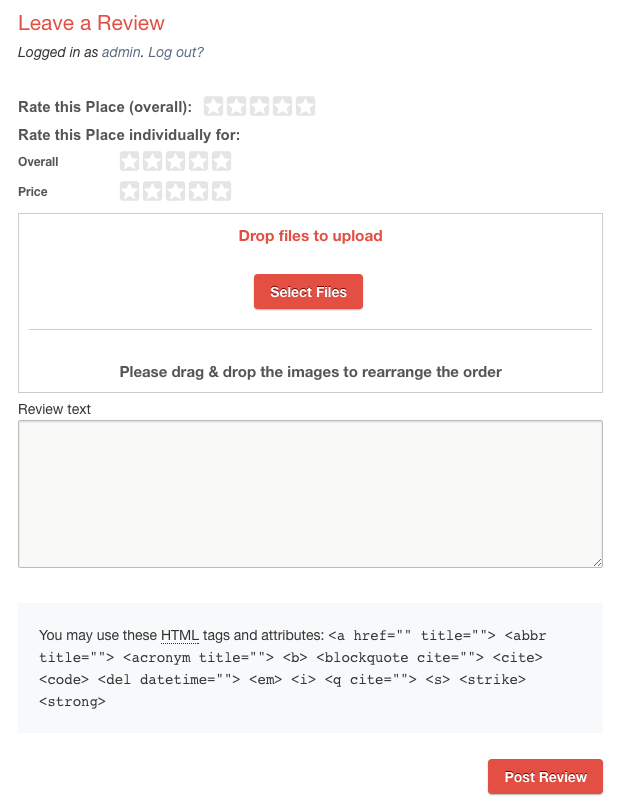
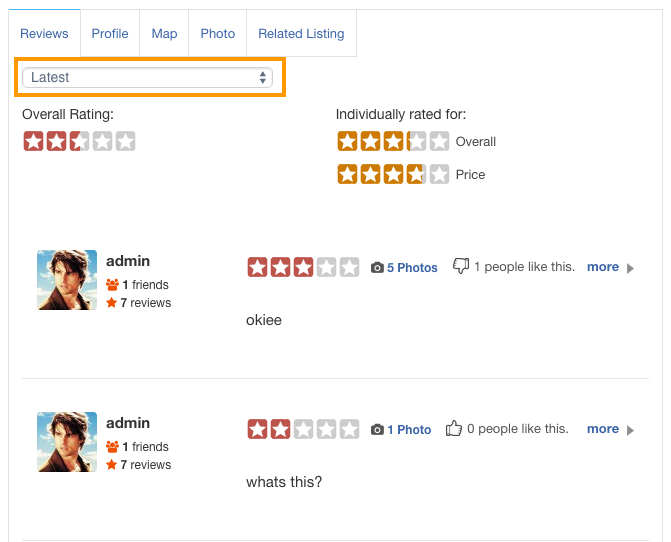
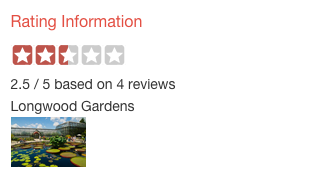
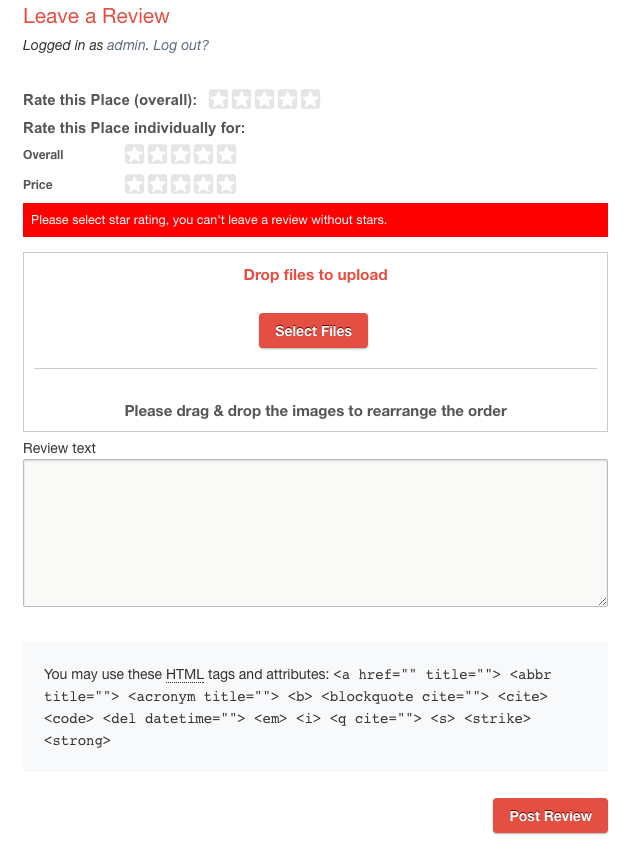
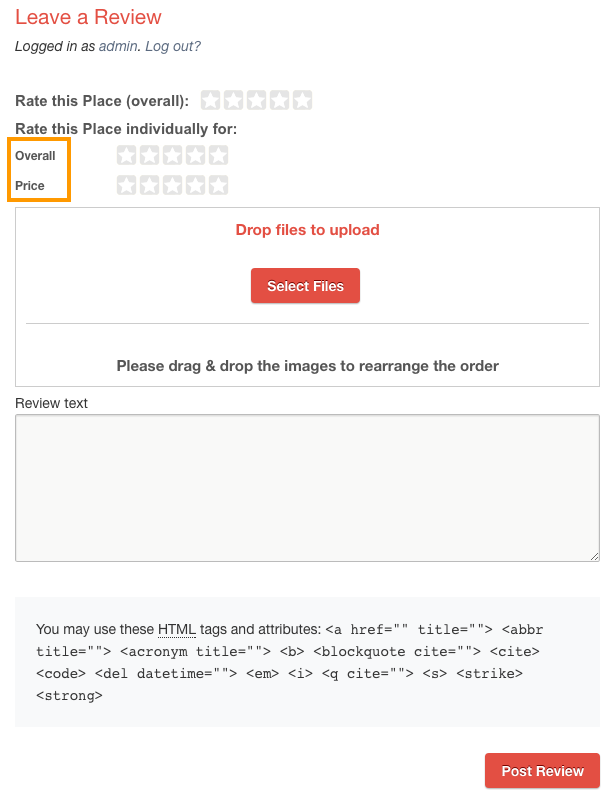
In a process similar to that used by TripAdvisor, visitors rate the overall performance for each business, then fine-tune their rating with as many individual ratings – multi-ratings – as you choose.

Quality, price, cleanliness, friendliness – there is no limit to the criteria you can apply and they can be different for each category. If you choose, users can upload photos to illustrate their review too!

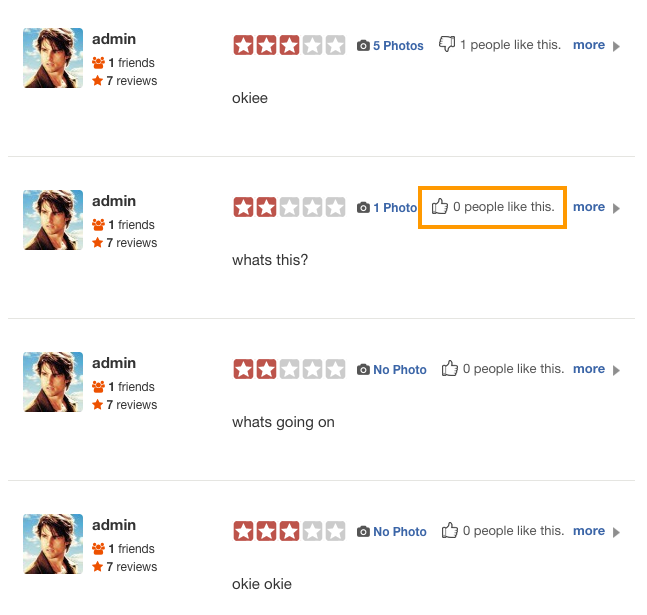
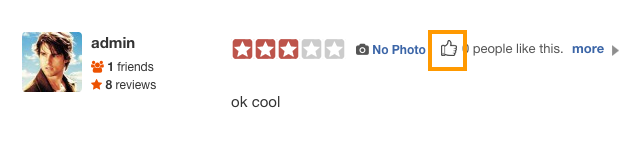
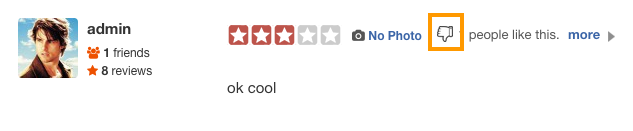
Users can upvote or downvote reviews via “like” and “dislike” buttons. Switch voting on or off as you choose.

Take it further with Custom Post Types

If you have the GeoDirectory Custom Post Types add-on installed, you can set different rating and reviews options for each post type and its categories.

Installation

  1. Visit wpgeodirectory.com ( Buy a subscription if Required )
  2. Navigate to My Account > Downloads ( Login if Required )
  3. Download Geodir Review Rating Manager zip file.
  4. Go to your WordPress site dashboard, Navigate to  Plugins > Add New > Upload Plugin
  5. Browse and Upload the zip file you downloaded from wpgeodirectory.com
  6. Activate the plugin.

Configuration

This plugin creates two new tabs in GeoDirectory settings page.

  1. MultiRatings
  2. Reviews

You will be automatically redirected to MultiRatings setting page, after plugin activation.

General Tab

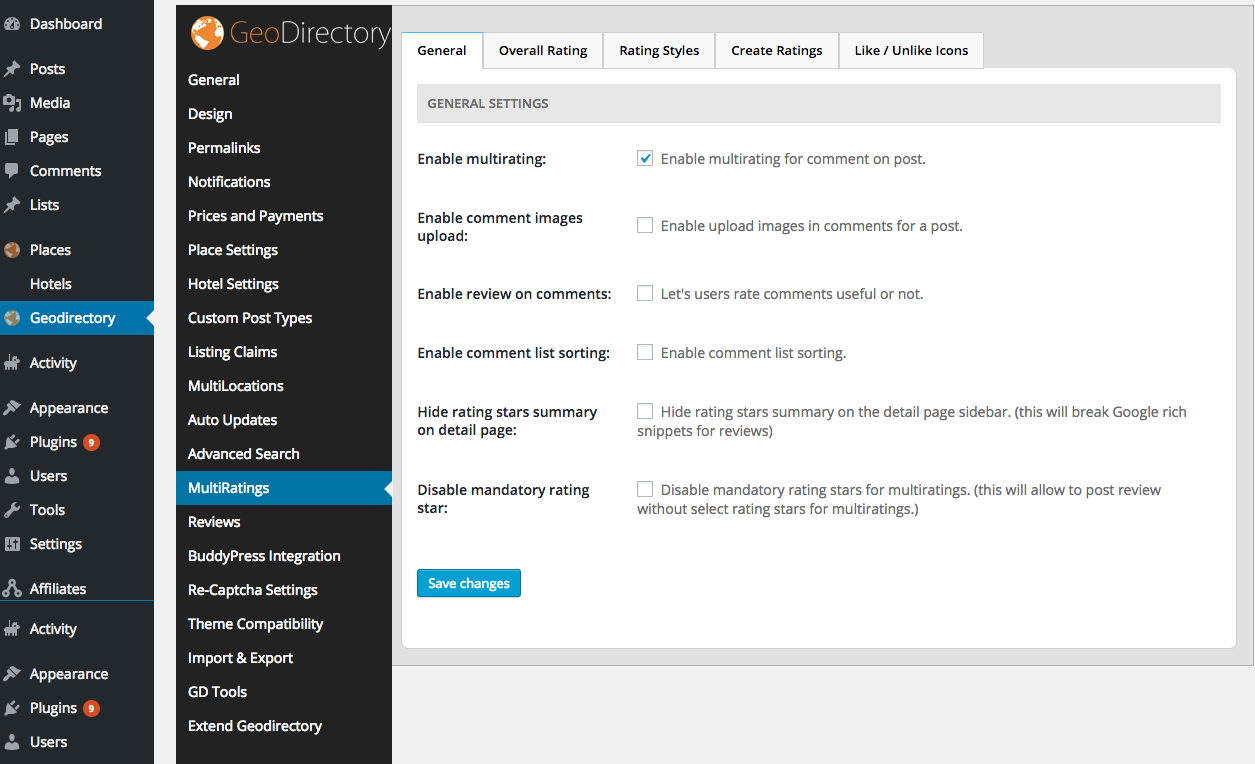
General Settings

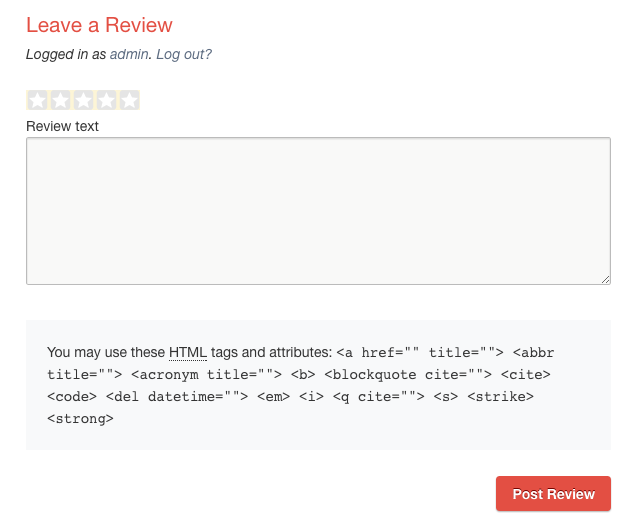
  1. Enable multirating:
    1. Enable multirating for comment on post.
    2. When Disabled
      1. mrdisabled
    3. When enabled
      1. mrenabled
  2. Enable comment images upload:
    1. Enable upload images in comments for a post.
    2. When enabled
      1. imguploadenabled
  3. Enable review on comments:
    1. Let’s users rate comments useful or not.
    2. When disabled
      1. likedislikedisabled
    3. When enabled
      1. likedislike
  4. Enable comment list sorting:
    1. Enable comment list sorting.
    2. When enabled
      1. sorting
  5. Hide rating stars summary on detail page:
    1. Hide rating stars summary on the detail page sidebar.
    2. Note: This will break Google rich snippets for reviews
    3. When disabled
      1. ratingsummarybefore
    4. When enabled
      1. ratingsummaryafter
  6. Disable mandatory rating star:
    1. Disable mandatory rating stars for multiratings.
    2. This will allow to post review without select rating stars for multiratings.
    3. When disabled
      1. ratingmandatory
    4. When enabled
      1. Error validation will be disabled for Rate this Place individually for: part.

Overall Rating Tab

Overall Rating Settings

  1. Overall rating image
    1. This image will be used as rating image
    2. Note: Always use a transparent image. Click here to see a sample transparent rating image. Save this image in you computer to see it.
    3. If transparent image not used, then Overall rating color code option will not work.
  2. Overall rating image for featured listing:
    1. This image will be used as rating image for featured listing.
    2. If no image, then it will fallback to Overall rating image
  3. Overall rating color code
    1. This color code will be used as rating color.
    2. Note: You must use a transparent image, if you are planning to use color option.
  4. Overall rating color code for featured listing:
    1. This color code will be used as rating color for featured listing.
    2. When no option set, it will fallback to Overall rating color code
  5. Overall rating setting score
    1. How many rating Icons you need?
    2. Default value: 5
    3. Overall rating score text options depends on this value.
  6. Overall rating score text.
    1.  What is the text you want to display when someone hover over the rating icons?
      • 1 Star Text  – Text to display for 1 Star  – Default : Terrible
      • 2 Star Text  – Text to display for 2 Stars  – Default : Poor
      • 3 Star Text  – Text to display for 3 Stars – Default : Average
      • 4 Star Text  – Text to display for 4 Stars  – Default : Very Good
      • 5 Star Text  – Text to display for 5 Stars  – Default : Excellent

Rating Styles Tab

Manage Rating Styles

  1. Title
    1. Style title
  2. Rating score (default 5)
    1. How many rating Icons you need?
    2. Default value: 5
    3. Rating text options depends on this value.
  3. Rating text
    • 1 Star Text  – Text to display for 1 Star  – Example : Terrible
    • 2 Star Text  – Text to display for 2 Stars  – Example : Poor
    • 3 Star Text  – Text to display for 3 Stars – Example : Average
    • 4 Star Text  – Text to display for 4 Stars  – Example : Very Good
    • 5 Star Text  – Text to display for 5 Stars  – Example : Excellent
  4. Rating off image.
    1. This image will be used as rating image
    2. Note: Always use a transparent image. Click here to see a sample transparent rating image. Save this image in you computer to see it.
  5. Rating color
    1. This color code will be used as rating color.
    2. Note: You must use a transparent image, if you are planning to use color option

Create Ratings Tab

Create Ratings

  1. Select multirating style
    1. Select a multi rating style.
    2. The options available here are coming Rating Styles Tab
  2. Rating title
    1. The rating title
    2. title
  3. Showing method
    1. Show star
      1. saveasrating
    2. Show dropdown
      1. showasdropdown
  4. Select post type
    1. Select post types, where you would like to display the current rating

Like / Unlike Icons Tab

Manage Like / Unlike Icons

  1. Review like image
    1. The icon will be used here.
    2. like
  2. Review unlike image
    1. The icon will be used here.
    2. displike

GD reCAPTCHA Add-on Overview

Introduction

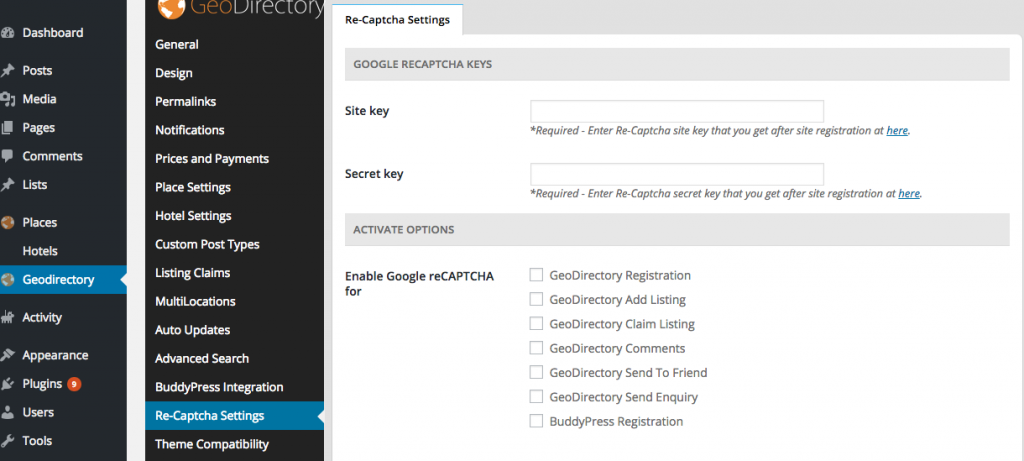
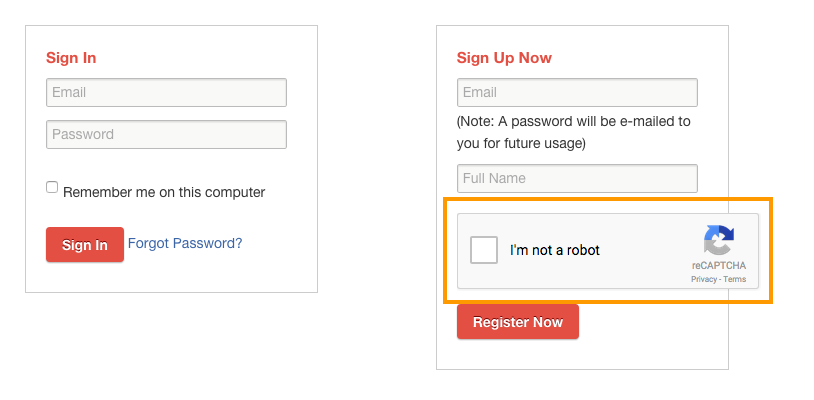
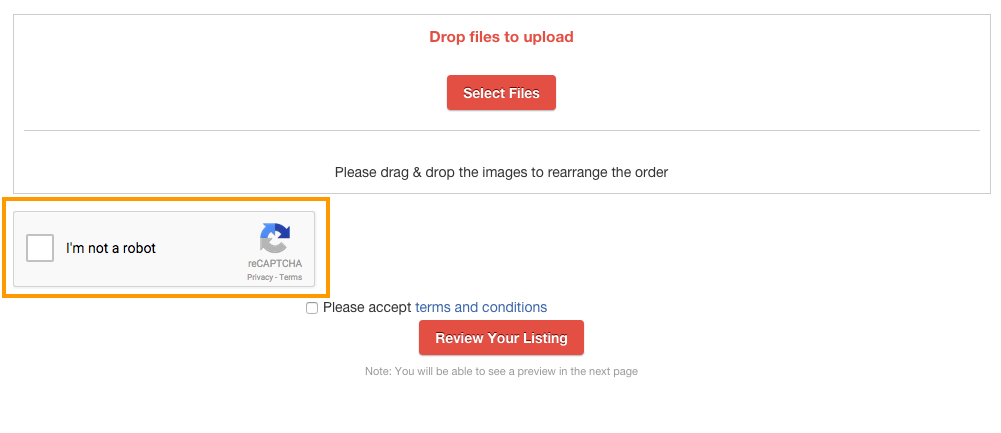
The GD reCAPTCHA addon integrates the new Google reCAPTCHA api and allows you to add the noCAPTCHA reCAPTCHA widget to any GeoDirectory form.

It can be added to:

  • GeoDirectory Registration
  • GeoDirectory Add Listing
  • GeoDirectory Comments
  • GeoDirectory Send To Friend
  • GeoDirectory Send Enquiry
  • GeoDirectory Claim Listing

It can also be disabled for logged in users, based on user’s role.

Installation

  1. Visit wpgeodirectory.com ( Buy a subscription if Required )
  2. Navigate to My Account > Downloads ( Login if Required )
  3. Download Geodir reCAPTCHA zip file.
  4. Go to your WordPress site dashboard, Navigate to  Plugins > Add New > Upload Plugin
  5. Browse and Upload the zip file you downloaded from wpgeodirectory.com
  6. Activate the plugin.

Configuration

recaptchasettings

Re-Captcha Settings Tab

Google Re-Captcha Keys

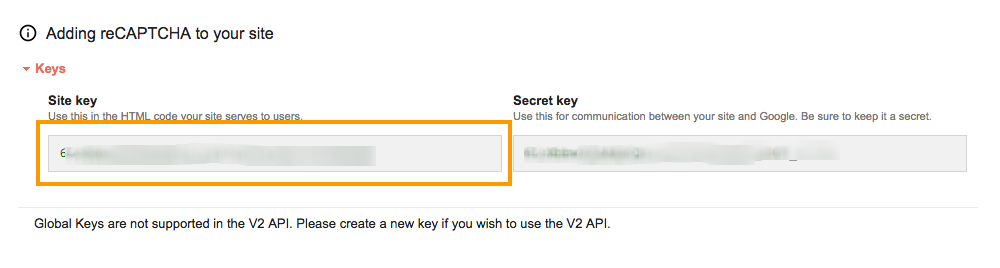
  1. Site Key
    1. This is a required field.
    2. To get your site Key
      1. Visit this page
      2. Register a new site or click the site if you have added already
      3. Make sure to select reCaptcha V2
      4. Keys are available under Adding reCAPTCHA to your site section.
      5. sitekey
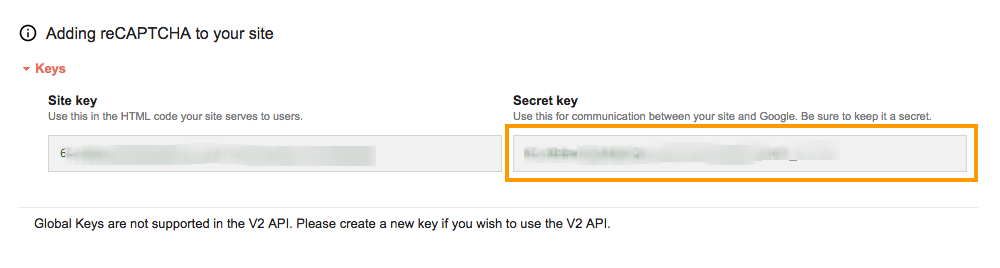
  2. Secret Key
    1. This is a required field.
    2. To get your site Key
      1. Visit this page
      2. Register a new site or click the site if you have added already.
      3. Keys are available under Adding reCAPTCHA to your site section.
      4. secretkey

Activate Options

  1. Enable Google reCAPTCHA for
    1. GeoDirectory Registration
      1. georeg
    2. GeoDirectory Add Listing
      1. addlisting
    3. GeoDirectory Claim Listing
      1. claim
    4. GeoDirectory Comments
      1. comments
    5. GeoDirectory Send To Friend
    6. GeoDirectory Send Enquiry
      1. sendenq
    7. BuddyPress Registration
      1. buddysignup
  2. Disable Google reCAPTCHA for
    1. Administrator
    2. Editor
    3. Author
    4. Contributor
    5. Subscriber
  3. Captcha Title
    1. Captcha title to be displayed above captcha code, leave blank to hide.
  4. Captcha Theme
    1. Select color theme of captcha widget
      1. Light
      2. Dark
        1. dark

Custom Post Types Add-on – Overview

Introduction

Our free GeoDirectory plugin ships with only one Post Type called Places. But sometimes you would like to have separate name for each listing type ( Ex: Bars, Hotels, Restaurants etc )  instead of one generic name Place.

Understanding Places, Categories, Listings and Custom Post Types

By installing our Custom Post Types add-on, you are removing that barrier. You can create Unlimited number of Post Types.

The advantages of this plugin are that instead of trying to manage a large diverse directory with many categories all under the one post type, you can split these into more manageable CPTs, you will then be able to add different custom fields to each CPT and be able to manage pricing for each easier.

This plugin also integrates well with our Advance Search Filters addon and will let you search per post type and also have different advanced filters per post type, for example a CPT “Hotels” could have filters such as “Free WiFi” and another CPT “Points of Interest” could have a filter “Great for Kids”.

Installation

  1. Visit wpgeodirectory.com ( Buy a subscription if Required )
  2. Navigate to My Account > Downloads ( Login if Required )
  3. Download Geodir Custom Posts zip file.
  4. Go to your WordPress site dashboard, Navigate to  Plugins > Add New > Upload Plugin
  5. Browse and Upload the zip file you downloaded from wpgeodirectory.com
  6. Activate the plugin.

Configuration

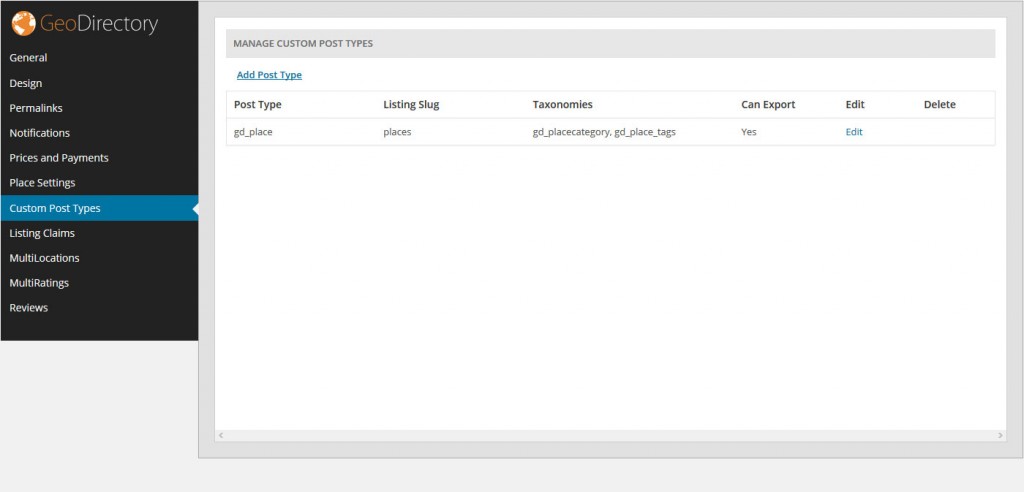
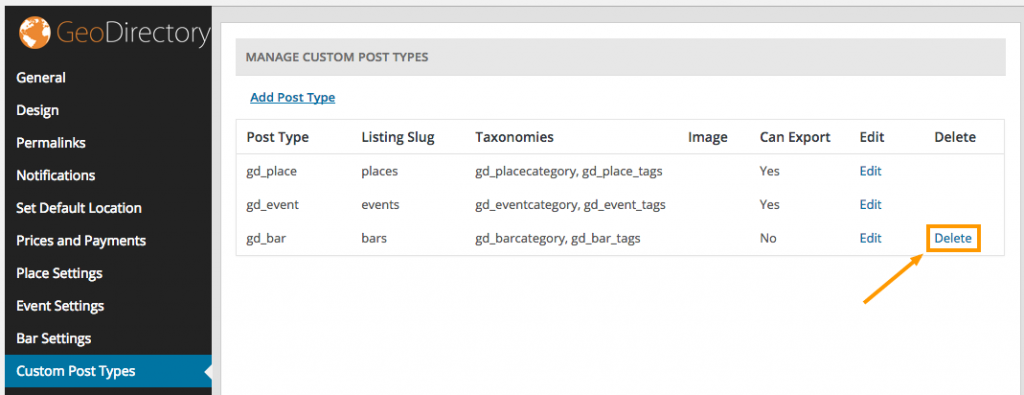
After activation you will be redirected to GeoDirectory > Custom Post Types page. This is the page where you can Add, Edit or Delete your post types.  No additional configuration needed.


gd_cpt

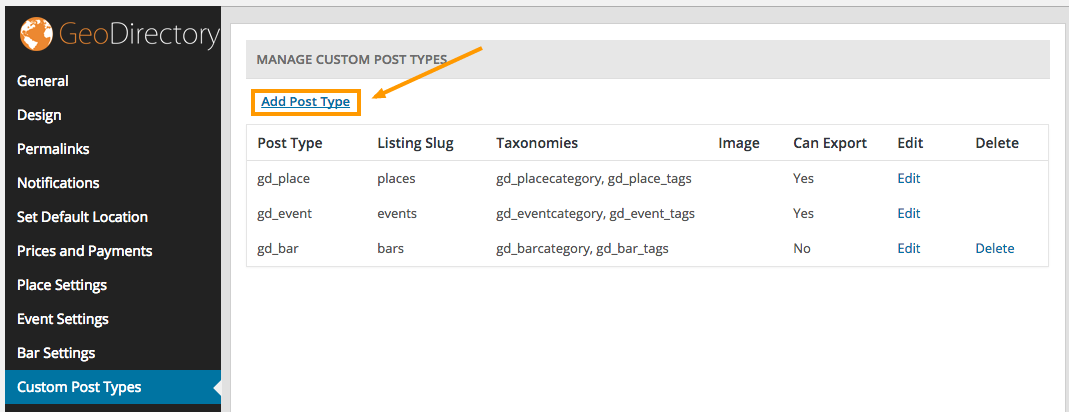
To Add a new post type

To add a new post type, click the “Add Post Type” link from the Custom Post Types page.

toadd

List of form fields and accepted values

The following example assumes you are planning to create a custom post type called Bars. If you are planning to create different post type, change the values accordingly.

Post Type

  1. Post type
    1. The new post type system name
    2. Usually singular.
    3. Minimum 2 characters
    4. Maximum 17 characters
    5. Lower-case characters and underscores only.
    6. Once added the post type system name cannot be changed.
    7. Example:  bar
  2. Listing slug
    1. The listing slug name.
    2. This will be displayed in your url.
    3. Minimum 2 characters.
    4. Maximum 20 characters.
    5. Lower-case characters, underscores and hyphen(-) only.
    6. Example:  bars
  3. Order in post type list
    1. Position at which this post type will appear in post type list everywhere on the website.
    2. Note: If the entered value is already an order of other post type then this will not make any effect.
    3. Example:  4
  4. Upload default image
    1. Default post type image.
    2. If you set an image here, this will be used as listing thumbnail image when no image available.

Labels

  1. Name
    1. General name for the post type.
    2. Usually plural.
    3. Example: Bars
  2. Singular name
    1. Name for one object of this post type.
    2. Defaults to value of name.
    3. Example: Bar
  3. Add new
    1. The add new text.
    2. The default is Add New for both hierarchical and non-hierarchical types.
    3. Example: Add New
  4. Add new item
    1. The add new item text.
    2. If you leave this blank Add New Item text will be used.
    3. Example: Add New Bar
  5. Edit item
    1. The edit item text.
    2. If you leave this blank Edit Item text will be used.
    3. Example: Edit Bar
  6. New item
    1. The new item text.
    2. if you leave this blank New Item text will be used.
    3. Example: New Bar
  7. View item
    1. The view item text.
    2. If you leave this blank View Item text will be used.
    3. Example: View Bar
  8. Search items
    1. The search items text.
    2. If you leave this blank Search Items text will be used.
    3. Example: Search Bars
  9. Not found
    1. The not found text.
    2. If you leave this blank Not Found text will be used.
    3. Example: No Bar Found
  10. Not found in trash
    1. The not found in trash text.
    2. If you leave this blank Not Found In Trash text will be used.
    3. Example: No Bar Found in Trash
  11. Profile tab label
    1. Text label for “Profile” tab on post detail page.
    2. This is Optional. So leave Empty unless necessary.
  12. More Info tab label
    1. Text label for “More Info” tab on post detail page.
    2. This is Optional. So leave Empty unless necessary.
  13. Photo tab label
    1. Text label for Photo” tab on post detail page.
    2. This is Optional. So leave Empty unless necessary.
  14. Map tab label
    1. Text label for “Map” tab on post detail page.
    2. This is Optional. So leave Empty unless necessary.
  15. Reviews tab label
    1. Text label for “Reviews” tab on post detail page.
    2. This is Optional. So leave Empty unless necessary.
  16. Related Listing tab label
    1. Text label for “Related Listing” tab on post detail page.
    2. This is Optional. So leave Empty unless necessary.

Nav Menus

  1. Posts
    1. If checked it will disable post listings (of the current post type ) in Appearance > Menus.
  2. Categories
    1. If checked it will disable post categories (of the current post type ) in Appearance > Menus.
  3. Tags
    1. If checked it will disable post tags (of the current post type ) in Appearance > Menus.

Supports

Registers support of certain feature(s) for a given post type. Each feature has a direct impact on the corresponding field displayed in the post edit screen

  1. Author
    1. If checked, Author feature will be enabled for current post type.
  2. Thumbnail
    1. If checked, Thumbnail feature will be enabled for current post type.
    2. Current theme must also support post-thumbnails.
  3. Excerpt
    1. If checked, Excerpt (Short description ) feature will be enabled for current post type.
  4. Custom fields
    1. If checked, Custom fields feature will be enabled for current post type.
  5. Comments
    1. If checked, Comments feature will be enabled for current post type.
    2. Also will see comment count balloon on edit screen when checked.
  6. Post formats
    1. If checked, Post formats feature will be enabled for current post type.

Description

  1. Description
    1. A short descriptive summary of what the post type is.

Menu Icon

  1. Menu Icon
    1. The url to the icon to be used for this menu.

Can Export

  1. Can Export
    1. When set to True, current post type data can be exported.

SEO

  1. Meta Keywords
    1. Meta keywords will appear in head tag of this post type listing page.
  2. Meta Description
    1. Meta description will appear in head tag of this post type listing page.

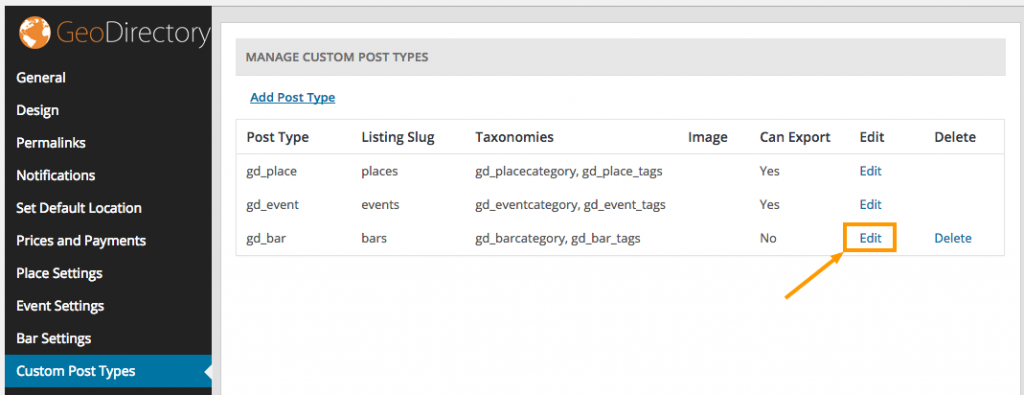
To Edit a post type

To edit a post type, click the “Edit” link from the Custom Post Types page.

toedit

To Delete a post type

To Delete a post type, click the “Delete” link from the Custom Post Types page.

todelete

Usage

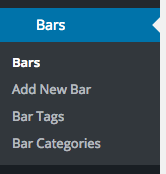
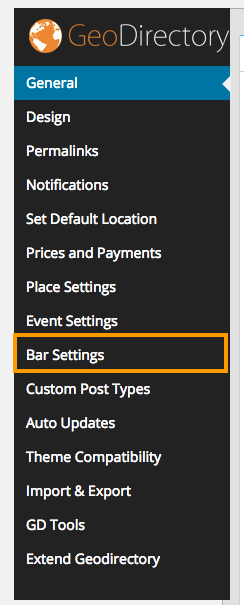
Once you created a new post type, you can see new menu items in the following areas.

barsmenu

barsettings

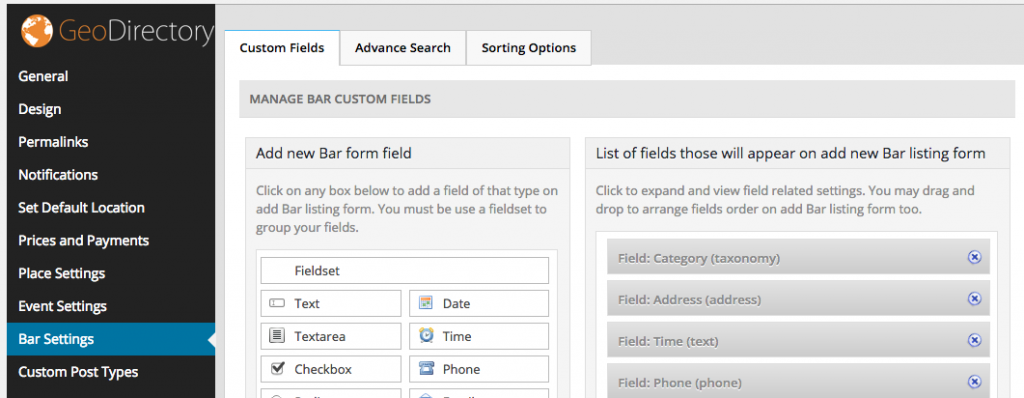
Bar Settings

bartabs

This page has the following tabs.

  1. Custom Fields
  2. Sorting Options
  3. Advanced Search ( Advanced search filters Required )

Custom Fields

To know more about custom fields, visit this section

Sorting Options

To know more about sorting options, visit this section

Advanced Search

To know more about advanced search, visit this section

Whoop Theme – Available Widgets

Available Widgets

Here is the list of widgets, added by whoop.

For GeoDirectory

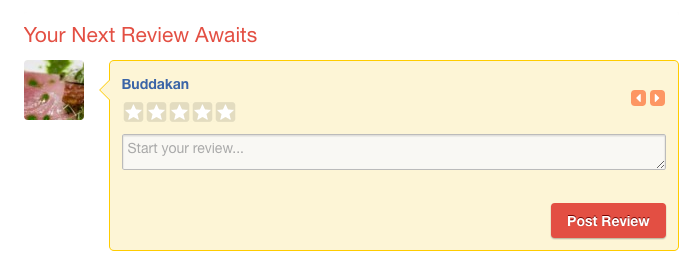
  1. Your Next Review Awaits
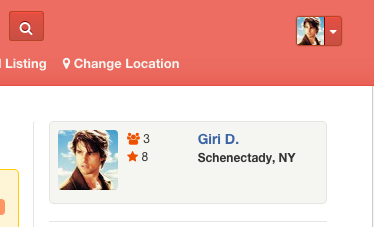
  2. User Info
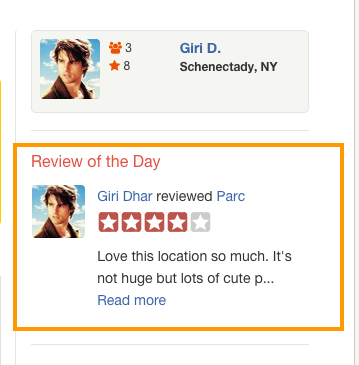
  3. Review of the Day

For GeoDirectory Events

  1. Are you interested?
  2. Popular & Latest Events

For BuddyPress

  1. Recent Activity
  2. Event Updates ( Also depends on GeoDirectory Events )
  3. Friends

For bbPress

  1. Today in Talk

Tip: All whoop widget names start with Whoop >   Example : Whoop > Your Next Review Awaits   So all whoop widgets can be easily found on widgets section when you search for Whoop >  using CTRL + F ( CMD + F on MAC )


Your Next Review Awaits

your-next-review

  1. Only logged in users can see this widget
  2. This widget fetches posts from current user’s bookmarks. ( User can bookmark a post from listing page by clicking bookmark button.)bookmark-button
  3. This widget needs upto 10 posts. So when not enough ( current user’s ) bookmarked posts available, it will look for some high rated posts which are not yet reviewed by current user.

User Info

user-info

  1. This widget displays logged in user’s information.
  2. The number 3 from above screenshot is user’s friend count. ( BuddyPress required )
  3. The number 8 from above screenshot is the number of reviews user posted.
  4. That Schenectady, NY part coming from Account Settings > Profile Info > My Hometown  ( BuddyPress required )
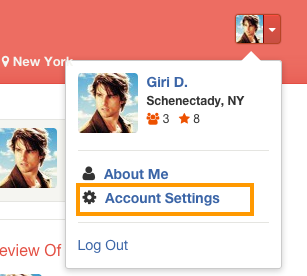
  5. Account Settings link can be found here.
  6. account-settings

Review of the Day

review-of-the-day

  1. This widget will be visible only when there is a Review of the Day available.
  2. You may have to set Review of the Day everyday.
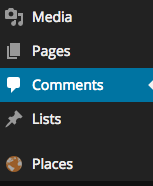
  3. To set review of the day, Navigate to Comments 
  4. comments-page
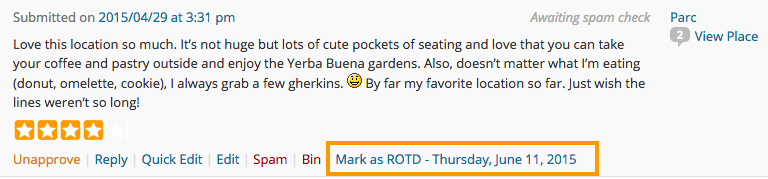
  5. Under each comment ( Only reviews ), you can see a link named Mark as ROTD – ( Current Day and Date ). Clicking that link will mark that review as Review of the Day.
  6. mark-as-rotd
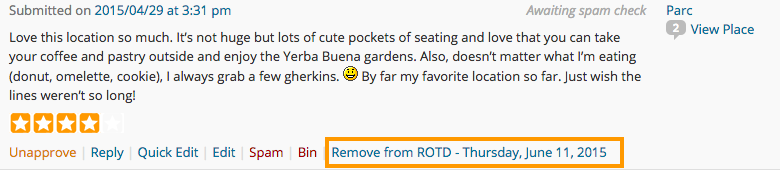
  7. If you would like to undo, you can click  Remove from ROTD – ( Current Day and Date )
  8. remove-from-totd

Are you interested? ( GeoDirectory Events required )

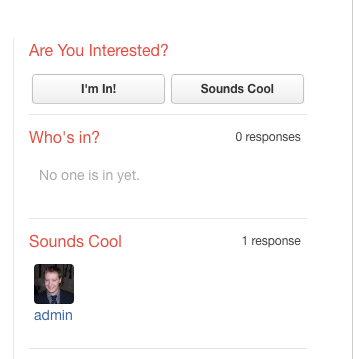
are-you-interested

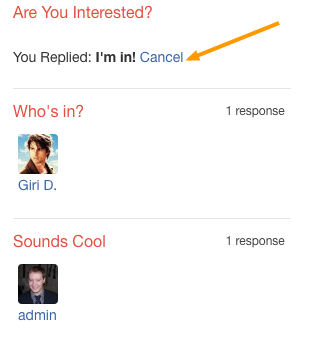
  1. Only logged in users can able to see this widget.
  2. This widget is applicable only for Events post type. For other post types, it won’t get displayed.
  3. Enroll ( I’m in, Sounds Cool ) buttons will be visible only for future events. i.e The current event’s event start date should be greater than current date.
  4. Users can undo their actions by clicking Cancel link.
  5. undo-enroll

Popular & Latest Events ( GeoDirectory Events required )

pop-lat-events

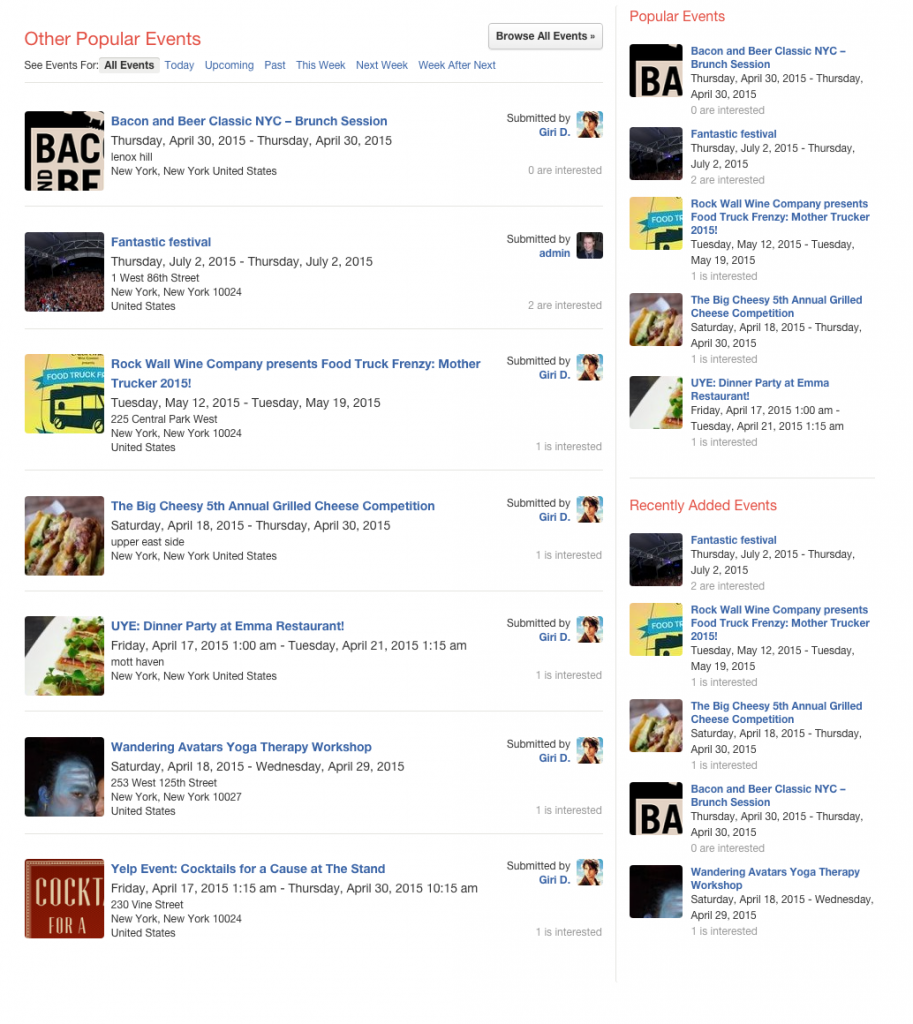
In the above screenshot, same widget is used 3 times with different widget names.

  1. You can use this widget to list popular events or latest events.
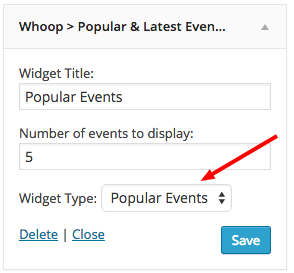
  2. You can set the widget listing type by selecting widget type. ( Refer the following screenshot )
  3. widget-type
  4. When you place the widget in main content, the layout will be displayed differently. It will display, Browse all events button, See event for links and the submitter info. ( refer other popular events in the above screenshot )

Recent Activity ( BuddyPress Required )

recent-activity

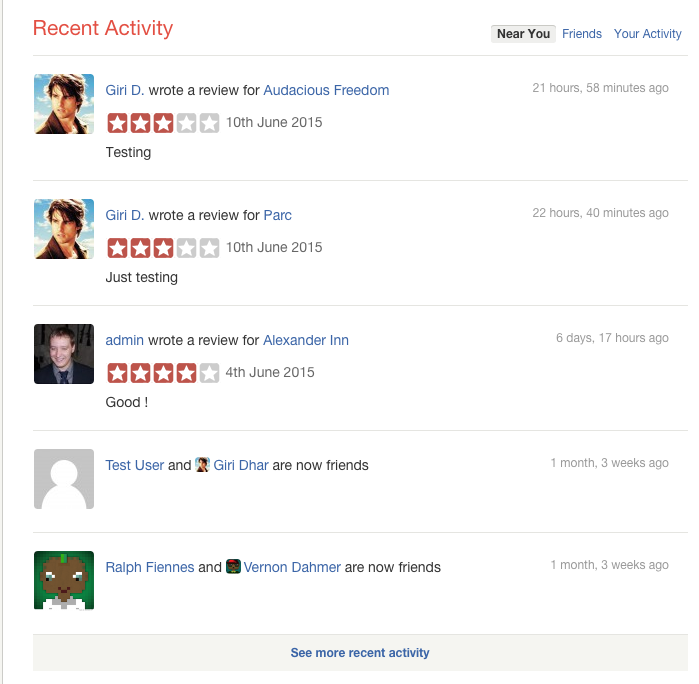
  1. This widget displays information about the recent activity.
  2. Only logged in users can see filter links. ( Near You, Friends and Your Activity)
  3. Activity will be recorded and displayed, when a user becomes a friend with another user.
  4. Activity will be recorded and displayed, when a user write a review for a place.

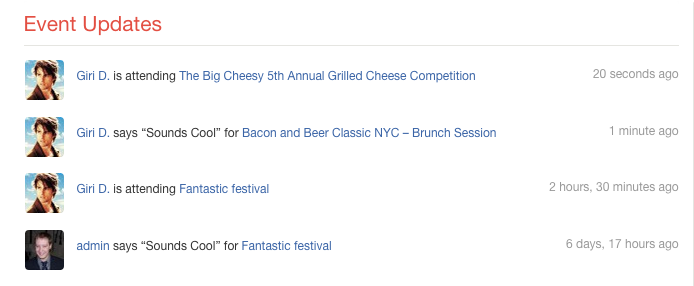
Event Updates ( BuddyPress & GeoDirectory Events Required )

event-updates

  1. When a user click I’m in or Sounds Cool button from Are You Interested? widget, the activity will be recorded.
  2. The latest 5 activities will be displayed in Event Updates widget.

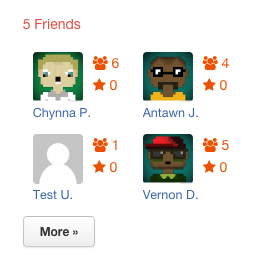
Friends ( BuddyPress Required )

friends

  1. This widget can be displayed only on BuddyPress user profile pages.
  2. So place your widget in BuddyPress Sidebar
  3. You can set the number of users to display on the widget. Default value is 4.

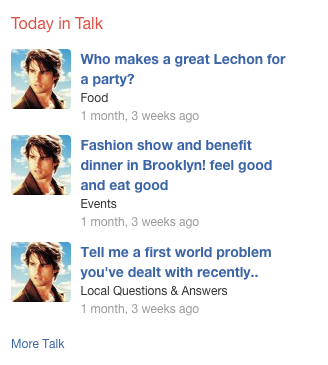
Today in Talk ( bbPress Required )

today-in-talk

  1. This widget shows latest forum topics


GeoDirectory Lists – Overview

Introduction

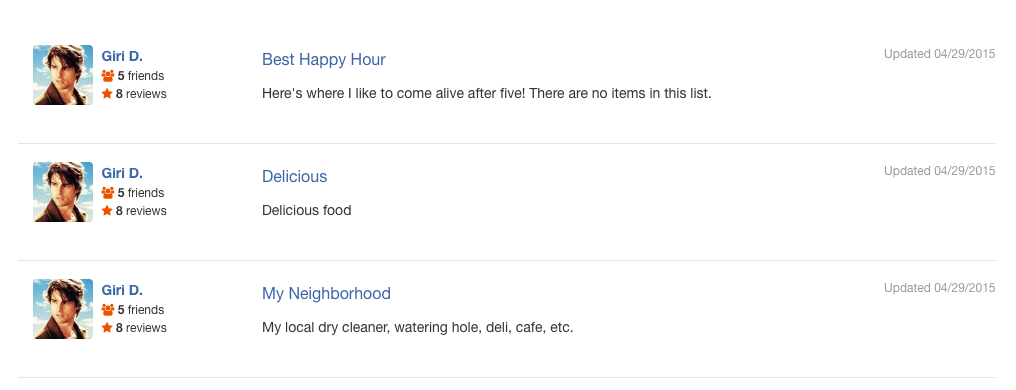
Using GeoDirectory Lists, you can create your own place list.  Example: My Favorite Restaurants

Note: As of now GeoDirectory Lists can be used only with Whoop theme. Other themes are not supported yet.

Prerequisites

  1. GeoDirectory
  2. Whoop Theme (Optional)
  3. Posts 2 Posts
  4. Buddypress (Optional)

Posts 2 Posts

GeoDirectory Lists heavily depends on Posts 2 Posts Plugin. So Please install it first before installing GeoDirectory Lists.

Installation

Please follow this tutorial, to install the plugin.

Reset Permalinks

  1. Navigate to Settings > Permalinks > Common Settings.
  2. Select Default option and then save it.
  3. Now select Post name and then save it again.

Links

  1. List index can be accessed by visiting yourdomain.com/lists/
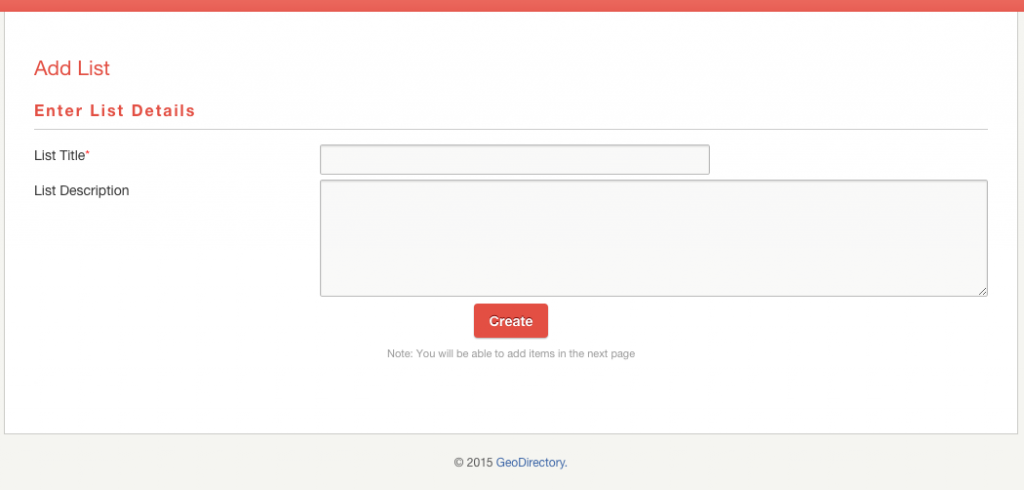
  2. A new list can be created by visiting yourdomain.com/add-list/
Index Page screenshot

list-index

Add List Page screenshot

list-add

To create a List

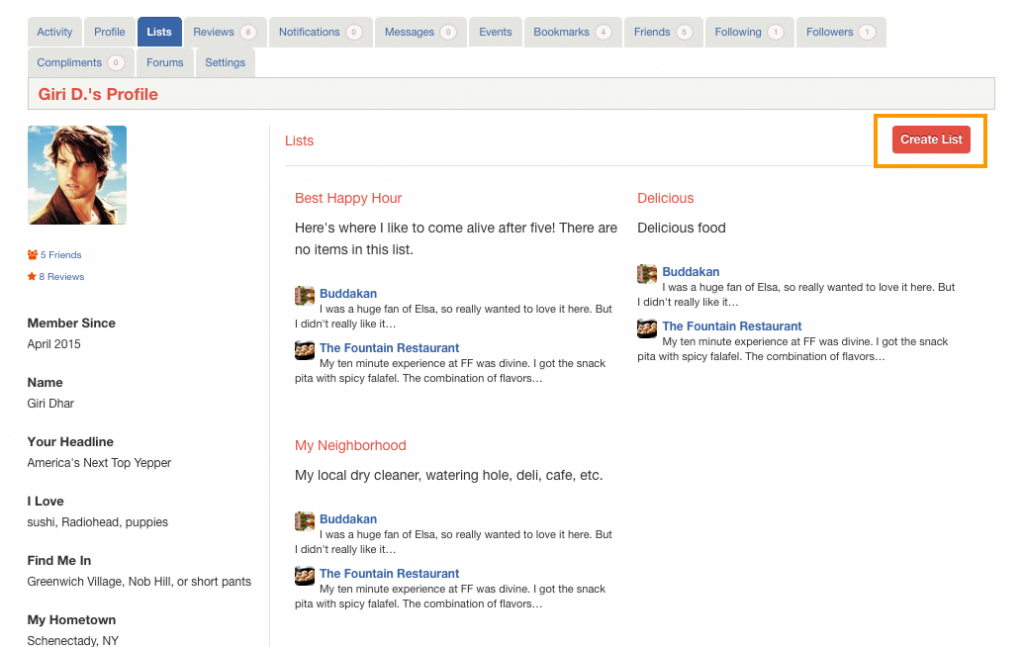
  1. Navigate to Account Settings > Lists
  2. Click Create List button.
  3. create-list
  4. Enter List Title and List Description and then click Create
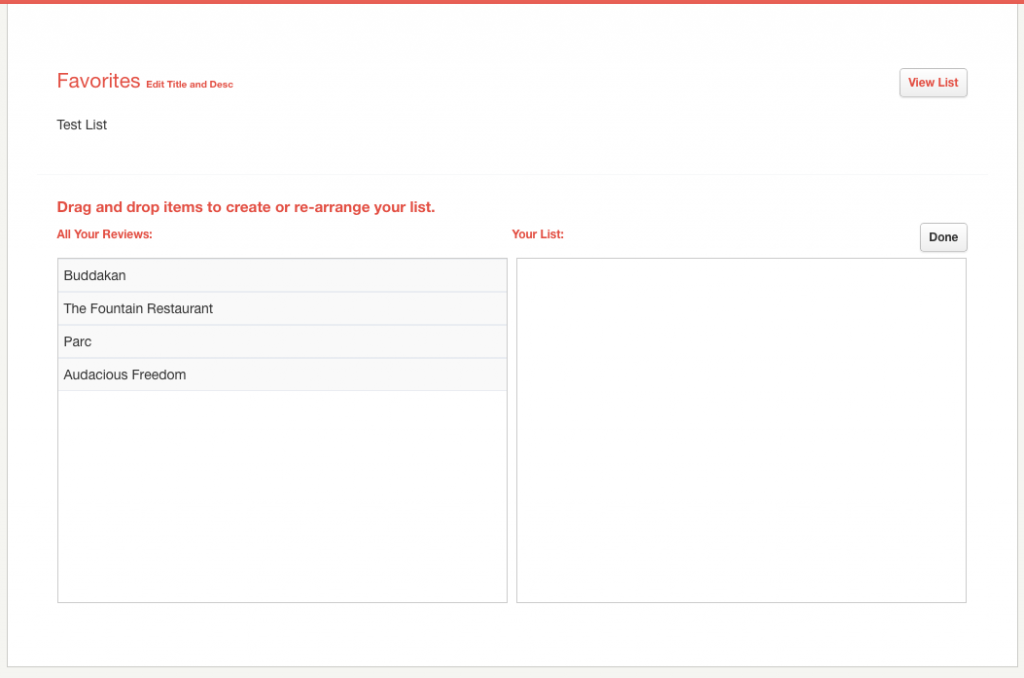
  5. You will redirected to a page where you can add items to your list.
  6. Drag and Drop items from the left side to right side. Note: You can see only the listings your reviewed.
  7. add-items
  8. After adding items to your list click Done to save.
  9. Click View List to view your list.

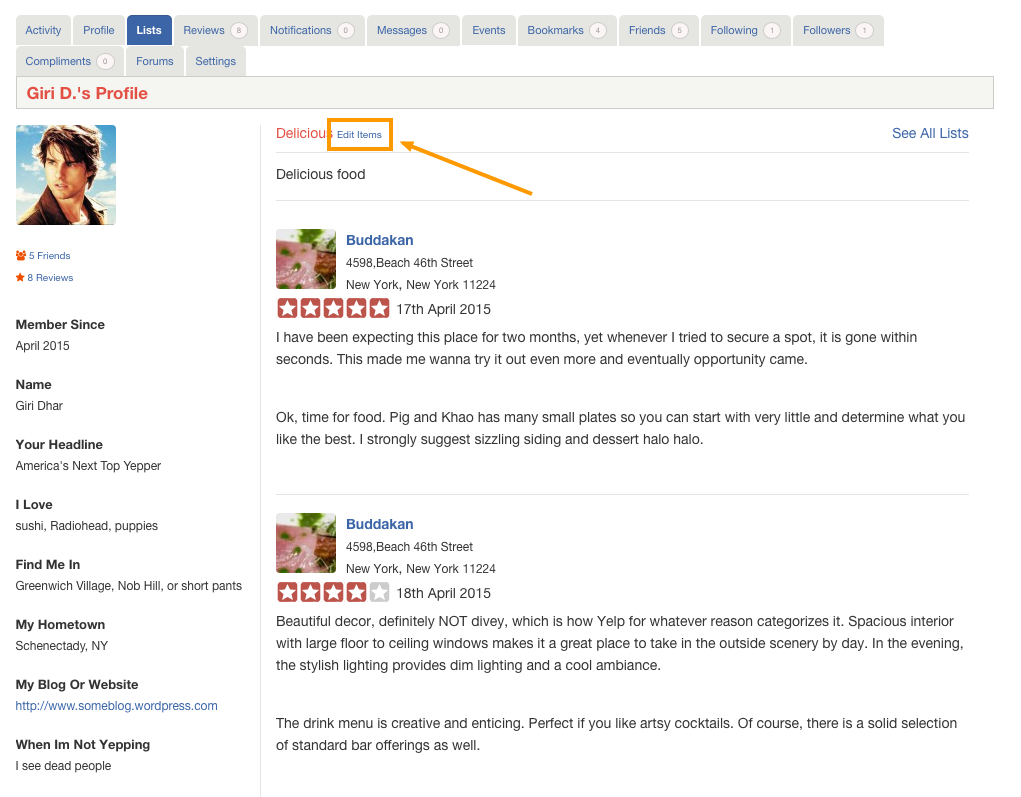
To Edit List Items

edit-items

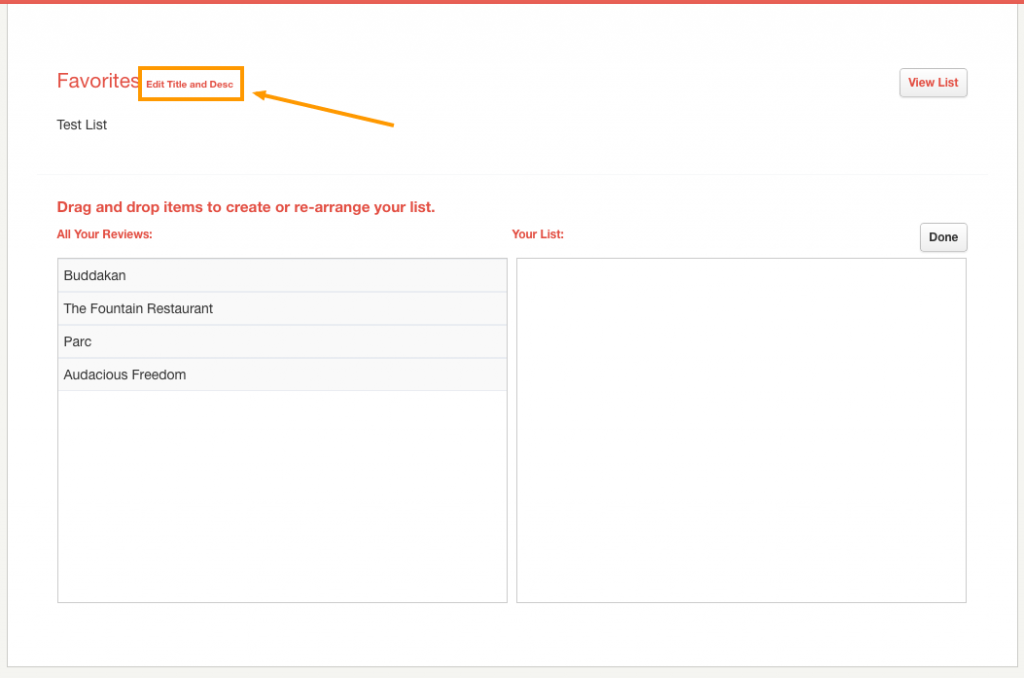
To Edit List Title and Description

edit-title


BuddyPress Compliments – Overview

Introduction

BuddyPress Compliments is a buddypress addon created by GeoDirectory. BuddyPress members can compliment each other using this plugin.

Note: As of now BuddyPress Compliments can be used only with Whoop theme. Other themes are not supported yet.

Prerequisites

BuddyPress Compliments depends on the following in order to work.

  1. BuddyPress
  2. Whoop Theme

Installation

Please follow this tutorial, to install the plugin.

Configuration and Usage

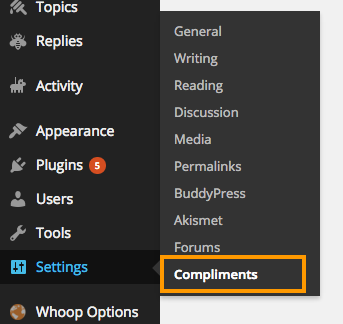
After plugin activation, you can see a new menu link compliments under settings

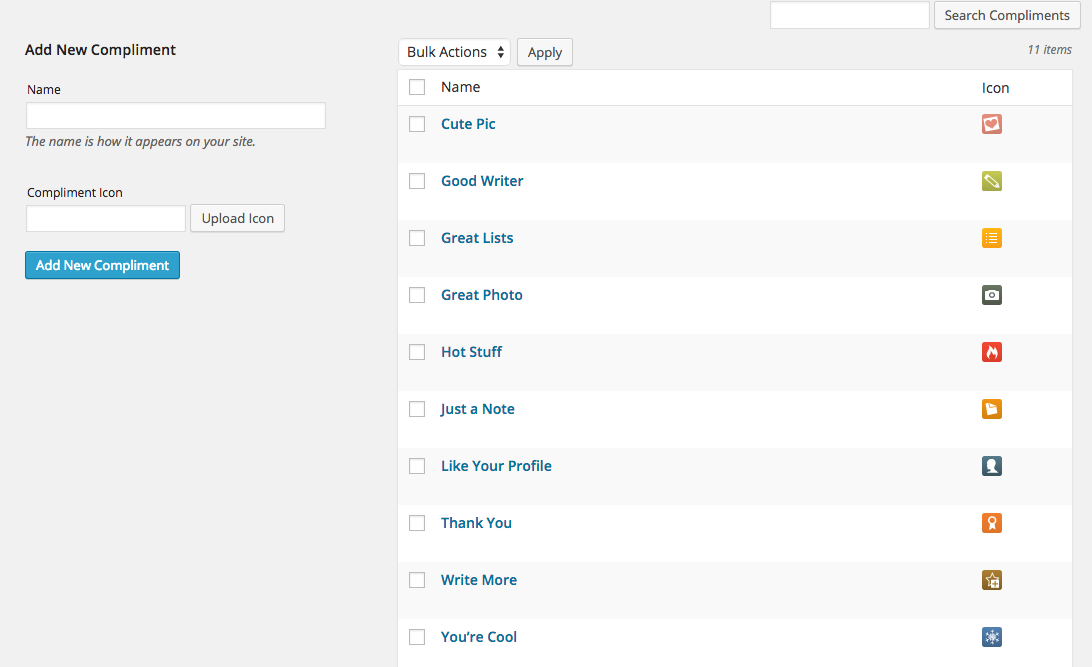
  1. You can add unlimited number of compliment types with icons.
  2. Please note, the recommended icon size is 20px x 20px
  3. Here is the screenshot of compliment page where you can add compliment types.
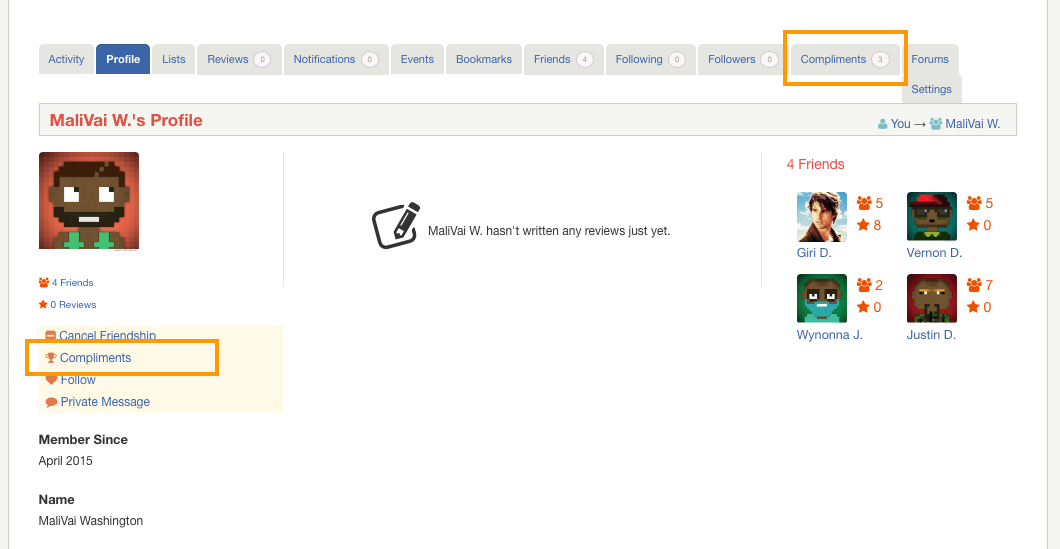
  4. A Compliment button and Compliments tab are added to each profile page. ( Note: Compliments button will not be visible on logged in user’s profile page.
  5. When you click Compliments button a popup will be displayed with compliment types.
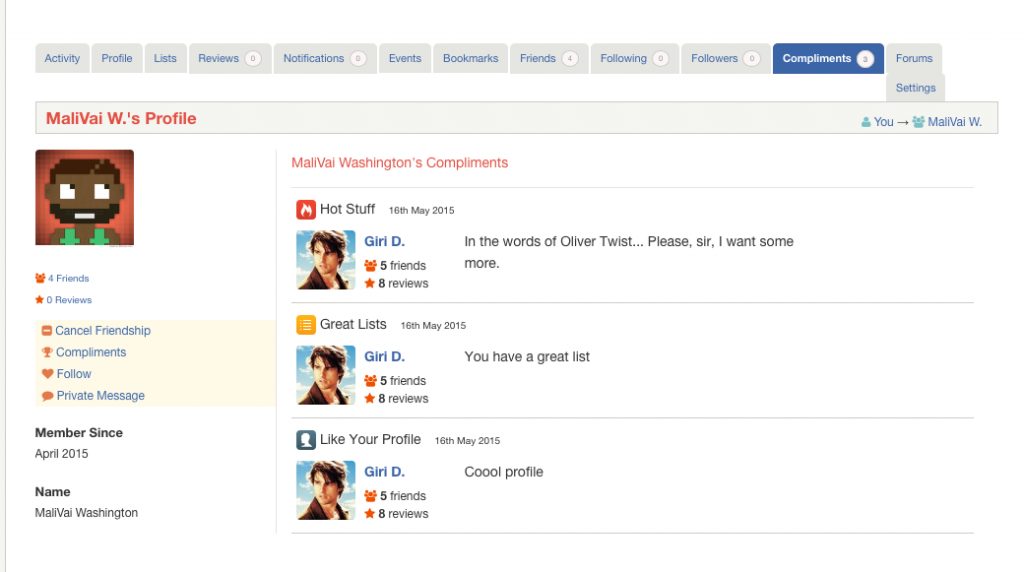
  6. Submitted compliments will be visible in user’s compliments section.
  7. compliments-section


Themes – Creating a Menu

Go to Menu Dashboard

Navigate to Appearance > Menus

Create a Menu

Enter your preferred menu name in the Menu Name text field, then click Create Menu button.create-menu

Add some Menu Items

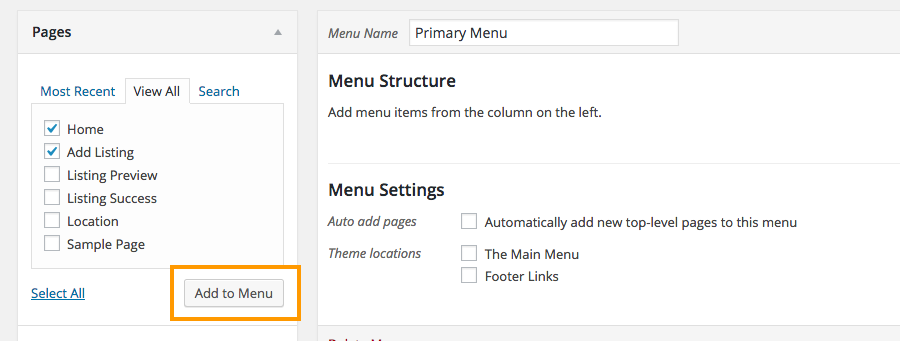
Check the menu items you need and then click Add to Menu button. 

add-menu-items

Set Menu Location

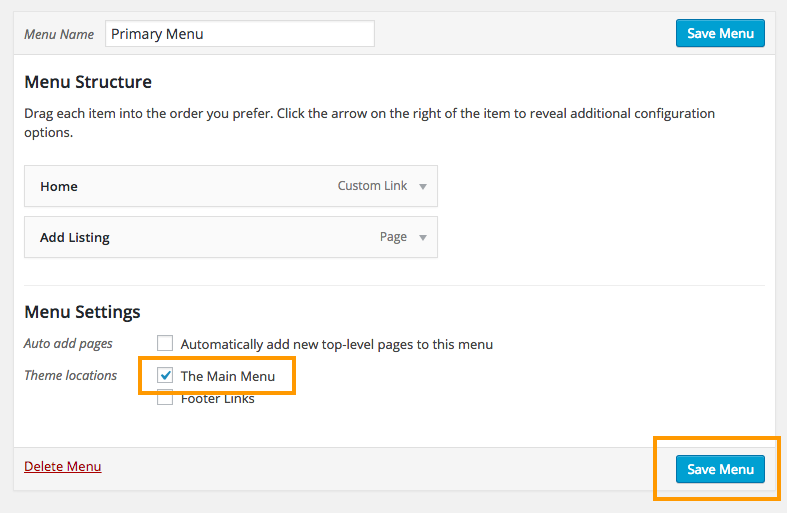
If you are planning to display your menu, then make sure you check at least one of the Theme Locations.  Sometimes you might wanna display your current menu on a widget. In that case you don’t have to check the theme locations.  Finally save your menu by clicking Save Menu button. 

save-menu


Whoop Theme – Overview

Introduction

Do you ever wanted to have your own website like Yelp?  Don’t worry.. We have got you covered. GeoDirectory’s Whoop theme makes your GeoDirectory powered site look like a yelp clone as close as possible. Sounds cool eh..? Alright.. Its time to get our hands dirty. This documentation assumes that you have a fresh WordPress installation. Let’s get started.

Prerequisites

Before installing our theme, lets install its dependencies.

  1. GeoDirectory (Required)
    1. GeoDirectory Events (Optional)
    2. GeoDirectory Lists (Optional)
      1. Posts 2 Posts (Required for GeoDirectory Lists)
  2. BuddyPress (Optional)
    1. BuddyPress Integration ( Required )
    2. BuddyPress Follow (Optional)
    3. BuddyPress Compliments (Optional)
    4. Invite Anyone (Optional)
  3. bbPress (Optional)

IMPORTANT

If used with GD + BBpress + BuddyPress and possibly several add-ons, this is no tool for a shared hosting or the average VPS. Having a Directory, Forum and Social Network requires resources so make sure to use at least a High End VPS or a beefier Dedicated Server.

Permalinks Configuration

Navigate to Settings > Permalinks > Common Settings. Make sure Post name is selected.

GeoDirectory Installation

  1. Navigate to Plugins > Add New
  2. Search for GeoDirectory – Ultimate Business Directory
  3. Install it
  4. GeoDirectory needs at least one location in order to work. So Set a default location first by following this tutorial. ( Tip: If you need multi locations, check our MultiLocations addon )
  5. You must set GeoDirectory Pages.  Navigate to Geodirectory > Permalinks > Geodirectory Pages and set the pages
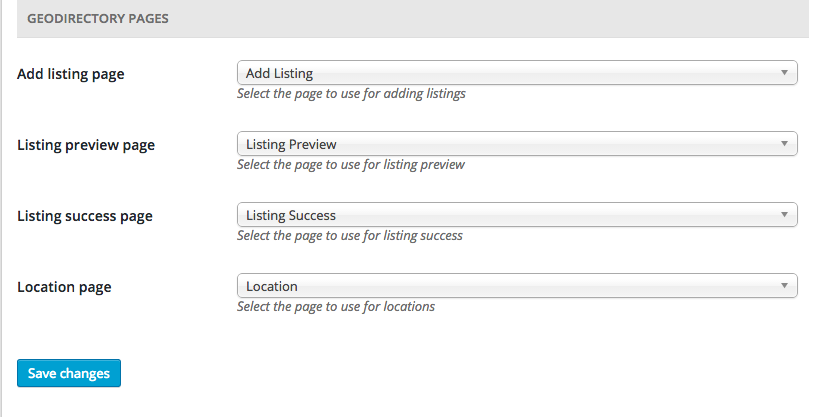
  6. gdpages

GeoDirectory Events Installation

  1. Visit wpgeodirectory.com ( Buy a subscription if Required )
  2. Navigate to My Account > Downloads ( Login if Required )
  3. Download Geodir Event Manager zip file.
  4. Go to your WordPress site dashboard, Navigate to  Plugins > Add New > Upload Plugin
  5. Browse and Upload the zip file you downloaded from wpgeodirectory.com
  6. Activate the plugin.

GeoDirectory Lists Installation

  1. Visit wpgeodirectory.com ( Buy a subscription if Required )
  2. Navigate to My Account > Downloads ( Login if Required )
  3. Download Geodir List Manager zip file.
  4. Go to your WordPress site dashboard, Navigate to  Plugins > Add New > Upload Plugin
  5. Browse and Upload the zip file you downloaded from wpgeodirectory.com
  6. Activate the plugin.

Posts 2 Posts Installation

  1. Navigate to Plugins > Add New
  2. Search for Posts 2 Posts
  3. Install it

BuddyPress Installation

  1. Navigate to Plugins > Add New
  2. Search for BuddyPress
  3. Install it
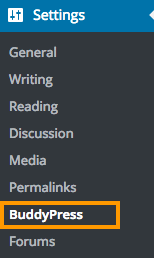
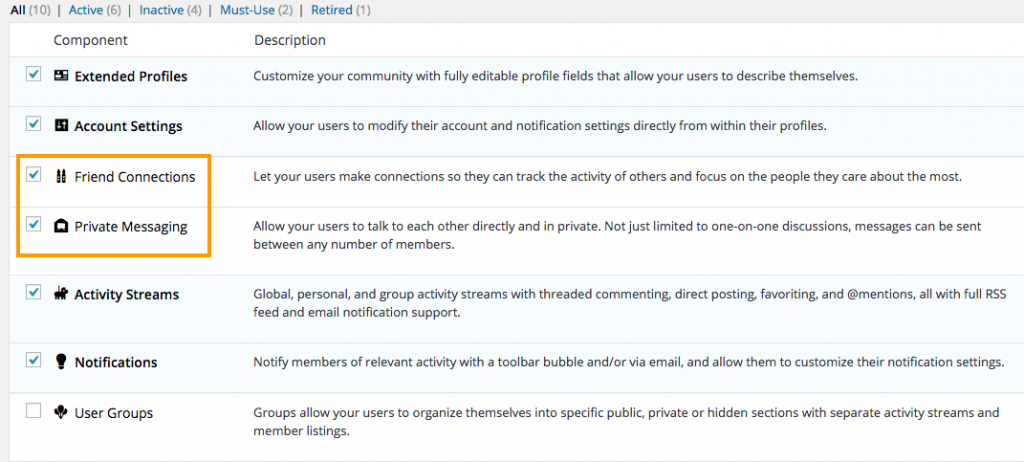
  4. After BuddyPress activation, navigate to Settings > BuddyPress and Enable the following components.
    1. Friend Connections
    2. Private Messaging

    buddypress

    buddy-components

    If BuddyPress pages not working, reset your Permalinks.

    To reset your permalinks,

    1. Navigate to Settings > Permalinks > Common Settings. 
    2. Select Default option and then save your settings.
    3. Now select Post name option and then save your settings again.

BuddyPress Integration Installation

  1. Visit wpgeodirectory.com ( Buy a subscription if Required )
  2. Navigate to My Account > Downloads ( Login if Required )
  3. Download Geodir Buddypress Integration zip file.
  4. Go to your WordPress site dashboard, Navigate to  Plugins > Add New > Upload Plugin
  5. Browse and Upload the zip file you downloaded from wpgeodirectory.com
  6. Activate the plugin.

BuddyPress Follow Installation

  1. Navigate to Plugins > Add New
  2. Search for BuddyPress Follow
  3. Install it

BuddyPress Compliments Installation

  1. Navigate to Plugins > Add New
  2. Search for BuddyPress Compliments
  3. Install it

Invite Anyone Installation

  1. Navigate to Plugins > Add New
  2. Search for Invite Anyone
  3. Install it

bbPress Installation

  1. Navigate to Plugins > Add New
  2. Search for bbPress
  3. Install it

Heads Up!

If you are planning to use BuddyPress, please install it first before installing whoop theme, since whoop creates some BuddyPress custom fields while theme activation. If you don’t do that, you may have to deactivate and activate the theme again and when you do that, your widget settings might get lost.

Theme Installation

Please follow this tutorial to install the theme.

Menus

Whoop has 2 menu locations.

The Main Menu

Footer Links

footer-links

For each menu location, please create a menu and assign to the location by following this tutorial.

Basic Configuration

Lets make sure we have some basic settings in order to make our theme work properly.

  1. Would you like to add Add listing ( Ex. Add Hotel ) and View Listing ( Ex. Hotels ) links to the Main Menu? If Yes Navigate to Geodirectory > Design > Navigation > Show geodirectory navigation in selected menu locations > Select The Main Menu

Header

If you have followed our instructions correctly so far, then your current header might look similar to this screenshot.

header-view

Upload your logo

We believe, you are interested in adding your logo. If this is the case, navigate to Whoop Options  > Header Styling Options Site Logo, then upload your logo there by clicking upload button. Recommended logo size would be 160px width and 60px height. Make sure you click Save Changes button after setting your logo.

If you refresh your home page, now the header might look like this.

Add search box

Ok Lets add the search box in header.

  1. Navigate to Appearance > Widgets
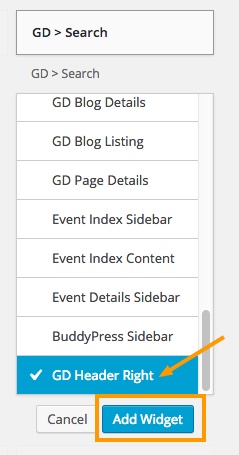
  2. Click on “GD > Search” widget. A popup will appear with a list of widget locations.
  3. Scroll to the bottom of the popup. You will see a widget location named GD Header Right. Click on it. Make sure its checked. Then click Add Widget button. Refer the following screenshot.
  4. search-widget
  5. Thats it. Now refresh your home page. Your header might look like this.

Voila. Header part completed. That wasn’t so hard. Was it?

Footer

Footer Widgets
  1. Navigate to Whoop Options > Footer Styling Options > Enable footer widget areas
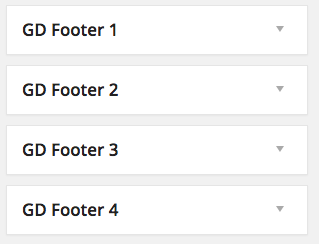
  2. Select the number of footer widget you need.

In our case we selected 4. So the Footer has 4 widget locations.
footer-wid-locations

So we need 4 menu widgets for our footer.

  1. Create 4 new menus by following this tutorial  But don’t set them to any menu location.
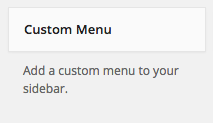
  2. You will see a widget called Custom Menu in Appearance > Widgets section.
  3. custom-menu
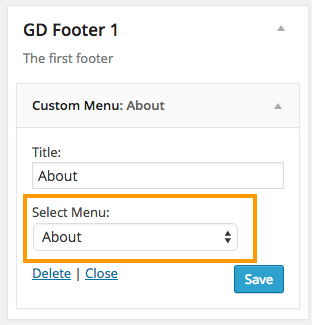
  4. Add that Custom Menu widget in all 4 widget locations and select menu for each widget location.
  5. select-menu
  6. You final result might look like this.
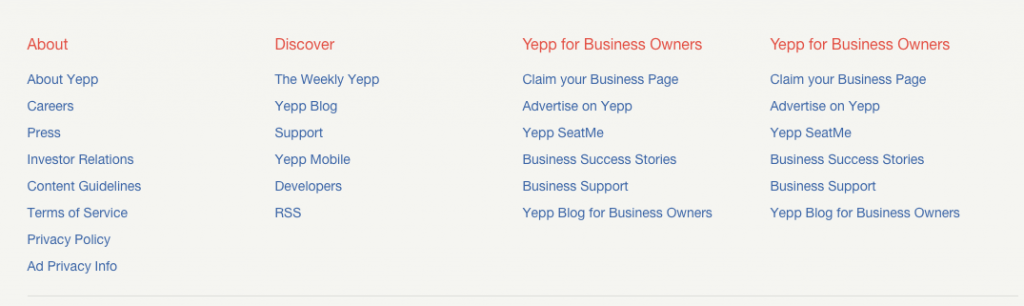
  7. footer-widget
  8. Footer widget section completed.
Copyright Text

Most likely, you would like to change your copyright text. If this is the case Navigate to Whoop Options > Footer Styling Options > Copyright Text

In that textarea field, clear everything and then enter your new copyright text. You can copy and paste the following text and alter as you prefer.

Copyright © 2004–2015 Whoop Inc. Whoop, Whoop logo, Whoop burst and related marks are registered trademarks of Whoop.

The result might look like this.

copyright-text

Footer Links

If you assign any menu to Footer Links menu location, then it will be displayed on the right side of copyright area.

Add some listings

Navigate to Places > Add New to add some listings. Please add at least 10 listings. If you are in a hurry then navigate to Geodirectory > General > Dummy Data and then populate your site with some dummy data which can be deleted later.

Tip: By default GeoDirectory supports only one post type called Places. So if you are planning to add more post types like Hotels, Restaurants, Bars etc., then check our Custom Post Types addon.

After adding some listings, you home page might look like this.


bbPress data

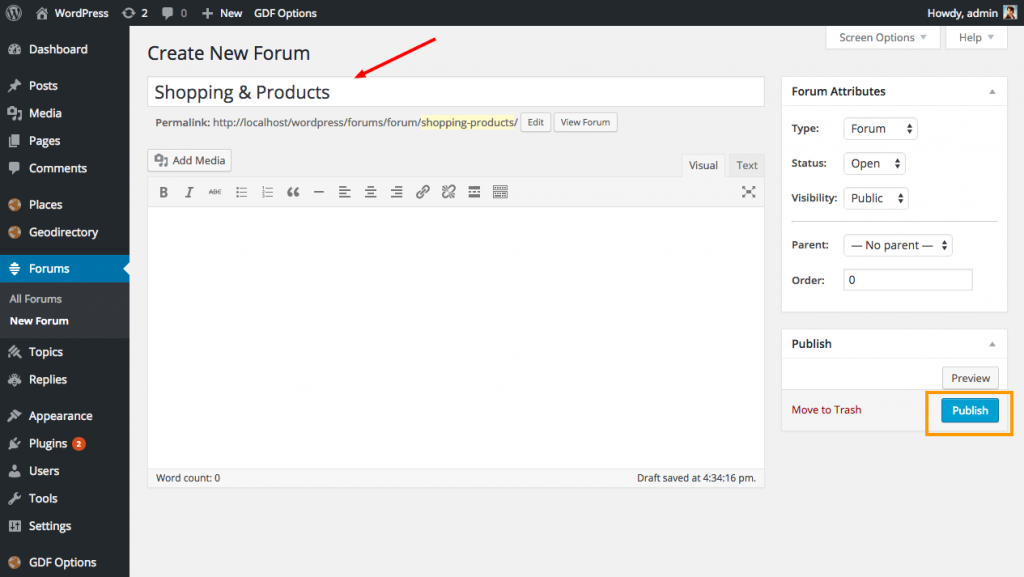
  1. Add some forums
  2. forums-forum
  1. Add some topics by visiting yourdomainname.com/forums . Make sure you created some forums first.
  2. Add some replies to each topic.

Available Widgets

A number of widgets included in whoop.  You can read more about each widget and its description by visiting this page.

Home Page

Navigate to Appearance > Widgets

Lets use some widgets to build our home page.

Before proceed, make sure you know about widget locations.  Widget locations indicated using arrows on the following screenshot.
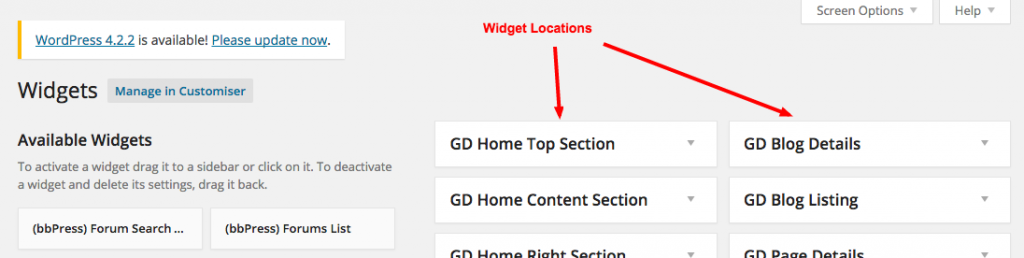
wid-locations

Remove Default widgets from home page

Expand the following widget locations and completely remove all widgets from them.

  1. GD Home Top Section
  2. GD Home Content Section
  3. GD Home Right Section

Check the following screenshot for example.
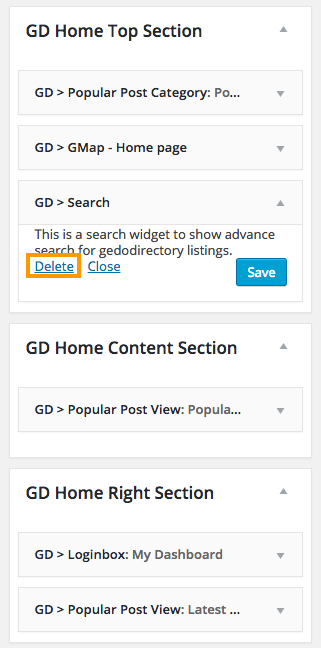
remove-home-widget


Once you remove everything, the home page might look like this.

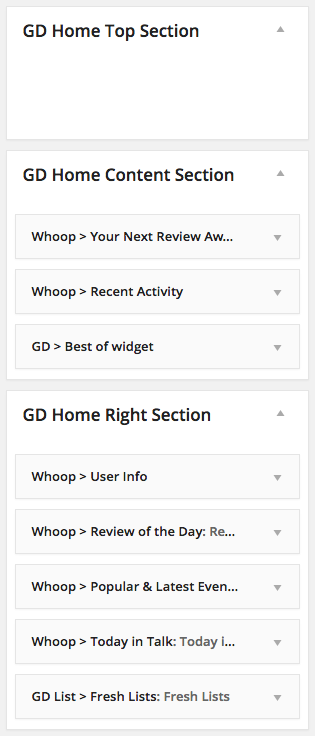
Now lets add some widgets to the these locations.

  1. GD Home Content Section
    1. Whoop > Your Next Review Awaits
    2. Whoop > Recent Activity
    3. GD > Best of widget
      1. Set Tab Layout to Tabs on Left
  2. GD Home Right Section
    1. Whoop > User Info
    2. Whoop > Review of the Day
    3. Whoop > Popular & Latest Events
    4. Whoop > Today in Talk
    5. GD List > Fresh Lists

home-add-widget

Listing Pages

Expand the following widget locations and remove only marked widgets from them.
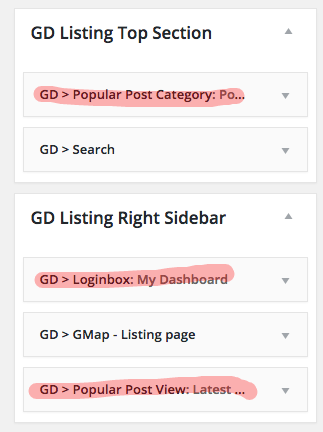
listing-page

Search Pages

Lets keep the same listing page structure in search page too.

Expand the following widget locations and remove only marked widgets from them.
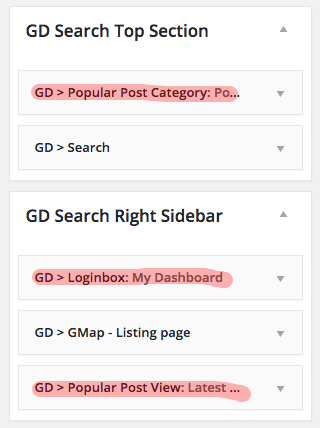
search

Listing Detail ( Single ) Pages

Lets remove all widgets from the following widget locations.

Expand the following widget locations and completely remove all widgets from them.
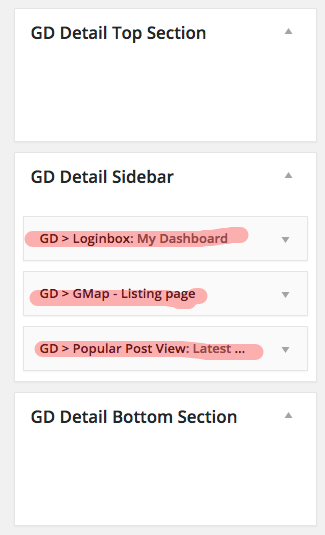
detail-widget

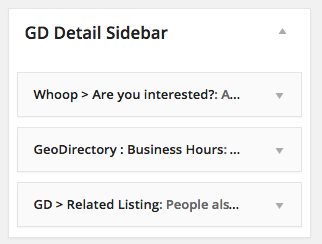
Now add the following widgets to GD Detail Sidebar

  1. Whoop > Are You Interested?  ( GeoDirectory Events Required and will be displayed only on single event pages )
  2. GeoDirectory : Business Hours  ( GD Business Hours Required : Note this was a third party plugin that is no longer available. GeoDirectory V2 will include Business Hours )
  3. GD > Related Listing

detail-sidebar2

For GD Business Hours you can use the following settings.
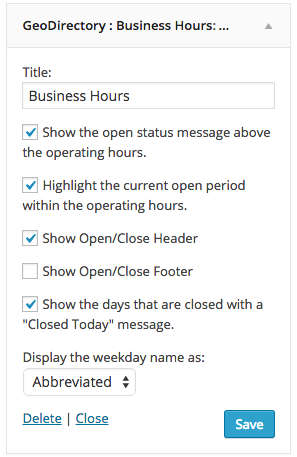
gdbishours

Note: GD Business Hour widget will be displayed only if you have filled the Business Hours information. This is how it look in sidebar.
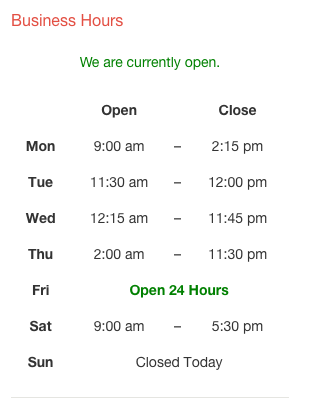
business-hours

You might wanna remove the following details from the sidebar. ( Note: They are not widgets )
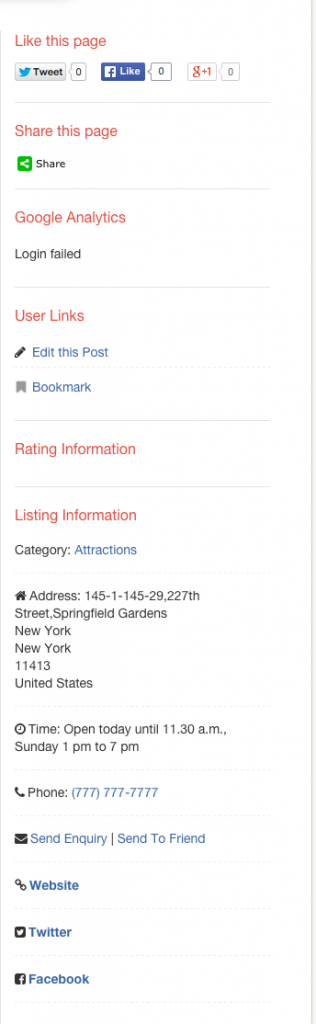
detail-sidebar

Its recommended to keep Listing Information and remove all other info boxes. But you can remove Listing Information box too if you prefer.

To remove those info boxes, Navigate to Geodirectory > Design > Detail and then Check the following checkboxes.
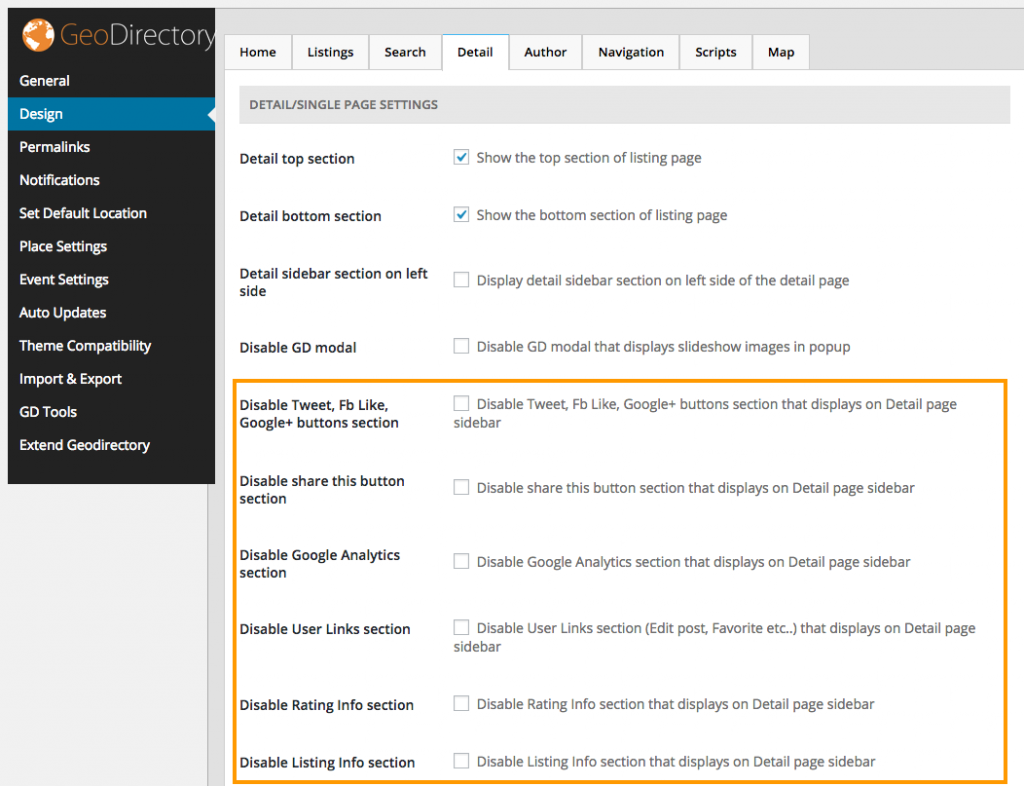
disable-info

Event Pages

Event Listing Page

events-listing

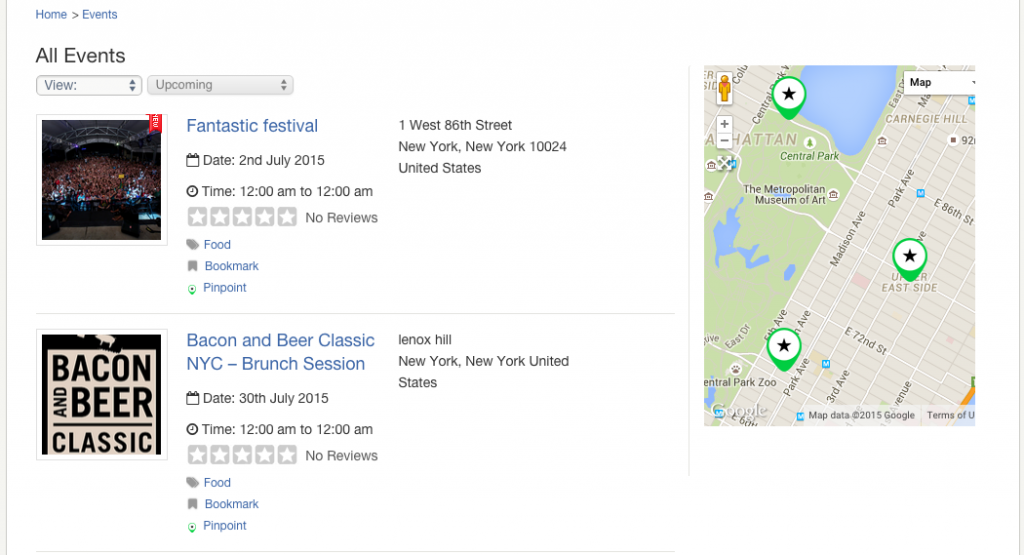
When you visit, yourdomain.com/events/  you can see normal event listing page, generated by GeoDirectory. Widgets used in this page comes from GD Listing Top Section, GD Listing Right Sidebar ( Scroll above and refer Listing Pages section )

Event Index Page

This page can be accessed by visiting this url.

yourdomain.com/events/?e_index=true

event-index

When GeoDirectory Events active, whoop registers the following widget locations.
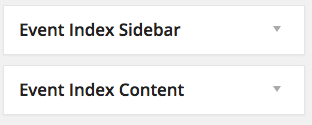
event-index-sidebar

Just place the following widgets in those widget locations.

  1. Event Index Sidebar
    1. Whoop > Popular & Latest Events ( Widget Type: Popular events )
    2. Whoop > Popular & Latest Events ( Widget Type: Latest events )
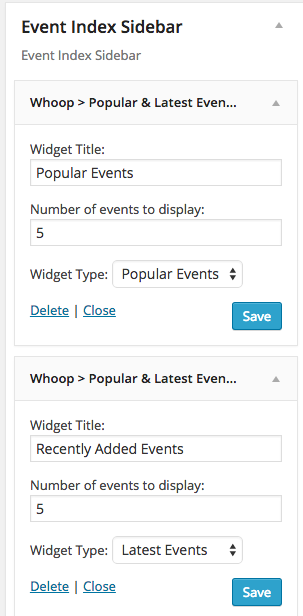
    3. event-sidebar-widgets
  2. Event Index Content
    1. Whoop > Event Updates
    2. Whoop > Popular & Latest Events ( Widget Type: Popular events )
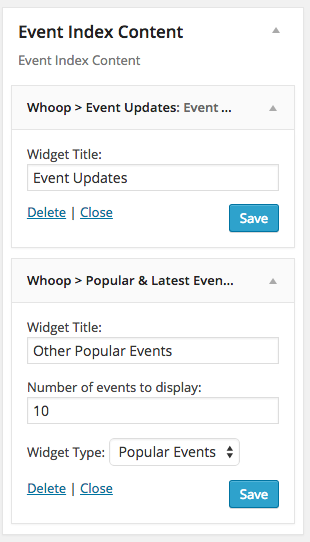
    3. event-index-widgets


BuddyPress Follow

No additional configuration required for BuddyPress follow. After plugin activation you can see two new tabs called Following, Followers in member profile page.

BuddyPress Compliments

To configure BuddyPress compliments, please follow this tutorial.

GeoDirectory Lists

To configure GeoDirectory Lists, follow this tutorial.

BuddyPress Profile Fields

BuddyPress profile can be Edited from Account settings > Profile Info

Some profile fields are automatically created when you activate whoop theme. ( BuddyPress must be activated before activating whoop theme. So If you don’t see any profile fields, activate some other theme and then activate whoop again )

To add more fields or Delete existing fields, Navigate to Users > Profile Fields
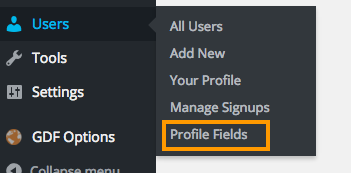
profile-fields

  1. Don’t remove Name field, since its required
  2. Don’t rename Group

Hide tabs from BuddyPress

If you would like to hide some tabs on BuddyPress profile pages, Navigate to Whoop Options > BuddyPress Options
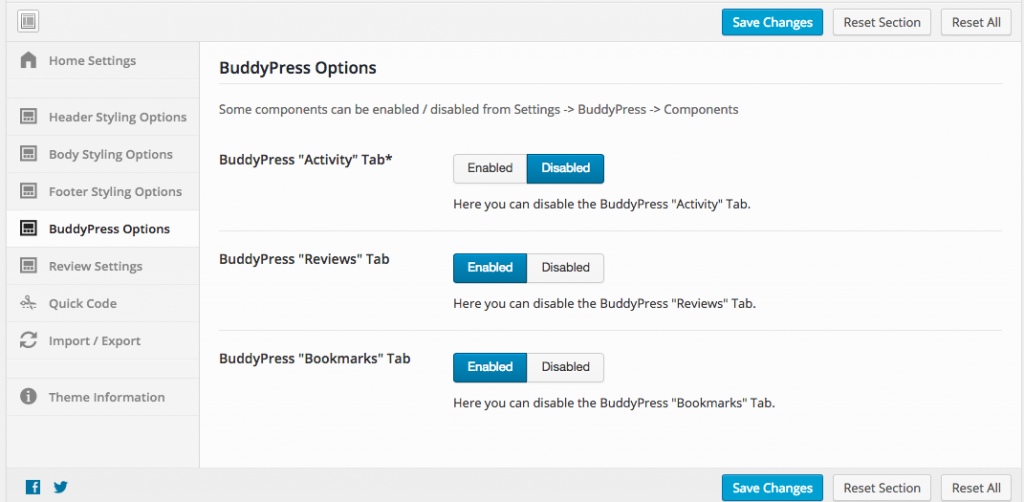
buddytabs

Limit 1 Review / User / Post

By default user can post unlimited number of reviews on a listing. If you would like to limit 1 review for each listing, then navigate too Whoop Options > Review Settings > Limit 1 Review / User / Post  > Enabled
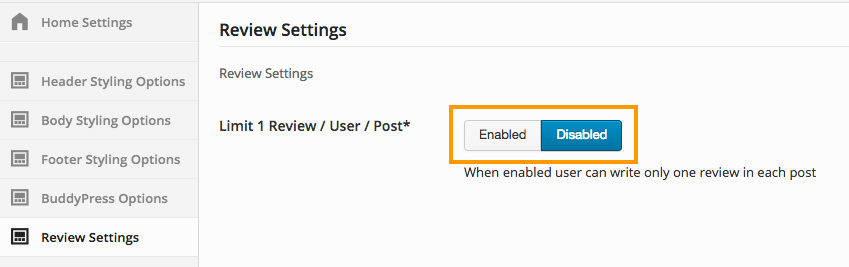
limit-review

Translate Whoop

Whoop theme is one of the Geodirectory Framework themes. Each Geodirectory Framework theme is translated with the same textdomain for the language file.

The file should be located on the server at:

/wp-content/languages/themes

File should be named as in the following examples:

geodirectory_framework-en_US.mo / geodirectory_framework-en_US.po
geodirectory_framework-es_ES.mo / geodirectory_framework-es_ES.po
etc