Custom Post Type Shortcodes

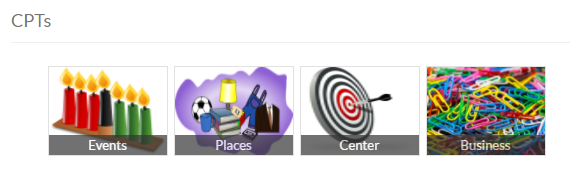
CPT Listings

Shortcode: [gd_cpt_listings]

Parameters:

  • cpt_img_width – width of the thumbnail for the CPT
  • cpt_img_height – height of the thumbnail for the CPT
  • title – the title for the cpt listings
  • cpt_exclude – post types to exclude (default shows all) (examples: ‘gd_place’ or ‘gd_place,gd_event’)
  • cpt_hide_name – hide CPT name? True or False (default = false)

This example shows a widget with the CPT images at 120×90 pixels:
[gd_cpt_listings cpt_img_width=120 cpt_img_height=90]

This example shows a widget with a custom title, and does not show a link to the gd_place CPT:
[gd_cpt_listings title="Browse listings" cpt_exclude=gd_place]

Franchise Manager Add-on

On this page

Introduction Applications Installation Configuration Integration with the Pricing Manager addon
Usage Adding the main listing Adding the branch listingsPrice Options

Introduction

The Franchise Manager allows users to submit listings for chains of businesses or franchises faster and allows directory owners to monetize those listings in a smarter way if combined with the Prices and Payments Addon.

After entering the main listing for a new Chain, fields of the Add Listing form can be locked. This way you can pre-populate most fields but allow the address, telephone number and email address to be entered separately for all branches of the chain. When the main listing is edited, locked fields are edited for all branches too.

If the Prices and Payments Addon is installed, you need to enable franchises for the price packages of your choice, and you can set a different price for the main listing and a different price for the extra branches.
If not using the Prices and Payments addon, franchises will automatically be activated for all of your listings.

A new tab appears in all listings belonging to a franchise, showing the other franchisees listings.

It is possible to browse the list of all franchisees belonging to the same chain in a regular listings page too.

Applications

Here are a few examples to give you an idea how you could use the Franchise Manager:

Main listing Branch listings
Fast food chain All locations
Brewer of special beer All distributors
Rock band All regular venues where the band plays
Dietician All health centers visited regularly

Installation

Installation is done by uploading the ZIP file in the plugin section of your WordPress admin area.

Installing GD Addons

Configuration

Setup

Once you activated the Franchise Manager, you will get a new set of settings in the GD admin panel:

Most settings at GD > Franchise Settings are straight forward.

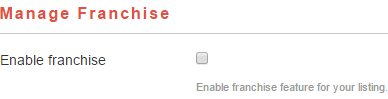
First you need to select the Custom Post Type(s) where you want to enable the Franchise features:

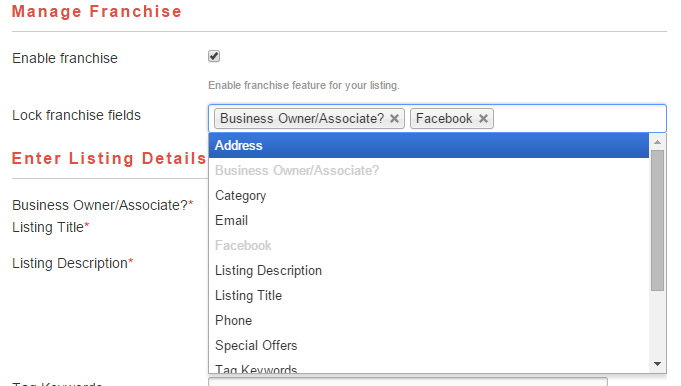
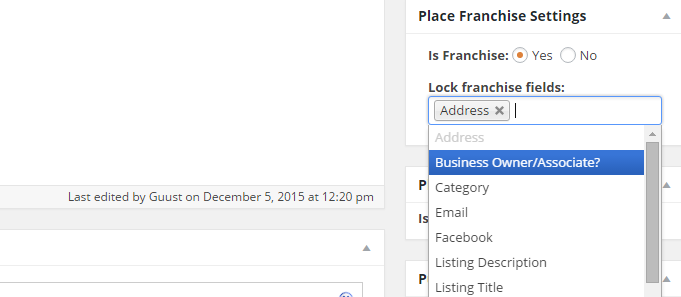
If you are not using the Payments Manager, then a new option will be available in both the frontend and backend Add Listing form for that CPT:

Frontend Backend

Integration with the Pricing Manager addon

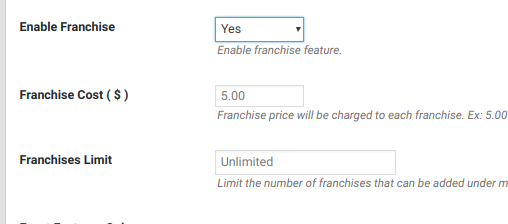
  1. If you are using the Payments Manager addon, then you will need to allow Franchises in the relevant price package before your users will have the option to use the franchise feature.
  2. You will first need to Enable Franchise in the price package and then save.
  3. Then re-edit the same price package to set the Franchise Cost and  the Franchises Limit.

Usage

Adding the main listing

  1. When the user add their main listing, they can lock selected fields for all the branch listings.
  2. The locked fields will be auto-populated in any branch listing submitted.
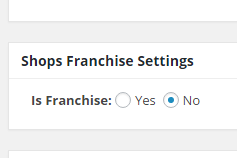
  3. If adding a franchise in the backend, these options will appear in the sidebar:

Adding the branch listings

  1. Branch listings can only be submitted by the same user that added the main listing.
  2. Branch listings need to be added from the front end.
  3. The custom fields locked by the main listing owner cannot be edited in the branch listings.
  4. If the main listing owner updates a locked field in the main listing, the same custom field will be updated in all branch listings.
    Example: a fast food chain has locked the special offer field, and can change that field on all branch listings to run a promotion in all the stores.

Price Options

If you are all setup and ready to sell the franchise listing option to your listing owner customers, then you will need to add the franchise option to at least once of your Price Packages. Go to:

GeoDirectory – Prices and Payments – Prices (tab) – Edit (choose a package to allow franchises)

Adjust the franchise options for the package as desired.

Adding a payment gateway to payments manager

This method is deprecated, please see: https://wpinvoicing.com/docs/creating-a-payment-gateway/

This tutorial will show you how to create a new plugin to integrate a new payment gateway with our new payment manager.
We have made it very easy to integrate almost any payment gateway, in the example below i will be integrating a gateway called “PayFast” which is mainly used in South Africa.

  1. Create the basic plugin
  2. Add the admin settings
  3. Add checkout page fields and scripts
  4. Dealing with the checkout submission
  5. Dealing with the IPN/ITN notifications

Creating the basic plugin:

If you are reading this far then you should know how to create a basic plugin but for completeness i am going to list every step in the process. 

  1. Create a new folder for your plugin, for this tutorial we are calling ours: geodir_payfast_payment_manager
  2. Create a new PHP file inside the folder and call it exactly as the folder name with .php at the end: geodir_payfast_payment_manager.php
  3. Add the basic text to the file that makes the plugin: 

Congratulations, you now have a new plugin, you could install and activate this, it would not do anything but this is the start of our new plugin for adding our payment gateway.

Add the admin settings:

We have made this extremely simple as you will see below.

  1. First we will need to install and uninstall our settings preferably on the plugin activation and deactivation/uninstall so we add the code to run the functions to add our settings:
  2. Now we add the functions to add the settings. IMPORTANT: Whatever you use as the “key” in the below code is what will be used at the end of the checkout and ITN/IPN hook names, here we use “payfast” so the hooks we have to use are “geodir_payment_form_handler_payfast” and “geodir_ipn_handler_payfast“, you will replace those with your own key from the below code.

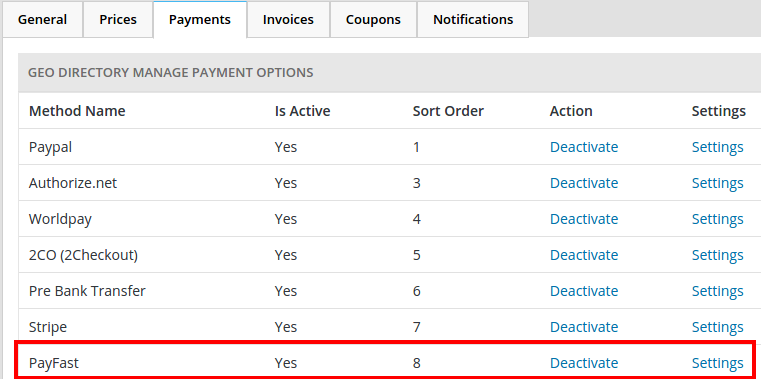
Now if we activate/deactivate our plugin we will see the settings added to the payment manager settings page.payfast1

Add checkout page fields and scripts:

Again we have made this very simple.  Some payment gateways you will enter your payment info on the screen at checkout and the next step will process it and in other cases you will be sent to the payment gateways website for payment such as PayPal standard, in our case for this example we are sent to the PayFast website but we will also ask for “First Name”, “Last Name” and “Email” at the checkout so we can show how to do both.

  1. If your gateway needs any extra info then we should ask for it when the payment method is selected, for PayFast we could maybe get away with not asking for any extra but they do ask for first name and last name where as on signup GD asks for a “full name” so this gives us a good opportunity to show how to show extra fields (you may not need this step for your payment gateway): First we create a function that will add the extra fields.
  2. Then we add the code to call the function in the correct place with a hook. 
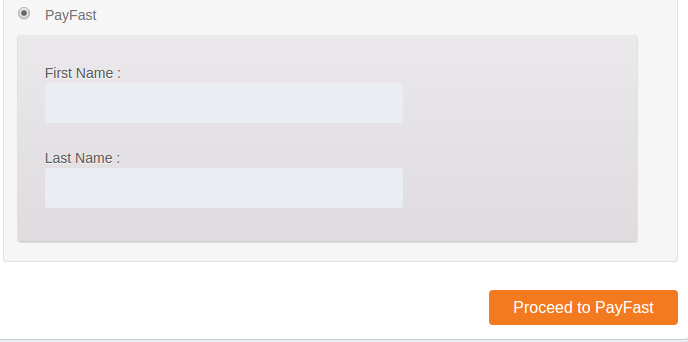
  3. PayFast is like paypal standard where payment takes place on the PayFast website, so instead to the normal “Pay & Publish” checkout button we will add a little snippet that changes the GD checkout button to “Proceed to PayFast”.

Now on the GD checkout page if you select PayFast you will be asked to enter your first and last name.
payfast2

Dealing with the checkout submission:

Here we use the submitted info to build a form and auto submit it to PayFast.

Dealing with the IPN/ITN notifications:

Most of the code below is taken from the PayFast website that tells us how to verify the ITN (instant Transaction Notification). The code below that is enclosed in “###########################” is the code we use to mark the invoice paid and sent the payment notification emails.

You should now have a working payment gateway. If you have any questions or need pointers for integrating a new payment gateway, just let us know on our support forum and we will give you guidance and tips.

Pricing Manager Add-on Overview

IntroductionInstallationConfigurationGeneralPricesNotificationsResourcesTips and Tricks

Introduction

The Pricing Manager addon integrates with WP Invoicing plugin to convert your GeoDirectory powered Free Listing website into a Paid Listing website.

If you are planning to monetize your website, then these are the plugin you are looking for.

Accept Payments with WP Invoicing and Gateways

Pricing Manager is used to configure the pricing packages for the listings on your site. Pricing Manager does not accept payments.

To accept payments for a package you will need to install WP Invoicing.

  • You can use the Pricing Manager to create different packages, for example Featured listings, listings with or without certain custom fields etc.
  • If you want to charge a fee for any of your listing packages, you will need the WP Invoicing plugin and one or more gateways.
  • WP Invoicing allows you to take payments using many different gateways.
  • WP Invoicing is created by the same team that brings you GeoDirectory. For support with gateways or any other WP Invoicing feature please post a topic to the WP Invoicing support forum.

Installation

  1. You can install the Pricing Manager first, and then WP Invoicing if you want to take payments.
  2. You can install and activate them in any order.
  3. Follow the addon installation instructions here.

Configuration

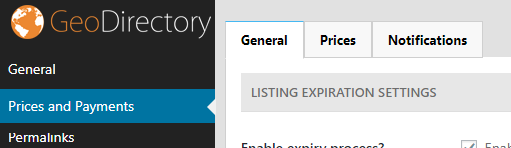
  1. After plugin activation, you will be redirected to the Prices and Payments configuration page:
  2. Start with configuring the General settings (see below),
  3. then set up your payment gateways in the Payment tab (see below),
  4. and then you can create your different price packages (see below).
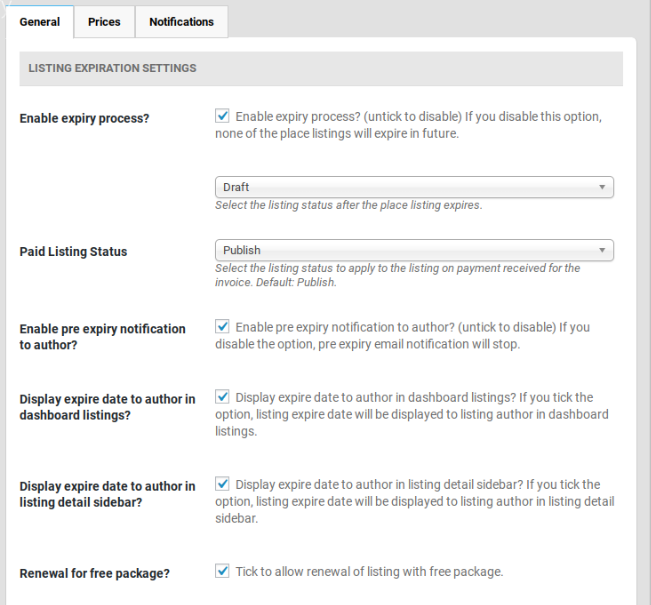
General Tab

Enable expiry process?

  1. If you disable this option, none of the listings will expire in future.
  2. Select the listing status after the listing expires. The following options are available:
    1. Draft – After expiration listing will be converted to draft.
    2. Publish – After expiration listing will still be displayed.
    3. Trash – After expiration listing will be moved to trash.

Paid Listing Status

  1. If you are taking payments for your listings, select here what should happen when a listing is submitted and payment has been made:
    1. Publish – The listing will be live on your website immediately, this is the default setting.
    2. Pending Review
    3. Draft

Enable pre expiry notification to author?

  1. Select this if you do not want to send expiry notices to your users.

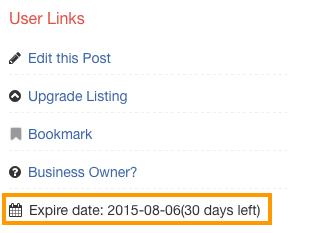
Display expiry date to author in dashboard listings?

  1. This will display the end date of the listing for the user only:

  1. Display expire date to author in listing detail sidebar?
    1. Display expire date to author in listing detail sidebar? If you tick the option, listing expire date will be displayed to listing author in listing detail sidebar.
Renewal for free package?

  1. Tick to allow renewal of listing with free package.
  2. If this option is not ticked then free packages cannot be renewed and will not receive renewal process emails.
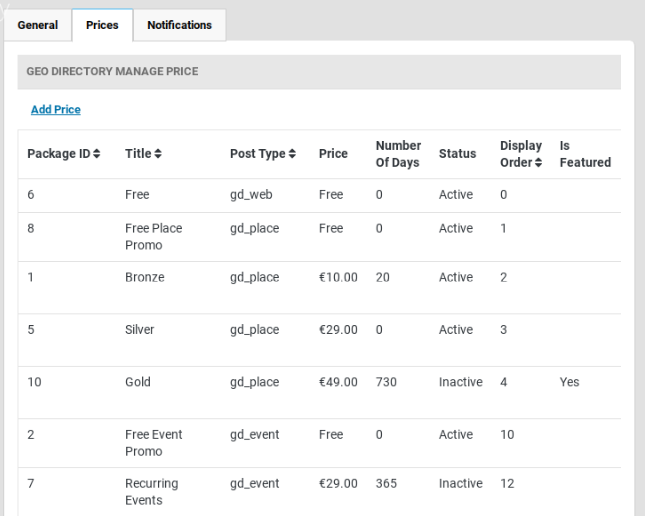
Prices Tab

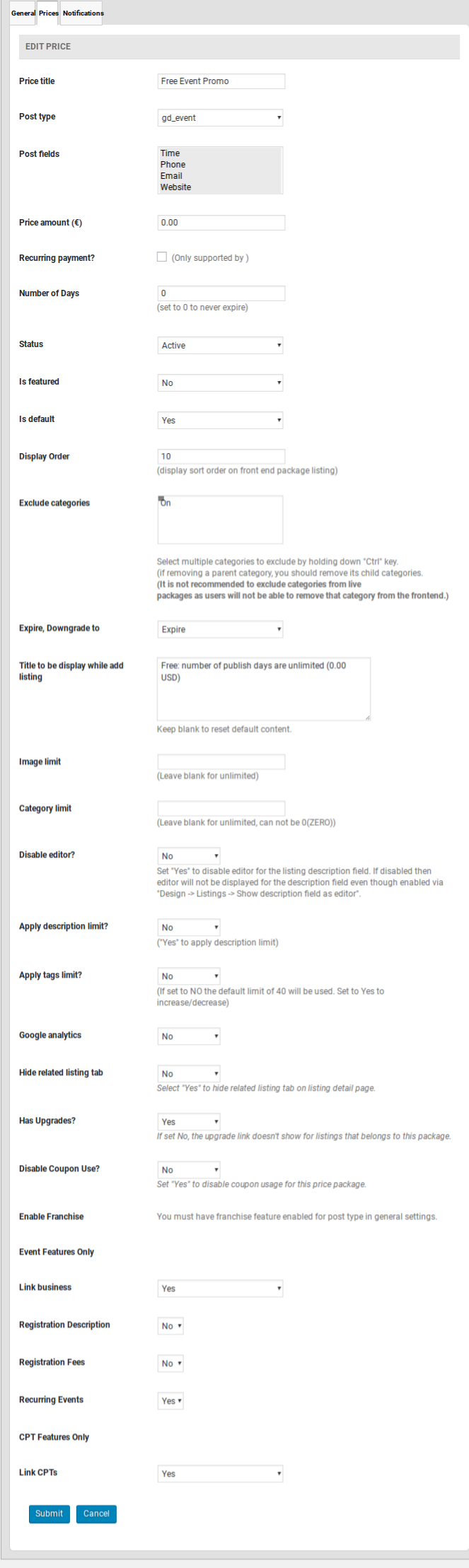
Add Price

  1. Price title
    1. This will be your package title.
  2. Post type
    1. The post type of this package.
  3. Post fields
    1. Select the post fields available for this package.
    2. For example, if you select only time field for this package, then it looks like this.

    3. time
  4. Price amount ( $ )
    1. Package price
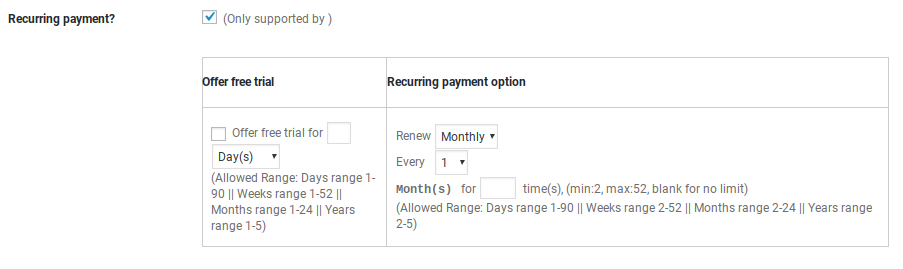
  5. Recurring payment?
    1. Is this a recurring package? (Note: Only supported by some Gateways.)
    2. The site must have a gateway installed that supports recurring payments to make use of this feature.
    3. See gateways for WP Invoicing here: https://wpinvoicing.com/downloads/category/gateways/
    4. When select the options presented look like this:
  6. Status
    1. Is this package active or inactive?
  7. Is featured
    1. Is this a featured package?
  8. Is default
    1. Is this the default package?
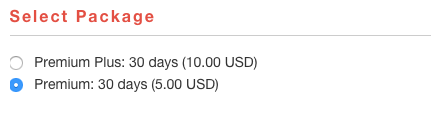
    2. Default package will be automatically selected, when you load add listing page.
    3. defaultpack
  9. Display Order
    1. Display sort order on front end package listing
    2. In the following screenshot
      1. Premium Plus – Display order set to 1
      2. Premium – Display order set to 2
    3. defaultpack
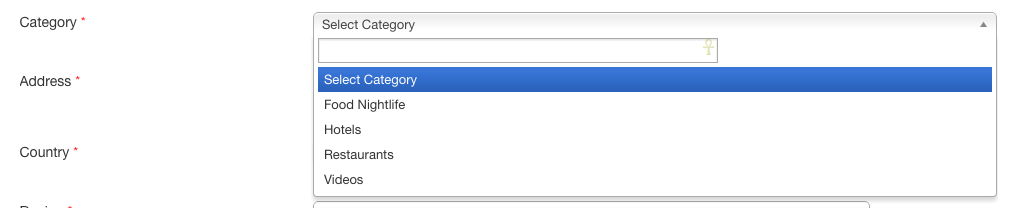
  10. Exclude categories
    1. Select multiple categories to exclude by holding down “Ctrl” key.
    2. If removing a parent category, you should remove its child categories.
    3. It is not recommended to exclude categories from live packages as users will not be able to remove that category from the frontend.
    4. Excluded categories will be removed from add listing form category dropdown.
    5. exccat
  11. Expire, Downgrade to
    1. When a listing get expired, do you want to let it expire? OR downgrade package?. If downgrade which package? Note: You need to have more than 1 packages if you are planning to use downgrade option.
  12. Title to be display while add listing
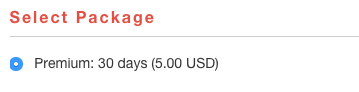
    1. Example: Premium: 30 days  (5.00 USD)
    2. Keep blank to use default. Default text looks like this ( Premium : number of publish days are 0 () )
    3. In add listing page, it would look like this with default text.
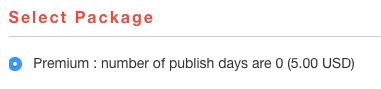
    4. selpackdefault
    5. With custom text, it would look like this
    6. selpackage
  13. Image limit
    1. The maximum number of images a user can upload to the listing.
    2. For example: If you set the value to 5, in add listing page it would look like this.

    3. imagelimit
  14. Category limit
    1. The maximum number of categories, a user can select to a listing.
    2. For example, If you set it to 3, The category dropdown will not be available after selecting 3 categories.

    3. categorylimit
  15. Apply description limit?
    1. Select Yes if you would like to apply description limit.
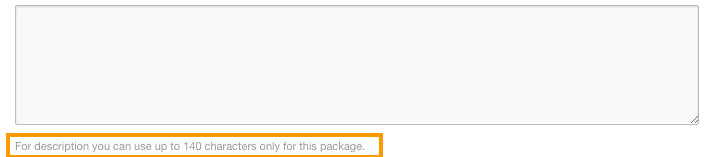
      1. Description limit
        1. Characters limit for listing description
        2. Ex: If you enter 140, then user cannot enter more than 140 characters.
        3. listingdesc
  16. Apply tags limit?
    1. If set to NO the default character limit of 40 will be used.
    2. Select Yes if you would like to apply tags limit.
      1. Tags limit
        1. Characters limit for listing tags
        2. Ex: If you enter 50, then user cannot enter more than 50 characters for tags.

        3. taglimit
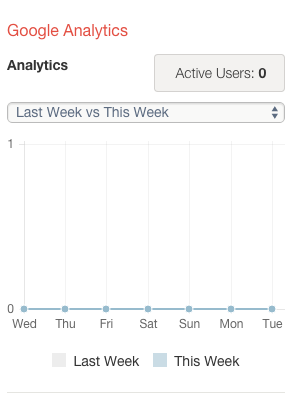
  17. Google analytics
    1. Select Yes if you would like to enable Google Analytics for this package?
    2. If set to Yes
      1. Make sure you configured Geodirectory > General > Google Analytics section correctly. Refer this page if you need help.
      2. Make sure Geodirectory > Design > DetailDisable Google Analytics section not checked.
      3. Google Analytics will be visible in detail page sidebar.
      4. ga
  18. Send To Friend
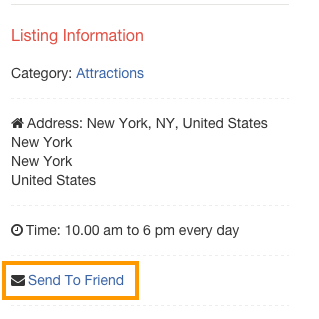
    1. Select Yes if you would like to enable Send To Friend option for this package?
    2. Send To Friend will be visible in Listing Information if set to Yes
    3. sendtof
  19. Hide related listing tab
    1. Select Yes if you would like to hide related listing tab for this package?
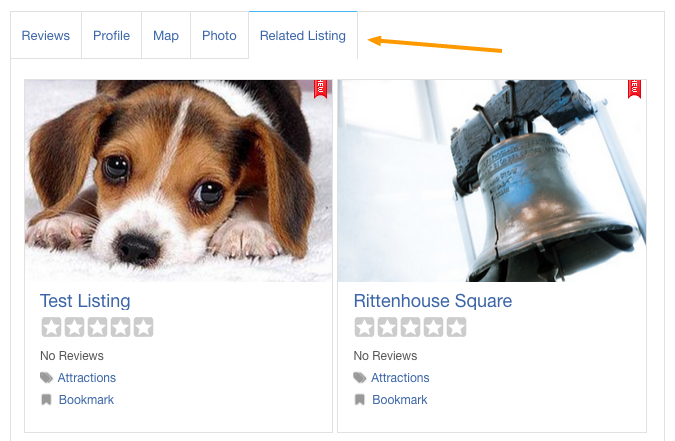
    2. rellisting

Notifications Tab

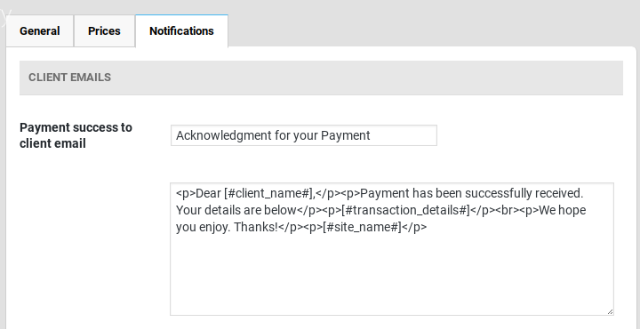
Payment success to client email
  1. This email will be sent to the Client.
  2. This email will be triggered, after successful payment.
  3. Default subject is: Acknowledgment for your Payment
Post renew success to client email
  1. This email will be sent to the Client.
  2. This email will be triggered, after successful listing renewal.
  3. Default subject is: Renewal of listing ID:#[#post_id#]
Listing expiration email
  1. This email will be sent to the Client.
  2. This email will be triggered, X days before the listing expiration date. Where X is the number of days you set in GeoDirectory -> Prices and Payments -> Enable pre expiry notice days
  3. Default subject is: Place listing expiration Notification
Post Upgrade Success to Client Email
  1. This email will be sent to the Client.
  2. This email will be triggered, after successful listing upgrade.
  3. Default subject is: Upgrade of listing ID:#[#post_id#]

Admin Emails

Payment success to admin email
  1. This email will be sent to the Admin.
  2. This email will be triggered, after successful payment.
  3. Default subject is: Payment received successful
Post renewal success to admin email
  1. This email will be sent to the Admin.
  2. This email will be triggered, after successful listing renewal.
  3. Default subject is: Renewal of listing ID:#[#post_id#]
Post upgrade success to admin email
  1. This email will be sent to the Admin.
  2. This email will be triggered, after successful listing upgrade
  3. Default subject is: Upgrade of listing ID:#[#post_id#]
Payment fail to admin email
  1. This email will be sent to the Admin.
  2. This email will be triggered, when a payment get failed.
  3. Default subject is: IPN INVALID – Place Listing Submitted

Tips and tricks

  1. When activating the Pricing Manager addon, don’t forget to review the settings of the default (free) package.
    Installation of the GeoDirectory core plugin creates a default listing type that allows users to add all fields, unlimited categories and images etc.
  2. Importing listings: Set up your price packages and custom fields before creating your CSV file.

How can I change active subscriptions for customers?

Recurring billing is for items/packages that are renewed automatically. Recurring billing always uses remote gateways for the management of the recurring payments and billing cycle for the subscription.

If a user has signed up for a recurring package that is not free, it is important to understand that the subscription itself is managed on a remote gateway. That means that the billing period, and billing amount, are both located on a remote site.

It may be possible to make changes to the subscription, but whether it is or not is based on the policies and capabilities of the remote gateway platform. Stripe at least allows some changes, but exactly what can be changed will be available through their platform, and based on their policies. These settings cannot be adjusted for active subscriptions within GeoDirectory or Invoicing.

For GeoDirectory site managers, be very careful to avoid adjusting price package settings for active listings. Changing the package for a listing that is already a part of a Invoicing Subscription will break the link from the listing to the existing subscription. Once the link is broken it cannot be restored, so subscriptions will have to be recreated by the end user.

How can I setup a freemium trial?

A ‘freemium trial’ preview of your premium listing package can be a great way to entice customers to upgrade to a paid package. In the following paragraphs we will try to cover the settings needed to accomplish this.

First adjust the general settings available at:

GeoDirectory – Prices and Payments – General

First make sure that the expiry process is enabled at GeoDirectory – Pricing and Payments

To make sure that the free packages cannot be renewed, untick:

Now for the price package settings. Click to see the Prices at

GeoDirectory – Prices and Payments – Prices

In the most basic setup, perhaps packages 1 and 3 would be enough, but to create a real “Freemium trial” you will need a second Free package only available for a limited time.

In order to accomplish the setup, let’s use some imaginary price packages.

1. Free Place Promo – Free forever
2. Freemium – Free for 30 days (then it expires and downgrades to #1)
3. Premium Monthly – non-recurring, expires at 30 days. (pre-bank, Stripe)
4. Premium Monthly – recurring, expires after 24 months cancel anytime. (Stripe)
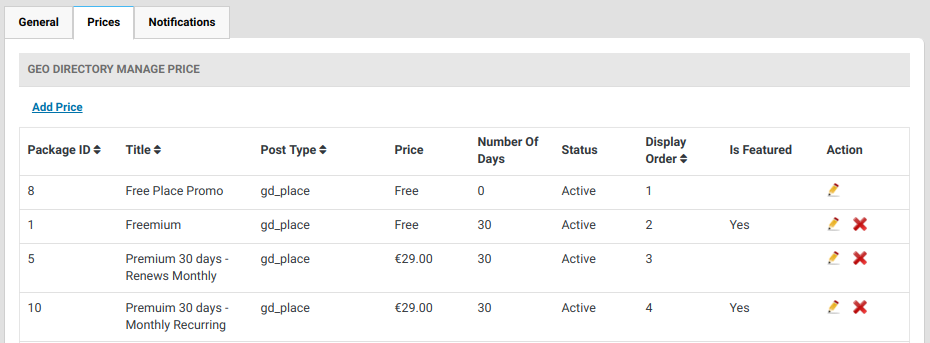
Now it is time to setup the downgrade from 2 to 1.

This is called ‘downgrade on expiry’. This must be setup in package 2, such that, upon expiry, the listing is downgraded to 1. You will also want to mark the setting that disables renewal for free packages.

We want the Freemium package to be added by the site editor, so that normal users cannot come in and select it. You might have a different feeling, but, if you want to hide the Freemium package on the add-listing page, you can use this CSS:

[css]
#geodir_price_package_1 {display: none;}
[/css]

Here are the steps the site manager would take.

A. Adds a new listing, and in the backend assigns package 2.
B. The site manager informs the potential customer of how to claim the listing.
C. The user claims the listing and can upgrade to 3 or 4, or let 2 expire and the listing will downgrade automatically to #1.

To make sure your users know they can upgrade to a paid package, make sure the following is set for 1 & 2.

Only package #4 will require a notification from a remote gateway to expire the listing (because it is recurring, and the status of the subscription is held in the remote gateway). Other packages will expire automatically at the end of the period.

I have a package that is recurring every 30 days, but the customers are not receiving pre-expiry emails before each billing period.

Pre-expiry emails are only sent before the expiration of the listing, not for each renewal.

GD Booster Add-on Overview

On this page

Introduction Installation Configuration Known issues

Introduction

Nothing drives away users like a slow-loading site. Here’s a total lightning rod for your directory! GD Booster incorporates some of the smartest caching, compression and minifying methods available today for WordPress to put a rocket under your GeoDirectory site.

Just activate the add-on and see your Google PageSpeed and load times improve dramatically. No technical knowledge is required. Simply check and uncheck options to add or subtract functionality.

With GD Booster on board, your GeoDirectory listings will never slow down your site, however many you add. Go on, add a million!

Important: this add-on must not be used with other third-party caching plugins.

Installation

  1. Visit wpgeodirectory.com ( Buy a subscription if Required )
  2. Navigate to My Account > Downloads ( Login if Required )
  3. Download Geodir Gd Booster zip file.
  4. Go to your WordPress site dashboard, Navigate to  Plugins > Add New > Upload Plugin
  5. Browse and Upload the zip file you downloaded from wpgeodirectory.com
  6. Activate the plugin.

Configuration

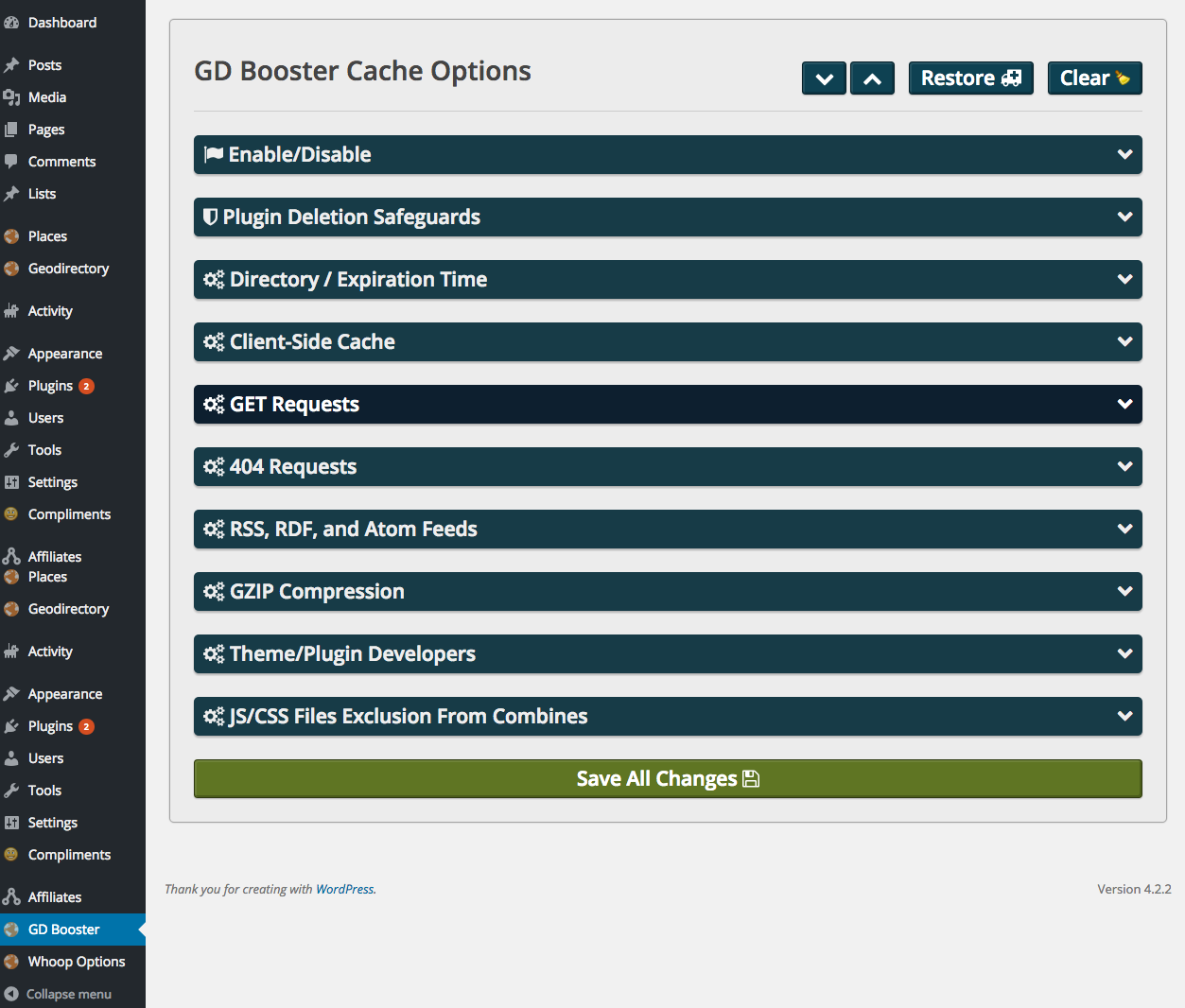
After plugin activation, navigate to GD Booster

To expand all setting groups

expand

To collapse all setting groups

collapse

To restore default settings

restore

To clear site cache

clear

Enable/Disable

1

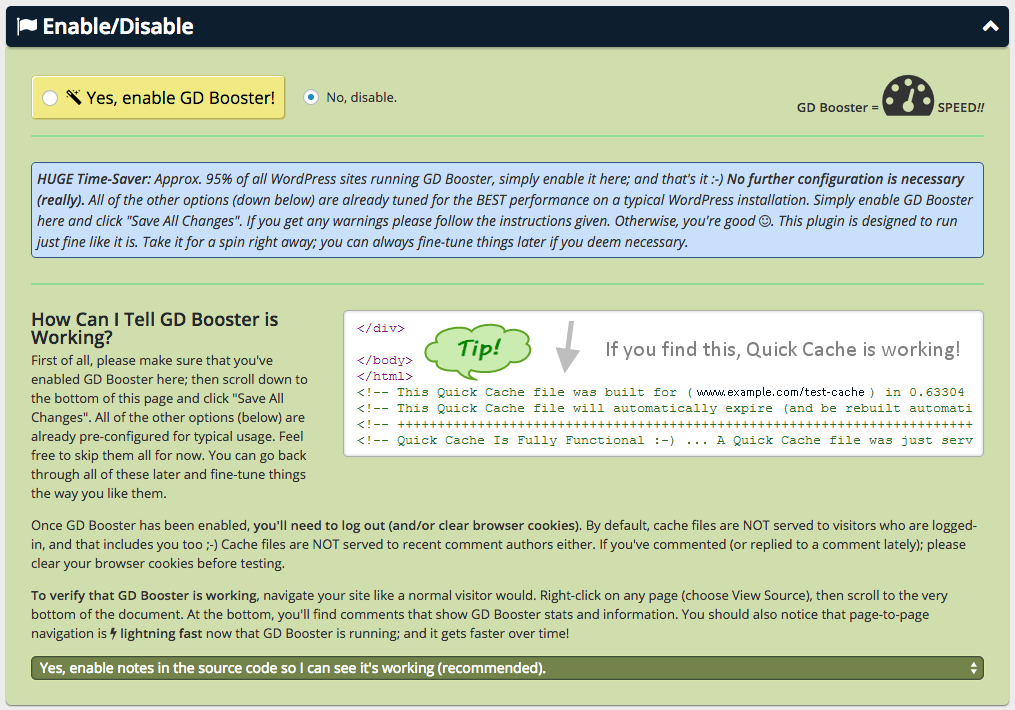
To enable

  1. Check Yes, enable GD Booster!
  2. Scroll to bottom of the page
  3. Click Save All Changes

To disable

  1. Check No, disable.
  2. Scroll to bottom of the page
  3. Click Save All Changes

Notes

  1. Yes, enable notes in the source code so I can see it’s working (recommended).
    1. Screen Shot 2015-07-14 at 8.00.26 pm
  2. Yes, enable notes in the source code AND show debugging details (not recommended for production).
    1. This option adds debugging details in source code
    2. Not recommended for production
  3. No, I don’t want my source code to contain any of these notes.
    1. Disable notes and debugging details in source code

Plugin Deletion Safeguards

2

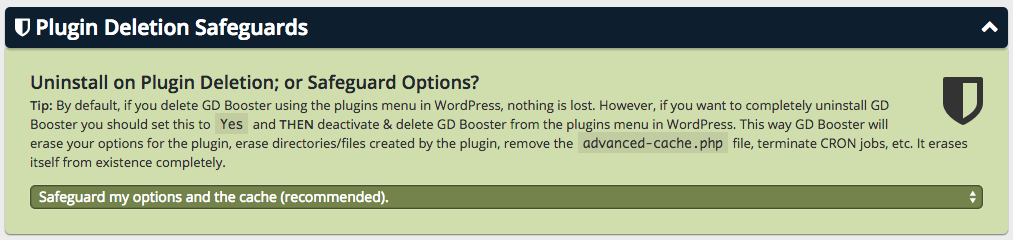
  1. Uninstall on Plugin Deletion; or Safeguard Options?
    1. Safeguard my options and the cache (recommended).
      1. if you want to keep GD Booster settings you can use this option.
    2. Yes, uninstall (completely erase) GD Booster on plugin deletion.
      1. if you want to completely uninstall GD Booster you can use this option.

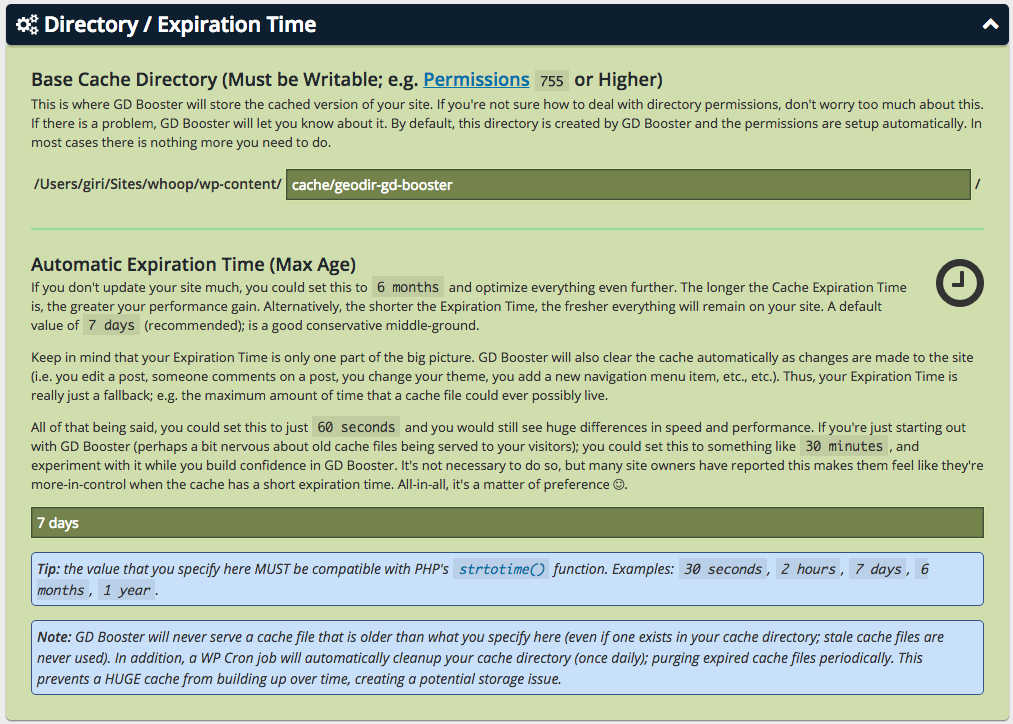
Directory / Expiration Time

3

  1. Base Cache Directory (Must be Writable; e.g. Permissions 755 or Higher)
    1. This is where GD Booster will store the cached version of your site
    2. By default, this directory is created by GD Booster and the permissions are setup automatically.
    3. In most cases there is nothing more you need to do.
  2. Automatic Expiration Time (Max Age)
    1. If you don’t update your site much, you could set this to 6 months and optimize everything even further.
    2. A default value of 7 days (recommended); is a good conservative middle-ground.
    3. The value that you specify here MUST be compatible with PHP’s strtotime() function.
    4. Examples:
      1. 30 seconds
      2. 2 hours
      3. 7 days
      4. 6 months
      5. 1 year

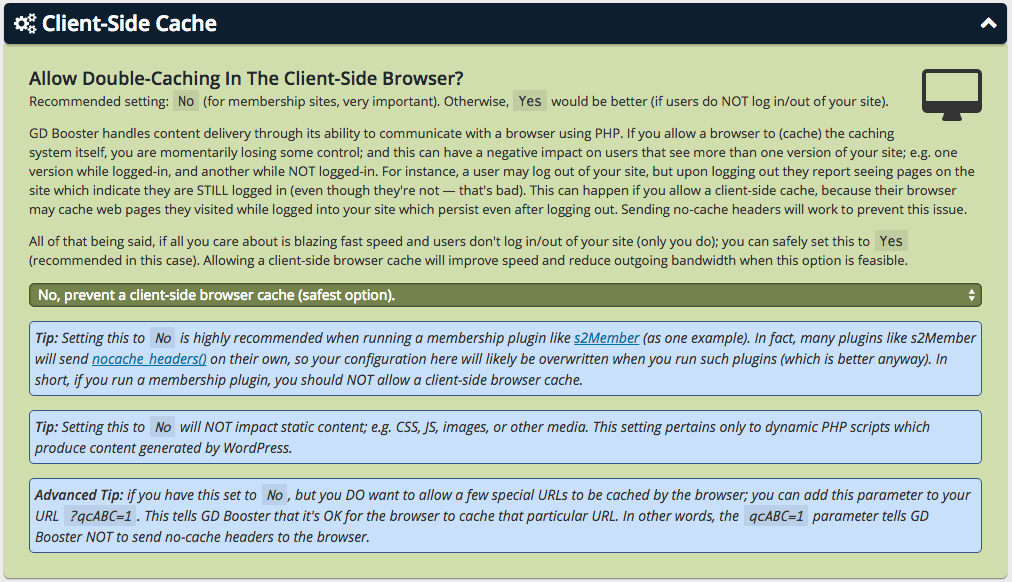
Client-Side Cache

4

  1. Allow Double-Caching In The Client-Side Browser?
    1. No, prevent a client-side browser cache (safest option).
      1. Setting this to No is highly recommended when running a membership plugin like s2Member (as one example).
      2. In fact, many plugins like s2Member will send nocache_headers() on their own, so your configuration here will likely be overwritten when you run such plugins (which is better anyway).
      3. In short, if you run a membership plugin, you should NOT allow a client-side browser cache.
    2. Yes, I will allow a client-side browser cache of pages on the site.
      1. if users do NOT log in/out of your site, then this option will be better.

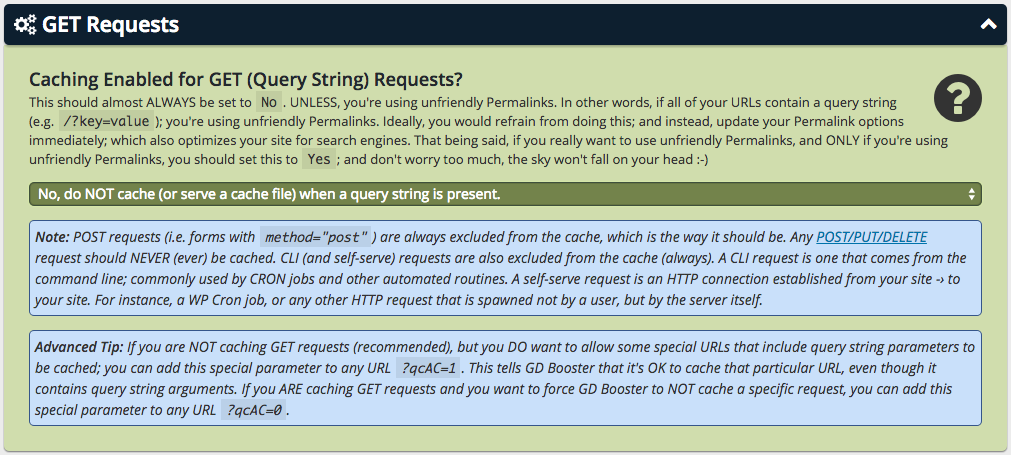
GET Requests

5

  1. Caching Enabled for GET (Query String) Requests?
    1. No, do NOT cache (or serve a cache file) when a query string is present.
      1. Always use this option. UNLESS, you’re using unfriendly Permalinks.
      2. In other words, if all of your URLs contain a query string (e.g. /?key=value); you’re using unfriendly Permalinks
      3. Ideally, you would refrain from doing this; and instead, update your Permalink options immediately; which also optimizes your site for search engines.
    2. Yes, I would like to cache URLs that contain a query string.
      1. if you really want to use unfriendly Permalinks, and ONLY if you’re using unfriendly Permalinks, you should use this option.

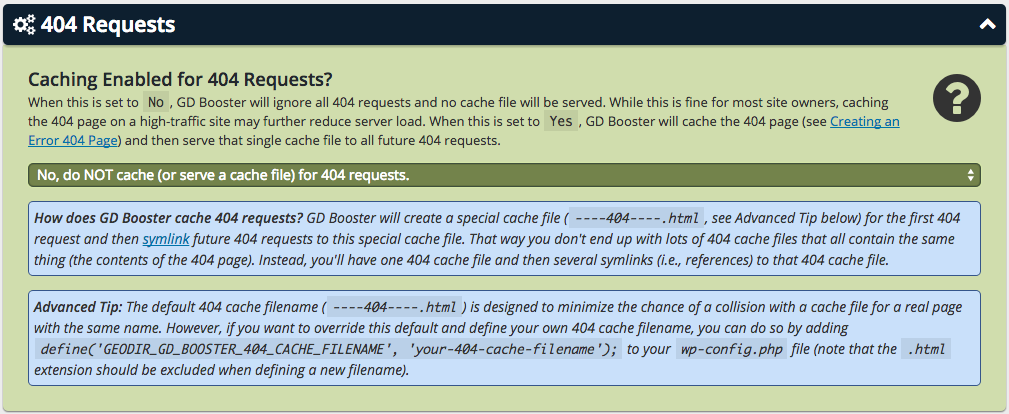
404 Requests

6

  1. Caching Enabled for 404 Requests?
    1. No, do NOT cache (or serve a cache file) for 404 requests.
      1. When this is set to No, GD Booster will ignore all 404 requests and no cache file will be served.
    2. Yes, I would like to cache the 404 page and serve the cached file for 404 requests.
      1. When this is set to Yes, GD Booster will cache the 404 page (see Creating an Error 404 Page) and then serve that single cache file to all future 404 requests.

RSS, RDF, and Atom Feeds

7

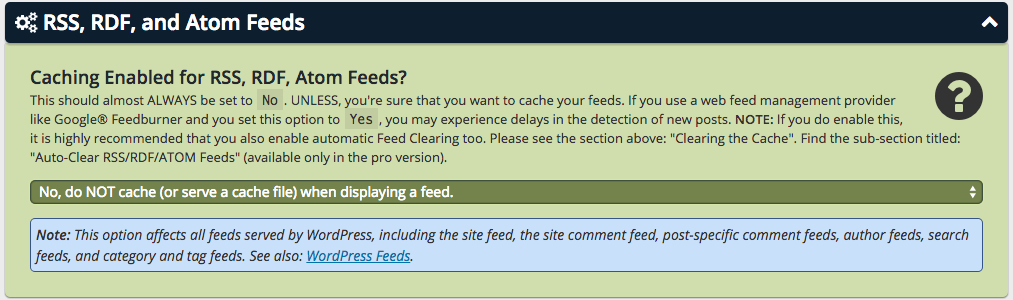
  1. Caching Enabled for RSS, RDF, Atom Feeds?
    1. No, do NOT cache (or serve a cache file) when displaying a feed.
      1. Always use this option, UNLESS, you’re sure that you want to cache your feeds.
    2. Yes, I would like to cache feed URLs.
      1. If you use a web feed management provider like Google® Feedburner and you set this option to Yes, you may experience delays in the detection of new posts
      2. This option affects all feeds served by WordPress, including the site feed, the site comment feed, post-specific comment feeds, author feeds, search feeds, and category and tag feeds.

GZIP Compression

8

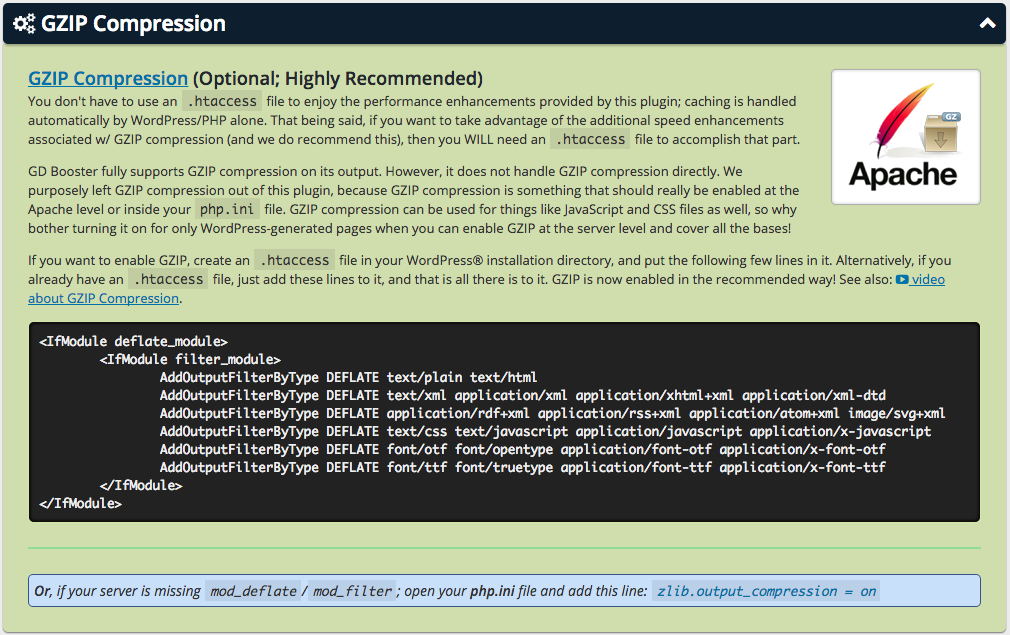
  1. GZIP Compression (Optional; Highly Recommended)
    1. If you want to enable GZIP, create an .htaccess file in your WordPress® installation directory, and put the few lines in it.
    2. Alternatively, if you already have an .htaccess file, just add those lines to it, and that is all there is to it.
    3. GZIP is now enabled in the recommended way!
    4. Or, if your server is missing mod_deflate/mod_filter; open your php.ini file and add this line: zlib.output_compression = on

Theme/Plugin Developers

9

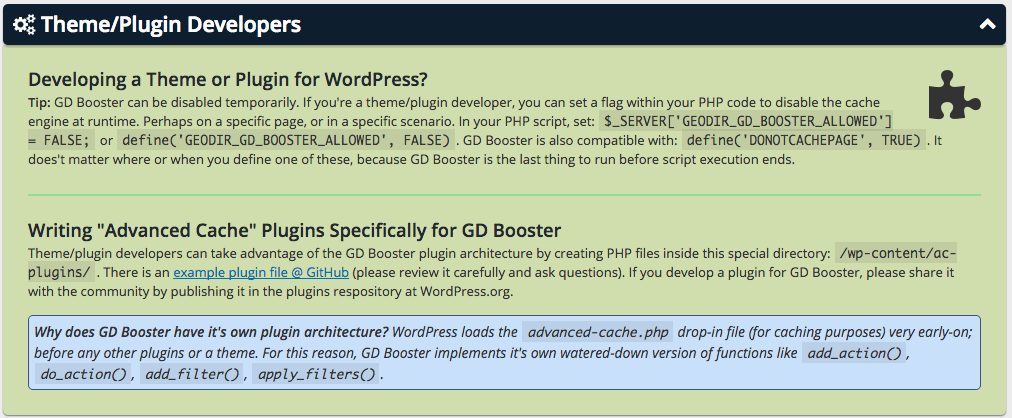
  1. Developing a Theme or Plugin for WordPress?
    1. In your PHP script, set: $_SERVER[‘GEODIR_GD_BOOSTER_ALLOWED’] = FALSE;
    2. or define(‘GEODIR_GD_BOOSTER_ALLOWED’, FALSE).
    3. GD Booster is also compatible with: define(‘DONOTCACHEPAGE’, TRUE).
    4. It does’t matter where or when you define one of these, because GD Booster is the last thing to run before script execution ends.
  2. Writing “Advanced Cache” Plugins Specifically for GD Booster
    1. Theme/plugin developers can take advantage of the GD Booster plugin architecture by creating PHP files inside this special directory: /wp-content/ac-plugins/.
    2. There is an example plugin file @ GitHub (please review it carefully and ask questions).
    3. If you develop a plugin for GD Booster, please share it with the community by publishing it in the plugins respository at WordPress.org.

JS/CSS Files Exclusion From Combines

10

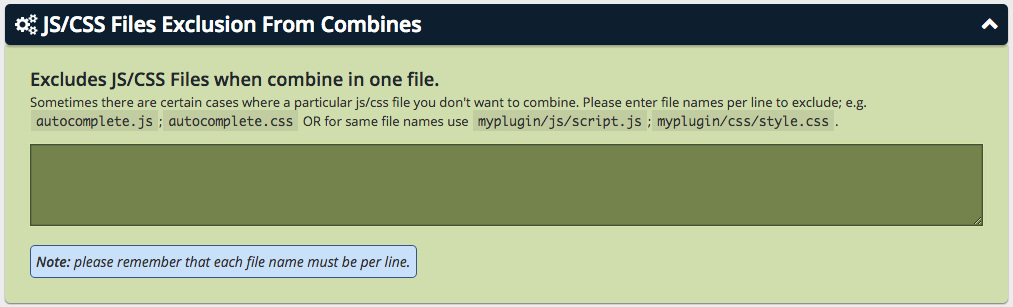
  1. Excludes JS/CSS Files when combine in one file.
    1. Sometimes there are certain cases where a particular js/css file you don’t want to combine.
    2. Please enter file names per line to exclude;
    3. Example:
      1. autocomplete.js
      2. autocomplete.css
    4. OR for same file names use
      1. myplugin/js/script.js
      2. myplugin/css/style.css.
    5. Note: please remember that each file name must be per line.

Known Issues

  1. WordPress.com – GD Booster is not currently compatible with WordPress.com or any other host that does not allow the Write Access to the wp-content folder.
  2. GD Booster currently requires that a file called advanced-cache.php be placed inside the wp-content folder.

BuddyPress Integration Add-on Overview

Introduction

The Buddypress Integration Addon brings GeoDirectory and BuddyPress together into a seamless and incredible listings directory social network like Yelp or Trip Advisor.

If you are looking for great user profiles and perfect GeoDirectory integration, check out UsersWP, designed to add community features to your GeoDirectory site without slowing it down.

Use the following guide to install and configure the Addon. The guide uses the Whoop theme for screenshots, so your features may appear slightly different.

Get the Addon

  1. Visit wpgeodirectory.com ( Buy a subscription if Required )
  2. Navigate to My Account > Downloads ( Login if Required )
  3. Download Geodir Buddypress Integration zip file.
  4. Go to your WordPress dashboard, Navigate to  Plugins > Add New > Upload Plugin
  5. Browse and Upload the zip file you downloaded from wpgeodirectory.com
  6. Activate the plugin.

Requirements

  1. BuddyPress installed and activated.
  2. GeoDirectory installed and activated.
  3. GeoDirecoty BuddyPress Integration Addon installed and activated.

Configuration

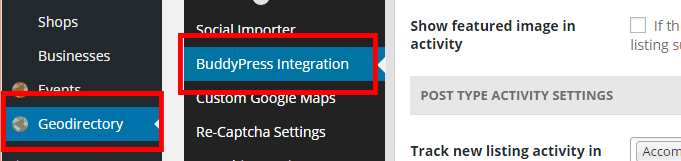
After activating the plugin you will be redirected to GeoDirectory > BuddyPress Integration

BuddyPress Member Dashboard Settings

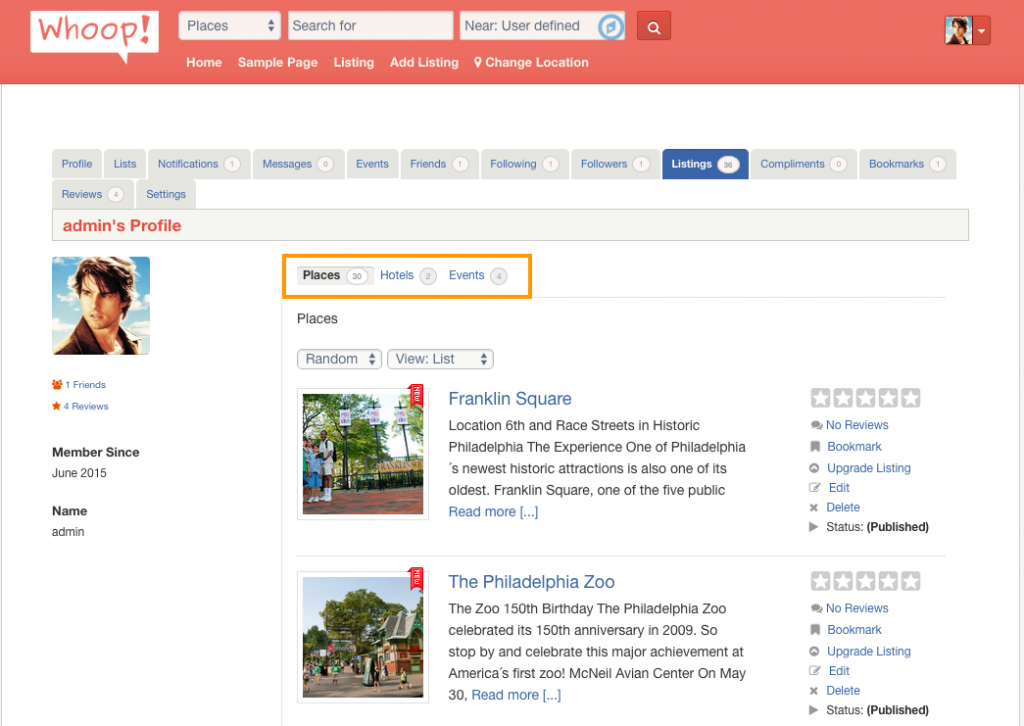
  1. Show listings in BuddyPress dashboard
    1. Choose the post types to show listing type tab under listings tab in BuddyPress dashboard
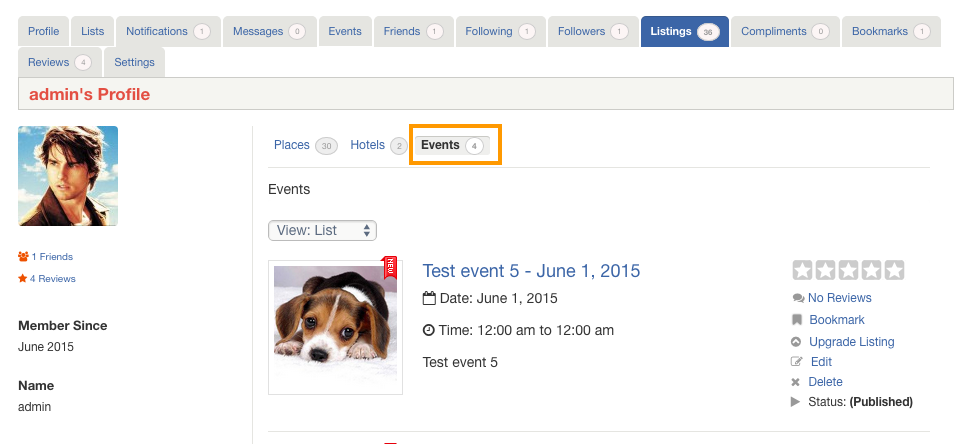
    2. For Example, if you selected post types named Places, Hotels, Events then it will be visible like this under Listings tab.
    3. listing-ptypes
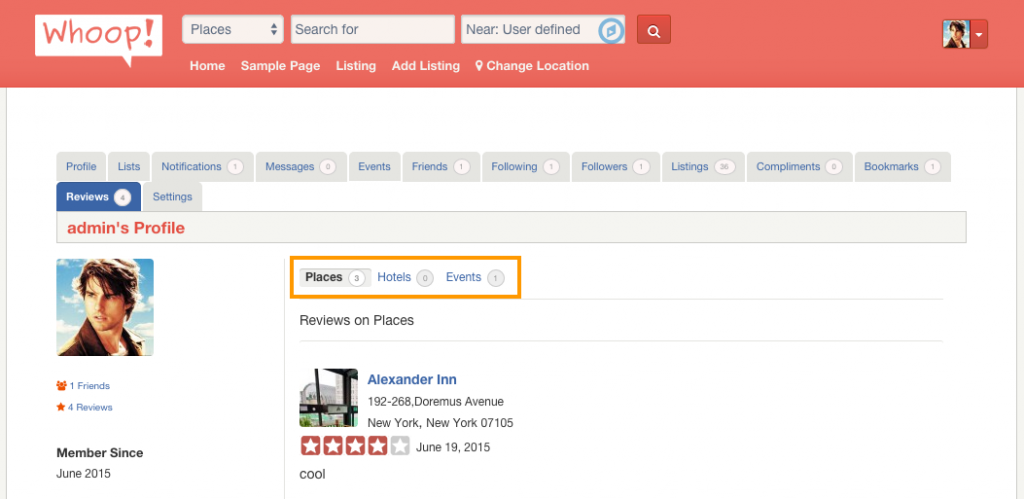
  2. Show reviews in BuddyPress dashboard
    1. Choose the post types to show listing type tab under reviews tab in BuddyPress dashboard
    2. For Example, if you selected post types named Places, Hotels, Events then it will be visible in front end like this under Reviews tab.
    3. listing-reviews
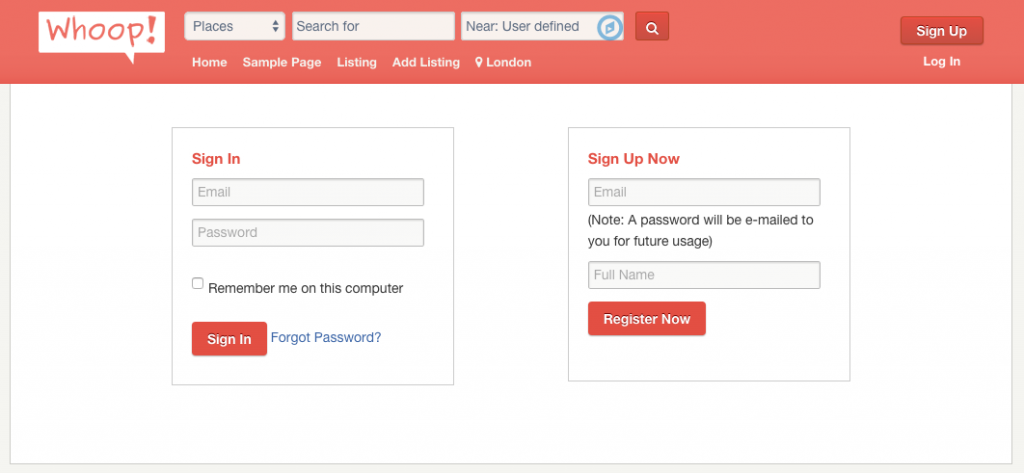
  3. Use BuddyPress registration form
    1. If this option is selected, the GD registration form will points to the BuddyPress registration from.
    2. When this option NOT checked, the registration page would look like this
    3. regformunchecked
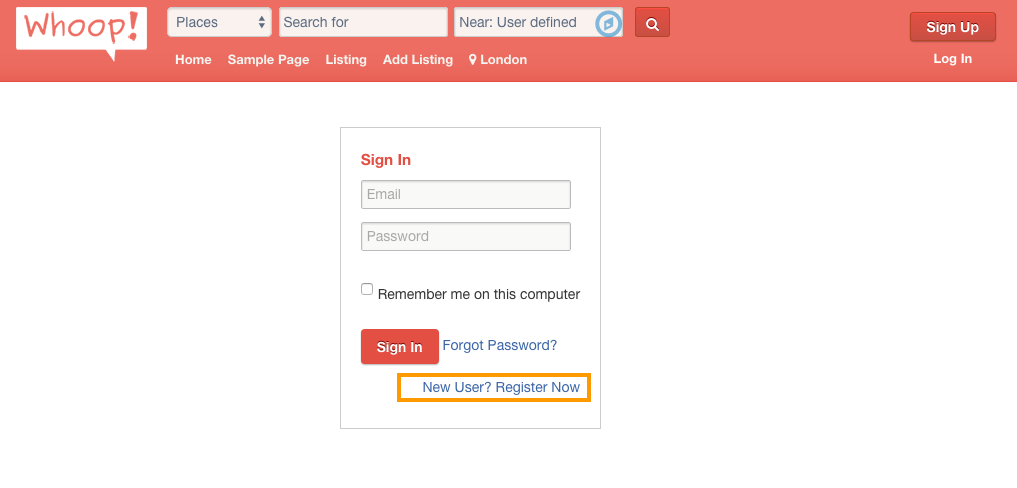
    4. When this option checked, the registration page would look like this, with a Register Now link
    5. regformchecked
    6. Register Now link will be linked to BuddyPress registration page.
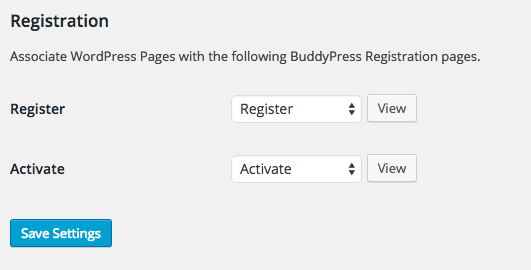
    7. BuddyPress registration page may not work if you don’t have Register and Activate pages.
    8. BuddyPress registration page may not work if you don’t set Register and Activate pages in Settings > BuddyPress > Pages > Registration.
    9. bpreg
    10. BuddyPress registration page may not work if you don’t check Anyone can register option in Settings > General > Membership.
    11. mebership
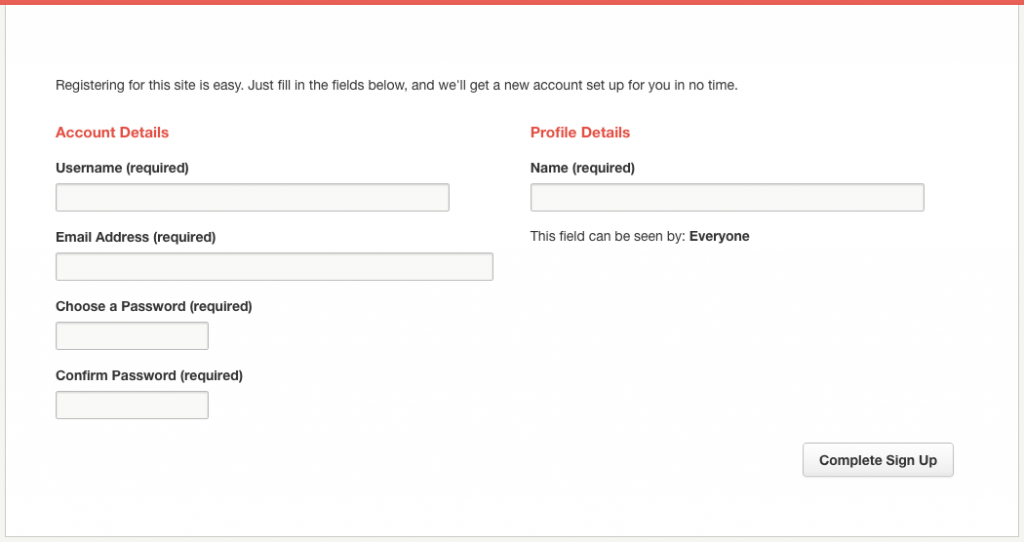
    12. BuddyPress registration page looks like this
    13. buddyregpage
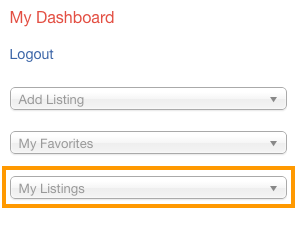
  4. Redirect GD dashboard my listing link to BuddyPress profile
    1. If this option is selected, the my listing link from GD dashboard will redirect to listings tab of BuddyPress profile.
    2. mylisting
    3. By default each link from My Listings points to author page. Ex: Place post type points to yourdomain.com/author/admin/?geodir_dashbord=true&stype=gd_place (Where admin is the logged in username )
    4. mydasplaces
    5. When this option checked, links will be redirected to BuddyPress member page listings tab.
    6. For example when you click Events, you will be redirected to yourdomain.com/members/admin/listings/events/   ( Where admin is the logged in user name, and Events is the clicked post type )
    7. listingevents
  5. Redirect GD dashboard favorite link to BuddyPress profile
    1. If this option is selected, the favourite link from GD dashboard will redirect to favourites tab of BuddyPress profile.
    2. myfavs
    3. By default each link from My Favourites points to author page. Ex: Place post type points to yourdomain.com/author/admin/?geodir_dashbord=true&stype=gd_place&list=favourite (Where admin is the logged in username )
    4. myfavplaces
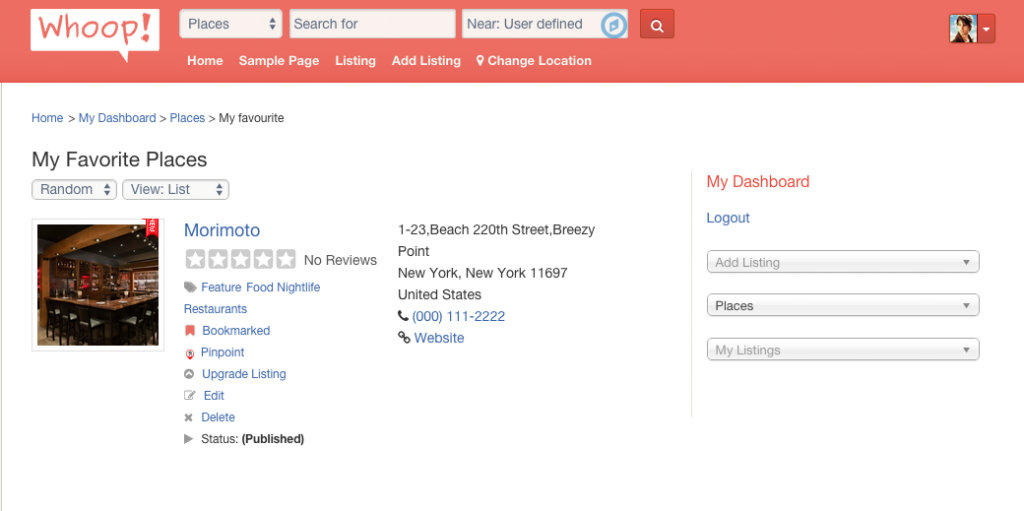
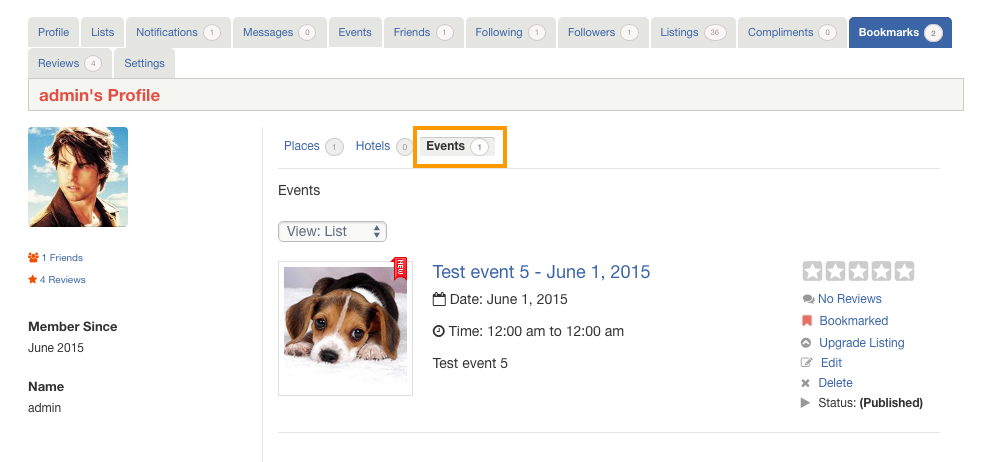
    5. When this option checked, links will be redirected to BuddyPress member page Favourites tab ( Important: if you are using whoop theme, Favourites module is renamed to Bookmarks to make it look like a yelp clone).
    6. For example when you click Events, you will be redirected to yourdomain.com/members/admin/favorites/events/   ( Where admin is the logged in user name, and Events is the clicked post type )
    7. whoopfavorites

Post Type Activity Settings

  1. Track new listing activity in BuddyPress
    1. Choose the post types to track new listing submission in BuddyPress activity
    2. BuddyPress will start to record activities of chosen post types.
    3. It will be visible in member’s Activity Tab
  2. Track new review activity in BuddyPress
    1. Choose the post types to track new review submission in BuddyPress activity
    2. BuddyPress will start to record activities of chosen post types.
    3. It will be visible in member’s Activity Tab

Login Redirect Settings

  1. Login redirection page
    1. Default – No redirect filter will be applied by the plugin.
    2. Home Page – Will be redirected to Home Page after login.
    3. Profile Page – Will be redirected to Member Profile Page after login.
    4. Menu Page – A menu page from primary menu.
  2. Select menu page
    1. Select menu page to redirect after login.
    2. Menu Page must be enabled for Login redirection page.

FAQs – Frequently Asked Questions

  • Q – What’s wrong with my member profile pages? I installed the Addon but it’s not working.
  • A – Review the requirements; be sure you have installed all the plugins including BuddyPress.
  • Q – How do I remove the Admin Bar for logged in users?
  • A – There are two types of black bars. If it is the “BuddyBar” you can find that in the BuddyPress settings. To hide the the WP Admin Bar, when you have BuddyPress installed, you can use this solution: https://buddypress.org/support/topic/disable-admin-bar/

Location Manager Addon – Widgets

This page is a work in progress …

When you install the Location Manager Addon, you’ll find a number of new GD widgets in the appearance section of your WP admin area.

Widget name Can be used on these pages:
Home Listings Search Detail Author Non-GD pages
GD > Location Description yes yes yes yes yes yes
GD > Popular Location yes yes yes yes yes yes

GD > Location Description

  1. For each location (city or town), you can add custom content for both the meta description and on-page content.
  2. Navigate to GeoDirectory > Multilocations > Manage Location and filter for the location.
  3. Then choose edit:
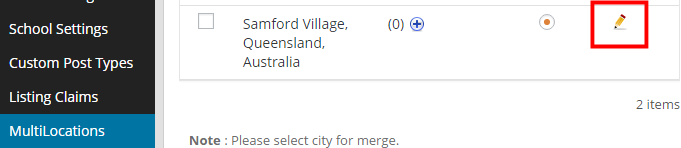
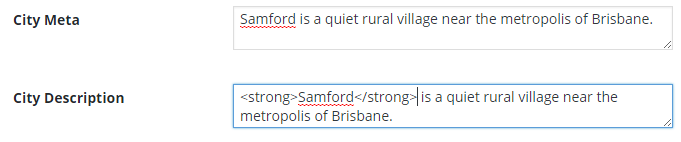
  4. Towards the bottom of the editing page, you will find City Meta and City Description fields.
    Enter your data (you can use HTML in the City Description field):
  5. The City Meta data will now be added to the source of the relevant location page:
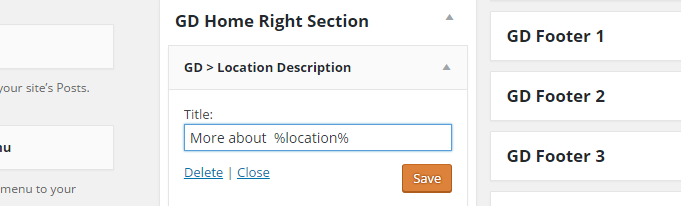
  6. To add the City Description to the page, add the GD > Location Description widget to any widget area of the Home (Location) sections.
    You can use %location% in the title, that will adjust to the location name:
  7. This is how it will show on the location page (The widget will only show on location pages that have custom data added):
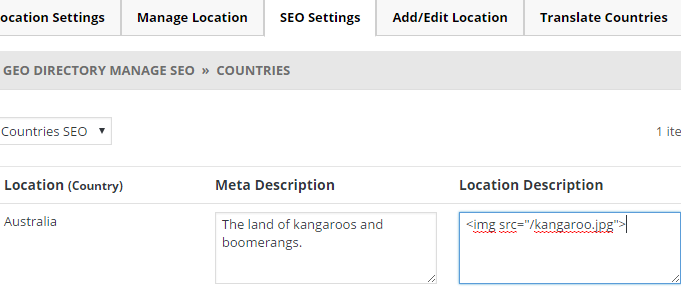
  8. For regions and countries, you will find the Meta Description and Location Description fields at the SEO Settings tab:

GD > Popular Location

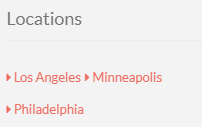
  1. This widget will add a list of links to locations on your pages.
  2. Look in the sidebar of this demo page for an example.

Options

  1. Title: Leave blank if you do not want a heading
  2. Number of locations: By default all locations will be displayed, unless you add a number here.
  3. Pagination:
  4. Don’t filter for current location: by default, the widget will only display links to locations within the selected country or region. Ticking this option will display popular locations outside the selected country or region too.

AffiliateWP Integration Add-on Overview

Introduction

AffiliateWP is probably the best WordPress plugin for Affiliate Marketing available today.

The integration between GeoDirectory and AffiliateWP will bring more traffic to your Directory because Affiliate Links will drastically improve your website’s SEO.

More traffic will also increase your Directory’s value for advertisers, resulting in better conversions/sales.

Prerequisites

AffiliateWP integration requires both AffiliateWP plugin and Prices and Payments addon installed. AffiliateWP is a paid/premium plugin and you must have a copy f it in order to use the GeoDirectory integration.

  1. Download, install, activate, and configure AffiliateWP

Installation

  1. Visit wpgeodirectory.com ( Buy a subscription if Required )
  2. Navigate to My Account > Downloads ( Login if Required )
  3. Download Geodir AffiliateWP Integration zip file.
  4. Go to your WordPress site dashboard, Navigate to  Plugins > Add New > Upload Plugin
  5. Browse and Upload the zip file you downloaded from wpgeodirectory.com
  6. Activate the plugin.

Configuration

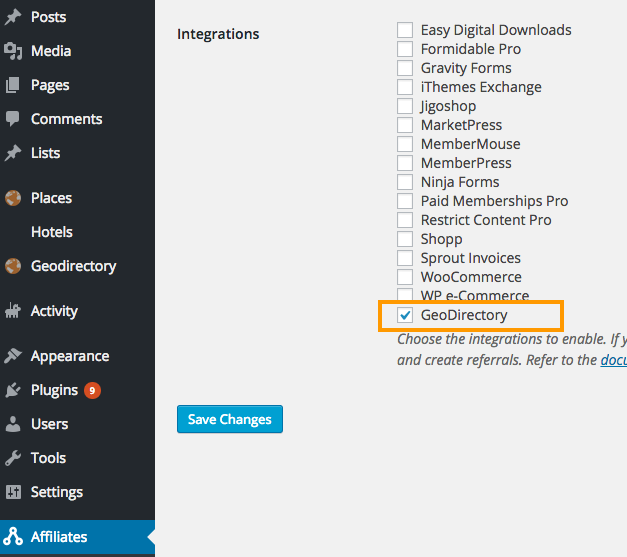
  1. After plugin activation, navigate Affiliates > Integrations  
  2. Check GeoDirectory
  3. Click Save settings


Stripe Payment Gateway Add-on Overview [deprecated]

This documentation is no longer current, Stripe is now available as an addon for WP Invoicing.

Read more here:

Using WP Invoicing with GeoDirectory Pricing Manager
Stripe Gateway for WP Invoicing

Introduction

Stripe is an online payment processor that is gaining in stature among both developers and buyers, as an alternative to Paypal.
It allows brand owners to keep their checkout process within their own website, rather than direct users off-site to complete the transaction.
Now you can integrate Stripe payments seamlessly on your directory site, with this expansion to the GeoDirectory Prices and Payments add-on.

Prerequisites

  1. Prices and Payments add-on ( Required )

Installation

  1. Visit wpgeodirectory.com ( Buy a subscription if Required )
  2. Navigate to My Account > Downloads ( Login if Required )
  3. Download GeoDir Stripe Payment Gateway zip file.
  4. Go to your WordPress site dashboard, Navigate to  Plugins > Add New > Upload Plugin
  5. Browse and Upload the zip file you downloaded from wpgeodirectory.com
  6. Activate the plugin.

Configuration

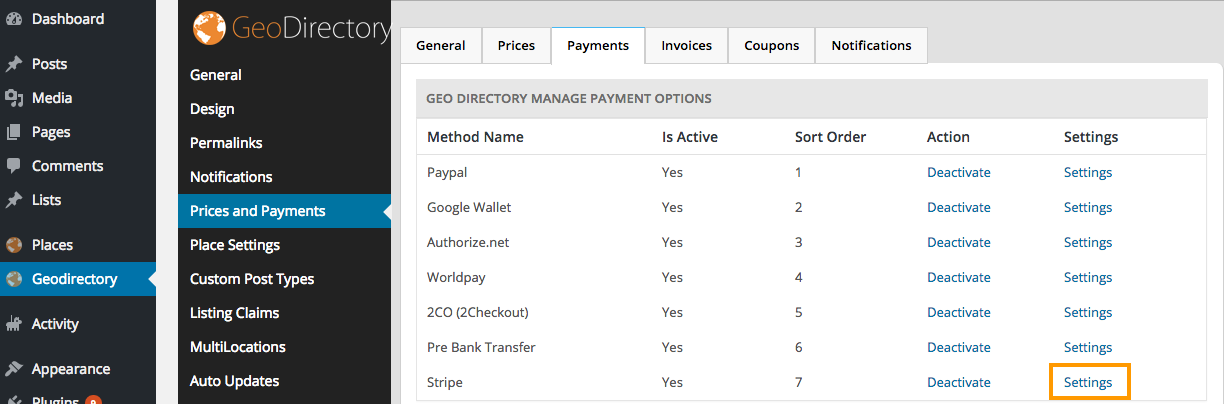
After plugin activation, navigate to Geodirectory > Prices and Payments > Payments  > Stripe > Settings

Stripe Settings

  1. Payment Method
    1. The title of the Payment Method.
    2. This title will be displayed to users.
  2. Is Active
    1. Is this payment method Active?
  3. Display Order
    1. Display order for frontend display.
    2. For example when set to 1 this will be displayed first.
    3. Note: Don’t use the same display order for all Payment Methods.
  4. Mode
    1. Live – All transactions will be real money transactions.
    2. Test mode (Sandbox) – All transactions will be dummy transactions.
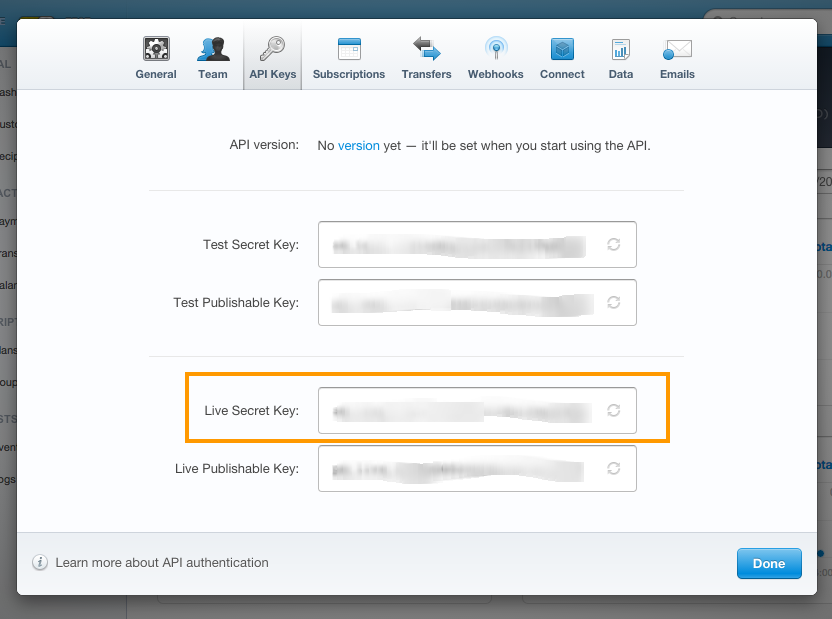
  5. Secret Key
    1. To get Secret Key, Visit here
    2. secret
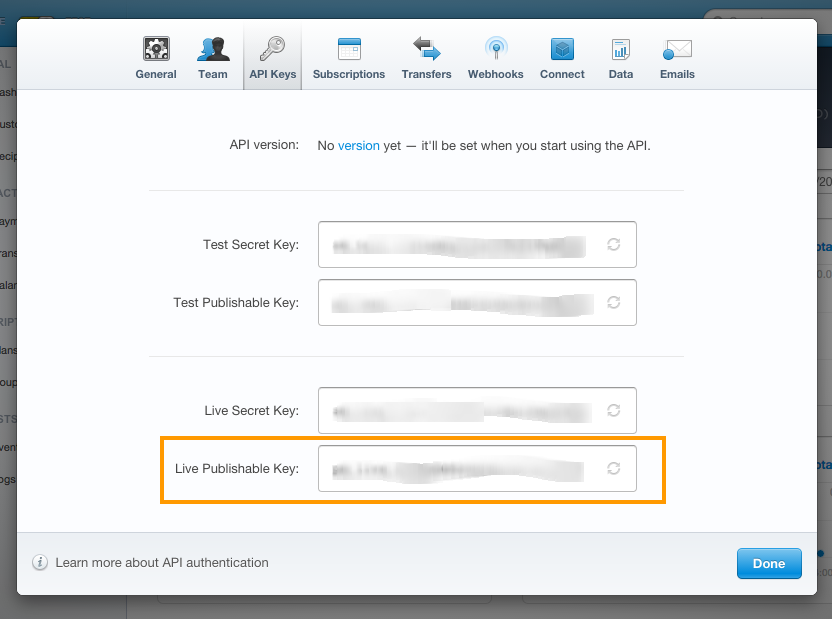
  6. Publishable Key
    1. To get Publishable Key, Visit here
    2. publisable
  7. Webhooks URL
    1. You must set this in your stripe account to match this value.
    2. In stripe see Your Account > Account Settings > Webhooks

Final View

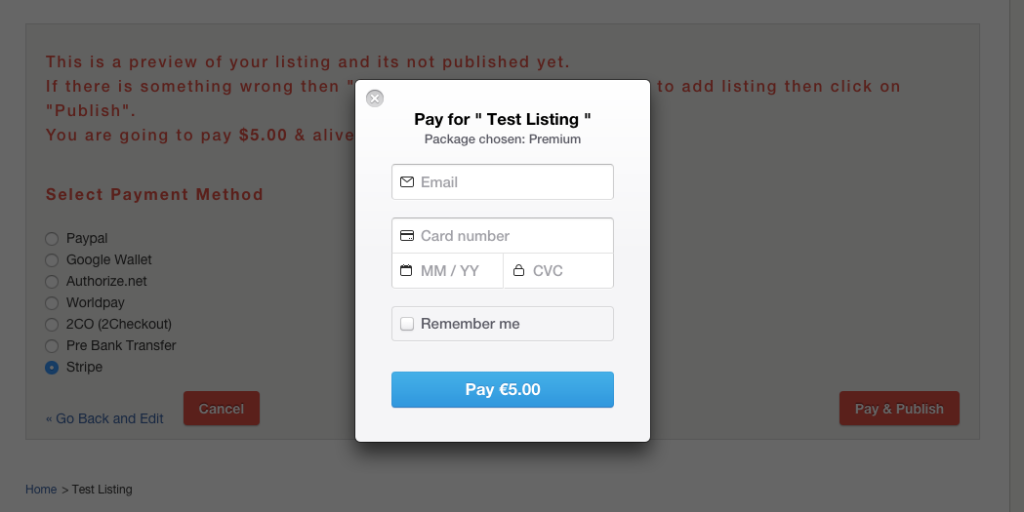
When you click Pay and Publish button the following popup will be generated.

preview

MultiRatings and Reviews Add-on Overview

Introduction

With our slick reviews and ratings manager you can turn your site into a professional reviews directory. No hassle!

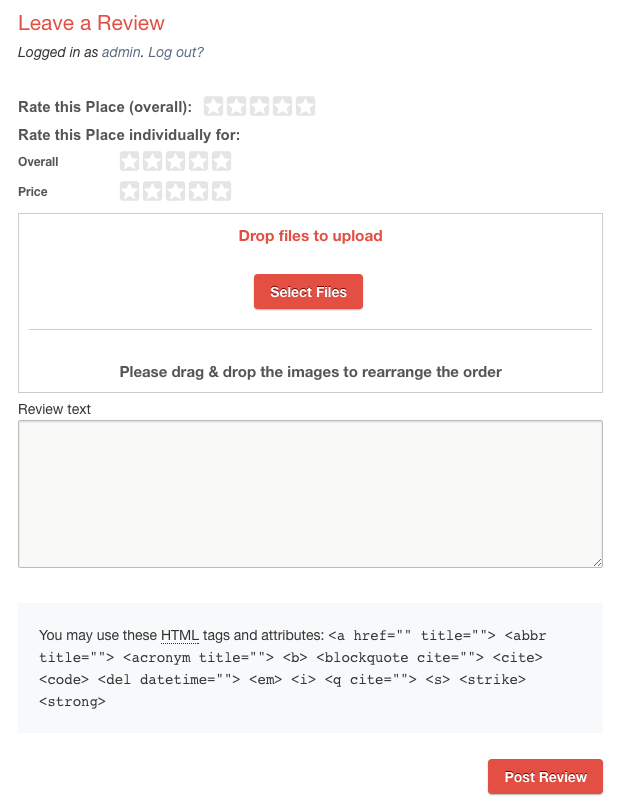
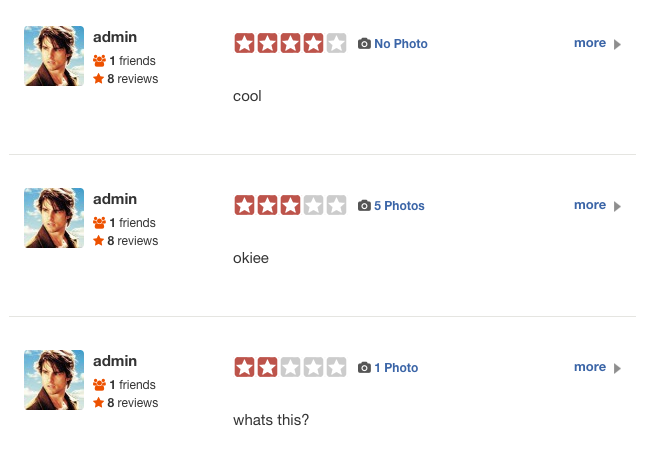
In a process similar to that used by TripAdvisor, visitors rate the overall performance for each business, then fine-tune their rating with as many individual ratings – multi-ratings – as you choose.

Quality, price, cleanliness, friendliness – there is no limit to the criteria you can apply and they can be different for each category. If you choose, users can upload photos to illustrate their review too!

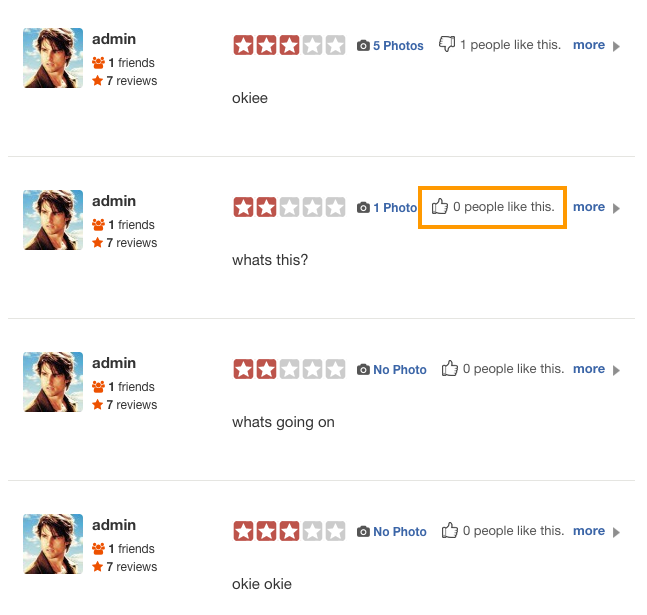
Users can upvote or downvote reviews via “like” and “dislike” buttons. Switch voting on or off as you choose.

Take it further with Custom Post Types

If you have the GeoDirectory Custom Post Types add-on installed, you can set different rating and reviews options for each post type and its categories.

Installation

  1. Visit wpgeodirectory.com ( Buy a subscription if Required )
  2. Navigate to My Account > Downloads ( Login if Required )
  3. Download Geodir Review Rating Manager zip file.
  4. Go to your WordPress site dashboard, Navigate to  Plugins > Add New > Upload Plugin
  5. Browse and Upload the zip file you downloaded from wpgeodirectory.com
  6. Activate the plugin.

Configuration

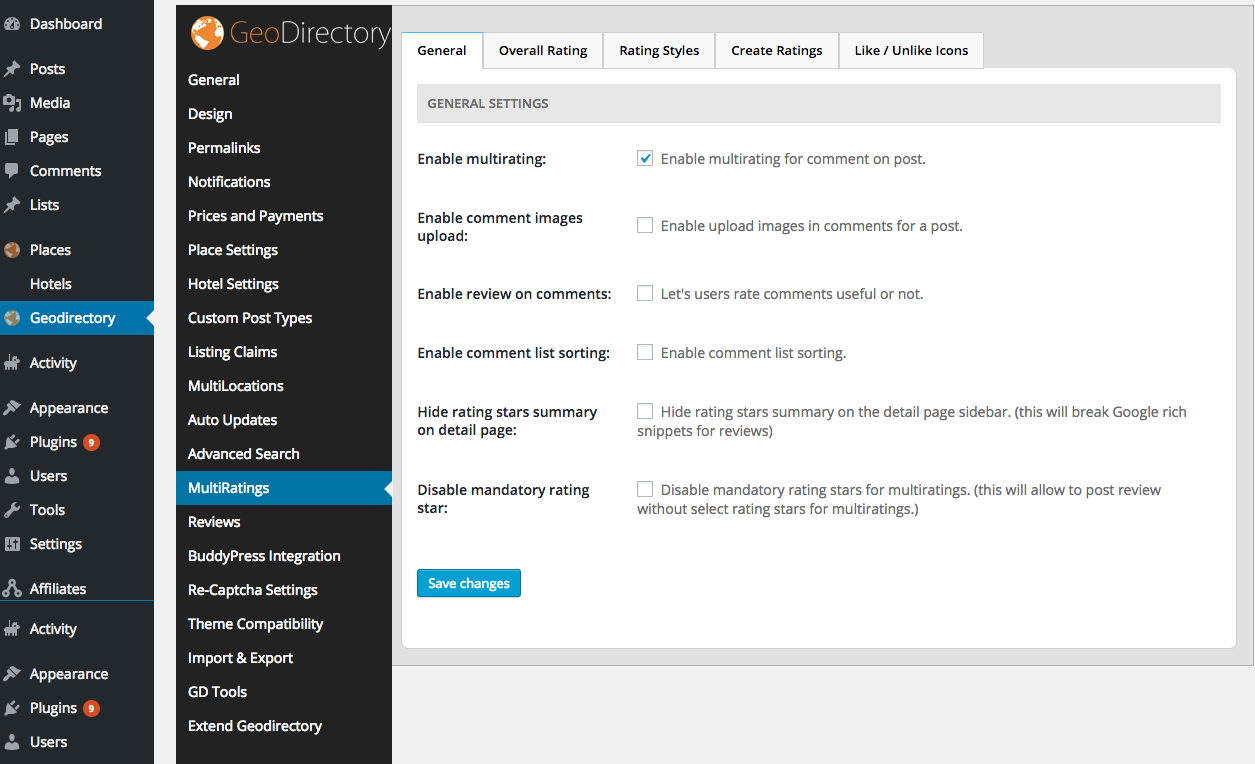
This plugin creates two new tabs in GeoDirectory settings page.

  1. MultiRatings
  2. Reviews

You will be automatically redirected to MultiRatings setting page, after plugin activation.

General Tab

General Settings

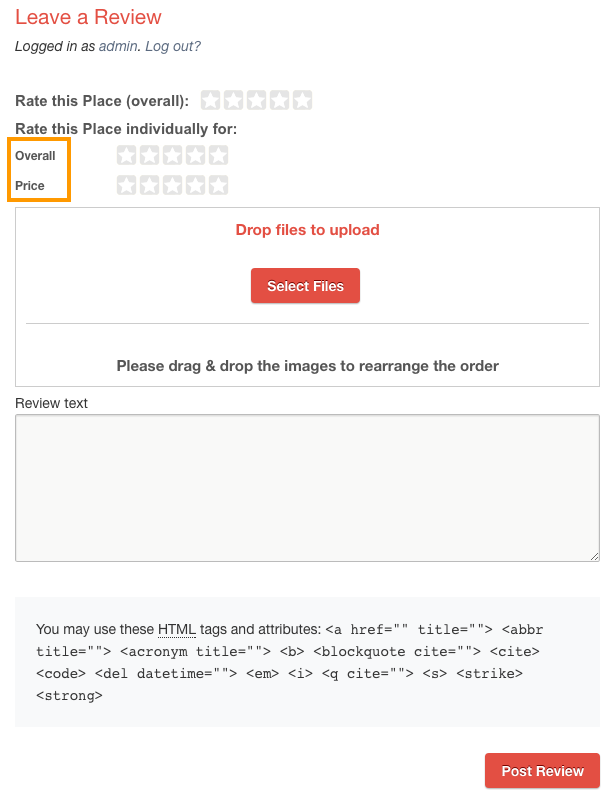
  1. Enable multirating:
    1. Enable multirating for comment on post.
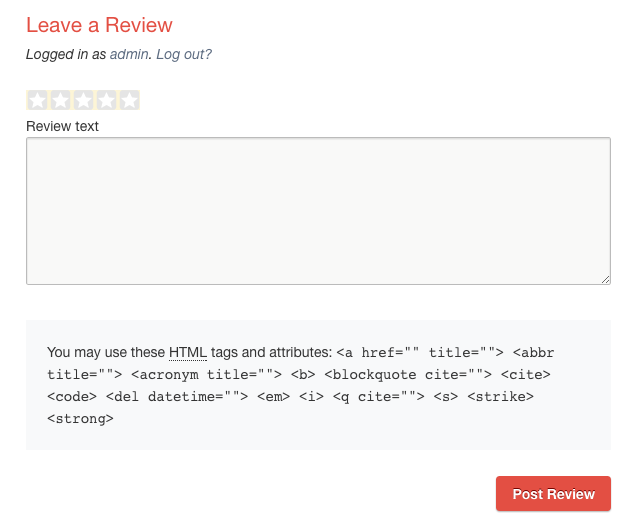
    2. When Disabled
      1. mrdisabled
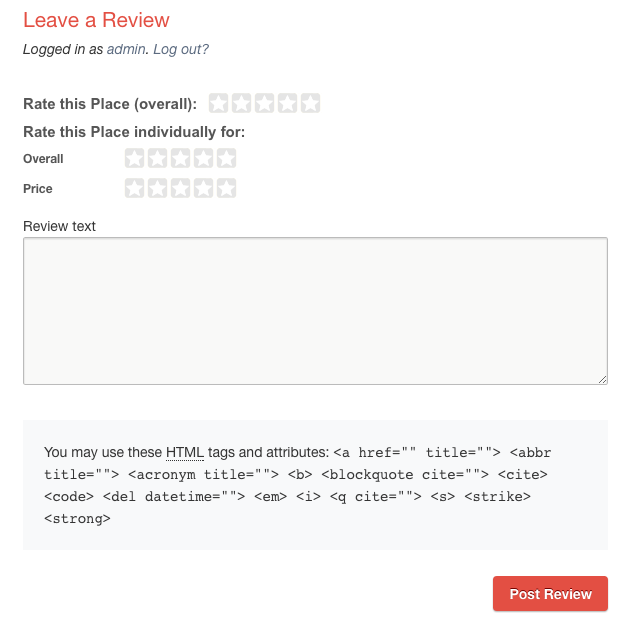
    3. When enabled
      1. mrenabled
  2. Enable comment images upload:
    1. Enable upload images in comments for a post.
    2. When enabled
      1. imguploadenabled
  3. Enable review on comments:
    1. Let’s users rate comments useful or not.
    2. When disabled
      1. likedislikedisabled
    3. When enabled
      1. likedislike
  4. Enable comment list sorting:
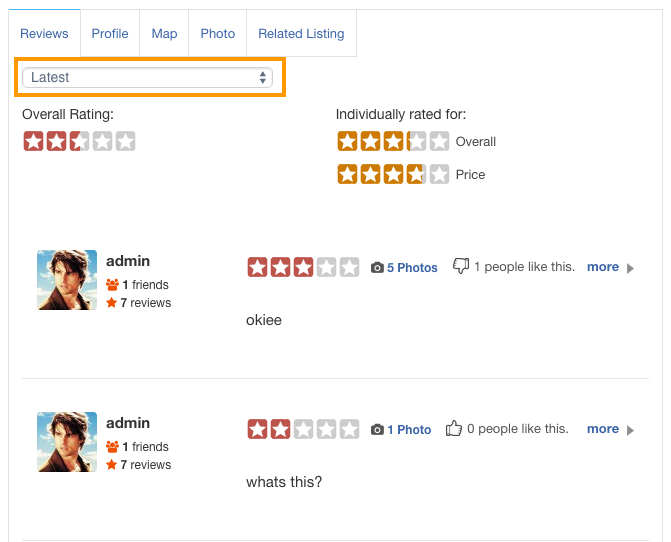
    1. Enable comment list sorting.
    2. When enabled
      1. sorting
  5. Hide rating stars summary on detail page:
    1. Hide rating stars summary on the detail page sidebar.
    2. Note: This will break Google rich snippets for reviews
    3. When disabled
      1. ratingsummarybefore
    4. When enabled
      1. ratingsummaryafter
  6. Disable mandatory rating star:
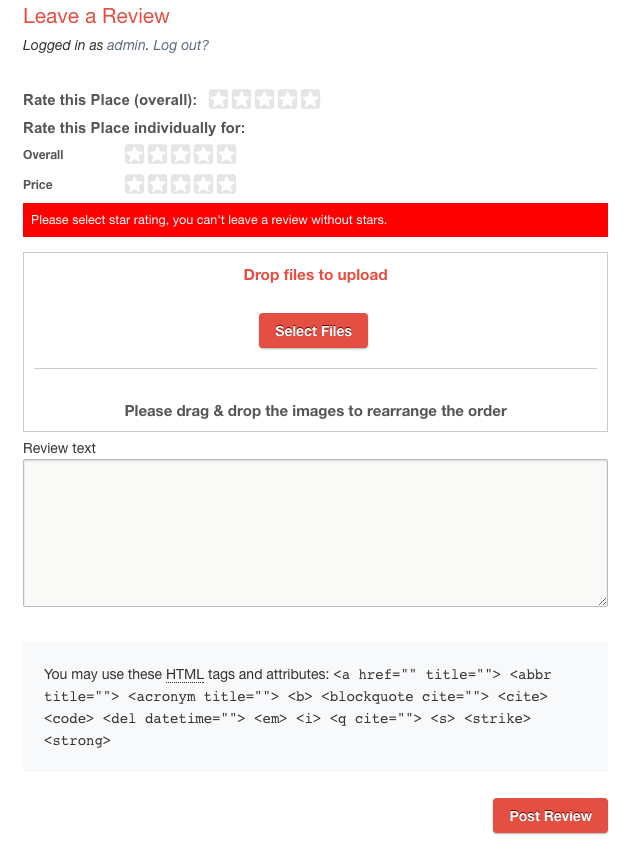
    1. Disable mandatory rating stars for multiratings.
    2. This will allow to post review without select rating stars for multiratings.
    3. When disabled
      1. ratingmandatory
    4. When enabled
      1. Error validation will be disabled for Rate this Place individually for: part.

Overall Rating Tab

Overall Rating Settings

  1. Overall rating image
    1. This image will be used as rating image
    2. Note: Always use a transparent image. Click here to see a sample transparent rating image. Save this image in you computer to see it.
    3. If transparent image not used, then Overall rating color code option will not work.
  2. Overall rating image for featured listing:
    1. This image will be used as rating image for featured listing.
    2. If no image, then it will fallback to Overall rating image
  3. Overall rating color code
    1. This color code will be used as rating color.
    2. Note: You must use a transparent image, if you are planning to use color option.
  4. Overall rating color code for featured listing:
    1. This color code will be used as rating color for featured listing.
    2. When no option set, it will fallback to Overall rating color code
  5. Overall rating setting score
    1. How many rating Icons you need?
    2. Default value: 5
    3. Overall rating score text options depends on this value.
  6. Overall rating score text.
    1.  What is the text you want to display when someone hover over the rating icons?
      • 1 Star Text  – Text to display for 1 Star  – Default : Terrible
      • 2 Star Text  – Text to display for 2 Stars  – Default : Poor
      • 3 Star Text  – Text to display for 3 Stars – Default : Average
      • 4 Star Text  – Text to display for 4 Stars  – Default : Very Good
      • 5 Star Text  – Text to display for 5 Stars  – Default : Excellent

Rating Styles Tab

Manage Rating Styles

  1. Title
    1. Style title
  2. Rating score (default 5)
    1. How many rating Icons you need?
    2. Default value: 5
    3. Rating text options depends on this value.
  3. Rating text
    • 1 Star Text  – Text to display for 1 Star  – Example : Terrible
    • 2 Star Text  – Text to display for 2 Stars  – Example : Poor
    • 3 Star Text  – Text to display for 3 Stars – Example : Average
    • 4 Star Text  – Text to display for 4 Stars  – Example : Very Good
    • 5 Star Text  – Text to display for 5 Stars  – Example : Excellent
  4. Rating off image.
    1. This image will be used as rating image
    2. Note: Always use a transparent image. Click here to see a sample transparent rating image. Save this image in you computer to see it.
  5. Rating color
    1. This color code will be used as rating color.
    2. Note: You must use a transparent image, if you are planning to use color option

Create Ratings Tab

Create Ratings

  1. Select multirating style
    1. Select a multi rating style.
    2. The options available here are coming Rating Styles Tab
  2. Rating title
    1. The rating title
    2. title
  3. Showing method
    1. Show star
      1. saveasrating
    2. Show dropdown
      1. showasdropdown
  4. Select post type
    1. Select post types, where you would like to display the current rating

Like / Unlike Icons Tab

Manage Like / Unlike Icons

  1. Review like image
    1. The icon will be used here.
    2. like
  2. Review unlike image
    1. The icon will be used here.
    2. displike