Location Manager – Manage Location

These are the sections you will find when you install the Location Manager:

Introduction and Location Settings tabManage Location tab – SEO Settings tab – Add/Edit Location tab – Translate Countries tab

On this page:

IntroductionCity Neighbourhoods – Adding or editing locations – Merging locations

Introduction

  1. The Manage Location tab is where you can edit or merge locations, and add meta data for your location pages.
  2. Here you can also divide locations into neighborhoods.

City Neighborhoods

  1. Locations are based on the Google Maps API, and the size of cities (towns, suburbs or villages etc depending on the country) can vary greatly from country to country. Your locations need to be therefore always city > region > country, exactly like Google suggests when you add a listing from the frontend.
  2. In some countries, cities are divided into smaller sections, for example New York City is divided in the boroughs of Bronx, Manhattan, Brooklyn, Queens and Staten Island.
  3. The neighborhoods need to be manually added in the backend, and need to be manually selected by users adding listings.

Adding neighborhoods

  1. For this example we will add the New York City boroughs as GD neighborhoods.
  2. At GD > Multilocations > Manage Location tab, find the city you want to add neighborhoods.
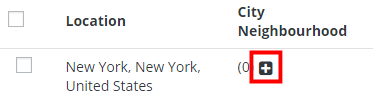
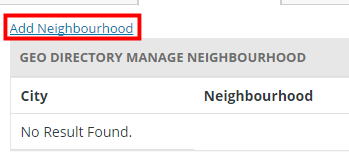
  3. Click on the plus sign + and then click on Add Neighborhood:
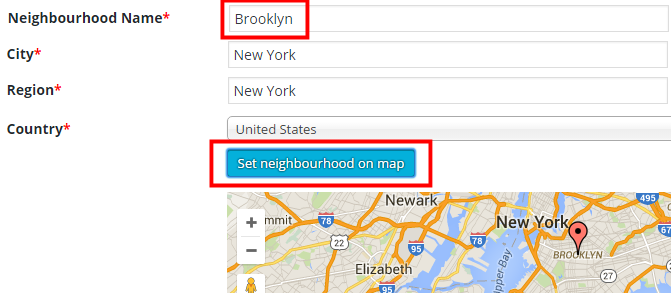
  4. Then add the name of the neighborhood, and Set neighborhood on map:
  5. Keep adding all neighborhoods.

Location switcher

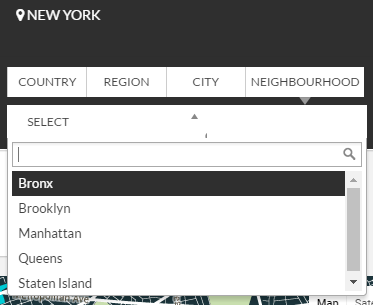
  1. Your visitors will now be able to filter locations by neighborhood:
Adding listings

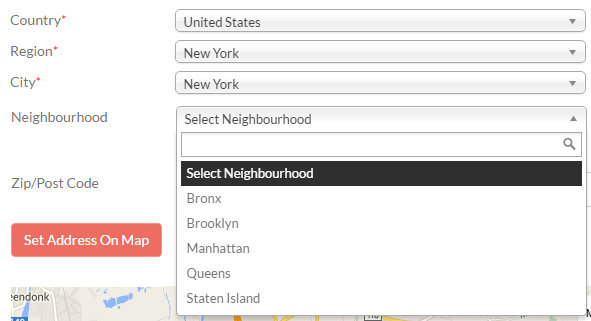
  1. Your users will now be able so select the neighborhoods when adding listings:
Adding or editing locations

  1. As part of your initial GD Core plugin, you should already have a default location set.
    It is one of the compulsory basic installation steps.
  2. Best practice is not to add locations here, because every location will have a page created and you will only end up with empty pages.
    Wait for your users to add listings and locations will be automatically created as your users add listings from the frontend.
  3. There might be some occasions when you need to modify a location. For example a location has been added that does not conform to what the Google Map API would have added, and you need to correct the spelling for example.
  4. Do not delete locations unless you have no listings in that location; deleting locations will delete all listings in the location!

City Meta and City Description

  1. Towards the bottom of the editing page for each location, you will find City Meta and City Description fields.
    Enter your data (you can use HTML in the City Description field):
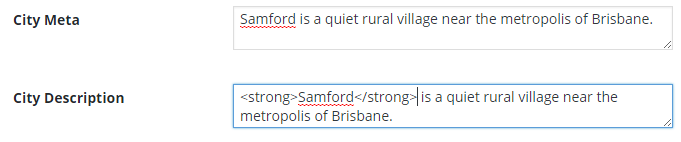
  2. The City Meta data will now be added to the source of the relevant location page:

  3. This information is also used for the GD > Location Description widget.

Merging locations

  1. Sometimes your users add locations to your database using different spelling than a location already in your database (for example LasVegas, Texas, US instead of Las Vegas, Texas, United States).
  2. Your GD database will treat this as two different locations.
  3. There is a tool to merge these two locations.
  4. From the Manage Locations tab, select the locations you want to merge.
  5. Scroll to the bottom of the page, and click Merge.
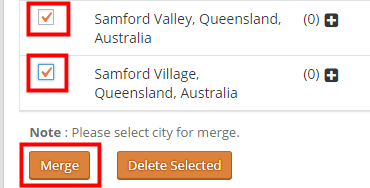
  6. On the next page, select the correct location you want to keep, and then click Set Primary.
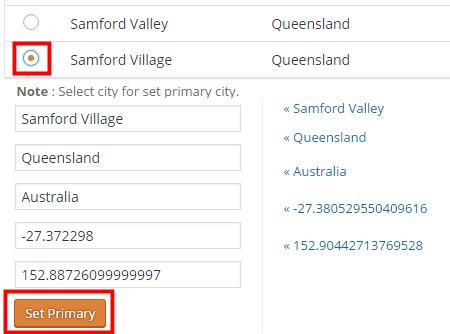
  7. That will re-assign the correct location to all your listings in any of the locations you merged.
  8. Do not delete a location because that will also delete any listings in that location!
  9. You can also use the above process to correct any of your locations: just add the correct location first and then merge with any incorrect locations.

Linking Custom Post Types

On this page:

Introduction

With the Custom Post Types (CPT) addon, you can link two CPTs together, in the same way events can be linked to other listings.
Because CPTs can have different custom fields, pricing etc, this feature greatly enhances what can be listed on your site.

Applications

Here are a few examples to give you an idea how you could use this feature:

CPT Linked to CPT
Fast food chain Our hamburgers
Rock band All regular venues where the band plays
Car brands Our models

For the rest of the article we will use a car manufacturer CPT, and a car model CPT.

Installation

  1. Create your CPTs and adjust all settings as required, below are the settings we use for the example. Note that this is only an example, adjust the settings for your situation:
    CPT Cars Models Comments
    Has address Yes No We do not need addresses for the car models (optional)
    Franchise enabled Yes No We will allow dealerships to be added (optional)
  2. Go to the settings for the CPT you want to be able to link to another CPT. In our example we want the different car models to be linked to the car CPT, so we go to GD > Custom Post Types > Model CPT (example only) > Advanced Mode > Link business.
  3. Tick Link Business, select the CPT you want to link it to, and Save.

Usage

  1. When a user now adds a listing in the linked CPT (Models in our example), they can link it to a listing in the linkable CPT (Cars in our example).
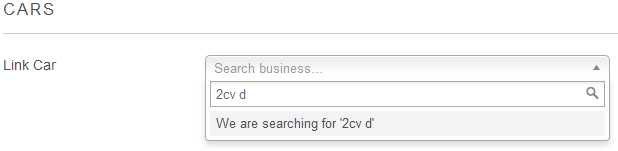
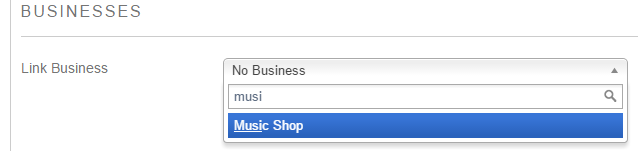
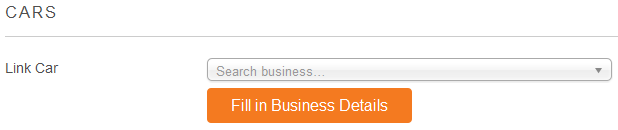
  2. The Add Listing form for the linked CPT will have a search option to find the listing in the linkable CPT:
  3. Start typing at least the first three letters of the listing you want to connect (this is not a search function, but a auto-population function).
  4. You cannot connect a listing to a linkable CPT listing of another user (unless you are an administrator).
  5. When the system finds the listing, select it and click Fill in business details.
  6. This will pre-fill some fields of the new listing with the same data as the linkable listing.
  7. Change title, description etc as required.
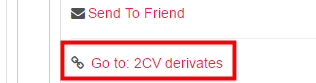
  8. And this is how it will look, in the sidebar you will get a link from all linked listings to the linkable listing:

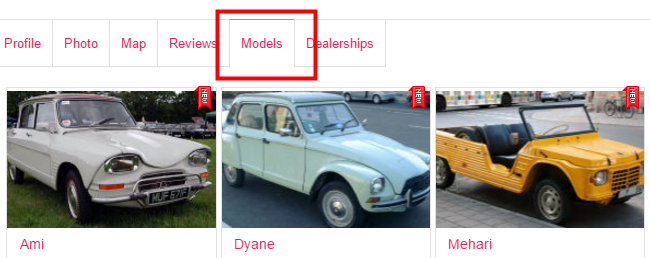
    and on the detail page of that linkable listing, you will get a tab with all linked listings”
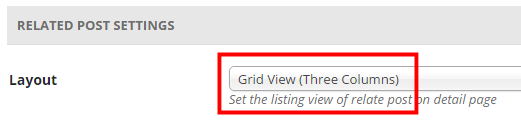
  9. To change the layout in the tab with linked listings, go to GD > Design > Detail tab > Related Post Settings > Layout, and select the list view or the grid view of your choice there:

CSV Tips and Tricks

Saving a CSV correctly

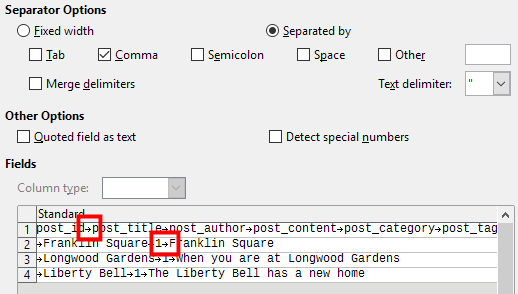
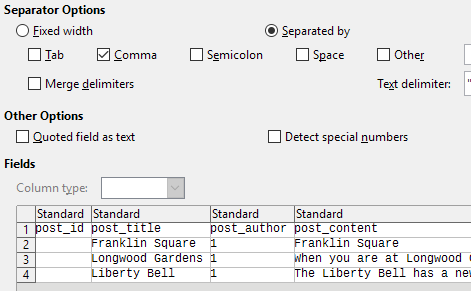
  1. We regularly see CSV files that are saved with incorrect settings, for example they are not saved with comma separated values (CSV), but tab separated values, and then they look like this when opened:
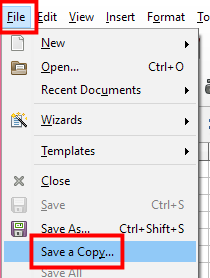
  2. To make sure you save your CSV file correctly, choose Save a copy from the File menu:
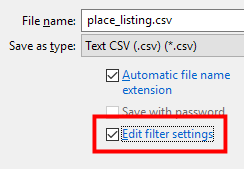
  3. In the next dialog box, tick Edit filter settings and then Save:
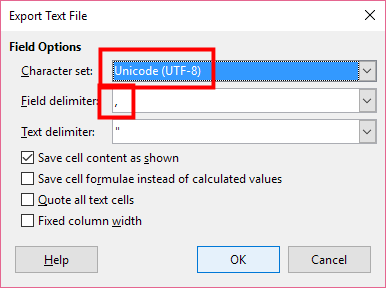
  4. In the next dialog box, make sure you pick UTF-8 as character set and comma as field delimiter:
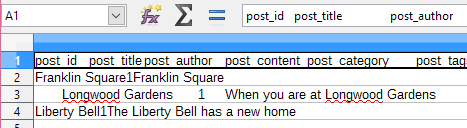
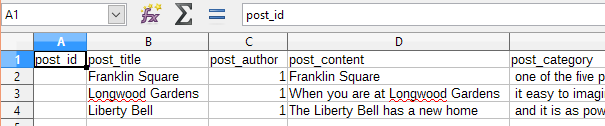
  5. Your file should now look like this when opened as a comma delimited file:

Add Google API KEY

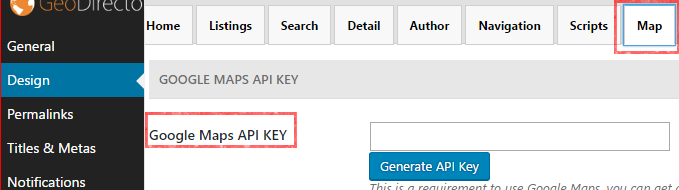
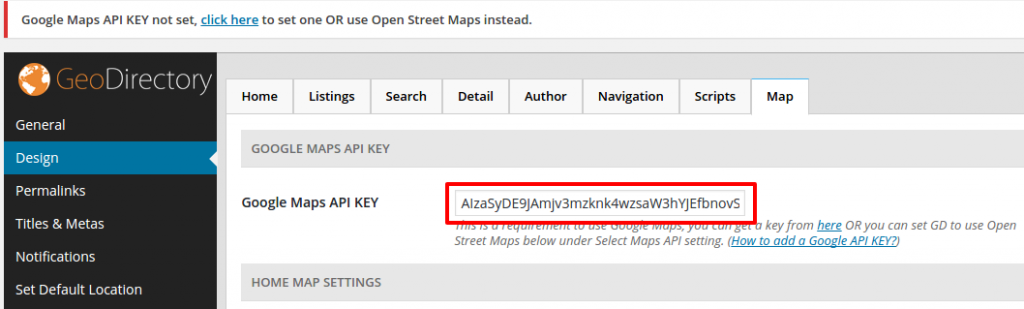
  1. You can find the setting in GeoDirectory under GeoDirectory > Design > Map > Google Maps API KEY:
  2. Log into your Google account in another tab or window.
  3. Click on Generate API Key.
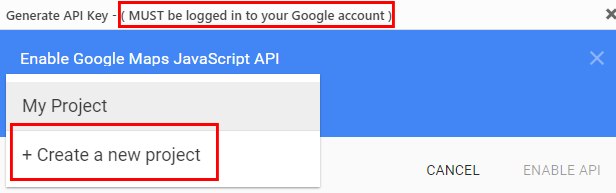
  4. In the popup, select Create a new project:
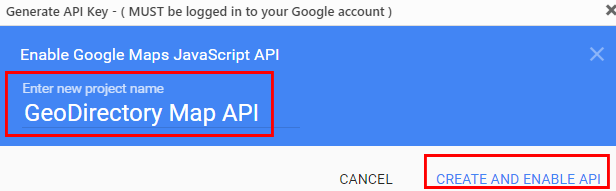
  5. When the popup shows the New Project, change the name if you like, and then click Create and enable API:
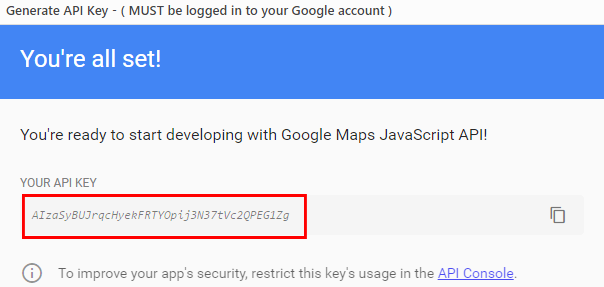
  6. Copy the key from the next screen:
  7. Close the popup.
  8. Paste the key in the API key field:
  9. Scroll to the bottom of the page and Save.
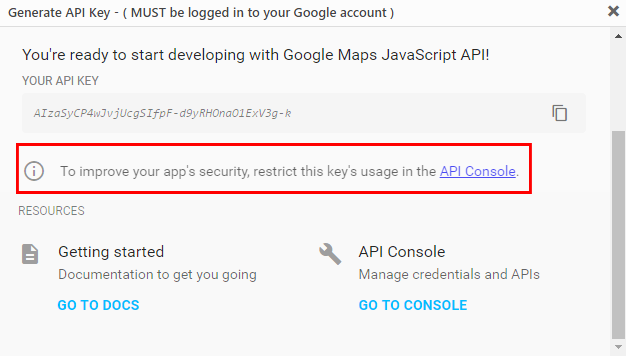
  10. Once you have it up and running, you may want to restrict the API to your website domain by clicking on Generate API Key, selecting the project you created earlier and go to the API console:
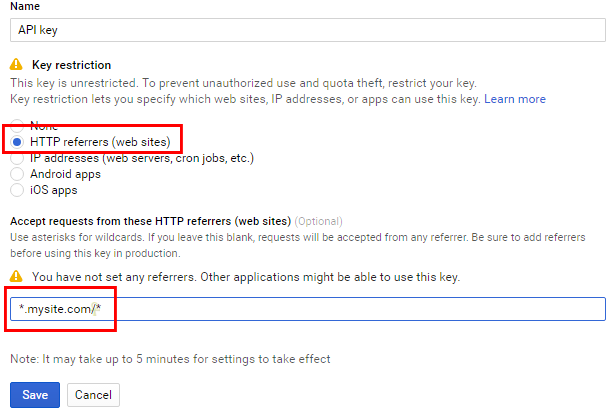
  11. Under credentials for the key created, select HTTP referrers, and then add *.mysite.com/* (change to your domain) in the HTTP referrers field, and then Save:


Versions 1.6.10 of the GD core plugin and earlier:

You can find the setting in GeoDirectory under GeoDirectory > Design > Map > Google Maps API KEY

  1. Go to this link to start (you will need a google account)
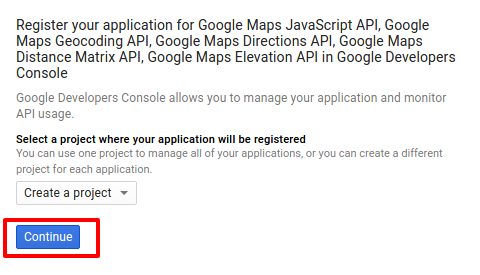
  2. Click Continue to add a new project (or you can select a current one)
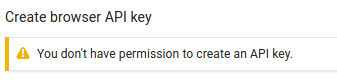
  3. If you see this message: “You don’t have permission to create an API key” follow this step, if not skip to the next step.
    permissions

    It means exactly what it says.
    You’ll need to create new credentials before an API key can be generated.

    Click on the “Credentials” link in the left hand sidebar
    Click the “Create credentials” button
    Select the “API Key” option
    Then click the “Browser key” button from the pop-up
    Now you’ll be taken back to the create a browser key step above and can proceed.

  4. It is important you follow this step exactly:
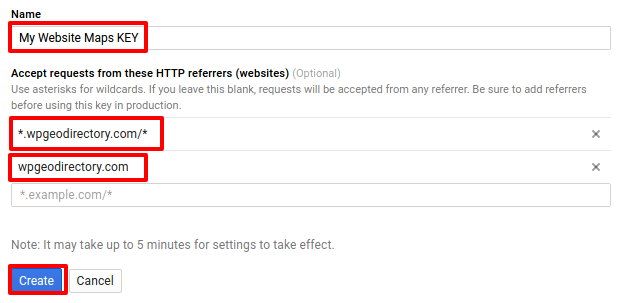
    You will need to add two urls here,enter the name of your project and the url of your site, add one as: *.yoursite.com/*
    AND one as
    yoursite.com

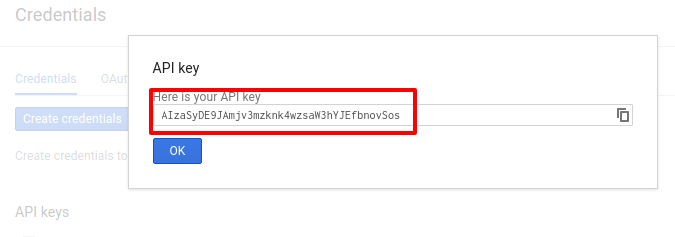
    as shown below:gkey2You will then be presented with your API KEY:
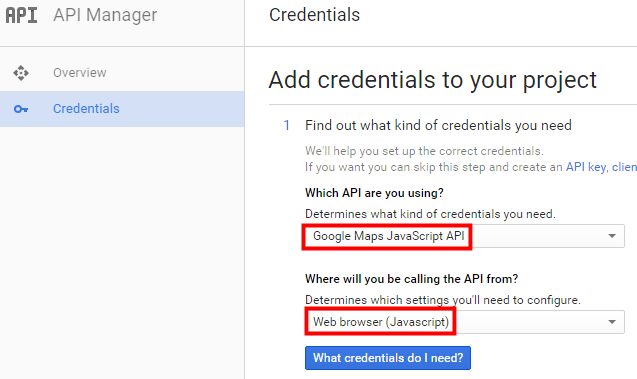
    If you already have a project with a verified domain, you might be presented with a different screen, in that case select those settings to get your API key:
  5. Copy and paste your API KEY into your GeoDirectory Settings and click save:
  6. Wait for a while before checking, Google says this can take 5 minutes but we have found it to take up to 15 minutes in some cases.

Once that is all done, you can happily use google maps 🙂

If you did not use our tutorial link or you already have a current project:

…If you did not use the link we provided to create a new API key they you will have to manually activate several API’s:

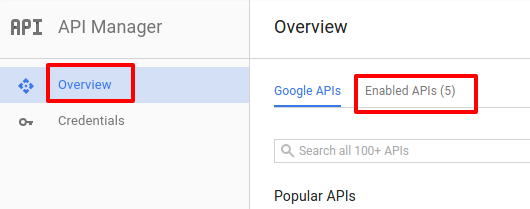
  1. In your API project click “Overview” and then “Enabled API’s”
    overview
  2. Make sure the below APIs are enabled:
    apis
  3. If they are not all enabled then click “Google API’s” and search for them and enable them.

GeoTheme to GeoDirectory Conversion Tutorial

Before you start:

  1. BACKUP EVERYTHING! (yes that is me shouting)
  2. Make sure you have the latest GeoTheme (GT) installed (3.7.1).
  3. Make sure your WordPress (WP) is up to date (4.5+)

For this tutorial we will be converting the site barra-accommodation.co.uk from GT to GD.
Please don’t try this on a live site, we will be copying our entire site to a sub directory and running the conversion there first.

Make a dev site for the conversion:

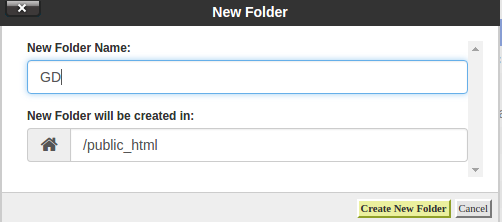
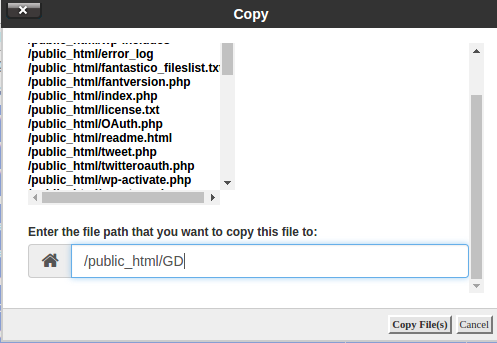
  1. Copy your site files to a sub-folder or sub-domain for testing the conversion, in our case we will be copying our site to a /GD/ sub-folder. Below i am using Cpanel but the same can be achieved with SSH or FTP.
    gd-folder-createcopy-files
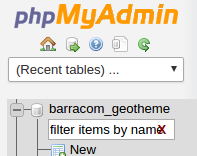
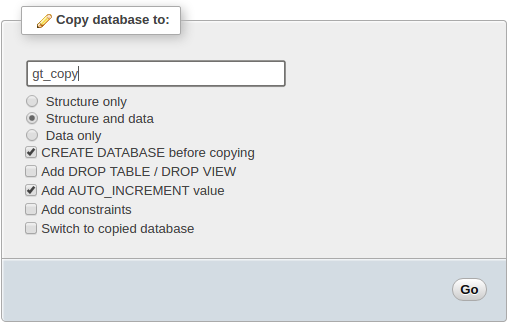
  2. Copy Your DataBase (DB), in my case i am using phpMyAdmin to do this which is included in cpanel usually.
    Select your table:
    select-dbSelect “Operations”:
    select-operations
    Copy the table:
    name-new-db
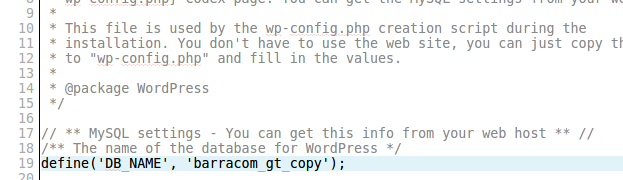
  3. Edit your wp-config.php file in your dev site to use the copied Database.
    edit-wp-config
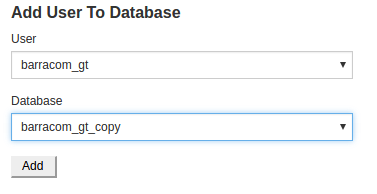
  4. Make sure the DB user has privileges on the new table, you can use Cpanel for this to add the user to the copied table:
    add-user-to-db
  5. Finally change the “siteurl” and “home” values to the new url in your DB wp_options table.
    chnge-urls-db
    to our dev url with /GD at the end:
    urls-change-db
  6. Dev Note:  If you have plugin “Query Monitor” installed and active it can cause problems, just delete the folder from your plugins if you are getting 500 error on your dev site.

You should now have a working dev site that we will use for the conversion.

Start The Conversion:

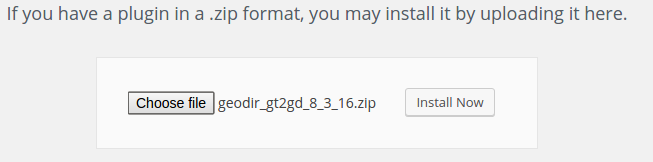
  1. Install and activate the GT2GD conversion plugin DOWNLOAD Latest
    gt2gd-install
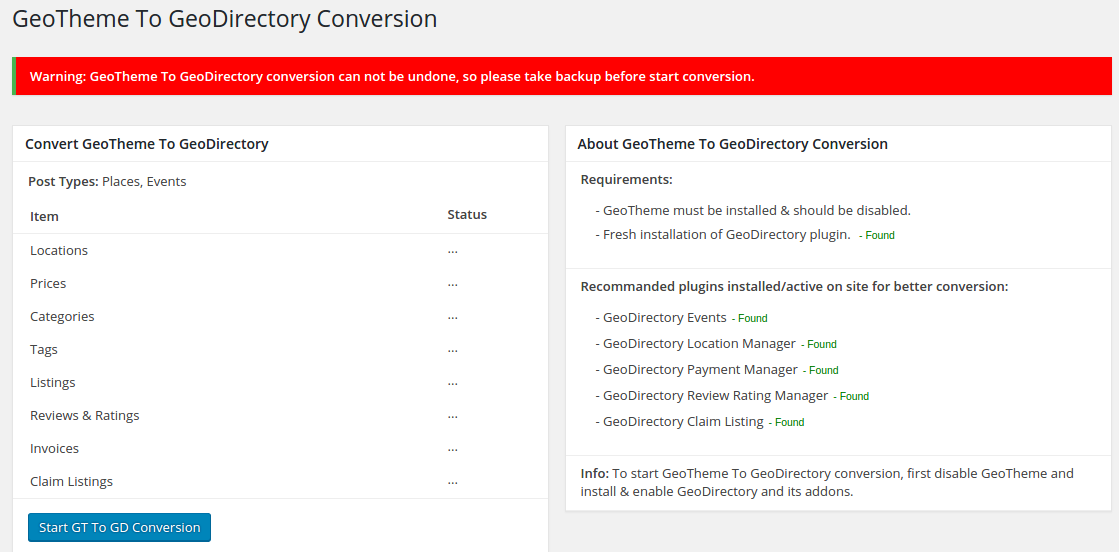
  2. Go to the GT2GD admin screen, here it will have most instructions on what to do next but in this case you can continue to follow this tutorial:
    gt2gd-screen
  3. Switch theme to a non GT theme, i would suggest Directory Starter which can be installed direct from your wp-admin area by searching themes for “Directory Starter” but you could use just a standard WP theme.
  4. Disable any non essential plugins, especially any caching plugins.
  5. Install and activate GeoDirectory and set the default location and then any addons you will be using.  It is important to install and activate addons like Location Manager, Events, Payments Manager, Claim listings addons etc if you have this sort of info in your GT install. (or just activate everything if your not sure). You dont need to add any setting for the addons at first, you can do that after the conversion.
  6. Now visit the GT2GD admin screen again and you should now see the button to start the conversion:
    start-conversionClick the button to start the conversion:
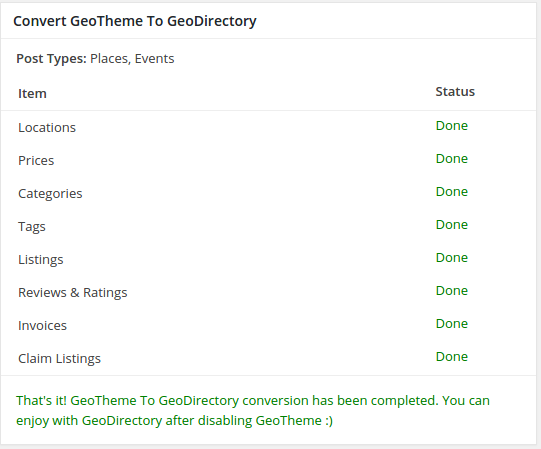
    conversion-done
  7. Once done, go to both Place & Event Settings for custom fields and simple save any ONE field, this will rebuild the sort order which can stop some fields showing on the edit pages.
  8. Check over your listings to make sure they converted properly.

If the conversion worked for your site you can then either reverse the steps for creating the dev site to copy the dev site to the main site or simply carry out the conversion on your live site (assuming you have another backup), if copying the dev site over be sure to search the DB for any dev site urls. You might want to setup your theme and setting on your dev site first before making it live, and remember to setup your new payment settings etc.

If you changed some settings on your dev site and now your live site seems to be pointing to them you can use a plugin called Better Search Replace to replace your dev site urls to your live site urls: https://wordpress.org/plugins/better-search-replace/

If you had existing PayPal subscription payments (recurring) you will need to add this snippet of code to your child theme functions file to be sure the PayPal payment updates your listing ok.

As always if you have any problems please open a new post on our support forum.

Thanks,

The GeoDirectory Team

Updating or changing franchises using CSV import

Introduction

Maybe you already have a number of listings and you just installed the Franchise Manager Add-on, and you want to re-organize your listings, assigning some as main listings and some as franchises.

Or you want to add new listings to your directory using the CSV upload.

Or you just want to make some changes to some of your franchise listings.

Updating or changing franchises using CSV import

  1. Make sure you are familiar with the CSV import and export functionalities of GD.
  2. Activate the Franchise Manager Add-on if not done already.
  3. Make sure your main listings are added to your database already. If not, add them using your admin area or a CSV  import.
  4. Export your listings using the CSV export at GD > Import & Export.
  5. The table below shows an example of an exported CSV:
    post_id post_title ignored columns gd_is_franchise gd_franchise_lock franchise ignored columns
     10 Main 1 geodir_email, post_title  0
     11 Chain 0  0
     12 Franchise1 0  10
    1. post_id: An exported file always has a post_id for each post.
    2. gd_is_franchise: 1 means this is a main listing.
    3. gd_franchise_lock: This are the locked custom fields.
    4. franchise: A number other than zero here means this is a franchise of a main listing, in this example Franchise1 is a franchise of the Main listing.
  6. Now let’s make a few changes:
    1. Add a new franchise to Main.
    2. Change Chain into a main listing, and do lock the video custom field.
    3. Make Franchise1 a franchise of Chain.
  7. This is the new CSV file to upload:
    post_id post_title ignored columns gd_is_franchise gd_franchise_lock franchise ignored columns
     10 Main 1 geodir_email, post_title  0
     11 Chain 1 geodir_video  0
     12 Franchise1 0  11
    Franchise2 0  10
    1. Leave the post_id of existing listings, so they will be overwritten when re-uploading.
    2. New listings should not have a post_id.
    3. Changing gd_is_franchise to 1 changes Chain into a main listing.
    4. Adding geodir_video to gd_franchise_lock for Chain means that all future franchises of Chain will show the same video custom field as the main listing.
    5. Changing franchise from 10 to 11 for Franchise1 now assigns Franchise1 as a franchise of Chain instead of Main.
    6. Franchise 2 is a new listing, so does not have post_id and is assigned as a franchise of the listing with post_id 10 (Main).
  8. Finally, re-upload the CSV file, and make sure to select Update listing if post with post_id already exists on the Import & Export page.

Supreme Directory Overview

Introduction:

Supreme Directory is a Child Theme of our free Directory Starter theme, that lets you create a modern directory portal with the help of GeoDirectory WordPress plugin.

Prerequisites:

Before installing our theme, lets install its dependencies.

  1. GeoDirectory (Required)
  2. Directory Starter ( Required since its the Parent Theme of Supreme Directory)

Permalinks Configuration:

Navigate to Settings > Permalinks > Common Settings. Make sure Post name is selected.

GeoDirectory Installation:

  1. Navigate to Plugins > Add New
  2. Search for GeoDirectory – Ultimate Business Directory
  3. Install it
  4. GeoDirectory needs at least one location in order to work. So Set a default location first by following this tutorial. ( Tip: If you need multi locations, check our MultiLocations addon )
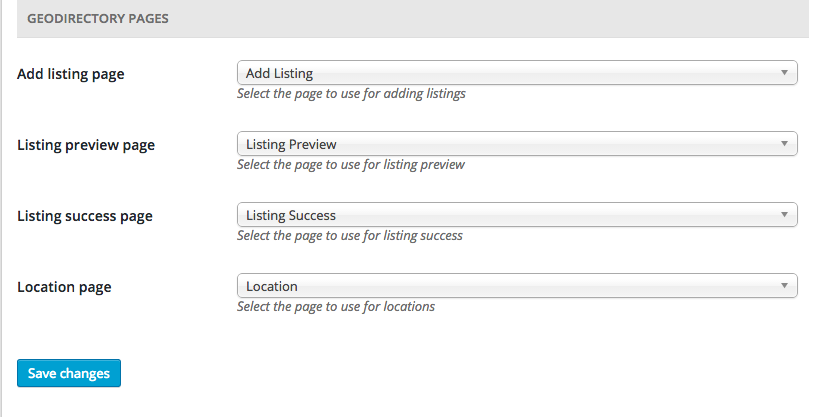
  5. You must set GeoDirectory Pages. Navigate to Geodirectory > Permalinks > Geodirectory Pages and set the pages:
    gdpages

We suggest to install dummy data before proceeding.

Directory Starter Theme Installation:

  1. Navigate to Appearance > Themes > Add New
  2. Enter “Directory Starter” in search box
  3. Install it
  4. Activate it
  5. For theme documentation visit here

Supreme Directory Installation:

Please follow this tutorial to install the theme.

How to change the logo

Supreme Directory Theme has several options available in the WordPress Customizer.
To change the logo:

  1. Navigate to WordPress – Appearance – Customizer
  2. Within the Customize Navigate to Header – Logo
  3. Upload your logo and publish the changes
  4. Visit your home page to see the changes

Home Page

for the home page you can use the default gd-home page or create a custom home page. In the demo we used the second approach and created the content below the featured area with Beaver Builder Lite.

After installing Supreme Directory, the home page used by default is gd-home, to change that, create a custom home page and than assign it as front page from Settings >> Reading (WordPress settings).

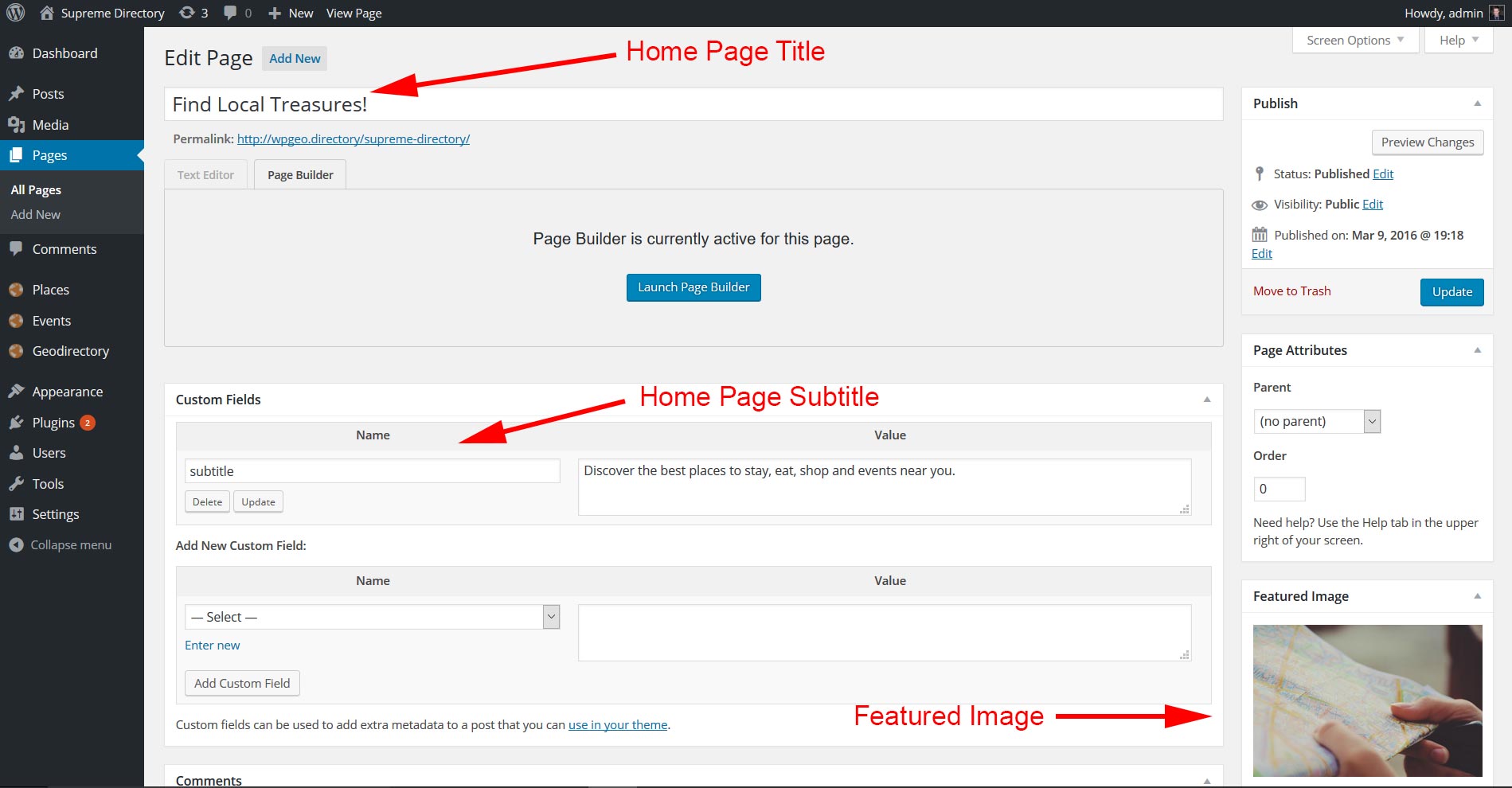
The image for the featured area is the page featured image. If you don’t add a featured image, the page will use a default image, that you can easily change from within your child theme. The suggested minimum size for Featured image is 1400×788. The higher the image the more perceivable will be the parallax effect.

The featured area title is the page title, while the subtitle is a custom field with key : subtitle.

If you decide to use the gd-home content can be built as usual with widgets.

home

The search form and the popular category widget of the featured area, are progrmatically added to the template.

Location Page

The location page will work just like the home page with the exception that its content can only be edited via widgets (like the gd-home page).

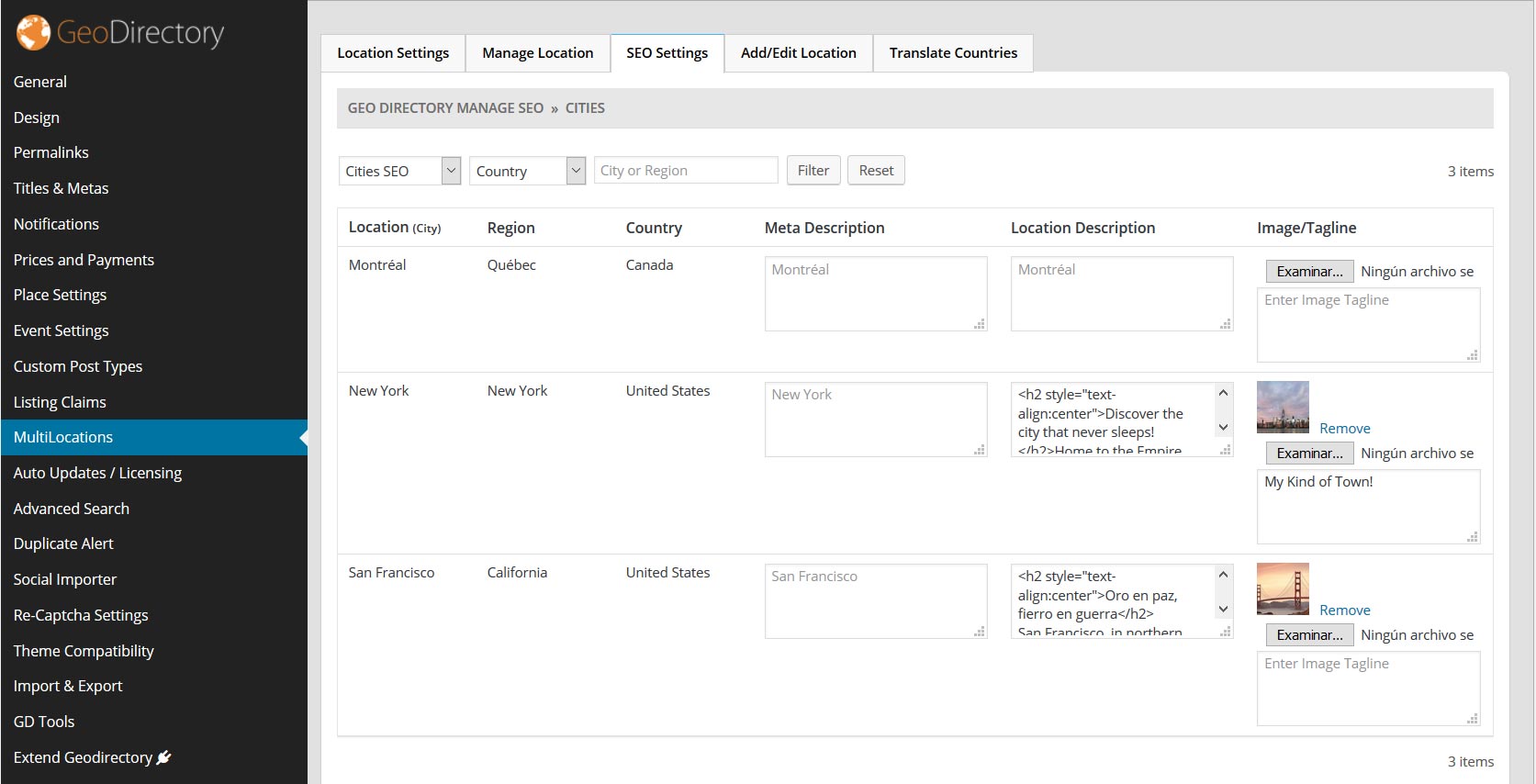
If you install the Location Manager add-on you can assign a featured image and a subtitle to each location (Country / Region / City) via Seo Settings tab of the Location Manager admin page. We recommend images 1400 x 788 px.

location

Listings, Search and Author Page

A fixed Map occupying 40% of the screen width, is programatically added to the right sidebar of these templates, no other widgets are accepted in this pages’ sidebar. You can move the map from the right to the left from GD >> Design >> Detail. You can add extra widgets only in the Top and Bottom widgets areas.

For more control of the Author page check out UsersWP GeoDirectory Integration.

Also the search widget is programatically included in these pages.

Listing Detail Page

Featured Image: The 1st image uploaded to the listing gallery is used as the featured image in the parallax hero section at the top of the detail page. The suggested minimum size for Featured image is 1400×788. However we must make sure they are not being resized. Here is the way to setup the recommended settings: go to GD >> Design >> Home and enable: Resize image large size (Use default wordpress media image large size for featured image upload. If unchecked then default geodirectory image large size ( 800×800 ) will be used.) Then go to Setting >> Media and set the large size max width to 1400 (or anything you prefer). That will stop you original image from being resized.

Custom fields: You can add fields to the core “Places” and choose where the fields show up on the Detail page. Visit the core places settings documentation and see the section about “Where to show”: https://wpgeodirectory.com/docs/core-place-settings/#custom

Addons and 3rd party plugins

Supreme Directory has been tested with all GeoDIrectory Add-ons and it is compatible with UsersWP, Invoicing, and Buddypress.

How to preserve the changes you make to Supreme Directory Theme

Supreme Directory Theme is a Child them of Directory Starter. It is not possible to make a child theme of a child theme. Every time there is a new version of Supreme Directory Theme, the files will be overwritten with the update.
To preserve your changes, you will need to:

  1. Place CSS in GD > Design > Scripts > Custom style css code
  2. Place PHP into a new Snippet using the Code Snippets plugin

Common changes for the Supreme Directory Theme

Please refer to the following pages to find common changes that our members have made to the Supreme Directory Theme

  1. FAQs for Supreme Directory Theme: https://wpgeodirectory.com/docs/supreme-theme-faqs/
  2. Common Code Snippets: https://wpgeodirectory.com/docs/common-code-snippets/

Add licensing to your GD Addon

The aim of this post is to give 3rd party developers a way to add licensing to their GD Addons so they can be sold and updated via the GeoDirectory servers.

The process of adding licensing to a product is relatively very simple and can be done in only two steps:

#1 Add the required file to your addon: https://gist.github.com/Stiofan/d97f5e74d59bdfdd3199

#2 Then add this code to the near top of your main plugin file:
Replacing the following variables in the function call with your own, you can see explinations of what they are in the code comments, the most important one is the $download_id, you get this id once you add your addon to our site for sale.

It’s that simple, the same update file is used in all our addons that is why we surround it with if(!class_exists(‘GD_Plugin_Updater’)) and you should too.

Linking events to places

On this page:

Introduction Preparation Usage Options

Introduction

Events can be linked to other listings owned by the same user (or optionally from any other user), with the following result:

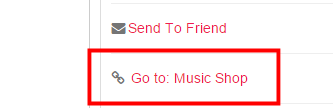
  • The event detail page will have a link to the place listing in the sidebar
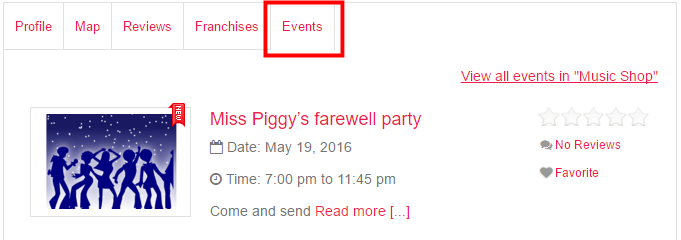
  • The event will be added to a tab of the place listing

Preparation

You will need:

  1. The Event Manager activated with at least one category.
    1. By default, users can only link events to their own listings in the selected CPT. If you want any other user to link an event to a listing of another user, go to GD > Event Settings > Any linking Author and tick Allow linking to any post not just users own posts?
  2. The Pricing Manager activated.
    1. Create or edit a price package (can be free) and activate the event linking:

Usage

When a user adds an event, they will have the option to connect the event with another non-event listing.

  1. The Add Listing form for the event will have a search option to find the listing:
  2. Start typing at least the first three letters of the listing you want to connect.
  3. When the system finds the listing, you have two options:
    1. Select it: This will connect the event with the listing.
    2. Select it and click Fill in business details: This will pre-fill the main fields and address of the new event with the same data as the business listing. You can then change title, description etc as required.

Options

You can change how many events are shown in the listing’s Events tab at GD > Design > Detail > Linked events settings.