Custom field examples

On this page:

Special icons

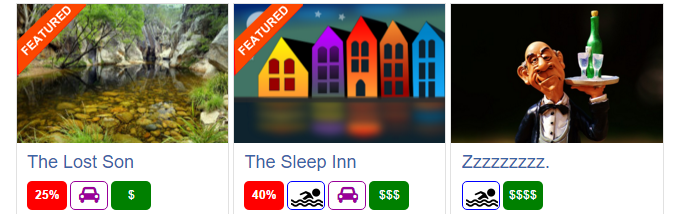
The icons you see above are created using custom fields and some CSS styling.

is created using a checkbox custom field and an image background.
is created using a select custom field.
is created using a text custom field.
is created using a checkbox custom field and a FontAwesome background.

Creating the custom fields

The above examples all use these settings:

  1. Is active: Yes
  2. Show on listing page: Yes
  3. Complete any other fields as you wish
Custom field settings:
  1. Choose a Checkbox field
  2. HTML variable name: pool (example only – needs to be a unique name)
Custom field settings:
  1. Choose a Select field
  2. HTML variable name: range (example only – needs to be a unique name)
  3. Option values: Cheap/$,Modest/$$,Expensive/$$$,Rip-Off/$$$$ 
    1. Example only
    2. The text before the / is the choice your users will see, and the text after the / is the text displayed on your site.
Custom field settings:
  1. Choose a Text field
  2. Field data type: NUMBER
  3. HTML variable name: discount (example only – needs to be a unique name)
Custom field settings:
  1. Choose a Checkbox field
  2. HTML variable name: parking (example only – needs to be a unique name)

Styling your custom field output

To style the result of your custom fields on your website, add the following to your child theme’s style.css file:

[css].geodir-entry-meta {clear: both;}[/css]

Then also add the relevant codes below:

  1. Examples only.
  2. Adjust to suit your site etc.
  3. Every custom field automatically is asigned a CSS class like geo_HTML variable name
CSS code:

[css]
/* Pool label style */
.geodir_pool {
float: left;
display: inline;
clear:none !important;
margin: 3px 3px 3px 0px;
border-radius: 5px;
border: 1px solid blue;
background: white;
background-image: url("/img/pool.png");
background-repeat: no-repeat;
color: transparent;
font-weight: 400;
width: 38px;
text-align: center;
background-position: 3px;
}
.geodir_pool .geodir-i-checkbox {
display: none;
}
[/css]

CSS code:

[css]/* Range label style */
.geodir_range {
float: left;
display: inline;
clear:none !important;
margin: 3px 3px 3px 0px;
border-radius: 5px;
background: none repeat scroll 0 0 green;
color: #fff;
font-weight: 400;
width: 40px;
text-align: center;
padding: 6px 0 !important;
}
.geodir_range .geodir-i-select {
display: none;
}[/css]

CSS code:

[css]/* Discount label style */
.geodir_discount:after {
content: "%";
}
.geodir-i-text {
display: none;
}
.geodir_discount {
background: none repeat scroll 0 0 red;
border-radius: 5px;
color: #fff;
font-weight: bold;
text-align: center;
padding: 6px 0 !important;
width: 40px;
float: left;
display: inline;
clear:none!important;
margin: 3px 3px 3px 0px;
}[/css]

CSS code:
  1. This button uses FontAwesome to create the images.
  2. If you look at the code below, you’ll see content: “\f1b9”
  3. That is the FontAwesome code for the image  of the car.
  4. To find the CSS code for any FontAwesome “letter”, have a look at the FontAwesome cheatsheet.
  5. There you will find all FontAwesome “letters”, and to get the CSS code, remove &#x from the beginning of the code, and ; from the end of the code, and add a \ in front.
  6. For example the CSS code for fa-car [] is \f1b9

[css]/* Parking label style */
.geodir_parking {
float: left;
display: inline;
clear:none !important;
margin: 3px 3px 3px 0px;
border-radius: 5px;
border: 1px solid #990099;
background: white;
color: transparent;
width: 38px;
text-align: center;
background-position: 3px;
height: 29px;
}
.geodir_parking:before {
font-family: FontAwesome;
content: "\f1b9";
color: #990099;
font-size: 18px;
padding-left: 8px;
}
.geodir_parking .geodir-i-checkbox {
display: none;
}[/css]

Adding customer logos

Creating the custom field

  1. Create a File Upload custom field
  2. For the HTML variable name, the below example uses logo (example only – needs to be a unique name)
  3. For this example we have added it to the sidebar

Styling your custom field output

If you now upload a file as a logo, it will look like this, so we will need to add some CSS to make it look a bit better:

Removing “Logo:”

Adding this CSS will remove the label:

[css].geodir_logo .geodir-i-select span { display: none !important;}[/css]

Adding this CSS will resize the logo:

[css].geodir_logo .geodir-custom-post-gallery .geodir_thumbnail {background-size: initial;}
.geodir_logo .geodir-custom-post-gallery {width: 100% !important;}
.geodir_logo .geodir-custom-post-gallery {
border: none;
margin-bottom: -10px;
margin-top: -10px;
}[/css]

And this is the result:

Location Manager Shortcodes

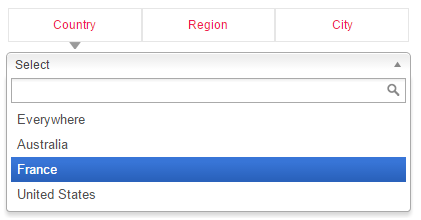
Location Tab Switcher Location Switcher Current Location Name Location Description Location Neighbourhoods Popular Locations Popular in Neighbourhood

Location Tab Switcher

Shortcode: [gd_location_tab_switcher]

This is like the location switcher usually added to the menu.

Parameters:
  • none
Example:

Location Switcher

Shortcode: [gd_location_switcher]

This is best used on a page or a wide content area, this shows searchable lists of locations.

 All Locations Demo

Parameters:

  • none

Current Location Name

Shortcode: [gd_current_location_name]

  1. Returns the current location name
  2. Only works on GD pages that have the location name in the URL, so GD > Permalinks need to be set to include
Parameters:
  • none

Location Description

Shortcode: [gd_location_description]

return the current location description

Parameters:

  • none

Location Neighbourhoods

Shortcode: [gd_location_neighbourhood] or [gd_location_neighborhood]

returns list of current neighbourhoods

Parameters:

  • none

Popular Locations

Shortcode: [gd_popular_location]

return a list of popular locations

Parameters:

  • none


Popular in Neighbourhood

Shortcode: [gd_popular_in_neighborhood] or [gd_popular_in_neighborhood]

Parameters:

  • post_type – The slug for the post_type (default = gd_place)
  • category – ID number of the category to show (default = 0 for all)
  • list_sort – One of az, latest, featured, high_review, high_rating, random (default = latest)
  • post_number – Number of posts to show (default = 5)
  • layout – Number of columns to show (default = 2)
  • character_count – Number of characters to show from the Excerpt (Min/default = 20)

Core Shortcodes

On this page

Home Page Map Custom Post Type Categories Listings Page Map Listing Slider Login Box Popular Post Category Popular Post View Recent Reviews Related Listings Search GD Listings GD Best Of Add Listing Form

Home Page Map

Shortcode: [gd_homepage_map]

This shortcode is the equivalent of the GD > GMap – Home Page widget.

Parameters:
  • width – A number of pixels or percent (default = 960px)
  • height – A number of pixels (default = 425px)
  • maptype – One of HYBRID, SATELLITE or ROADMAP (default = ROADMAP) – not case sensitive
  • zoom – A number between 1 (narrowest) or 19 (widest) (default = 13)
  • autozoom – True or False (default = false)
  • child_collapse – True or False (default = false)
  • scrollwheel – True or False (default = false)
  • marker_cluster – 1 or on – 0 or off, (default = 0)

Example: [gd_homepage_map width=100% height=300 scrollwheel=false]

Custom Post Type Categories

Shortcode: [gd_cpt_categories]

This shortcode is the equivalent of the GD > CPT – Categories widget.

Parameters:
  • title – the title for the cpt categories
  • post_type – The custom post types to use (default = shows all) (examples: ‘gd_place’ or ‘gd_place,gd_event’)
  • hide_empty – Hide empty categories? True or False (default = false)
  • show_count – Show category count? True or False (default = false)
  • hide_icon – Hide category icon? True or False (default = false)
  • cpt_left – Show CPT on same line? True or False (default = false)
  • sort_by – Categories sort by. ‘az’ or ‘count’ (default = count)
  • max_count – Maximum number of sub-categories count. (default = shows all)
  • max_level – Maximum level of sub-categories depth. (default = 1)

Example: [gd_cpt_categories show_count=1]

Listings Page Map

Shortcode: [gd_listing_map]

This shortcode is the equivalent of the GD > GMap – Listing Page widget.

Parameters:
  • width – A number of pixels or percent (default = 294px)
  • height – A number of pixels or percent (default = 370px)
  • zoom – A number between 1 (narrowest) or 19 (widest) (default = 13)
  • autozoom – True or False (default = false)
  • sticky – True or False (default = false)
  • scrollwheel – True or False (default = false)
  • marker_cluster – 1 or on – 0 or off, (default = 0)
  • maptype – One of HYBRID, SATELLITE or ROADMAP (default = ROADMAP) – not case sensitive
  • post_type – The slug for the post_type (default = gd_place)
  • event_type – The events filter (for gd_event CPT only) (default = all)
    Options: all, today, upcoming, past
  • category – ID number of the category to show – if more than one, separate by comma (default = 0 for all)

Example: [gd_listing_map width=100% height=300 scrollwheel=false category="2,3,4"]

Listing Slider

Shortcode: [gd_listing_slider]

This shortcode is the equivalent of the GD > Listing Slider widget.

Parameters:
  • post_type – The slug for the post_type (default = gd_place)
  • category – ID number of the category to show (default = 0 for all)
  • post_number – Number of posts to show (default = 5)
  • slideshow – True or False (default = false)
  • animation_loop – True or False (default = false)
  • direction_nav – True or False (default = false)
  • slideshow_speed – A positive number of milliseconds (default = 5000)
  • animation_speed – A positive number of milliseconds (default = 600)
  • animation – Either slide or fade (default = slide)
  • order_by – Options available: az, latest, featured, high_review, high_rating, random (default = latest)
  • show_title – True or False (default = false)(this is the post title over image)
  • show_featured_only – True or False (default = false)
  • title – the title for the title of the slider

Example: [gd_listing_slider post_number=5 category=3 slideshow=true show_featured_only=true]

Login Box

Shortcode: [gd_login_box]

This shortcode is the equivalent of the GD > Login box widget.

No parameters

Example: [gd_login_box]

Popular Post Category

Shortcode: [gd_popular_post_category]

This shortcode is the equivalent of the GD > Popular Post Category widget.

Parameters:
  • category_limit – Number of categories to show (default = 15)
  • title – (default = ‘Popular Categories’)
  • parent_only – true or false (default = ‘true’)

Example: [gd_popular_post_category category_limit=10 parent_only=true]

Popular Post View

Shortcode: [gd_popular_post_view]

This shortcode is the equivalent of the GD > Popular Post View widget.

Parameters:
  • post_type – The slug for the post_type (default = gd_place)
  • category – Category IDs to filter listings. Example: ’12’ or ‘12,33’. (default = 0 for all)
  • post_number – Number of posts to show (default = 5)
  • layout – Number of columns to show (default = 2)
  • add_location_filter – Filter listings by current location. (true or false, default = false
  • list_sort – Options available: az, latest, featured, high_review, high_rating, random (default = latest)
  • use_viewing_post_type – Filter listings by current viewing post type. (true or false, default = true)
  • character_count – Number of characters to show from the Excerpt (Min/default = 20)
  • listing_width – A percent between 20 and 100 (default = ‘’)
  • show_featured_only – Display only featured listings. (true or false, default = false)
  • show_special_only – Display only listings with Special Offers. (true or false, default = false)
  • with_pics_only – Only display listings which have an image available. (true or false, default = false)
  • with_videos_only – Only display listings which have video available. (true or false, default = false)
  • title – (default = ‘the name of the custom post type’)
  • hide_if_empty – Hide widget if no listings found. (true or false, default = false)

Example:

[gd_popular_post_view category=3 layout=5 add_location_filter=true character_count=0 show_featured_only=true]

Recent Reviews

Shortcode: [gd_recent_reviews]

This shortcode is the equivalent of the GD > Recent Reviews widget.

Parameters:
  • count – Number of posts to show (default = 5)

Example: [gd_recent_reviews count=5]

Related Listings

Shortcode: [gd_related_listings]

This shortcodes is the equivalent of the GD > Related Listings widget.

Parameters:
  • post_number – Number of posts to show (default = 5)
  • relate_to – Either category or tags (default=category)
  • layout – Number of columns to show (default = 2)
  • add_location_filter – True or False (default = false)
  • listing_width – A percent between 20 and 100 (default = ‘’)
  • list_sort – Options available: az, latest, featured, high_review, high_rating, random (default = latest)
  • character_count – Number of characters to show from the Excerpt (Min/default = 20)

Example: [gd_related_listings relate_to=tags layout=3 add_location_filter=true list_sort=featured character_count=0]

Search

Shortcode: [gd_advanced_search]

This shortcode is the equivalent of the GD > Search widget.

No parameters unless Advanced Search addon is active:

  • show_adv_search – If the advanced search section should be shown: (‘default’, ‘always’, ‘searched’)
  • post_type – The custom post types to show by default (examples: ‘gd_place’ or ‘gd_event’)

Example: [gd_advanced_search show_adv_search='always']

GD Listings

Shortcode: [gd_listings]

This shortcode is almost the equivalent of what you see on the GD category listings pages.

Parameters:
  • title – (default = )
  •  – Set the title(default = “”)
  • post_type – The custom post type to use (default=gd_place)
  • category – The category ids “1,3” (default = ”)
  • list_sort – Options available: az, latest, featured, high_review, high_rating, random (default = latest)
  • event_type – Event type filter. Should today, upcoming, past, all. Default empty.(default = “”)
  • post_number – Number of posts to show per page (default = 10)
  • post_author – Filter by current_user, current_author or ID (default = unfiltered)
    • post_author=”current_user” will filter the listings by author id of the logged in user
    • post_author=”current_author” will filter the listings by author id of current viewing post/listing
      [Only for Detail pages: this option will show other listings of the same author on the detail page only]
      [also works on Author pages, but only if you do not use any other plugin that replaces the Author page (for example UsersWP)]
    • post_author=”11″ will filter the listings by author id = 11
    • post_author=” “ If left empty, all listings will be shown
  • layout – Number of columns to show (default = 2)
  • listing_width – A percent between 20 and 100 (default = ‘’)
  • character_count – Number of characters to show from the Excerpt (Min/default = 20)
  • add_location_filter – True or False (default = true)
  • show_featured_only – options are 1 [true] or 0 [false] (default = 0)
  • show_special_only – options are 1 [true] or 0 [false] (default = 0)
  • with_pics_only – Display listings with images – options are 1 [true] or 0 [false] (default = 0)
  • with_videos_only – Display listings with videos – options are 1 [true] or 0 [false] (default = 0)
  • with_pagination – Display pagination – options are 1 [true] or 0 [false] (default = 1)
  • top_pagination – Display pagination on top – options are 1 [true] or 0 [false] (default = 0)
  • bottom_pagination – Display pagination on bottom – options are 1 [true] or 0 [false] (default = 1)
  • tags – Filter by tags (default = unfiltered), for example tags=”Museum,Garden”. Note that this filter uses the name/title of the tag, not the slug, and that spaces should be removed. ex. “Great Place” becomes “GreatPlace”.
  • show_favorites_only – options are 1 [true] or 0 [false] (default = 0)
  • favorites_by_user – Values should be “current”‘ or user id [eg 5] or empty (default = empty)
    • favorites_by_user=”current”, shortcode will show the listings which are favorites by author of current viewing post.
    • favorites_by_user=”12″, shortcode will show the listings which are favorites by user id “12”.
    • favorites_by_user=”” or empty, shortcode will show the listings which are favorites by current logged user(if logged in).

Example:

[gd_listings post_type="gd_place" layout=4 category="1,3" post_number="4" list_sort="high_review"]
[gd_listings post_type="gd_event" add_location_filter="0" layout="4" post_number="4" show_favorites_only="1"]
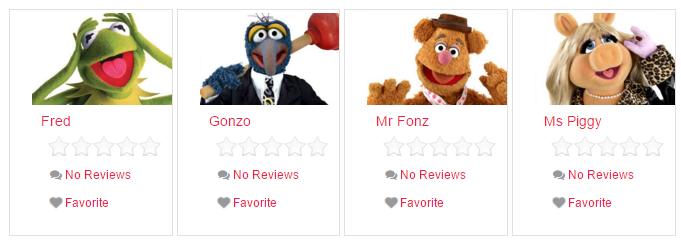

Note:
When displaying a grid of 4 or 5 listings the description will be automatically hidden. To unhide it, use the following custom CSS at GD – Design – Scripts – Custom CSS
[css]
.geodir_category_list_view li.geodir-gridview .geodir-content .geodir-entry-content {
display: block;
}
[/css]

GD Best of

Shortcode: [gd_bestof_widget]

Parameters:

      • title – widget title (default = ”)
      • post_type – The custom post type to use (default=gd_place)
      • post_limit – Number of posts to show (default = 5)
      • categ_limit – The number of category to show (default = 3)
      • character_count – Number of characters to show from the Excerpt (Min/default = 20)
      • use_viewing_post_type – overridess parameter post_type if visiting another custom port type archive (default = false)
      • add_location_filter – True or False (default = false)
      • tab_layout – bestof-tabs-on-top or bestof-tabs-on-left or bestof-tabs-as-dropdown (default = bestof-tabs-on-top)

Example:

[gd_bestof_widget title="widget title" post_type=gd_hotel post_limit=5 categ_limit=6 character_count=50 use_viewing_post_type=true add_location_filter=true tab_layout=bestof-tabs-as-dropdown]


Add Listing Form

Shortcode: [gd_add_listing]

  1. This shortcode allows you to create your own Add Listing page(s).
  2. By default GD uses the same Add Listing page to generate different forms for all different Custom Post Types and/or price packages.  For example:
    1. https://yoursite.com/add-listing/?listing_type=gd_place&package_id=1
    2. https://yoursite.com/add-listing/?listing_type=gd_event&package_id=6
  3. Do not add this shortcode to the Add Listing page selected at GD > Permalinks > GeoDirectory Pages > Add Listing page.
    That page is reserved for GD generated pages, so only add this shortcode to any extra WP pages.
  4. After you have created all your custom Add Listing pages, you might have to permanently delete the temporary default Add Listing page that is selected at GD > Permalinks > GeoDirectory Pages > Add Listing page before your custom Add Listing pages will work.
Parameters:
  • listing_type – The custom post type to use (default=gd_place)
  • login_msg – The message to show to logged out users (default = You must login to post.)
  • show_login – show the login widget to logged out users (default = false)

Example: [gd_add_listing listing_type=gd_event login_msg="Please register and login to submit listings" show_login=true]

 

Avada Compatibility – header.php

UPDATE: As of Avada 3.8+ they have now added compatibility hooks for us and the modifications done to the header.php in the child theme are no longer required, please either delete or rename the header.php file in your child theme if you have previously made the changes below.

The Avada theme lacks any hooks or actions and as such to make GeoDirectory 100% compatible you must make two small changes to the header.php.  

Please follow the steps below:

#1 Move the header.php to your child theme.  You should be running a child theme with Avada, you should copy the header.php from the core Avada theme folder to your child theme folder, if you already have a header.php in your child theme then you should just edit that. (you can edit the core Avada header.php but you will have to do this again if you update Avada)

#2 Edit the file.  You should be able to make these edit from the Appearance>Editor Screen in WordPress, of you can edit the file and upload it.

Edit 1)
Look for:

[php]avada_current_page_title_bar( $c_pageID );[/php]

Replace with:

[php]if(apply_filters( ‘avada_current_page_title_bar_change’, false,$c_pageID)){ do_action(‘avada_replace_page_title’,$c_pageID); }else{
avada_current_page_title_bar( $c_pageID );
}
[/php]

Edit 2)

Look for:

[php]?>
<div id="main" class="clearfix <?php echo $main_class; ?>" style="<?php echo $main_css; ?>">
[/php]

Replace with:

[php]do_action(‘avada_before_main’);
?>
<div id="main" class="clearfix <?php echo $main_class; ?>" style="<?php echo $main_css; ?>">
[/php]

Understanding hooks, actions and filters

Introduction

Your website pages are the result of WordPress and GD (and your theme and other plugins) checking your server files and your database to create the code that renders the page in your browser.

Actions and Filters are functions that can be modified to change the default functionality of GD and WordPress.

Actions or Filters are “hooked” into your pages by “hooking” them to action or filter hooks provided.

Action Hooks

Action hooks are special points in the WordPress or GD code that enable you to insert additional code and therefore customize the code to do some additional function.

For example, if you want to add a favicon to all your pages, you could hook into the wp_head action hook, a hook provided to add extra coding between your  <head> and </head> tags of your web pages. You would add the following code to your functions.php file:

[php]
function myplugin_favicon_head_code() {
echo ‘<link rel="icon" type="image/png" href="/images/favicon.ico">’;
}
add_action(‘wp_head’, ‘myplugin_favicon_head_code’);
[/php]

Actions make things happen.

Filter Hooks

Filter hooks are used to change the behavior of the default code.

For example, if you want to change the date format of the Events plugin, you can filter the default code to change the output. You would add the following code to your functions.php file:

[php]
function geodir_add_event_calendar_date_format_change($format){
return ‘d/m/Y’;
}
add_filter(‘geodir_add_event_calendar_date_format’, ‘geodir_add_event_calendar_date_format_change’,10,1);

[/php]

Filters change how things happen.

For a list of all Actions and Filters used by GeoDirectory, please refer to the GeoDIrectory Codex

Known issues

This page lists some conflicts with other plugins or themes.

Note that the below problems were correct at the time of writing, and that either GD or the third party plugins or themes may have been modified in the meantime to correct the problem.

Let us know if anything on this page is no longer valid. Thank you.


Plugins

Themes

Other

Cache Plugins

Plugins

Advanced Access Manager

  1. This plugin is not compatible with the GD Search functions without the following setting:
  2. AAM > Settings > Content Settings > Check Post Visibility – UNCHECK this setting

Advanced Custom Fields

  1. Hide WP Custom Fields – This plugin will hide the normal WordPress custom fields in the backend editor for posts. Some themes like Supreme make use of WP custom fields, so, disable the plugin to view and edit the custom fields.
  2. Incompatibility – Geodirectory does not have any integration with ACF for listing custom fields. Adding fields through ACF will not add fields to all GD listings; use GD custom fields instead.

BuddyPress Docs

  1. This plugin is not compatible with the GD Search functions.

BuddyBoss Wall

  1. This plugin is not compatible with the GD Search functions.

BuddyPress Global Search

  1. This plugin is not compatible with the GD Search functions.

Edit Flow

  1. Edit Flow adds a custom taxonomy (category) to all post type following_user and adding the author automatically to the post as a new category.
  2. Edit Flow also partially breaks the dashboard for GD posts.

EventOn

  1. EventOn breaks the GD Add Listing forms.

Express Curate

  1. This plugin creates duplicate WP posts of any new GD listing.

Hide My WP

  1. This plugin rewrites the path of your folders and files using .htaccess.
  2. Your searches etc will no longer work.

Loco Translate

  1. Loco Translate is not compatible with Geodirectory. Only WPML is compatible with Geodirectory for multilingual sites.
  2. Geodirectory translation should be done with PoEdit as described here.
  3. Local Translate will overwrite .PO files placed at wp-content/languages/plugins
  4. Loco Translate will automatically create language files with incorrect names so that the files are not loaded.
  5. Loco Translate does not recognize all GD language strings, so you will not be able to translate everything.
  6. Check the file names of the .PO files to make sure they are correct, see Translating Addons for the correct file names.

TranslatePresss

  1. Stores additional copies of strings found in language files.
  2. Can result in changes to PO files ‘not working’ because TranslatePress versions will override PO string values.
  3. TranslatePress must be de-activated to diagnose issues with PO file strings.
  4. Only WPML is fully compatible with GD.

Polylang

  1. Only WPML is fully compatible with GD.

Relevanssi

  1. This plugin is not compatible with the GD Search functions.

Scripts n Styles

  1. This plugin introduces a jQuery chosen conflict that can cause GD forms to not function.
  2. The plugin can cause isues on any add/edit post pages or anywhere in the backend..

Scroll To Anchor

  1. This plugin breaks the menus of the Supreme theme in mobile view.

Sidebar & Widget Manager for WordPress

  1. If your drop-down menus in GD admin area don’t work, then this premium plugin from OTWthemes might be the reason.
  2. Reported by a user on 3 August 2015.

Simple Custom CSS and JS

  1. Breaks JS.

Theme My Login

  1. This plugin is not compatible with the GD Search functions.

The SEO Framework

  1. The SEO Framework breaks GeoDirectory queries, we suggest to use Yoast that is 100% compatible with GD, or GD’s Titles and Meta options.

Ubermenu

  1. This plugin calls the Google Map API (and also fontawesome), just like GD does.
    The result is that your page tries to load the Google API twice.
    Therefore your maps will not work.
  2. You can fix this by disabling both the Google Map API  and fontawesome in the Ubermenu settings > General Settings > Assets.

WP Places

  1. This plugin causes backend editor google map to fail to load.
  2. The plugin loads another copy of the GMaps API causing all maps to fail on the page.
  3. The plugin loads on every backend post edit page, even if the post types are disabled.

WP-SpamShield

  1. This plugin stops your GD registration and login process.
  2. This plugin is not compatible with the WPaffiliate plugin required with the GD WPaffiliate Integration addon.  .
  3. We suggest using GD Recaptcha.

Yoast SEO

  1. Specific settings for redirects may conflict with GD “Near” Search.
  2. The Yoast setting comes with a warning: “May cause conflicts!”.
  3. Check “No Redirect” at SEO > Advanced > Permalinks > “Redirect ugly URLs to clean permalinks”.
  4. “Disable author archives” will make the GD profile pages disappear.
  5. Yoast sitemaps regenerate automatically. If changes are made to Permalinks it may take some time for Yoast to regenerate the pages with the new URL structure.

Themes

Braxton

  1. You will not be able to add some GD widgets to your pages.

Langwitch

  1. The multilingual features do not work with custom post types like GD listings.

Sky

  1. This theme replaces some GD options with their own, for example the sorting options for the Place Settings.

Kleo

  1. Broken URLs – Past versions of Kleo have included a filter for wp_redirect that breaks redirects across the site. If you are experiencing that issue, you should contact Kleo support and reference this information. Past fix was to comment lines 99-103 in file kleo\lib\importer\import.php (see the following code)
    [php]
    if ( defined( ‘DOING_AJAX’ ) && DOING_AJAX ) {
    add_filter( ‘wp_redirect’, function () {
    return false;
    } );
    }[/php]

AviaBuilder

AviaBuilder is included with several popular themes including Enfold.

  1. Unable to edit/save listing in frontend or backend – See this topic for a fix: https://wpgeodirectory.com/support/topic/listing-description-not-visible-after-saving/page/2/#post-420413
  2. Maps not loading – See https://wpgeodirectory.com/support/topic/unable-to-make-changes-to-records-places-even-as-admin/#post-436922

Thrive

  1. The builder strips inline CSS from the header.
  2. Add CSS to GD > Scripts > Footer instead of header

Other

Flexslider

  1. You can only use one Flexslider on a page, and because GD and some other plugins and themes use the same Flexslider, there often is a conflict resulting in only one of the two flexsliders on the page working.
  2. You can add this line to your theme functions.php and it should solve it for you:

    [php]wp_enqueue_script(‘geodirectory-jquery-flexslider-js’);[/php]

Cache Plugins

General Compatibility with Cache Plugins

  1. GeoDirectory is only fully compatible with GD Booster and WP Super Cache.
  2. Please see settings for Autoptimize here
  3. If you use WP Super Cache, you need to review the settings here.
  4. If you use GD Booster, it is recommended that you do not use any other cache plugins with it (including WP Super Cache).

Image Opitmizers

GeoDirectory is designed with several optimizations for images. Listings images are stored outside the media library to keep the media library uncluttered. Therefore, some plugins that claim to optimize images are not compatible with GD and can lead to unexpected behavior. Here are a couple of the ones we have heard of so far.

  1. WP Smushit – not compatible, results in images not being displayed
  2. EWWW Image Optimizer – not compatible, may result in blank pages for Add listing process

Bluehost

  1. Bluehost plugin caching is incompative with GD.

Jetpack

  1. GeoDirectory listings are not available to be indexed by Jetpack Search at Admin > Jetpack > Settings > Traffic > Search
  2. ‘Speed up images and photos’ setting will cause images to ‘disappear’, with or without GD Booster.
  3. ‘Social networks sharing’ may cause duplicate graph metadata and create difficulty with sharing to social networks.
  4. ‘Widget Visibility’ jetpack plugin can interfere with adding some GD widgets [reported 14 September 2015].
  5. Automattic adds new features to Jetpack regularly; report new issues as you find them.

Jetpack – Comments

  1. When enabling Jetpack Comments, your comments on your listings will not be counted by GD.
  2. Do NOT enable Show a ‘follow comments’ option in the comment form at Settings > Discussion for the Jetpack settings.
  3. Do NOT enable GD Recaptcha for comments if you are using Jetpack comments with social login.

Cloudflare Rocket Loader

  1. Cloudflare Rocket Loader is not compatible with GD.
  2. The only compatible tool to minify and concatenate scripts and css files is GD Booster.
  3. In some cases may be the cause of Google Map’s failure to load.

Scripts to Footer

  1. Causes JQuery errors visible in console, resulting in breaking search and maps.

W3Cache

  1. GD and GD Booster are not compatible with W3Cache.

Themes – GeoDirectory

GeoDirectory Framework

The GeoDirectory Framework is specially designed to be used with the GeoDirectory plugin, but it can be used without it. You can enable and disable widget areas and also style almost any area of your website from within the Framework Options Page.

There are also GeoDirectory Framework child themes available:

  • GDF modern child theme
  • GDF child theme

Compatibility for popular themes

Compatibility for some popular themes is included in the core plugin and new themes compatibility can be both imported or exported.

Themes compatibility currently included for:

  • Avada
  • Enfold
  • Divi
  • Genesis
  • Jupiter
  • MultiNews
  • X

To use these themes with GeoDirectory, follow these steps:

  1. Upload to your server:
    1. Main theme
    2. Optional but strongly recommended: a child theme for your theme
    3. GeoDirectory plugin
  2. Then go to GeoDirectory > Theme Compability > Select your theme

Avada

To use the Avada theme, follow further instructions here.

Buying addons and support

On this page:

Buying addons and support  Downloading addons  Third party GD addons

Buying addons and support

Buying a GeoDirectory membership

If you buy a GD membership here then you get access to all GeoDirectory addons and themes listed on these pages, and any new ones we release while your membership is active.
If you decide not to continue your membership then you can continue to use the versions you have but you will not be entitled to paid support or updates of the addons.
You will still get support for the free GD core plugin available from WordPress.

Buying separate addons or themes

You can also buy addons or themes individually. Licenses for individual add-ons provide auto-updates for 1, 5 or unlimited websites depending on the option selected. We no longer sell licenses providing lifetime support and updates.

Downloading addons

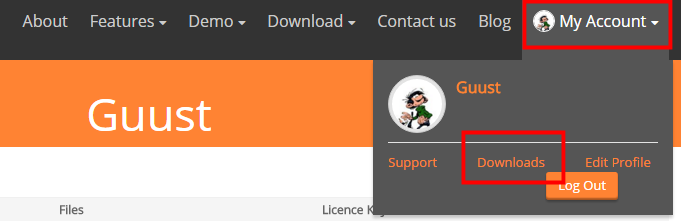
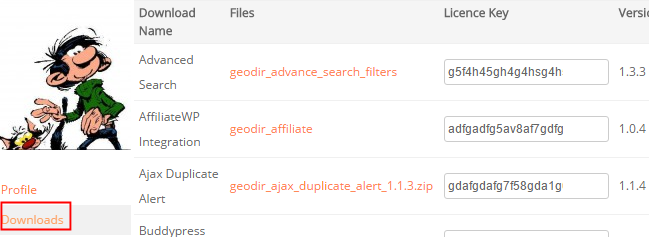
  1. If you have a current GD membership or have bought individual addons or themes, you can download the ZIP files from https://wpgeodirectory.com/your-account/
  2. In your download area, you will find a link to download the files, the licence key to activate the addon or theme, and the current version.
  3. Download the add-on from there and install it normally by uploading it via your WordPress admin, see Installing addons for more information.


Third party GD addons

There are some addons listed here that are by 3rd party developers, such as “GD Business Hours” and “GD Vouchers“. You will be buying these addons directly from those 3rd party developers, and they will provide you support directly. These addons and their support are not included in the GD membership.

Understanding navigation, searching and browsing …

On this page:

Introduction

As explained here, the main directory pages created are the GD Home/location, Listings (archive or category) pages, the search page and detail pages.

Your website can be navigated using two different ways, browsing and searching. These terms are not interchangeable: browsing is not the same as searching, and searching is not the same as browsing.

Browsing

Browsing is when a visitor or you follow the links as presented in menus, or on maps, or anywhere on a page, for example

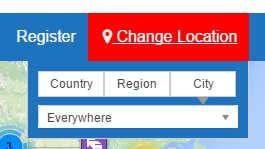
  1. If your site uses the Location Manager, you can navigate locations by selecting a location from the location switcher in the menu:
  2. You can follow links from the Popular Categories widget:

Searching

Searching is when a visitor uses the GD Search to find one or more listings in your directory:

The basic GD Search function

Using the “Search for” field only

  1. GD will check the entry titles, description and taxonomies (tags and categories) of the listings.
  2. The results will be listed in order of relevance depending on the keyword(s) entered.
  3. For example, if you only search for “hotel, the results will be returned with listings that have hotel in the title first, etc:
    1. Search:
    2. Results:
  4. If a visitor clicks Search without adding any keywords, the results will be ordered based on the settings at GD > Place [or other CPT] Settings > Sorting Options tab.

Using the “Near” field only

  1. When you enter a location in the Near field, GD will calculate the center of that location.
  2. GD then will look for all listings within an area with a default that match the Search for criteria.
  3. Your default search area is set at GD > General > Search.
  4. The default GD search is not an IN search, but a search NEAR THE CENTER OF.
  5. For example, assuming your site has listings in New York, and you enter “World Trade Center” in the Near field, the results will return all listings in order of proximity to the World Trade Center:
    1. Search:

    2. Results:

Using both the “Search for” and the “Near” field

  1. When using both fields for searching, all relevant results will be returned in order of proximity:
    1. Search:
    2. Results:

Tips and tricks

Adding featured listings to the search page

  1. Because search results will always be ordered by relevance to the search criteria, any featured listings will be included in the search results using the same relevance to the visitors keywords used.
  2. But you can add a Popular Post widget, filtered for featured listings only in the top section or sidebar etc.

More information

The GD Search is explained in more detail here, and includes all the Advanced Search options etc.

Social Importer Addon

IMPORTANT: Facebook requires that all apps be submitted to Facebook for review (link). Facebook review is very slow, and so far we are not aware of any Social Importer apps having received approval for the permissions required.
See this forum topic for more information.

Introduction
Installation & Translation
Facebook Setup Update March 2018 Posting to FB
Yelp Setup

 Introduction

The Social Importer Addon allows your listing owners to import their business or event information from Facebook, or their business information from Yelp. Users who visit your site’s frontend Add-Listing page can enter the URL in the dedicated field and then click Import to bring their details into the form. Once your GD site is connected to your FB app, you can also choose a FB page where new GD listings will be posted.

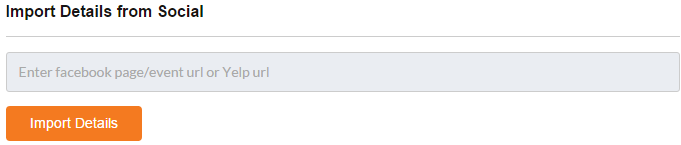
Once set up, an extra field will be added to the Add listing forms:

Installation

  • Adding the Social Importer Addon to your site is done in the usual way, see Installing Addons.
  • “Social Importer” will be added to your GD menu once the Addon is activated

Setup Facebook

Facebook:

  1. Login to your Facebook developer account.
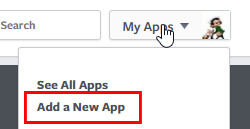
  2. Go to My Apps > Add a New App
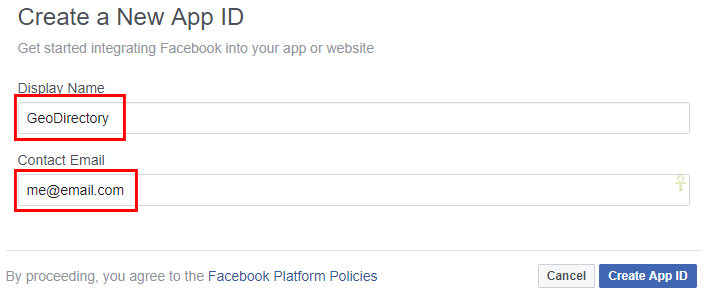
  3. On the next screen, add a Display Name and your email, and then click Create App ID:
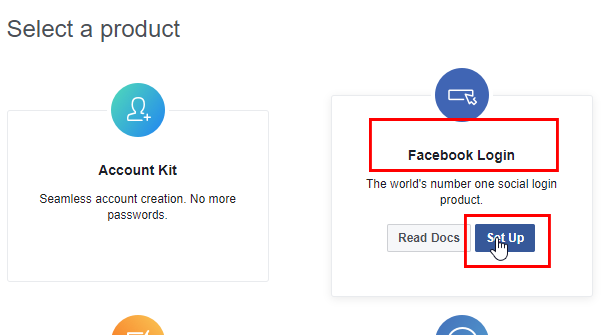
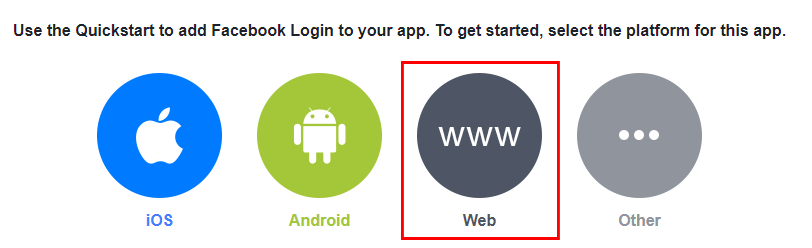
  4. Next select Facebook Login ( earlier app versions automatically added Facebook Login, so it may already be set up as per image in step 10):
  5. Choose Website:
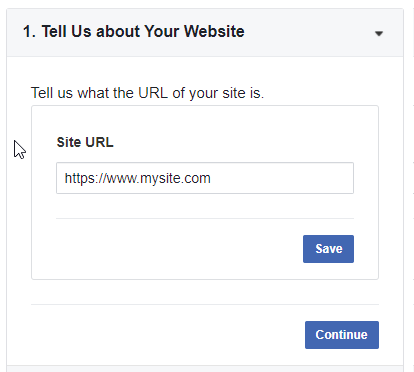
  6. On the next screen, all you have to enter is your site URL, exactly as it is at WP Settings > General > WordPress Address (URL):
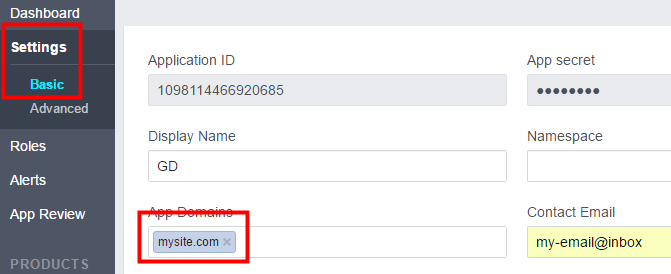
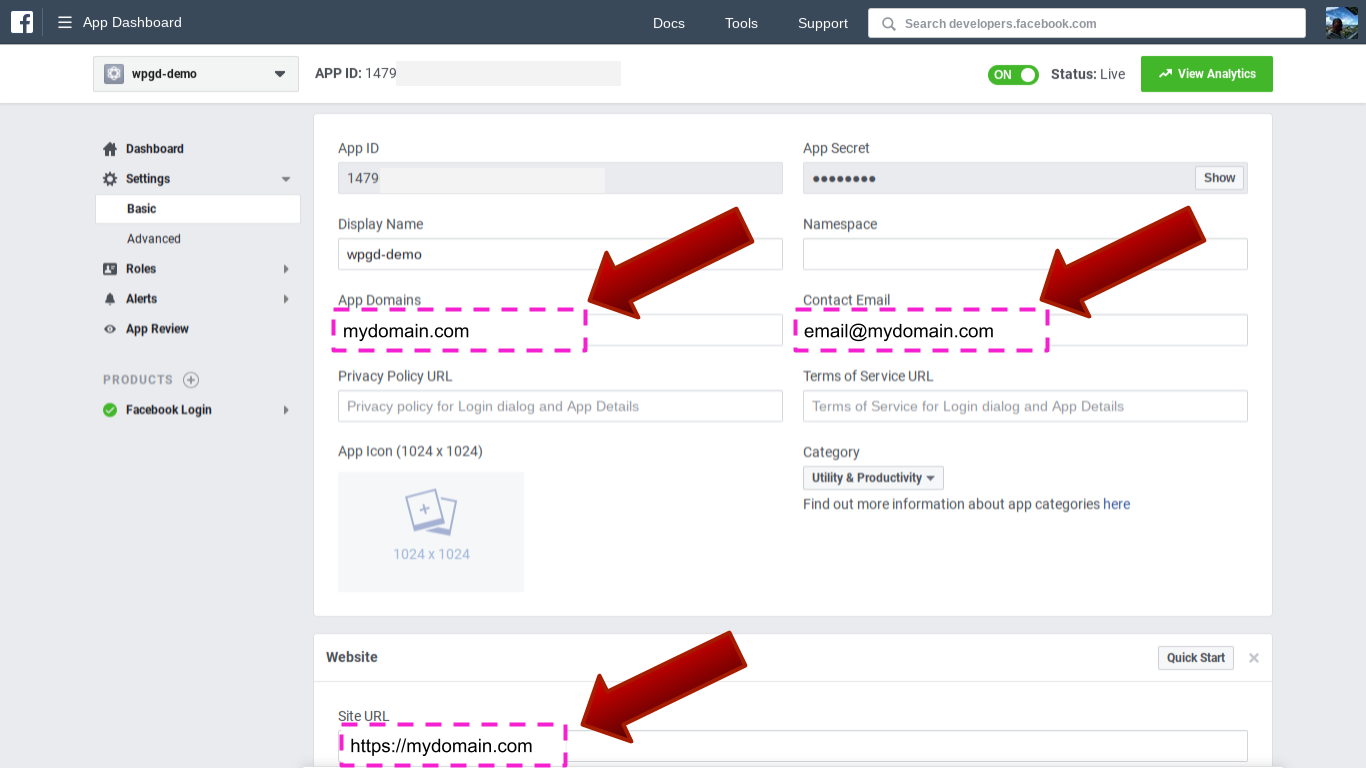
  7. Under Settings > Basic, enter your website domain (not URL or web address), example: mysite.com

  8. Click Save Changes.
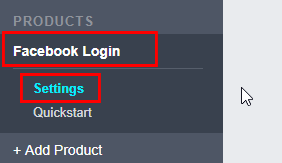
  9. Go to Products > Facebook Login (if it is not listed then add it under products):
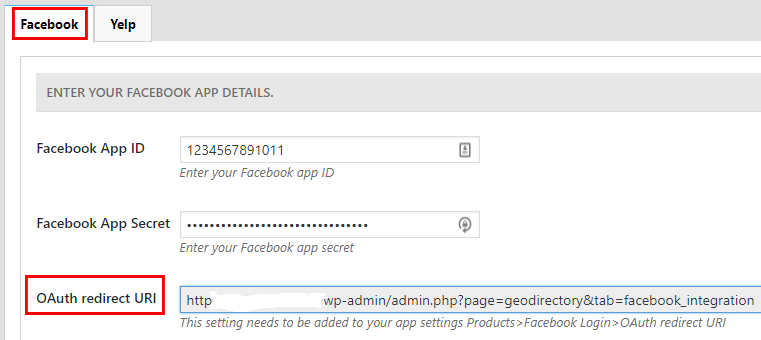
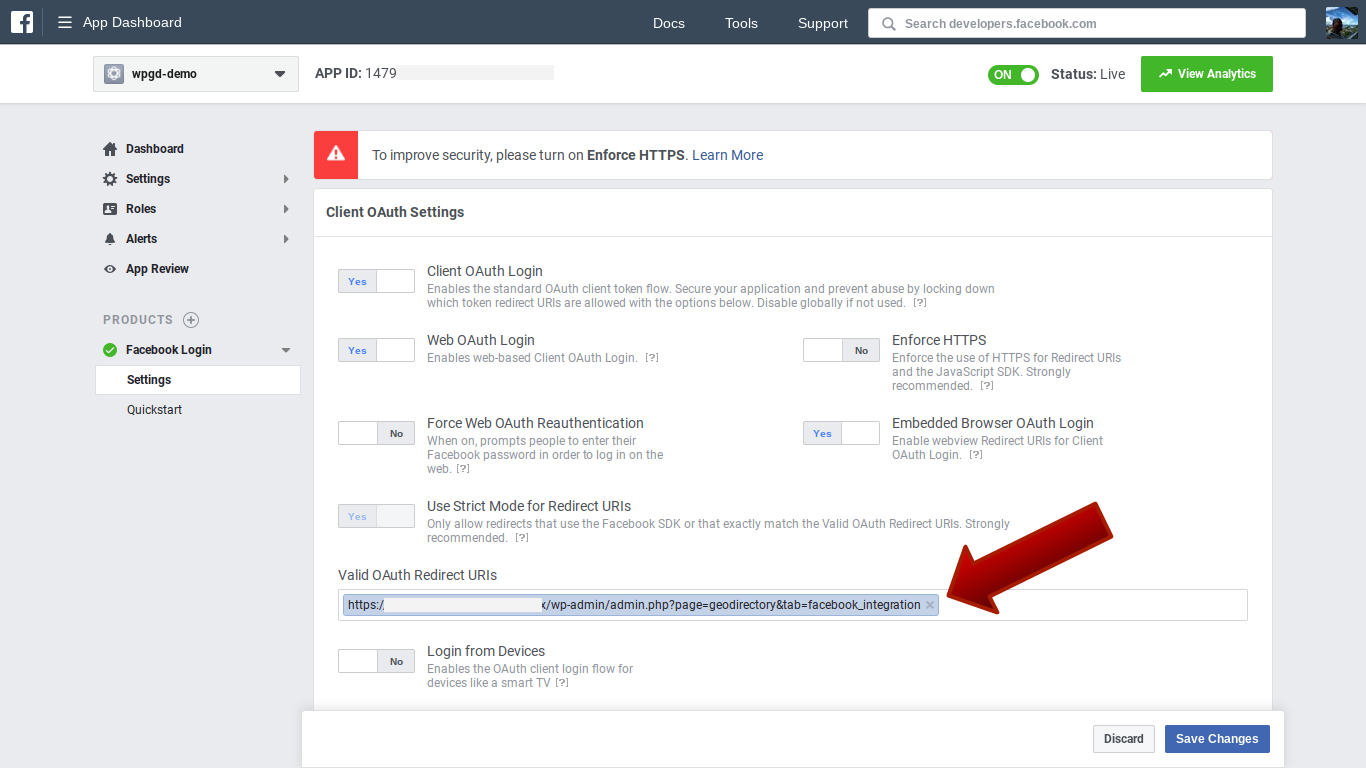
  10. You need to enter your OAuth redirect URI, which you can find at GD > Social Importer > Facebook > OAuth redirect URI:
    The exact URL should be in the format: https://my-website.com/admin.php?page=geodirectory&tab=facebook_integration
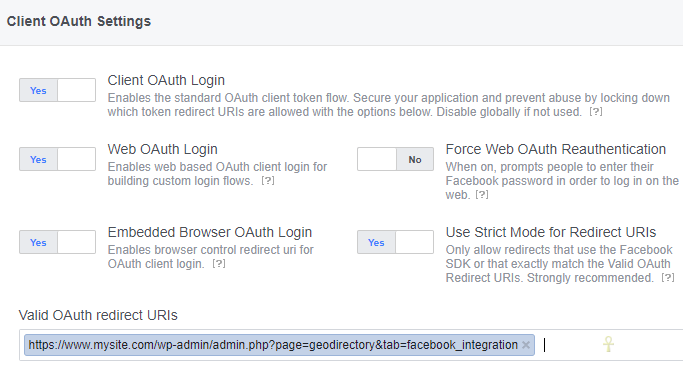
  11. You may already have other URIs there and this URI should be in addition, make sure you get the URI exactly right, if you use www. and your site does not use it then it will fail.
  12. Make sure on that page that Web OAuth Login is set to Yes:
  13. Open your website in another tab or window and navigate to GeoDirectory > Social Importer > Facebook.
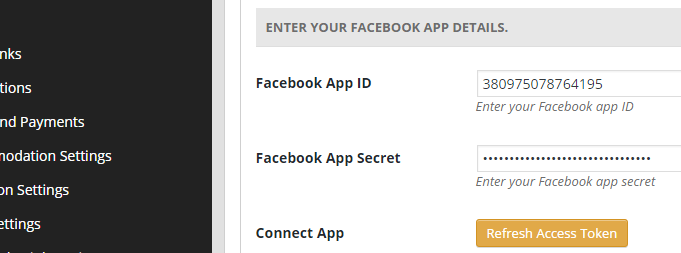
  14. Copy and paste the Facebook App ID and Facebook App Secret from Facebook to your site.
  15. Save first and then click Connect Your App.
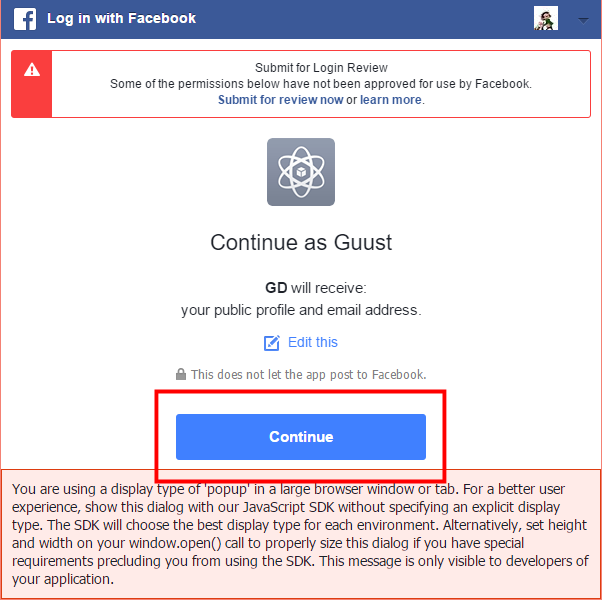
  16. This will open a window like this, ignore everything, and just click Continue:
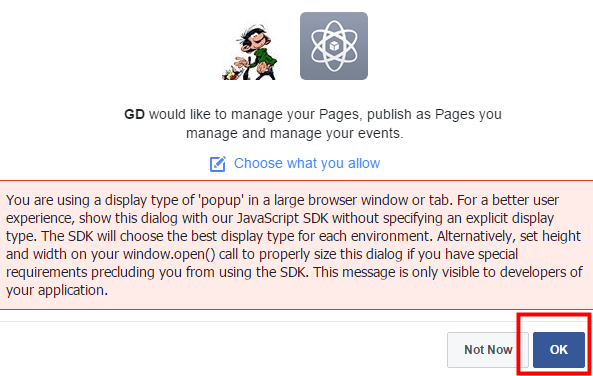
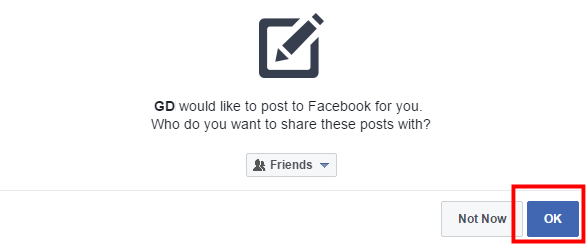
  17. In the next screen, again ignore everything and click OK:
  18. In the next screen, again ignore everything and click OK:
  19. Once finished, your Facebook settings should look like this:
  20. Now click Save changes.
  21. That should connect the Facebook app and your site, and you should see the expiry date of your token:

Facebook App settings March 2018

FB APP Basic Settings

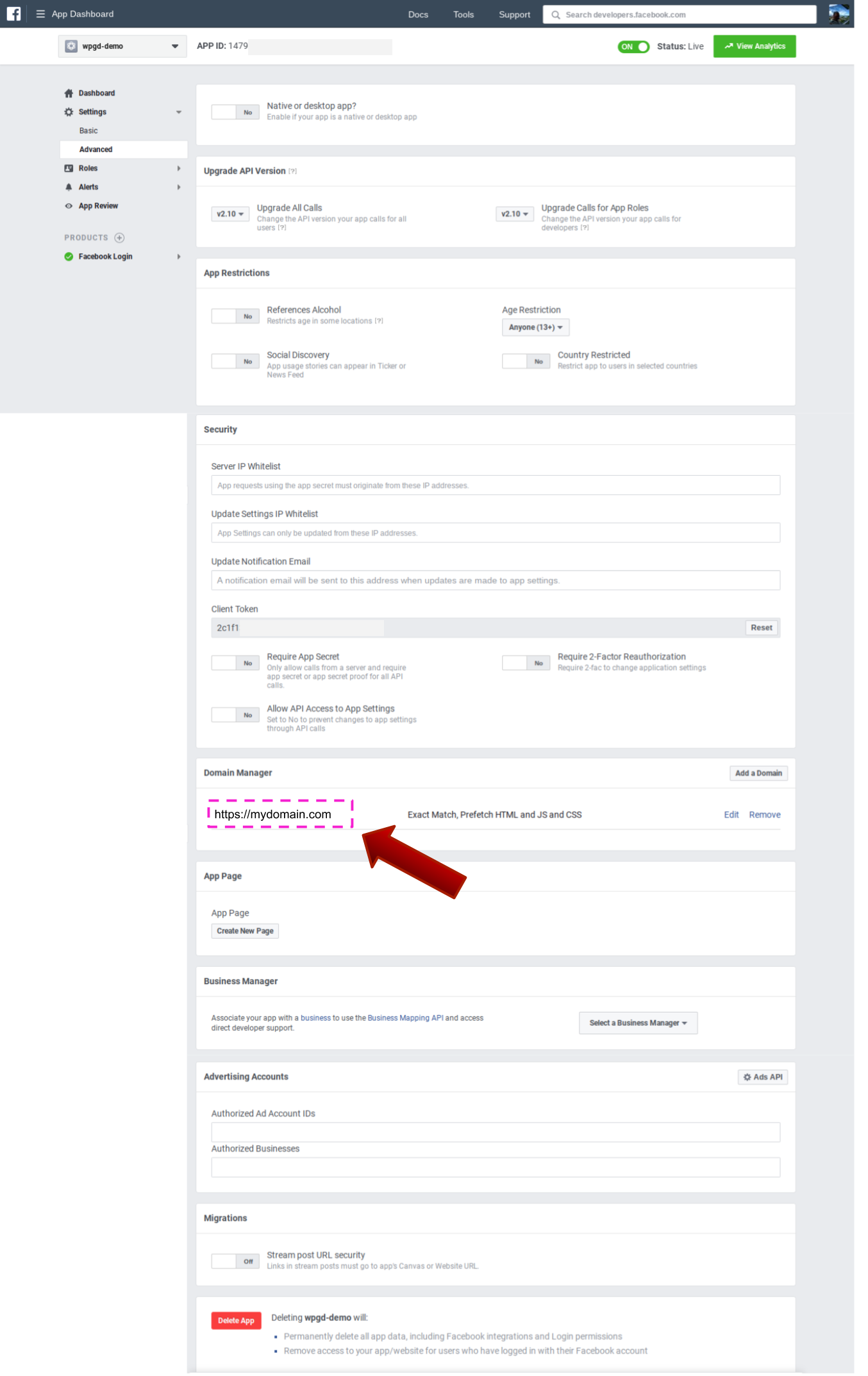
FB APP Advanced Settings

FB APP – FB LOGIN Settings

Posting GeoDirectory listings to your Facebook page

Once your GD site is connected to your FB app, a list of pages you manage will be available for the Post to page settings.

Select the Facebook Page where new GD listings will be posted and Save.

Yelp Setup

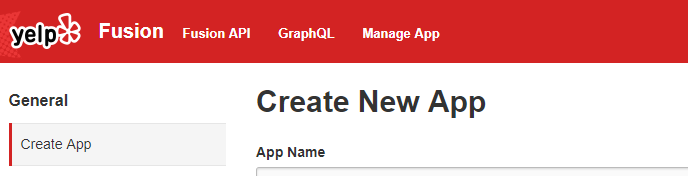
  1. Create a Yelp account and then login to your Yelp developer account and select Yelp Fusion.
  2. Then click on Manage App and you will get the Create New App screen:
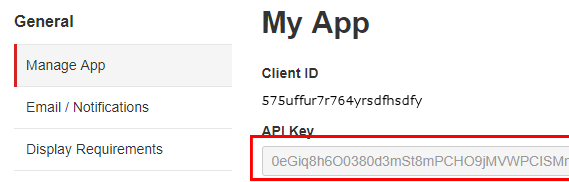
  3. After filling in the form, click on Create New App and your Client ID will be ready:
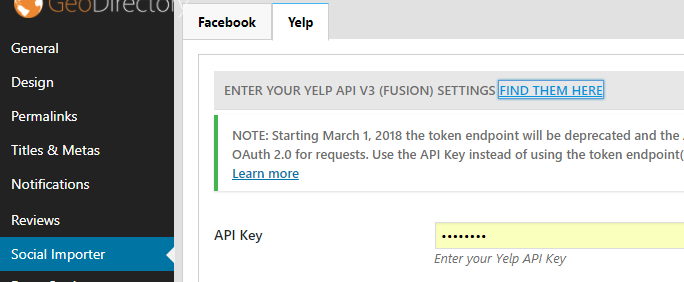
  4. Enter the details at GD > Social Importer > Yelp tab > App ID:
  5. Click Save Changes.