GD Core Plugin – Google Analytics

These are the sections you will find when you install the GeoDirectory Core (free) plugin only:

Overview General Google Analytics Design Permalinks Titles & Permalinks Notifications Set Default Location Place Settings Theme Compatibility Import & Export GD Tools

GeoDirectory > General > Google Analytics

This option will show meaningful statistics to your listing owners, read more about GD’s Front end Google Analytics here.

This setup guide assumes you already have your Google Analytics profile setup for your website. It will not work without an active Google Analytics account.

If you use the Pricing Manager, Google Analytics can be turned on and off for different packages.

Show business owner Google Analytics stats:

  1. This option simply enables or disables the showing of Google Analytics to users.

Google analytics access

  1. Click on Authorize.
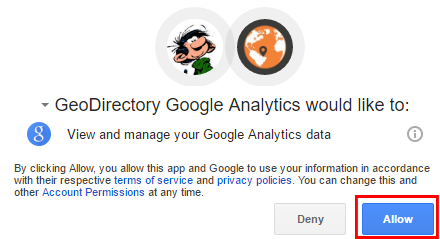
  2. That will open a popup:
  3. Click Allow.
  4. That will generate a special code:
  5. Copy that code and paste it in the Google analytics Auth Code field:
  6. Now Save.
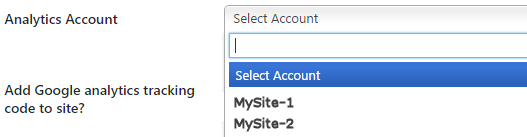
  7. This will populate the Analytics Account field with the sites set up in your Analytics account:
  8. Select the correct website profile and Save.

Add Google analytics tracking code to site?

  1. If you have not added your tracking code yet anywhere else on your site, select Yes here. That is by far the simplest way to add the code to your site.

Auto refresh active users?

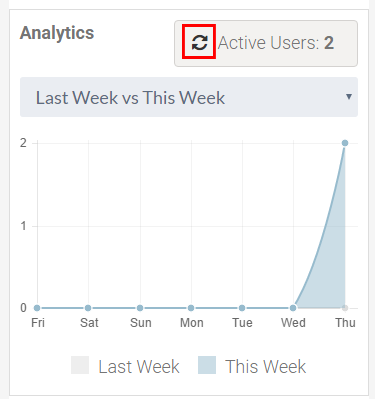
  1. Select here if you want the statistics to auto-refresh or when the user clicks the refresh button again:

Time interval for auto refresh active users

  1. If you have set the above setting to auto-refresh, set the interval between data refresh.

GD Core Plugin – Permalinks

These are the sections you will find when you install the GeoDirectory Core (free) plugin only:

Overview General Google Analytics Design Permalinks Titles & Metas Notifications Set Default Location Place Settings Theme Compatibility Import & Export GD Tools

On this page:

Add location in urls Add category in listing urls Listing url prefix GeoDirectory Pages

Permalinks settings

This page is about GeoDirectory Permalink settings, not WordPress Permalink settings.
Be aware that for GD to work properly, you need to set the WordPress Permalink settings to Post name: Read more

Add location in urls

Add location slug in listing urls:
Ticking this option will add the location of the listing to the URL, for example
mydomain.com/places/united-states/texas/dallas/hotels/my-listing
instead of
mydomain.com/places/hotels/chestnut-hill-hotel/

Add full location info with country, region and city slug in listing urls:
Use this option if your directory covers more than one region and/or country.
You can also use this option if your site only covers one region or city, but you want to include the full location in the URL of your listings.
Example: mydomain.com/places/united-states/texas/dallas/hotels/my-listing

Add city slug in listing urls:
You can only use this option  if your site only covers one region or city, do not use if your directory covers more than one region and/or country.
Example: mydomain.com/places/dallas/hotels/my-listing

Add category in listing urls

Tick or untick to include the category name in your URLS, for example
mydomain.com/places/hotels/my-listing
or
mydomain.com/places/my-listing

Listing url prefix

Enter the default name here for your listings, for example places or business or listings etc.

URL examples:
mydomain.com/places/my-listing
mydomain.com/business/my-listing
mydomain.com/listings/my-listing

If you use the Custom Post Type addon, then the listing url prefix will be replaced with the slug you enter there.

GeoDirectory Pages

GD will automatically add 8 pages that will be used as templates to create all your directory pages: GD Home page, Add Listing, Listing Preview, Listing Success, Location, Terms and Conditions page, Info page and Login page.

You can change the title and slug of these pages at the normal WordPress pages settings.

Only the Terms and Conditions page option can be left blank, all other options should have a page selected.
Each Geodirectory page should be unique, meaning that a single page from your site should not be selected for more than one of the Geodirectory Pages.


Custom Maps Addon

Introduction
Installation
Snazzy Maps
Settings GeneralManage Styles – featureTypeelementType – stylers
Example Removing Google’s points of interest
More information

Open Street Map Base Layers

Introduction

Custom Google Maps for GeoDirectory allows you to modify the look and feel of all Google Maps on your GD website, through an easy user interface with color pickers and simple to use options.

This way you can make the maps of your website look totally personalized and unique.

Installation

After uploading and activating the Addon, you will find the settings in your WP admin area > GeoDirectory > Custom Google Maps.

Snazzy Maps

  1. Snazzy Maps is a repository of different color schemes for Google Maps aimed towards web designers and developers.
  2. You can browse all the different map styles contributed by users, and then export that style and import it into your GD website.
  3. This blog post explains how to import the Snazzy Maps styles. 

Settings

General

Here you can choose which map you want to show as a customized map.

Choose from your location map, listings map, and the detail page map.

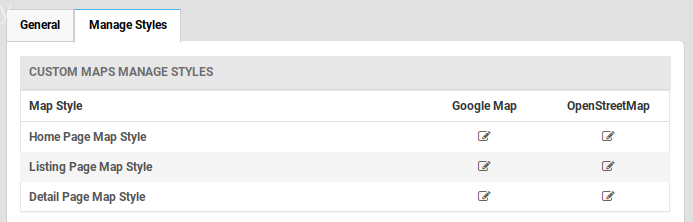
Manage Styles

The settings allow you to customize the presentation of the standard Google maps, changing the visual display of such elements as roads, parks, and built-up areas etc.

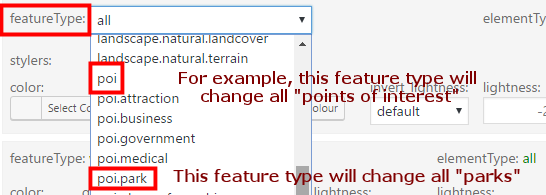
featureType: Every map is composed by adding different features, like roads, points of interest, waterways etc.

Read more about the different map features on the Google Developers website.

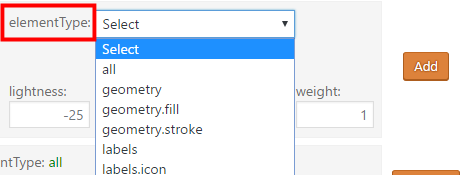
elementType: Every feature like a road, or a country border etc, are a combination of different elements, like the color of a waterway, or the color of the river’s edge.

Read more about the different elements on the Google Developers website.

stylers: Every element of a feature can be styled.

Read more about the different stylers on the Google Developers website.

Example

Removing Google’s points of interest

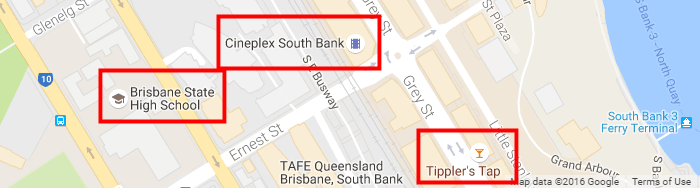
  1. A default Google map has “points of interest”, like restaurants, cinemas etc.
  2. So let’s remove them so you can add your own GD listings to the map:
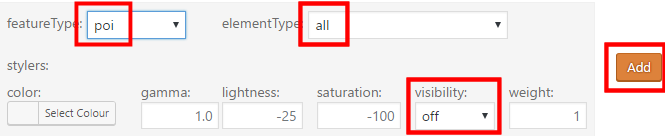
    1. Select featureType poi
    2. Select all elementTypes
    3. Turn visibility off
  3. Then click Add:
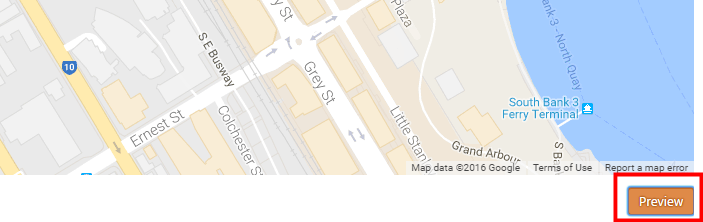
  4. Now click Preview below the map, and you will see all points of interest will be invisible:
  5. Once you are happy with the styles you added, click Save Styles.

More information

Styled Maps – Google website

Open Street Map Base Layers

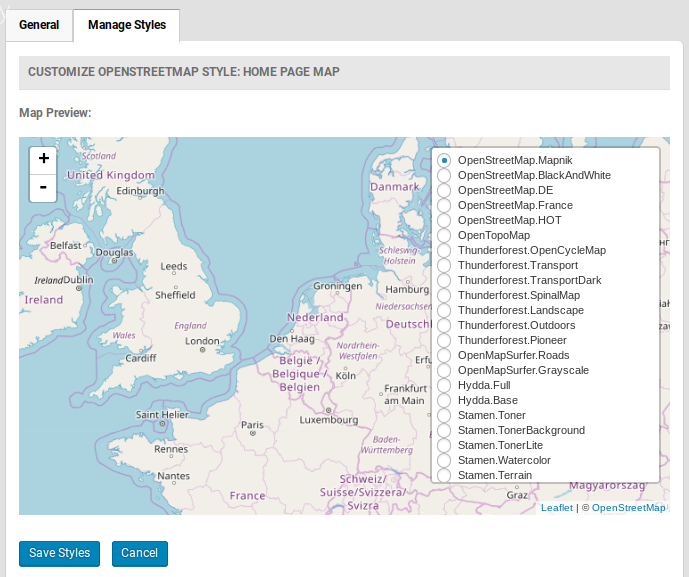
The Custom Maps Addon also enables your maps to show different Open Street Map Baselayers. Choose an Open Street Map setting first, then adjust the baselayer.

Events Addon – Widgets

This page is a work in progress, please visit the forum if you need extra help in the meantime.

Introduction GD > Are you interested GD > Related Events Listing

Introduction>

When you install the Events Addon, you’ll find a number of new GD widgets in the appearance section of your WP admin area.

Widget name Can be used on these pages:
Home Listings Search Detail Author Non-GD pages
GD > Are you interested yes yes yes yes yes yes
GD > Related Events Listing yes yes yes yes yes yes

GD > Are you interested

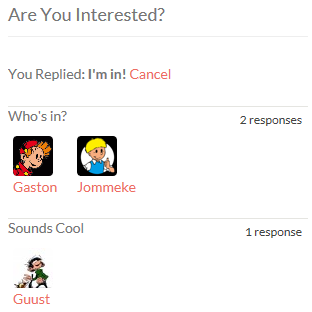
  1. This widget can only be used on the detail pages of your listings, and will show only on events detail pages.
  2. The widget will only show to logged in users.
  3. Logged in users will be able to confirm they are attending the event or they maybe will be attending.
  4. Once an event has passed, the buttons to attend will disappear, but the information will stay visible.
  5. Here is an example:

GD > Related Events Listing

Settings

This Events widget is specifically for the detail pages of your listings, and will show the events that have been submitted for a particular place.

The widget will only work on the default custom post type Places; it will not show on any other custom post type detail pages.

Most of the settings are self-explaining, and are the same as some of the settings of the Popular Post View widget, with one main difference:

Enable Location Filter: You can show events at a listing automatically on the detail page of that listing if you have both the Prices and Payment Addon and Events Addon enabled. Just follow these steps:

  1. In the Prices and Payment settings, set Link business to Yes in the Events pricing.
  2. Add the Related Events Listing widget to the detail page, and enable the Location Filter
  3. Now if the same user adds an event and chooses one of the listings from the Fill in Business Details menu, that event will automatically be listed on the detail page for the listing.

Common styling examples

Changing the look of a featured listing Adjusting the location switcher for cities only or a one country site Hiding category legend from location map Hiding the listings count in the popular categories widget Changing the link in the map bubble
Modifying the GD Search bar Hiding the Custom Post Type (CPT) selector Removing one CPT only from the Custom Post Type (CPT) selector Hiding the “Search for” field Changing the Advanced Search cogwheel icon to text
Customizing or hiding address details Removing reviews from one CPT only Making the reCAPTCHA V2 box resize to smaller screens
Adjust Supreme Directory Featured Image Overlay Opacity

Changing the look of a featured listing

Each featured listing has the class gd-post-featured applied in listings pages.
This class can then be targeted to change the look of featured listings.
For example adding this to your CSS:

[css].gd-post-featured {background: #BDFF00 none repeat scroll 0 0;}[/css]

results in this:
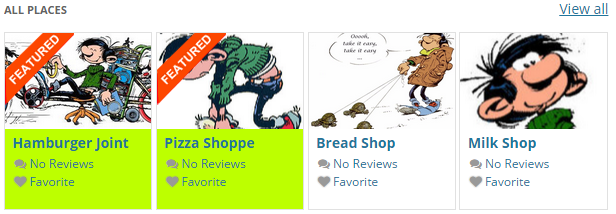
featured

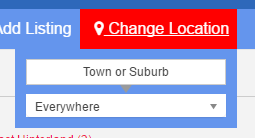
Adjusting the location switcher for cities only or a one country site

The default location switcher looks like this:
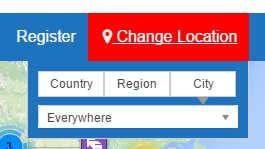
If you have a GeoDirectory site for one country only, you can add this to your child theme’s style.css file:

[css]#menu-item-gd-location-switcher dd {width: 50%;}[/css]

And then your switcher will look like this:
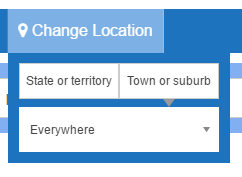
And if you have a GeoDirectory site for one region only, you can add this to your child theme’s style.css file:

[css]#menu-item-gd-location-switcher dd {width: 100%;}[/css]

And then your switcher will look like this:
Removing category legend from location map

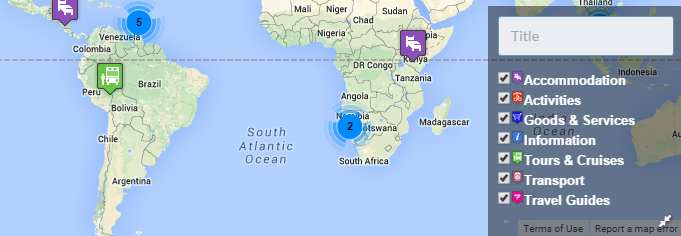
The default location map will have a legend showing the categories in the bottom right hand corner, like this:
Legend

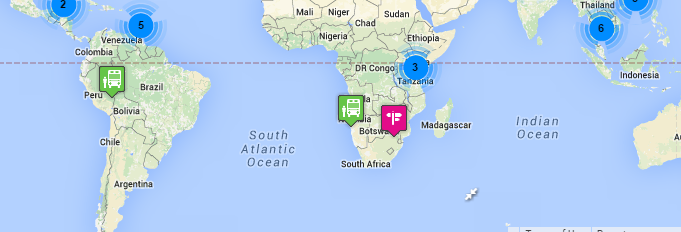
If you want to hide that category list hidden by default, use the code posted below. Clicking on the expand/reduce icon will then open/close it:
Then add this CSS to your child theme’s style.css file:

[css].map_category {display: none;}[/css]

To only hide it on mobile views, you can add this CSS, adjust as required:

[css]@media only screen and (max-width: 1040px) {.map_category {display: none;}}[/css]

Hiding the listings count in the popular categories widget

The popular categories widget will have show the number of listings in the categories for the selected location like this:

If you want to hide those numbers, use the code posted below:

[css]span.geodir_term_class {display: none;}[/css]

Changing the link in the map bubble

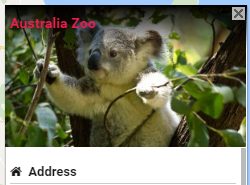
If you want to change how the main link to the listing looks, use the code below, and adjust as required:

[css].geodir-bubble_desc h4 a {background: white; padding: 3px; border: 1px solid blue;}[/css]

These pictures show before and after:
 

Modifying the GD Search bar

The GD Search bar can have a few different components depending on the addons you use, and your settings.
Learn more about the search bar here.

Hiding the Custom Post Type (CPT) selector

This CSS will hide the CPT selector everywhere:

[css].gd-search-field-cpt {display: none;}[/css]

This CSS will hide the CPT selector on all Listings (CPT and categories) pages:

[css].gd-search-input-wrapper.gd-search-field-cpt {display: none;}[/css]

This CSS will hide the CPT selector on all Listings (CPT and categories) pages:

[css].gd-search-input-wrapper.gd-search-field-cpt {display: none;}[/css]

Removing one CPT only from the Custom Post Type (CPT) selector

This CSS will hide one CPT from the CPT selector everywhere (adjust as required):

[css].search_by_post option[value=gd_event] {display: none;}[/css]

Hiding the “Search for” field

This CSS will hide the “Search for” field everywhere:

[css].gd-search-field-search {display: none;}[/css]

Full width with all search inputs inline

This CSS will allow the search bar to expand to 100% width on the screen, allowing all the items inline:

[css].geodir-loc-bar-in {max-width: 100%;}[/css]

Using Supreme Theme you can add:

[css].sd.home .featured-area .geodir-loc-bar-in {max-width: 100%;}[/css]

Changing the Advanced Search cogwheel icon to text

To change from  to  add this CSS:
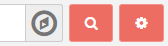
[css].fa-cog:after {content: " Advanced Filter";}[/css]

Change the Advanced Search icons

Adjust this CSS for your own style; find more icons at http://fontawesome.io/cheatsheet/
To change the cog wheel:

[css]
.fa-cog:after {font-family: FontAwesome;
content: "\f1b9"; color:white; font-size: 16px;}
.fa-cog {color:transparent; font-size: 0}
[/css]

To change the search icon:

[css]
.fa-search:after {font-family: FontAwesome;
content: "\f1b9"; color:white; font-size: 16px;}
.fa-search {color:transparent; font-size: 0}
[/css]

Use font awesome icons in any text area or as links http://fontawesome.io/cheatsheet/

[html]
<i class="fa fa-facebook-square" aria-hidden="true"></i>
[/html]

Customizing or hiding address details

The display of the different levels of the address are controlled by CSS classes:

  1. span[itemprop=”streetAddress”]
  2. span[itemprop=”addressLocality”]
  3. span[itemprop=”addressRegion”]
  4. span[itemprop=”addressCountry”]
  5. span[itemprop=”postalCode”]

For example, if you only want to display the region and country, add this to your child theme’s style.css file:

[css]span[itemprop="streetAddress"],
span[itemprop="addressLocality"],
span[itemprop="postalCode"] {
display: none;
}[/css]

Hide the default phone number from logged out users

Sometimes you may want to hide some listing information from users that are not logged in. Here is an example of how you can do that with the default phone number.

[css]
.geodir_contact {display: none}
.logged-in .geodir_contact {display: initial}
[/css]

Removing reviews from one CPT only

If you only want to disable reviews for some but not all CPTs, you can use this CSS, adjust for the CPTs you want to hide. For example, replace every event with place:

[css]
.post-type-archive-gd_event .geodir_Star {display: none;}
.post-type-archive-gd_event .geodir-bubble-meta-bottom .geodir-bubble-reviews {display: none;}
.search-results .geodir-bubble-meta-bottom .geodir-bubble-reviews {display: none;}
.post-type-archive-gd_event a.geodir-pcomments {display: none !important;}
#reviewsTab {display: none !important;}
.single-gd_event dl.geodir-tab-head [data-tab="#reviews"] {display: none !important;}
.single-gd_event .sd-detail-cta .dt-btn {display: none;}
.single-gd_event .sd-ratings {display: none;}
.gd-post-gd_event .geodir-rating {display: none;}
.search-results .geodir-bubble-meta-bottom .geodir-rating {display: none;}
.gd-post-gd_event a.geodir-pcomments {display: none !important;}
[/css]

Making the reCAPTCHA V2 box resize to smaller screens

  1. You have the option to choose two different reCAPTCHA versions:
    1. reCAPTCHA V2 which requires visitors to tick a box
    2. Invisible reCAPTCHA which works in the background
  2. reCAPTCHA V2 has a fixed width as provided by Google and therefore sometimes is to wide for a small screen or another container element on your screen.
  3. To fix this you can apply the following CSS:

    [css]
    @media screen and (max-height: 575px){
    .gd-captcha {transform:scale(0.8);
    -webkit-transform:scale(0.8);transform-origin:0 0;-webkit-transform-origin:0 0;}
    }
    [/css]

  4. Adjust the @media screen settings to target the sizes you want.

Adjusting Supreme Directory theme featured image overlay opacity

    1. Supreme Directory theme has a really strong display of the featured image.
    2. Adjusting the opacity of the featured image overlay can brighten or darken your site to suit your needs
    3. Here is some CSS that you can adjust to suit your site:

      [css]
      /*location pages overlay */
      .sd-location .featured-area::before {
      opacity:0.5!important;
      }

      /* listing pages overlay */
      .single .featured-area::before {
      opacity:0.2 !important;
      }

      /* homepage overlay */
      .sd-homepage .featured-area::before {
      opacity:0.5 !important;
      }[/css]

</ol

Remove Supreme Parallax Effect

Want a little less movement on your page?
Here’s some CSS to remove the parallax effect.
Each page type has a class, so, there are different ways to target the CSS, based on your needs.

First, this CSS will remove the effect everywhere:

[css]
.featured-img {
background-position: 50% 50% !important;
}
[/css]

This CSS is targeted at the single page for a gd_place:

[css]
.single-gd_place .featured-img {
background-position: 50% 50% !important;
}
[/css]

This is targeted more widely at any CPT for a single page, but will leave the effect in place on the home page:

[css]
.single .featured-img {
background-position: 50% 50% !important;
}
[/css]

Event Manager Shortcodes

On this page:

Event ListingsEvent CalendarRelated Events

Event Listings

Shortcode: [gd_event_listing]

Parameters:

  • category – ID number of the category to show (default = 0 for all)
  • post_number – Number of posts to show (default = 5)
  • layout – Number of columns to show (default = 2)
  • add_location_filter – True or False (default = false)
  • listing_width – A percent between 20 and 100 (default = ‘’)
  • list_sort – One of az, upcoming, latest, featured, high_review, high_rating, random (default = latest)
  • list_filter – One of all, today, upcoming, past (default = all)
  • character_count – Number of characters to show from the Excerpt (Min/default = 20)
  • title – title

This example shows a widget with 5 listings in a row of 5 (5 grid), showing upcoming events ordered by earliest first, and the widget will have a tile Featured Events:

[gd_event_listing layout=5 post_number=5 list_sort=upcoming list_filter=upcoming title=”Featured Events”]

Event Calendar

Shortcode: [gd_event_calendar]

Parameters:
  • title – title
  • day – One of sunday or monday

Related Events

Shortcode: [gd_related_events]

Parameters:

  • post_number – Number of posts to show (default = 5)
  • layout – Number of columns to show (default = 2)
  • event_type – One of all, today, upcoming, past (default = all)
  • add_location_filter – True or False (default = false)
  • listing_width – A percent between 20 and 100 (default = ‘’)
  • list_sort – One of az, latest, featured, high_review, high_rating, random (default = latest)
  • character_count – Number of characters to show from the Excerpt (Min/default = 20)

Events Addon – Overview

Introduction Visit the demo events page
Installation
Events settings User navigationGeneral settings
Custom fields
Sorting options
Linked events settings

Introduction

The GeoDirectory Events Addon is a custom post type specifically designed for the way events usually are prioritized by dates.

With this plugin you can let users add their events to your site. Events are ordered by upcoming date by default. Users can enter recurring dates for their events instead of having to create lots of separate events. As this is also a custom post type you have the usual ability to add custom fields and sort options.

Events perfectly integrates with all other GeoDirectory addons:

Visit the demo events page

Installation

After uploading and activating the Addon, you will be taken to the Settings page:

WordPress Admin > GeoDirectory > Event Settings.

Events Settings

User navigation

Once activated, you will need to visit the Navigation page to enable your users to add their events to your site:

WordPress Admin > GeoDirectory > Design > Navigation

All other settings are accessed at WordPress Admin > GeoDirectory > Event Settings

General settings

Default event filter

  • Your visitors can filter the events to show only upcoming events (today + future), today’s events (today only), past events (yesterday and before), or all events together.
  • The Default event filter settings will set the initial choose on the events page.
Disable Recurring Feature

  • When your users add an event, they will be able to add
    • A one-off event, either a full day event, or start and finish can be nominated.
    • Recurring events: dayly, weekly, monthly, yearly or custom (pick all applicable dates), either as full day events, or start and finish can be nominated.
  • The Disable Recurring Feature setting will restrict event submissions to one-off events only.

Custom fields

Sorting options

  • When your visitors visit your events page, they will be presented with a drop down menu that allows them to filter the events.
  • You can change how they can filter the events by organizing the sorting options in this tab.
  • Visit this page to learn more about sorting options.

Linked events settings

  • When you activate the Events addon, a new option will be added for the detail page.
  • To change these settings, in your admin area, go to GeoDirectory > Design > Detail > Linked events settings.
  • The settings there should be self-explanatory.

Translating countries and map directions

On this page:

Changing the map language and directions Translating country names 
More information Translating regions or cities

Changing the map language and directions

The default language of your GeoDirectory maps is English, but you can change that to any language supported by Google maps. This is how:

  1. Go to your WP admin  area
  2. Navigate to GeoDirectory > Design > Map
  3. Under default map settings, change the language at Default map language

This will also change the directions given on any listing detail page, when visitors enter their address in the directions field below the map.

To translate other language strings related to your maps (like Enter Your Location below the map on the detail page), review the core translation article.

Translating country names

This only applies if you use the Location Manager (MultiLocations).

  1. Translate the countries in the language file of the core GD plugin (review the core translation article).
  2. In your WP admin area, navigate to GeoDirectory > MultiLocations > Translate Countries.
  3. Select the countries you want to translate, and click Update.
  4. This will change the country name and the country URL site-wide.

More information

Translating regions or cities

  1. Only countries can be translated, regions and cities cannot be translated.
  2. The name and slugs of regions and cities will be added as per the Map API.
  3. If you have a multi-language site with WPML, all regions and cities will have the same name and slug across the different languages.

Translating Custom Fields

Introduction

If your site is only in one language, you create your custom fields in the language used on your site.

But if your site is in more than one language, you will need to use WPML. The instructions below are different depending on the version of WPML you use. The String Translation module is only available in the Multilingual CMS version of the plugin.

Translating Custom Fields using WPML’s String Translation module

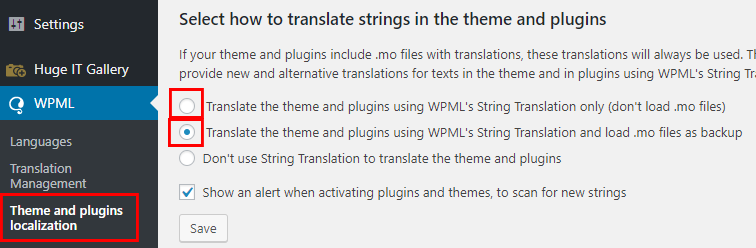
  1. Make sure you have selected to use String Translation, use one of the two options:
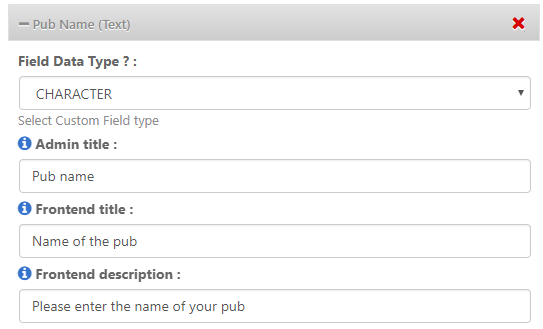
  2. Create your custom field, and enter description, front end title etc. For this example we are creating a text field:
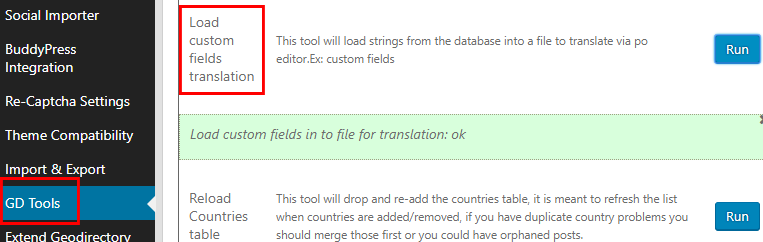
  3. Then go to GD > Tools > Load custom fields translation:
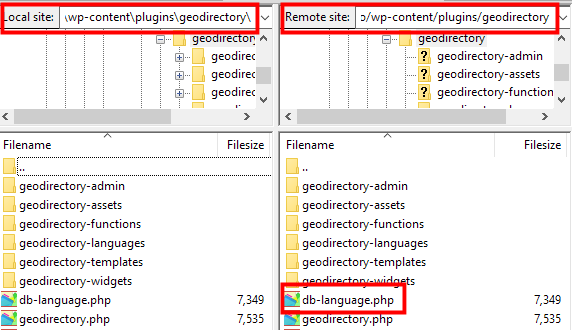
  4. This will scan your DB for custom fields and copy them to a file in your geodirectory plugin folder called db-language.php
  5. WPML will then be able to scan this file and allow you to translate them.
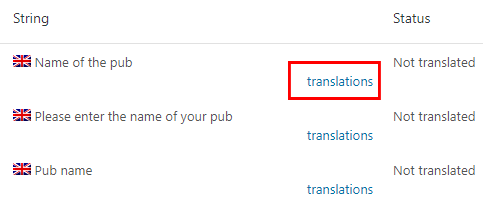
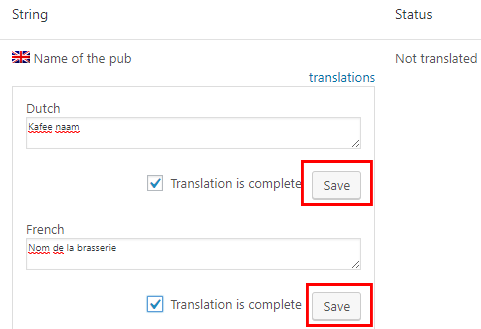
  6. To translate them go to WPML > String Translation, where you will see the new fields added:
  7. Now you can translate them and save:
  8. This would be the result on the Add Listing page:
    French

    English

    Dutch

Translating Custom Fields without WPML’s String Translation module

  1. If you are only using the WPML blog version, then first follow steps 2 and 3 as explained above.
  2. That will create a file called db-language.php that you will find in your geodirectory folder on the server.
  3. Copy that file and your GD core language file to your computer and then open the .po file and rescan the project.
  4. This will add the translations to the .po file and you can then follow the normal translation process as explained here.
  5. Below you can learn more about the process for merging the custom field data with the normal language files.

Instructions

  1. After you scanned the database for custom fields, download a copy of the GD core plugin from your server to your local computer using FTP:
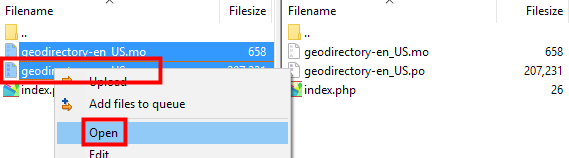
  2. Then open /wp-content/plugins/geodirectory/geodirectory-languages/geodirectory-en_US.po using PoEdit:
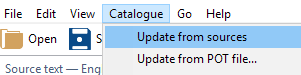
  3. From the catalogue menu, choose Update from sources ...:
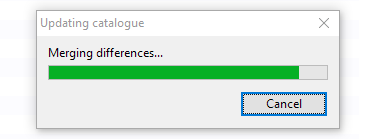
  4. That will merge db-language.php:
  5. Save the file and then follow the instructions for translating your core language file [first time translation] or updating your language file [if already translated earlier].

How to use GD without street addresses?

From version 1.4.6.1 of the GeoDirectory core plugin and version 1.1.6 of the Custom Post Type addon, you can use listing types that do not need an address, and that will not be displayed on the maps.

Until then (or if you do not use the Custom Post Type addon), for the maps to work correctly, every listing in your directory needed an exact location on the map.

But that does not mean that you have to display the address of the listing.

This article explains how you can hide your street addresses. This might also be hqndy if you want to add listings to the maps, but you want to hide street addresses, or country details etc.

Hiding the address on the detail page

This will apply to all your listings.

The display of the different levels of the address are controlled by CSS classes:

    1. span[itemprop=”streetAddress”]
    2. span[itemprop=”addressLocality”]
    3. span[itemprop=”addressRegion”]
    4. span[itemprop=”addressCountry”]
    5. span[itemprop=”postalCode”]

    For example, if you only want to display the region and country, add this to your child theme’s style.css file:

    [css]span[itemprop="streetAddress"],
    span[itemprop="addressLocality"],
    span[itemprop="postalCode"] {
    display: none;
    }[/css]

    Modifying the Add Listing page

    This can be applied differently for each Custom Post Type.

    Option 1: Require street input (recommended)

    Edit GD > Place Settings > Custom fields > Field:Address > Front end description.

    For example: The street address will not be shown on your listing, but your business location will be shown on the map at this address. You can also just enter the city name for a more generic display on the map. 

    Option 2: Do not require street input

    You can remove the requirement for the street address by CSS:

    [css]#geodir_post_address_row {
    display: none;
    }[/css]

    This option means that the street address will be calculated by the Google map and will be either the address where the marker is dragged, or the city name if Set Address On Map is clicked.

    Option 3: Remove all address fields (not recommended)

    You can remove all the address fields and set addresses by dragging the marker on the map only. The Google API will still fill in the complete address, but it will not be displayed on the Add Listing form.

    This option can lead to incorrect locations being added to your database, and might require some maintenance.

    Add this to your CSS for option 3:

    [css]#geodir_post_address_row,
    #geodir_post_country_row,
    #geodir_post_region_row,
    #geodir_post_city_row,
    #post_set_address_button,
    #geodir_post_zip_row {
    display: none
    }[/css]