Franchise addon filters

You can use these filters in your child theme’s functions.php file.

Change the tab

  • This code will change the title of the More Franchises tab: change More Branches to the text of your choice.
  • You can change gd_place to use the code for another custom post type.

[php]
function geodir_franchise_change_franchises_tab_text($text, $post_type) {
if ($post_type == ‘gd_place’) {
$text = __(‘More Branches’, ‘geodir-franchise’);
}
return $text;
}
add_filter( ‘geodir_franchise_franchises_tab_text’, ‘geodir_franchise_change_franchises_tab_text’, 10, 2 );
[/php]

Change the link to all franchise listings

  • This code will change the title of the View all franchises link: change View all branches to the text of your choice.
  • You can change gd_place to use the code for another custom post type.

[php]
function geodir_franchise_change_all_link_text($text, $post_type) {
if ($post_type == ‘gd_place’) {
$text = __(‘View all branches’, ‘geodir-franchise’);
}
return $text;
}
add_filter( ‘geodir_franchise_all_franchises_link_text’, ‘geodir_franchise_change_all_link_text’, 10, 2 );
[/php]

Change the Add franchise link

  • This code will change the title of the Add Franchise link: change Add Branch to the text of your choice.
  • You can change gd_place to use the code for another custom post type.

[php]
function geodir_franchise_change_add_link_text($text, $post_type) {
if ($post_type == ‘gd_place’) {
$text = __(‘Add Branch’, ‘geodir-franchise’);
}
return $text;
}
add_filter( ‘geodir_franchise_add_franchise_link_text’, ‘geodir_franchise_change_add_link_text’, 10, 2 );
[/php]

Getting Addon Translation Files

This document applies to Addons. GD Core plugin translations are located on WP.org. See the Translators Handbook for more information.

GeoDirectory Addon translations are maintained in the GeoDirectory language project.

In the example below, an Italian translation will added to a multi-lingual GD site. The process for a single language site is the same.

  1. Navigate to the GeoDirectory language project pages.
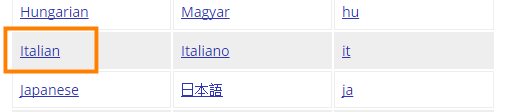
  2. Select the language and addon of your choice.
  3. Example: Italian:
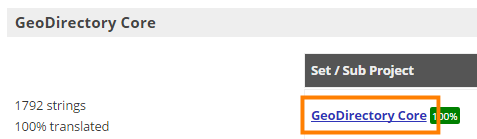
  4. Select the language file you want:
  5. Scroll to the bottom of the page and Export the file (accept the defaults so you download the whole PO file):
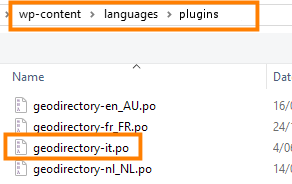
  6. Load the file to the proper folder (See Translating Addons for more information).
    Change the file extension, if necessary, for your locale. Example: -it to -it_IT.
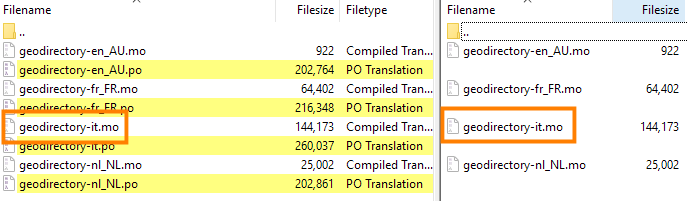
  7. Create the MO file using PoEdit or download from the same page where you downloaded the PO file:
  8. Review the translations on your site. If you find untranslated strings, refer here for how to translate strings with PoEdit.

Server requirements

On this page:

Introduction Managed WordPress Hosting Suggested Hosts

Introduction

WordPress in general requires more than shared hosting for anything bigger than a tiny blog or a static website.

GeoDirectory will not perform very well on shared hosting servers, even if only a few other plugins are installed.

The optimal server solution will depend on several factors, such as:

  1. Theme used (there are some themes that are so resource heavy that even without extra plugins they will choke on shared servers)
  2. Number of plugins
  3. Number of listings
  4. Amount of visitors

We normally suggest to start at least with a decent VPS (virtual private server), with 2GB of RAM.

The best performances for a GD site are to be expected on dedicated servers with 8GB of RAM or more.

Managed WordPress Hosting

All managed WordPress hosting uses caching systems that are not compatible with GD’s geolocation features.
Managed WordPress hosting is good only for blogs or static websites.

The only caching system that works with GD is GD Booster or WP Super Cache, and all other caching needs to be disabled. (this will no longer be valid starting from V2 of GeoDirectory that will be compatible with all caching systems)

Suggested Hosts

We have our demos installed on Spectrum Technologies Group LLC. Spectrum Technologies Group LLC is managed by one of our most faithful customers and we are satisfied with performances and we do highly recommend them.

Custom Post Type Shortcodes

CPT Listings

Shortcode: [gd_cpt_listings]

Parameters:

  • cpt_img_width – width of the thumbnail for the CPT
  • cpt_img_height – height of the thumbnail for the CPT
  • title – the title for the cpt listings
  • cpt_exclude – post types to exclude (default shows all) (examples: ‘gd_place’ or ‘gd_place,gd_event’)
  • cpt_hide_name – hide CPT name? True or False (default = false)

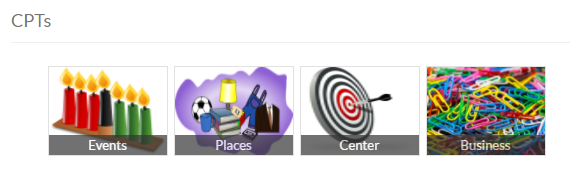
This example shows a widget with the CPT images at 120×90 pixels:
[gd_cpt_listings cpt_img_width=120 cpt_img_height=90]

This example shows a widget with a custom title, and does not show a link to the gd_place CPT:
[gd_cpt_listings title="Browse listings" cpt_exclude=gd_place]

Franchise Manager Add-on

On this page

Introduction Applications Installation Configuration Integration with the Pricing Manager addon
Usage Adding the main listing Adding the branch listingsPrice Options

Introduction

The Franchise Manager allows users to submit listings for chains of businesses or franchises faster and allows directory owners to monetize those listings in a smarter way if combined with the Prices and Payments Addon.

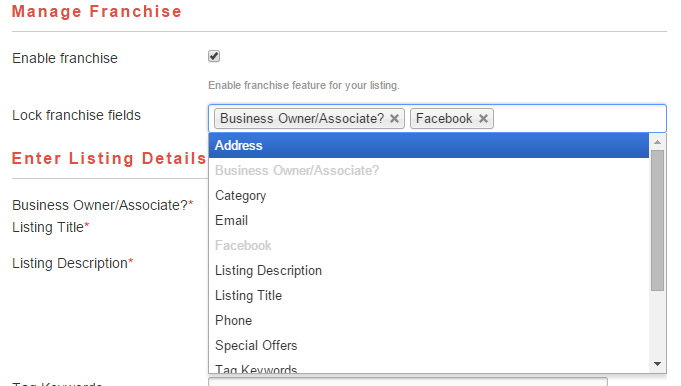
After entering the main listing for a new Chain, fields of the Add Listing form can be locked. This way you can pre-populate most fields but allow the address, telephone number and email address to be entered separately for all branches of the chain. When the main listing is edited, locked fields are edited for all branches too.

If the Prices and Payments Addon is installed, you need to enable franchises for the price packages of your choice, and you can set a different price for the main listing and a different price for the extra branches.
If not using the Prices and Payments addon, franchises will automatically be activated for all of your listings.

A new tab appears in all listings belonging to a franchise, showing the other franchisees listings.

It is possible to browse the list of all franchisees belonging to the same chain in a regular listings page too.

Applications

Here are a few examples to give you an idea how you could use the Franchise Manager:

Main listing Branch listings
Fast food chain All locations
Brewer of special beer All distributors
Rock band All regular venues where the band plays
Dietician All health centers visited regularly

Installation

Installation is done by uploading the ZIP file in the plugin section of your WordPress admin area.

Installing GD Addons

Configuration

Setup

Once you activated the Franchise Manager, you will get a new set of settings in the GD admin panel:

Most settings at GD > Franchise Settings are straight forward.

First you need to select the Custom Post Type(s) where you want to enable the Franchise features:

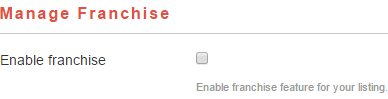
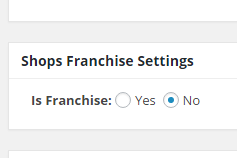
If you are not using the Payments Manager, then a new option will be available in both the frontend and backend Add Listing form for that CPT:

Frontend Backend

Integration with the Pricing Manager addon

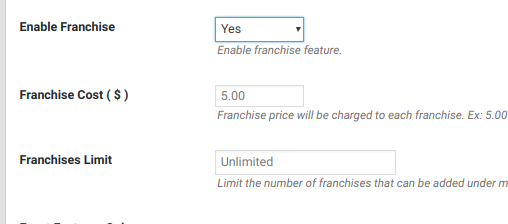
  1. If you are using the Payments Manager addon, then you will need to allow Franchises in the relevant price package before your users will have the option to use the franchise feature.
  2. You will first need to Enable Franchise in the price package and then save.
  3. Then re-edit the same price package to set the Franchise Cost and  the Franchises Limit.

Usage

Adding the main listing

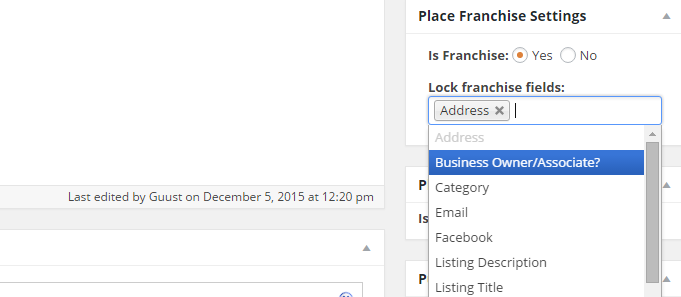
  1. When the user add their main listing, they can lock selected fields for all the branch listings.
  2. The locked fields will be auto-populated in any branch listing submitted.
  3. If adding a franchise in the backend, these options will appear in the sidebar:

Adding the branch listings

  1. Branch listings can only be submitted by the same user that added the main listing.
  2. Branch listings need to be added from the front end.
  3. The custom fields locked by the main listing owner cannot be edited in the branch listings.
  4. If the main listing owner updates a locked field in the main listing, the same custom field will be updated in all branch listings.
    Example: a fast food chain has locked the special offer field, and can change that field on all branch listings to run a promotion in all the stores.

Price Options

If you are all setup and ready to sell the franchise listing option to your listing owner customers, then you will need to add the franchise option to at least once of your Price Packages. Go to:

GeoDirectory – Prices and Payments – Prices (tab) – Edit (choose a package to allow franchises)

Adjust the franchise options for the package as desired.

Common code snippets

On this page:

Introduction Add the package ID to the body attribute Adding CPT-specific content on top of the Add Listing page Making the listing description optional Sorting on Listings pages: Featured first, then alphabetic Detail Page Hide ‘No Reviews’ Remove GD Scripts Supreme Directory Showing icons instead of category links in list and grid view

Introduction

We recommend using the Code Snippets plugin to add custom PHP code.
CSS can be added to GD > Design > Scripts

Add the package ID to the body attribute

  1. If you want to change the looks of the detail page depending on the price package, you can do that by adding the ID to the code of the detail page:
  2. To do this, add this code to your child theme’s functions.php file:

    [php]
    // add the package id to the body
    add_filter( ‘body_class’, ‘my_add_package_class’,10,1 );
    function my_add_package_class($class){
    global $post;
    if (geodir_is_page(‘detail’) && isset($post->package_id)) {
    $class[] = "gd-package-id-".$post->package_id;
    }
    return $class;
    }
    [/php]

  3. You can now target elements of the detail page using the package ID class, for example

    [css]
    .gd-package-id-1 .geodir-tags {display: none}
    [/css]

    would hide tags for price packages with ID 1.

Adding CPT-specific content on top of the Add Listing page

  1. If you want to add any special content to your Add Listing page, you can just add that in the content section using the normal way of editing your WP page “Add Listing”.
  2. If you want to add content specific to a CPT you can use this code, adjust as required:

    [php]
    function geodir_add_place_before_main_content_custom() {
    if (isset($_GET[‘listing_type’]) && $_GET[‘listing_type’] == ‘gd_place’) {
    ?>

    <div>bla bla</div>

    <?php
    }
    }
    add_action(‘geodir_add_listing_before_main_content’, ‘geodir_add_place_before_main_content_custom’);
    [/php]

Making the listing description optional

  1. The listing description field on the Add Listing page is a required field by default.
  2. You can make the description field optional by adding some JS and CSS code.
  3. Add the following code to GD > Design > Scripts tab > Footer script code:

    [javascript]
    <img src="data:image/gif;base64,R0lGODlhAQABAIAAAAAAAP///yH5BAEAAAAALAAAAAABAAEAAAIBRAA7" data-wp-preserve="%3Cscript%20type%3D%22text%2Fjavascript%22%3E%0AjQuery(%20document%20).ready(function()%20%7B%0A%20%20%20%20jQuery(%22%23geodir_post_desc_row%22).removeClass(%22required_field%22)%3B%0A%7D)%3B%0A%3C%2Fscript%3E" data-mce-resize="false" data-mce-placeholder="1" class="mce-object" width="20" height="20" alt="&lt;script&gt;" title="&lt;script&gt;" />
    [/javascript]

  4. Also add the following CSS code:

    [css]
    #geodir_post_desc_row label span,
    #geodir_post_desc_row .geodir_message_error {
    display:none !important;
    }
    [/css]

Sorting on Listings pages: Featured first, then alphabetic

  1. The sorting options for listings can only set one default sorting option.
  2. The following code will order alphabetically even if the default order is set to show featured listings first:

    [php]
    add_filter(‘geodir_posts_order_by_sort’,’_my_custom_order_by’,10,3);
    function _my_custom_order_by($orderby, $sort_by, $table){
    global $wpdb;

    if($sort_by==’is_featured_asc’){
    $orderby .= " $wpdb->posts.post_title ASC, ";
    }
    return $orderby;
    }
    [/php]

Detail page – hide ‘No Reviews’ text if there are no reviews

  1. Maybe you have a new site without a lot of reviews.
  2. The following code will hide the ‘no Reviews’ text

    [php]
    function _gd_custom_hide_no_review_text( $class ) {
    global $post;
    if ( empty( $post->rating_count ) ) {
    $class .= ‘gd-custom-no-review’;
    }
    return $class;
    }
    add_filter( ‘geodir_post_view_article_extra_class’, ‘_gd_custom_hide_no_review_text’, 10, 1 );
    [/php]

    And this short bit of CSS
    .gd-custom-no-review .geodir-entry-meta a.geodir-pcomments {
    display: none !important;
    }

Snippet to Remove GeoDirectory Scripts

Some site owner may want to optimize their site by loading GD scripts only on GD pages. The following applies only to GD core. Each Addon has additional scripts.
In GD core most of the scripts and styles are loaded via geodir_templates_scripts() and geodir_templates_styles() functions. You can use the following to skip loading of GD Core scripts.

[php]
remove_action( ‘wp_enqueue_scripts’, ‘geodir_templates_scripts’ );
remove_action( ‘wp_enqueue_scripts’, ‘geodir_templates_styles’, 8 );
[/php]

geodir_is_geodir_page() is used to identify the GD page

Here’s a Snippet that will execute only on GD Pages.
*Caution* – Snippet below is only capable of detecting GD Pages, and will not detect other WP pages where you might be using a shortcode or widget. Use with Caution!

[php]
add_action( ‘wp’, ‘wpdocs_dequeue_script’, 100 );
function wpdocs_dequeue_script() {
if (!geodir_is_geodir_page()){
remove_action(‘wp_enqueue_scripts’, ‘geodir_templates_scripts’);
remove_action(‘wp_enqueue_scripts’, ‘geodir_templates_styles’, 8);
}
}
[/php]

Common Code Snippets for Supreme Directory

See the Supreme Directory FAQ page

Showing icons instead of category links in list and grid view

Let’s change this

into this

  1. Make sure to add categories to the Listings pages, as explained here:
  2. Now add this PHP code as a new Code Snippet or to your child theme’s functions.php:

    [php]
    function _gd_custom_listing_view_category_icon( $html, $location, $cf ) {
    global $post, $_gd_custom_term_icons;

    $html_var = $cf[‘htmlvar_name’];

    if ( !empty( $post->post_type ) && $html_var == $post->post_type . ‘category’ && !empty( $post->{$html_var} ) ) {
    if ( empty( $_gd_custom_term_icons ) ) {
    $_gd_custom_term_icons = geodir_get_term_icon();
    }

    $post_taxonomy = $post->post_type . ‘category’;
    $field_value = $post->{$html_var};
    $links = array();
    $terms = array();
    $termsOrdered = array();
    if (!is_array($field_value)) {
    $field_value = explode(",", trim($field_value, ","));
    }

    $field_value = array_unique($field_value);

    if (!empty($field_value)) {
    foreach ($field_value as $term) {
    $term = trim($term);

    if ($term != ”) {
    $term = get_term_by(‘id’, $term, $html_var);
    if (is_object($term)) {
    $term_icon_url = ! empty( $_gd_custom_term_icons ) && isset( $_gd_custom_term_icons[ $term->term_id ] ) ? $_gd_custom_term_icons[ $term->term_id ] : ”;
    $term_link = ‘<a title="’ . esc_attr( $term->name ) . ‘" href="’ . esc_attr(get_term_link($term, $post_taxonomy)) . ‘"><img src="’ . $term_icon_url . ‘" alt="’ . esc_attr( $term->slug ) . ‘ icon" class="_gd-custom-cat-icon" /></a>’;
    //$term_link .= " <a href=’" . esc_attr(get_term_link($term, $post_taxonomy)) . "’>" . $term->name . "</a>";
    $links[] = $term_link;
    $terms[] = $term;
    }
    }
    }
    if (!empty($links)) {
    // order alphabetically
    asort($links);
    foreach (array_keys($links) as $key) {
    $termsOrdered[$key] = $terms[$key];
    }
    $terms = $termsOrdered;
    }
    }
    //$html_value = !empty($links) && !empty($terms) ? wp_sprintf(‘%l’, $links, (object)$terms) : ”;
    $html_value = !empty($links) ? implode(‘ ‘, $links) : ”;

    if ($html_value != ”) {
    $field_icon = geodir_field_icon_proccess($cf);
    if (strpos($field_icon, ‘http’) !== false) {
    $field_icon_af = ”;
    } else if ($field_icon == ”) {
    $field_icon_af = ”;
    } else {
    $field_icon_af = $field_icon;
    $field_icon = ”;
    }

    $html = ‘
    <div class="geodir_more_info ‘ . $cf[‘css_class’] . ‘ ‘ . $html_var . ‘" style="clear:both;"><span class="geodir-i-taxonomy geodir-i-category" style="’ . $field_icon . ‘">’ . $field_icon_af;
    $html .= (trim($cf[‘site_title’])) ? __($cf[‘site_title’], ‘geodirectory’) . ‘: ‘ : ”;
    $html .= ‘</span> ‘ . $html_value . ‘</div>

    ‘;
    }
    }

    return $html;
    }
    add_filter( ‘geodir_custom_field_output_taxonomy_key_taxonomy’, ‘_gd_custom_listing_view_category_icon’, 10, 3 );
    [/php]

  3. And add this CSS:
    [css]
    .geodir_category_list_view ._gd-custom-cat-icon {
    vertical-align: middle;
    height: 24px;
    margin: 0 5px;
    }
    [/css]

Location Manager Addon – Widgets

This page is a work in progress …

When you install the Location Manager Addon, you’ll find a number of new GD widgets in the appearance section of your WP admin area.

Widget name Can be used on these pages:
Home Listings Search Detail Author Non-GD pages
GD > Location Description yes yes yes yes yes yes
GD > Popular Location yes yes yes yes yes yes

GD > Location Description

  1. For each location (city or town), you can add custom content for both the meta description and on-page content.
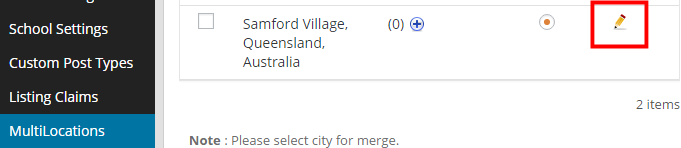
  2. Navigate to GeoDirectory > Multilocations > Manage Location and filter for the location.
  3. Then choose edit:
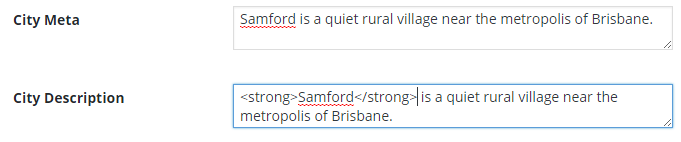
  4. Towards the bottom of the editing page, you will find City Meta and City Description fields.
    Enter your data (you can use HTML in the City Description field):
  5. The City Meta data will now be added to the source of the relevant location page:
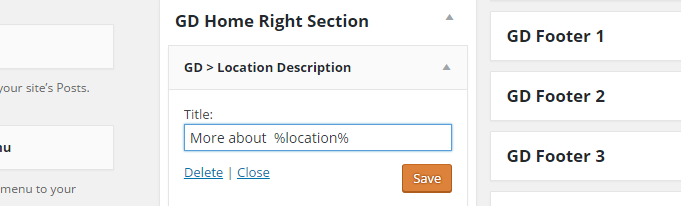
  6. To add the City Description to the page, add the GD > Location Description widget to any widget area of the Home (Location) sections.
    You can use %location% in the title, that will adjust to the location name:
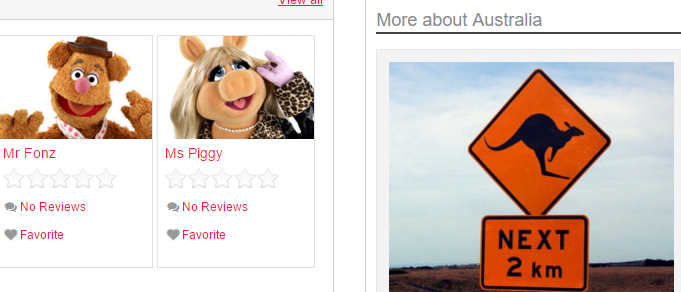
  7. This is how it will show on the location page (The widget will only show on location pages that have custom data added):
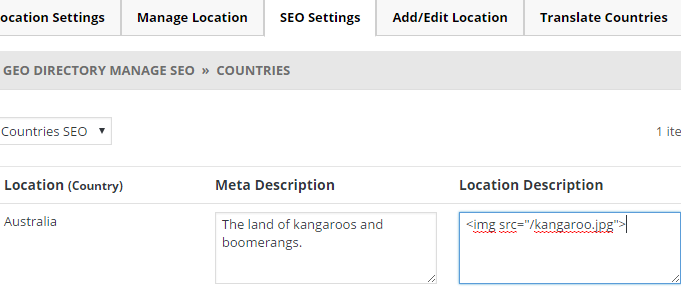
  8. For regions and countries, you will find the Meta Description and Location Description fields at the SEO Settings tab:

GD > Popular Location

  1. This widget will add a list of links to locations on your pages.
  2. Look in the sidebar of this demo page for an example.

Options

  1. Title: Leave blank if you do not want a heading
  2. Number of locations: By default all locations will be displayed, unless you add a number here.
  3. Pagination:
  4. Don’t filter for current location: by default, the widget will only display links to locations within the selected country or region. Ticking this option will display popular locations outside the selected country or region too.

GD Core Plugin – Theme Compatibility

These are the sections you will find when you install the GeoDirectory Core (free) plugin only:

OverviewGeneral – Google AnalyticsDesignPermalinksNotificationsSet Default LocationPlace Settings – Theme Compatibility – Import & ExportGD Tools

GD Core Plugin – Theme Compatibility

GeoDirectory is compatible with any theme that features templates that follow the default HTML5 structure.

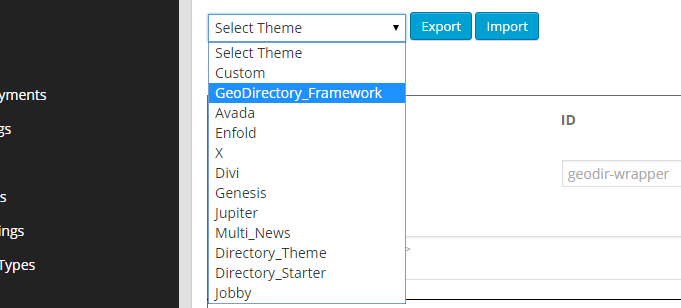
For any theme featuring custom HTML5 structures, it can be adjusted using the theme compatibility admin page.

For some themes we included the tweaks needed to get out of the box compatibility:

  • 2017
  • Avada
  • Boss
  • Divi
  • Enfold
  • Flatsome
  • Genesis
  • GeoDirectory Framework (of course)
  • Jobby
  • Jupiter
  • Kleo
  • MultiNews
  • X

By selecting each of them you will see that the options below will change.

For any theme featuring custom html5 structures that is not on that list, the compatibility options have to be tweaked accordingly.

This requires a little bit of experience templating with HTML and CSS.

GD Core Plugin – GD Tools

These are the sections you will find when you install the GeoDirectory Core (free) plugin only:

OverviewGeneral – Google AnalyticsDesignPermalinksNotificationsSet Default LocationPlace Settings – Theme Compatibility – Import & ExportGD Tools

On this page:

GD pages check – Multisite DB conversion check – Ratings check – Sync GD tags – Sync GD Categories – Clear all GD version numbers – Load custom fields translation

GeoDirectory > GD Tools

The GD Tools are your friend when things go wrong, and you should run these checks before seeking support.
If there is anything that seems broken, the GD tools might identify your problem and even fix it.

GD pages check

Run this tool if your GD pages are not working as you expect, or seem to be missing.

Multisite DB conversion check

This tool was introduced when GD became multi-site compatible a while ago. It is still useful to check if your GD database tables are intact and existing as expected. 

Ratings check

Checks ratings for correct location and content settings.

Sync GD tags

This tool can be used when tags are showing in the back end but are missing from the front end.

Sync GD Categories

This tool can be used when categories are missing from the details table (so they do not show up on the detail pages of your listings) but showing in other places in the back end (only checks posts with missing category info in details table).

Clear all GD version numbers

This tool will clear all GD version numbers so any upgrade functions will run again. 

Load custom fields translation

Translating custom fields is explained in detail here.

GD Core Plugin – Export & Import

These are the sections you will find when you install the GeoDirectory Core (free) plugin only:

OverviewGeneral – Google AnalyticsDesignPermalinksNotificationsSet Default LocationPlace Settings – Theme Compatibility – Import & ExportGD Tools

On this page:

Important things to know – GD Listings – Import CSVMandatory fields for listings – Other fieldsUploading images – Import tips – GD Listings – Export CSV – GD Categories – Import CSV – Mandatory fields for categories – GD Categories – Export CSV – Tips and Tricks – Useful resources

GeoDirectory > Import & Export

The Import & Export page allows you to upload listings or categories via a CSV file.

Go to your WordPress Dashboard and navigate to GeoDirectory > Import & Export 
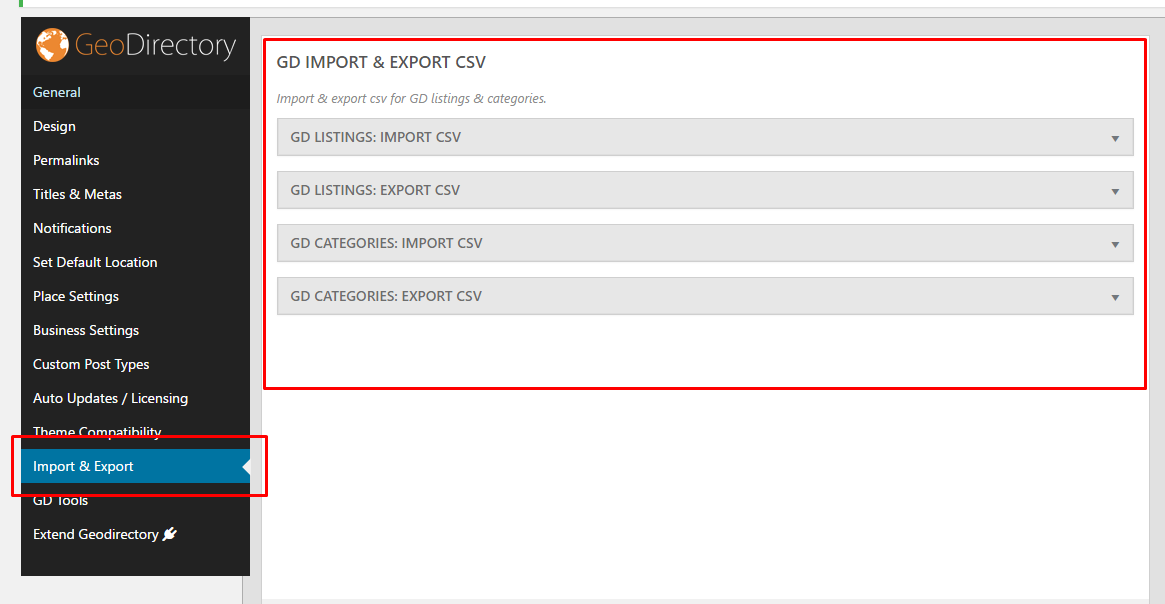
You can also download your listings.

Important things to know !

CSV files should only be edited with OpenOffice or LibreOffice Calc. This is because Microsoft Excel has auto-formatting built in which can not be disabled; we have seen many cases where this leads to broken phone numbers, addresses and 90% of the time wrong GPS information.

Download OpenOffice here: https://www.openoffice.org/download

Download LibreOffice here: http://www.libreoffice.org

  1. Do not change the order or the names of the columns of the CSV files.
  2. Do not delete any columns.
  3. Data separator for the CSV file MUST be comma (,) and delimiter MUST be double-quote (“)
  4. When adding a listing in a subcategory, you should also add the main category. Separate category names with a comma
  5. Categories may not contain commas. Categories with commas will make your import fail.
  6. You may import any UTF-8 characters from any language, but your spreadsheet must be UTF-8. If your CSV is not UTF-8 it will probably fail, so, save CSV as UTF-8.

GD Listings – Import CSV

The Import CSV  section allows you to upload listings via a CSV file.
You also can download a sample CSV file to get you started.

post_id
  • The first column in the CSV file is for the post_id.
  • This field should be left blank, unless you want to update (overwrite) a listing.
  • You can get the post_id of existing listings by exporting your GD listings.
  • Do NOT add a post_id when importing new listings; WP needs to create its own post_id to avoid database conflicts.

Your CSV listings file needs to have data for all mandatory fields for the listings you want to upload.

These are the mandatory fields for listings:

  • post_title: title or heading
  • post_author: the WordPress ID of the WP user, for example you can use 1 for the first admin account created
  • post_content: description
  • post_category: use the name of the category or the slug;
    • this category has to be created for the post_type before you import!
    • if adding the listing in a sub-category, also add the parent category
  • post_type: for example gd_place or gd_event; this CPT has to be created in WP admin before you import!
    Keep reading for mandatory fields for gd_event post types.

The following fields (also mandatory) all relate to the location of your listings.

Note 1: If you are using the Custom Post Type addon and have disabled the requirement to use a physical location for a CPT, then you can leave these fields blank.

Note 2: We strongly suggest to add a few listings from the frontend, and then export those listings first. That will show you the type and format of the data required to be imported. Also, review the location notes if you have not done so already. 

If you want to add locations outside your default location, you will need to install the MultiLocations addon before you can import your data.

  • post_address: Street address [This can be the actual street address, or the name of the Business, etc – it just cannot be blank]
  • post_city: City, town etc
  • post_region: state, province etc
  • post_country: country
  • post_latitude: latitude in signed degrees format, for example -20.97625669
  • post_longitude: longitude in signed degrees format, for example 162.45444

The following fields (also mandatory) all relate to the date and time of your events.

  • event_date: This is the first date of the event – use this format 19/07/2015 even if the display of your dates is set different in your WP admin.
  • event_enddate: Must be completed unless the event is recurring.
  • For recurring events, we suggest you add at least one using the frontend or backend of your site, and then export the CSV file do review the requirements for the various fields.

Other fields

  • post_author: Enter the ID of the user you want to assign the listing to. If left blank, then the post will be assigned to the user with ID 1, usually the administrator.
  • post_status: Enter either publish or draft. If left blank, then the listing will be set to draft.

Uploading images

  • The CSV file has columns for any images you want to add to your listings, look for the IMAGE columns,
  • You can add additional columns if you want to add more images to your listings, they all should be named IMAGE.
  • You only need to add the filename of the image, for example photo.jpg. The extension should be in lowercase, ie: .jpg, not .JPG. Uppercase file extensions will result in the image not being recognized when viewed in the site.
  • When you finished uploading your CSV file, you need to upload your images by FTP into the upload folder for the current month; the folder location will be in this format:
    /wp-content/uploads/year/month, for example /wp-content/uploads/2014/11
  • The filename of the image will be used for the title attribute of the image, for example My_Photo.jpg will give a title attribute of My_Photo.
  • The optimum image size is 800 x 600 pixels.
  • Make sure your WordPress settings are set as follows: Settings > Media > Organise my uploads into month- and year-based folders, and Save changes > Yes.

Import tips

  1. It is possible that your category counts in the popular category or the CPT categories widget needs fixing after importing new listings. To do that go to GD > GD Tools and run Location category counts.

GD Listings – Export CSV

Exporting your listings gives you the opportunity to edit listings and re-upload them.

Exporting is also very handy after you have created extra custom fields or categories; just create one finished listing with the custom fields etc, and then export to get your very own sample CSV you can then use to upload your other listings.

GD Categories – Import CSV

You can import your categories and subcategories using a CSV file instead of adding your categories one by one from the admin area.

Download the sample file to check out the required structure and data.

Do NOT add a cat_id when importing new categories; WP needs to create its own cat_id to avoid database conflicts.

Your CSV categories file needs to have data for all mandatory fields for the categories you want to upload.

These are the mandatory category fields for categories:

  • cat_name: the name of the category
  • cat_slug: the slug to be used in your URLs
  • cat_posttype: for example gd_place or gd_event; this CPT has to be created in WP admin before you import!
  • cat_icon: the map marker to be used on your maps

GD Categories – Export CSV

Exporting your categories gives you the opportunity to edit them and re-upload them.

Tips and Tricks

See also CSV Tips and Tricks

Moving posts from one post type to another

  1. Create the new Custom Post Type and its categories
  2. Export the listings from the old CPT
  3. Change the post_type and post_category in the exported file
  4. Check the following import option: Update listing if post with post_id already exists.
  5. This will move all the listings from the gd_place table into the new CPT table, changing the categories.

Adding latitude and longitude in bulk to your CSV import file

The Find Latitude and Longitude website is currently offline while they are changing their site from a free tool to a paid version.

Go the the batch code page at the Find Latitude and Longitude website.

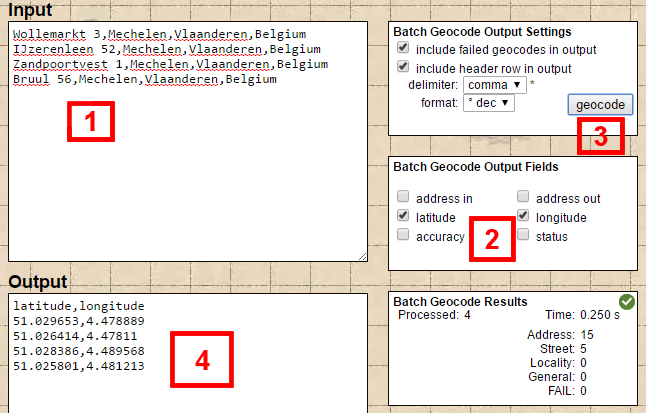
Step 1: Input one address per line in the input field:

  1. The easiest is to add the addresses to the CSV file first, and then copy and paste into the input field.

Step 2: Adjust the Batch Geocode Output Fields settings (optional)

Step 3: Click the Geocode button in the Batch Geocode Settings box.

Step 4: Copy the list that appeared in the output field with all the lat and long coordinates and paste it directly into your CSV file.
Useful resources

  1. myGeoPosition.com
  2. Find Latitude and Longitude
    The Find Latitude and Longitude website is currently offline while they are changing their site from a free tool to a paid version.
  3. geocodio: convert US and Canadian street addresses only into map coordinates and vice versa.
  4. Géocoder un fichier CSV: convert French street addresses only into map coordinates
  5. GPS Visualizer’s Address Locator: you will need to use your own API key
  6. Batch geocoding
  7. Batch geocoding – US only

Troubleshooting

Enable Debugging to Generate Error Logs for Imports

If, after reading the document above, the import is still encountering errors, you can enable debugging in WordPress so that the import will create error logs that will contain more details about the issues with the import.

  1. Enable debugging: https://www.wpbeginner.com/wp-tutorials/how-to-set-up-wordpress-error-logs-in-wp-config/
  2. Re-run the import.
  3. Review the WordPress error log.
  4. Address problems with the import file.
  5. Re-run the import.
  6. Review the WordPress error log.
  7. If additional questions remain about how to remedy errors with the import file, create a support request