GD Core Plugin – Place Settings

These are the sections you will find when you install the GeoDirectory Core (free) plugin only:

OverviewGeneral – Google AnalyticsDesignPermalinksNotificationsSet Default LocationPlace Settings – Theme Compatibility – Import & ExportGD Tools

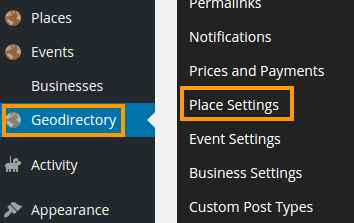
GeoDirectory > Place Settings

This part of the documentation explains the GD options at GeoDirectory > Place Settings

Further below is an image showing where to find the options, and this table links you to the details for each option:

General
Custom Fields Common settings for Custom Fields – FieldsetTextMulti SelectSelect – Textarea – Checkbox – Radio – URL – File Upload – DateTimePhoneEmailHTML
Sorting Options

General

  1. Places is the name of the default Custom Post Type (CPT) installed as part of the GD core installation.
  2. It is like the top category for listings in your GD directory.
  3. The information on this page is also relevant for any other CPT you install when you use the Custom Post Types add-on or the Events add-on.

Custom Fields

  1. When you go to GD > Place Settings, you will see a tab with Custom Fields.
  2. You will see a number of default custom fields already, like Category, Address, Website etc.
  3. You can add also your own fields, by choosing from the list of available types on the left hand side.

Common settings for Custom Fields

Admin title This title is only used to give a name to the Custom Field in the Custom Field settings area.
Frontend title This title is used on both the submission form and on the page where you choose the field to be displayed.
Frontend description Will be used on the submission form only, to help your users understand the information required.
HTML variable name Only used to create the custom field in your database.
Do not use spaces or special characters for this!
Is active Turns the field on or off across your site.
For Admin use only? Choosing YES here, will not allow your users to edit the field; only administrators will be able to edit this field.
This option is only available for custom fields you create yourself, not for the default GD fields.
Default value A value used if the user does not enter anything.
Only relevant for some Custom Field types.
Show in what locations? Options here include:

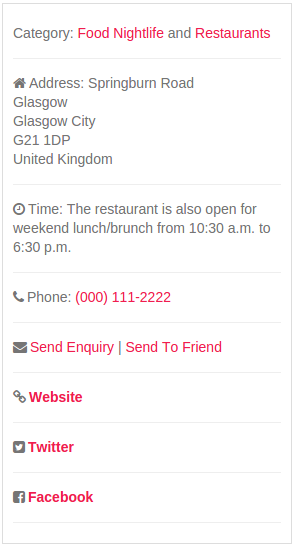
  1. Details page sidebar: Adds it to the sidebar of the detail page of the listing
  2. More info tab: Adds the custom field to the “More info” tab
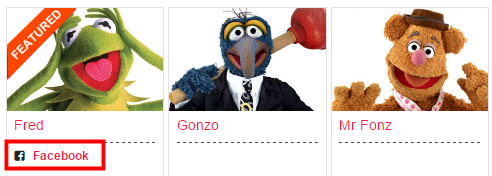
  3. Listings page: Adds the custom field to the listing display on the listings page (category page) and the search pages, and the Popular Post widgets.
  4. Details page own tab: Selecting this for a fieldset will create a new tab, selecting this for a custom field will show the custom field under the fieldset with the same setting above it
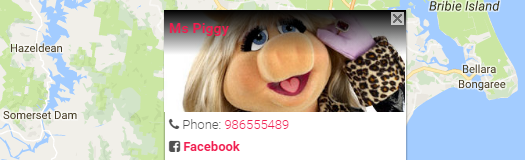
  5. Map bubble: Adds the custom field to the listings infowindows on every map
Show only on these price packages? This will only show if you have the Prices and Payments add-on activated.
You can choose which price packages will be able to add this custom field.
If you have chosen the allowed fields in the price package itself already, then you do not need to set this again.
Is required Setting this to YES will make the field compulsory.
Required message If you set Is required to YES, then enter a message that will be displayed if the field is left empty.
Upload icon You can enter the URL of an icon you uploaded, or you can use a font awesome class.
Examples:

Entering fa fa-book will add an icon like this:
Entering fa fa-camera-retro fa-3x will add an icon like this:
CSS class: Here you can add a styling class that will be applied to the custom field when it is displayed on your site.
Every custom field is displayed in its own <div>, and the class will be added to that.
Include this field in sort option This will allow for listings on your listings and search pages, to be sorted by this field. Read more at Sorting Options.
Include this field in advanced search This will only show if you have the Advanced Search add-on activated.
This will add the custom field as a possible filter to the GD Search.

Fieldset

  1. A fieldset helps you to group your custom fields.
  2. It is very much like a heading or a divider.
  3. A fieldset is only used to display on your pages, users cannot add data to it.
  4. If you select Details page own tab at the Show in what locations? selections, then a new tab will be created for the custom fields ordered under this fieldset, and which also have Details page own tab selected.

Text Custom Field

  1. Character type:
    1. Choose this type of field and your users will be able to enter any combination of letter, numbers, symbols etc.
  2. Number type:
    1. This type will return any number as a whole number only.
    2. For example if you enter 55.65, the field will display 55.
  3. Decimal type:
    1. This type will return any number with your choice of numbers behind the decimal point.
    2. For example if you have selected the decimal point as 3, and you enter 49.2, the field will display 49.200.

Multi Select Custom Field

  1. The Multi Select field allows your users to select a number of entries from a list you create.
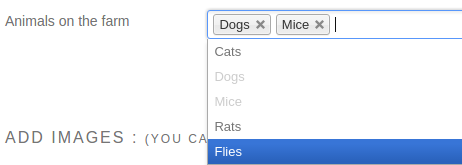
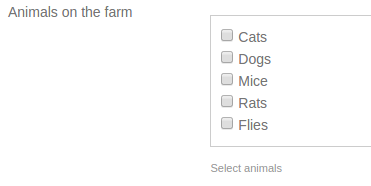
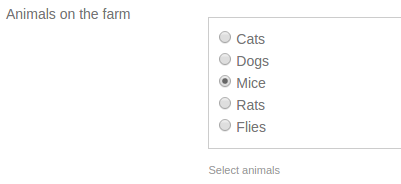
  2. You have the choice of three display types: Select, Checkbox and Radio.
  3. Both Select and Checkbox allow your users to choose more than one item from your list.
  4. The Radio display type is used if your users should be restricted to one selection only.
  5. You cannot use the following characters as part of your options: forward slash / or a comma ,
    (these characters are reserved for separating options and code).
  6. Do not leave spaces between values when separated with commas.
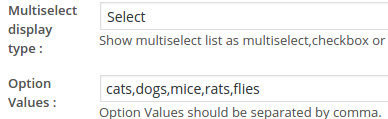
  7. This is an example of a setup of a Multi Select custom field
  8. This is how that would look on the submission form:
  9. The same setup, but with Checkbox as the display type, would look like this on the submission form:
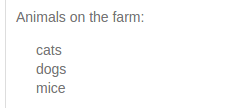
  10. And this would be the result on the listing:
  11. Using the same settings as above, but adding gd-comma-list in the CSS class field, the output would look like this:

  12. Using the Radio display type, only one choice will be possible:
Select Custom Field

  1. The Select Custom Field allows your users to select one option only from a list.
  2. Select Custom Fields can also be added to the GD Search Bar.
  3. You cannot use the following characters as part of your options: forward slash / or a comma ,
    (these characters are reserved for separating options and code).
  4. Example 1:
    1. Frontend Title: Serving
    2. You can allow a number of possible choices
    3. Option values: Coffee,Tea,Coffee and Tea
    4. When adding the listing, the user can choose only one of these choices (assume they choose “Coffee and Tea”, and the result will look like this:

  5. Example 2:
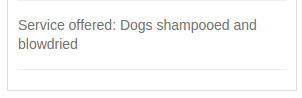
    1. Frontend Title: Service offered
    2. You can enter the possible choices as options, and add more detailed text to be printed on the detail page
    3. Option values: Dog walking/We will walk your dog,Dog washing/Dogs shampooed and blowdried
    4. When adding the listing, this is what the user sees:

    5. The user can choose only one of these choices (assume they choose “Dog washing”, and the result will look like this:
Textarea Custom Field

  1. A textarea field allows for free-flowing text.

Checkbox Custom Field

  1. This allows a user to simply check a box, and then it will add the custom field title and the word Yes to the listing.
  2. Example:
    checkbox

Radio Custom Field

  1. Similar to the Select Custom Field, but only requires a radio button to be selected.
  2. Do not leave spaces between values when separated with commas.
  3. Example:
    1. Frontend Title: Available
    2. You can allow a number of possible choices, but the user can only select one of them
    3. Option values: Beer,Wine,Beer and Wine

URL Custom Field

  1. Allows your users to add additional links to their listing.
  2. Example 1:
    1. Frontend Title: Click here to visit our forum
    2. If they then enter their URL, it will look like this and will be linked:

      url
  3. Example 2:
    1. Frontend Title: Click here
    2. Your users can create links in this format: URL|anchor text
    3. For example when entering https://wpgeodirectory.com|GeoDirectory documentationit will add a link like this:

File Upload Custom Field

  1. Allow your users to upload most types of file.
  2. You can select the type of file that can be uploaded: Image, video, audio files and document types.
  3. Example:
    menu

Date Custom Field

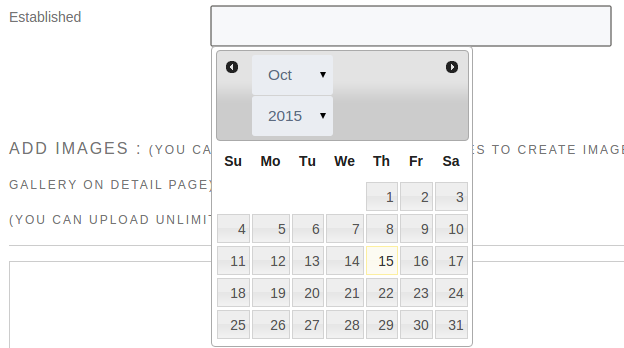
  1. This will add a date picker to the Add Listing form.
  2. You can choose how the date will be displayed by adjusting the date format field:
    1. dd/mm/y = 02/10/15
    2. mm-dd-yy = 10-02-2015
    3. dd-M-yy = 02-Oct-2015
  3. Example on Add Listing form:
    date
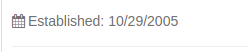
  4. Result on detail page:
    date

Time Custom Field

  1. Similar to the date field, the Time custom field will allow your users to select a time of day.

Phone Custom Field

  1. This field will make any phone number entered clickable and will connect with the relevant application on the device where the visitor is browsing your website.
  2. For example, this allows you to add extra phone fields for cell phones or office phone etc, in addition to the default phone field.

Email Custom Field

  1. This field will just print an email address as part of the listing.
  2. This is not the same as the default custom field for each listing, which will accept an email and create an online contact popup with a hidden email address.
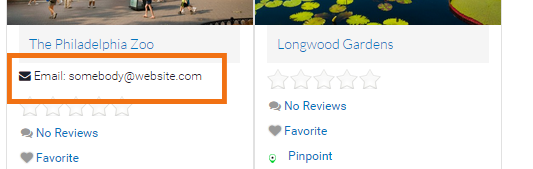
  3. Example:
    email

HTML Custom Field

  1. This will add a textarea complete with a visual and text rich text editor, just like your post or page editor in your WordPresss admin area.

Sorting Options

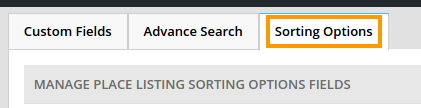
In your Place Settings (or the settings of any other Custom Post Type) you have a tab called Sorting Options.
sorting options

  1. The Sorting Options control how listings are ordered on your Listings (category) pages and in your search results.
    On the Search pages, only the default sort order will be used, and only if no keywords were used in the search.
  2. On the left hand side of the settings page, you will find a number of sorting options ready for you:
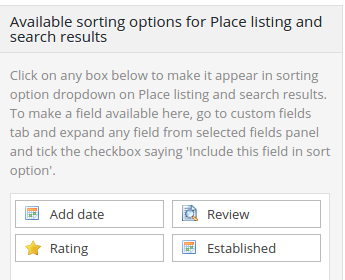
  3. You can add more options by going to your Custom Fields, and ticking the Include this field in sort option checkbox for the custom field you want to add to the sorting options.
  4. Click on any of the available sorting options on the left to make them available for sorting on your listings pages. Only the default option will be used in your search results.
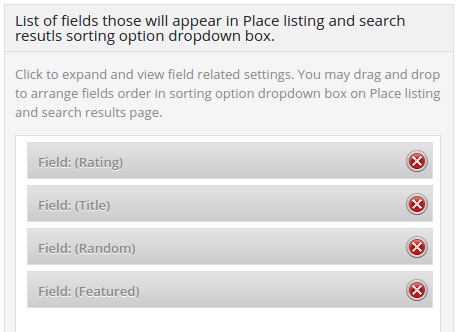
  5. That will move the sorting options to the right hand side of the options page, and now you can edit the settings for the sorting options you have chosen.
    Example:
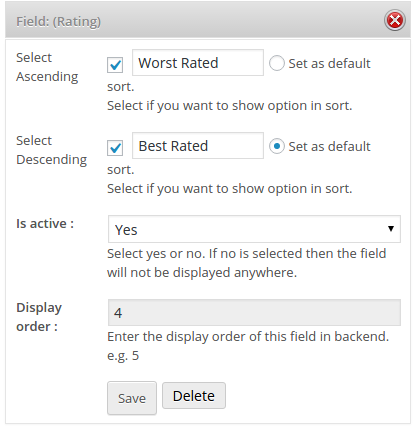
  6. Edit the settings by clicking the sorting option, and then save.
    You can drag and drop the different field types to change the order in the sorting drop down on your pages.
    Setting one of the options as default, will automatically sort by that option.
    Example:
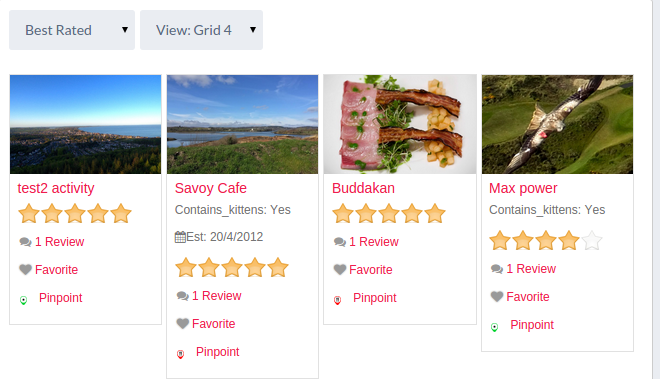
  7.  And here is an example of how it all would look on your website:
GD Core Plugin – Default Location

These are the sections you will find when you install the GeoDirectory Core (free) plugin only:

OverviewGeneral – Google AnalyticsDesignPermalinksNotificationsSet Default LocationPlace Settings – Theme Compatibility – Import & ExportGD Tools

GeoDirectory > Set Default Location

After you activated your GeoDirectory plugin, the first thing to do is to set a Default Location to get the plugin to work.

You have two ways to set the default location:

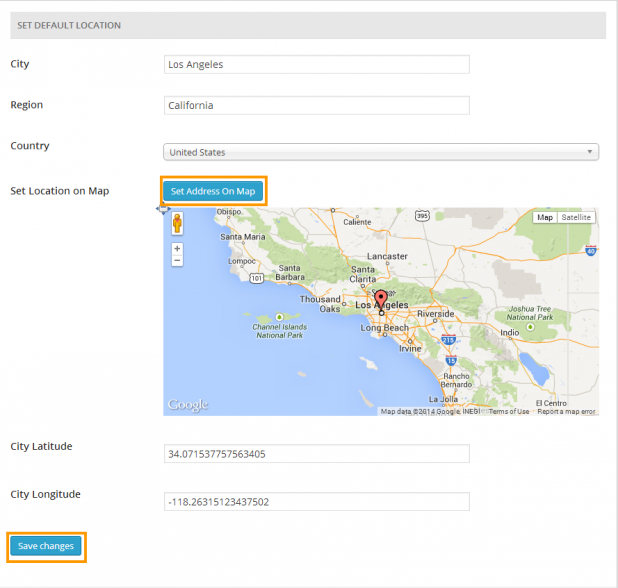
#1 Enter a city, region and country 

for your default location and then click Set Address On Map, this will set the GPS info as required and move the map marker to the correct location.

City: This refers to city, town etc.

Region: State, Province, etc, depending on your location.

Then click Save changes.

There is no need to enter the latitude or longitude.

Allow your site to connect to the Google database after you click Set Address On Map and before you save your location. This makes sure that your location is entered correctly.

#2 You can drag the map marker

to the location you wish to use as a default location and we will try to fill in the location details, you should check the location details and make any corrections as required.
Then click Save changes to set the default location.

There is no need to enter the latitude or longitude.

save-location

GD Core Plugin – Notifications

These are the sections you will find when you install the GeoDirectory Core (free) plugin only:

OverviewGeneral – Google AnalyticsDesignPermalinksNotifications Set Default LocationPlace Settings – Theme Compatibility – Import & ExportGD Tools

On this page:

OptionsSite BCC OptionsAdmin EmailsClient EmailsOther EmailsMessages

GD Core Plugin – Notifications

Options tab

List of usable shortcodes: You can use these in the email templates to personalize your emails. The same fields are used in the notifications of the Prices and Payments Addon,

  1. [#client_name#] The name your user entered on registration
  2. [#listing_link#] Link to the user’s listing
  3. [#posted_date#] Date the listing was submitted
  4. [#number_of_days#] In case you use the Prices and Payments Addon, this is the amount of days the listing was originally paid for.
  5. [#number_of_grace_days#] In case you use the Prices and Payments Addon, this is the amount of days set at GD > Prices and Payments > General tab > Enable pre expiry notice days, and is the number of days before the listing will expire or be downgraded.
  6. [#login_url#] Your site’s login URL.
  7. [#username#] Your user’s unique username.
  8. [#user_email#] Your user’s email address.
  9. [#site_name_url#] The URL of your website.
  10. [#renew_link#] In case you use the Prices and Payments Addon, this is where your users can go to renew their listing.
  11. [#post_id#]
  12. [#site_name#] The name of your site.
  13. [#from_email#] In most cases this will be your admin email, except for the Send to Friend  and the Email enquiry popup forms.  These forms will use automatically the email entered into the form by your site’s visitor.
  14. [#comments] These are the comments entered by your site’s visitor. Only relevant for the Send to Friend  and the Email enquiry popup forms. 

Site BCC Options tab

Here you can choose if you want to be notified of new registrations, Send to Friend, Email enquiry or new listings, 

Admin Emails tab

Edit the email sent to admin if you have chosen to receive notification of new listings.

Client Emails tab

Here you can edit the emails sent to your users when:

  1. they post a new listing
  2. they ask for a reset of their password (lost password)
  3. they register
  4. their listing gets published

Other Emails tab

Here you can edit the emails sent by the Send to Friend  and the Email enquiry popup forms.

Messages tab

Here you can edit the message that will be shown on your website after a user has submitted their listing.

GD Core Plugin – Design options

These are the sections you will find when you install the GeoDirectory Core (free) plugin only:

Overview General Google Analytics Design Permalinks Titles & Permalinks Notifications Set Default Location Place Settings Theme Compatibility Import & Export GD Tools

On this page:

Typical layout Home page Listings page Search page Detail (single listing) page Author page Navigation Scripts Map

Design options

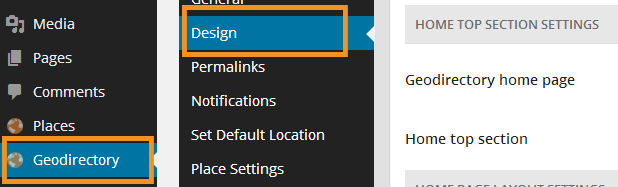
The image below shows where to find the design options:

Typical layout

Below is a standard layout of a WordPress site, using the GeoDirectory plugin.

Header section
Part of your theme: logo, header menu etc
GD Top section
Use GD widgets here like map, popular categories etc
GD Left section
Used for sidebar widgets
GD Content section
This content will vary depending on whether this is your GD home page, GD Listings page, GD Detail page or GD Search page
GD Right section
Used for sidebar widgets
GD Bottom section
Footer section
Part of your theme: footer menus, copyright text etc

GD uses 5 templates that are used to create all your directory pages:

  1. Home or location page
  2. Listings or category pages, used to display listings in a custom post type, category or subcategory
  3. Search page
  4. Detail page, displaying information of each individual listing
  5. Author page, showing all listings of a particular user so they can edit the listings, and their favorite listings.

You can enable or disable some of the sections (keep reading below), and then you can add widgets to the GD sections at Appearance > Widgets to customize the content of your GD pages.

There is also an submission page for your users to add their listings, and an accompanying page where the submission can be previewed.

Home page

FEATURES

The default GeoDirectory home page layout, featuring the fastest loading Google map ever built for a location based directory solution, is composed of 5 sections (See the typical layout image above).

The map, search and popular categories are usually added to the Top Section by adding the relevant widgets.

Each section can be shown or hidden in the GD > Design > Home part of your WP admin area.

The GD Home template is also used to create your pages for other locations, like regions and cities.

The width of the content sections can be set in % and all 5 sections are actually widget areas, so other elements can be added and GD widgets can be moved around as you wish from the WordPress widget administration page at Appearance > Widgets.

This template like other GD templates, can be easily customized by copying it inside your theme files, read more here.

HOME TOP SECTION SETTINGS

Geodirectory home page:
This option is now obsolete, and is now set at GD > Permalinks.

Home top section:
This will enable and show the Home Top Section widget area, this is a full page width area on your homepage that is good for things like maps and search bars.

HOME PAGE LAYOUT SETTINGS

Home right section:
This will enable and show the “Home right section” widget area, this is a widget area that appear on the right side of your GD homepage.

Width of home right section:
Here you can dynamically set the width of the “Home right sections” widget area.  You can enter the width as a percentage of the total width, you must enter a number only without the % sign, ie: 30

Home content section:
This will enable and show the “Home content section” widget area, this is a widget area that appear as the main content area of your GD homepage.

Width of home content section: 
Here you can dynamically set the width of the “Home content sections” widget area.  You can enter the width as a percentage of the total width, you must enter a number only without the % sign, ie: 63

Home left section:
This will enable and show the “Home left section” widget area, this is a widget area that appear on the left side of your GD homepage.

Width of home left section:
Here you can dynamically set the width of the “Home left sections” widget area.  You can enter the width as a percentage of the total width, you must enter a number only without the % sign, ie: 30

Home bottom section:
This will enable and show the “Home bottom section” widget area, this is a widget area that appear at the bottom of your GD homepage.

Resize image large size:
GD scales any images uploaded to a listing, to a maximum size of 800 x 800 pixels.
Checking the box here will change that scaling to a a maximum size of 1024 x 1024 pixels.

Listings page

LISTINGS PAGE LAYOUT SETTINGS

Just like the home (location) page, the listings page uses the 5 sections: top, left, right, content and bottom. Refer to the comments above for further information.

Upload listing no image:

This option lets you upload an image to use for listings when no images are uploaded by the user.

You can also upload default images for each category to show if the listing has no images uploaded, and that default image from the category will take priority over the image uploaded at the settings on the listings page. Navigate to your categories to upload a default image there if that is what you prefer.

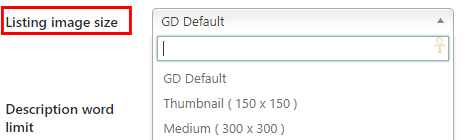
Listing image size:

On the Listings and Search pages, and in the Popular Post widgets, GD uses the featured image of a listing, which is the first of any images added to a listing:

  1. By default, the image used will be the full size image. The size of the full size image is set at GD > Design > Home tab > Resize image large size
  2. Instead of using the full size image, you can select a smaller version here:
  3. You can change the thumbnail sizes at WP Settings > Media
Description word limit:

This option will limit the word count of the description used on the GD category listings page if you have selected to show the listings as List view.

Hover listing map animation:

Ticking this option will make the map markers bounce on the Listings map when the mouse is hovered over one of the listings on the page.

LISTING GENERAL SETTINGS

New listing default status:
This option will set the status of new listings added from the front end by users. You can select from Publish, Pending Review or Draft.

New listings settings:
This is the number of days a listing will appear new after being added, new listings receive a “NEW” red tag to highlight the fact they are new, you can enter “0″ to disable this feature.

ADD LISTING FORM SETTINGS

Enable “Accept Terms and Conditions”:
Check the box if users should not be able to add their listing without accepting your terms and conditions.

  1. You will need to create a WP page first, and
  2. Select that page at GD > Permalinks > Terms and Conditions page

Show description field as editor: Here you can select the post types that will use the WYSIWYG editor on the add listings page description rather than a normal text area.

Search page

SEARCH PAGE LAYOUT SETTINGS

Just like the home (location) page and the listings (category) page, the search page uses the 5 sections: top, left, right, content and bottom. Refer to the comments above for further information.

Search content section view: Specific to the search page, you can choose the default display of the results, different grid views or list view.

SEARCH FORM DEFAULT TEXT SETTINGS

This is where you can adjust the default text used in the GD Search widget.

How does the GD search work?

  • When you enter a location in the Near field, GD will calculate the center of that location.
  • GD then will look for all listings within an area with a default that match the Search for criteria.
    • Search for criteria: GD will check the entry titles, description and taxonomies (tags and categories) of the listings.
  • Your default search area is set at GD > General > Search.
  • The search is not an IN search, but a search NEAR THE CENTER OF.
  • Examples, assuming your search area is set to 40 square miles (which equates to an area with about a 6 mile radius, not a 40 mile radius!):
    • If you enter World Trade Center, you will get listings around that building.
    • If you enter United States, you will get listings somewhere around Buffalo in Kansas, because that is where Google situates the center of the United States.
    • If you enter California, you will get listings somewhere in the Sierra National Forest.

Detail (single listing) page

DETAIL/SINGLE PAGE SETTINGS

Detail top section: This will enable and show the “Detail Top Section” widget area, this is a full page width area on your GD detail page that is good for things like maps and search bars.

Detail bottom section: This will enable and show the “Listing bottom section” widget area, this is a widget area that appear at the bottom of your GD detail page.

Detail sidebar section on left side: The sidebar on the detail page is by default on the right hand side. Check this box to move the sidebar to the left of the page.

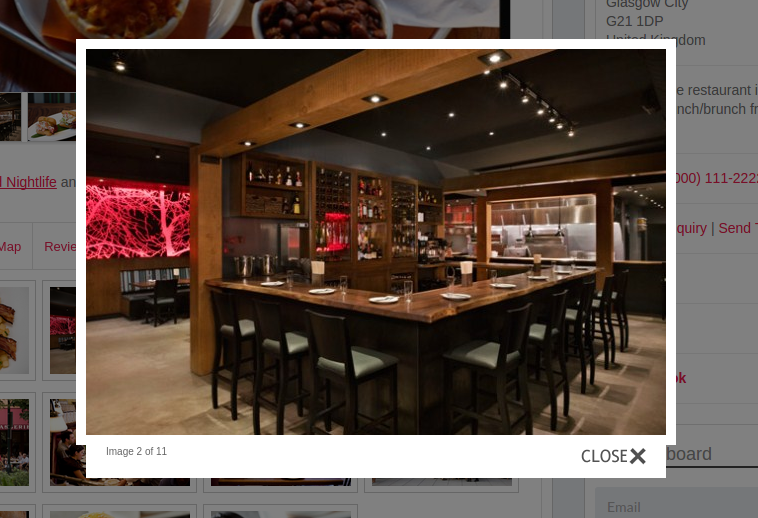
Disable GD modal: When you click on any of the photos in the photo tab, the photo will normally open in a lightbox. Check to disable.

Disable Tweet, Fb Like, Google+ buttons section: Removes this section from the sidebar

Disable share this button section: Removes this section from the sidebar

Disable Google Analytics section: Removes the ability to display Anlytics to your users.

Disable User Links section: Removes this section from the sidebar

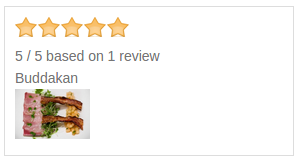
Disable Rating Info section: Removes this section from the sidebar

Disable Listing Info section: Removes this section from the sidebar

DETAIL PAGE TAB SETTINGS

Exclude selected tabs from detail page: GD detail pages come with a few default tabs, see image. Select any that you want to hide from all listing detail pages.

You can also add your own tabs: read more about GD custom fields.

tabs

DEFAULT RATING SETTINGS

Here you can change the default image used for the ratings.

  • Suggested size is 23×20 pixels,
  • the background surrounding the image has to be the same solid color as the background color of the widget, and
  • the shape itself has to be transparent.
    Stars

RELATED POST SETTINGS

Show related post listing on: With this option you can enable the Related Listings tab on the GD details page. This tab shows either listings with the same categories or tags to the listing being viewed. You can enable on a per custom post type basis.

Relate to: This option sets the related listings to be selected by either the same category or the same tags.

Layout: This gives you several options of how you want listings to appear on your related listings tab, you can select either 2,3,4,5 to a row or List view which is only 1 per line as a list.

Sort by: This option lets you sort the related listings tab by either Latest (newest added), Featured (featured first), Review (number of reviews), Rating (highest rating) or Random.

Number of posts: Here you can set how many listings maximum will be shown in the related listings tab.

Post excerpt: This is the character count that will be used for the description in the related listings tab if your layout is List View or Grid View (Two Columns).

Author page

The author page shows all listings and favorites of your users, and allows your users to edit, upgrade (if you use the Prices and Payments addon) or delete their listings.

Just like the home (location) page and the listings (category) page, the search page uses the 5 sections: top, left, right, content and bottom. Refer to the comments above for further information.

Author content section view: This gives you several options of how you want listings to appear on your author page, you can select either 2,3,4,5 to a row or List View which is only 1 per line as a list.

Description word limit: This option will limit the word count of the description used in the GD author page if you have selected to show the listings as List View.

Navigation

NAVIGATION LOCATIONS

Show geodirectory navigation in selected menu locations: Here you can select menu locations from your theme to show GeoDirectory menu settings as set from the below settings.

NAVIGATION SETTINGS

Show add listing navigation in menu: Ticking this options will show the add listings menu options in the menu selected in the above option or the default menu if none added.
menu

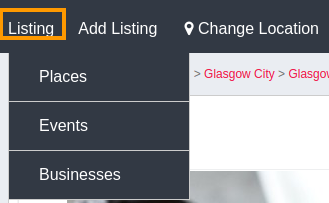
Show listings navigation in menu: Ticking this option will enable the “Listing” menu item in the menu selected above or in the default menu if none added.
menu

POST TYPE NAVIGATION SETTINGS

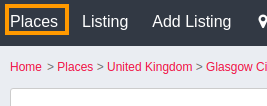
Show listing link in main navigation: This option will let you select post types to show as main links in the main menu navigation.
menu

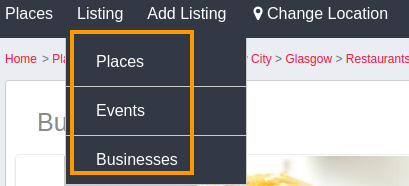
Show listing link in listing navigation: This option lets you select what post types appear under the “Listing” menu item if enabled above.
menu

Allow post type to add from frontend: This option will enable users to add the selected post type from the front end, if a post type is not added here and a user uses a direct link to the add page for that post type, then they will be redirected to the homepage.

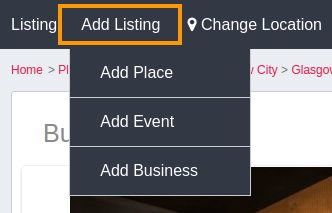
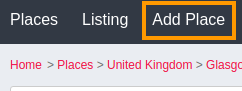
Show add listing link in main navigation: Here you can select a post type that will add a main menu item for adding that post type, for example selecting “Place” will add main menu item “Add Place”.
menu

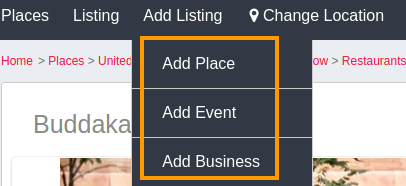
Show add listing link in add listing navigation: Here you can select the post types users can add from the front end, the link will appear under the “add listing” main menu item if enabled above.
menu

USER DASHBOARD POST TYPE NAVIGATION SETTINGS

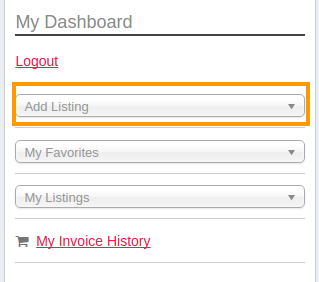
Show add listing link in user dashboard: This will add a link in the users dashboard widget to be able to add listings.
dashboard

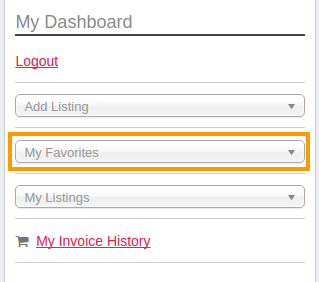
Show favorite link in user dashboard: This will add a link in the users dashboard widget to the user’s favorited listings. These links will only show if a user has favorited at least one listing.
dashboard

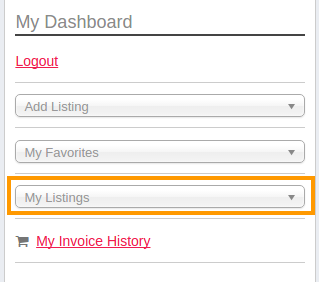
Show listing link in user dashboard: This option will add a link in the user dashboard widget to the user’s own listings in their author page. These links will only show if a user has added at least one listing.
dashboard

Script settings

GD LAZY LOAD IMAGES

Enable lazy load images: This setting will reduce page loading time considerably, because any image that isn’t visible on the screen will not be loaded until is necessary.

SCRIPT SETTINGS

Custom style CSS code: This option gives you an easy way to add CSS changes direct to the head of all the pages on your website, rather than add it to your theme’s CSS.

Header script code: This option gives you an easy way to add JavaScript to the head of your website, you must include the script tags also.

Footer script code: This option gives you an easy way to add JavaScript to the footer of your website, you must include the script tags also.

Map Settings

HOME MAP SETTINGS

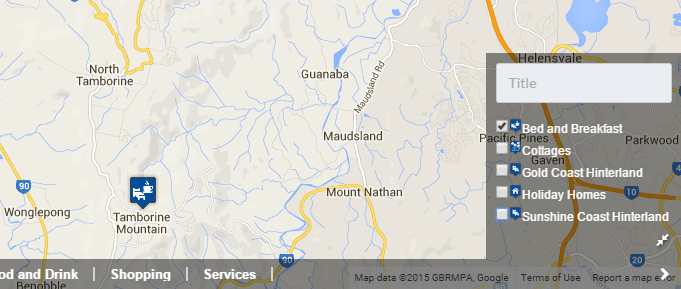
Select category to untick by default on map: By default, all categories are ticked on the map when you enter a location page. You can disable categories here, so less markers will load on page entry.
Note: You cannot check all the boxes for a post type; you need to leave at least one category per post type to load. Checking all categories is the same as checking no categories at all!

map

ADD LISTING MAP SETTINGS

Disable mouse scroll: This setting will disable zooming in or out with a scroll mouse on the map on the Add Listing page.

DEFAULT MAP SETTINGS

Default map language: The default language of your GeoDirectory maps is English, but you can change that to any language supported by Google maps by selecting your language hereThis will also change the directions given on any listing detail page, when visitors enter their address in the directions field below the map.

Default post type search on map: If you are using more than one custom post type, you can select the default post type here to show on the location maps when visitors enter the page.

Upload map default marker icon: Here you can upload another marker to be used as your default map marker.

Show button control on map to enable/disable dragging: 

SHOW / HIDE POST TYPE AND CATEGORY ON MAP

Here you can control what is shown on the homepage map, if you tick a “Post Type” then that will hide that entire post type. If you tick a “Category” then that specific category will not be shown as a tick filter on the homepage map.

Troubleshooting Guide

Some common issues users need help with are “page not found”, maps not working, or diagnosing plugin conflicts etc.

General checks Detail page goes to “page not found” Maps Redirect to homepage when submitting listing Conflict Test More information

General checks

  1. Check that you have the latest versions of all plugins.
    1. Your problem may already have been fixed in the latest versions.
    2. Only all the most current versions of all plugins and themes are guaranteed to work together and supported.
    3. Navigate to your plugin list in the backend of your website, and compare the versions in your account and downloads page.
    4. You may have to add your licenses first to enable updates.
  2. Check your WP permalinks.
    1. Go to WP Settings > Permalinks and make sure they are set to Post name.
    2. Often re-saving this settings will fix “page not found” errors, by forcing WordPress to update any changes you made in the URL structure at GD > Permalinks or in the Location Manager settings.
  3. Check the correct links to your GD pages.
    1. It is important to understand the GD pages structure, ie the location, listings, detail pages etc.
    2. Adding these shortcodes to any WP page will give you a good overview of what GD pages have been created and their correct URL:
      [gd_advanced_search]
      [gd_login_box]
      [gd_cpt_categories]
      [gd_location_switcher]
    3. Note that the last shortcode will only work if you have the Location Manager installed.

Detail page goes to “page not found”

  1. Make sure the listing is in at least one category.
  2. Review the WP Permalink comments above.

Maps

  1. Check Google Map API.
    1. Make sure that you added a key at GD > Design > Map.
    2. Make sure the key is valid for your domain.
  2. Do NOT hide the maps.
    1. Check that there are no boxes ticked at GD > Design > Map > SHOW / HIDE POST TYPE AND CATEGORY ON MAP

Redirect to homepage when submitting listing

  1. An error regularly reported is that when a listing is submitted from the frontend, instead of going to the checkout page, the site redirects to the homepage instead.
  2. This is because either the session directory on your server is not writable or it does not exists, and you will have to talk to your host to get it fixed.
  3. You can add this as a temporary fix to your wp-config.php file:
    [php]
    if ( !defined( ‘GEODIR_USE_PHP_SESSIONS’ ) ) {
    define( ‘GEODIR_USE_PHP_SESSIONS’, false );
    }
    if ( !defined( ‘WPINV_USE_PHP_SESSIONS’ ) ) {
    define( ‘WPINV_USE_PHP_SESSIONS’, false );
    }
    [/php]

Conflict Test

You can review a list of known issue here, but if your issue isn’t listed, then proceed with the conflict test here.

The test:

  1. Identify the ‘problem page’ where the issue can be seen, and leave this open in a browser tab.
  2. In another browser tab, open up the plugins page – WordPress – Plugins.
  3. Deactivate all non-GD plugins.
  4. In ‘problem page’ tab, refresh and verify if the issue is still present.

If you have a lot of plugins running on your site, here is a priority ordering:

  1. Cache related plugins. (Good idea to leave cache related plugins disabled while doing any work on the site.)
  2. Page builder plugins (Divi).
  3. Plugins with ‘heavy’ javascript or those that alter the page output.
  4. Plugins that are listed in errors in the chrome inspector.
  5. Plugins that are listed in errors in the chrome inspector.

Last but not least, try switching themes. Switch to a theme like twentyseventeen (default) to see if the issue is still present.

Advanced: It is also possible to disable all plugins via FTP. This can be ‘faster’ but requires care and precision. See this tut for more info.

More information

  1. Do and Don’t list of common errors.
  2. List of conflicts caused by some other plugins, themes etc.
  3. Troubleshooting FAQs.

GD Core Plugin – General options

These are the sections you will find when you install the GeoDirectory Core (free) plugin only:

OverviewGeneral – Google AnalyticsDesignPermalinksNotificationsSet Default LocationPlace Settings – Theme Compatibility – Import & ExportGD Tools

On this page:

General – Google Analytics – Search – Dummy Data

GeoDirectory > General

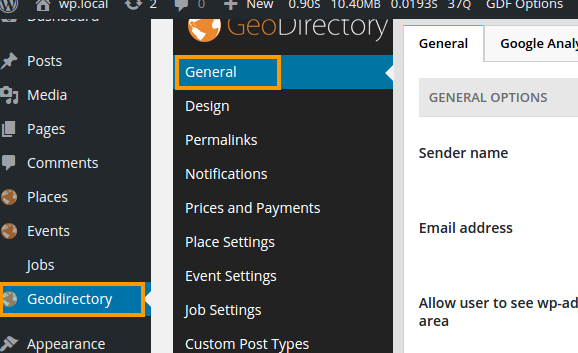
Below is an image showing where to find the options, and below the image is a video giving you a visual tutorial of the general setup:

General tab

Sender name:

This is the name of the email sender that will appear in emails sent from GeoDirectory.

Email address:

This is the email address that will be used to send email from GeoDirectory.
It is recommended to use an email address from the same domain as your GD installation to minimise your emails being marked as spam.

Allow user to see wp-admin area: 

This option allows you to block normal users from the wp-admin area; if this is enabled a user trying to visit wp-admin will just be redirected to your home page.  We understand you may need to allow users to access wp-admin for some reasons so we provide this option.

Allow user to choose own password:

This allows new users to choose their own password at registration, rather than having a random password sent to them.

Disable rating on comments

Tick here if you like reviews on your site, but do not want users to give star ratings.

User deleted posts go to trash

Your users can delete their listings, but here you can choose if you’d like them to be permanently deleted straightaway or you want to move them to the temporary trash, so they can be restored by an administrator if required.

Max upload file size(in mb)

Limit any file upload for any GD upload features.

Select CPT to disable physical location

This option will only be here if the Custom Post Type addon is activated.

If you want a CPT without any addresses, select the CPT here. For example, online businesses etc

Google Analytics tab

This tab allows you to setup Google Analytics so you can analyse your website traffic, and you can also make Google Analytics available to be shown to your users.

Please see this page for full setup instructions.

Search tab

Limit squared distance area to X miles (helps improve search speed):  

This setting is used when you make a search using the “Near” box.
If there was no setting here then any search would return every result matching your search term ordered by distance from the “Near” location. This is OK on a small site but if your site has thousands or more listings, then this can slow the search results down.
This setting will limit the search to only listings within X square miles of the “Near” location.
For example if you set the setting to 25 and did a search for Food Near: empire state building it would only return listings within a 25 square miles area of the empire state building, or within a radius of about 4 miles.

Show search distances in miles or km:  

This option will show search result distances in either miles of kilometers.

If distance is less than 0.01 show distance in meters or feet:

If distances are less than 1/100 th of a mile or kilometer, then ticking this option will show the result in feet or meters.

Add location specific text to (Near) search for Google

  1. You can use this option if your directory is limited to one restricted area such as New York or Australia.
  2. Example:
    1. If you have a directory for Canada only, you would enter Canada in this field.
    2. That will then restrict a search for London to the city of London in Canada, rather than finding no listings in London in the United Kingdom.
  3. Review how the search works here.
  4. Leave this setting blank if you are using default country, regions etc with the multilocation addon; any default locations selected there are automatically added to this option.

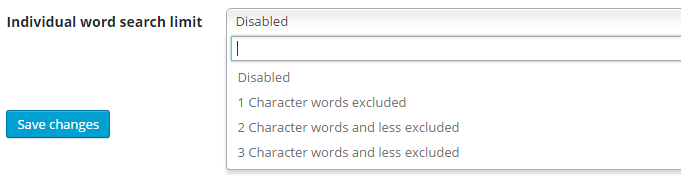
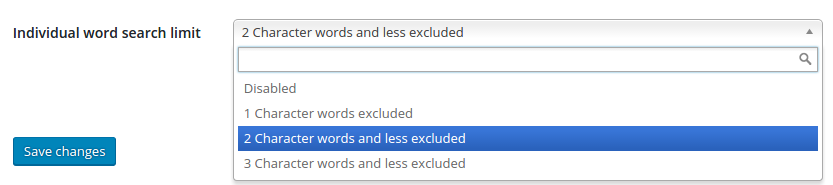
Individual word search limit

  1. With this option you can limit individual words being searched for, for example searching for “on the hill” would return results with words like “The Spoon Shop or Theme parties” or Once upon a time.
  2. You can exclude these types of short words if you wish.
  3. You have three options:
    search
  4. 1 character words excluded: This will ignore any single character being searched, for example if a visitor searches for “a hairdresser“, the search will not return all listings where it finds the letter “a“.
  5. 2 character words and less excluded: Similarly, for example if a visitor searches for “on a hill“, the search will not return all listings where it finds the letter “a” or “on” within a word.
  6. 3 character words and less excluded: Similarly, for example if a visitor searches for “on the hill“, the search will not return all listings where it finds the letter combination of “on” or “the” within a word.

Dummy Data tab

This step will add a few categories and listings to your site, so you can get a feel of what is possible with your GeoDirectory site. You will be able to delete them later.
Once your site has loaded the dummy data, an option to delete the data will be available. Your normal listings will not be affected by the removal of the dummy data.

Installing the dummy data is explained as part of the basic installation document.

GeoDirectory Main Plugin – Overview

These are the sections you will find when you install the GeoDirectory Core (free) plugin only:

Overview General Google Analytics Design Permalinks Titles & Metas Notifications Set Default Location Place Settings Theme Compatibility Import & Export GD Tools

Places,  GeoDirectory and GD Widgets.

Once you installed and activated the GD plugin, extra options will be added to your WP Dashboard.

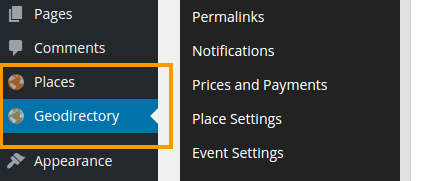
This is where you will find the Places and GeoDirectory options in your WP Dashboard.

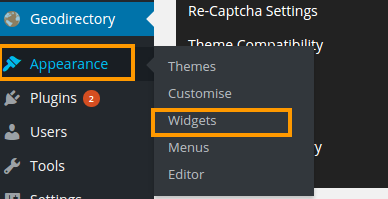
You will also find a number of GD widgets in the Appearance > Widgets area of your WP installation.

Basic installation


For these instructions, we will assume you already have WordPress installed and have the theme activated that you wish to use with GeoDirectory.

The short version:

  1. Download GD plugin
  2. Activate GD plugin
  3. Map settings
    1. Setting a Google Maps API KEY
    2. Set the default location
  4. Change WordPress settings
    1. Post settings
    2. Registration settings
    3. Media settings
    4. Comments/reviews settings
  5. Install dummy data (optional but recommended)
  6. Setting your home page
  7. Setup automatic updates

1. Download plugin:

Review these notes about server requirements and Managed WordPress Hosting first.

Automatic installation

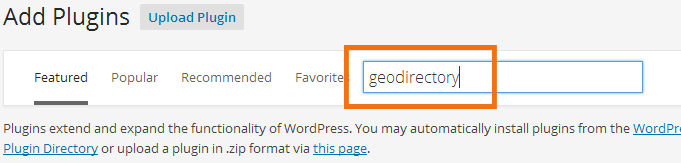
Automatic installation is the easiest option. To do an automatic install of GeoDirectory, log in to your WordPress dashboard, navigate to the Plugins menu and click Add New.

In the search field type GeoDirectory and Enter. Once you’ve found our Directory plugin you install it by simply clicking Install Now.

Manual installation

The manual installation method involves downloading our Directory plugin and uploading it to your web server via your favourite FTP application. The WordPress codex will tell you more here.

You can download the plugin from WordPress.org here, and save it on your computer.

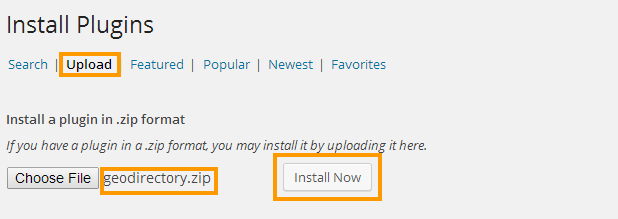
Then in your WordPress Dashboard, go to Plugins > Add New,  then select Upload and browse to the GeoDirectory zip file you downloaded from WordPress.org. Click Install Now.

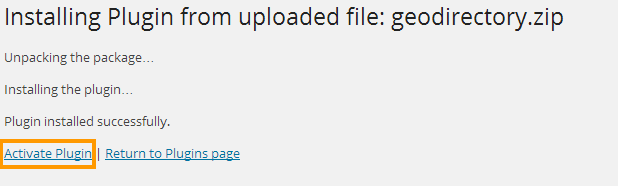
2. Activate the plugin

This might take a few seconds while the plugin installs the required database tables.

3. Map settings:

  1. After activation you will see a message asking you if you want to set a Google Maps API KEY, and another message to set your default location.

3A. Setting a Google Maps API KEY

  1. Clicking on the click here link will take you to GD > Design > Map.
  2. Follow the instructions in the Add Google API KEY article.

3B. Set the default location

  1. Clicking on the click here link will take you to GD > Set Default Location.

You have two ways to set the default location:
See also GD Core Plugin – Default Location

#1 Enter a city, region and country for your default location and then click Set Address On Map, this will set the GPS info as required and move the map marker to the correct location. Note: If you set the lat/lon manually, it should be in the format 32.715738, -117.16108380000003, not 117.1611° W, 32.7157° N.
Then click Save changes.

There is no need to enter the latitude or longitude.

#2 You can drag the map marker to the location you wish to use as a default location and we will try to fill in the location details, you should check the location details and make any corrections as required.
Then click Save changes to set the default location.

There is no need to enter the latitude or longitude.

4. Change WordPress settings:

For GeoDirectory to work correctly, you need to set WordPress permalinks to use Post name

From the main WordPress Dashboard menu, choose Settings > Permalinks > Tick Post name, and Save changes.

For GeoDirectory to work correctly, you also need to allow Anyone to register.

From the main WordPress Dashboard menu, choose Settings > General > Tick Anyone can register, and Save changes.

For GeoDirectory to work correctly, you also need to Organize my uploads into month- and year-based folders.

From the main WordPress Dashboard menu, choose Settings > Media > Tick Organise my uploads into month- and year-based folders, and Save changes.
Note:The default folder for uploaded images is wp-content/uploads. Do not change this folder.

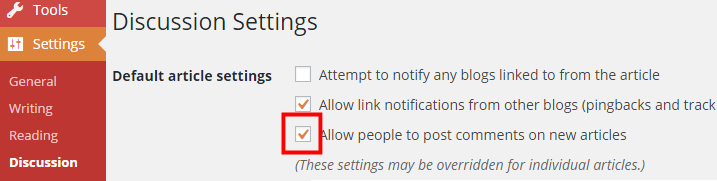
If you want visitors to leave reviews, you need to

From the main WordPress Dashboard menu, choose Settings > Discussion > Default article settings > Tick Allow people to post comments on new articles, and Save changes.

5. Install dummy data (optional but recommended): 

This step will add a few categories and listings to your site, so you can get a feel of what is possible with your GeoDirectory site. You will be able to delete them later.

If you do not install the dummy data or you delete the dummy data, you will have to make sure that you create at least one category for your Custom Post Types like Places or Events, or you will not be able to add any listings.

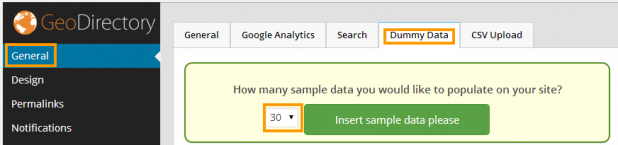
Click on the General tab under the GeoDirectory logo and then select the dummy data tab.  You can select how many listings you would like to install, 10 is the default but you can install up to 30.  After clicking Insert Sample Data there will be a short wait while the dummy images are downloaded and the dummy address info created for your default location. You will see an ajax counter displaying the progress and it will let you know when the installation of the dummy data is finished.
dummy

6. Setting your home page:

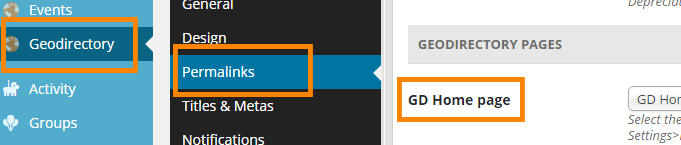
  1. Navigate to GD > Permalinks, and under GeoDirectory Pages, you’ll see GD Home Page.
    Choose your directory start page here:
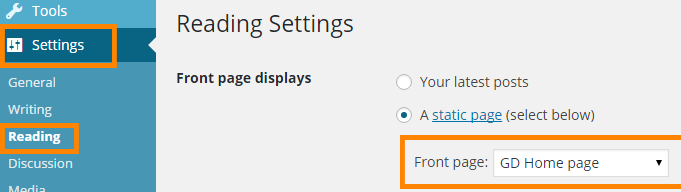
  2. If you want to use your directory start page for the homepage of your website, make sure you choose the same page at Settings > Reading > Front page displays > Front Page:
  3. If you want to use one of your normal WordPress pages for the homepage of your website, then at GD Home Page select GD Home Page, but choose your normal WordPress page at Settings > Reading > Front page displays > Front Page.

7. Setup automatic updates

  1. Visit this link to learn how easy updates can be:
  2. https://wpgeodirectory.com/docs/installing-addons/#updates

GeoDirectory definitions

You will find a lot of terms and abbreviation throughout the documentation and the admin area of GeoDirectory, and the meaning of some of them might not directly be clear. The table below might help you find what you’re looking for.

Addon Extra plugin giving your GeoDirectory website advanced capabilities
Backend The administration area of your website, usually only accessible to the administrators of your site
Core GeoDirectory main plugin
CTP Custom Post Types
Default location A default location is essentially the first location (see below) required to be entered into the system, and follows the Google Maps API.
Detail page The detail template is used to display all the detail of each of your listings.
GD GeoDirectory
GDF GeoDirectory Framework (theme)
GD page A page on your website based on a GD template
Frontend The public part of your website, where users can add their listings and visitors can browse the site
InfoWindow An InfoWindow displays content (address and an image) in a popup window on the maps, at a given location. The info window  attached to a specified location on the map.
Sometimes also called a bubble or a map pop-up.
Listings page This is the template that will display a list of all listings in a particular category or custom post type, and will show different listings depending on location and category requested.
Location Refers to cities (towns or villages etc), regions (states or provinces etc) and countries
For every location in your database there will be a separate page created automatically
These locations are based on the Google Maps API, and the size of cities (towns, suburbs or villages etc depending on the country) can vary greatly from country to country.
Your locations need to be therefore always city > region > country, exactly like Google suggests when you add a listing from the frontend.
For example Los Angeles > California > Unites States [not LA > CA > US].
If your site is not in English, change the map language before checking location format on your Add Listing page.
Non-GD page A page on your website created without using a GD template, for example a normal WordPress page, or a BuddyPress page etc
Places Places is the default name for the default Custom Posts created by the basic GD plugin.
Places does not refer to locations like cities etc, but refers to businesses etc
Users People that have registered a user account on your WordPress website
Visitors People that are visiting your website but do not have a user account on your WordPress website, or are not logged in
WP You guessed it: WordPress